Update Python on z/OS (IBM Open Enterprise SDK for Python)
Every few months IBM publishes new versions of IBM Open Enterprise SDK for Python. The PTFs are cumulative, so it is enough to install the latest one: right now, 3.14.7.1, from October 29, 2026.
We will update it the same way we did with Node.js: each version in its own zFS and a current symlink that points to the one we use. That way, if something fails, going back is just changing the symlink.
The changes in each version are in IBM's fix list.
Which version we have and where it is
From OMVS (TSO OMVS), we check the Python version we have. In this case, Python 3.14.0.1.
We also see the directory: /usr/lpp/IBM/cyp/v3r14/pyz/bin/python3
And the zFS it uses: PYTHON.V3R14M0.ZFS
python3 -V
which python3
df -kP /usr/lpp/IBM/cyp/v3r14/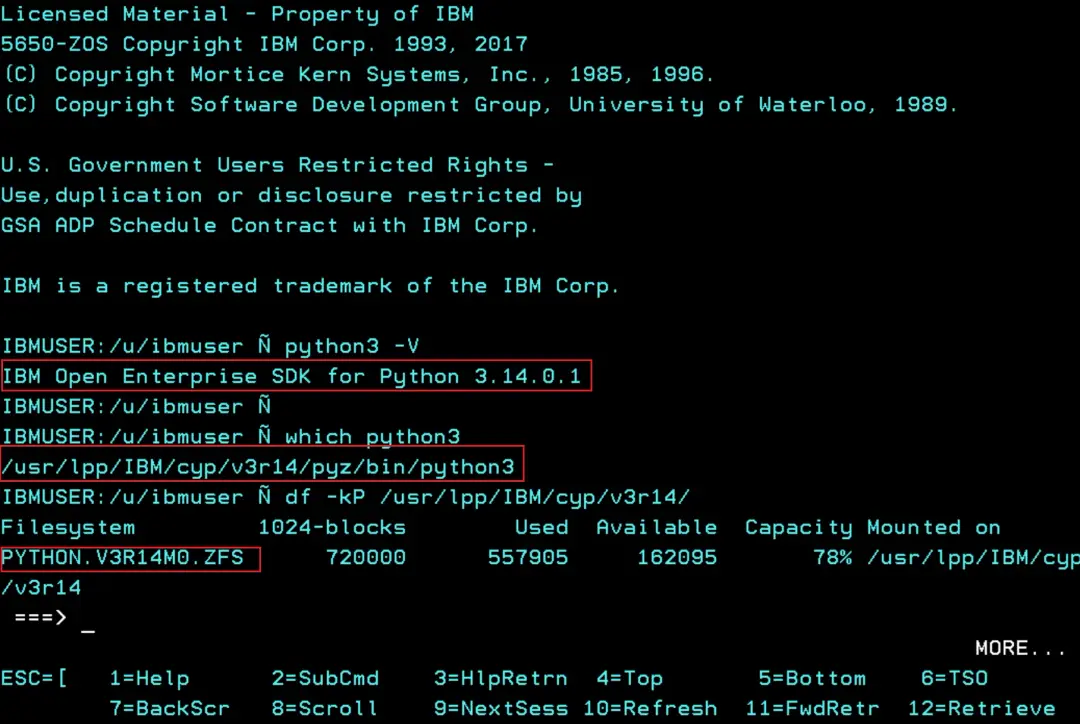
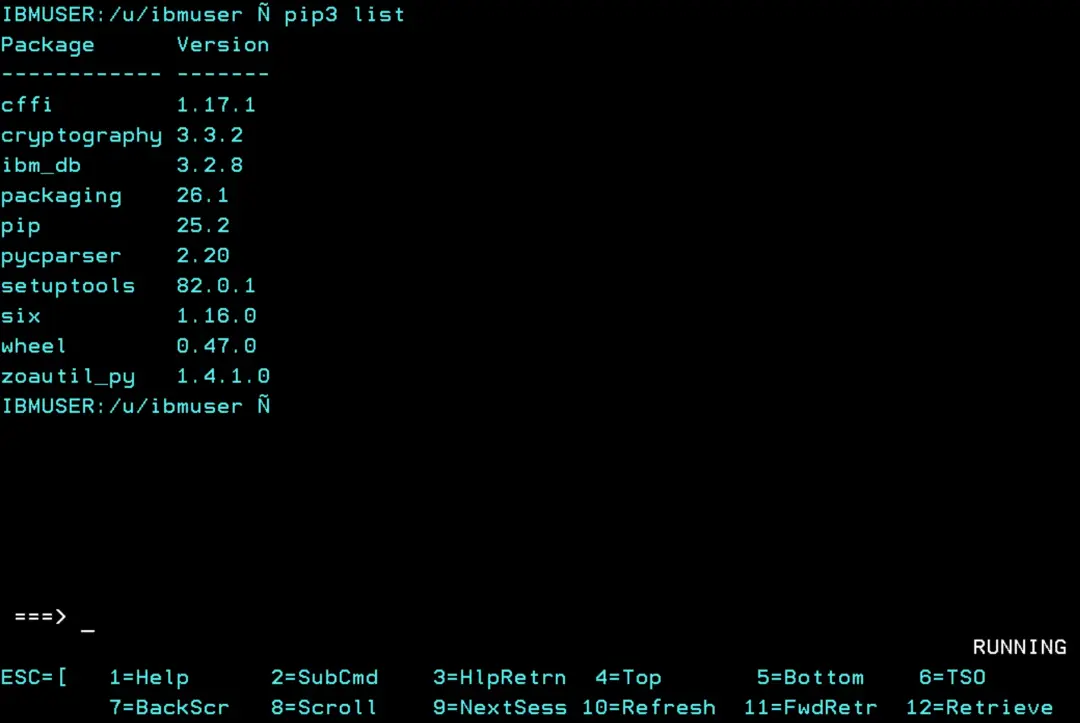
We can check the list of installed packages.
pip3 listWe will not have the ibm_db and zoautil_py packages in the new installation. Later on we will see how to install them in the new version.
Download the new version
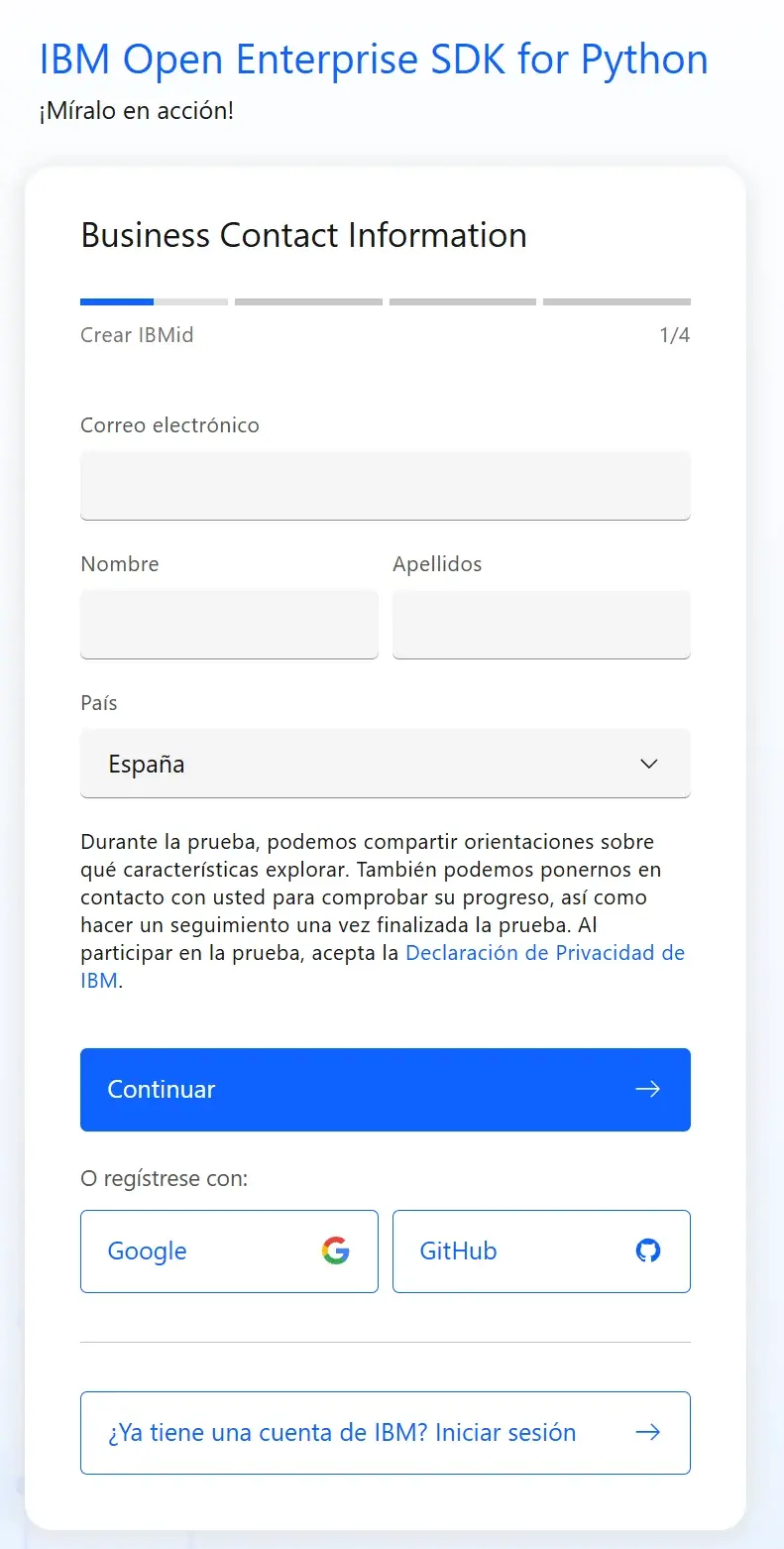
IBM distributes it in two ways: as an SMP/E product, ordered through Shopz, or as a pax file, which is a free download. As with Node.js, we will use the pax file. It is downloaded from the product page, with the «Download now» button (it asks you to sign in with an IBMid), and it takes about 250 MB.
Before downloading it, we go through the requirements. Here is a summary; the details are in IBM's installation guide.
- z/OS 2.5, 3.1 or 3.2 with z/OS UNIX System Services, on a z13 machine or later (up to z17).
- About 660 MB for the installation and another 660 MB free in /tmp. If /tmp does not have the space, we can use another directory with the TMPDIR variable.
- /usr/bin/env must exist. We will see it in the environment variables section.
There are also some optional requirements:
- zIIP: Python can run on zIIP processors. On z/OS 2.5 it needs APAR OA63406.
- A C/C++ compiler, if we are going to install pip packages that include native code.
- ICSF, only if the machine is a z14.
We check the free space in /tmp. In this case we have about 1,000 MB, so there is no need to use TMPDIR:
df -kP /tmp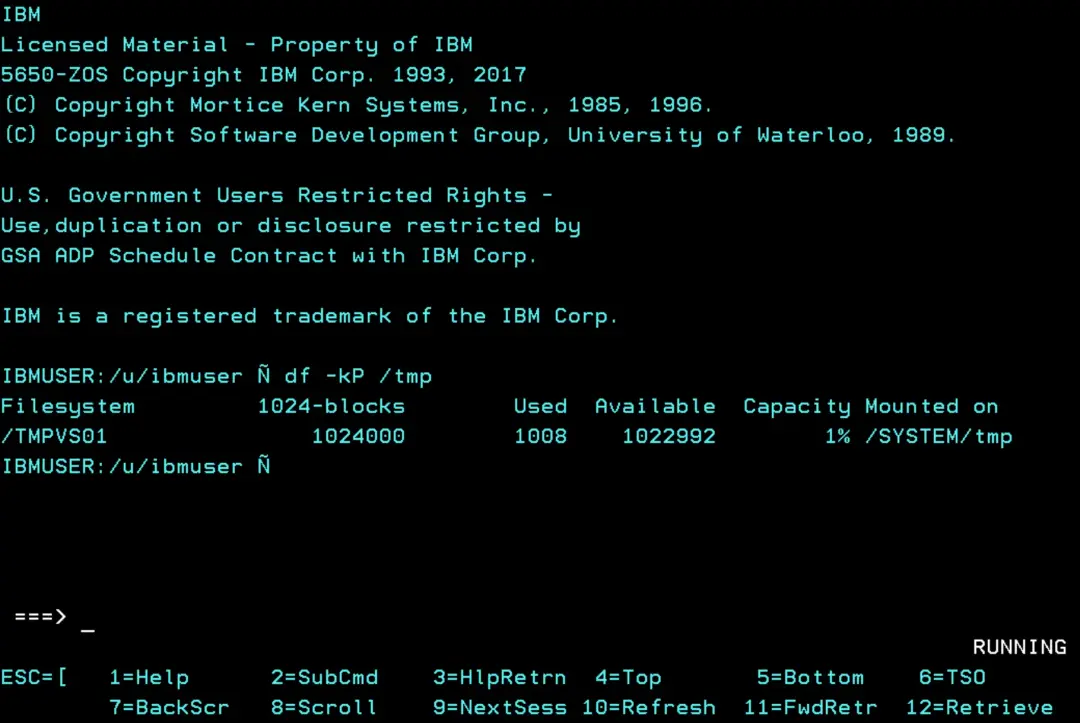
Product page: IBM Open Enterprise SDK for Python
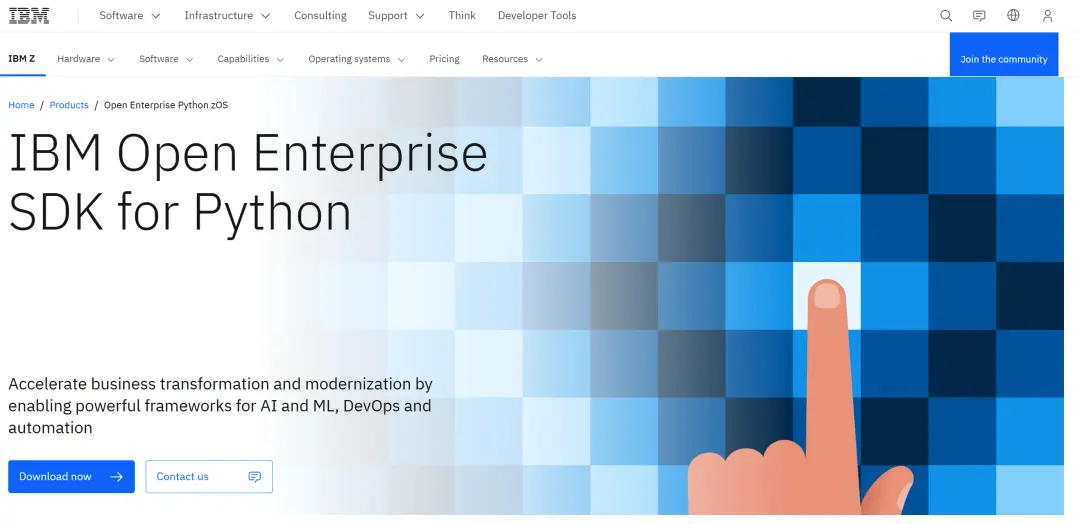
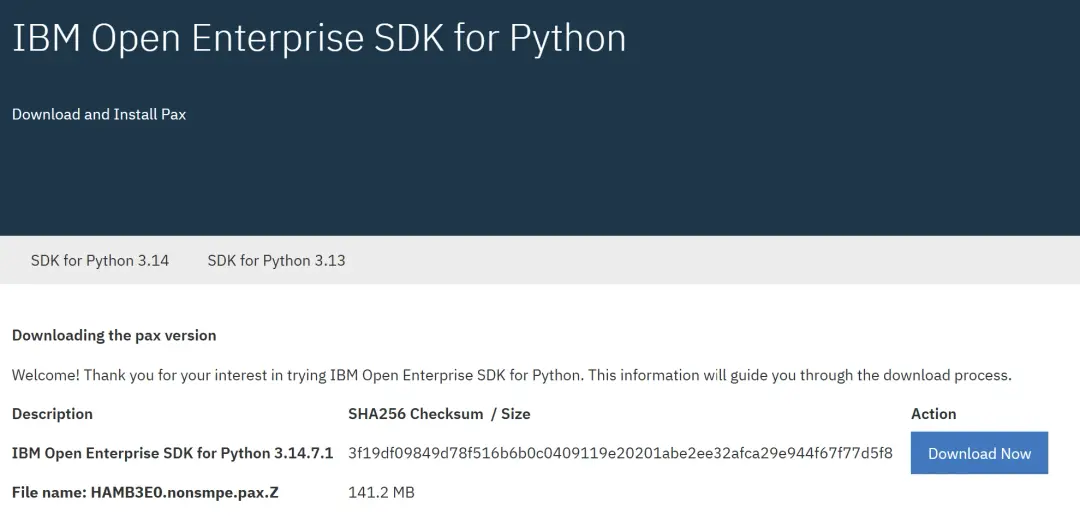
We can choose between Python 3.13 and 3.14. I will choose 3.14.
It is downloaded with the name HAMB3E0.nonsmpe.pax.Z.
Create a zFS for the version
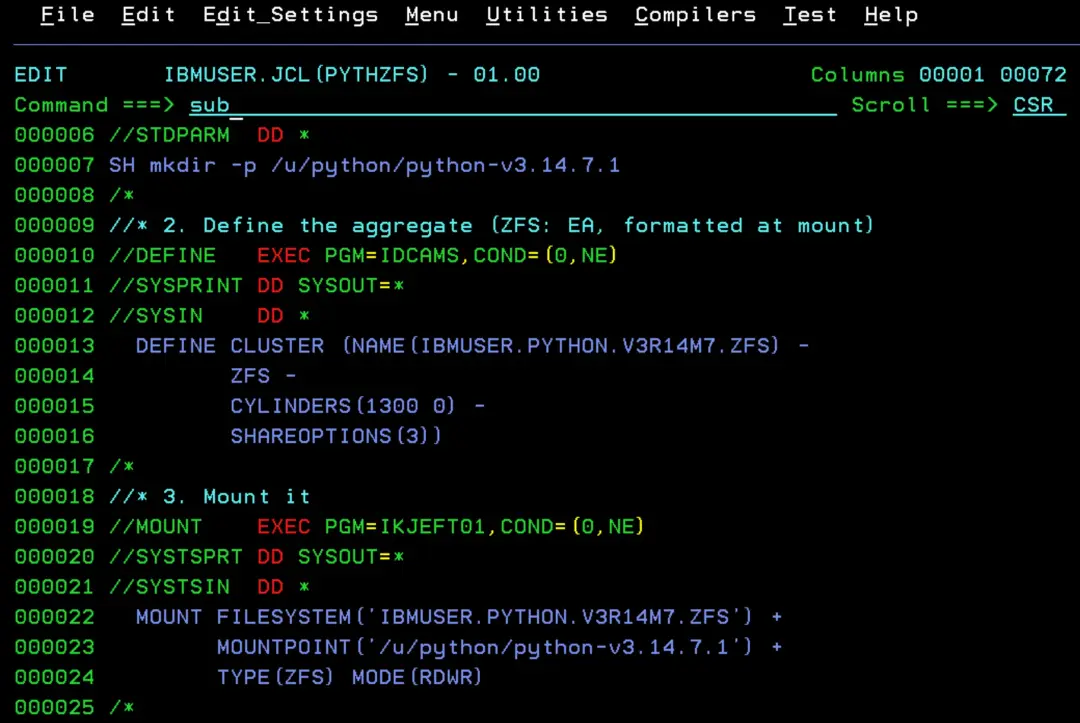
As with Node.js, we create a zFS for each version. That way each version stays separate from the others and, if something fails, we can go back to the previous one. We can generate the job with the zFS Generator. The installation takes about 660 MB and the pax file about 250 MB, so with 1,300 cylinders (a little over 1 GB) we have room for pip packages.
//ZFSNEW   JOB (ACCT),'CREATE ZFS',CLASS=A,MSGCLASS=X
//* 1. Mount point
//MKDIR    EXEC PGM=BPXBATCH
//STDOUT   DD SYSOUT=*
//STDERR   DD SYSOUT=*
//STDPARM  DD *
SH mkdir -p /u/python/python-v3.14.7.1
/*
//* 2. Define the aggregate (ZFS: EA, formatted at mount)
//DEFINE   EXEC PGM=IDCAMS,COND=(0,NE)
//SYSPRINT DD SYSOUT=*
//SYSIN    DD *
  DEFINE CLUSTER (NAME(IBMUSER.PYTHON.V3R14M7.ZFS) -
         ZFS -
         CYLINDERS(1300 0) -
         SHAREOPTIONS(3))
/*
//* 3. Mount it
//MOUNT    EXEC PGM=IKJEFT01,COND=(0,NE)
//SYSTSPRT DD SYSOUT=*
//SYSTSIN  DD *
  MOUNT FILESYSTEM('IBMUSER.PYTHON.V3R14M7.ZFS') +
        MOUNTPOINT('/u/python/python-v3.14.7.1') +
        TYPE(ZFS) MODE(RDWR)
/*
We submit the job.
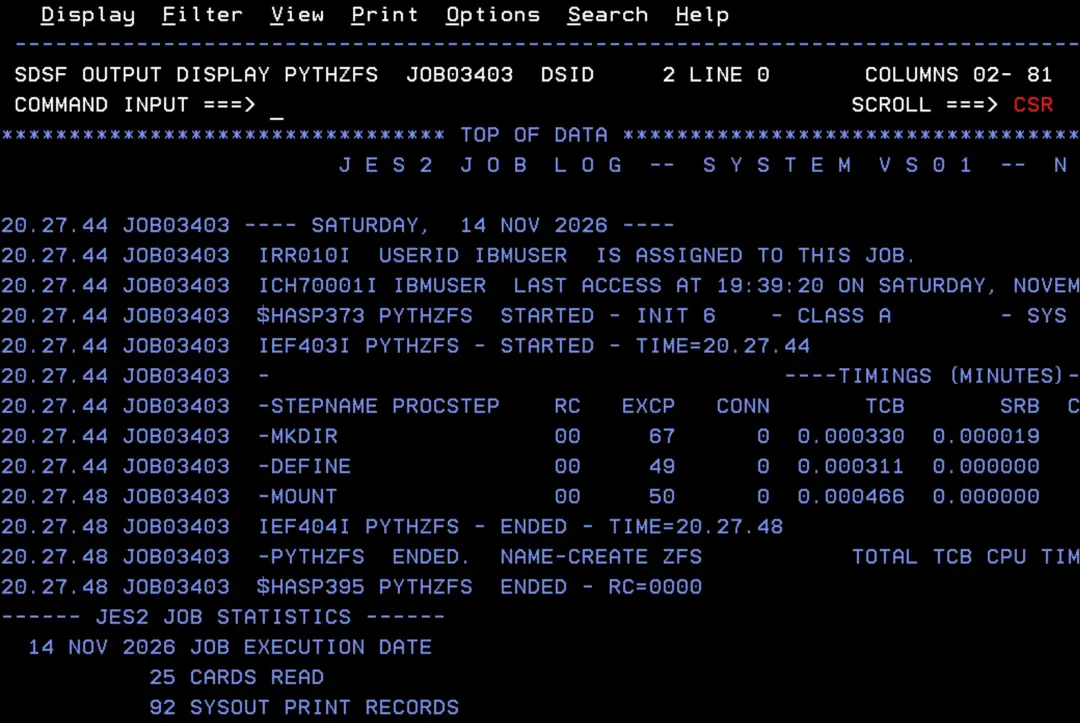
The job ends successfully.
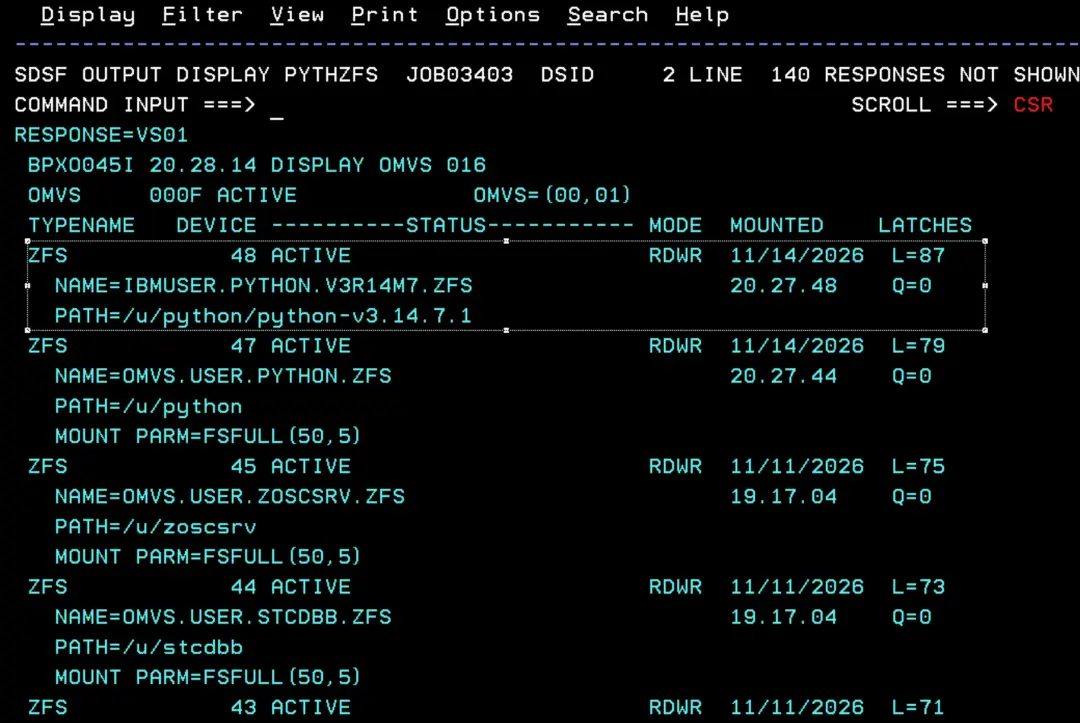
We check that the new zFS is mounted.
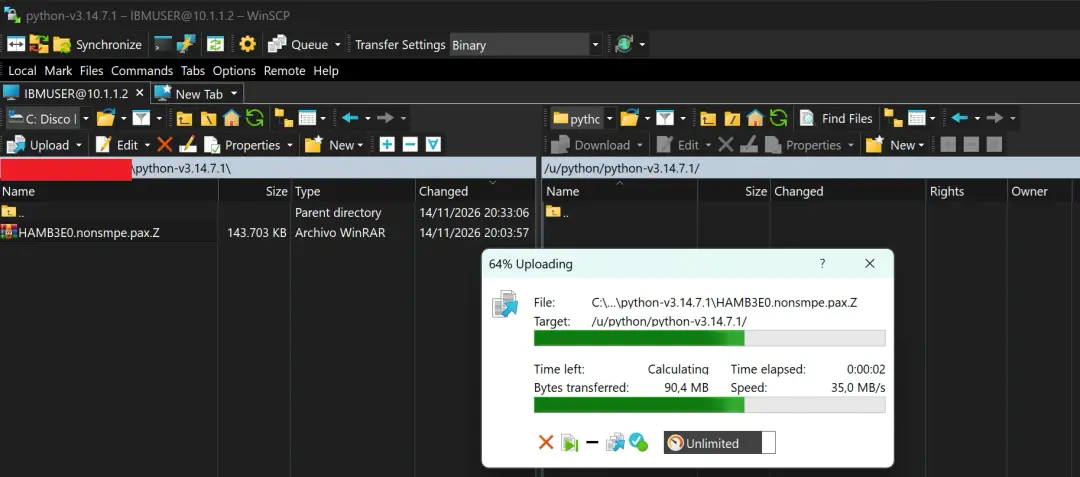
We upload the pax file by FTP, in binary mode, to the /u/python/python-v3.14.7.1 directory.
Unpack
We go to OMVS and unpack the file:
cd /u/python/python-v3.14.7.1
pax -r -ppAx -f HAMB3E0.nonsmpe.pax.Z
ls -l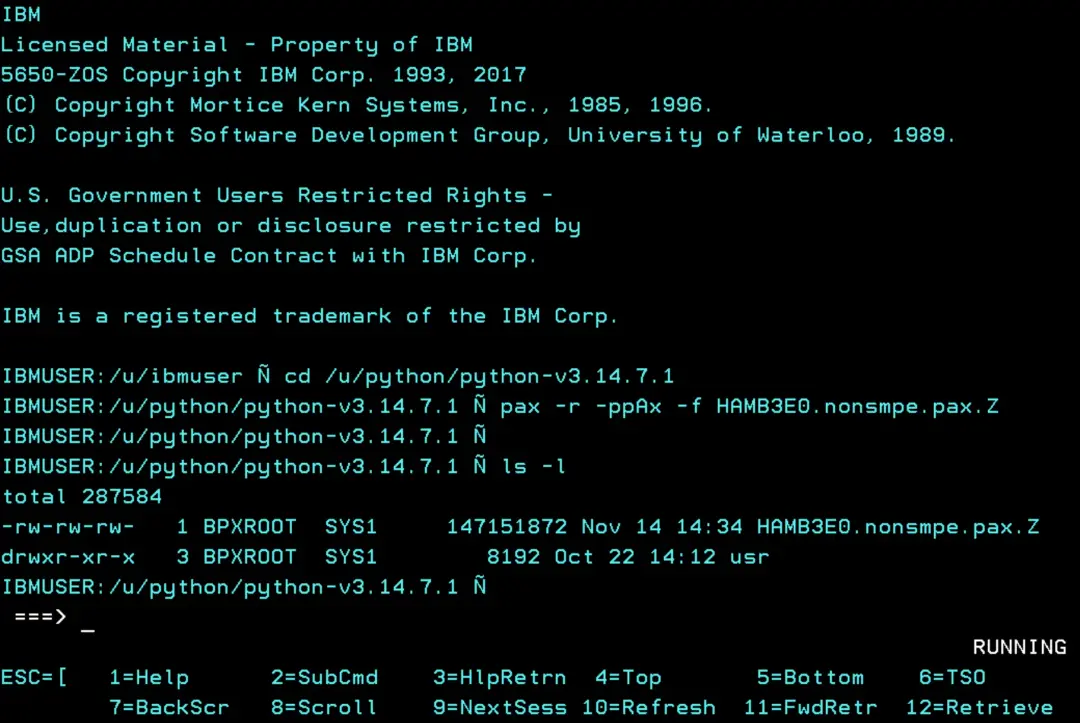
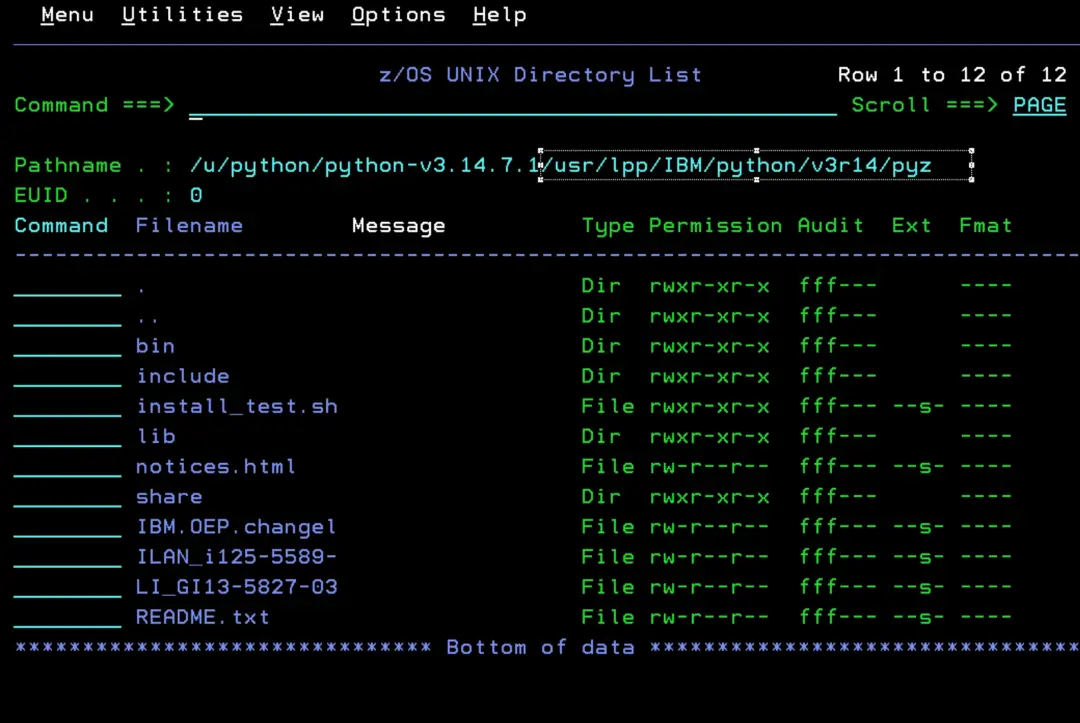
In the previous screenshot we see that the unpacked folder is "usr"; this is because it keeps the original path "/usr/lpp/IBM/python/v3r14/pyz/", under the directory where we uploaded it.
<path to install dir>/usr/lpp/IBM/python/v3r14/pyz/IBM warns about this:
IBM Open Enterprise SDK for Python installation path update
The installation path for the IBM Open Enterprise SDK for Python has been updated. A symbolic link is provided at the previous path to maintain backward compatibility.
Note: The deprecated path and its symbolic link will be removed in future releases.
New path: The updated installation path for the IBM Open Enterprise SDK for Python is: <path_to_python_install>/usr/lpp/IBM/python/v3r14/pyz.
Old path (deprecated): The previous installation path is now deprecated and should no longer be used: <path_to_python_install>/usr/lpp/IBM/cyp/v3r14/pyz.
Symbolic link details: A symbolic link exists to redirect references from the deprecated directory to the updated location: <path_to_python_install>/usr/lpp/IBM/cyp/ → ../python/v3r14.
According to the documentation, if this error appears when unpacking, it is because the user who unpacked it is not authorized to give the APF attribute to the shared library. Python will still work, but it will run on the general processor (CP) instead of zIIP.
I think it is important to give this attribute so that it uses the zIIP processors.
pax: FSUMF073 usr/lpp/IBM/python/v3r14/pyz/lib/python3.14/lib-dynload/libpyzutil.cpython-314.so: user not authorized to restore extended attribute "a"An authorized user can give the APF attribute later:
extattr +a <path_to_python_install>/lib/python3.14/lib-dynload/libpyzutil.cpython-314.soWe check it with the command:
extattr <path_to_python_install>/lib/python3.14/lib-dynload/libpyzutil.cpython-314.soFor example:
cd /u/python/python-v3.14.7.1/usr/lpp/IBM/python/v3r14/

extattr pyz/lib/python3.14/lib-dynload/libpyzutil.cpython-314.so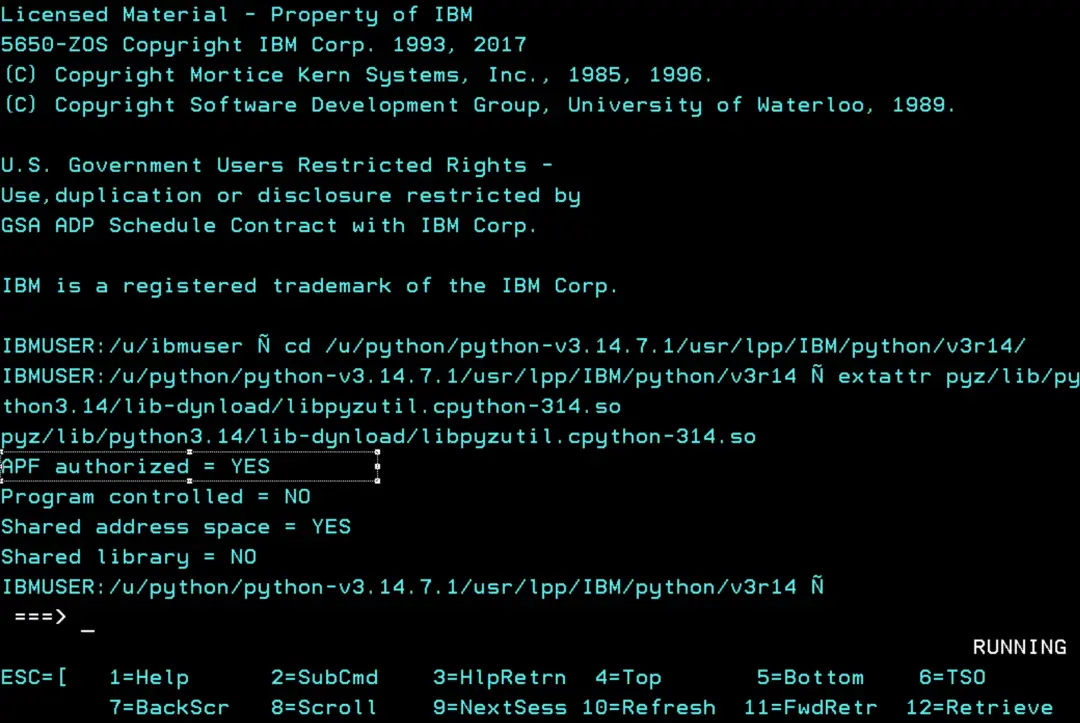
Check the installation
cd /u/python/python-v3.14.7.1/usr/lpp/IBM/python/v3r14/pyz
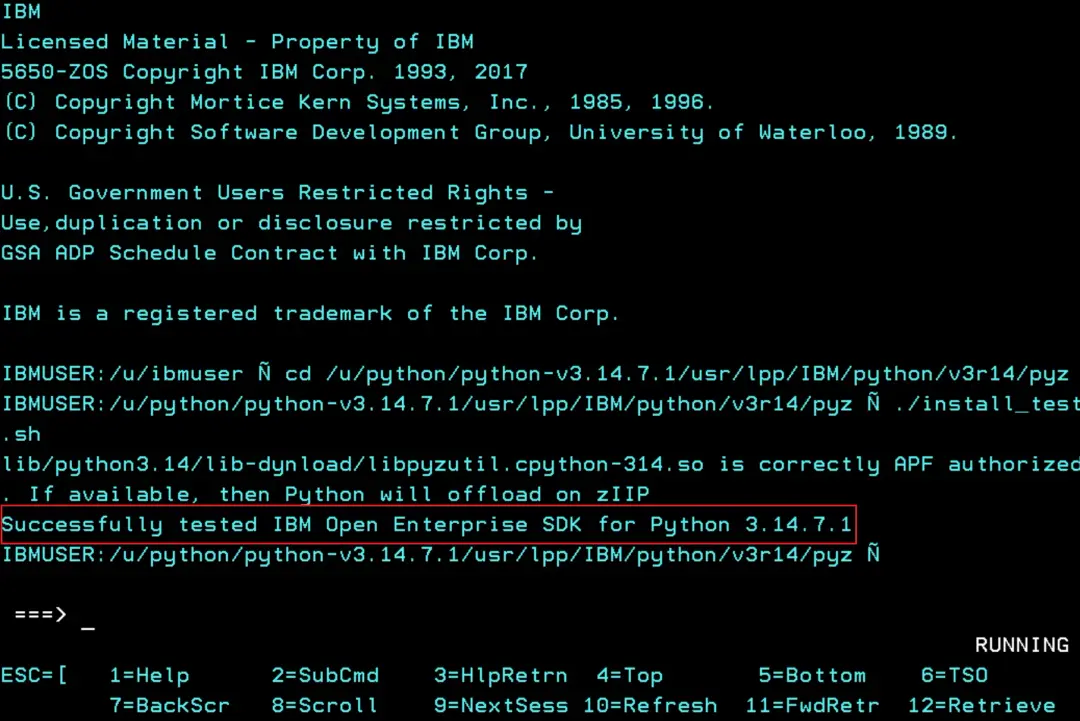
./install_test.sh
If we meet all the prerequisites, we will see the message:
Successfully tested IBM Open Enterprise SDK for Python 3.14.7.1 If there is an error, a message shows the PTFs we are missing.
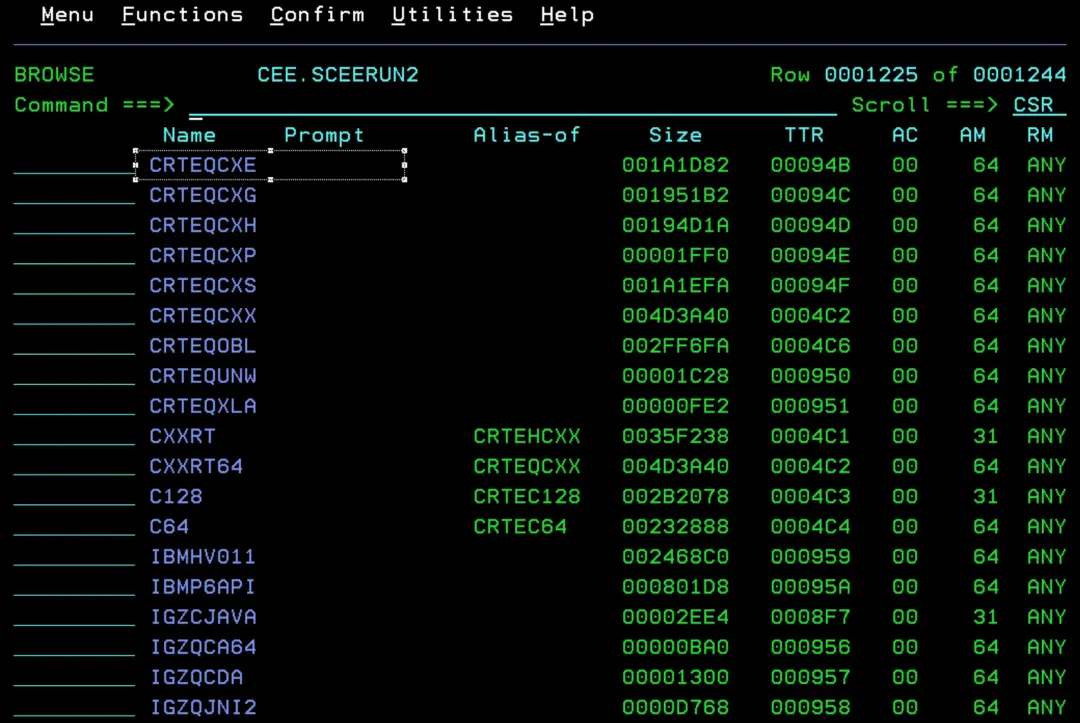
We must also check that the member *.SCEERUN2(CRTEQCXE) exists on the system.
If it is in a non-standard location, we must add the _CC_PLIB_PREFIX environment variable.
Example:
_CC_PLIB_PREFIX=xxxxx
Where xxxxx is the prefix (HLQ) of the Language Environment libraries. The default is CEE.
Environment variables
We must check that "/usr/bin/env" exists. If it is not set up, follow the instructions:
Customization and environment configuration (IBM Docs)
ls -l /usr/bin/env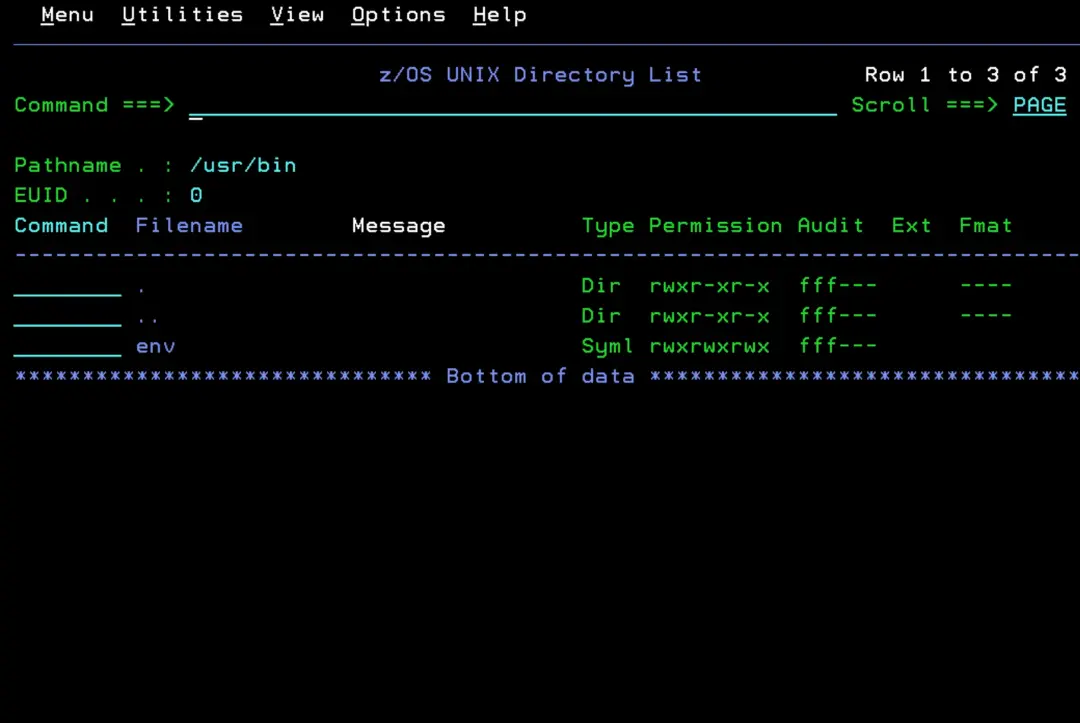
Unlike Node.js, there is no setup.sh here to prepare the variables: we define them ourselves. They are the ones in IBM's guide, but pointing to the /u/python/current symlink, which we will create in the next step.
PATH and LIBPATH say where Python's programs and libraries are; the other two make z/OS convert files between EBCDIC and ASCII automatically.
export PATH=/u/python/current/bin:$PATH
export LIBPATH=/u/python/current/lib:$LIBPATH
export _BPXK_AUTOCVT='ON'
export _CEE_RUNOPTS='FILETAG(AUTOCVT,AUTOTAG) POSIX(ON)'
We add them at the end of the .profile in our HOME, so that they are loaded every time we enter OMVS. If it does not exist, we create it.
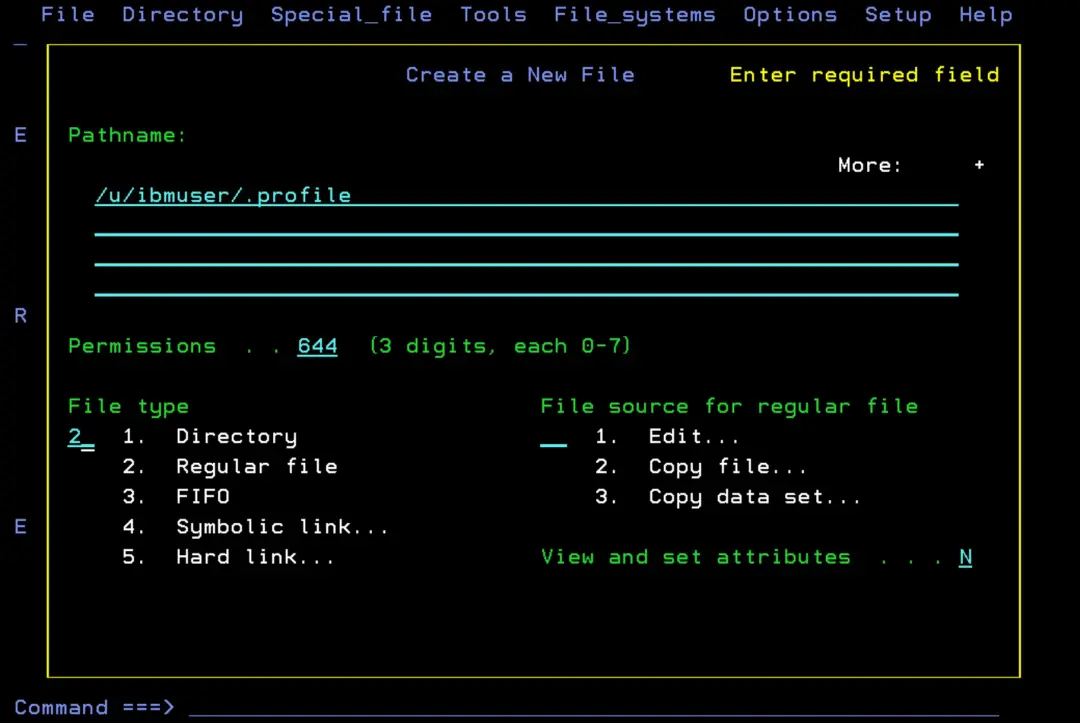
From TSO ISHELL, we type the file name and press ENTER to create it:
/u/ibmuser/.profile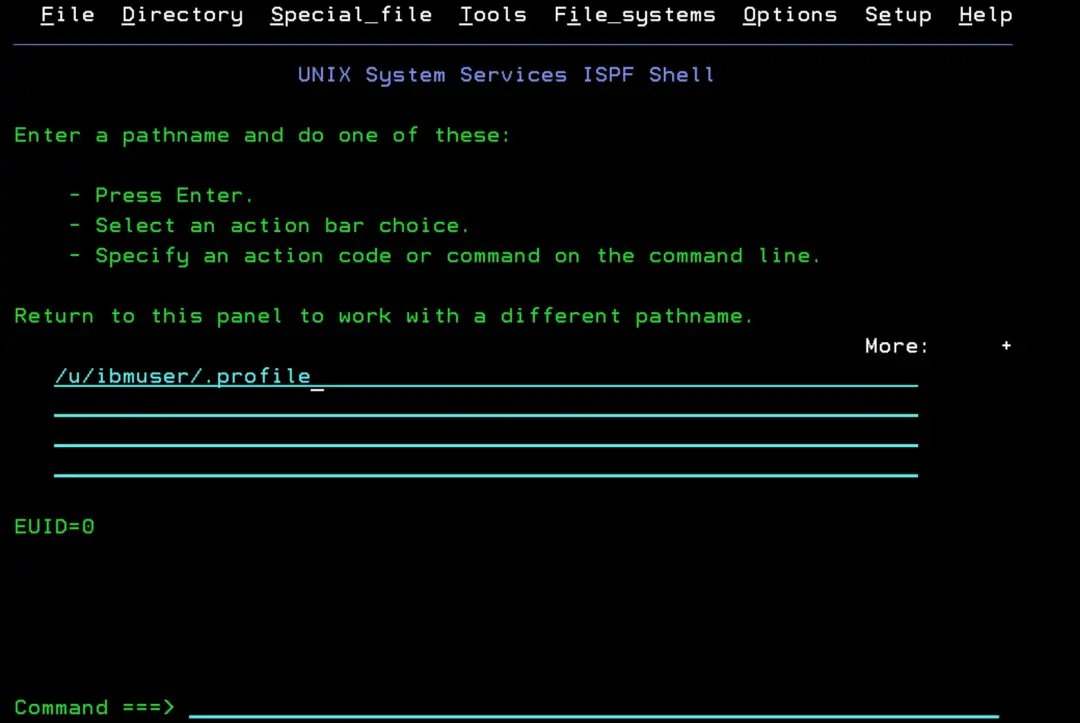
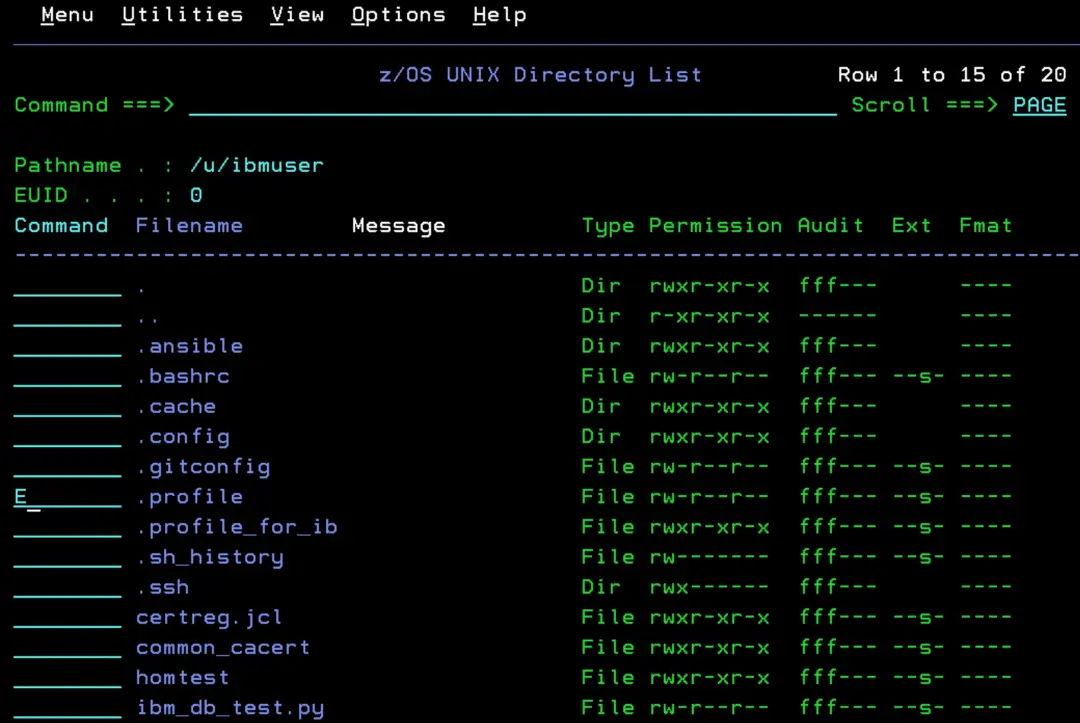
From ISPF option 3.4, we look for the path "/u/ibmuser" and edit the ".profile" file.
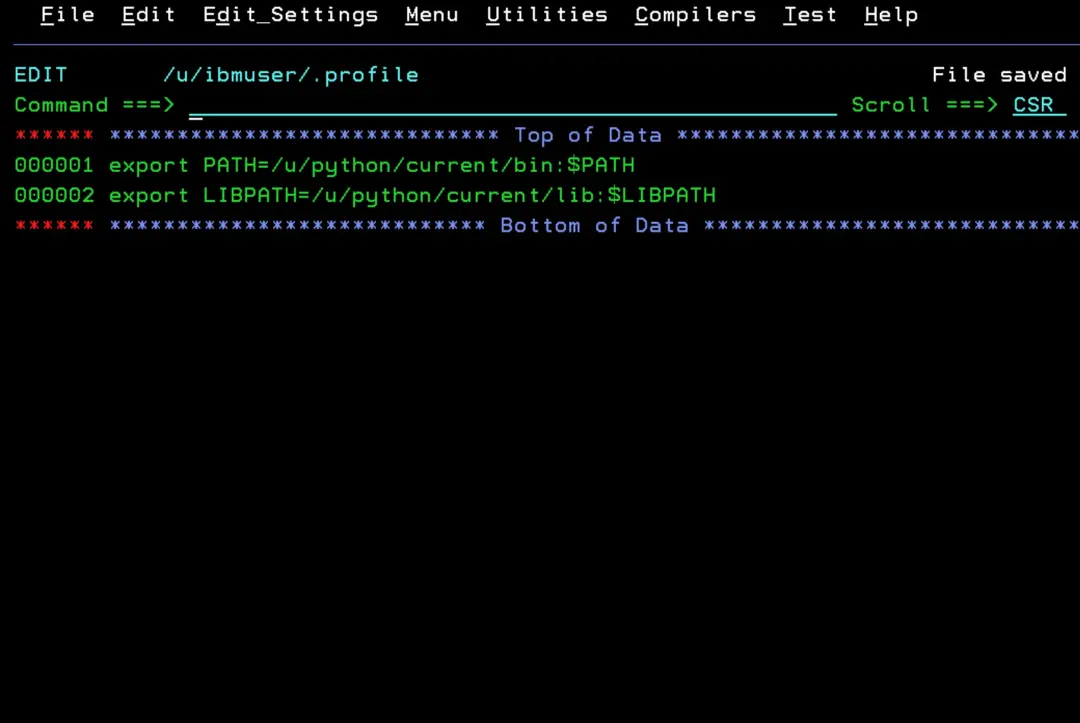
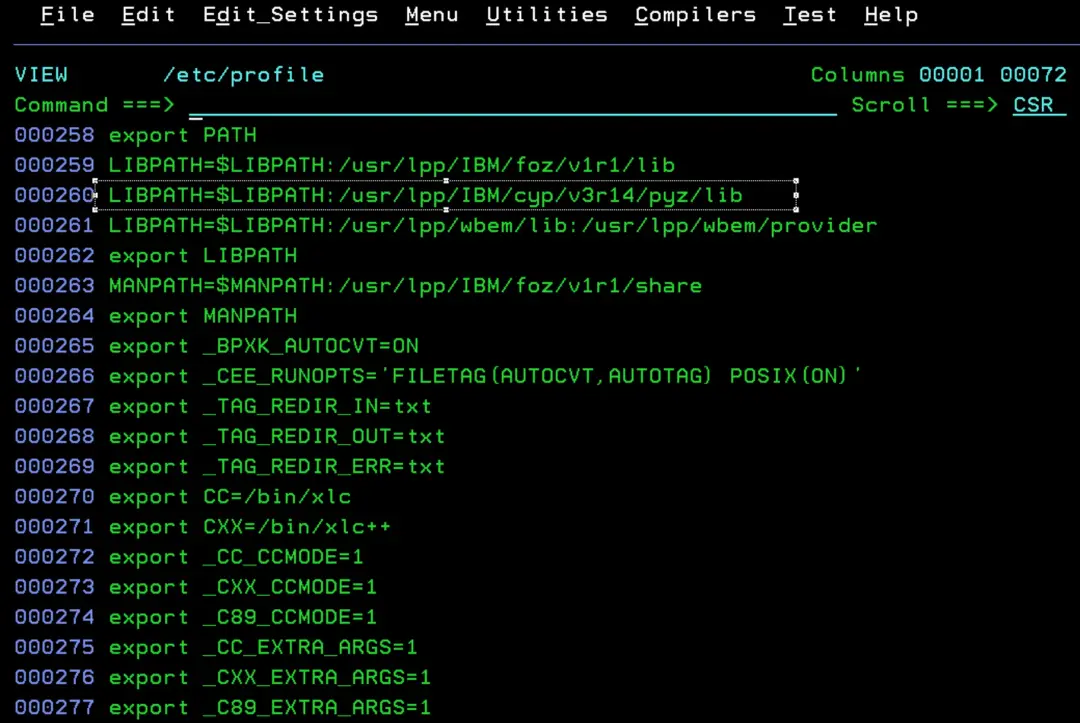
In the stock image, /etc/profile already defines _BPXK_AUTOCVT and _CEE_RUNOPTS, so our .profile only needs PATH and LIBPATH. /etc/profile also adds the system Python at the end of PATH:
PATH=$PATH:/usr/lpp/IBM/cyp/v3r14/pyz/bin/etc/profile is read before our .profile. Since we put /u/python/current/bin in front, our python3 takes precedence, and the rest of the users keep using the system one.
Switch to the new version
From OMVS, we create the current symlink pointing to the new version. If it already exists, we delete it first:
cd /u/python
rm -f current   # only if it already exists
ln -s python-v3.14.7.1/usr/lpp/IBM/python/v3r14/pyz current
ls -l current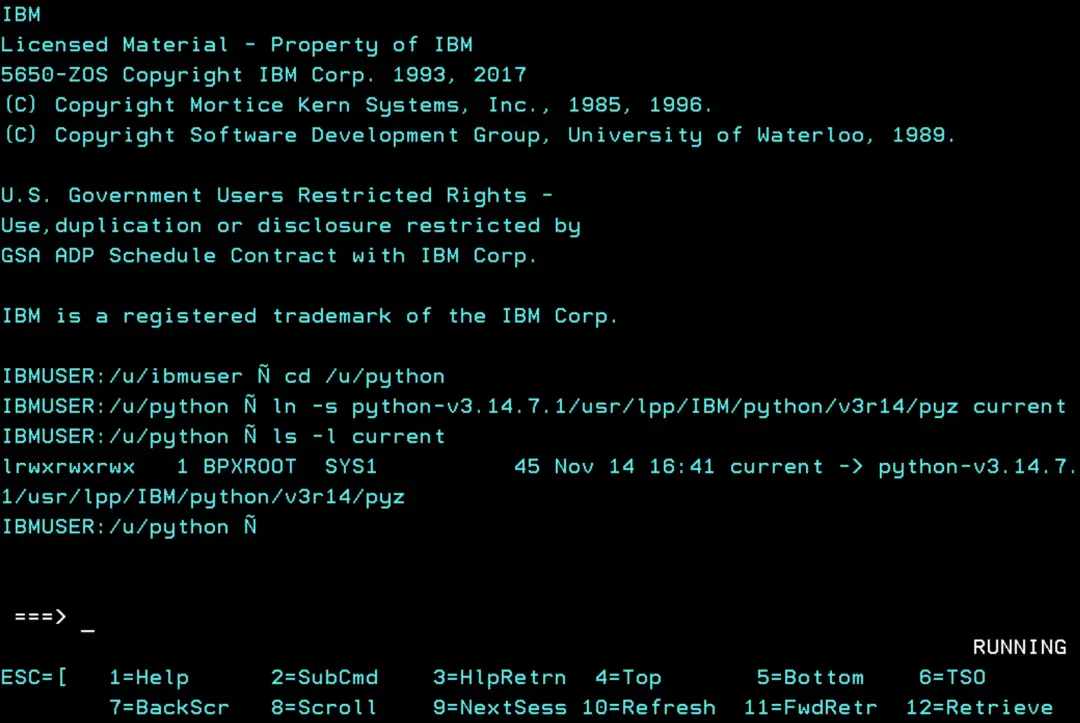
Since the variables use /u/python/current and not the path of each version, switching versions is just changing the symlink.
We close the OMVS session and open another one so that .profile is loaded. We check the Python, pip and OpenSSL versions:
python3 -V
pip3 -V
python3 -c "import ssl; print(ssl.OPENSSL_VERSION)"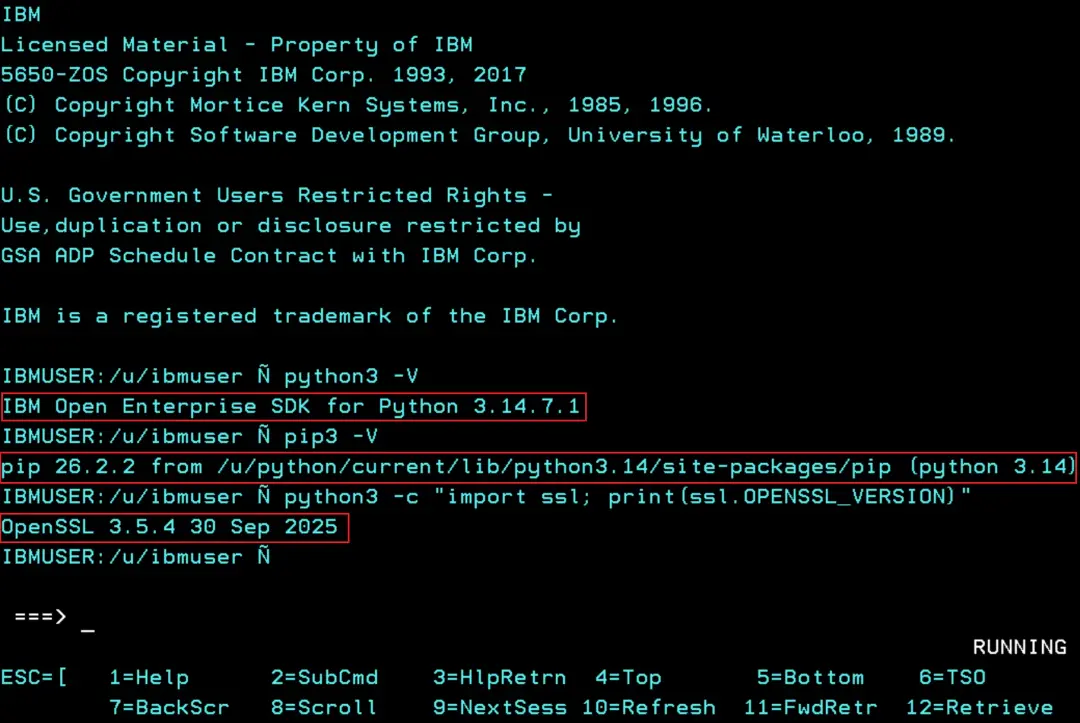
We now have 3.14.7.1, with OpenSSL 3.5.4, and pip runs from /u/python/current, that is, from the new version.
pip packages
The packages we install with pip are stored inside each Python version, so the new one starts without them.
We do not touch the stock image installation: it stays in /usr/lpp/IBM/cyp/v3r14/pyz with all its packages, and whatever uses it by its path keeps working. Only the python3 we find through PATH changes.
The new version already comes with some IBM packages (cffi, cryptography, pycparser and six), but not ibm_db or zoautil_py, which the stock image one did have:
pip3 list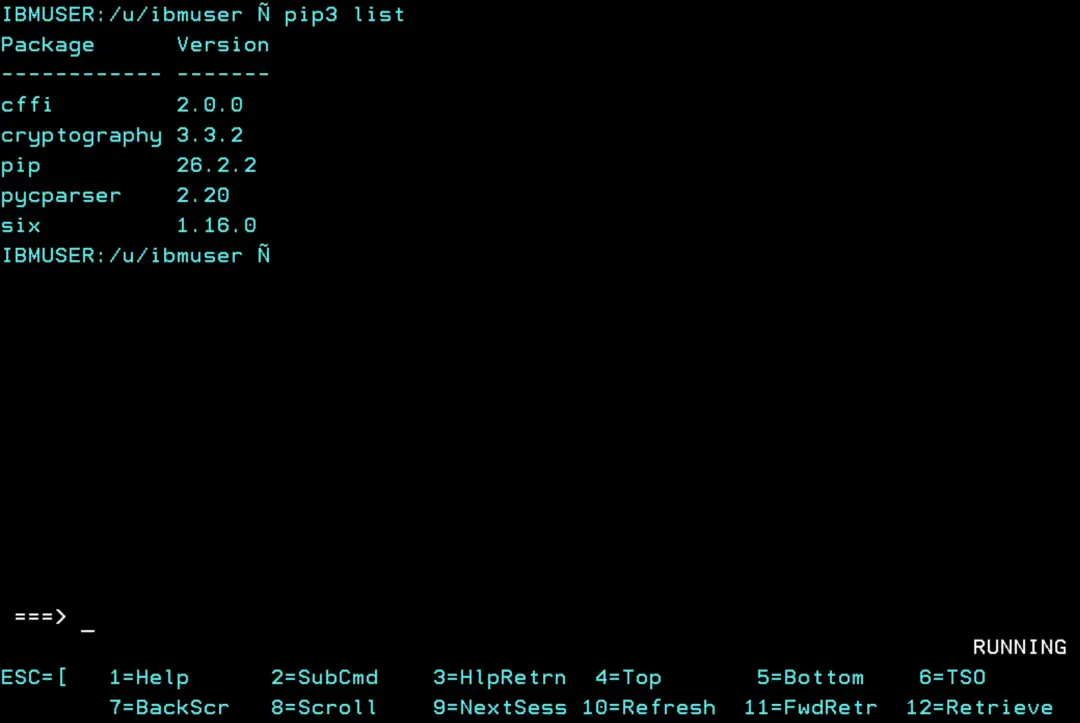
We install only the ones we are going to use.
For example, zoautil_py is not on PyPI, but ZOAU ships a wheel for each Python version. We install the 3.14 one and check that its Location is now inside /u/python:
ls /usr/lpp/IBM/zoautil/*.whl
pip3 install /usr/lpp/IBM/zoautil/zoautil_py-1.4.1.0-cp314-cp314-zos.whl
pip3 show zoautil_py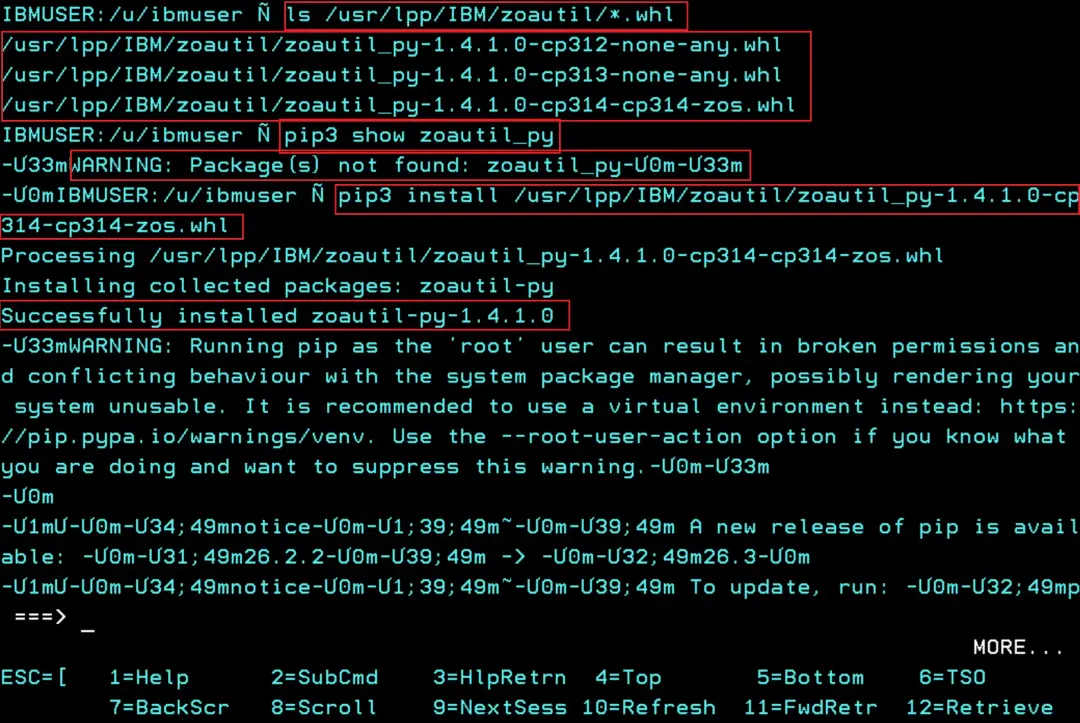
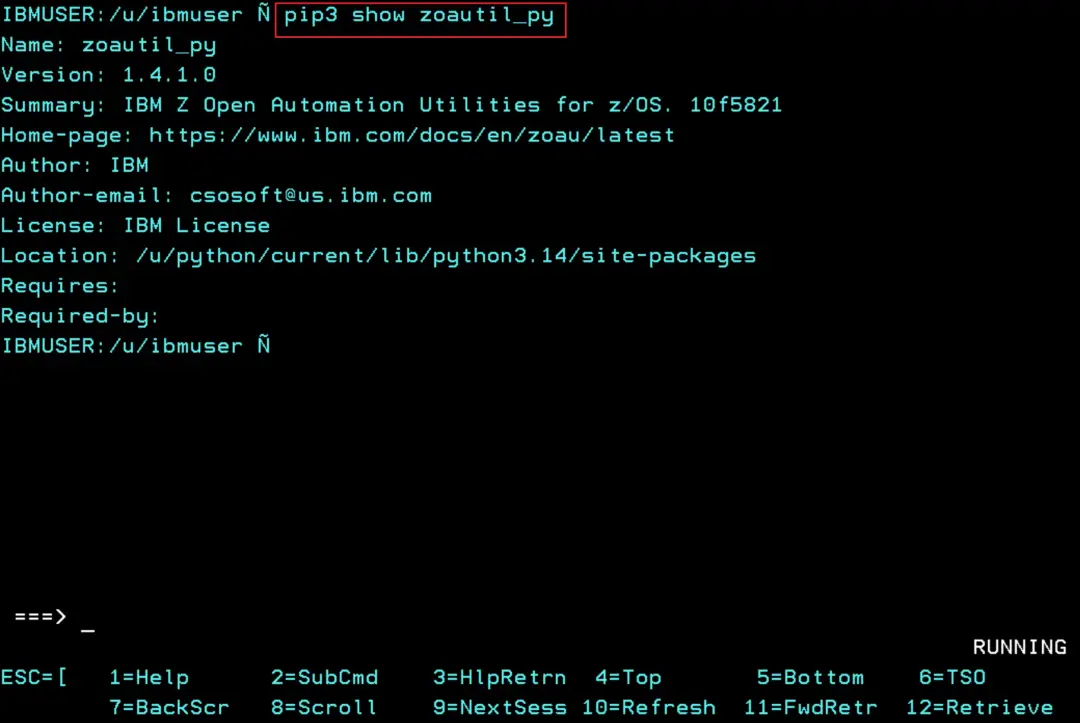
The rest of the packages are installed with pip3 install and the package name. pip downloads them from PyPI, so z/OS needs internet access. The ones with C code, like ibm_db, also need a C compiler.
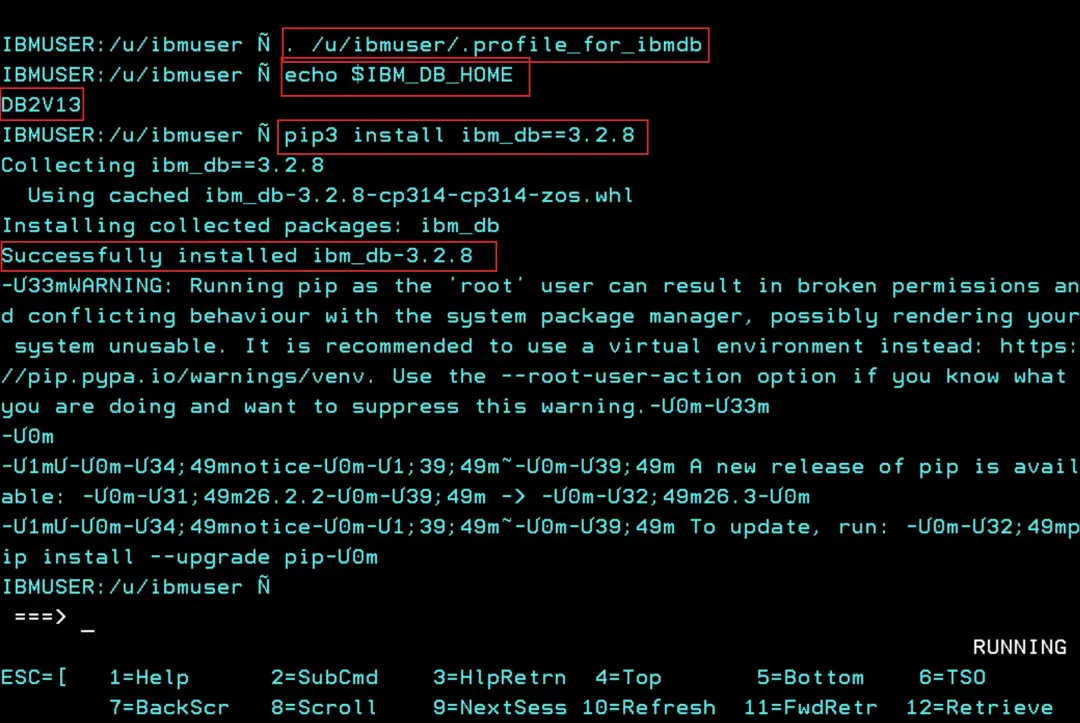
ibm_db is the Python driver for Db2 (python-ibmdb). In the stock image, the variables it needs to compile are in the .profile_for_ibmdb file in the HOME: the C compiler (CC=/bin/xlc), the prefix of the Db2 data sets (IBM_DB_HOME=DB2V13), the STEPLIB with the Db2 libraries and the ODBC configuration file (DSNAOINI). We load them into the session and install the same version the stock image had:
. /u/ibmuser/.profile_for_ibmdb
echo $IBM_DB_HOME
pip3 install ibm_db==3.2.8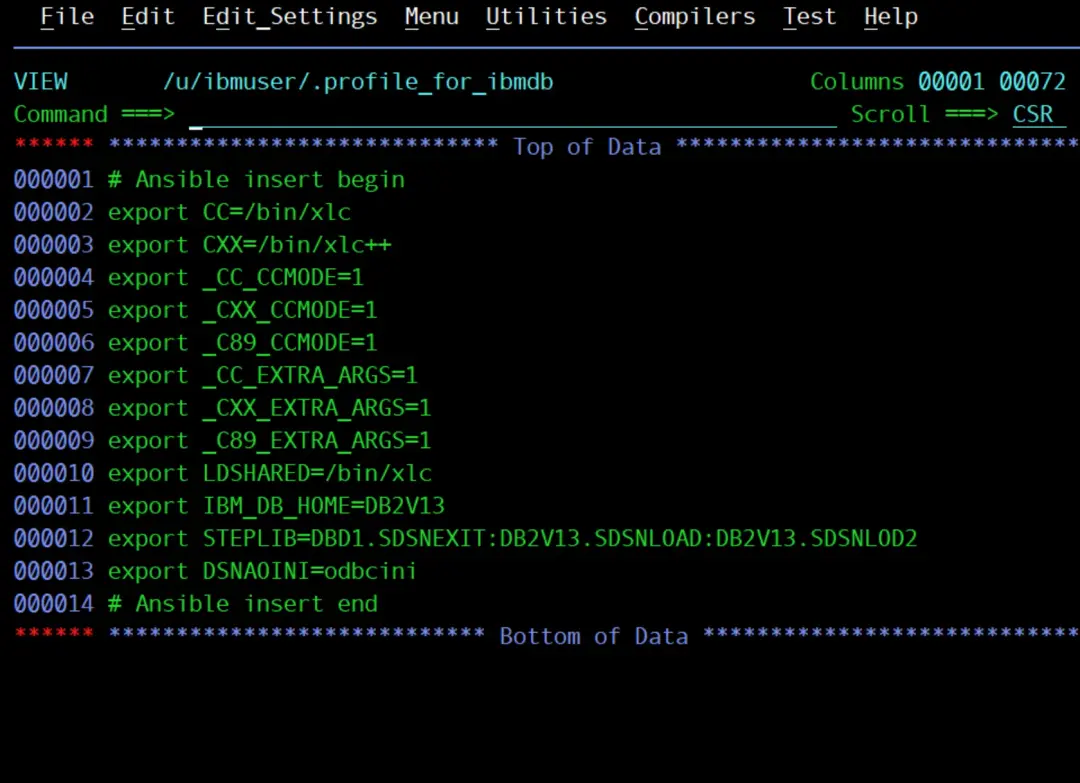
pip3 show ibm_db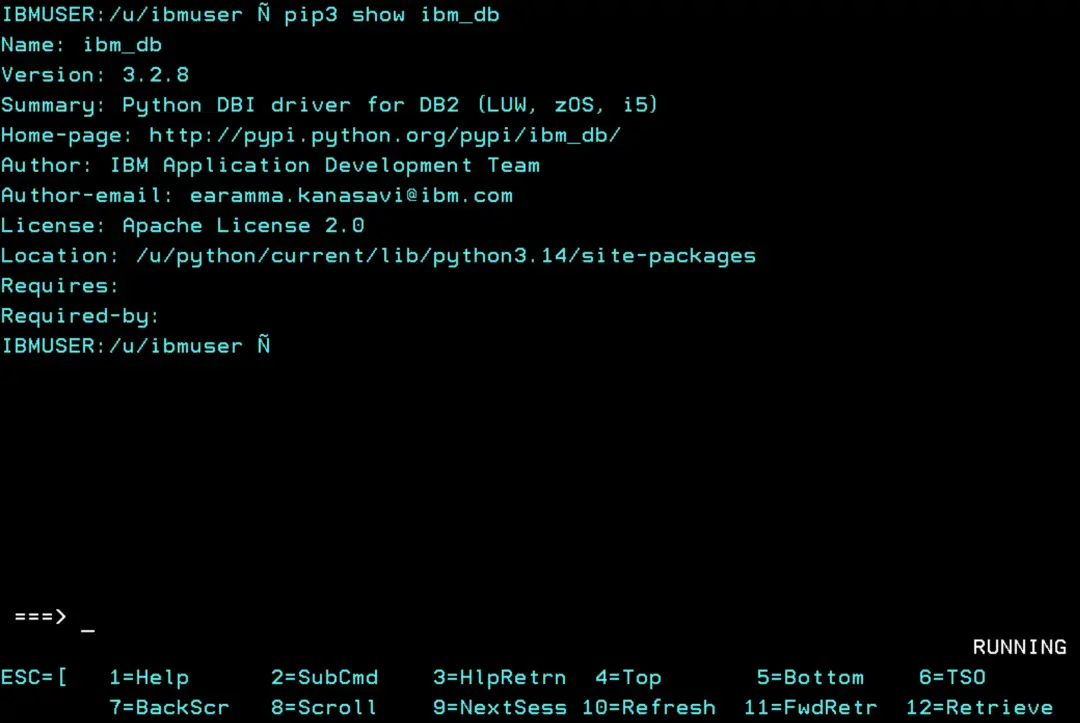
python3 -c "import ibm_db; print('ok')"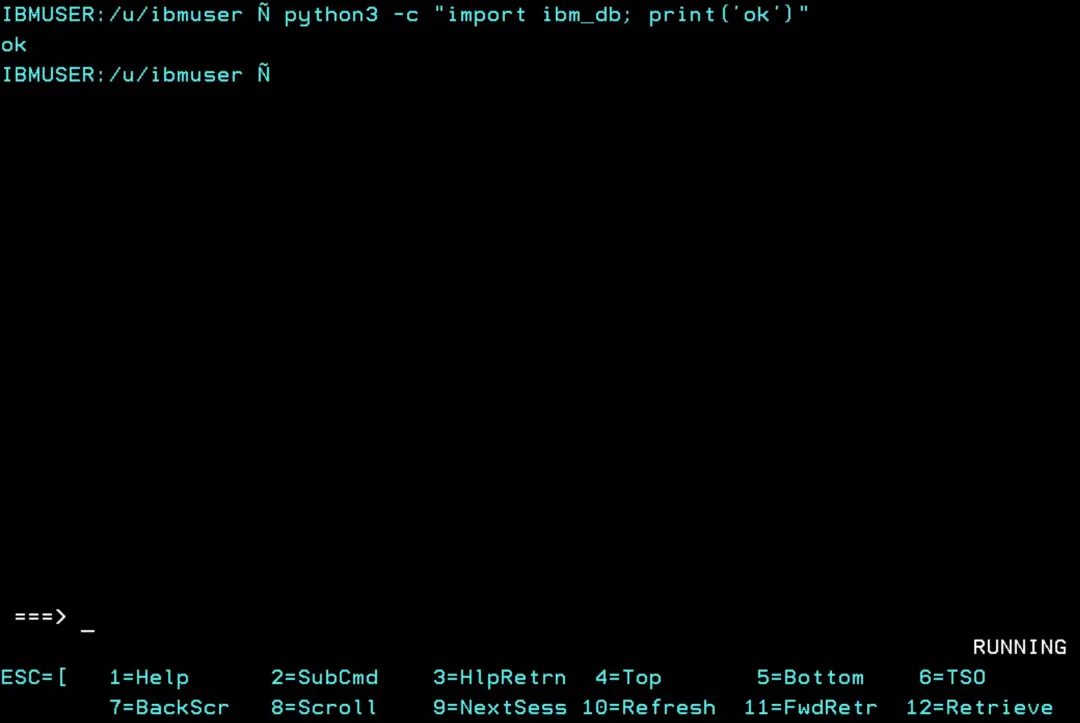
To check that it works, the stock image comes with a small test script, ibm_db_test.py. It connects to the local Db2 and lists the catalog tables (SYSIBM.SYSTABLES).
The script is in ASCII and has no encoding tag, so to read it we convert it to EBCDIC:
iconv -f ISO8859-1 -t IBM-1047 /u/ibmuser/ibm_db_test.py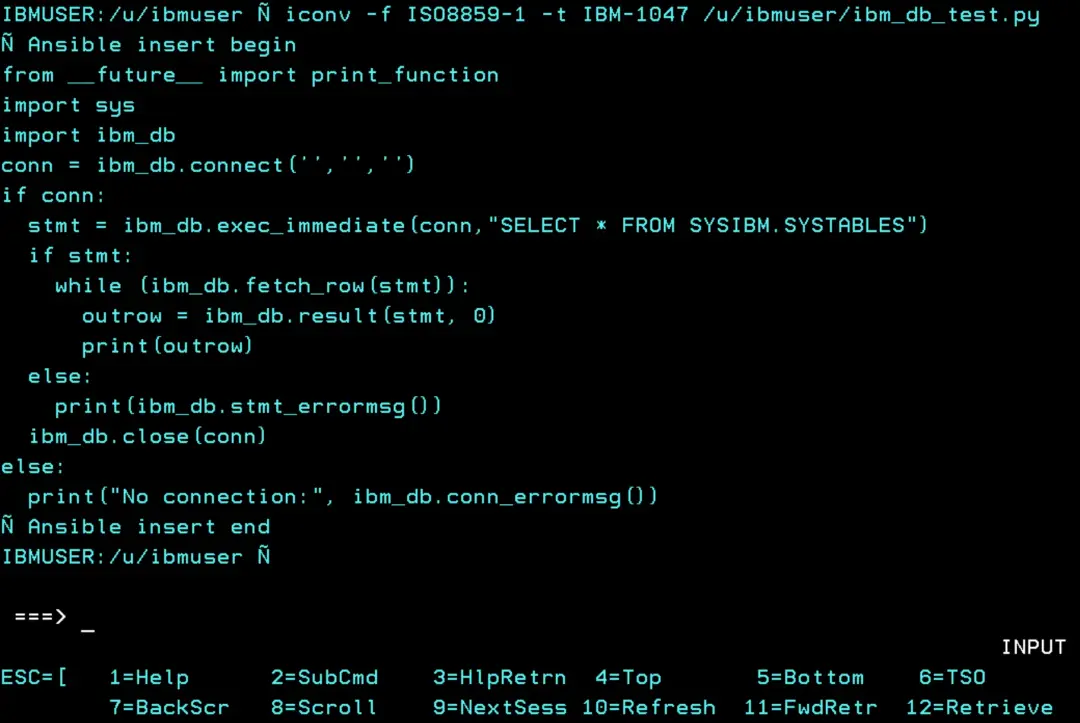
We run it:
python3 /u/ibmuser/ibm_db_test.py | head -20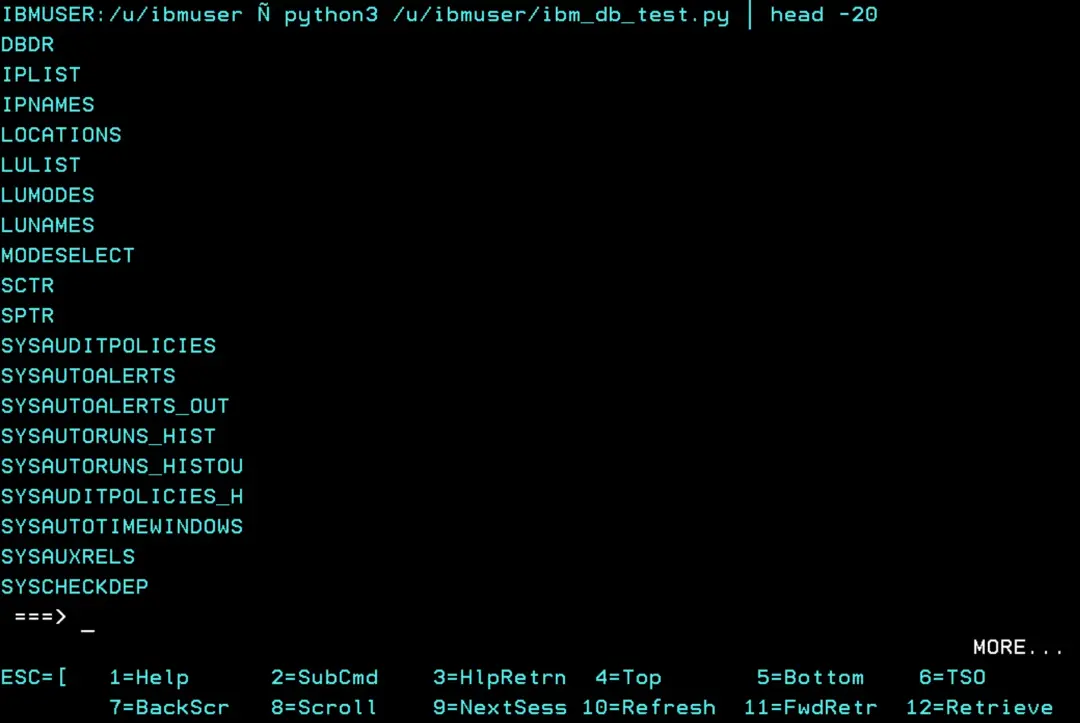
From the new Python we can now connect to Db2 on z/OS and run SQL queries.
Roll back
If something does not work with the new version, we go back to the previous one by pointing the current symlink to it. In our case, the previous one is the stock image one:
cd /u/python
rm -f current
ln -s /usr/lpp/IBM/cyp/v3r14/pyz current
python3 -V
When we open a new OMVS session, we are back on the previous version. That is why we do not delete any version until we have checked that the new one works well.
With this we have Python updated to 3.14.7.1, each version in its own zFS and the stock image one untouched. When IBM publishes the next PTF, we repeat the same steps: a new zFS, unpack and change the symlink.
References
- pax installation guide (3.14): https://www.ibm.com/docs/en/python-zos/3.14.0?topic=configuration-installing-configuring-pax-format
- Customizing the environment (/usr/bin/env): https://www.ibm.com/docs/en/python-zos/3.14.0?topic=configuration-customization-environment
- Fix list: https://www.ibm.com/support/pages/node/6232646
- 3.14 announcement: https://community.ibm.com/community/user/blogs/jc-yao/2025/11/10/announcing-ibm-open-enterprise-sdk-for-python-314