IWS Dynamic Workload Console - Docker Installation and z/OS Controller Connection
On this occasion, I will install the IBM Workload Scheduler administration console called Dynamic Workload Console (DWC). It is used to manage scheduling from a graphical interface. Additionally, having DWC is necessary to have access to REST APIs and make queries against the z/OS scheduler.
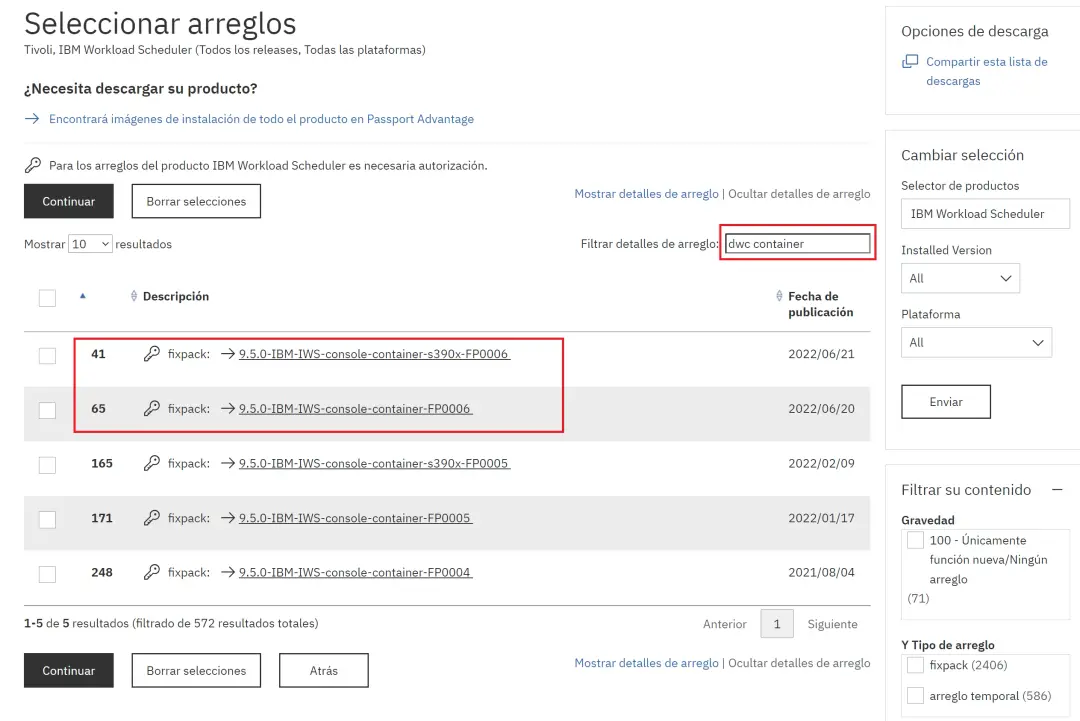
There are several versions that can be installed (Linux, Windows, z/OS...), but I will choose the Docker images as they seem the easiest to me.
There are two versions: the "s390x" and the normal one. The s390x version is meant to be used on a Linux within Mainframe or in zCX (containers on z/OS).
I will start by choosing the normal version. Later, if I have time, I will also do the installation in zCX.
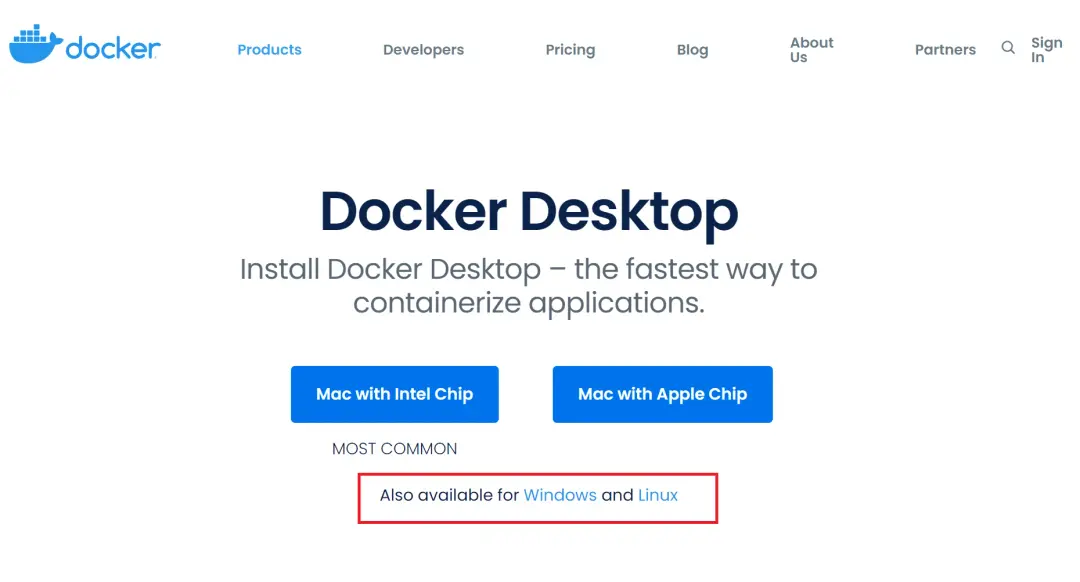
Docker Desktop Installation
I will download Docker Desktop for Windows:
https://www.docker.com/products/docker-desktop/
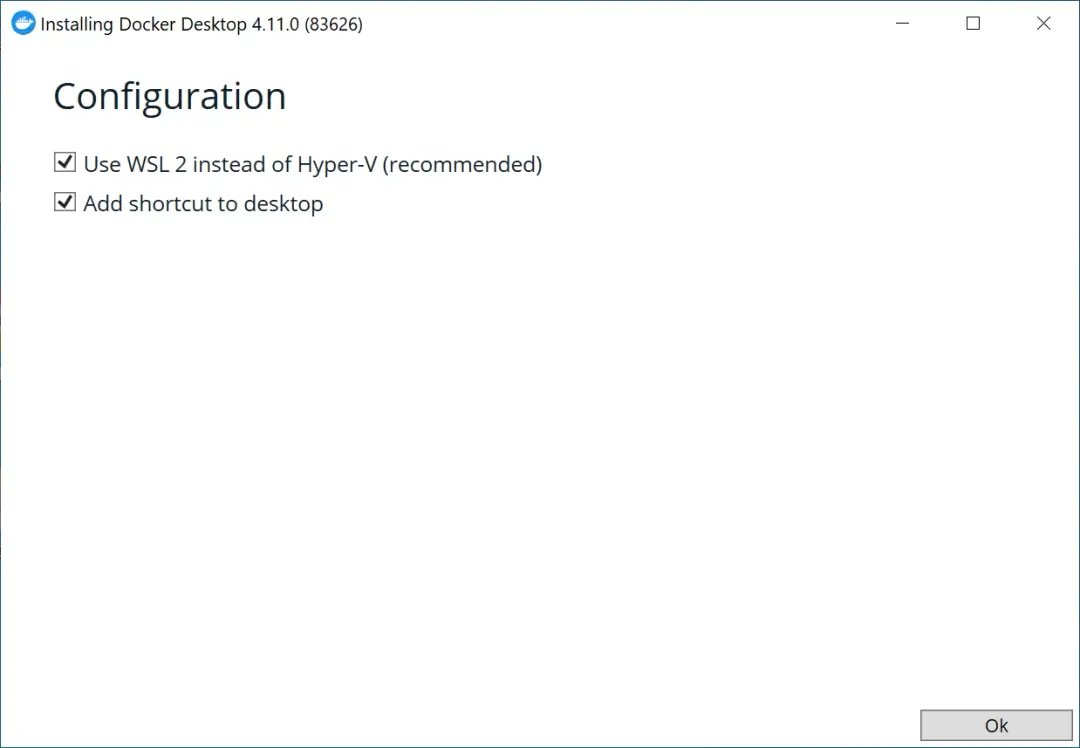
We open the downloaded file and install it.

When using Windows, it is better to choose WSL 2.
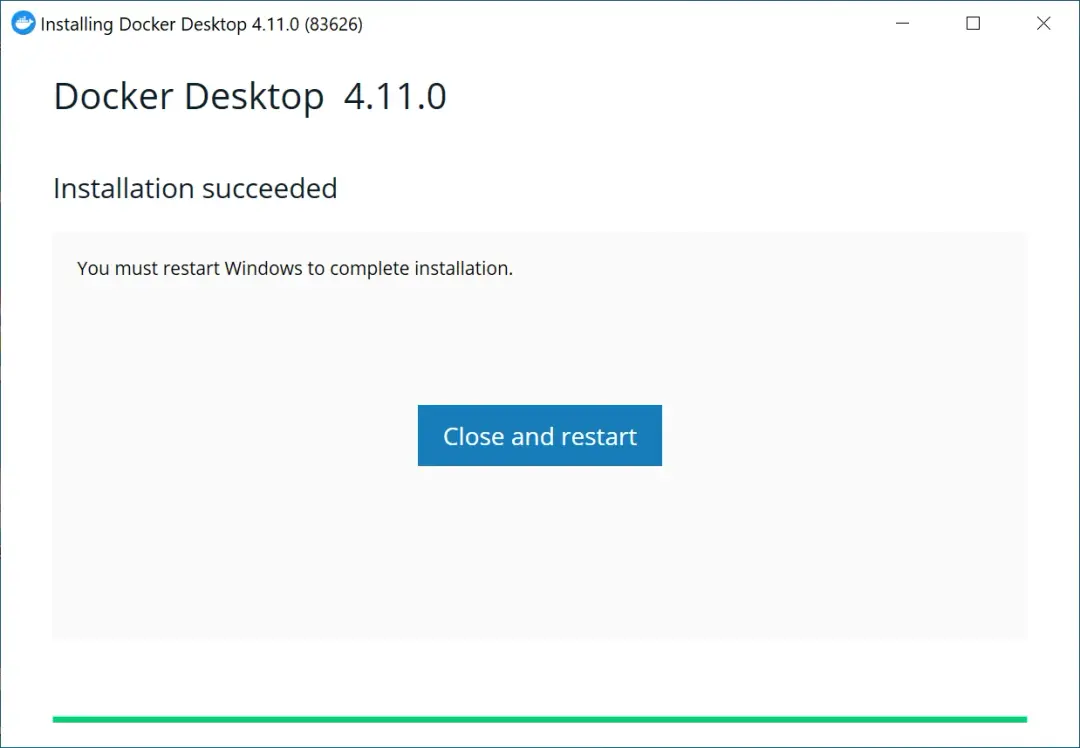
Restart.
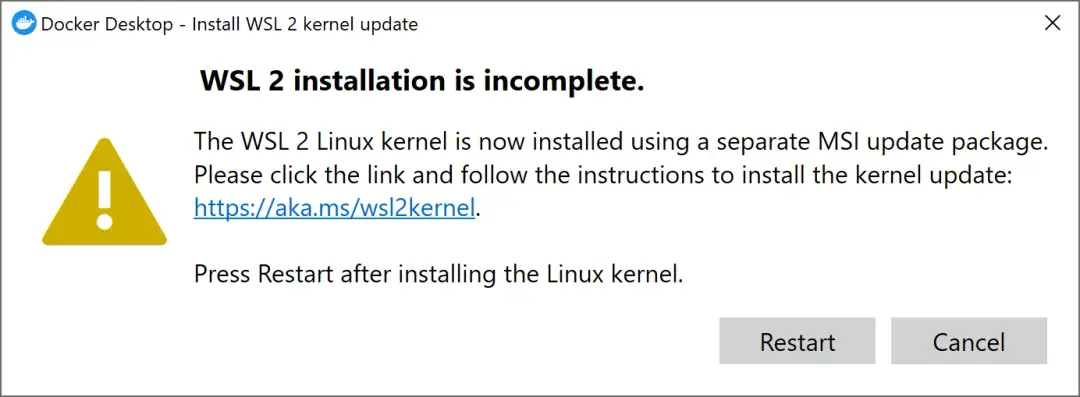
When opening the program, I got a message indicating that I had to install "WSL 2".
I clicked on the link, downloaded it, and installed it.
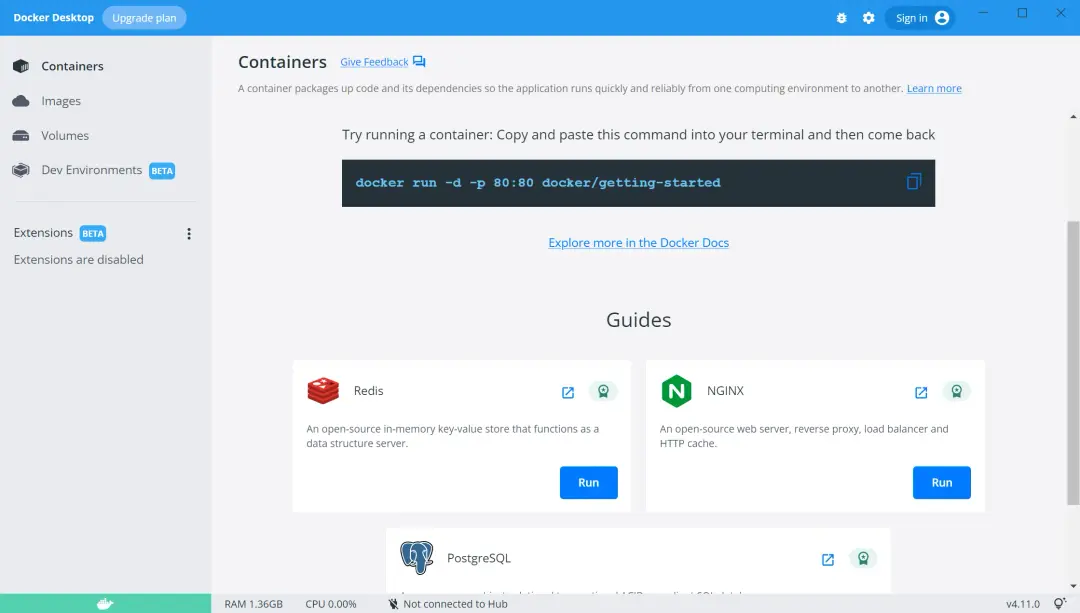
Now I can open Docker Desktop.
Prepare the DWC Container
Now I will extract the downloaded software, in my case, the container to run it on my PC (the normal version, not the Mainframe version, s390x).
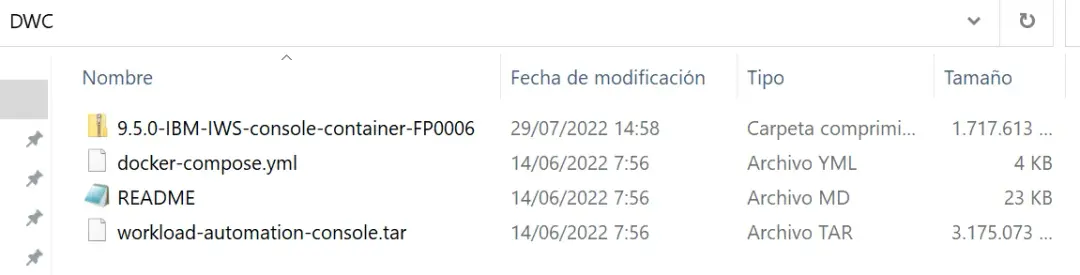
The important thing is to read the README file. It indicates that we will need a database to start DWC.
DB2 Installation on Docker
I will also use the database from Docker. In my case, I will choose DB2. To download this image, we will go to https://hub.docker.com/ and search for ibmcom/db2.
The direct link is:
https://hub.docker.com/r/ibmcom/db2
We need to copy the command:
docker pull ibmcom/db2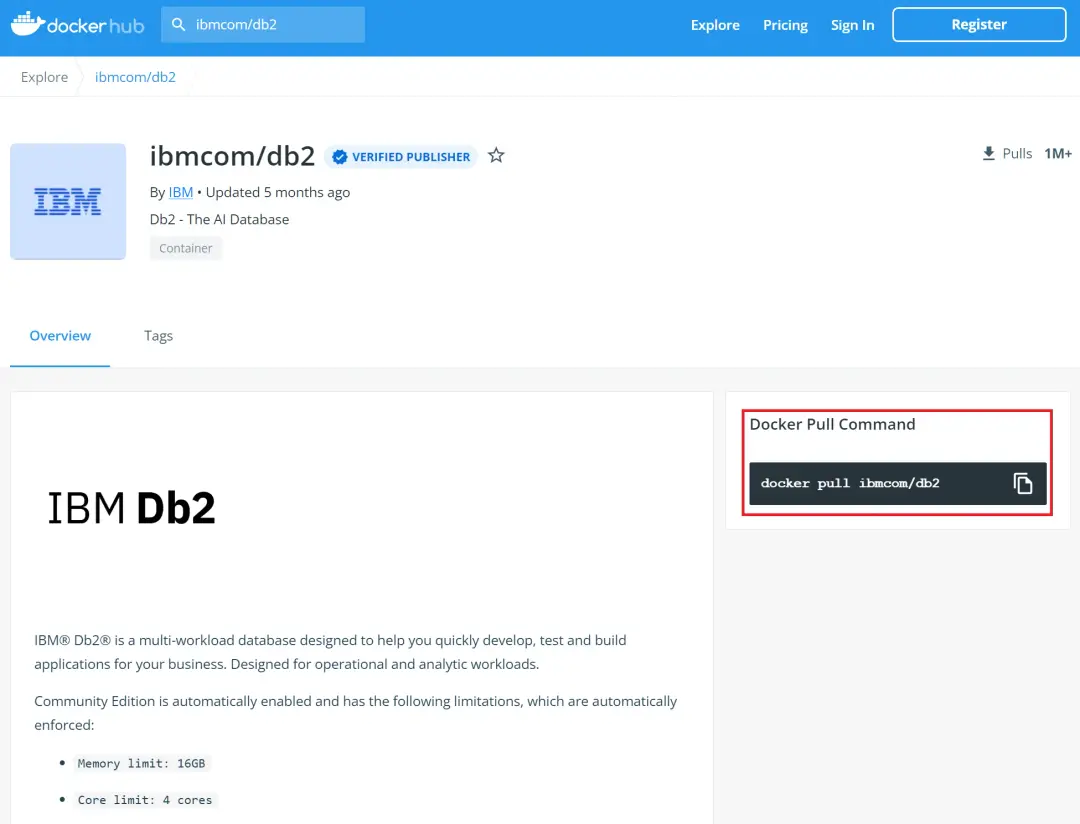
We open a Windows CMD and enter the command to download the latest available image.
Then we can verify that we have the image with the command:
docker image ls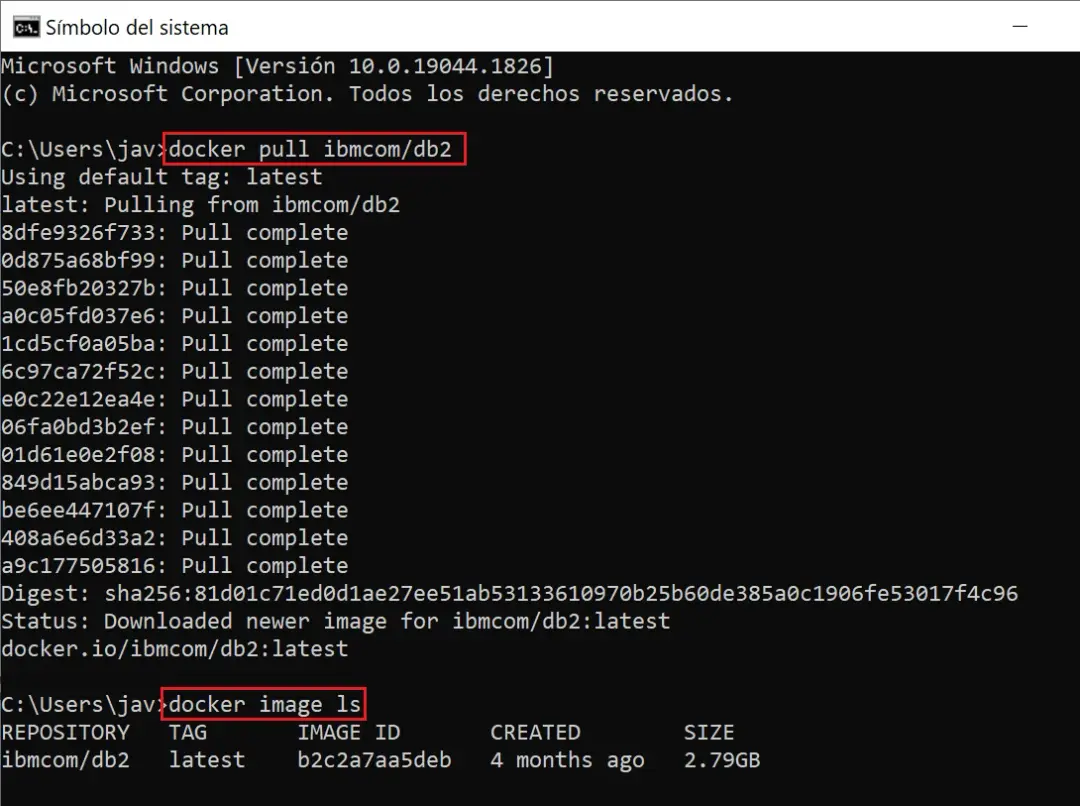
If we look in Docker Desktop, we will also see the image.
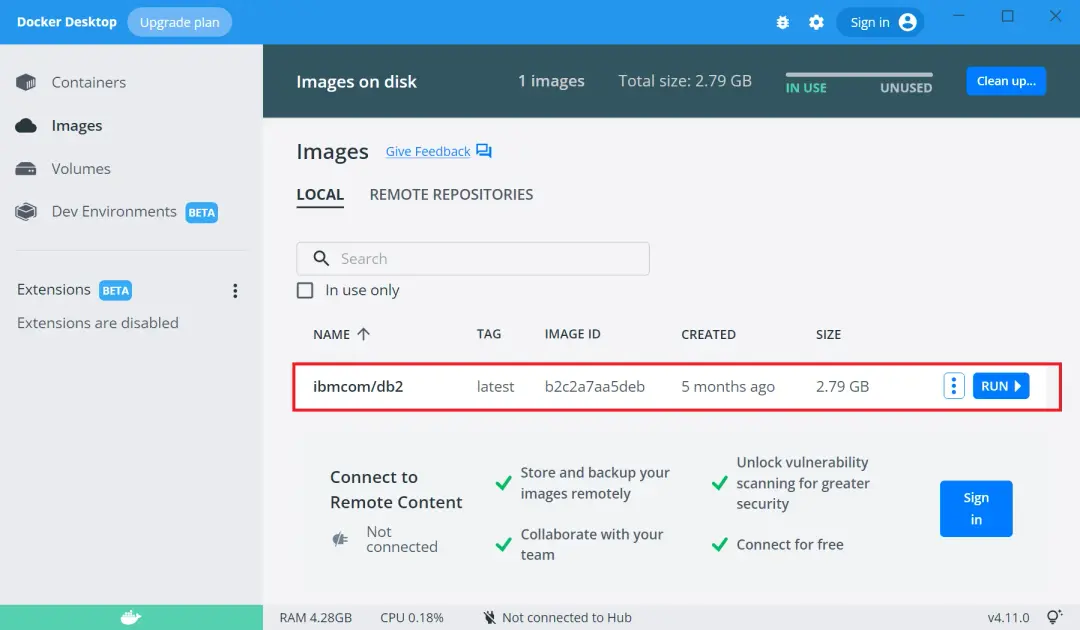
Now we need to start the image. At the link https://hub.docker.com/r/ibmcom/db2 we can see the command to start DB2.
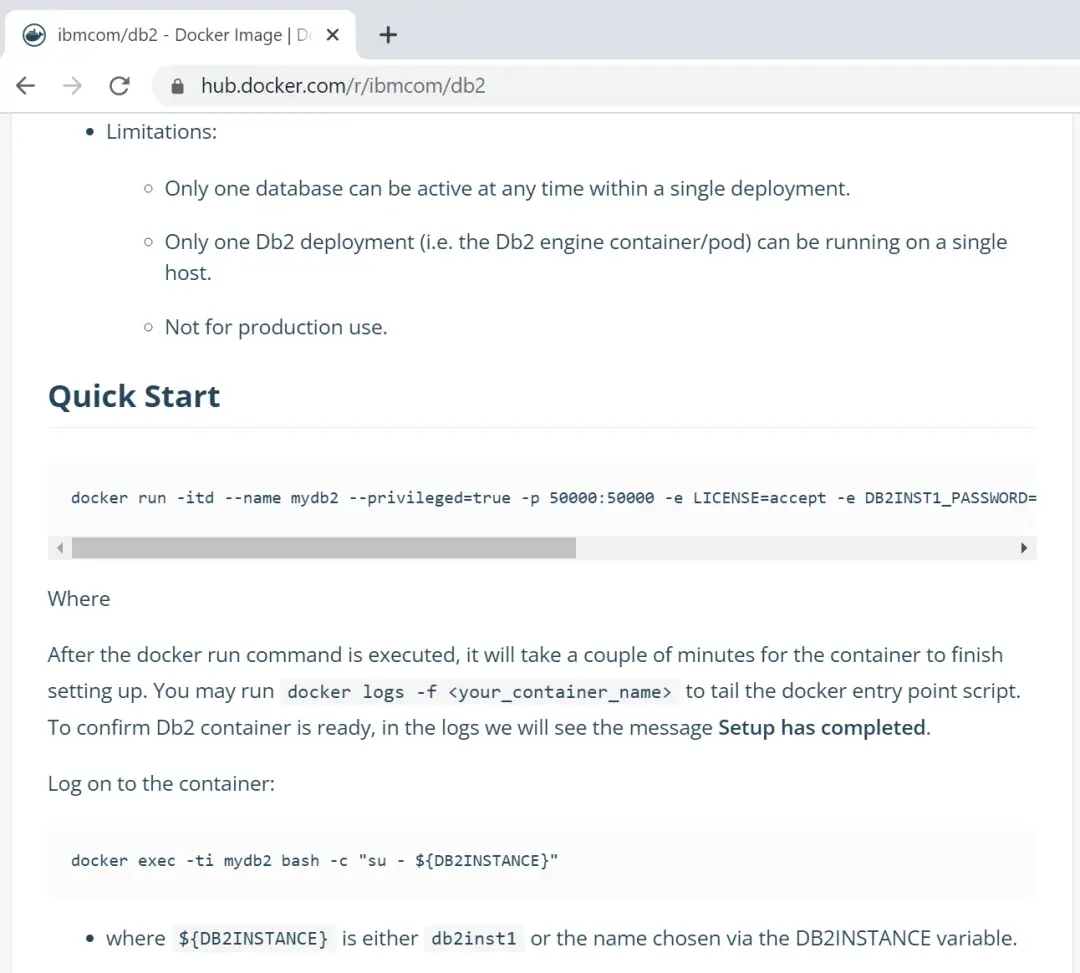
The example command will be:
docker run -itd --name mydb2 --privileged=true -p 50000:50000 -e LICENSE=accept -e DB2INST1_PASSWORD=<choose an instance password> -e DBNAME=testdb -v <db storage dir>:/database ibmcom/db2In my case, it will look like this:
docker run -itd --name mydb2 --privileged=true -p 50000:50000 -e LICENSE=accept -e DB2INST1_PASSWORD=1234 -e DBNAME=DWC -v C:/Users/jav/Docker:/database ibmcom/db2I will use the command from a CMD. Then I will check that it is running with the command:
docker container ls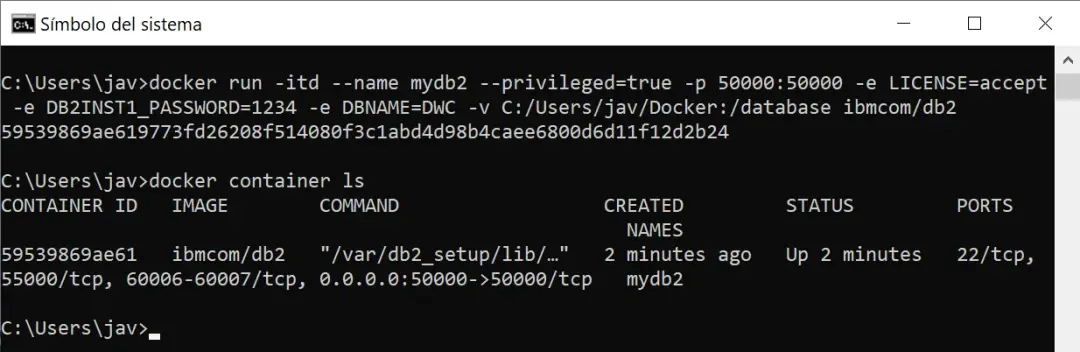
Now we can check the log with the command:
docker logs -f <your_container_name>In my case it will be:
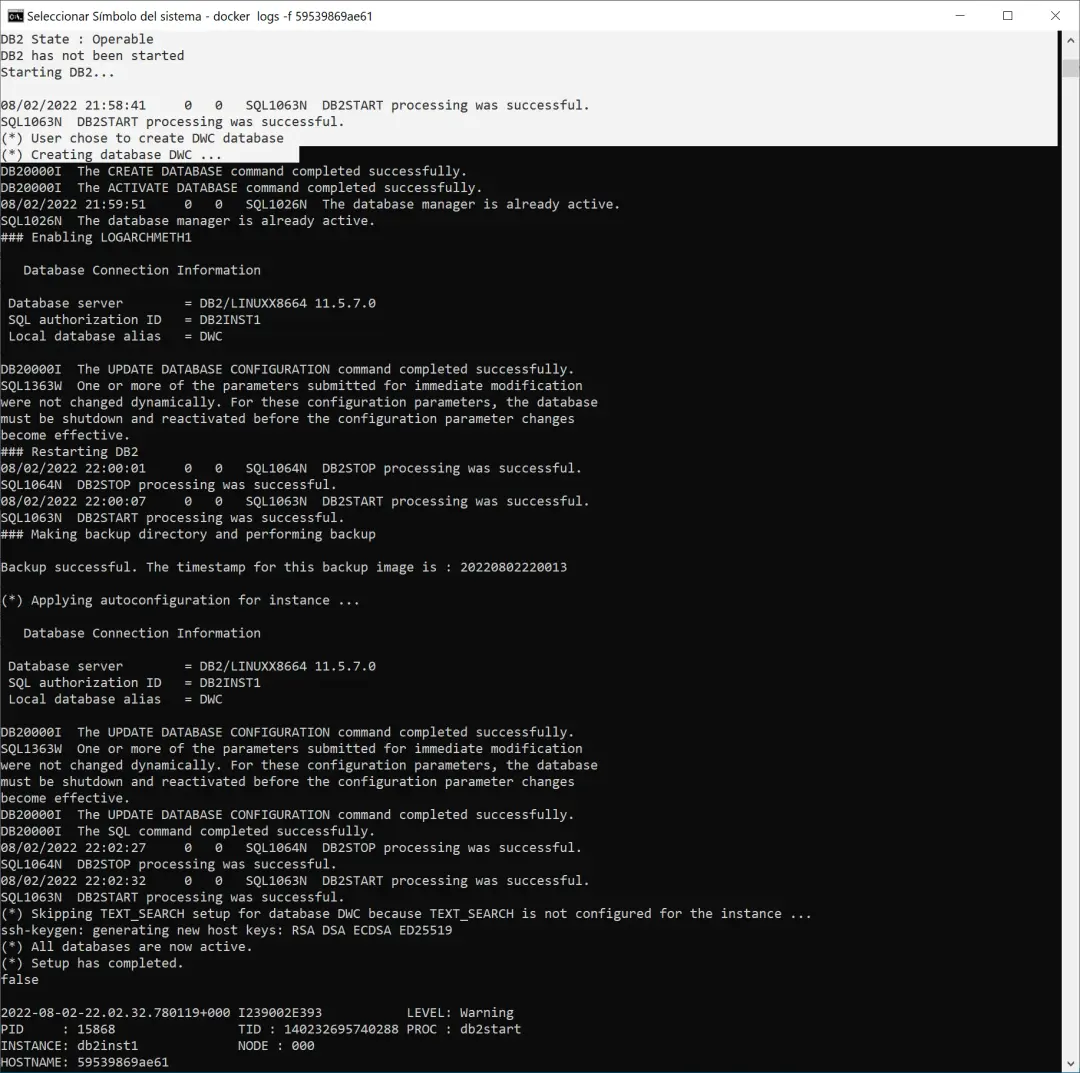
docker logs -f 59539869ae61In the log we will verify that it started correctly.
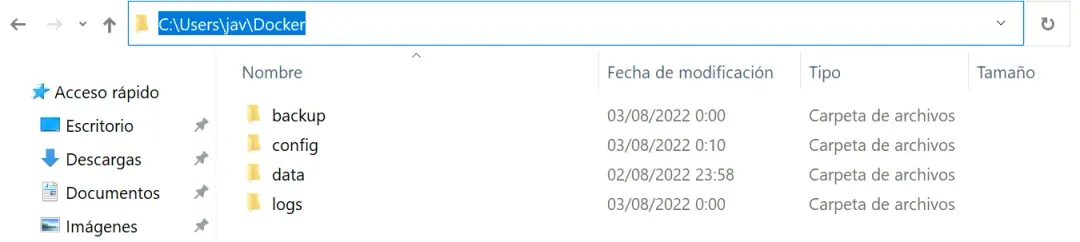
As a curiosity, we can see the files that have been created in the path we indicated in the startup command.
In principle, we already have the database running.
Load the DWC Image
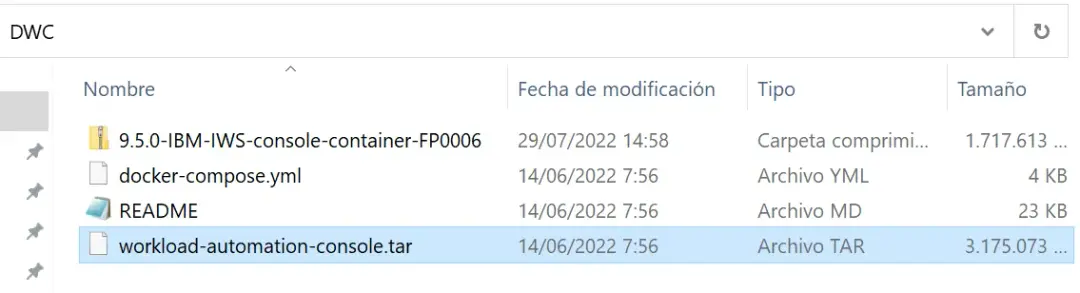
Now let's load the DWC image. To do this, from a CMD we go to the path where we extracted the container. Then we will use the command to load the "workload-automation-console.tar" file:
docker load -i workload-automation-console.tar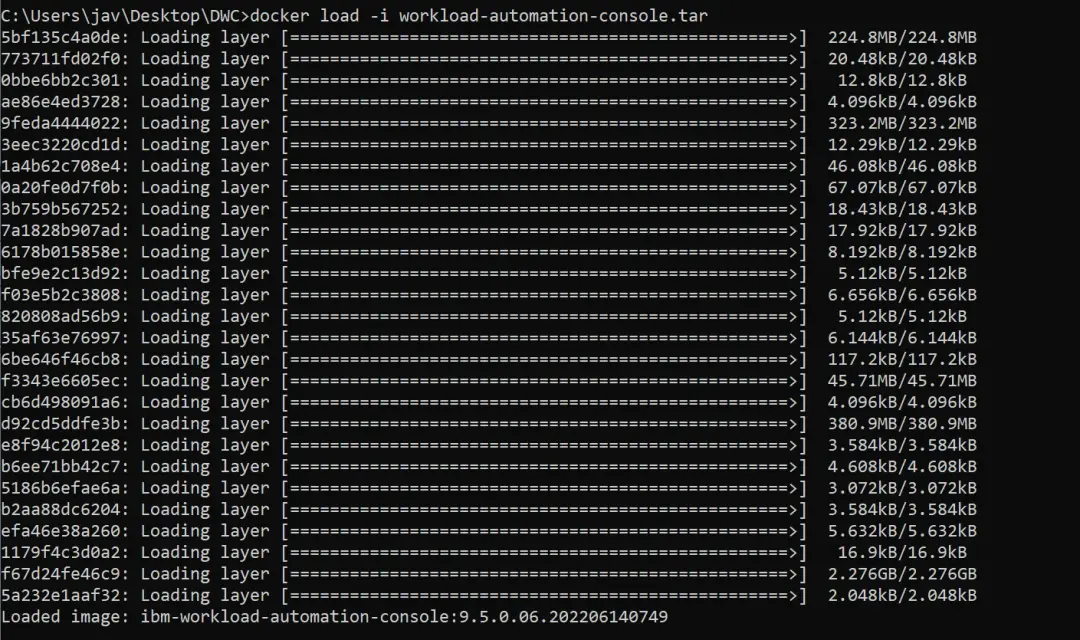
If we look at the loaded images, it will be there.

Now what the README file indicates is that we must generate a ".sql" file for the database. To do this, we run the command:
docker run --rm ibm-workload-automation-console:9.5.0.06.202206140749 cat /opt/dwc/tools/create_database.sql > create_database.sqlThe image name must be the same as shown when listing images (including the version number).

I will have the file in the same path from where I executed the command (in my case C:\Users\jav\Desktop\DWC).
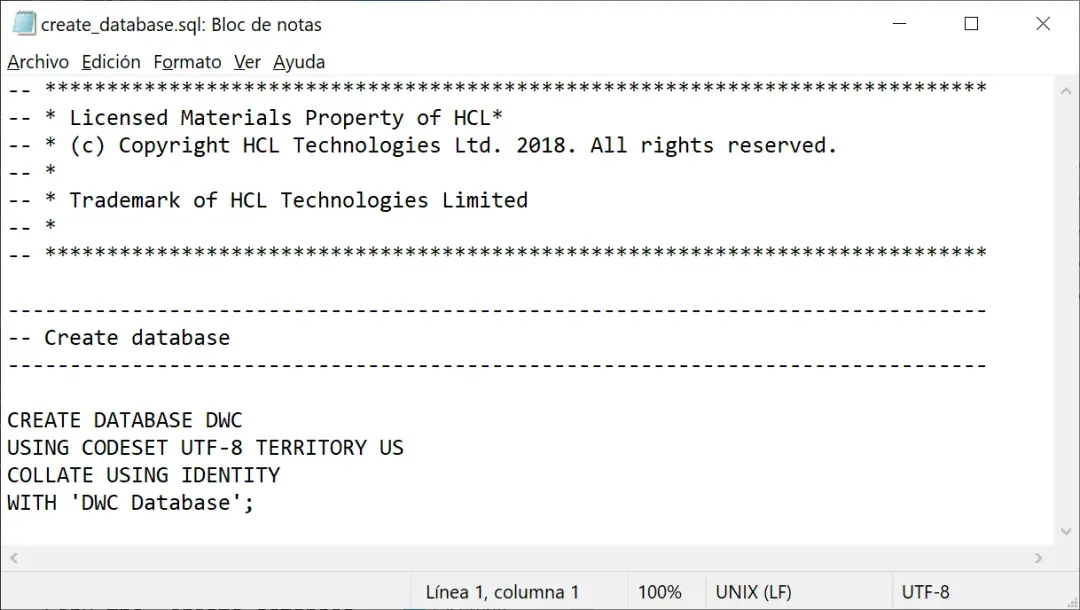
Looking at the file, I noticed that it only creates the database, but does not create tables or other resources, therefore, I am not going to run it in DB2 because I already created the DWC database when I started the container.
Start the DWC Container
The next step will be to start the DWC application container.
The command indicated in the documentation is as follows:
docker run \
  -d -e LICENSE=ACCEPT \
  -e WA_PASSWORD=wa_password \
  -e DB_TYPE=db_type \
  -e DB_HOSTNAME=db_hostname \
  -e DB_PORT=db_port \
  -e DB_NAME=db_name \
  -e DB_USER=db_user \
  -e DB_PASSWORD=db_password \
  -e DB_ADMIN_USER=db_admin_user \
  -e DB_ADMIN_PASSWORD=db_admin_password \
  -v workload-automation-console-data:/home/wauser \
  ibm-workload-automation-console:9.5.0.06.<release_date>
Here are the simple values I used (especially the passwords). Obviously this is for a test and I use simple passwords. In a real environment it is very important to consider security.
Important to include the "-p 9443:9443" parameter so that the container listens on port 9443 and redirects it to port 9443 of the DWC application.
docker run -d -p 9443:9443 -e LICENSE=ACCEPT -e WA_PASSWORD=1234 -e LANG=en -e DB_TYPE=DB2 -e DB_HOSTNAME=192.168.1.10 -e DB_PORT=50000 -e DB_NAME=DWC -e DB_USER=db2inst1 -e DB_PASSWORD=1234 -e DB_ADMIN_USER=db2inst1 -e DB_ADMIN_PASSWORD=1234 -v workload-automation-console-data:/home/wauser ibm-workload-automation-console:9.5.0.06.202206140749
We verify that the container has started and the ID.

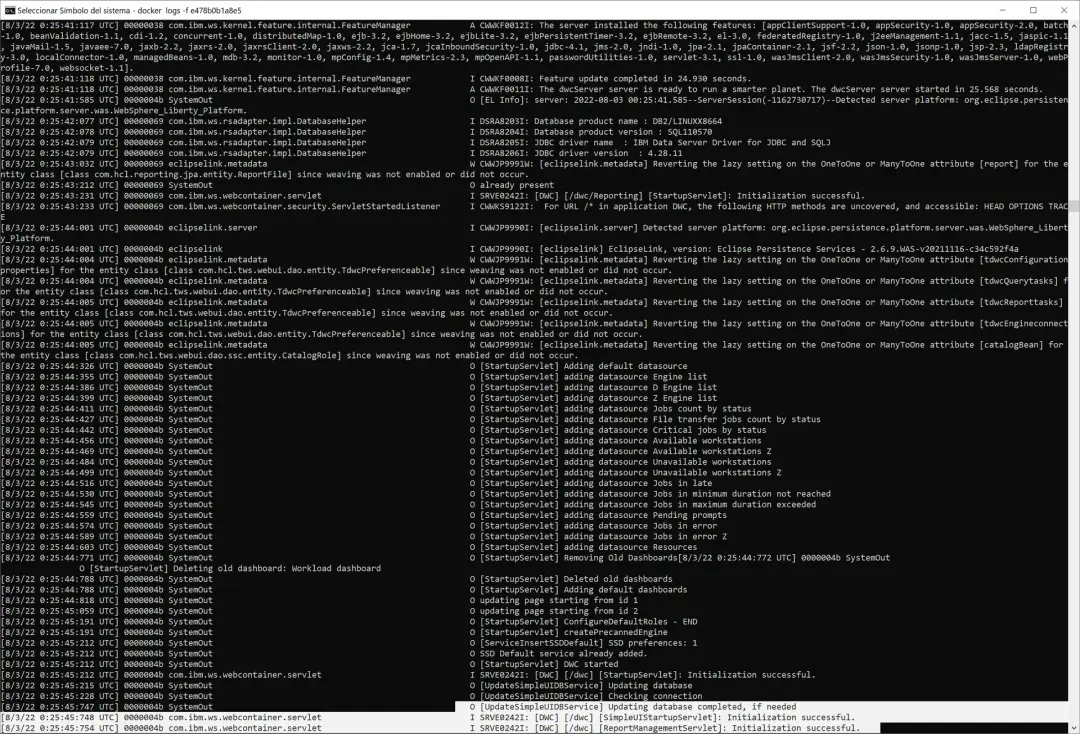
We review the log until the product starts.
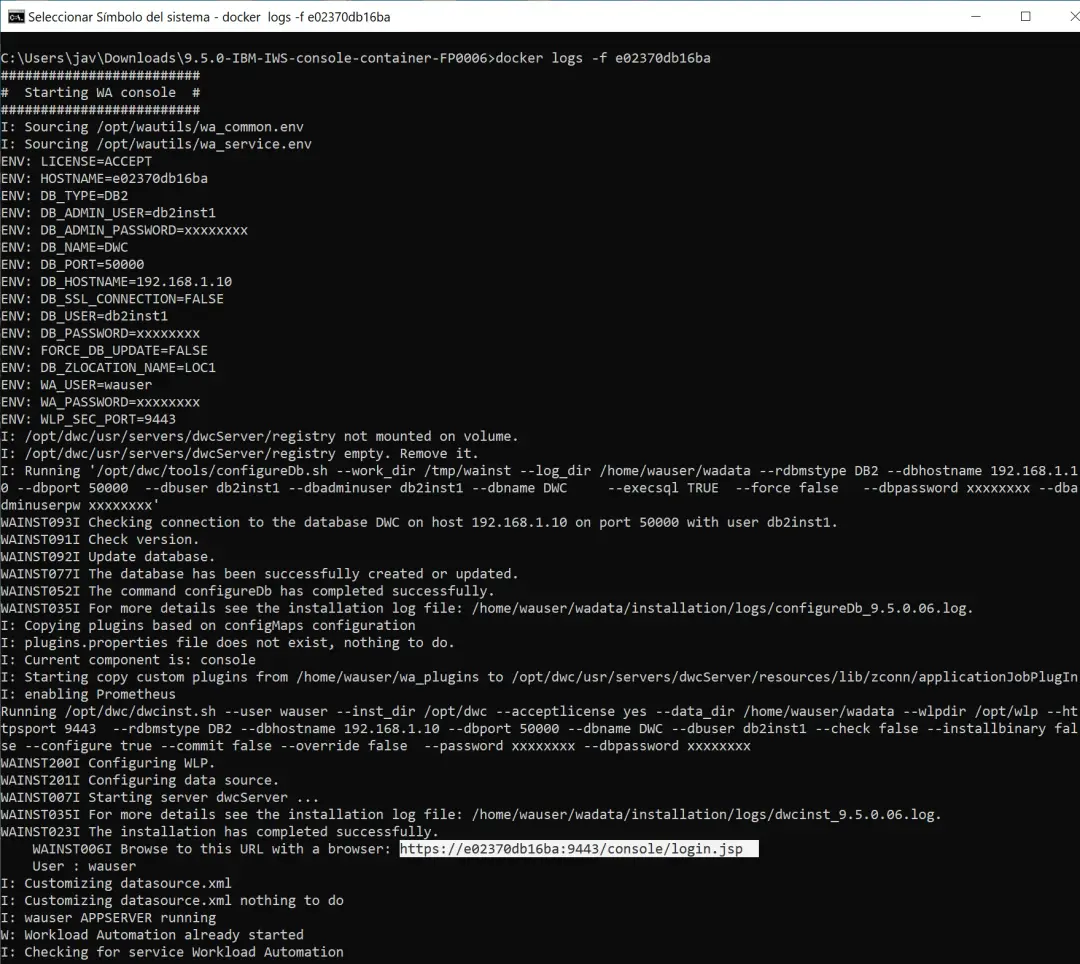
We confirm that it has finished starting.
Access the DWC Console
We can now access the web. I use the IP of my system where Docker is running and the URL of the DWC application.
https://192.168.1.10:9443/console/login.jsp
I will use the wauser user to access and the password I indicated at startup (docker run...)
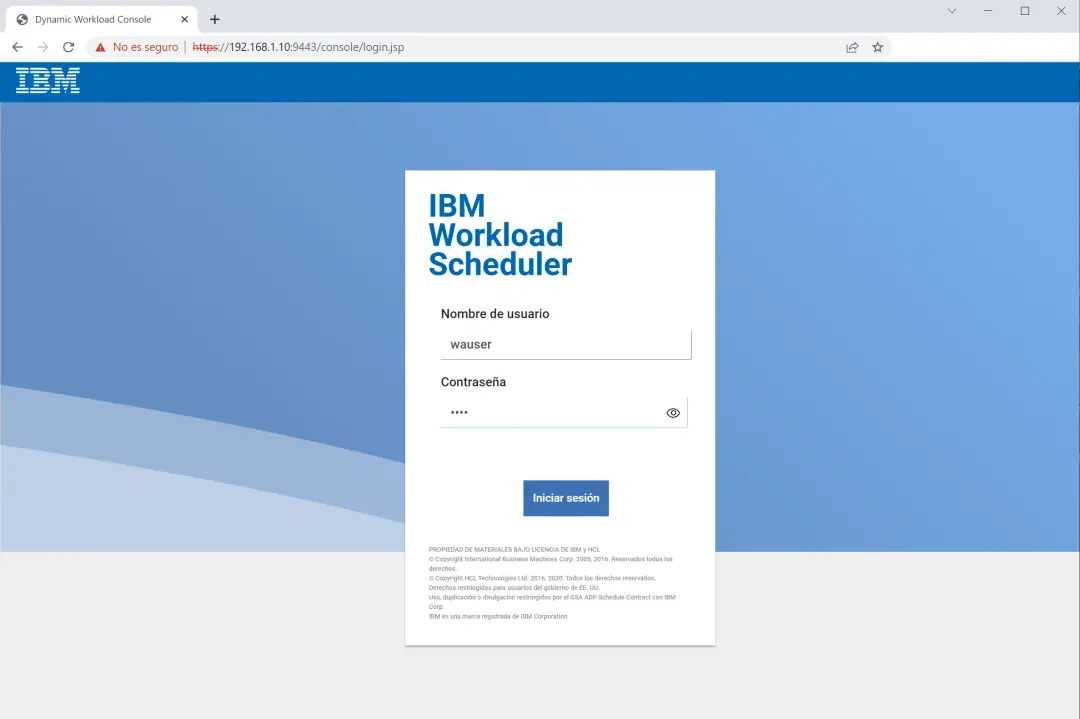
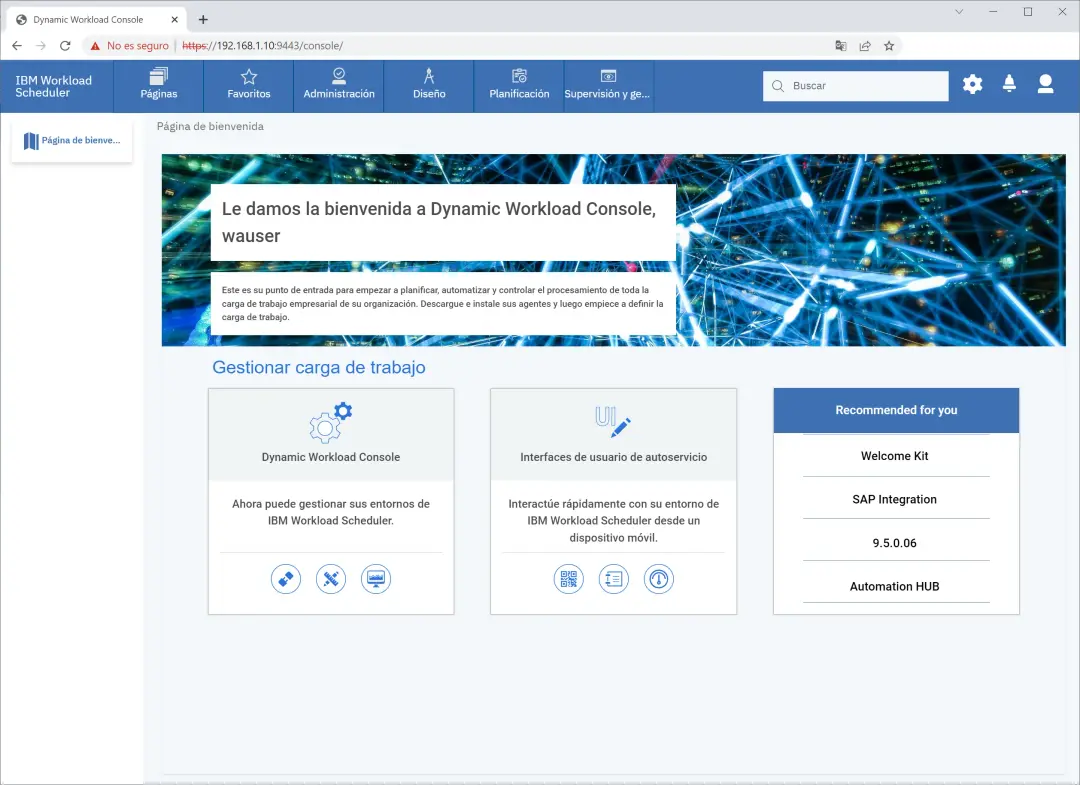
As we can see, we can log in.
Connect DWC with the z/OS Scheduler
Now the goal is to connect the console with the z/OS scheduler. We will follow these steps:
https://www.ibm.com/docs/en/workload-automation/9.5.0?topic=console-prerequisites
The first thing will be to create the server on z/OS:
Create the Server STC
To create the server we need the STC and the parameter file. The examples are found in **.SAMPJCL.
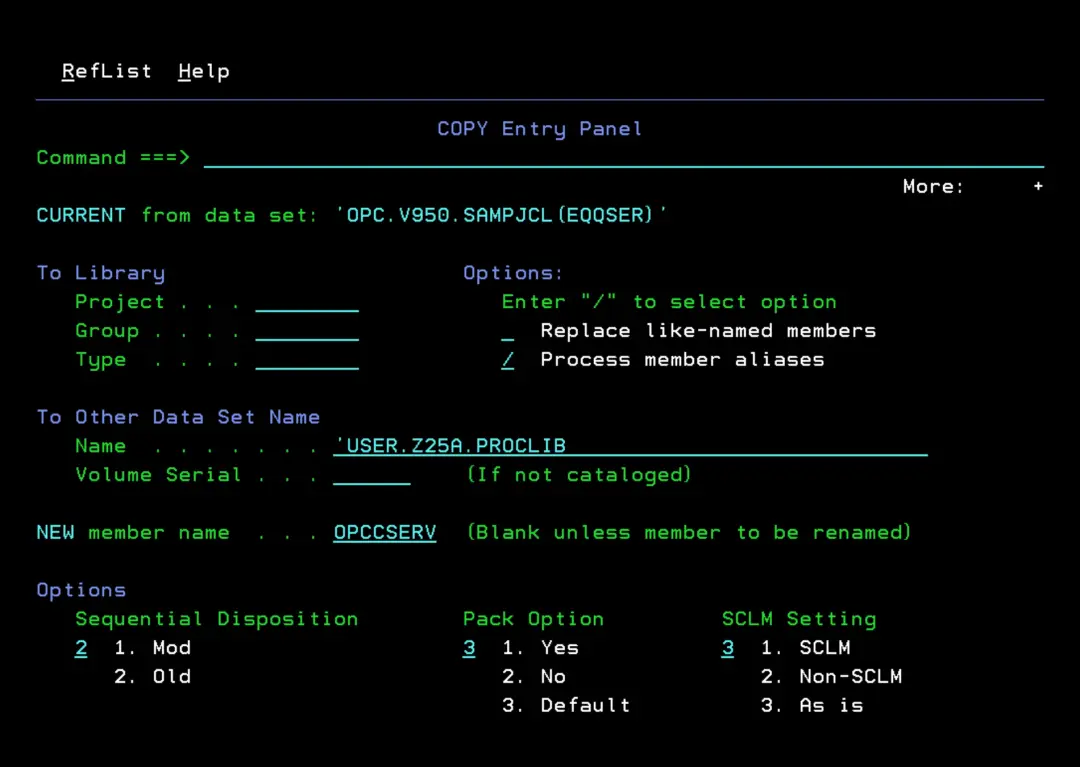
We copy EQQSER to PROCLIB. I will rename it to OPCCSERV.
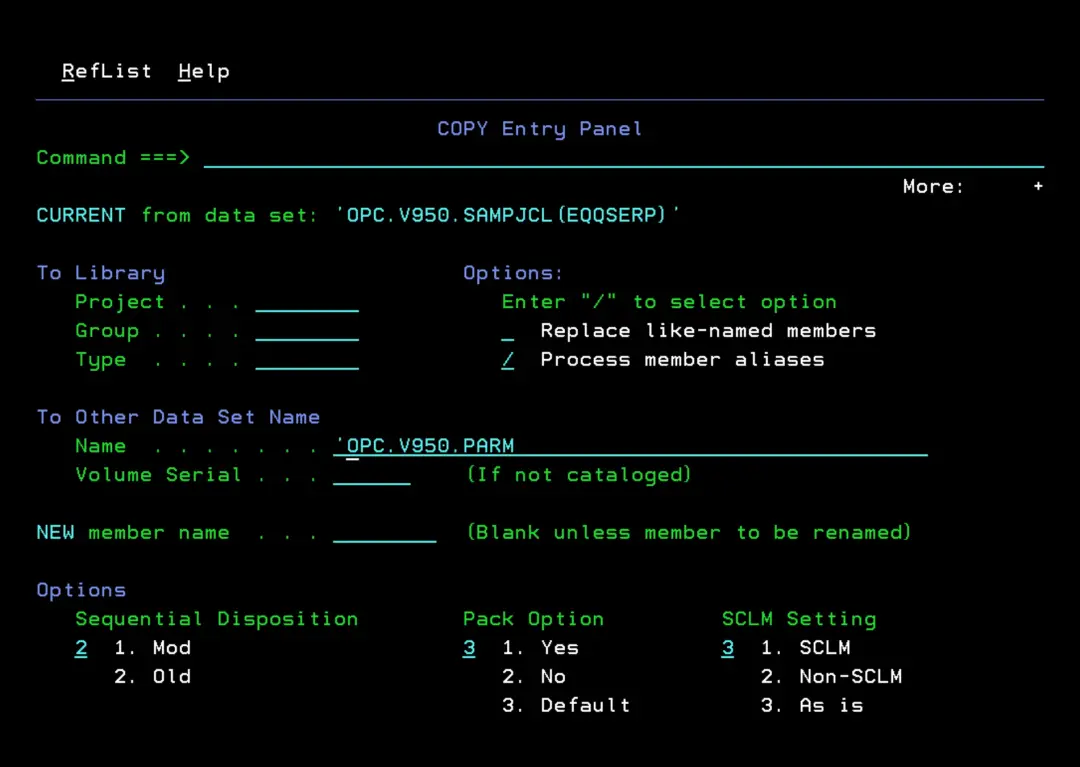
We copy EQQSERP to the OPC parameter library (in my case, OPC.V950.PARM).
Create the Parameter Files
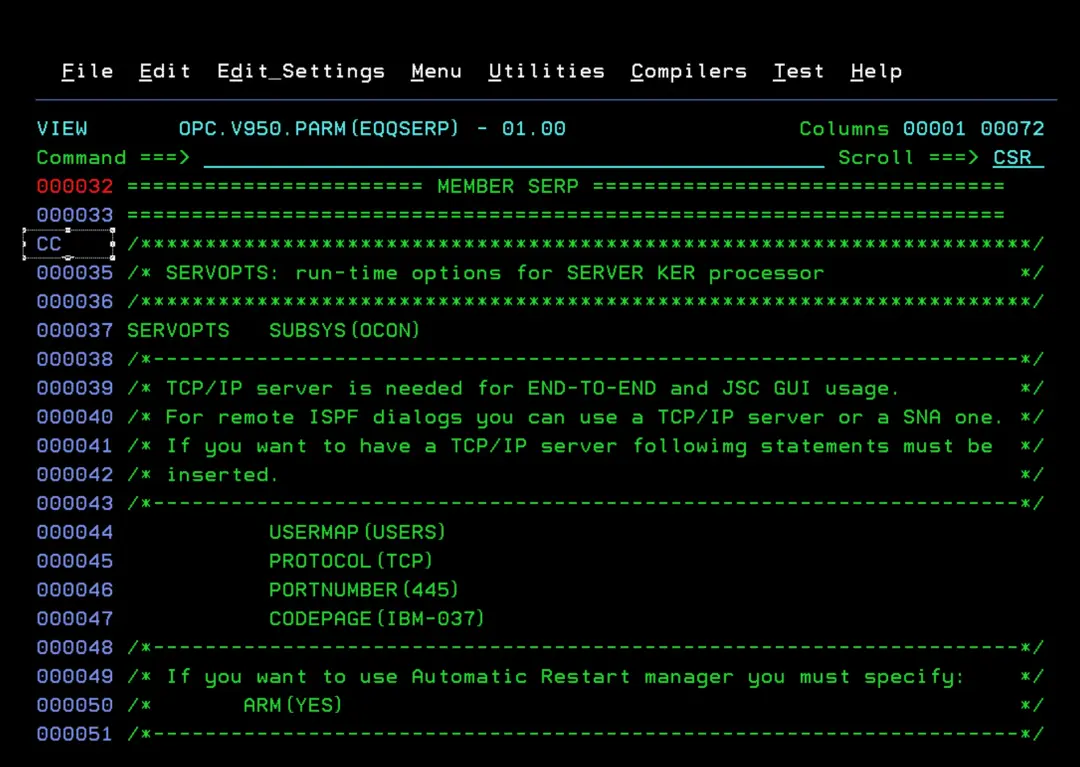
Let's edit the EQQSERP member. From there we will create two other files.
SERP member. Instead of using that name, I will call it OPCCSERP.
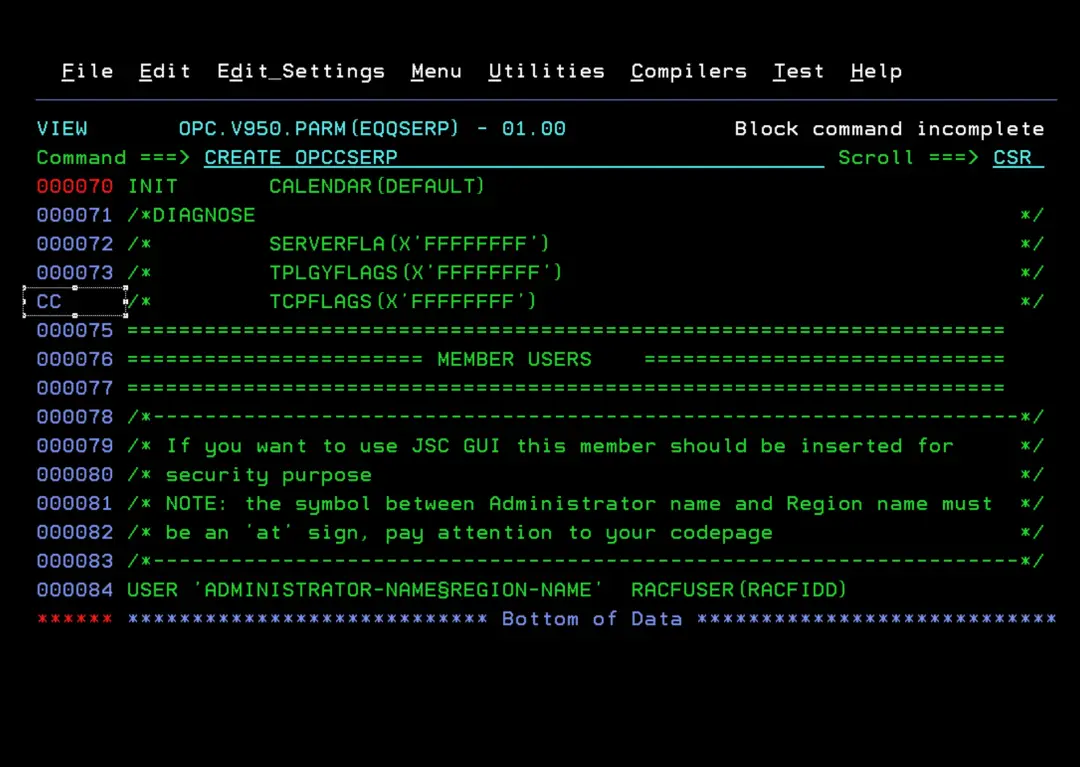
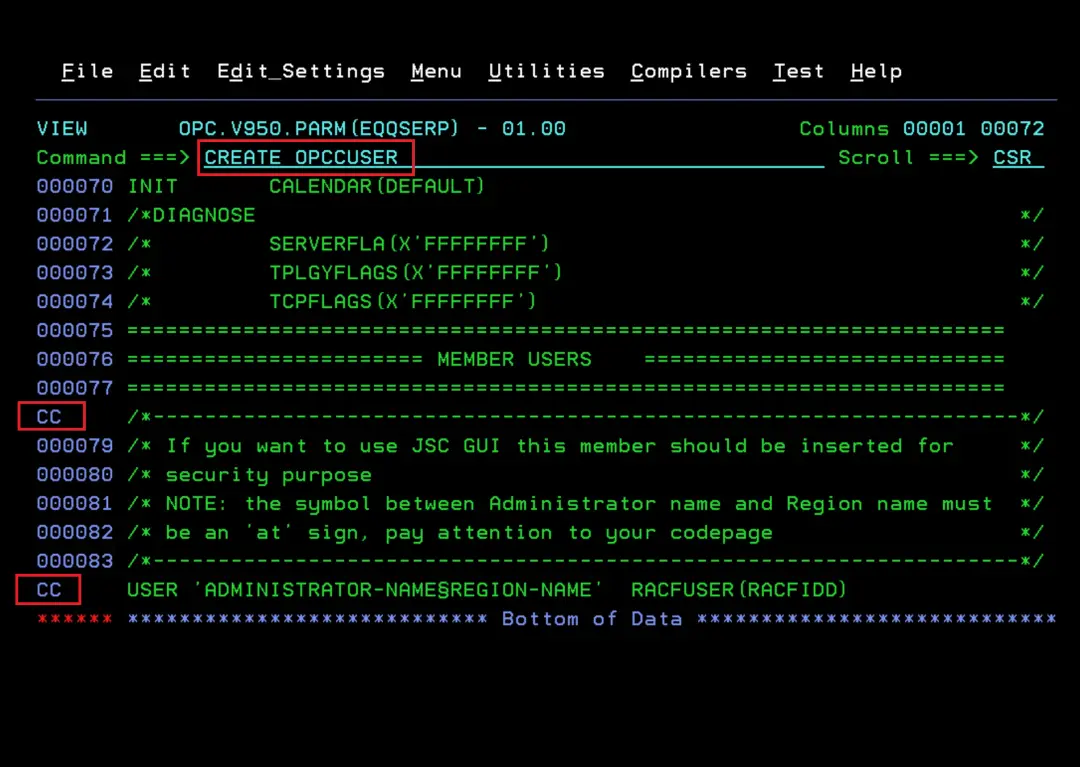
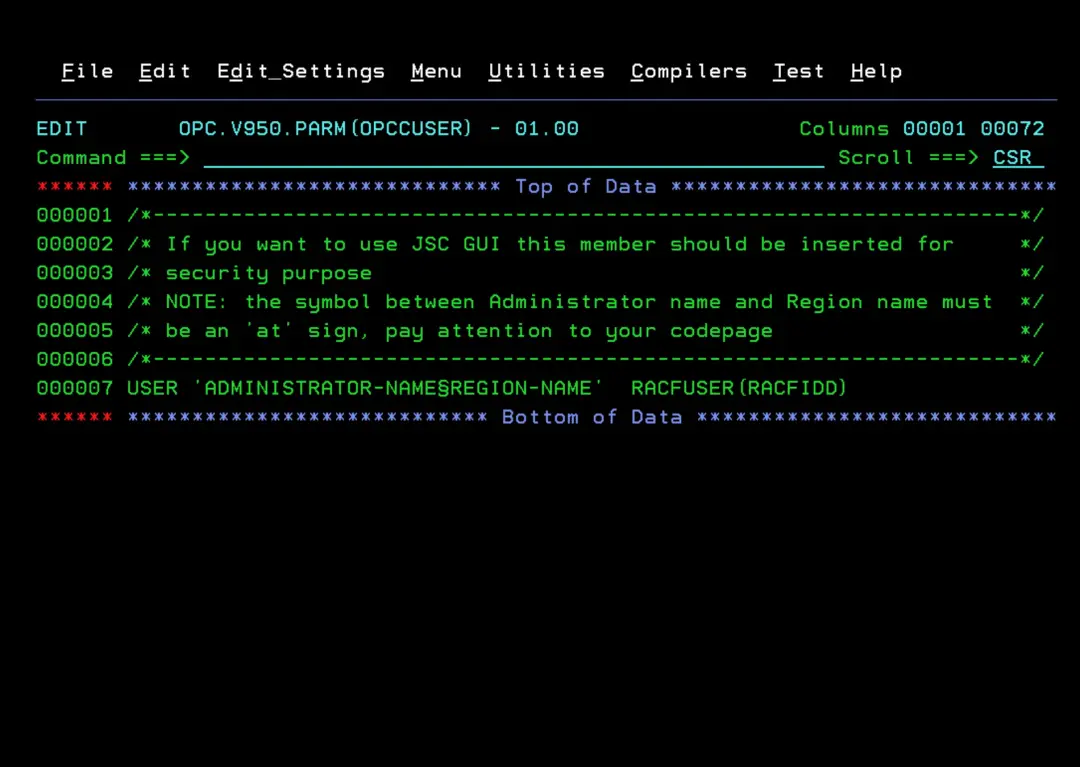
We also need to create the users file (USERS member). I will create it with the name OPCCUSER.
I will edit the OPCCSERP member.
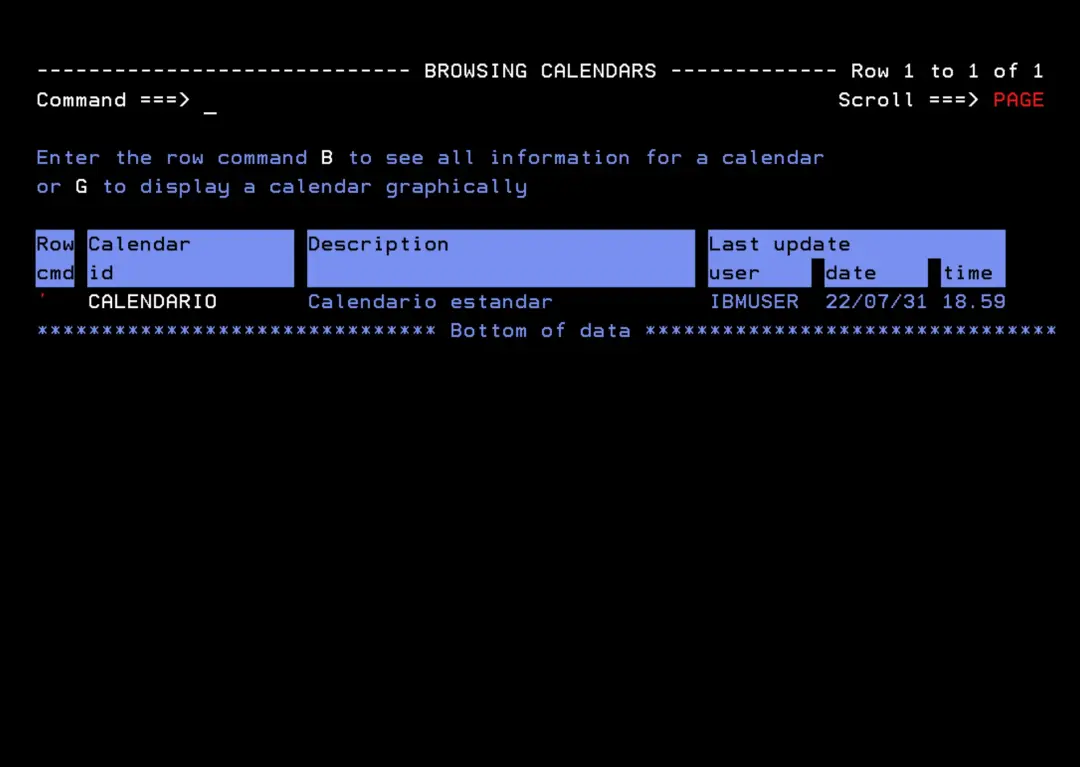
I will indicate the SUBSYS (OPCC, in my case) and the USERMAP parameter is the member created in the previous step. In the CALENDAR parameter we need to put the name of the database calendar we want to use. In my case, I have one called CALENDARIO.
Additionally, I will add the following parameter to indicate the local IP (I'm not sure if it's necessary, but just in case).
JSCHOSTNAME(192.168.1.12)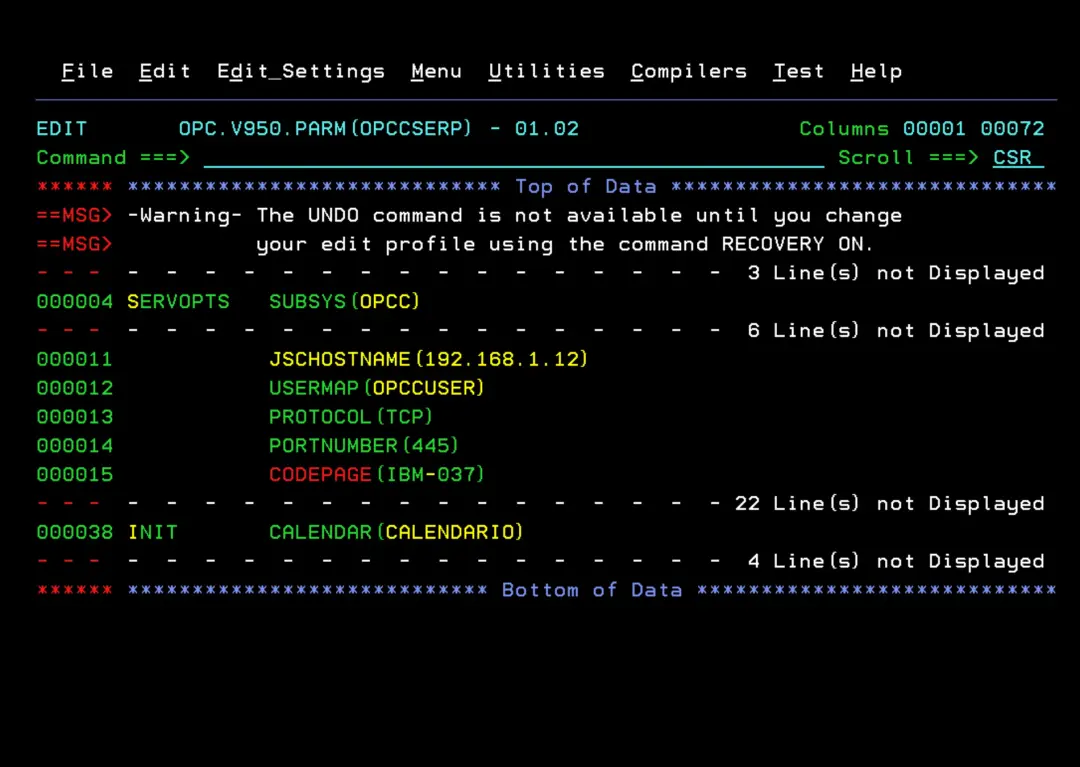
The available calendars can be seen in option 1.2.1 of OPC.
In the OPCCUSER member we must add the users so they can connect to the server. For now I will leave it as default or better yet, we don't put any.
Later I will explain the simple way to add them.
In the OPC Controller parameter file, I will add the following parameter so that the server starts automatically when the controller starts.
SERVERS(OPCCSERV)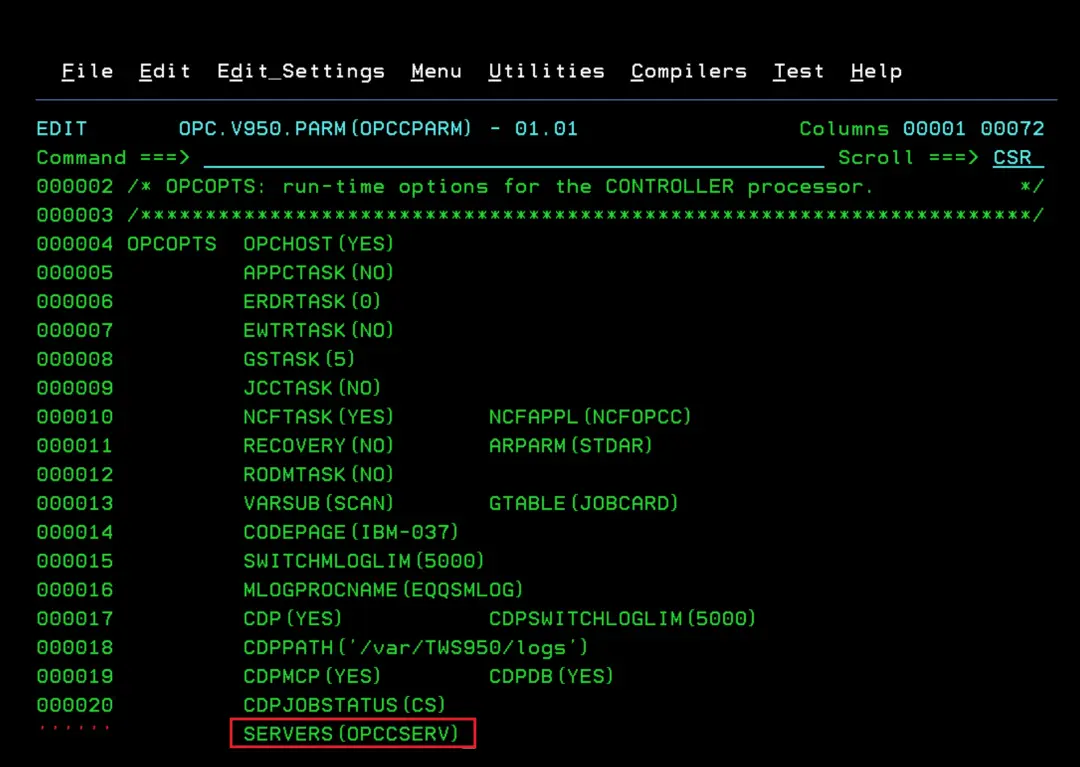
Adapt the STC
The next step will be to adapt the STC. I will put the correct name of the STC and the parameter member.
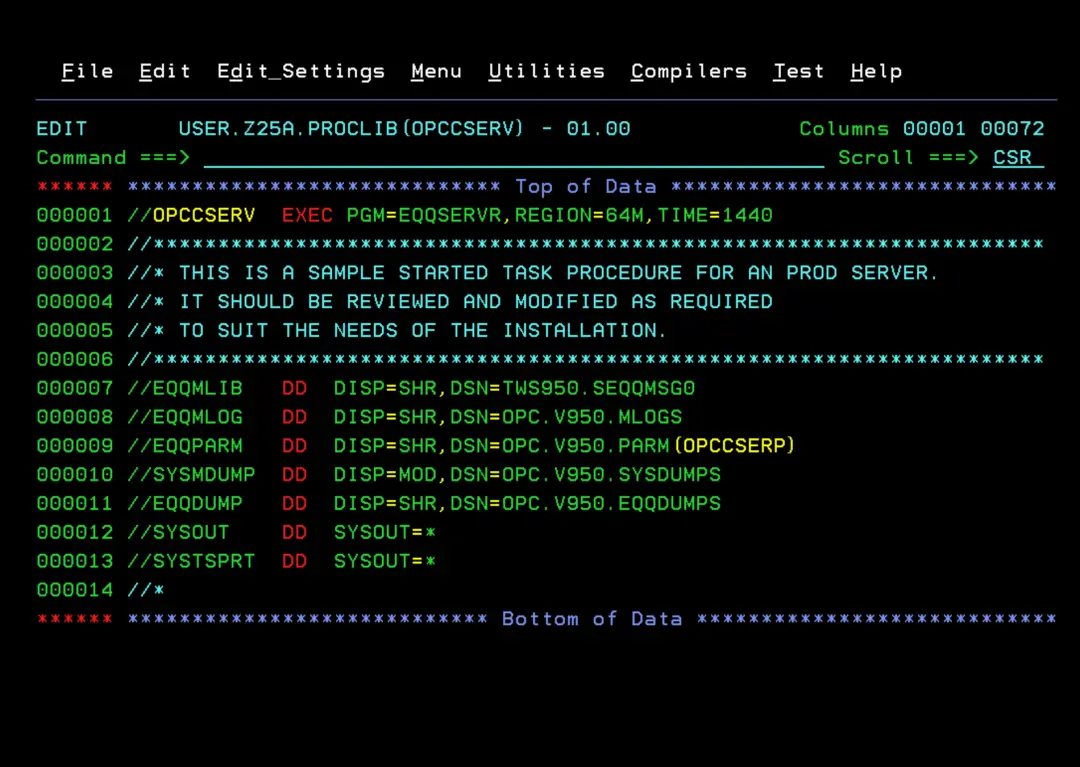
Start the Server
Now we can start the STC with the command S OPCCSERV.
It will start correctly.
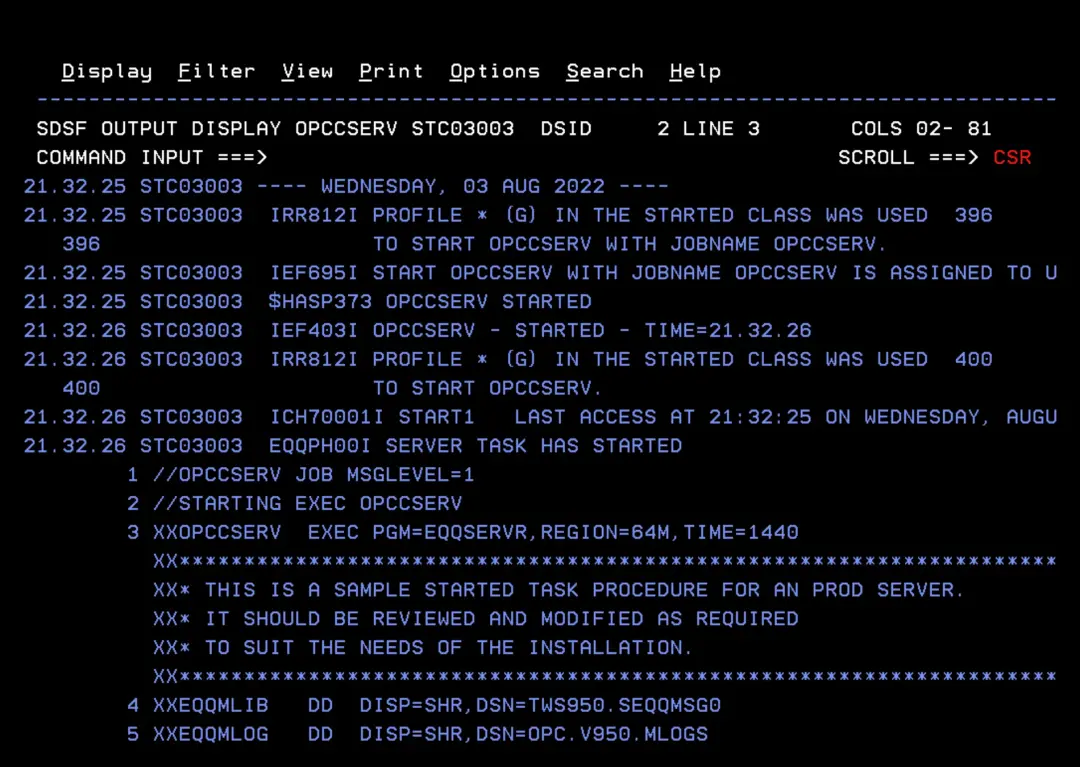
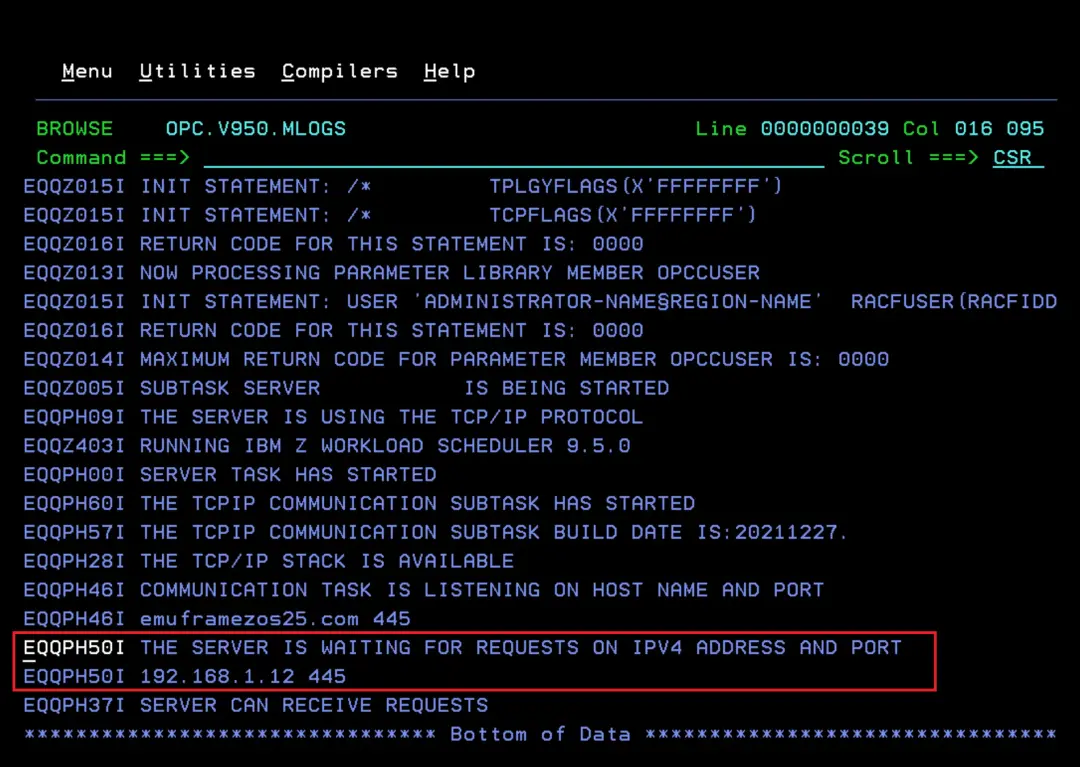
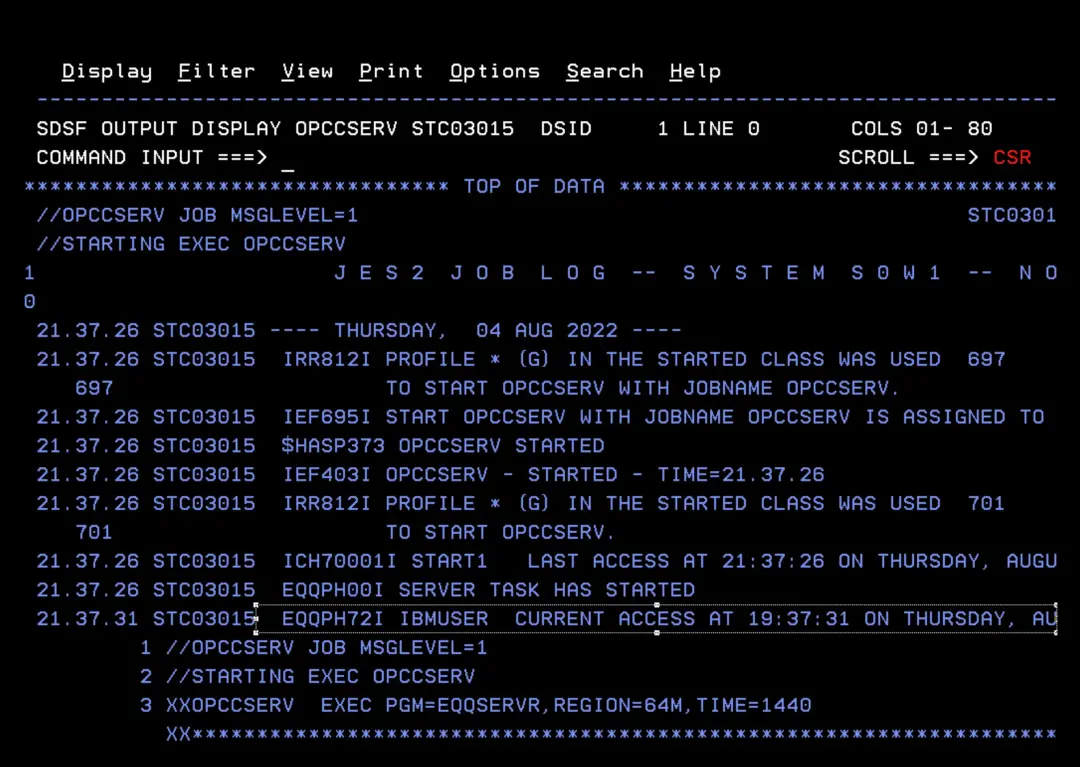
In the MLOG file (DD EQQMLOG of the STC) we can see that the startup went well and the connection data.
Configure the zConnector in DWC
We have the z/OS part ready. Now let's do the DWC console part.
We need to create the "zConnector" which is used to connect with the server we started on z/OS.
I will use the following reference links:
- https://www.ibm.com/support/pages/connect-dwc-95-zos-environment
- https://www.ibm.com/docs/en/workload-automation/9.5.0?topic=console-defining-zos-engine-in-z-connector#connfactory
To define the zConnector, we will do the following.
First we need to connect to the DWC container. With Docker Desktop it's very easy, we just have to open the container console.
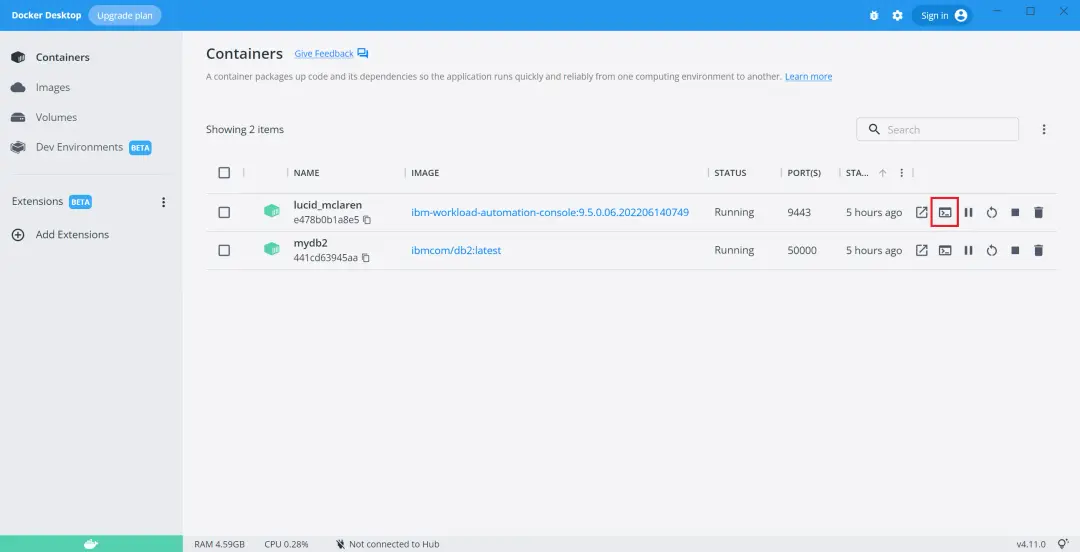
A terminal will open and there we need to go to the path "/opt/dwc/usr/servers/dwcServer/configDropins/templates/zconnectors" to copy the configuration template (connectionFactory.xml).
cd /opt/dwc/usr/servers/dwcServer/configDropins/templates/zconnectors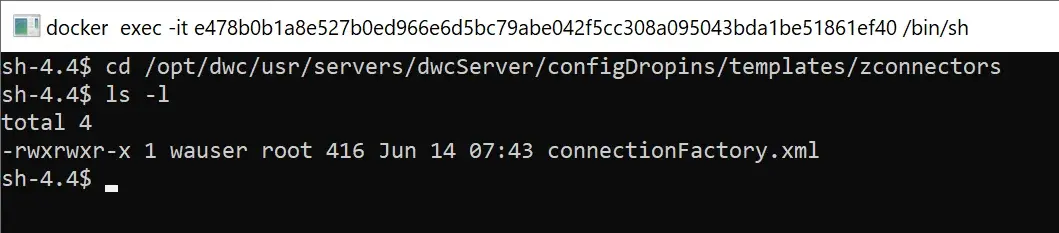
We will copy that file to the path "/home/wauser/wadata/usr/servers/dwcServer/configDropins/overrides"
cp connectionFactory.xml /home/wauser/wadata/usr/servers/dwcServer/configDropins/overrides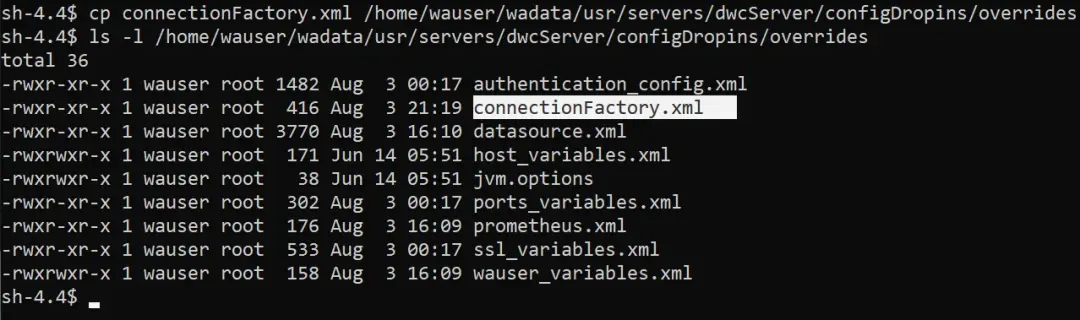
Now we go to that path and open the file with the "vi" editor:
cd /home/wauser/wadata/usr/servers/dwcServer/configDropins/overrides
vi connectionFactory.xml
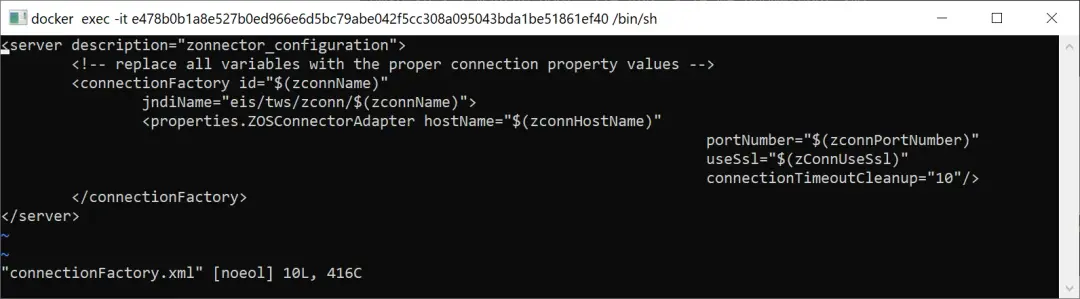
Here is a link with vi commands:
https://docs.oracle.com/cd/E19620-01/805-7644/6j76klopr/index.html
To edit, press the "i" key and we will enter "Insert" mode.
We edit what we want in the file and press "ESC" to return to command mode.
To save and exit, we type → :wq
To exit without saving, we type → :q!
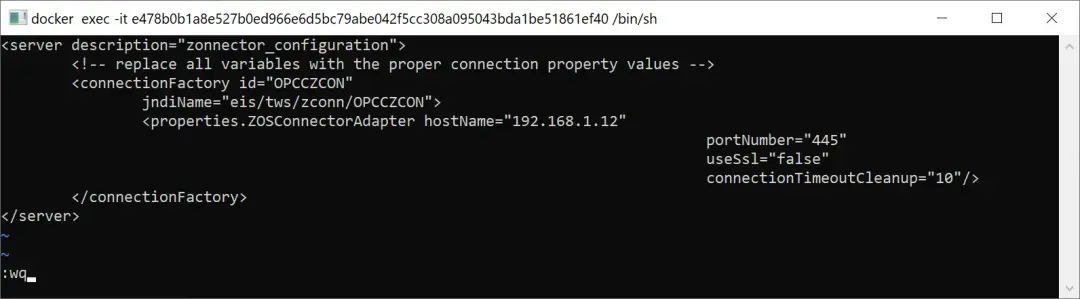
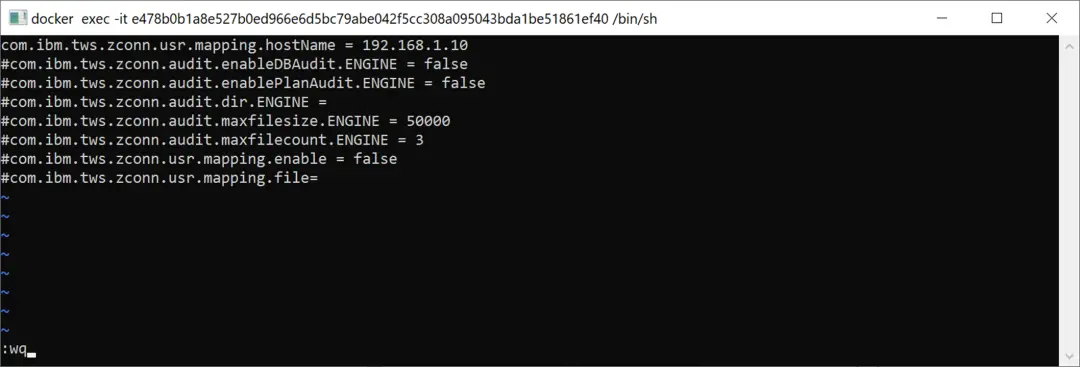
The manual indicates that we must put the host name in the TWSZOSConnConfig.properties file. We go to the path and edit it with vi:
cd /home/wauser/wadata/usr/servers/dwcServer/resources/properties/
vi TWSZOSConnConfig.properties
I will put the IP of the system where I have Docker running.
Configure Users in DWC
To connect with the z/OS Controller, the user used is important. This user must be defined in DWC and also in z/OS (RACF in my case).
Since I already have the IBMUSER user defined in RACF, I will include it in DWC to connect with the Controller. This way, I "save" work for this test.
To add users, I will follow this document:
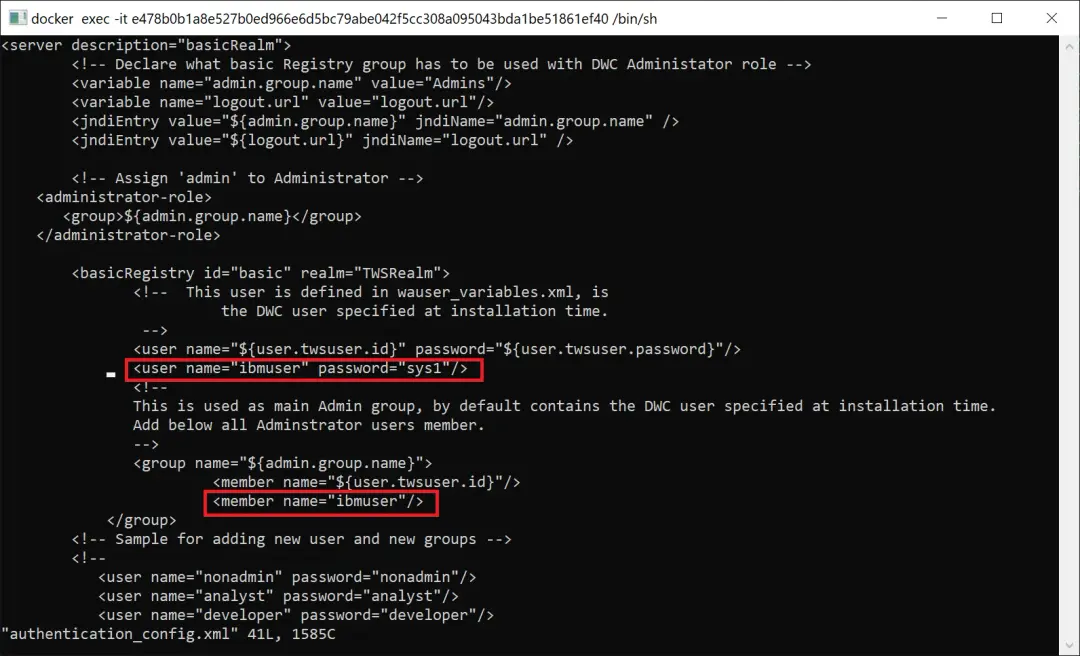
We go to the path /opt/dwc/usr/servers/dwcServer/configDropins/overrides and modify the file:
cd /opt/dwc/usr/servers/dwcServer/configDropins/overrides
vi authentication_config.xml
I will add the following lines to create the ibmuser user, define its password, and add it to the Administrator group (Admins). We will now be able to log in to the web.
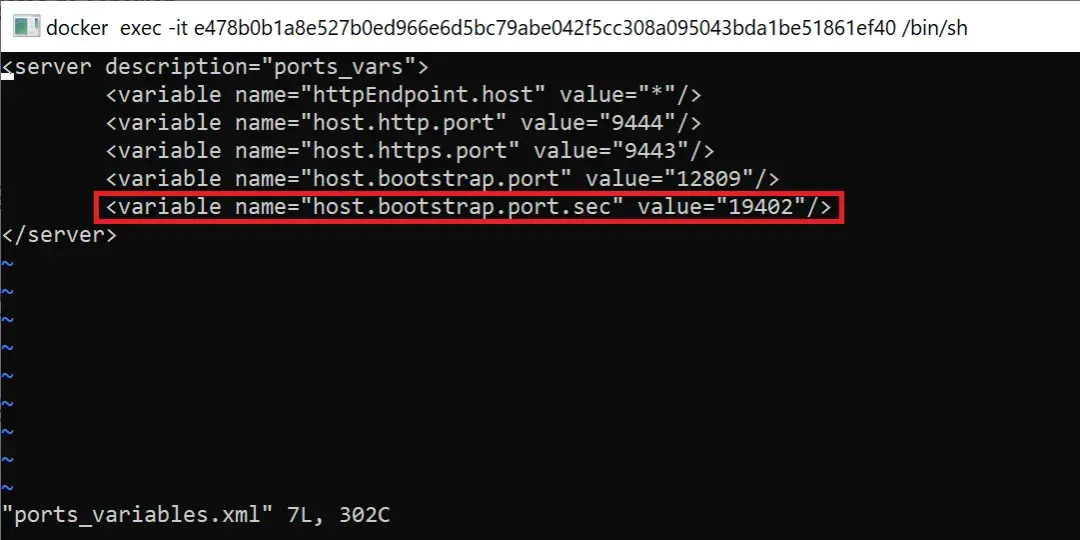
Another important piece of information is knowing which port we should use when we add the connection to the Controller (this will be better understood later). To find out, we need to review the "ports_variables.xml" file.
cd /opt/dwc/usr/servers/dwcServer/configDropins/overrides
vi ports_variables.xml
Add the Connection with the z/OS Controller
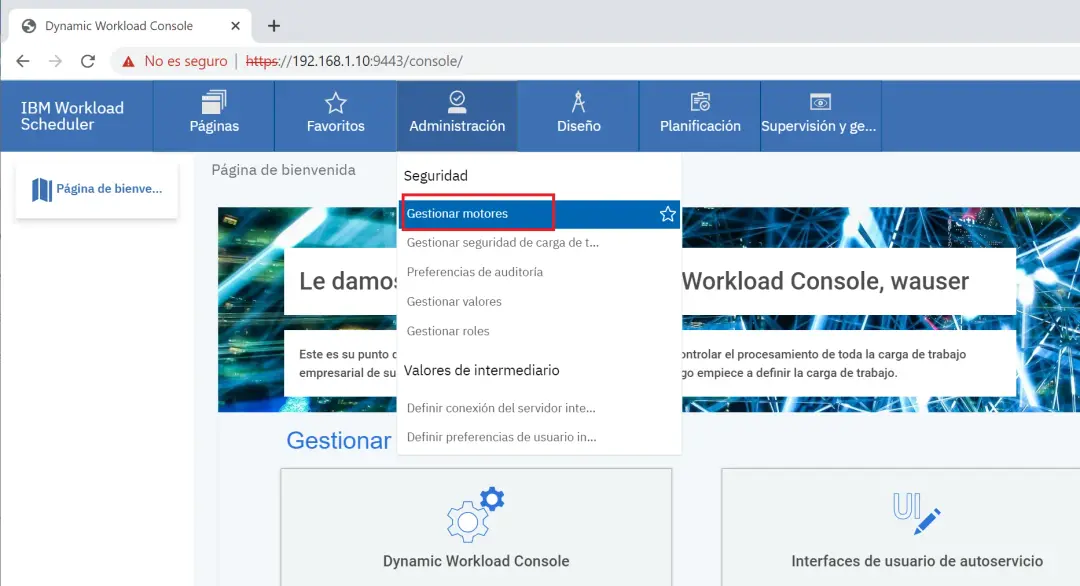
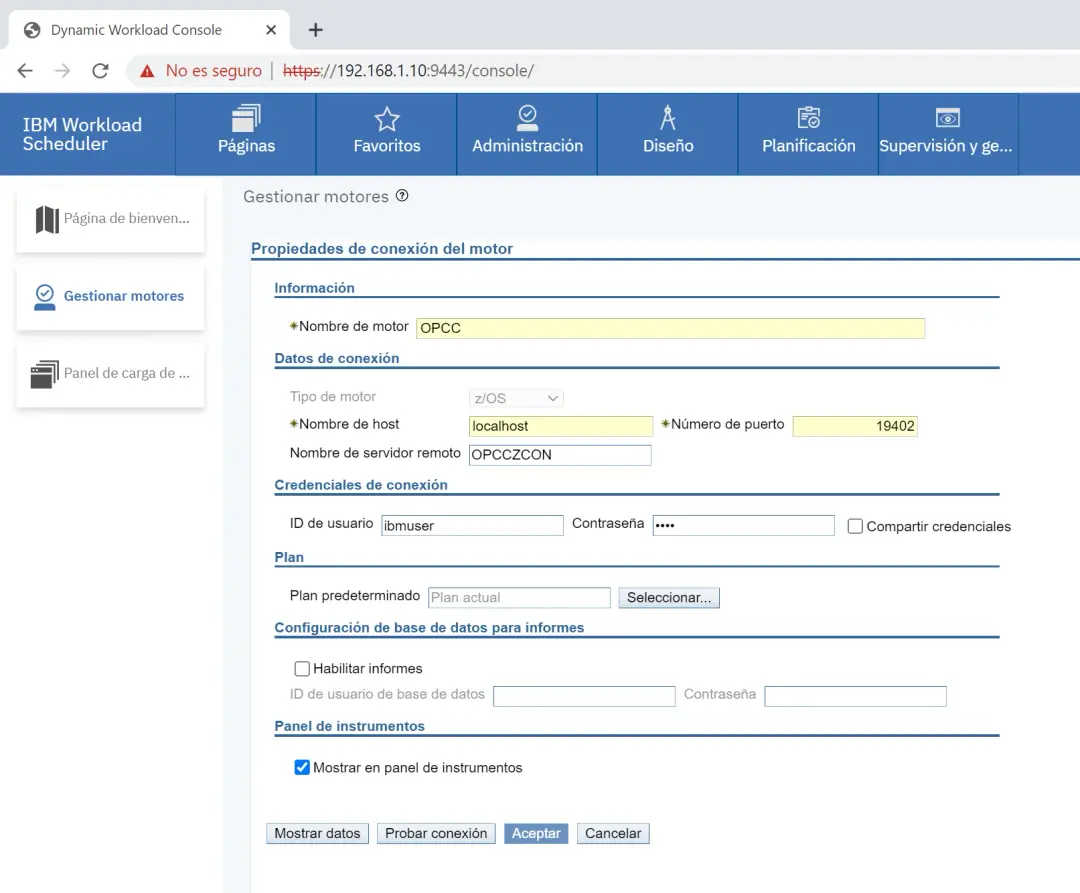
Now we need to add the connection with the z/OS OPC. We enter DWC (I will do it with the new "ibmuser" user) and go to Administration, Manage Engines.
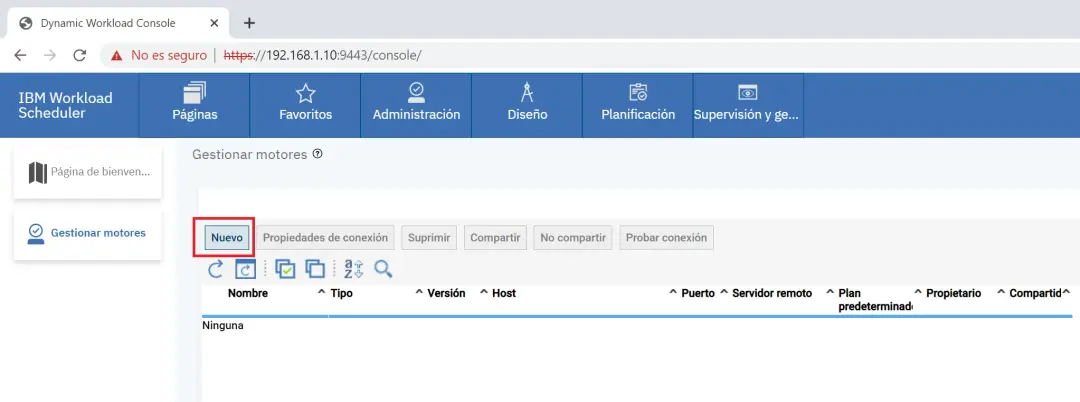
We click on New.
This connection can only be edited by the user who creates it.
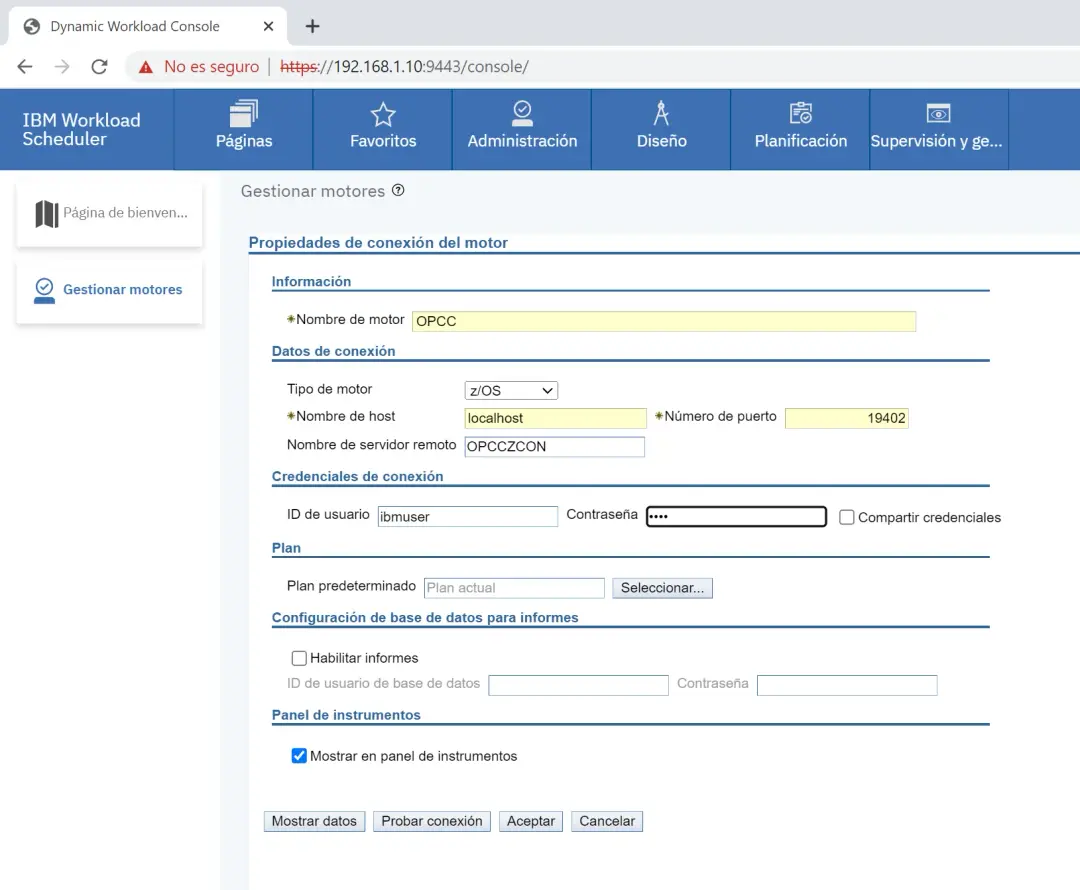
I will choose the engine type z/OS. As host name we will leave localhost and we will put the port we saw in the ports_variables.xml file (19402).
The remote server name is the zConnector id OPCCZCON (connectionFactory.xml file).
As user I will use the ibmuser user (authentication_config.xml file).
We will click Test Connection and the first time it will fail.
The error will indicate the user we must define in the z/OS USERMAP file.
AWSUI0766E Test connection with [OPCC]: failed.
AWSUI0833E The operation could not be completed. A communication error occurred.
The internal message is: AWSJCO005E WebSphere Application Server has given the following error: javax.ejb.EJBException: See nested exception; nested exception is: com.ibm.tws.zconn.pif.PifException: EQQPH25E TME USER ID MISSING IN RACF CLASS TMEADMIN: ibmuser@192.168.1.10.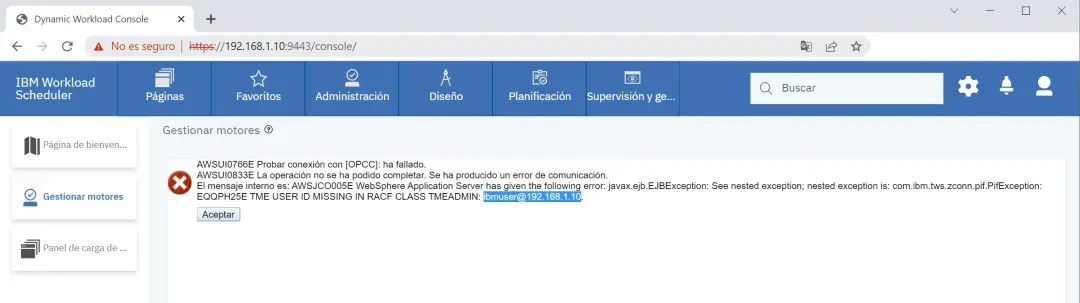
Configure the User in z/OS
We go to the OPC.V950.PARM(OPCCUSER) member that we saw in previous steps and add the user@host.
USER 'ibmuser@192.168.1.12' RACFUSER(IBMUSER)More information is available at the following link:
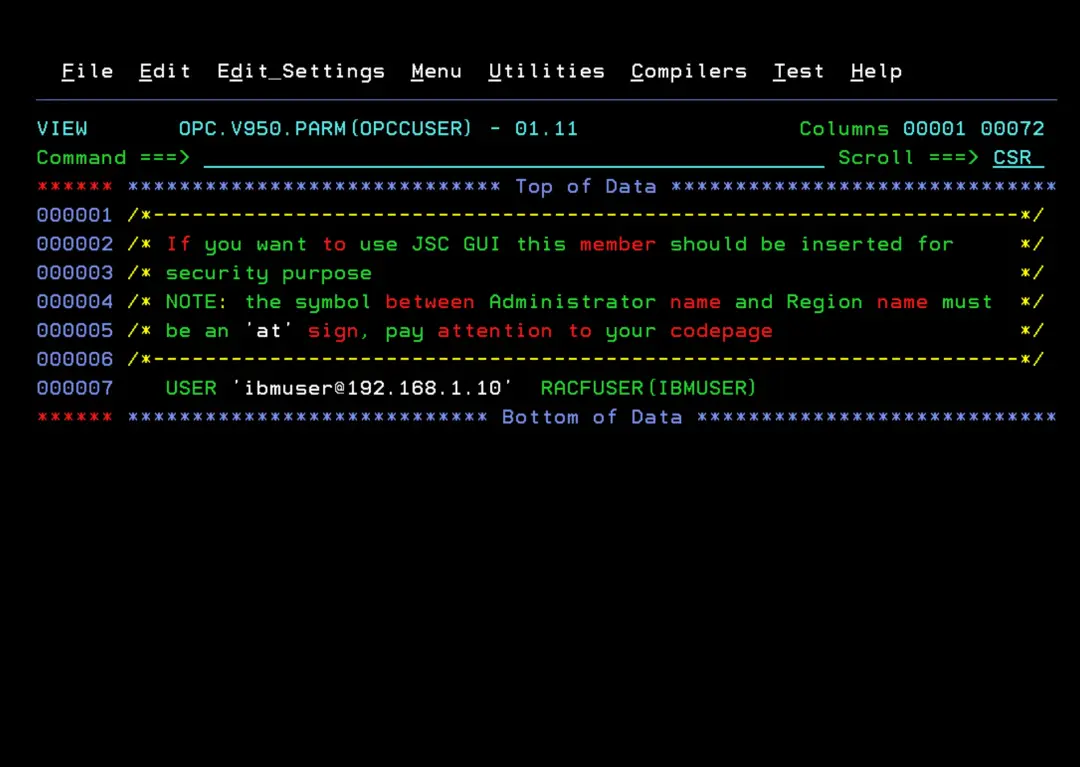
We stop and start the OPCSERV task so it picks up the changes.
Now, when testing the connection again from DWC, it will connect.
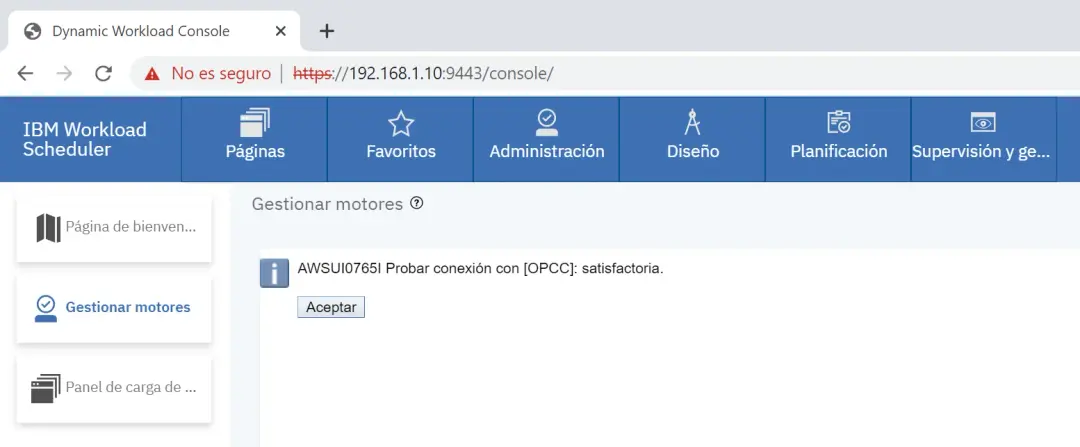
We accept the configuration.
Share the Connection with Other Users
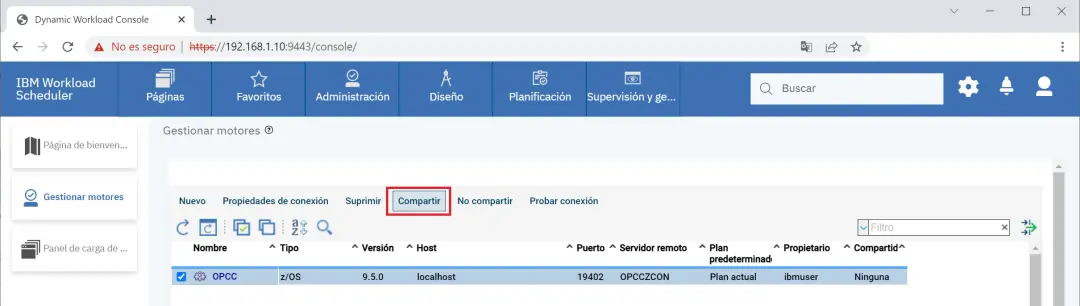
We can share the configuration so that other users have access to the connection, but only the user who created it can edit the configuration.
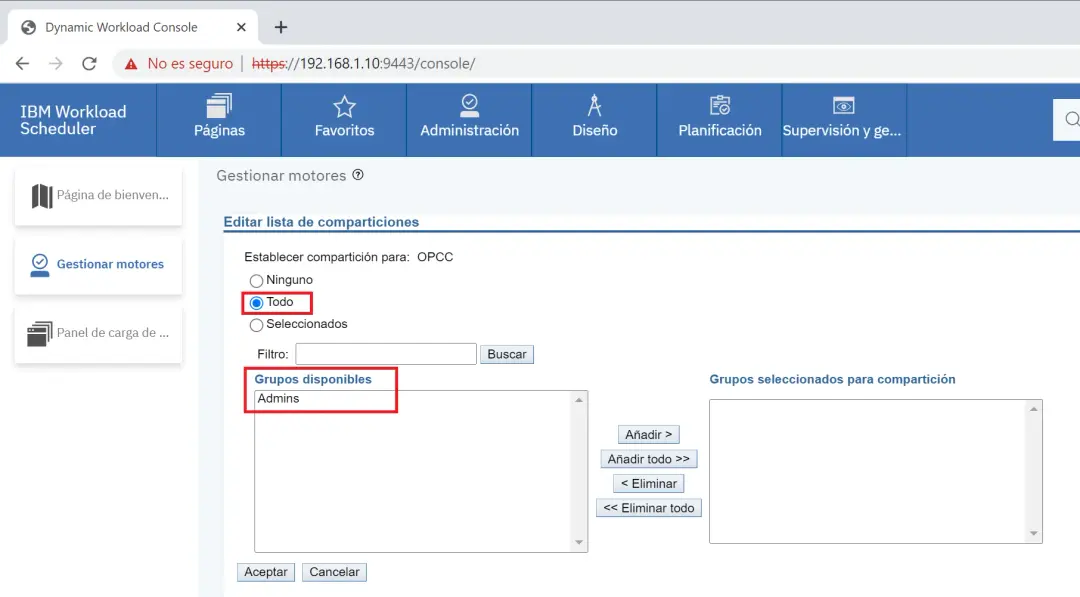
We can share it with all users or with groups (groups must be defined in the authentication_config.xml file)
z/OS OPC Control Panel
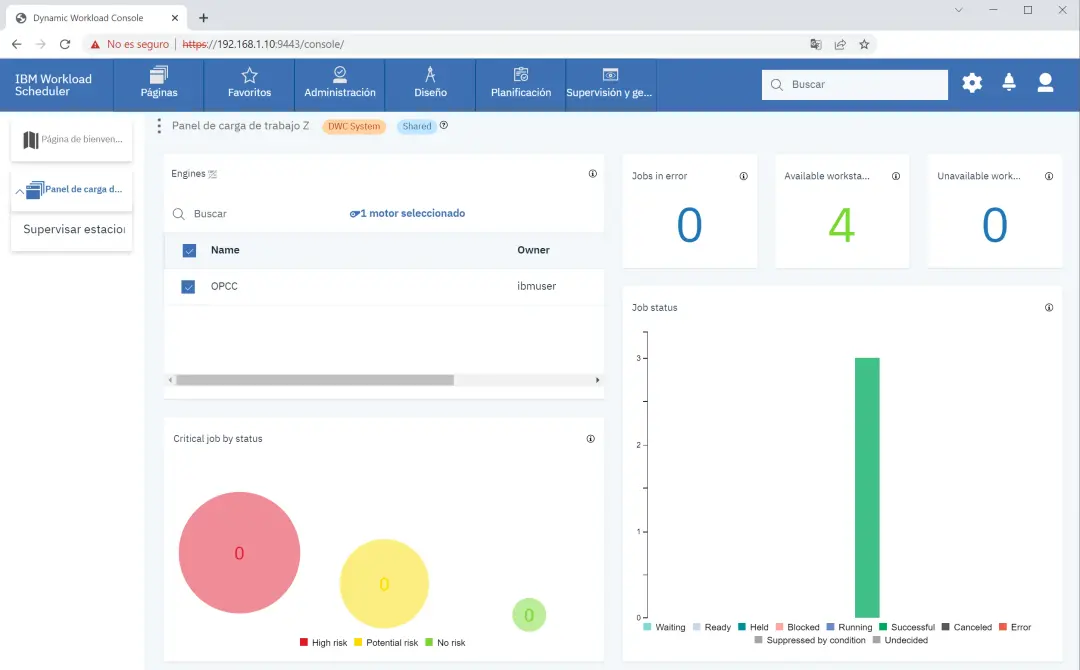
Finally, we will see the z/OS OPC control panel.
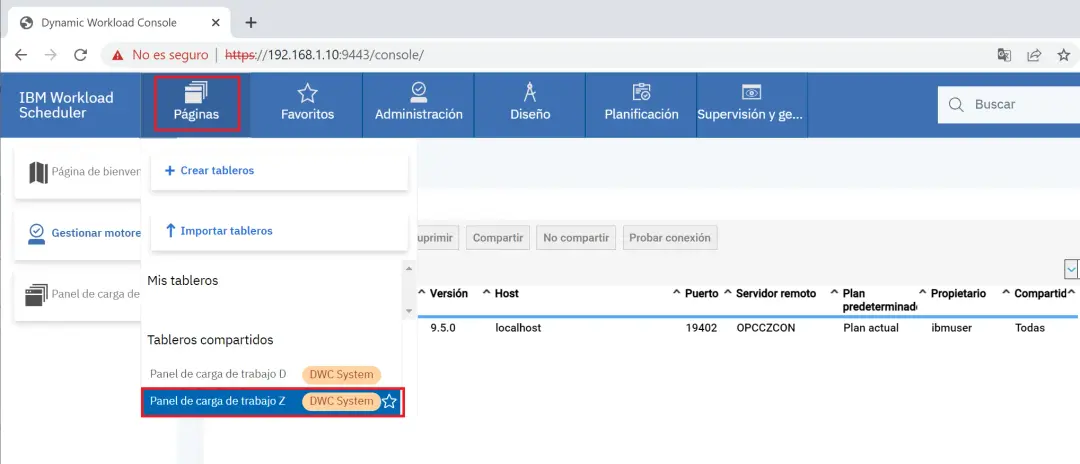
We will see the following information (in my case, there are very few things).
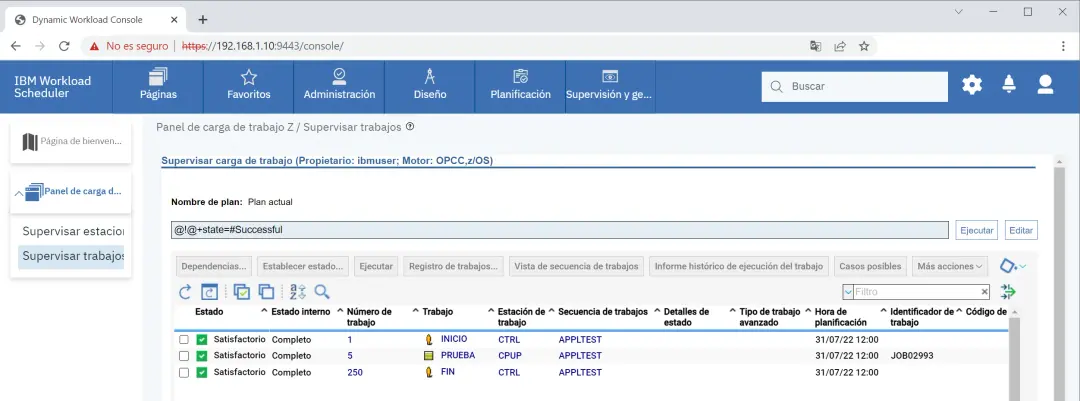
If I go to see the jobs that went well, we can see information about them (by clicking on the green bar of the Job status panel).
Troubleshooting: Container Startup Error
As a curiosity, I will add that during testing I had a startup error. The container log indicated the following. We note the log file path:
WAINST007I Starting server dwcServer ...
WAINST015E The following command failed: /opt/dwc/appservertools/startAppServer.sh -direct
WAINST035I For more details see the installation log file: /home/wauser/wadata/installation/logs/dwcinst_9.5.0.06.log.
I: Customizing datasource.xml
I: Customizing datasource.xml nothing to do
E: Error configuring console.
E: Error starting instance.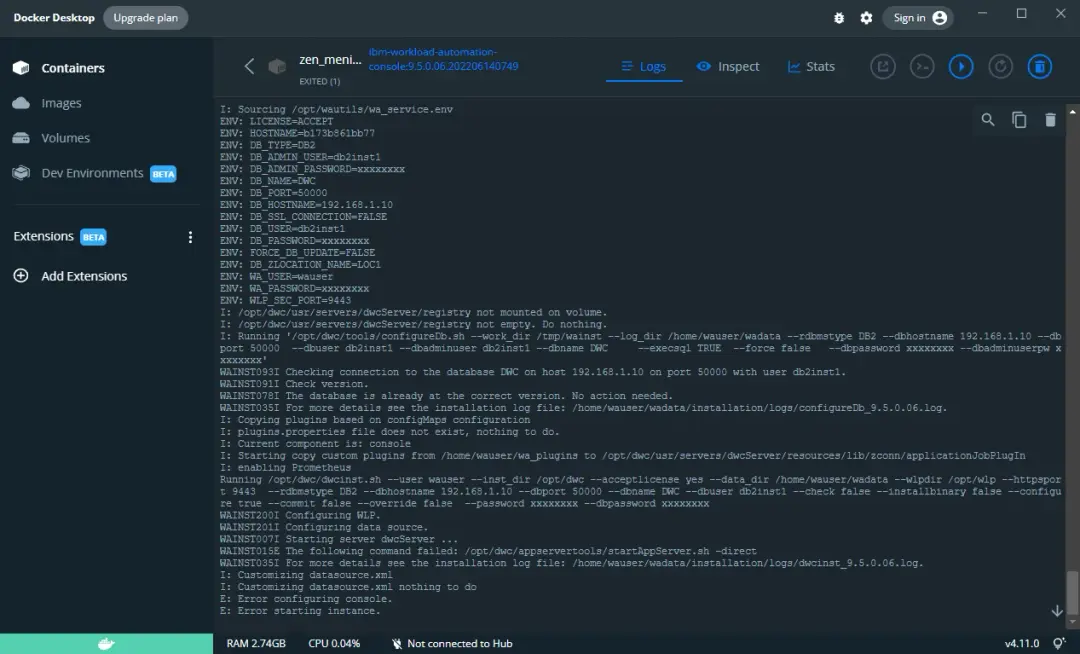
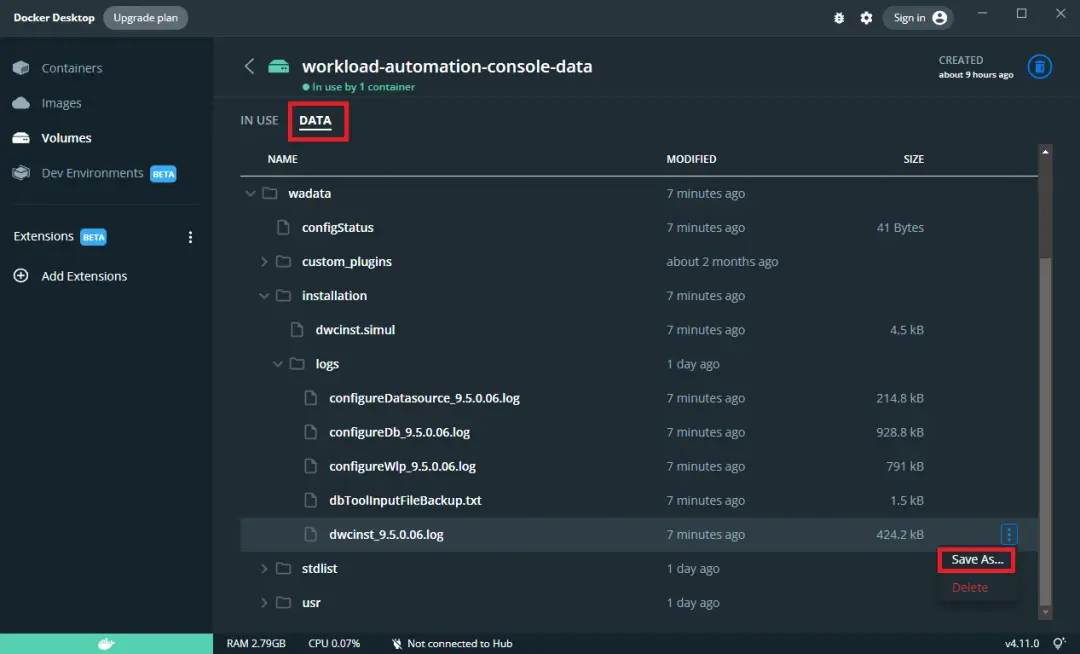
To view the log, we go to Volumes and choose "workload-automation-console-data".
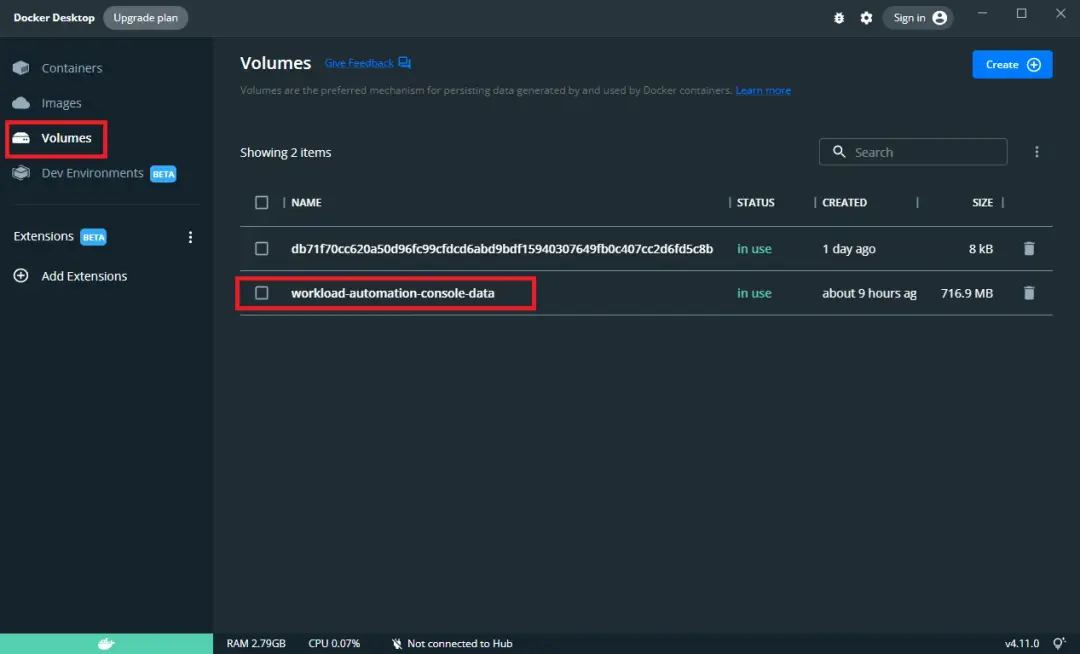
We go to the DATA tab, search for the log we saw in the previous step and download it.
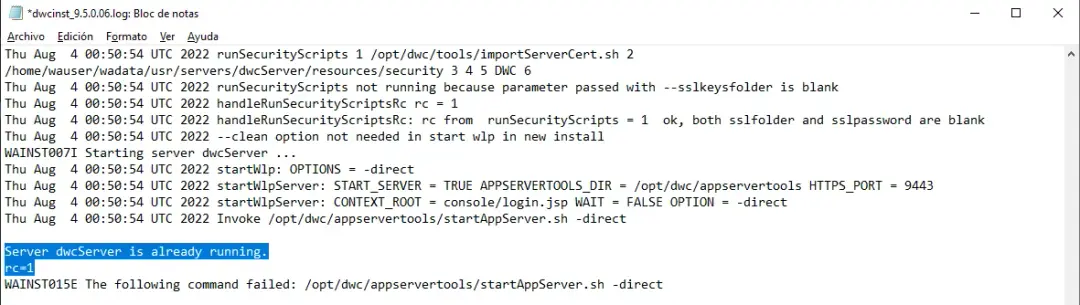
We will see a message indicating that the server is already running.
In my case, I stopped Docker, restarted the PC, deleted the container and recreated it. The same error kept appearing. Finally I found this link:
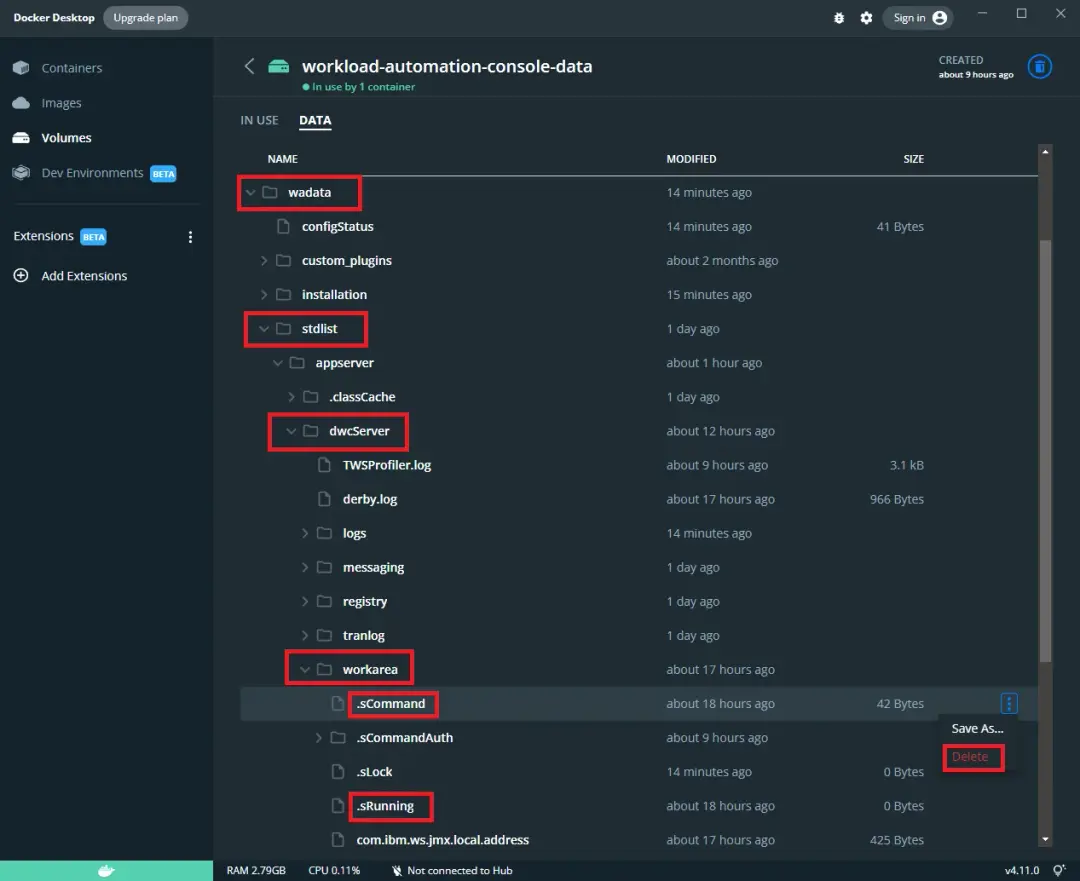
Following the instructions, I deleted the .sCommand and .sRunning files from the wadata/stdlist/appserver/dwcServer/workarea path and the server started correctly.
For some reason they must not have been deleted with the previous server shutdown. It has happened to me a couple of times, but it's easy to fix.
I hope you liked this post about DWC.