Create a zFS Larger than 4 GB
What a zFS is and what it is used for
A zFS (z/OS File System) holds directories and files that can be accessed from the UNIX side of z/OS (OMVS).
There used to be another option, HFS, but the last z/OS release that supported it was 2.4.
A zFS is a linear VSAM data set. That VSAM data set is mounted on a directory on the UNIX side (the mount point).
List the mounted zFS
A system has several zFS mounted. To list them, we use this command:
D OMVS,FILE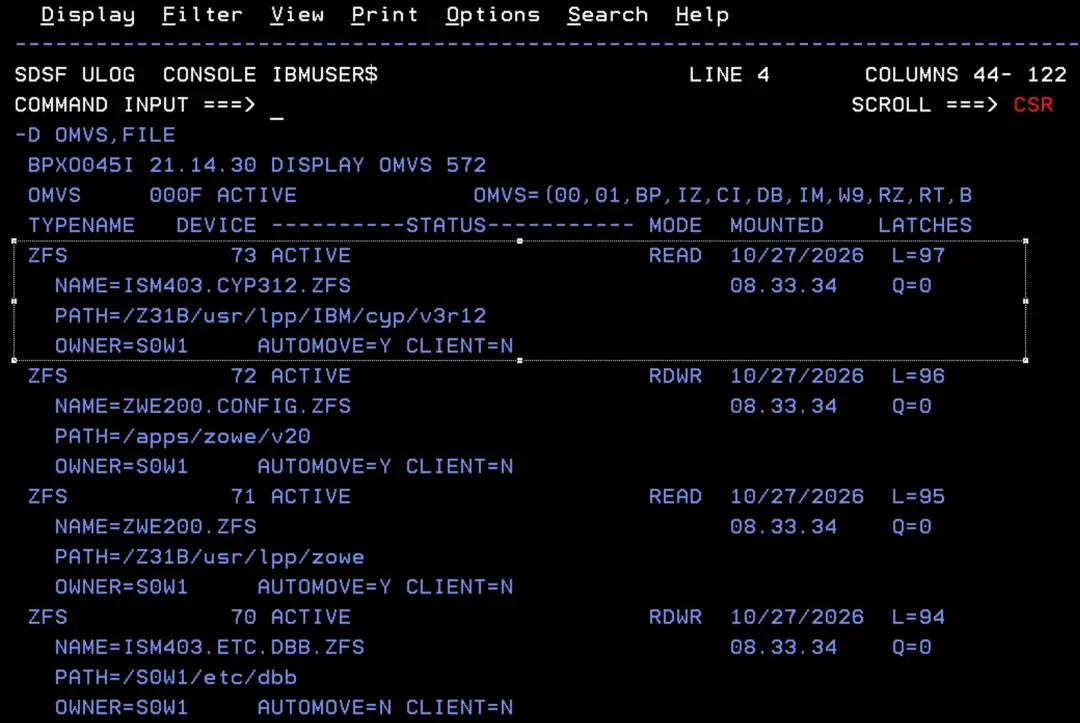
See its contents from option 3.4
We can see the contents of that zFS by entering its path in ISPF option 3.4.
/usr/lpp/IBM/cyp/v3r12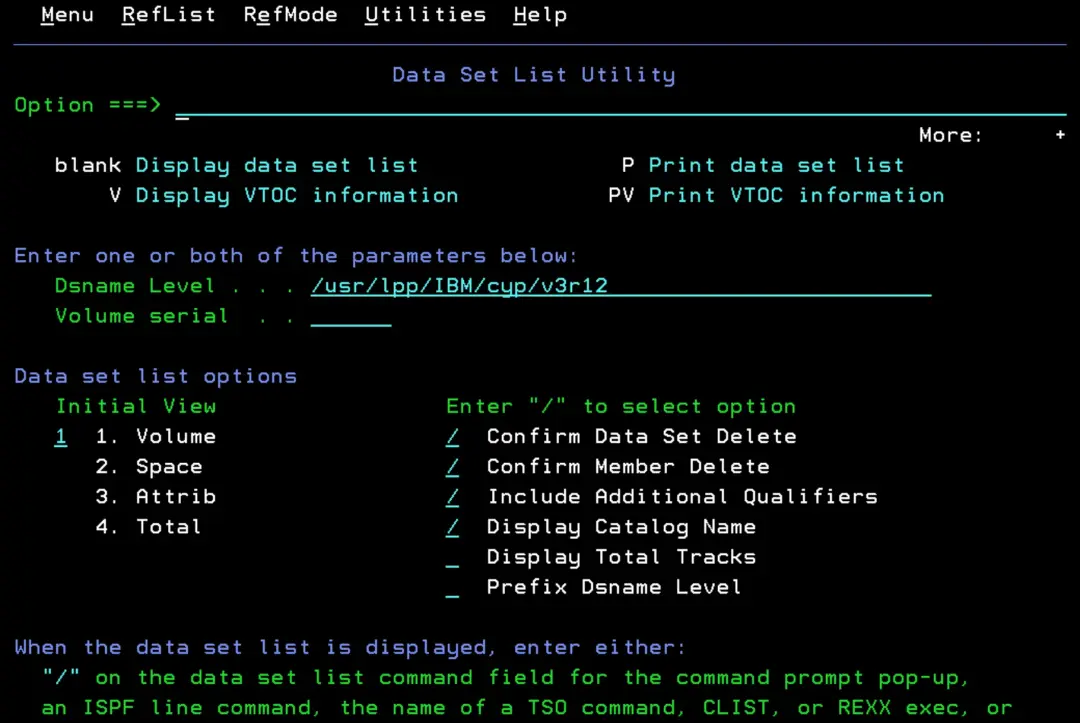
We'll see it has 2 directories.
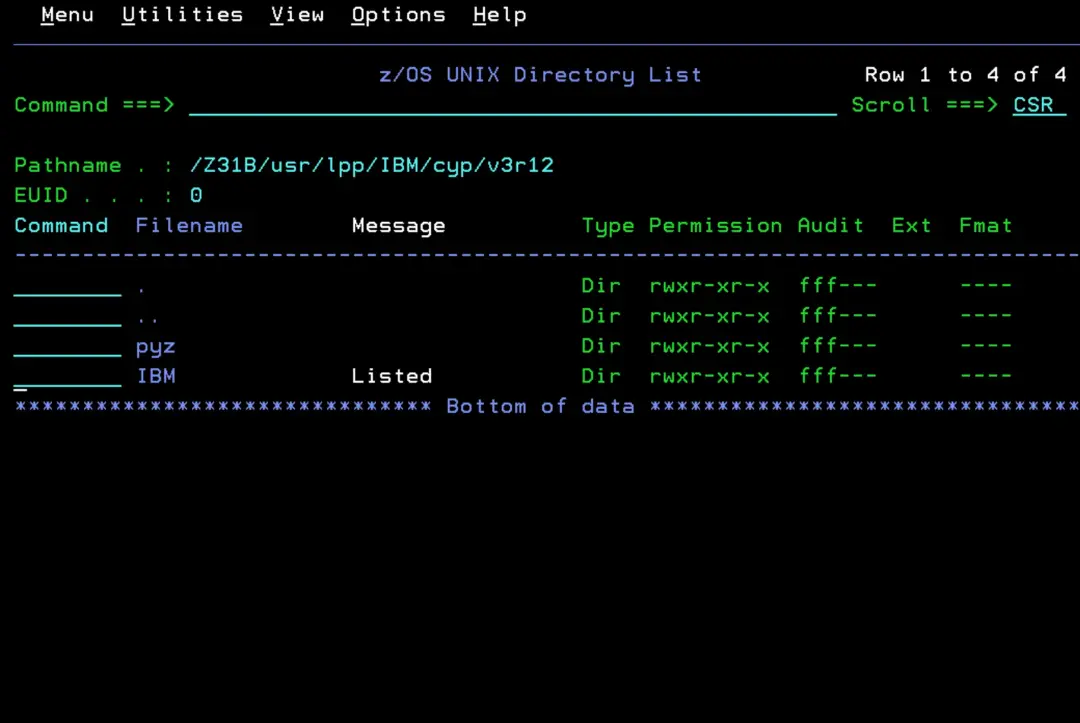
In the display the path starts with /Z31B because /usr is a symbolic link to the version root, so /usr/lpp/IBM/cyp/v3r12 and /Z31B/usr/lpp/IBM/cyp/v3r12 are the same directory.
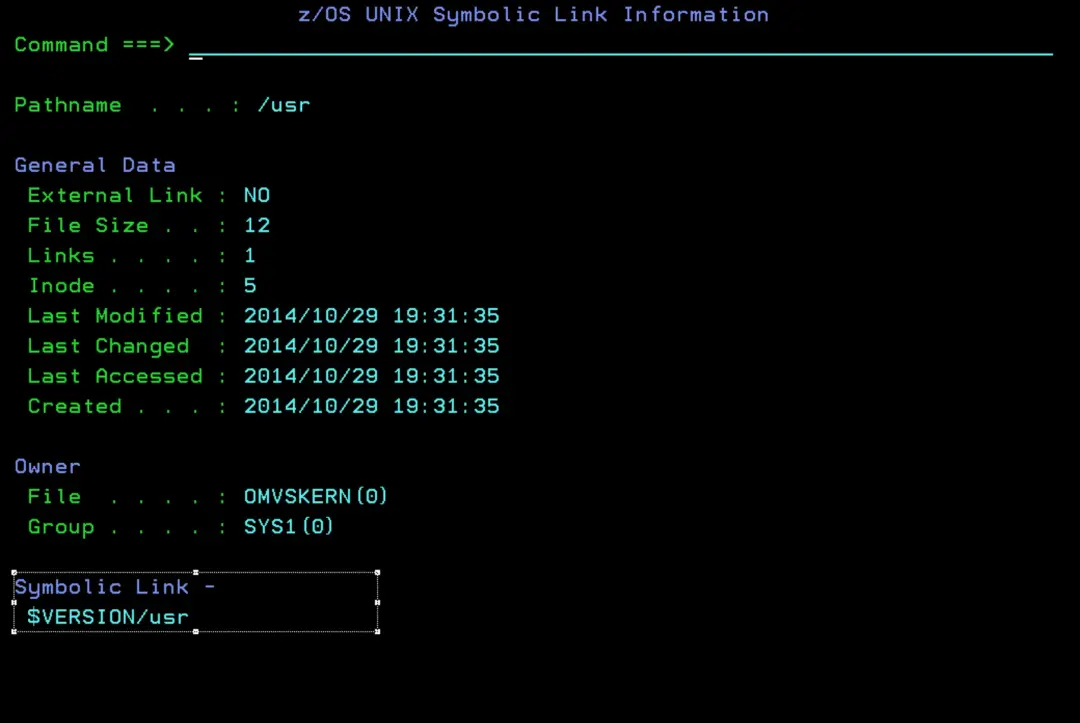
Unmount it and mount it again
I do this in my lab. Don't unmount a zFS that is in use on a real system unless you are sure of what you are doing.
If we unmount that zFS with the following TSO command, its contents are gone and the directory shows up empty:
UNMOUNT FILESYSTEM('ISM403.CYP312.ZFS')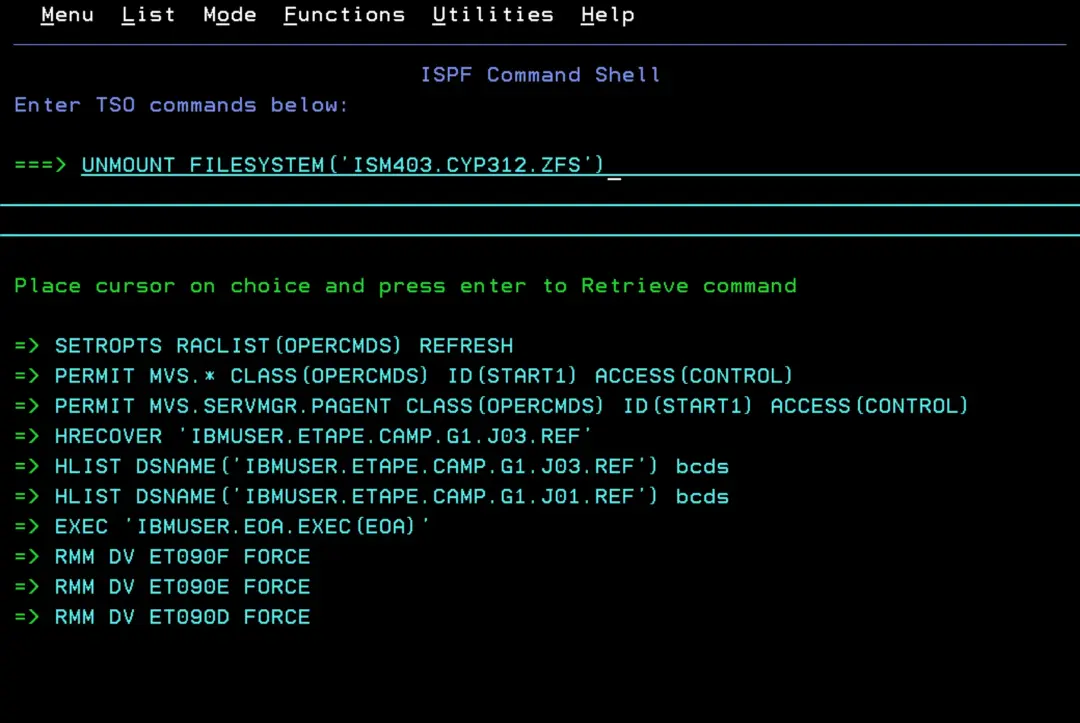
Once it is unmounted, if we look up the same path again, the contents no longer appear.
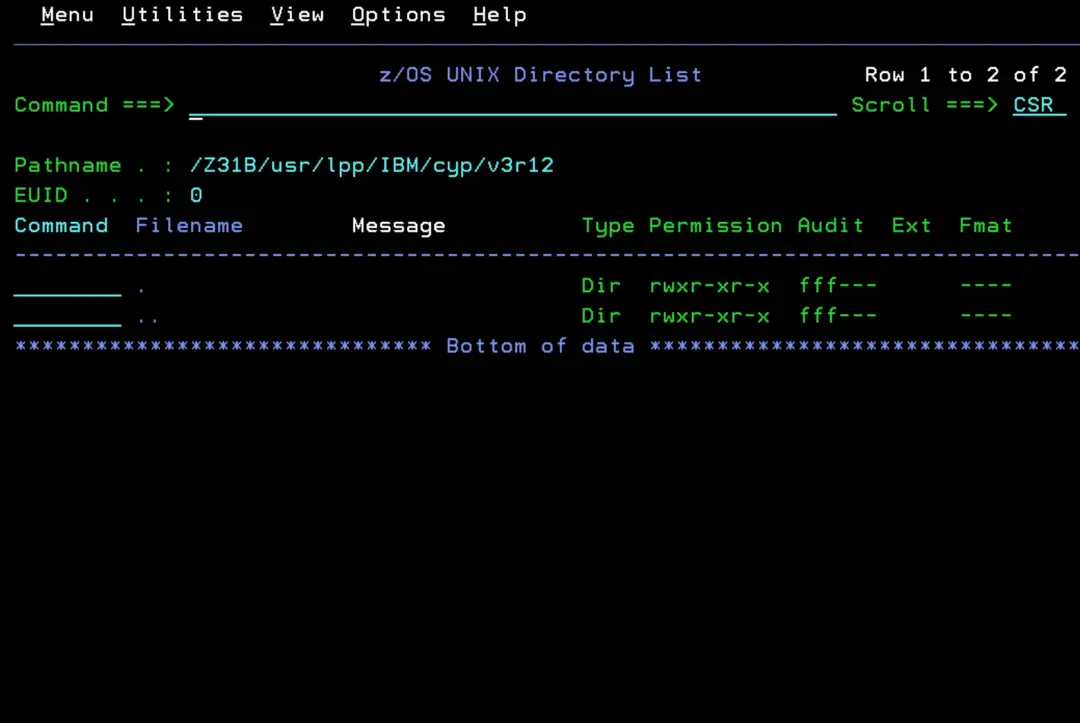
To mount it again as it was (read-only):
MOUNT FILESYSTEM('ISM403.CYP312.ZFS') TYPE(ZFS) MODE(READ) MOUNTPOINT('/usr/lpp/IBM/cyp/v3r12')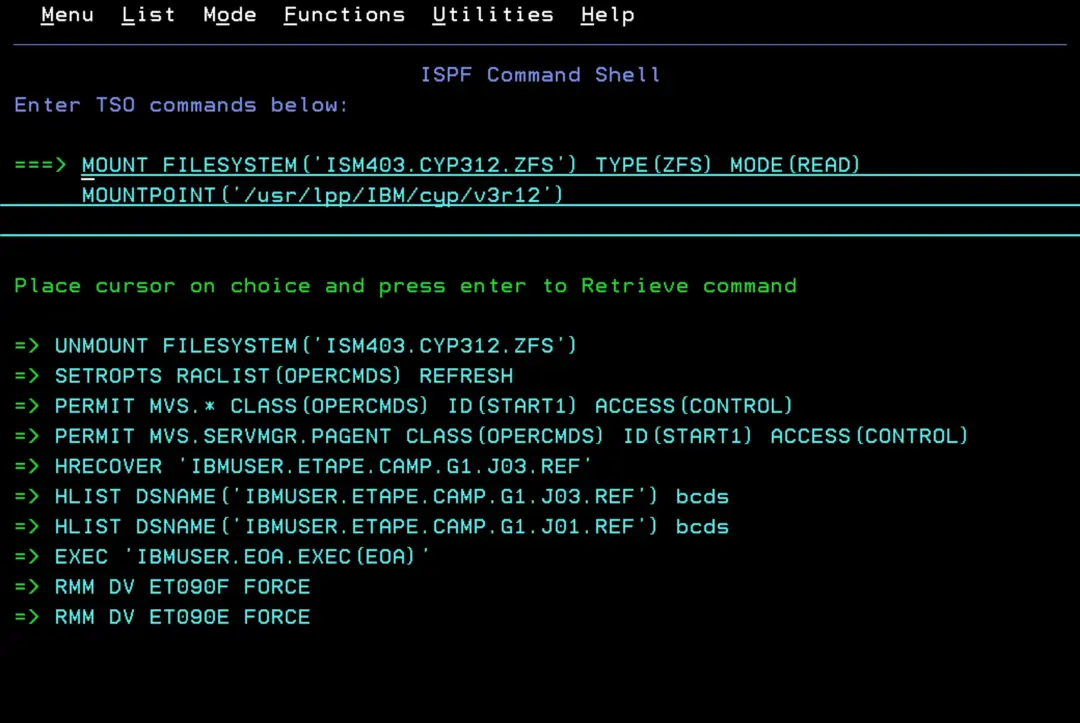
Why create your own zFS
To avoid filling up important system file systems (like the ROOT), you usually create your own zFS for specific content: user HOME directories, /etc, /var or products like Zowe (you can see them in the D OMVS,FILE above). For example, we download a new version of Java and create our own zFS to keep the software we have downloaded and unpacked.
By default, a zFS is limited to 4 GB (because of VSAM).
To create larger zFS, we have to use a data class on the system that has extended addressability (EA) set.
Create a zFS smaller than 4 GB
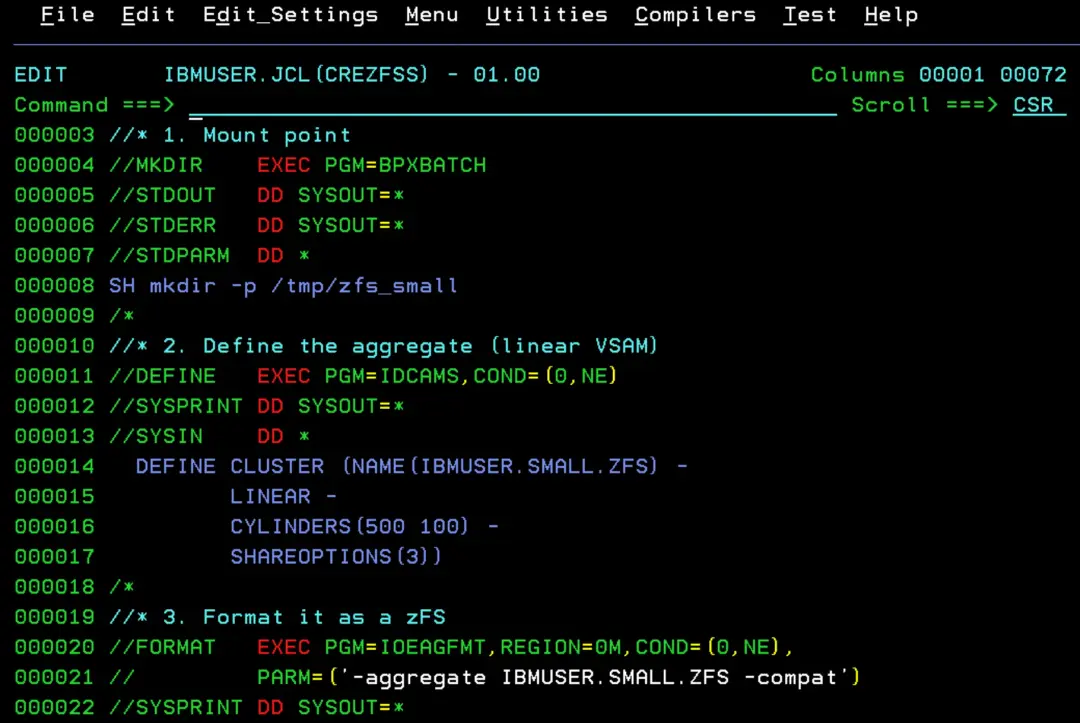
This is a sample JCL that does the following steps:
- BPXBATCH creates the directory.
- IDCAMS defines the linear VSAM data set.
- IOEAGFMT formats it as a zFS.
- MOUNT mounts it.
AGGRGROW: when it fills up, z/OS grows it on its own with secondary extents (that's why it is worth giving it a secondary allocation).
Important: turn off uppercase. CAPS OFF. Otherwise the path /tmp/zfs_small is saved in uppercase and becomes a different directory.
//IBMUSERC JOB (20,FB3),'CREATE ZFS',COND=(0,NE),
//            CLASS=A,MSGCLASS=H,NOTIFY=&SYSUID
//* 1. Mount point
//MKDIR    EXEC PGM=BPXBATCH
//STDOUT   DD SYSOUT=*
//STDERR   DD SYSOUT=*
//STDPARM  DD *
SH mkdir -p /tmp/zfs_small
/*
//* 2. Define the aggregate (linear VSAM)
//DEFINE   EXEC PGM=IDCAMS,COND=(0,NE)
//SYSPRINT DD SYSOUT=*
//SYSIN    DD *
  DEFINE CLUSTER (NAME(IBMUSER.SMALL.ZFS) -
         LINEAR -
         CYLINDERS(500 100) -
         SHAREOPTIONS(3))
/*
//* 3. Format it as a zFS
//FORMAT   EXEC PGM=IOEAGFMT,REGION=0M,COND=(0,NE),
//         PARM=('-aggregate IBMUSER.SMALL.ZFS -compat')
//SYSPRINT DD SYSOUT=*
//STDOUT   DD SYSOUT=*
//STDERR   DD SYSOUT=*
//* 4. Mount it
//MOUNT    EXEC PGM=IKJEFT01,COND=(0,NE)
//SYSTSPRT DD SYSOUT=*
//SYSTSIN  DD *
  MOUNT FILESYSTEM('IBMUSER.SMALL.ZFS') +
        MOUNTPOINT('/tmp/zfs_small') +
        TYPE(ZFS) MODE(RDWR) +
        PARM('AGGRGROW')
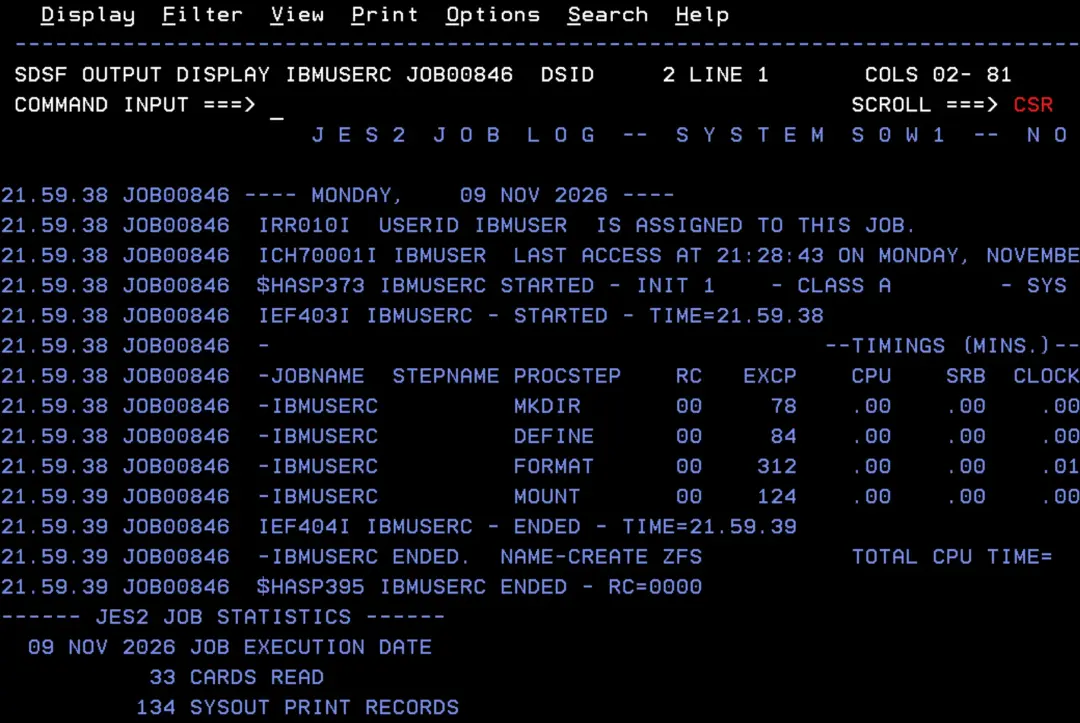
/*
It will end successfully.
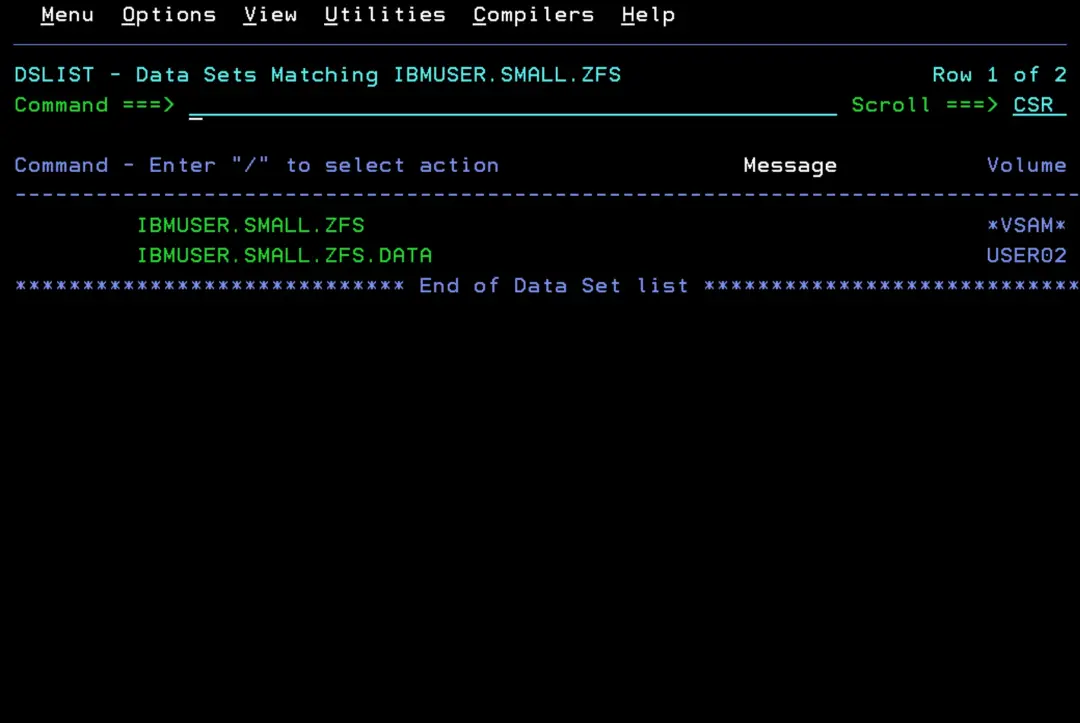
In 3.4 we can see the new zFS.
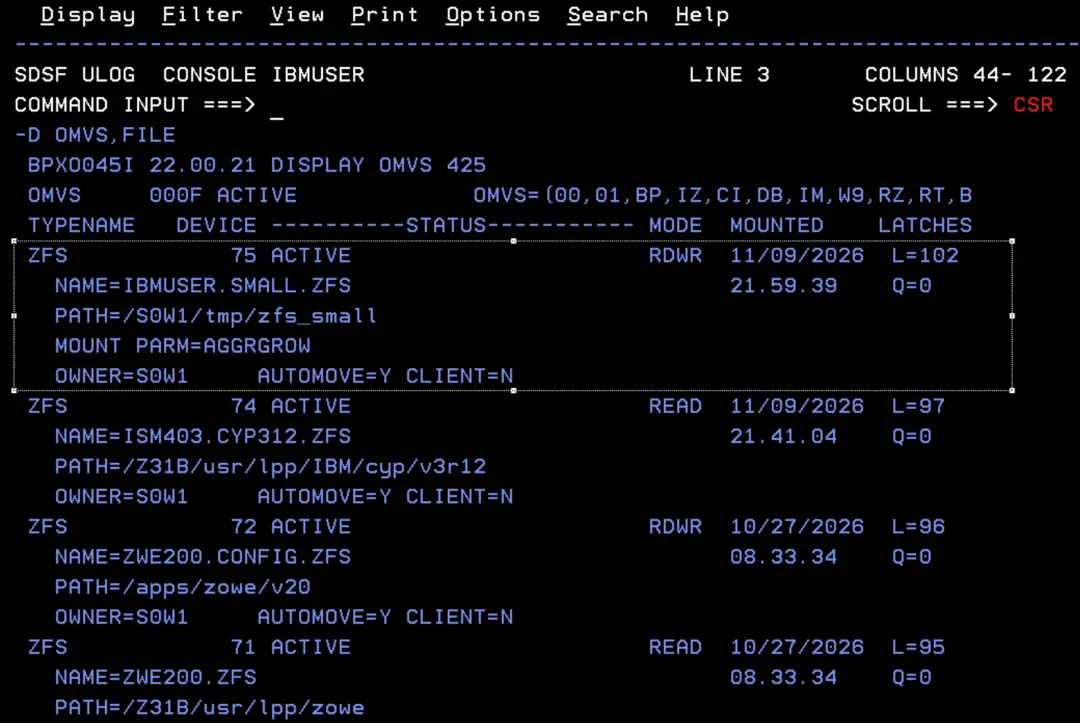
The box shows that the zFS is already mounted.
The 4 GB limit
A regular VSAM data set can't go past 4 GB. That's why a zFS created like the one above can't either: even with AGGRGROW, it will reach 4 GB and stop growing.
- 4 GB is about 5,825 cylinders (one cylinder of a linear VSAM data set is 737,280 bytes: 12 blocks of 4 KB per track × 15 tracks).
To create a larger one, the VSAM data set needs extended addressability (EA), and you don't ask for it in the DEFINE: it comes from the SMS data class.
I'm going to submit a 6000-cylinder job like the one in the screenshot to see the error we get when this data set can't be created.
I use STORAGECLASS(SCNOSMS) and VOLUMES to put it on a non-SMS volume and bypass my SMS routines for this test.
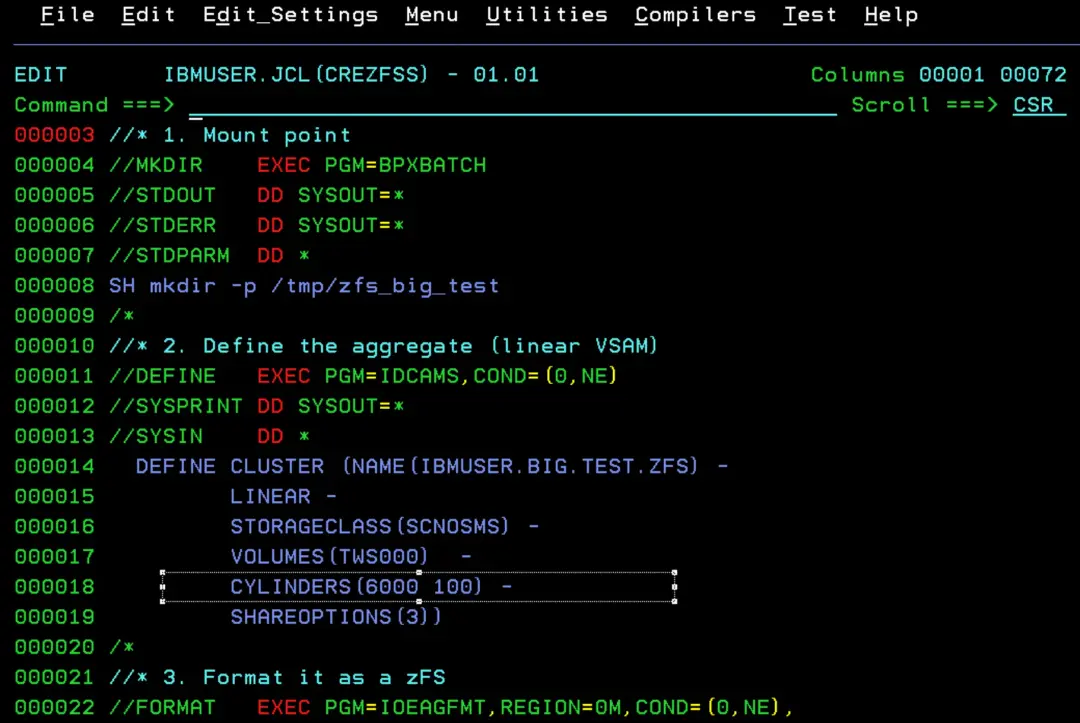
The DEFINE step ends with RC=12, and we get this error:
IDC3014I CATALOG ERROR
IDC3009I ** VSAM CATALOG RETURN CODE IS 140 - REASON CODE IS
IDC3009I IGG0CLEV-110
IDC3003I FUNCTION TERMINATED. CONDITION CODE IS 12

IDC0002I IDCAMS PROCESSING COMPLETE. MAXIMUM CONDITION CODE WAS 12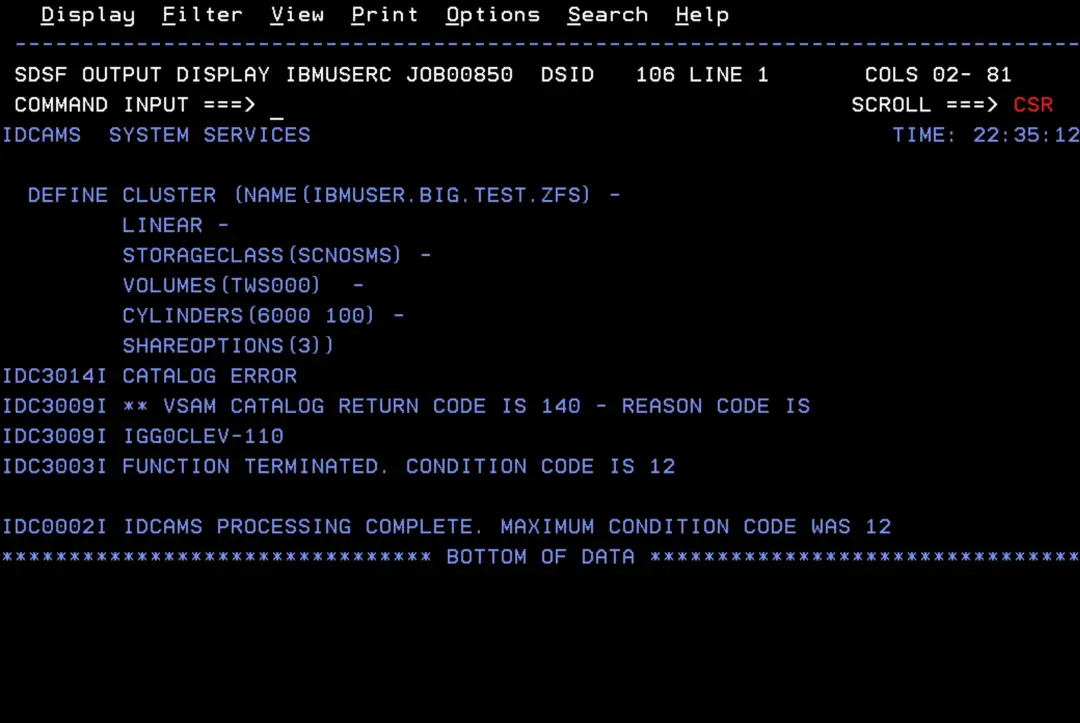
For this reason, a zFS larger than 4 GB must be SMS-managed, with a data class that has extended addressability.
Check the data classes in ISMF
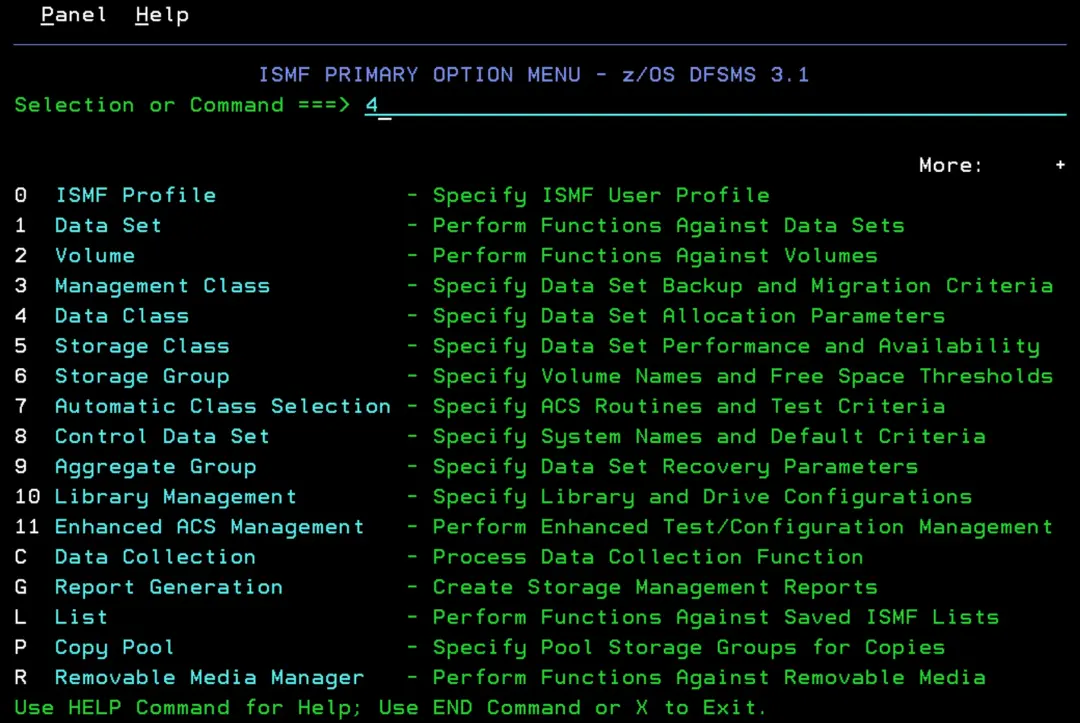
We go into ISMF → option 4 Data Class.
Option 1 List
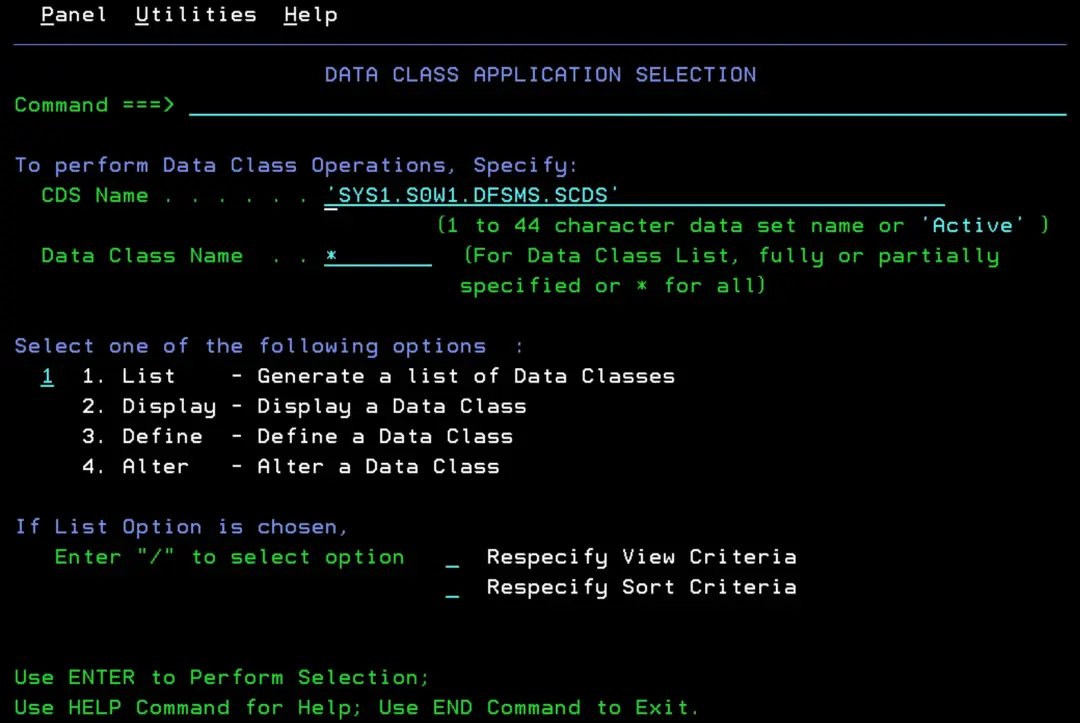
We look for one with:
- Data Set Name Type = EXTENDED
- Extended Addressability = YES
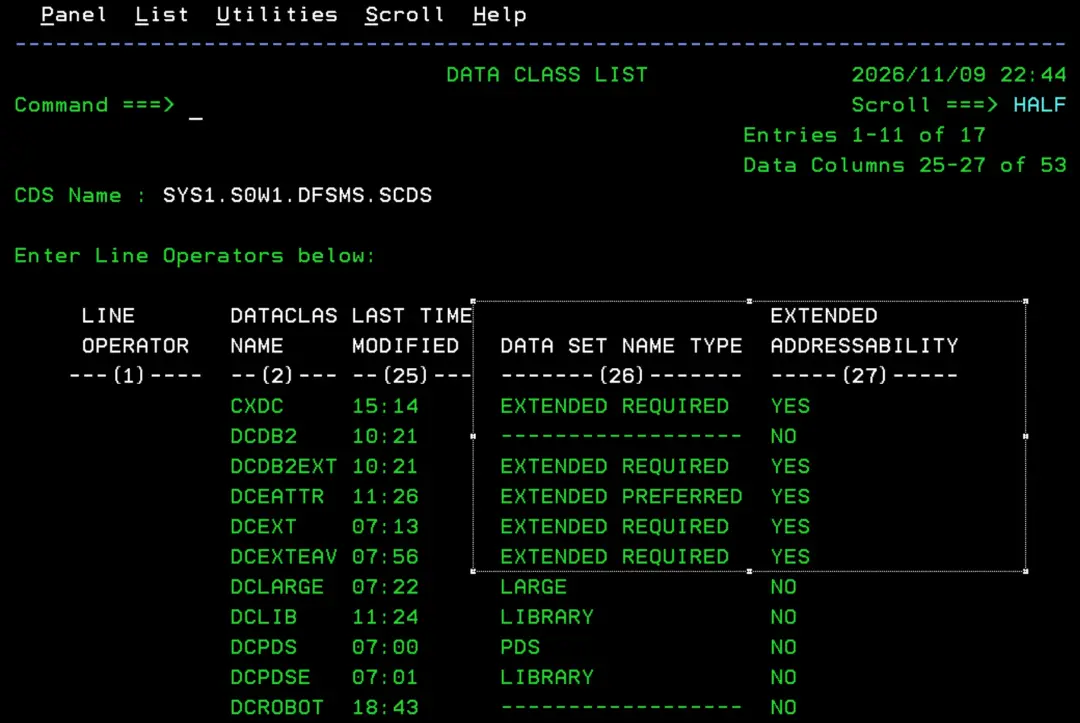
Create a zFS larger than 4 GB
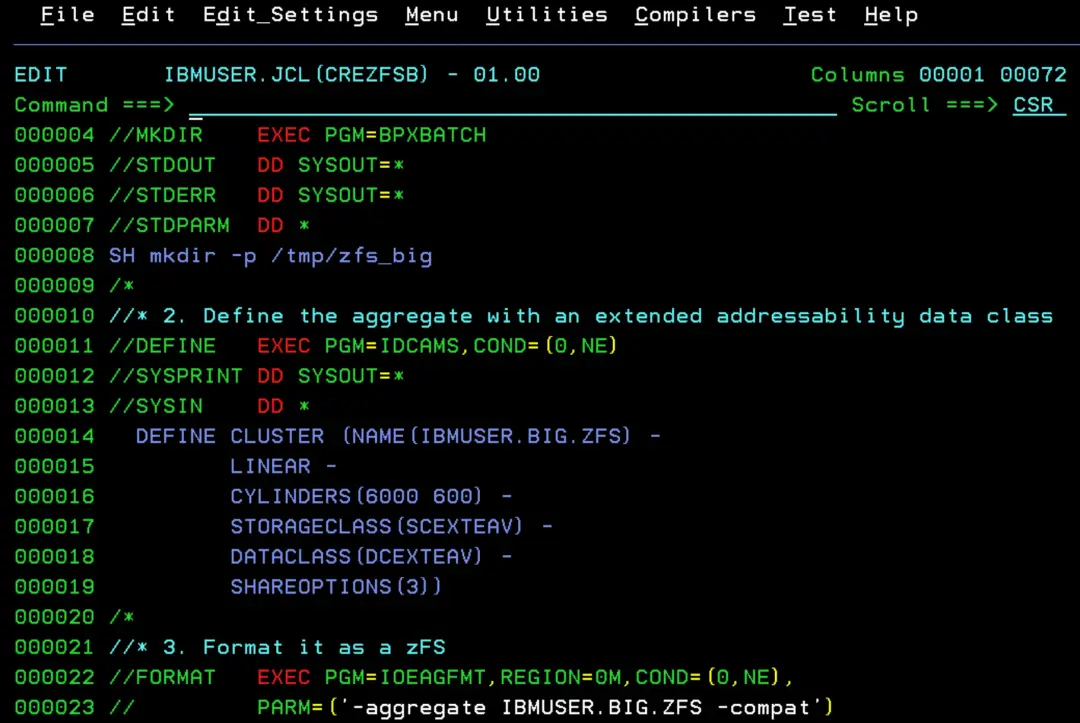
With this sample JCL we can create the zFS larger than 4 GB by adding the DATACLASS (in my case, DCEXTEAV). I'll also add the STORAGECLASS SCEXTEAV, which is defined on this system.
//IBMUSERC JOB (20,FB3),'CREATE ZFS',COND=(0,NE),
//            CLASS=A,MSGCLASS=H,NOTIFY=&SYSUID
//* 1. Mount point
//MKDIR    EXEC PGM=BPXBATCH
//STDOUT   DD SYSOUT=*
//STDERR   DD SYSOUT=*
//STDPARM  DD *
SH mkdir -p /tmp/zfs_big
/*
//* 2. Define the aggregate with an extended addressability data class
//DEFINE   EXEC PGM=IDCAMS,COND=(0,NE)
//SYSPRINT DD SYSOUT=*
//SYSIN    DD *
  DEFINE CLUSTER (NAME(IBMUSER.BIG.ZFS) -
         LINEAR -
         CYLINDERS(6000 600) -
         STORAGECLASS(SCEXTEAV) -
         DATACLASS(DCEXTEAV) -
         SHAREOPTIONS(3))
/*
//* 3. Format it as a zFS
//FORMAT   EXEC PGM=IOEAGFMT,REGION=0M,COND=(0,NE),
//         PARM=('-aggregate IBMUSER.BIG.ZFS -compat')
//SYSPRINT DD SYSOUT=*
//STDOUT   DD SYSOUT=*
//STDERR   DD SYSOUT=*
//* 4. Mount it
//MOUNT    EXEC PGM=IKJEFT01,COND=(0,NE)
//SYSTSPRT DD SYSOUT=*
//SYSTSIN  DD *
  MOUNT FILESYSTEM('IBMUSER.BIG.ZFS') +
        MOUNTPOINT('/tmp/zfs_big') +
        TYPE(ZFS) MODE(RDWR) +
        PARM('AGGRGROW')
/*
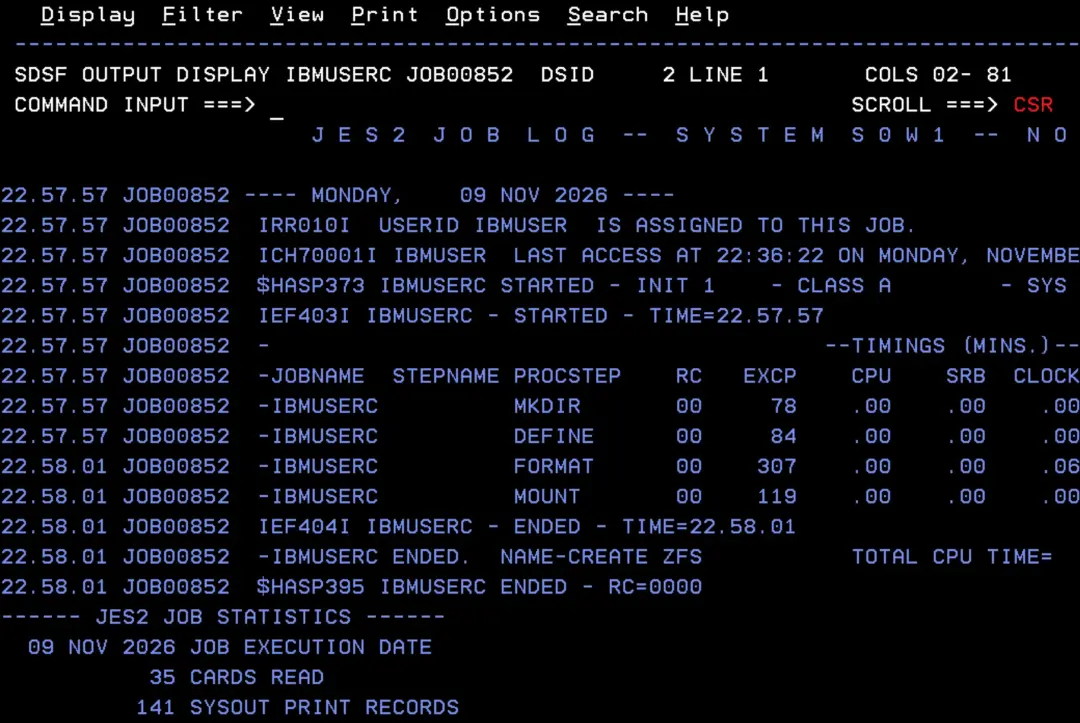
The job ends successfully.
If we run a LISTCAT on the VSAM data set, we'll see it has the EXT-ADDR attribute. You type the command in 3.4 next to the data set: the system replaces the / with its name.
listc ent(/) all 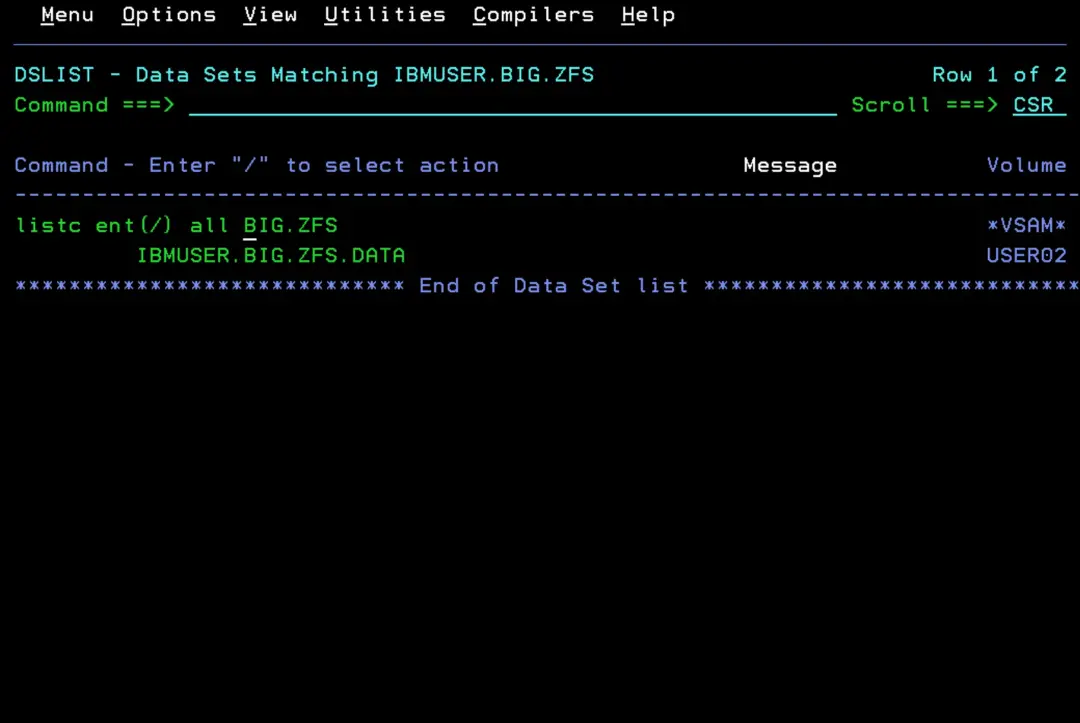
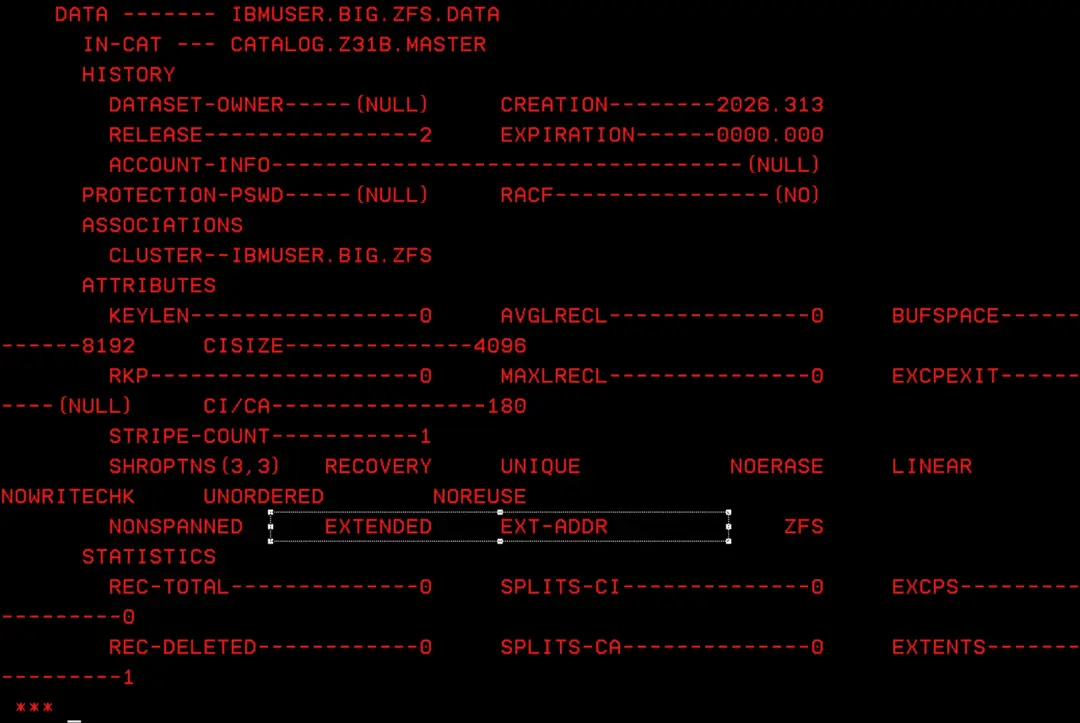
Now we check that it is mounted. From the console (or SDSF with /):
D OMVS,FILE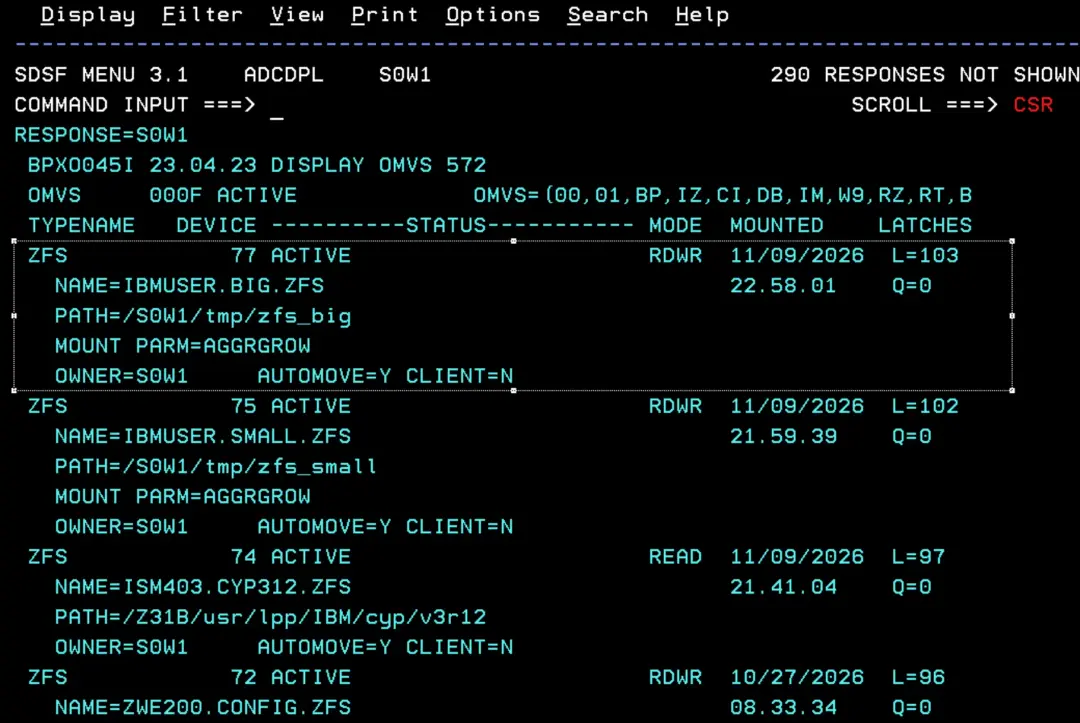
From OMVS, we can use this command to see the size of both and the space used:
df -kP /tmp/zfs_small /tmp/zfs_big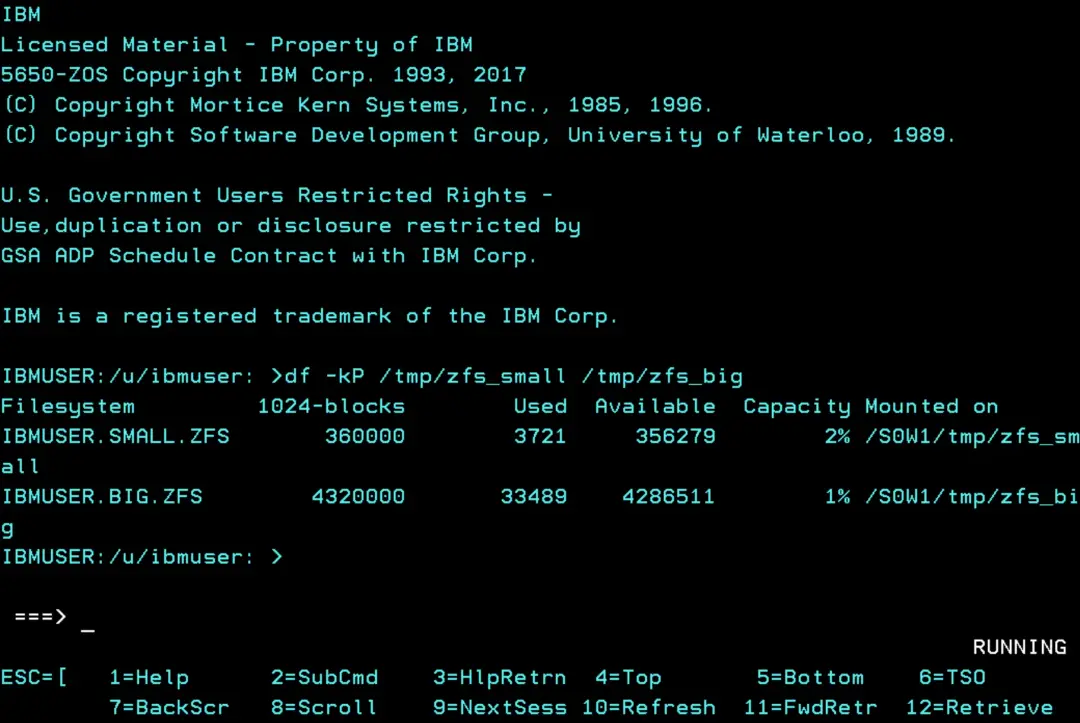
With the sample jobs, these zFS stay mounted until the next IPL. To keep them mounted after an IPL we have to add them to the BPXPRMxx PARMLIB member (I'll explain it in detail in another post).
Generate the job with the tool
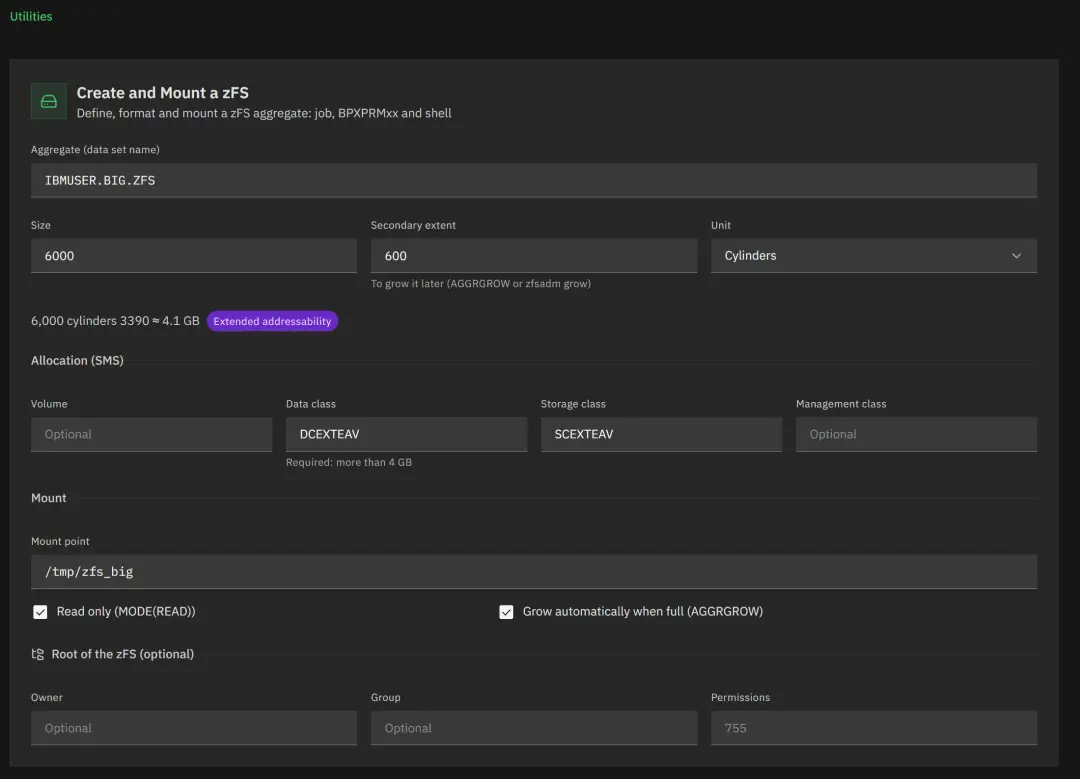
On the site I have a tool that generates everything we have seen in this post: Create and Mount a zFS.
You only have to fill in these fields:
- Aggregate: the data set name, for example IBMUSER.BIG.ZFS.
- Size and secondary extent: in cylinders, MB or GB. The tool converts it to 3390 cylinders and shows how much space it takes.
- Allocation (SMS): volume, data class, storage class and management class. This is where we would put DCEXTEAV and SCEXTEAV.
- Mount: the mount point, whether we want it read-only (MODE(READ), like the cyp zFS we unmounted at the beginning) and whether we want AGGRGROW.
- Root of the zFS (optional): owner, group and permissions of the directory. It adds one more step to the job with chown and chmod.
With that it generates four things, each in its own tab:
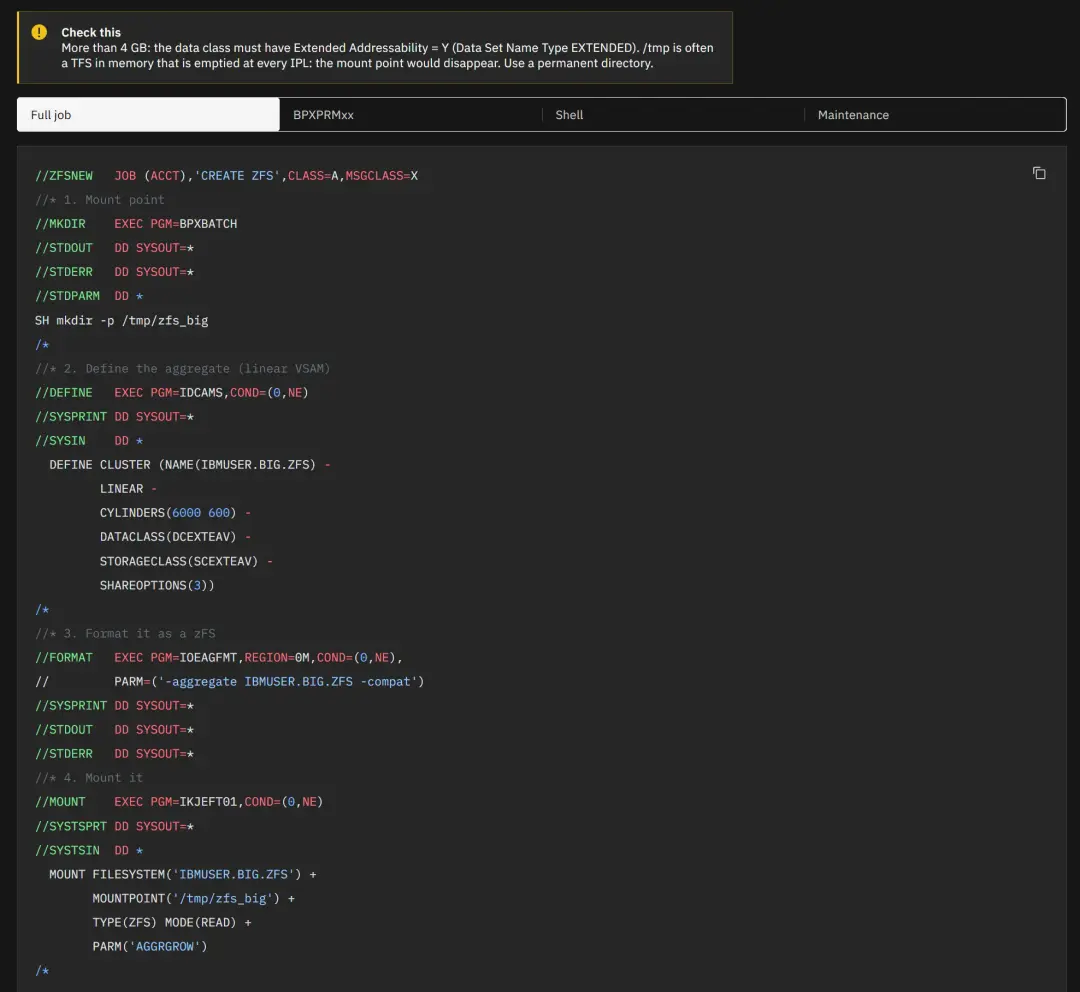
- Full job: the same job we used in this post (mkdir, DEFINE, IOEAGFMT and MOUNT).
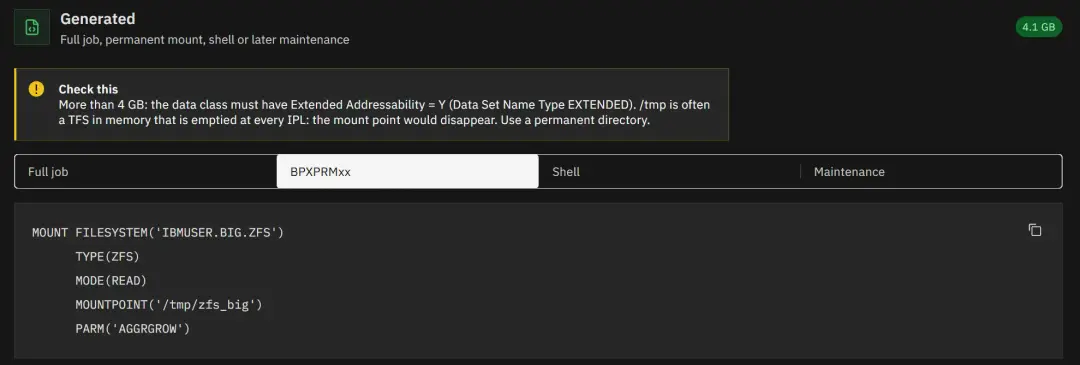
- BPXPRMxx: the MOUNT statement so the zFS is mounted at every IPL.
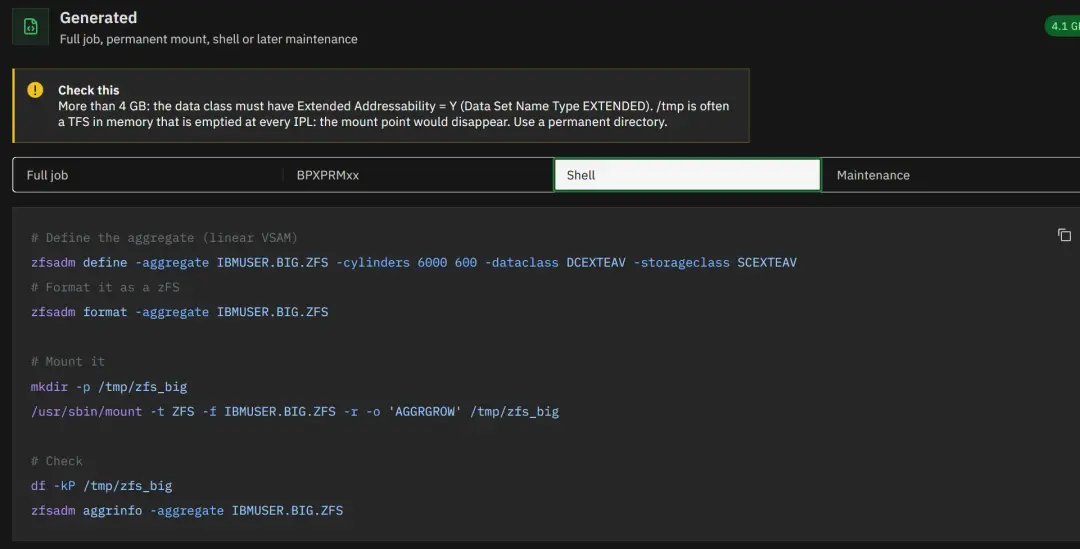
- Shell: the same from OMVS with zfsadm, plus the df -kP and zfsadm aggrinfo commands to check it.
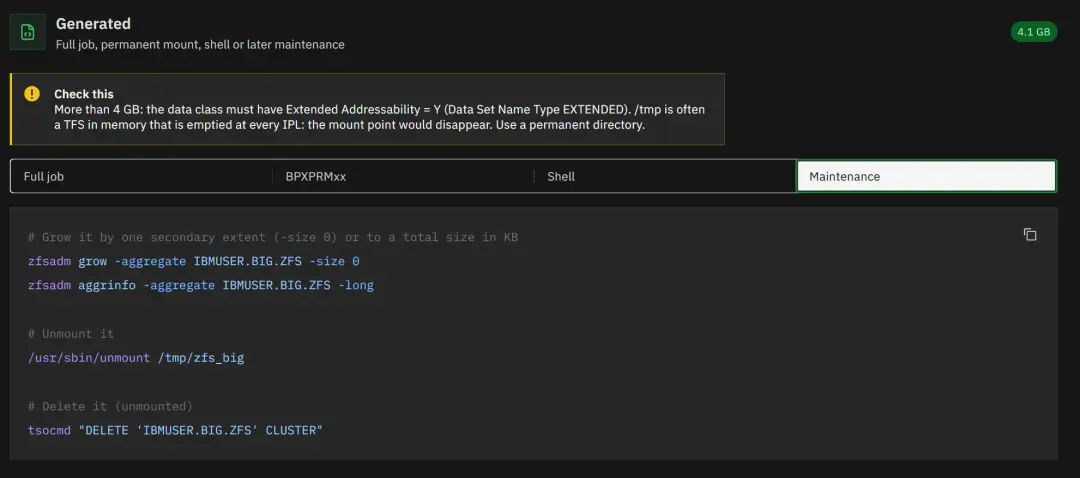
- Maintenance: the commands to grow it (zfsadm grow), unmount it and delete it.
Also, before you submit the job, it checks what we have seen in this post:
- If the size goes over 5,825 cylinders (4 GB), it flags extended addressability and the data class becomes required. That way we don't run into the RC=12 in the DEFINE.
- If the mount point is under /tmp, it warns that it may be emptied at every IPL. That's fine for these tests, but for a zFS meant to last a permanent directory is better.
- If it goes over 65,520 cylinders, it warns that it doesn't fit on a standard 3390 and needs an EAV volume or several volumes.
- If we check AGGRGROW without a secondary extent, it warns that it won't be able to grow.
The tool tells us the data class is required when it goes over 4 GB.
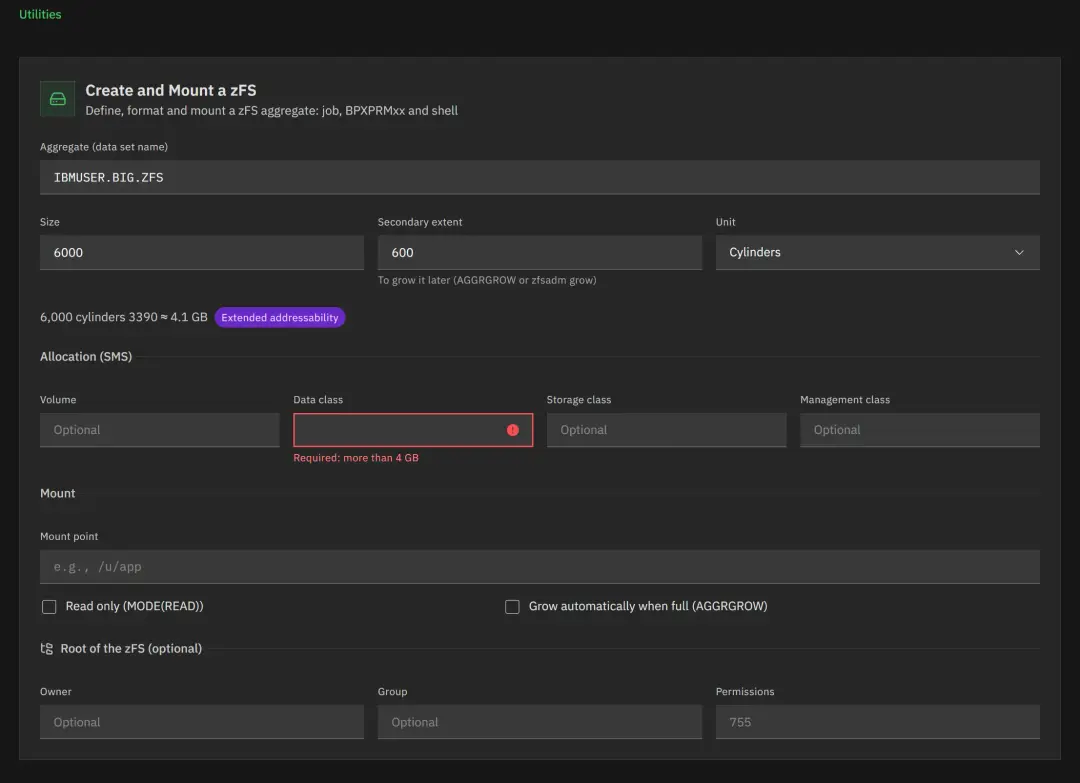
The fields would look like this.
Further down in the tool we'll see the full job.
We'll also see the statement for BPXPRMxx.
We'll also see the option to create it with shell commands.
And in the last tab we see some maintenance commands.