pySDSF on z/OS 3.2: watch the spool and alert on Microsoft Teams
z/OS 3.2 brings pySDSF, a Python API for SDSF: the same panels (ST, DA, I, O, H, LOG) and the same console commands, but from a script. Until now this could be done with REXX or in batch (PGM=SDSF); with Python we also get all its libraries, for example to send an alert to Microsoft Teams.
In this article I build a script that checks JES2 spool usage and, if it goes over a threshold, posts an alert to a Teams channel with the jobs that use the most.
Python 3.13
pySDSF needs APAR PH71116 to work with Python 3.14; without it you have to use 3.13. I don't repeat the installation: it is the same method as in Update Python on z/OS (its own zFS, pax, the APF attribute and install_test.sh). Only the version and the current link change.
First I check it: with 3.14 active, I try to install pySDSF and pip rejects it, because the wheel is only for 3.13 (cp313):
python3 -V
pip3 install /usr/lpp/sdsf/python/dist/pysdsf-3.2-cp313-none-any.whlERROR: pysdsf-3.2-cp313-none-any.whl is not a supported wheel on this platform.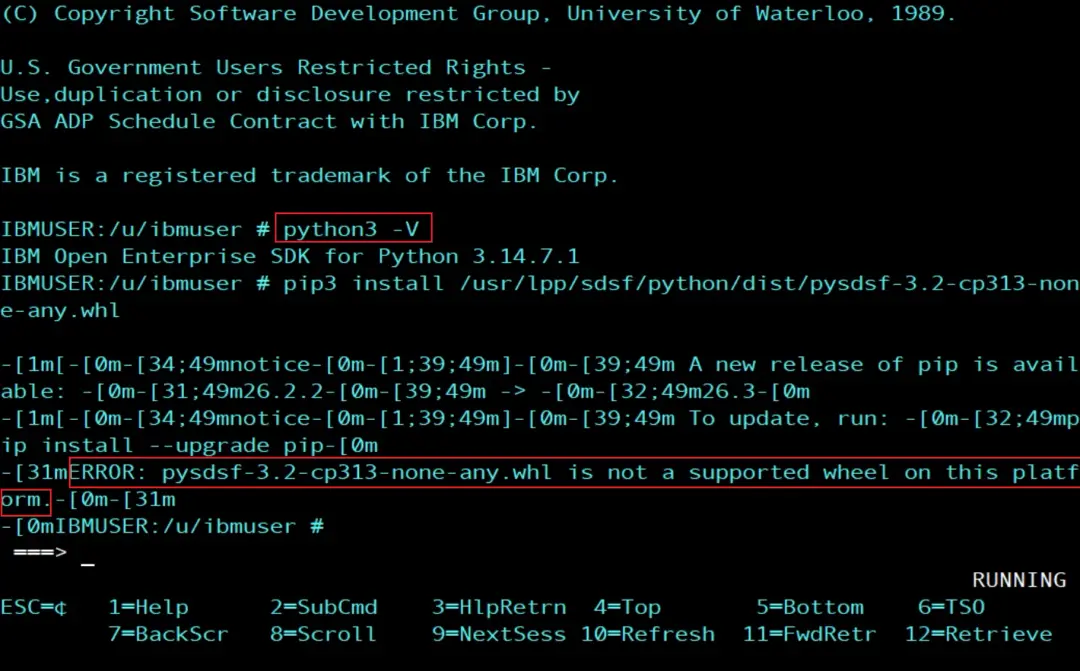
Since the version that comes with the stock image is Python 3.14, we have to install 3.13 and change the link (I followed the update guide on this site, even though it refers to 3.14).
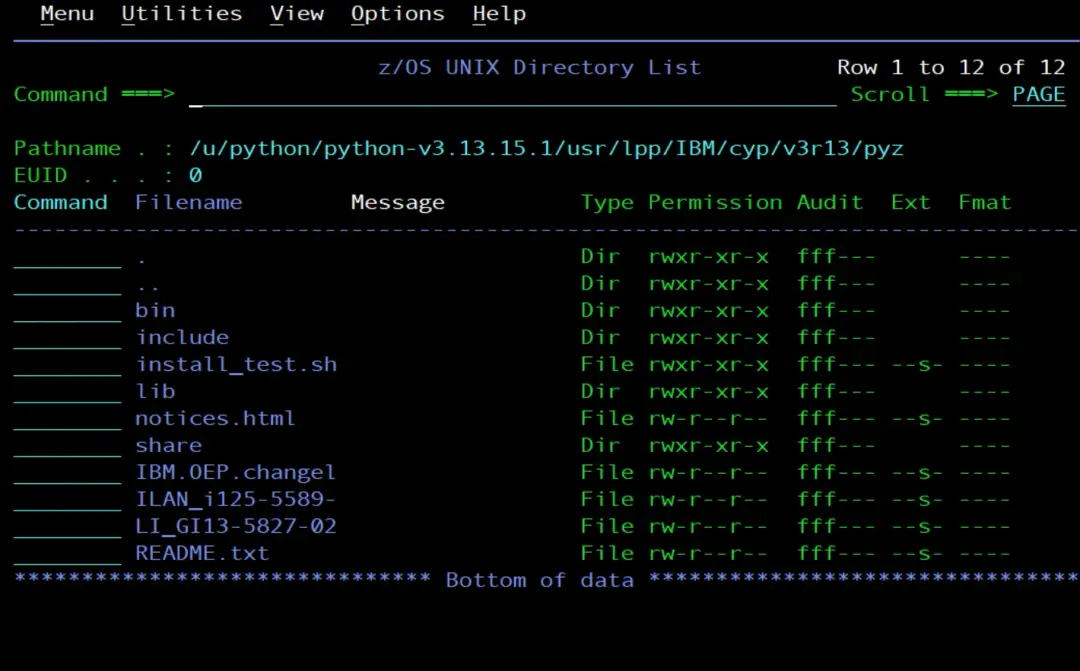
Since I followed the guide on this site, I only have to update the symbolic link so it points to this version:
cd /u/python
rm -f current
ln -s python-v3.13.15.1/usr/lpp/IBM/cyp/v3r13/pyz current
python3 -V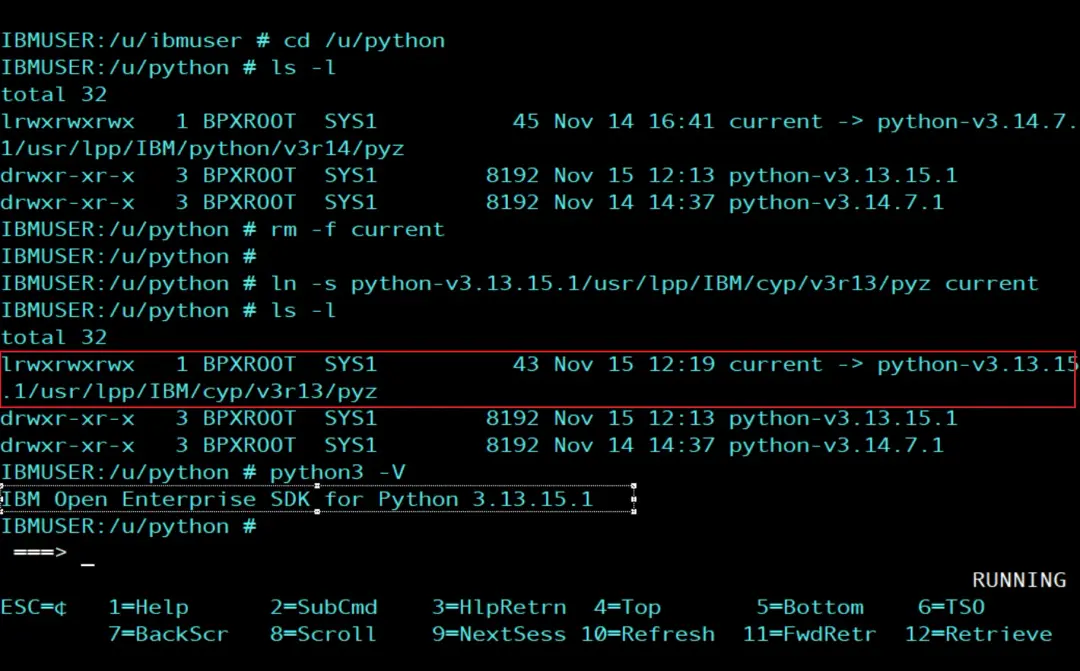
Install pySDSF
pySDSF comes with SDSF in z/OS 3.2, as a wheel in /usr/lpp/sdsf/python/dist, and is installed with pip into our Python. The documentation is in /usr/lpp/sdsf/python/doc (pySDSF.md) and the samples are installed with the package, in its pysdsf/samples directory.
Now let's try to install pySDSF again.
ls /usr/lpp/sdsf/python/dist
pip3 install /usr/lpp/sdsf/python/dist/pysdsf-3.2-cp313-none-any.whl
The name of the wheel says it all: the cp313 tag means it is for Python 3.13, which is why pip does not accept it with 3.14 (hence APAR PH71116).
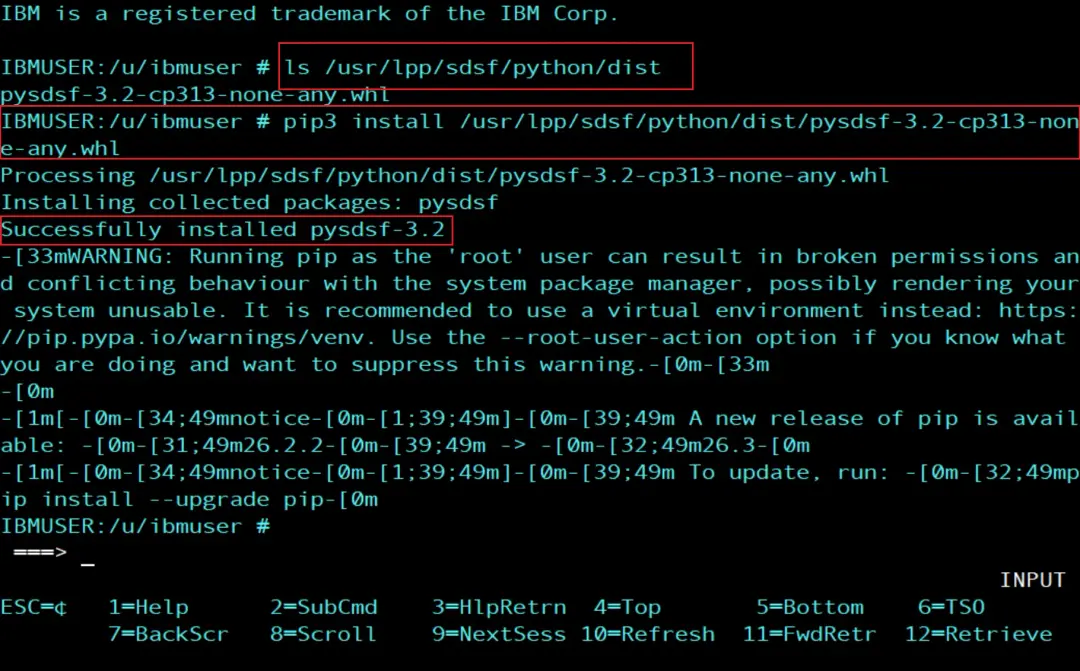
We check that it is installed correctly and also list the available samples, which can help us:
pip3 show pysdsf
ls $(dirname $(python3 -c "import pysdsf; print(pysdsf.__file__)"))/samples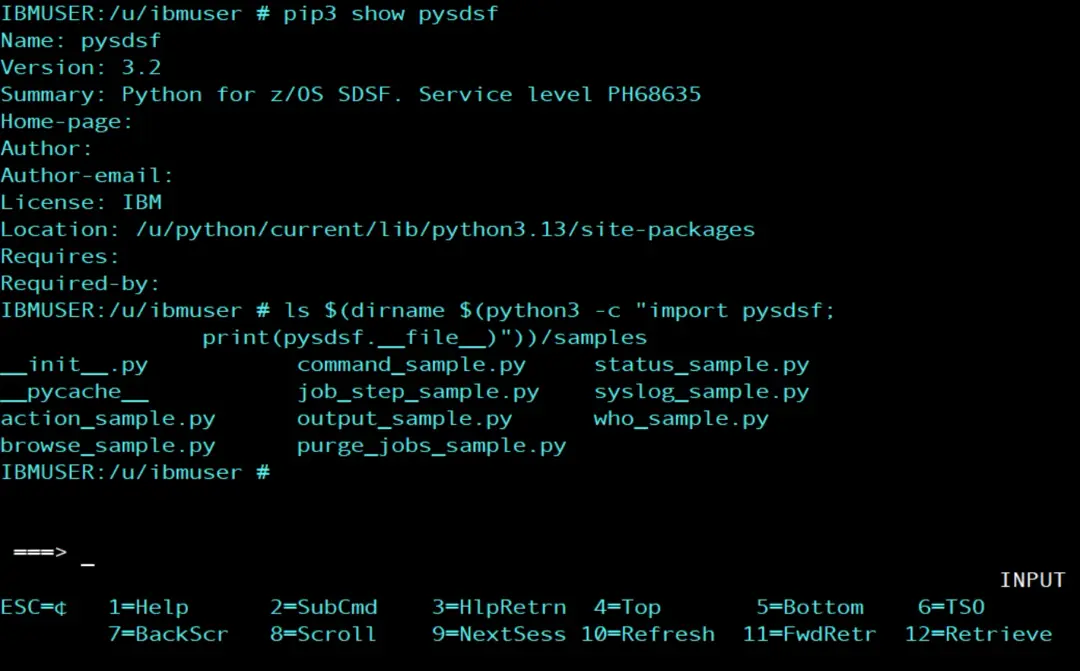
Where to keep the scripts
I write the scripts on my PC and upload them by FTP. If we type them in ISPF (OEDIT), characters such as #, [ or ] can change depending on the 3270 emulator code page (in 284, # shows as Ñ) and Python would not understand them.
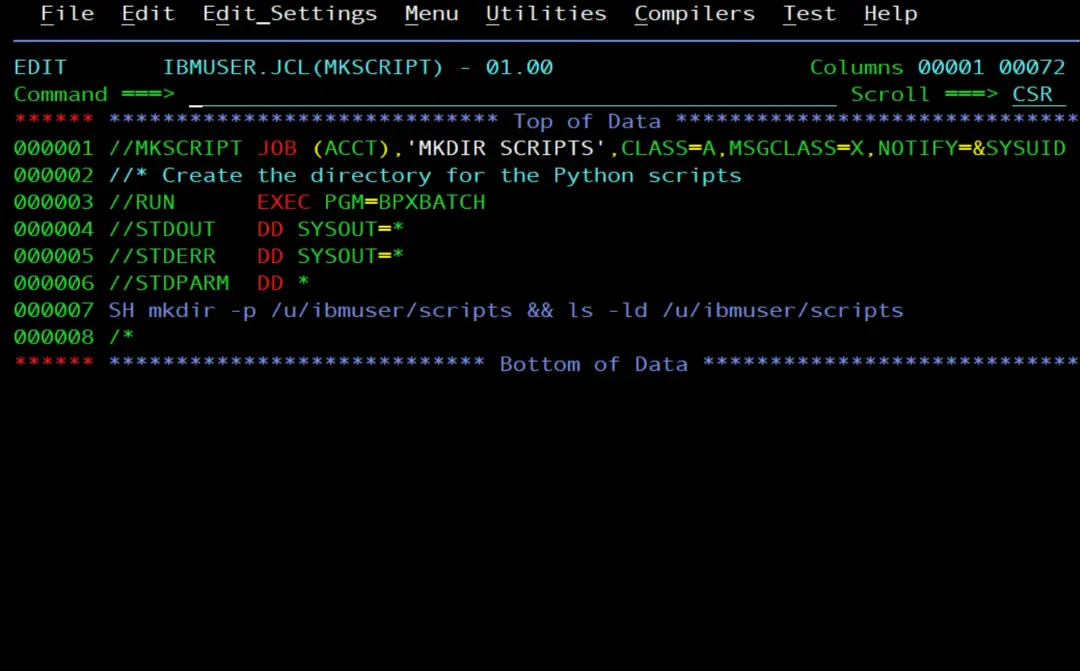
First we create the directory with a job:
//MKSCRIPT JOB (ACCT),'MKDIR SCRIPTS',CLASS=A,MSGCLASS=X,NOTIFY=&SYSUID
//* Create the directory for the Python scripts
//RUN      EXEC PGM=BPXBATCH
//STDOUT   DD SYSOUT=*
//STDERR   DD SYSOUT=*
//STDPARM  DD *
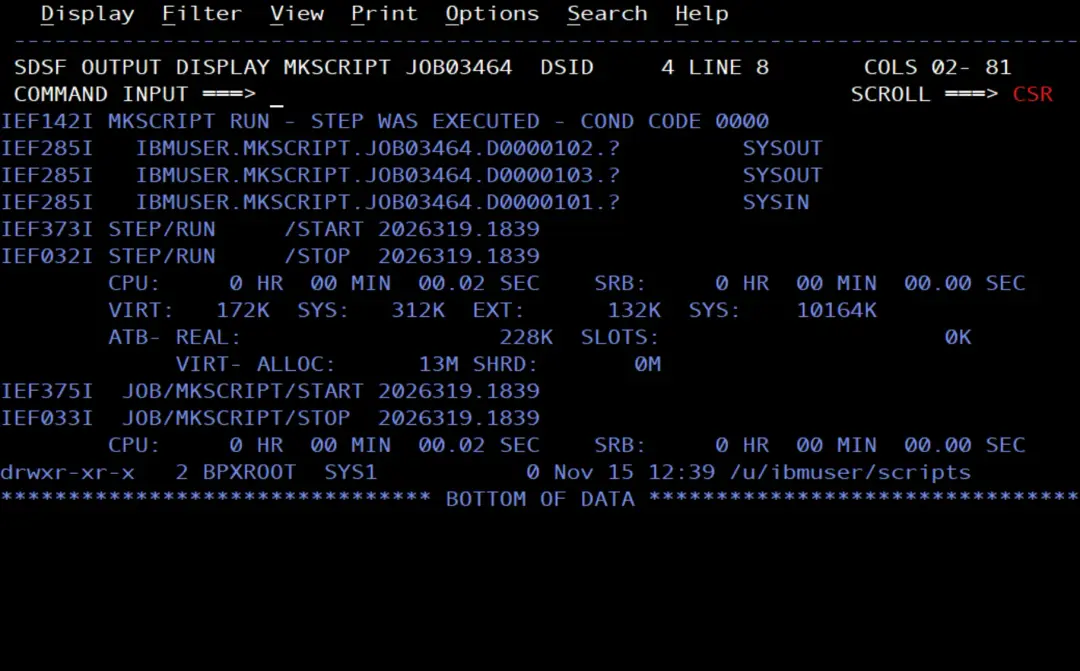
SH mkdir -p /u/ibmuser/scripts && ls -ld /u/ibmuser/scripts
/*
It ends successfully.
We do the same with every script: write it on the PC, upload it by FTP in binary and tag it. We see it with the first one.
First test: who()
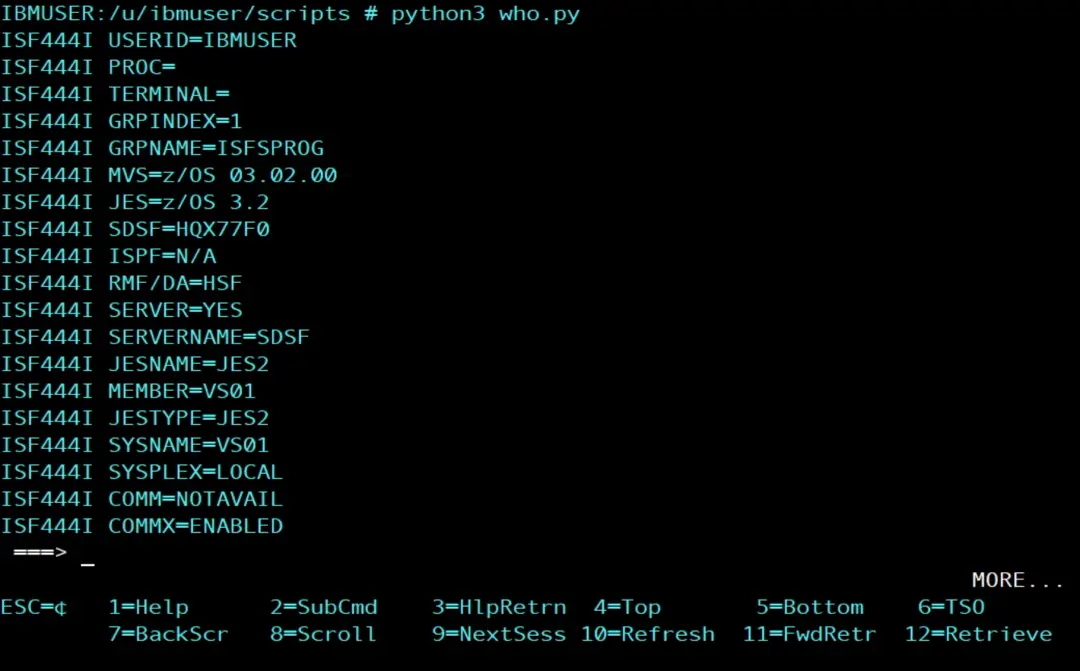
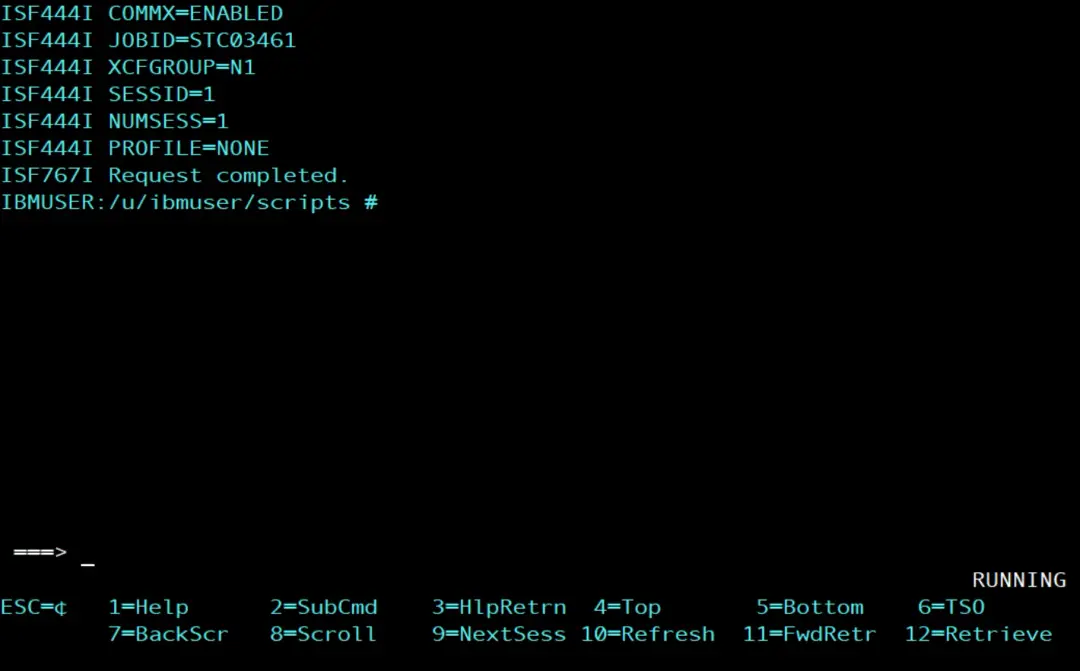
We start with the minimal script: open the connection, make a request and always close the connection, whatever happens (finally). who() returns the data of our SDSF session in ISF444I messages: the user, the SDSF group that controls our access (GRPNAME), the z/OS, JES2 and SDSF levels, and the system name (SYSNAME).
from pysdsf import Connection
from pysdsf.isfexception import ISFException

connection = Connection()
try:
    for row in connection.who():
        print(row)
except ISFException as e:
    print(e)
finally:
    connection.close()
We save it on the PC as who.py and upload it by FTP in binary mode (so it arrives in ASCII, without conversion to EBCDIC). We can upload it with commands or with an FTP client (I use WinSCP).
ftp> binary
ftp> cd /u/ibmuser/scripts
ftp> put who.py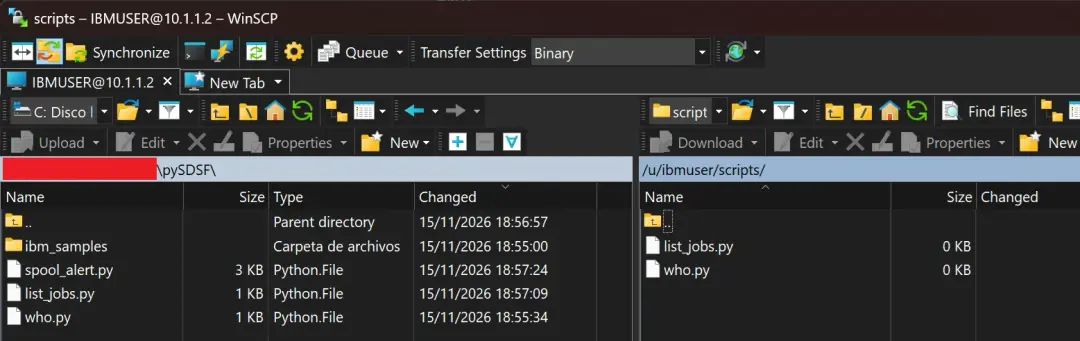
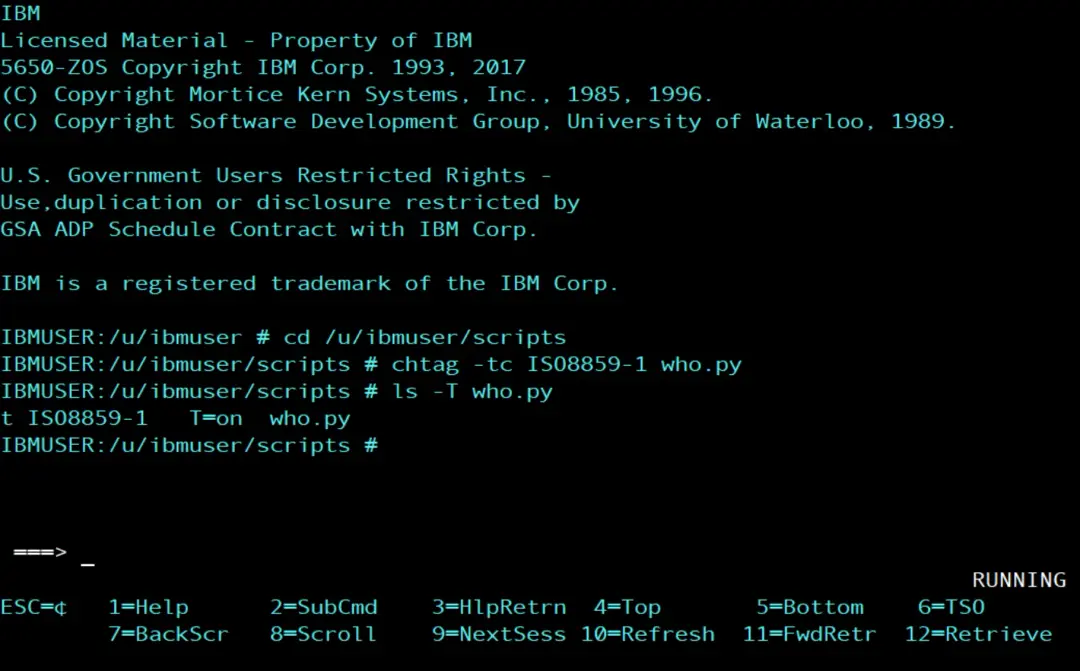
We tag it as ASCII, so that Python and cat read it correctly, and run it:
cd /u/ibmuser/scripts
chtag -tc ISO8859-1 who.py
ls -T who.py
python3 who.py
On my system I am in group ISFSPROG, with z/OS 03.02.00, JES2 and system VS01. The request ends with ISF767I Request completed.
List jobs like the ST panel
status_of_jobs() is the ST panel. It takes the same filters as SDSF (prefix, owner and filter), and with columns we ask only for the columns we need, by their internal SDSF names, not the panel titles. TGNUM and TGPCT are the spool each job uses: track groups and percentage. The IBM samples do not sort the results, so I sort them in Python, from most to least spool.
from pysdsf import Connection
from pysdsf.isfexception import ISFException

connection = Connection()
try:
    jobs = connection.status_of_jobs(prefix="*", owner="*",
                                     columns=["JNAME", "JOBID", "OWNERID", "TGNUM", "TGPCT"])
    # Most spool first (track groups)
    jobs = sorted(jobs, key=lambda row: int(row["TGNUM"] or 0), reverse=True)
    for row in jobs[:10]:
        print(row["JNAME"], row["JOBID"], row["OWNERID"], row["TGNUM"], row["TGPCT"])
except ISFException as e:
    print(e)
finally:
    connection.close()
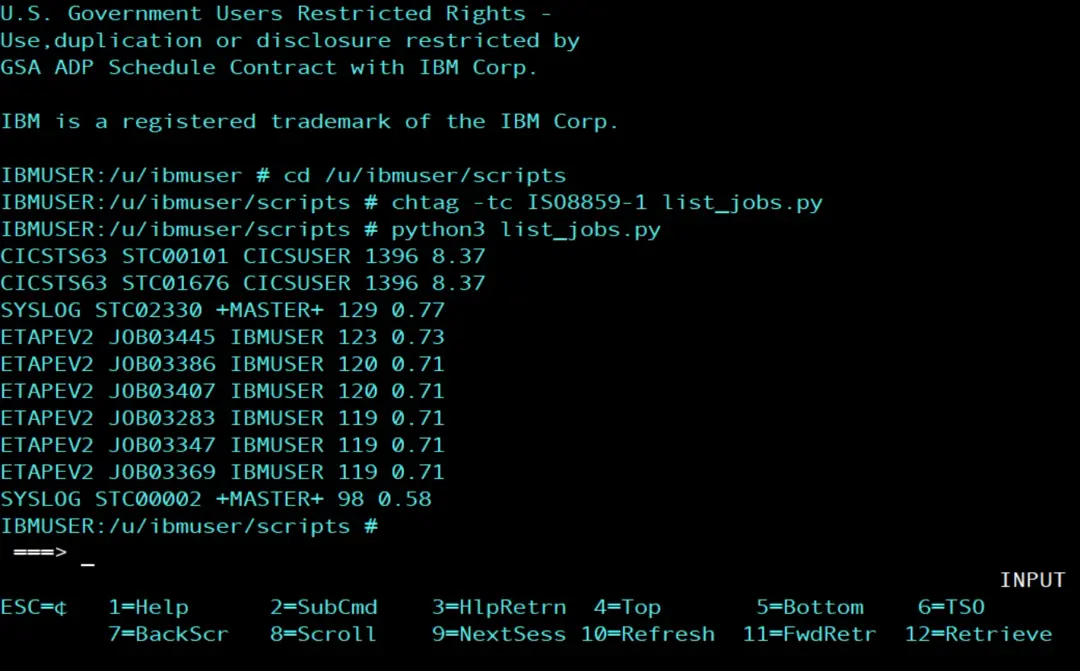
We save it as list_jobs.py, upload it (put list_jobs.py), tag it like who.py and run it:
cd /u/ibmuser/scripts
chtag -tc ISO8859-1 list_jobs.py
python3 list_jobs.py
TGNUM comes as an integer and TGPCT as a percentage with decimals. On my system, the jobs that use the most spool are the two CICS started tasks, with 1396 track groups each (8.37%):
CICSTS63 STC00101 CICSUSER 1396 8.37
CICSTS63 STC01676 CICSUSER 1396 8.37
SYSLOG STC02330 +MASTER+ 129 0.77
ETAPEV2 JOB03445 IBMUSER 123 0.73
...
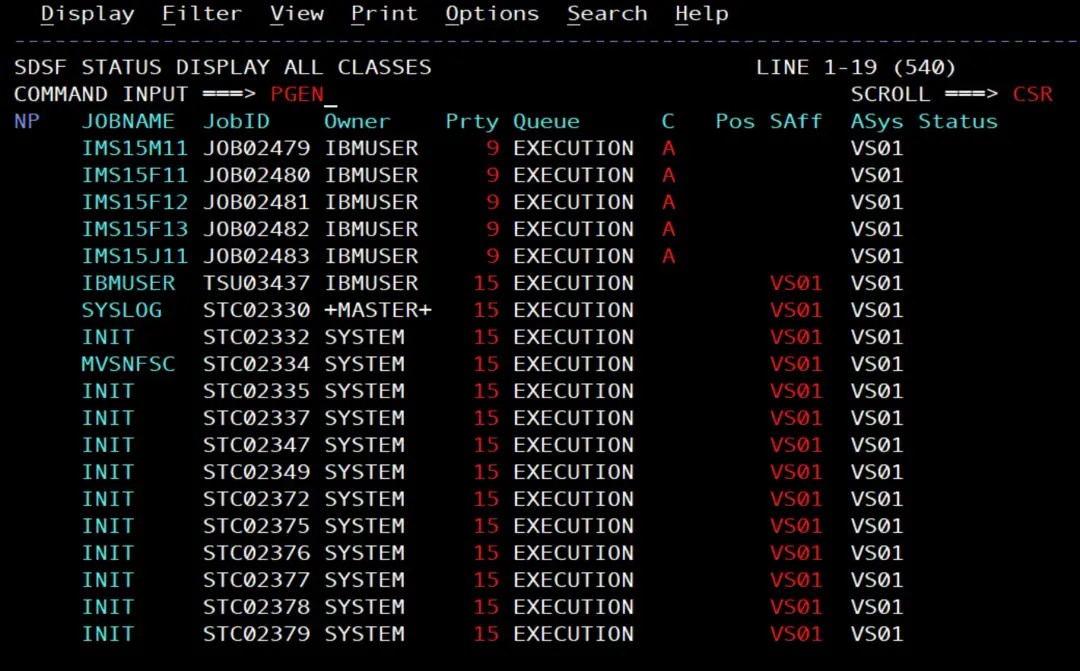
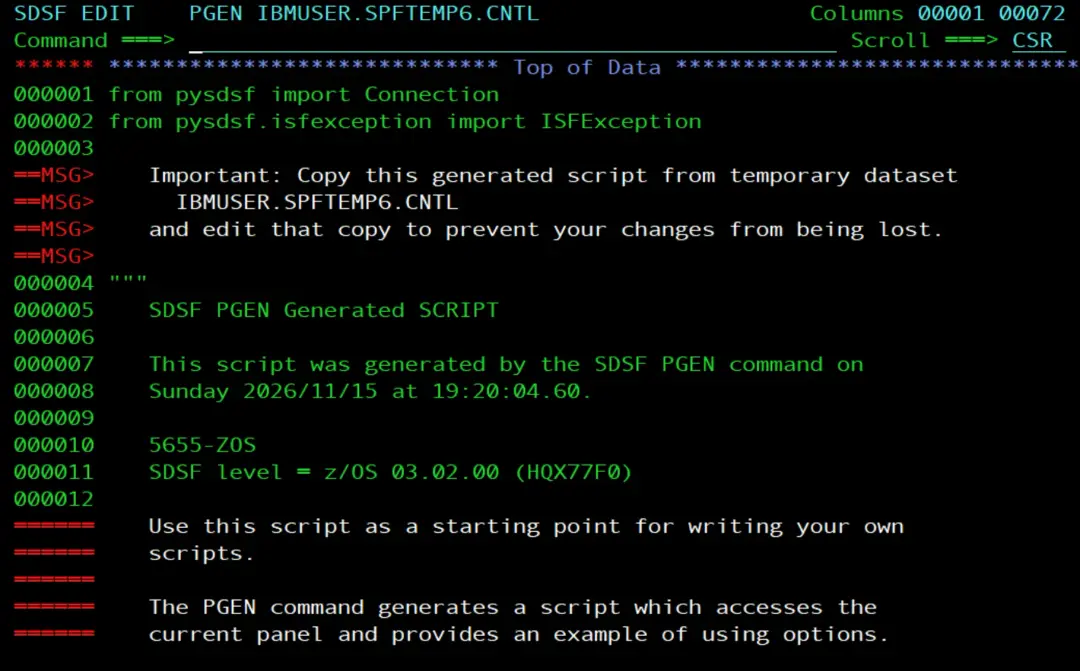
A tip: the SDSF PGEN command (in ISPF) generates the Python script for the panel we are on. If we enter it on the ST panel, it gives us the code to get that same list of jobs.
If PGEN closes SDSF
The first time I tried it, entering PGEN simply closed SDSF. The cause was in the system log:
+ISF039I ERROR PROCESSING ISPF FTINCL   RC= 8:
+HSF0091I NAME     ISFYMSPF+00000DF6
+HSF0091I CODE     U0093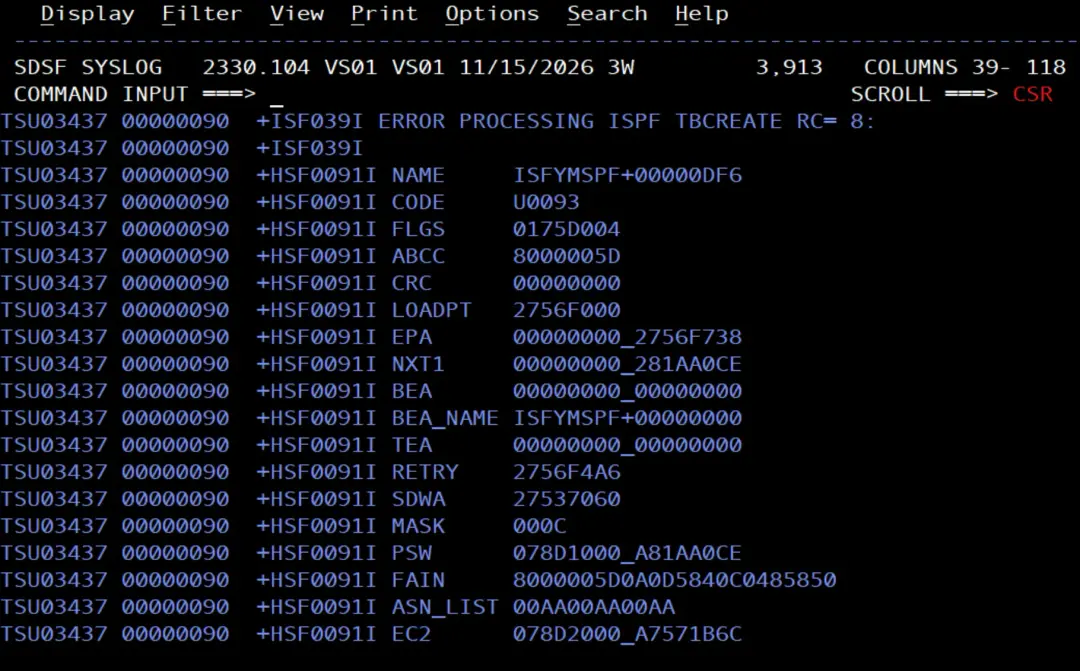
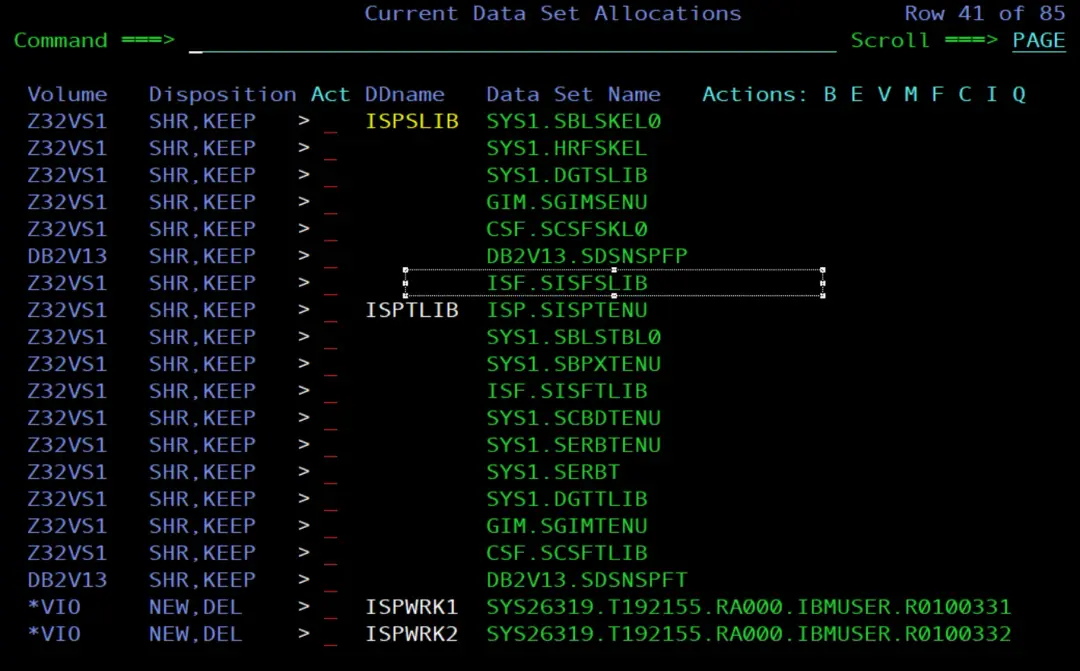
PGEN generates the script with ISPF file tailoring (FTINCL) from a skeleton, and RC=8 means it cannot find it: the SDSF skeleton library, ISF.SISFSLIB, was not in the ISPSLIB of my session. You can check it with TSO ISRDDN, looking at the ISPSLIB DD.
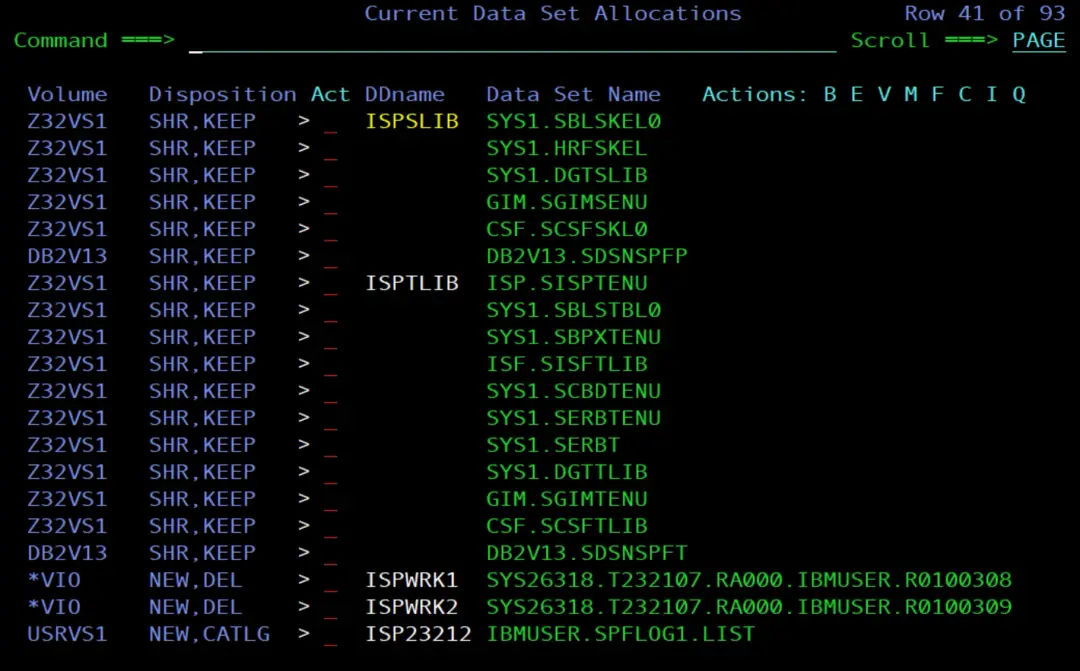
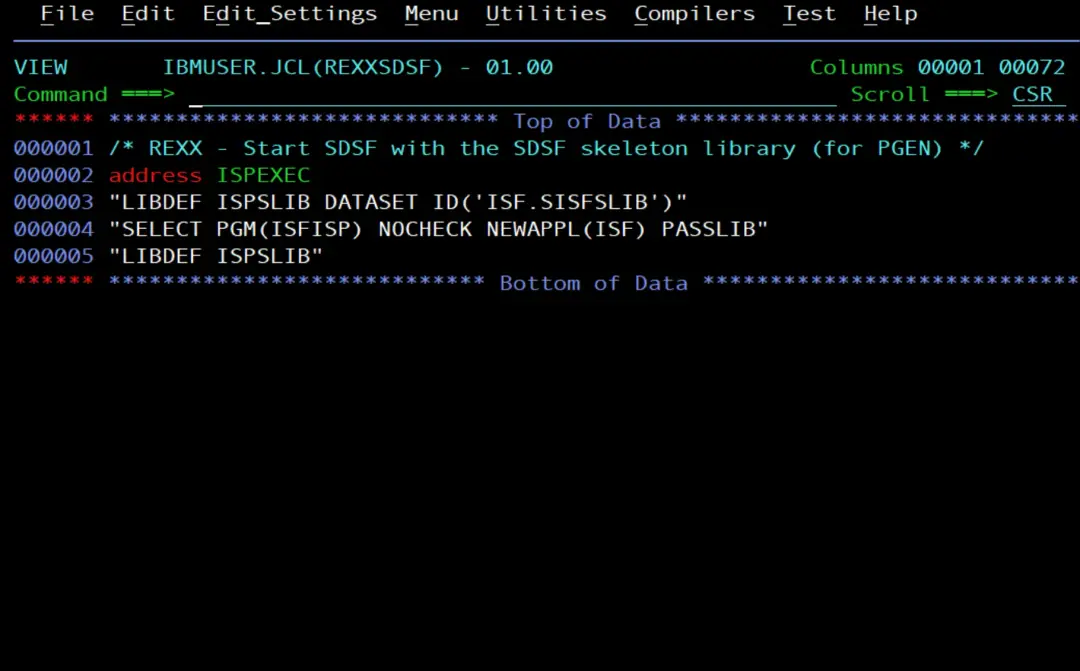
To test it without touching the logon procedure, a REXX adds the library and starts SDSF inheriting that allocation (PASSLIB). A LIBDEF from option 6 is not enough, because SDSF runs as its own ISPF application (NEWAPPL(ISF)):
/* REXX - Start SDSF with the SDSF skeleton library (for PGEN) */
address ISPEXEC
"LIBDEF ISPSLIB DATASET ID('ISF.SISFSLIB')"
"SELECT PGM(ISFISP) NOCHECK NEWAPPL(ISF) PASSLIB"
"LIBDEF ISPSLIB"
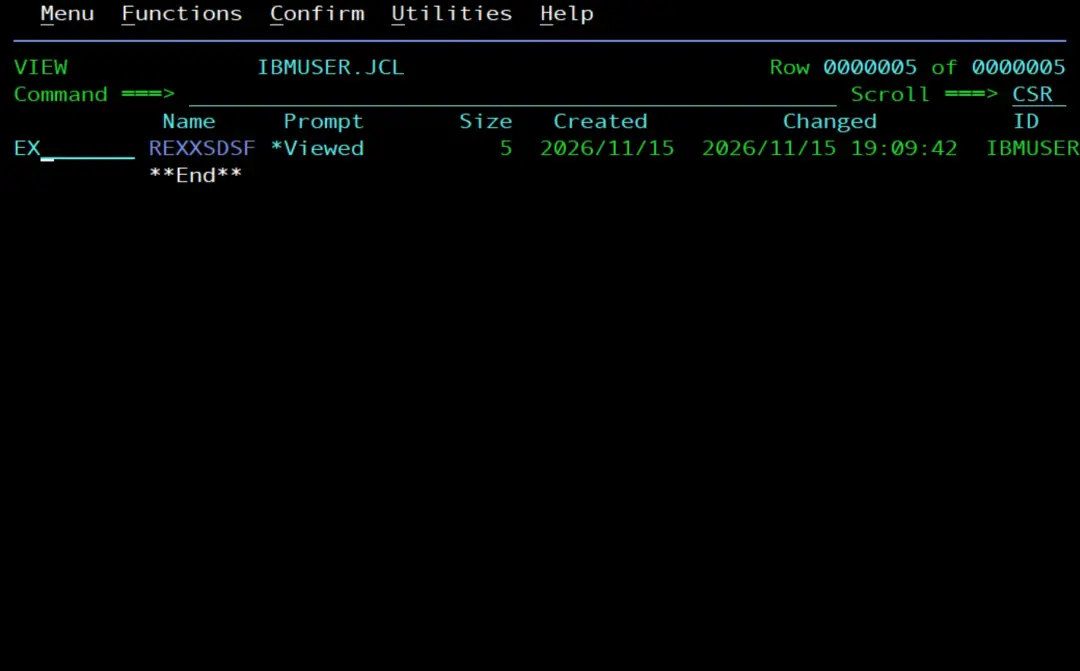
I saved it in a library, ran it with EX and PGEN worked: it opens the generated script in edit, in a temporary data set that you should copy before changing it.
To fix it permanently, the library has to be added where ISPSLIB is allocated at TSO logon. To find out which logon procedure my session uses, I looked up my user (IBMUSER) in SDSF and, in its JESMSGLG, this message:
IEFC001I PROCEDURE DB13PROC WAS EXPANDED USING SYSTEM LIBRARY SYS1.PROCLIBThe ISPSLIB DD is in SYS1.PROCLIB(DB13PROC). First I made a copy of the member, in case I had to roll back, and then I added ISF.SISFSLIB at the end of the concatenation:
//ISPSLIB  DD  DSN=ISP.SISPSLIB,DISP=SHR
//         DD  DSN=ISP.SISPSENU,DISP=SHR
//         DD  DSN=SYS1.SBLSKEL0,DISP=SHR
//         DD  DSN=SYS1.HRFSKEL,DISP=SHR
//         DD  DSN=SYS1.DGTSLIB,DISP=SHR
//         DD  DSN=GIM.SGIMSENU,DISP=SHR
//         DD  DSN=CSF.SCSFSKL0,DISP=SHR
//         DD  DSN=DB2V13.SDSNSPFP,DISP=SHR
//         DD  DSN=ISF.SISFSLIB,DISP=SHR
//ISPTLIB  DD  DSN=ISP.SISPTENU,DISP=SHR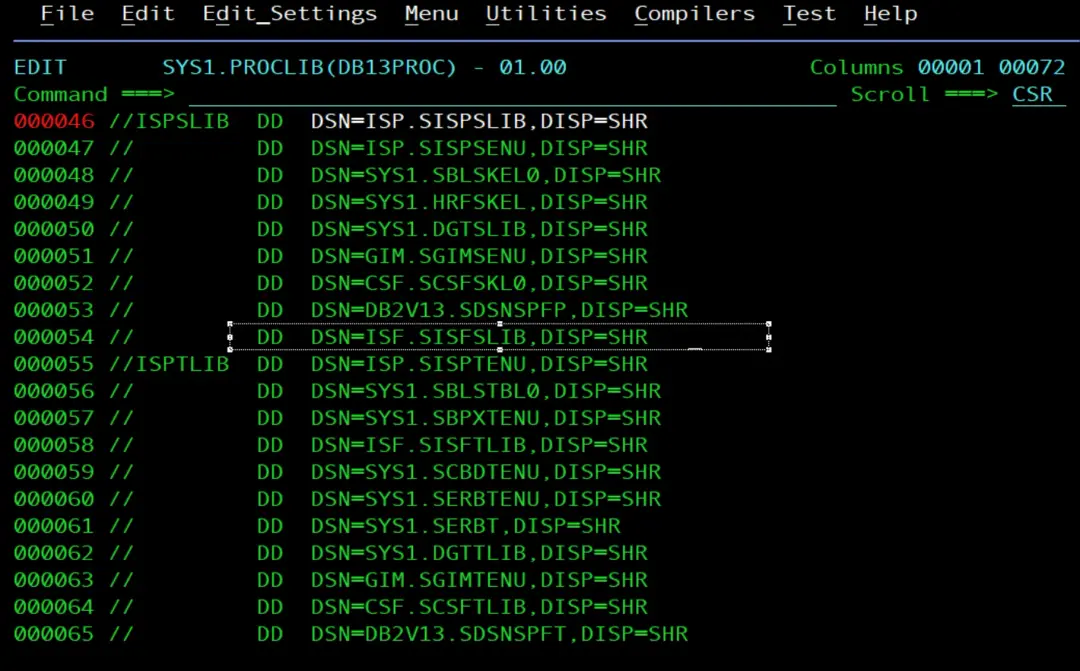
The PROC is only read at TSO logon, so you have to log off and log on again. With TSO ISRDDN you can see ISF.SISFSLIB in ISPSLIB, and PGEN works entering SDSF the normal way, without the REXX.
The monitoring script
With all this we can build the monitoring script, spool_alert.py. It does three things:
- Issues
$D SPOOLthrough the SDSF console and takes the usage percentage from message $HASP646. - If it is over the threshold (70% by default, or whatever the
SPOOL_THRESHOLDvariable says), it finds the 5 jobs that use the most spool. - Sends a card (Adaptive Card) to the Teams webhook.
The webhook URL is not in the script: it reads it from the TEAMS_WEBHOOK_URL variable.
#!/usr/bin/env python3
"""Check JES2 spool usage with pySDSF and post an alert to Microsoft Teams."""
import json
import os
import re
import sys
import urllib.request
from datetime import datetime

from pysdsf import Connection
from pysdsf.isfexception import ISFException

THRESHOLD = float(os.environ.get("SPOOL_THRESHOLD", "70"))  # percent
TOP_JOBS = 5


def spool_percent(connection):
    """Issue $D SPOOL and return the usage percent from $HASP646."""
    console = connection.console()
    result = console.issue_command(["$D SPOOL"], console_name_change=True, delay=1)
    lines = [str(line) for line in result]
    for line in lines:
        match = re.search(r"\$HASP646\s+([\d.]+)\s+PERCENT", line)
        if match:
            return float(match.group(1))
    # Show what came back, to see why the percent is missing
    raise RuntimeError("$HASP646 not found in the command response:\n"
                       + "\n".join(lines) + f"\nSDSF messages: {console.get_message()}")


def top_jobs(connection):
    """Return the jobs that use the most spool track groups."""
    jobs = connection.status_of_jobs(prefix="*", owner="*",
                                     columns=["JNAME", "JOBID", "OWNERID", "TGNUM", "TGPCT"])
    jobs = sorted(jobs, key=lambda row: int(row["TGNUM"] or 0), reverse=True)
    return jobs[:TOP_JOBS]


def post_to_teams(url, title, lines):
    """Send an Adaptive Card to a Teams Workflows webhook. Returns the HTTP status."""
    body = [{"type": "TextBlock", "text": title, "weight": "Bolder", "size": "Medium"}]
    body += [{"type": "TextBlock", "text": line, "wrap": True} for line in lines]
    card = {
        "type": "message",
        "attachments": [{
            "contentType": "application/vnd.microsoft.card.adaptive",
            "content": {"type": "AdaptiveCard", "version": "1.4", "body": body},
        }],
    }
    request = urllib.request.Request(url, data=json.dumps(card).encode("utf-8"),
                                     headers={"Content-Type": "application/json"})
    with urllib.request.urlopen(request, timeout=30) as response:
        return response.status


def main():
    url = os.environ.get("TEAMS_WEBHOOK_URL")
    if not url:
        sys.exit("TEAMS_WEBHOOK_URL is not set")
    connection = Connection()
    try:
        checked = datetime.now().strftime("%Y-%m-%d %H:%M:%S")
        percent = spool_percent(connection)
        print(f"{checked} Spool usage: {percent}% (threshold {THRESHOLD}%)")
        if percent < THRESHOLD:
            return
        lines = [f"Checked at {checked}",
                 f"Spool usage {percent}% (threshold {THRESHOLD}%)", "Top jobs:"]
        for row in top_jobs(connection):
            lines.append(f'{row["JNAME"]} ({row["JOBID"]}) {row["OWNERID"]}: '
                         f'{row["TGNUM"]} track groups, {row["TGPCT"]}%')
        status = post_to_teams(url, f"{os.uname().nodename}: JES2 spool alert", lines)
        print(f"Teams answered HTTP {status}")
    except ISFException as e:
        sys.exit(f"SDSF error: {e}")
    finally:
        connection.close()


if __name__ == "__main__":
    main()
For the console I followed the IBM sample command_sample.py: issue_command takes a list of commands and options, and the response is read line by line. With delay=1 we give the JES2 response time to arrive.
The Teams webhook
First I create a channel to receive the alerts.
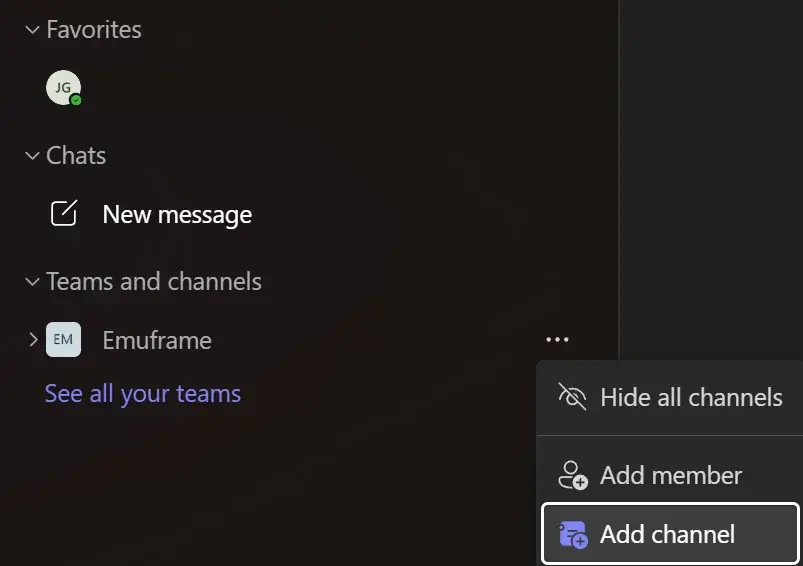
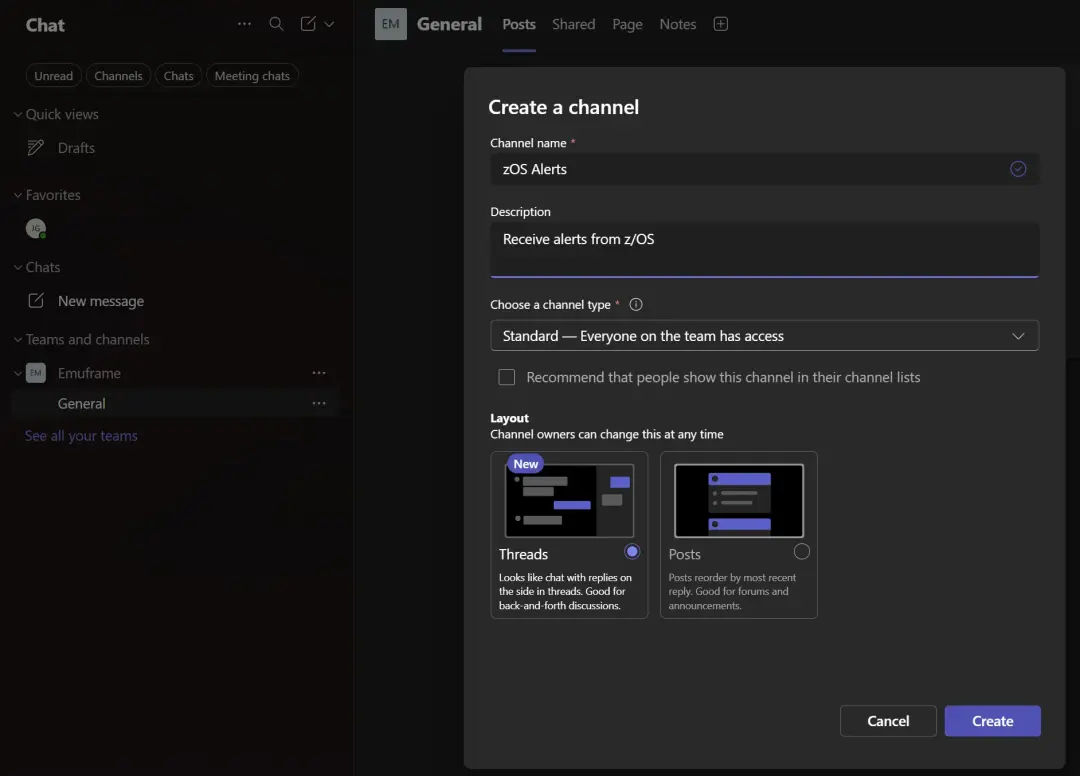
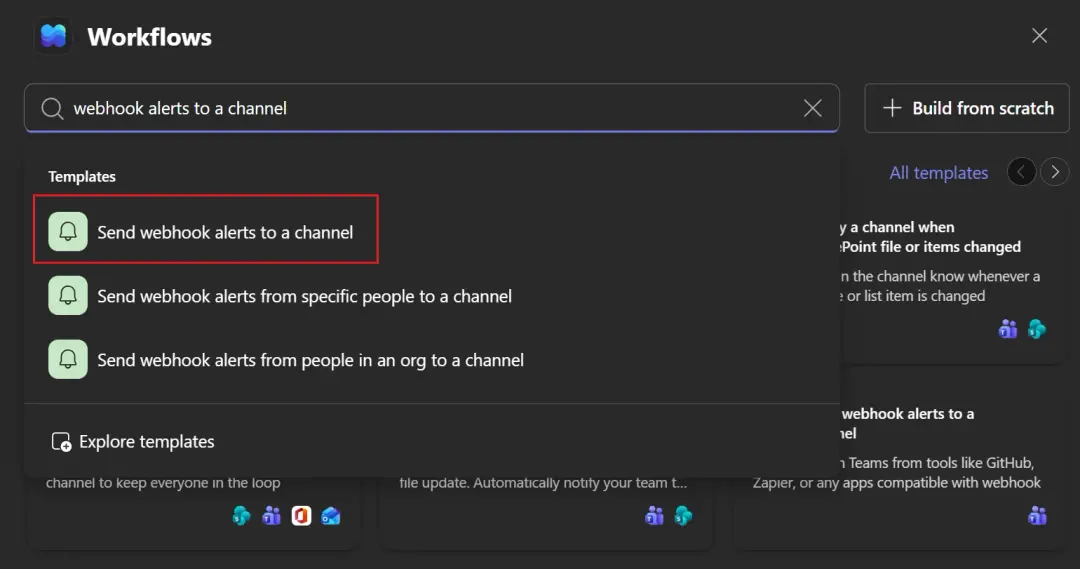
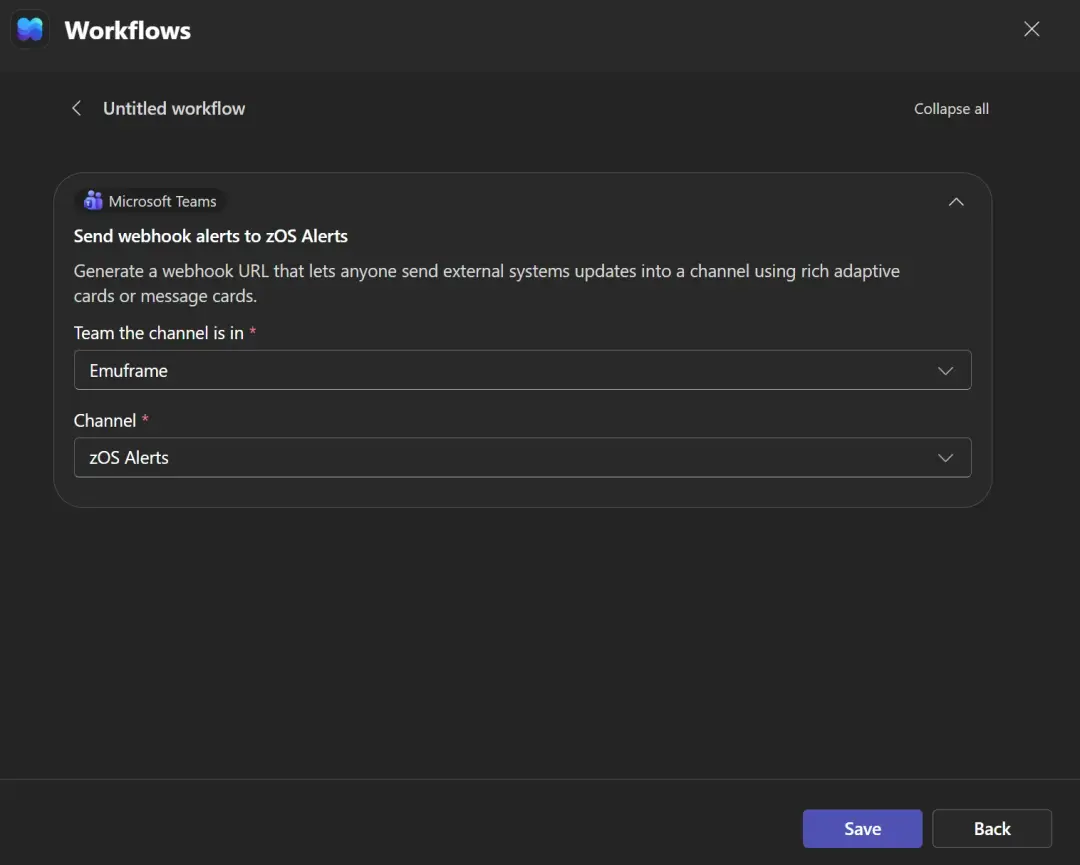
The Office 365 connectors in Teams have been retired; webhooks are now created with Workflows. In the channel: Workflows → "Send webhook alerts to a channel" (or in Power Automate, with "When a Teams webhook request is received" and "Post card in a chat or channel").
I use Teams Essentials (with the one-month free trial); Teams Premium is not needed.
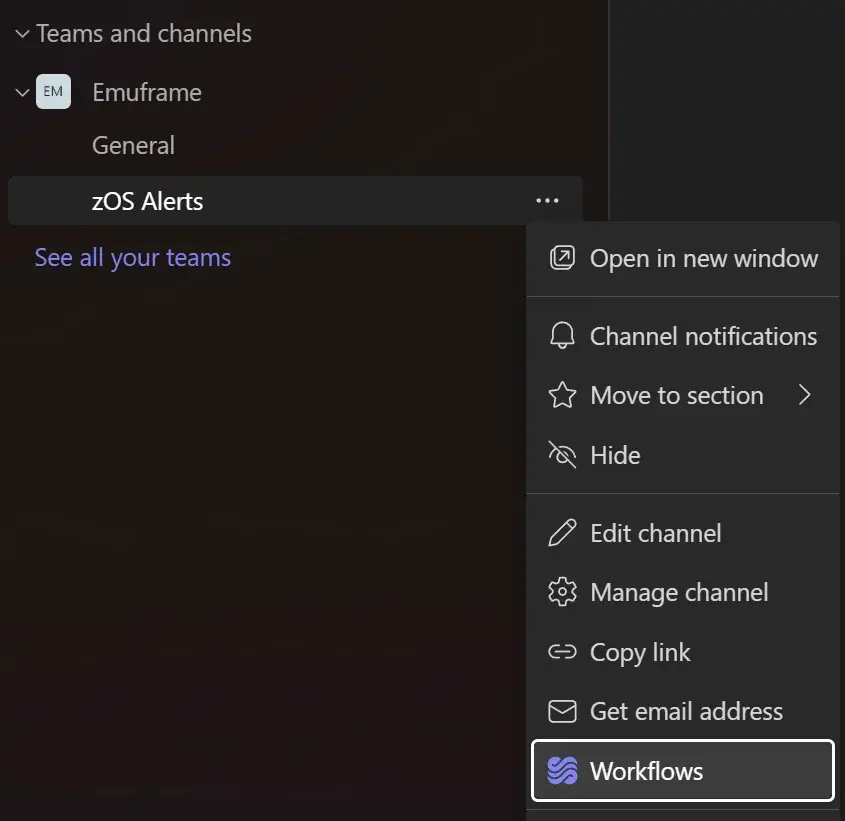
I choose "Send webhook alerts to a channel".
I click Save.
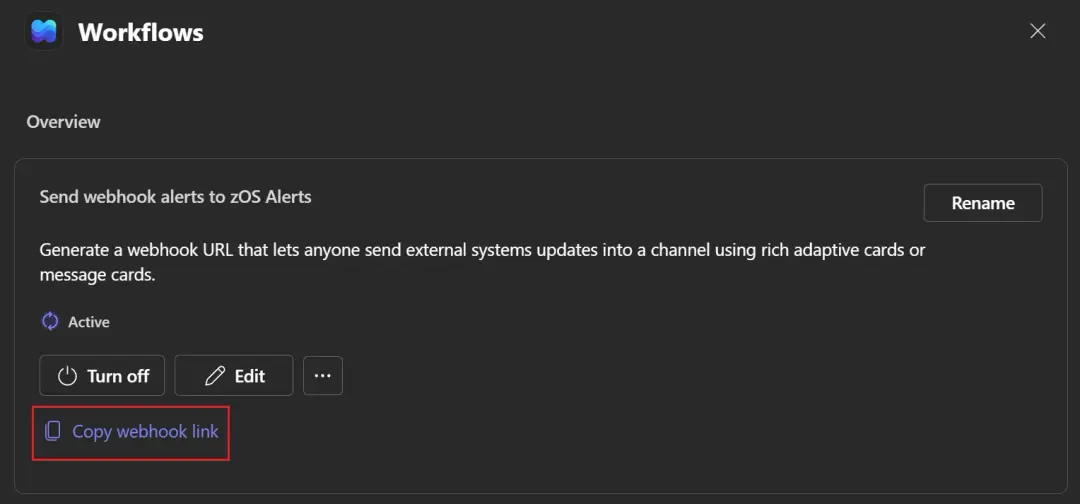
We click "Copy webhook link" to use it later in the script that will send messages to this channel.
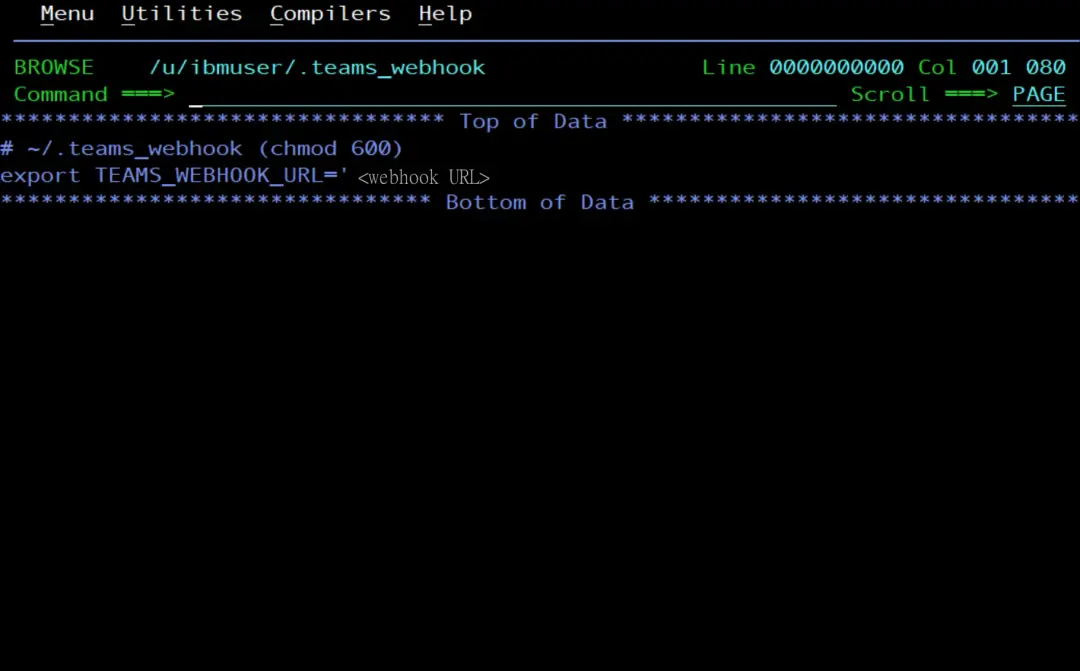
The webhook URL is a secret: it carries a signature (sig=) and anyone who has it can post to the channel. That is why I keep it in a file only I can read and load it from .profile:
# ~/.teams_webhook (chmod 600)
export TEAMS_WEBHOOK_URL='<webhook URL>'
I create the file from TSO ISHELL:
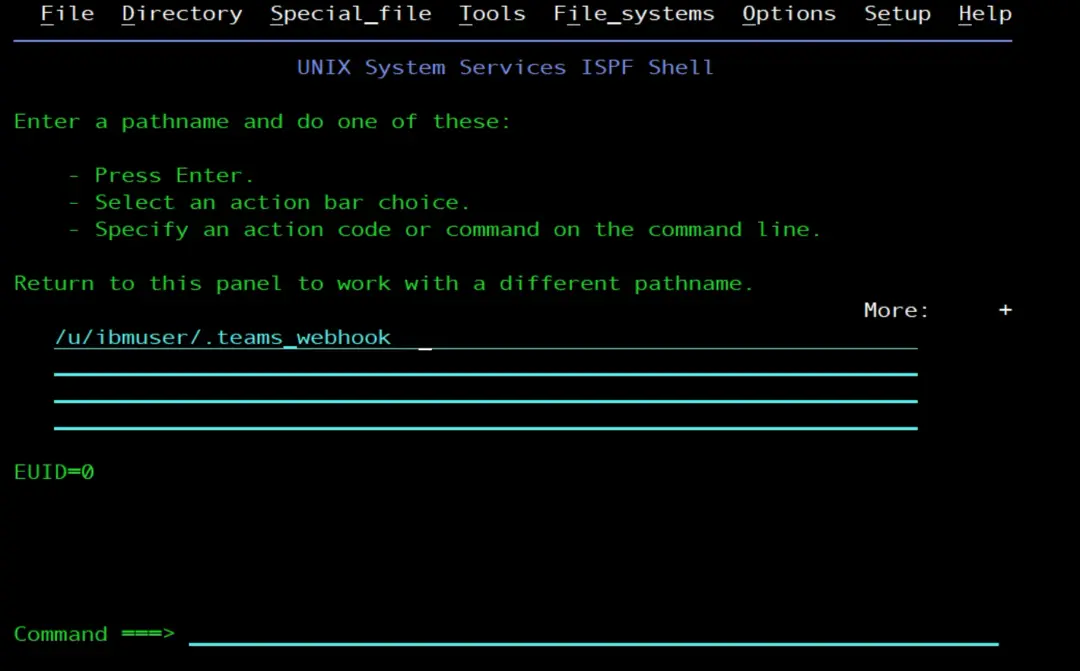
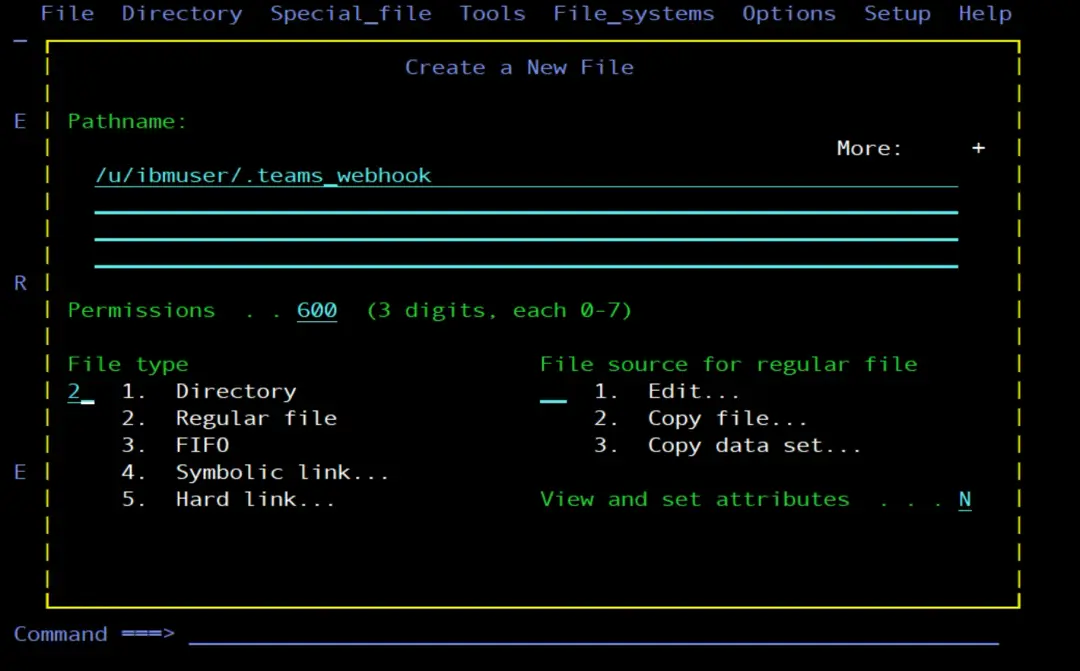
From WinSCP (besides FTP, it can edit the file). Since it is hidden, press Ctrl+Alt+H to see it. This file is in EBCDIC, so it is edited with the transfer in text mode; the .py files, on the other hand, go in binary.
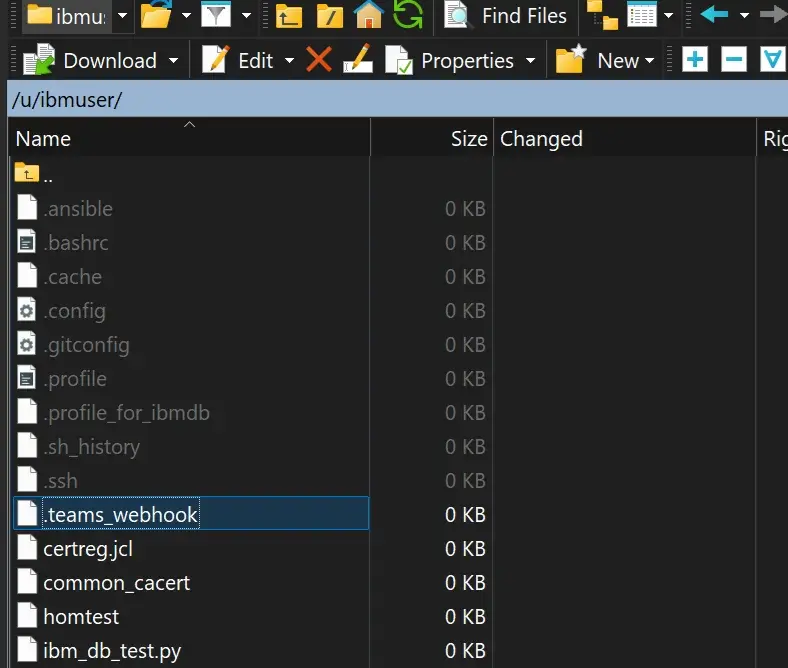
We open it and paste the URL (the URL must start and end with a single quote):

We can check it from z/OS.
We go to OMVS (TSO OMVS):
chmod 600 $HOME/.teams_webhook
echo '. $HOME/.teams_webhook' >> $HOME/.profile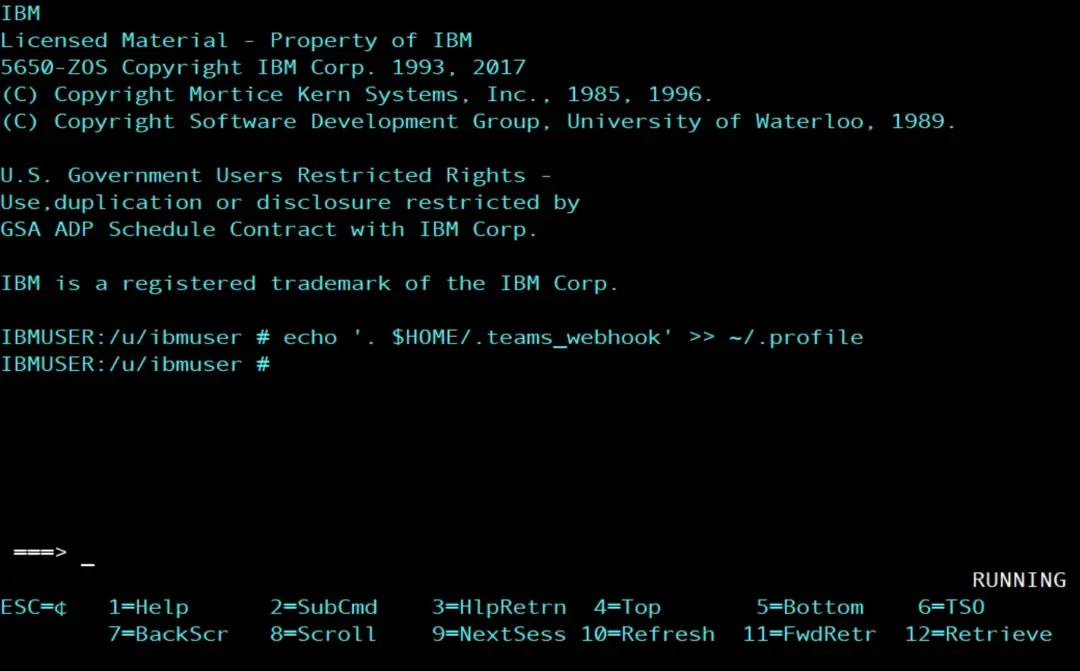
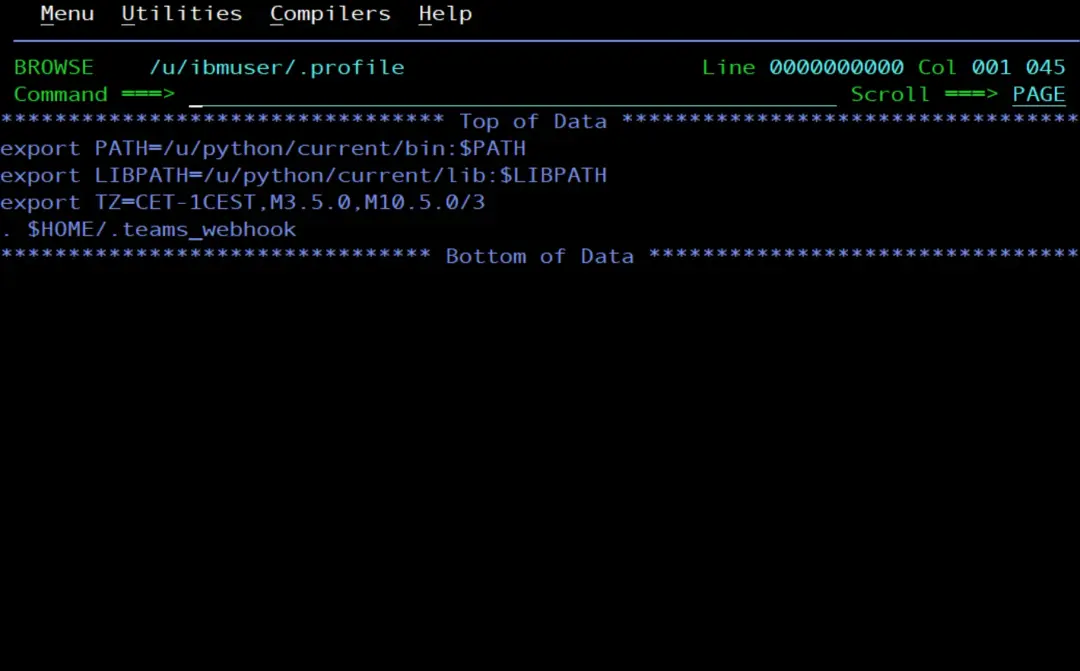
We exit OMVS, enter it again and try the command (it shows the length of the variable, to confirm it is loaded):
echo ${#TEAMS_WEBHOOK_URL}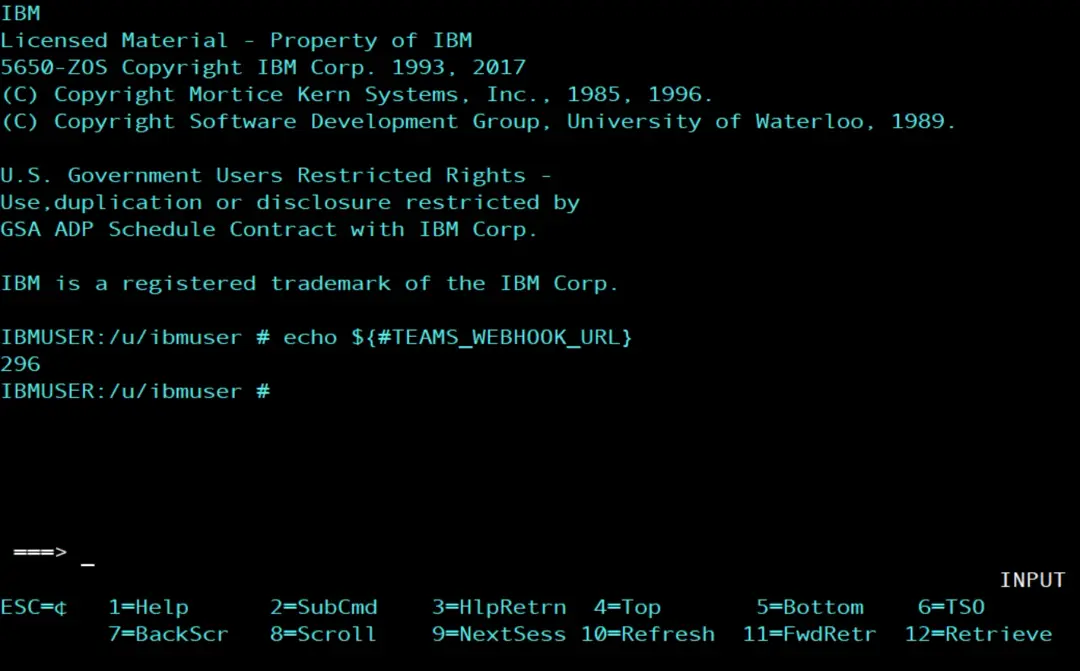
Test it
I upload spool_alert.py like the previous ones (FTP in binary and chtag -tc ISO8859-1):
cd /u/ibmuser/scripts
chtag -tc ISO8859-1 spool_alert.py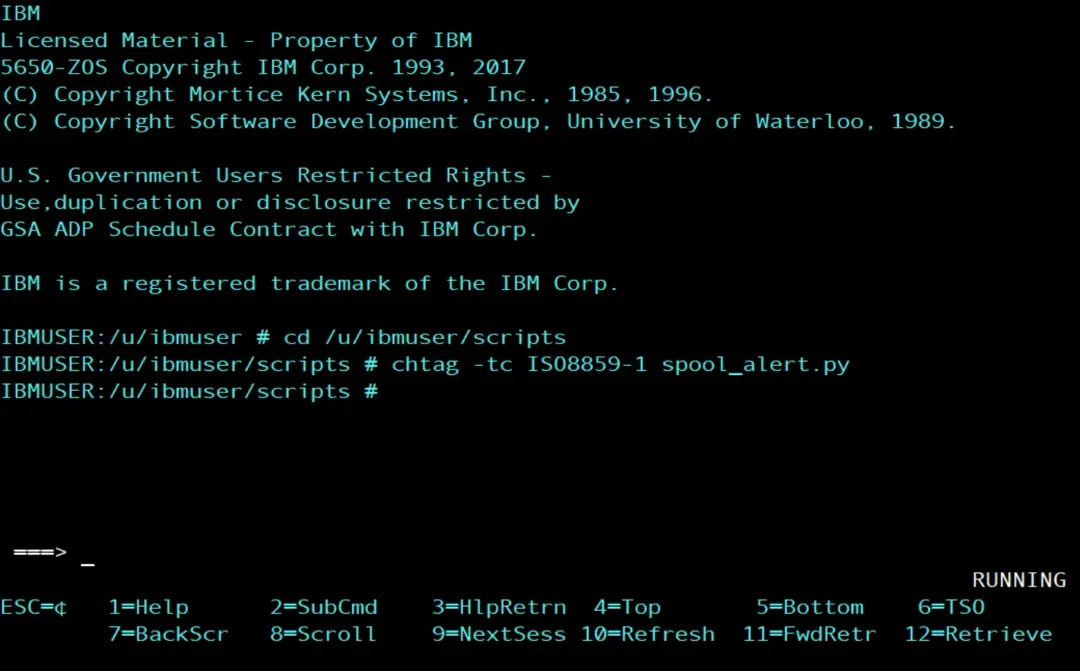
With a low threshold, I force the alert:
SPOOL_THRESHOLD=1 python3 /u/ibmuser/scripts/spool_alert.py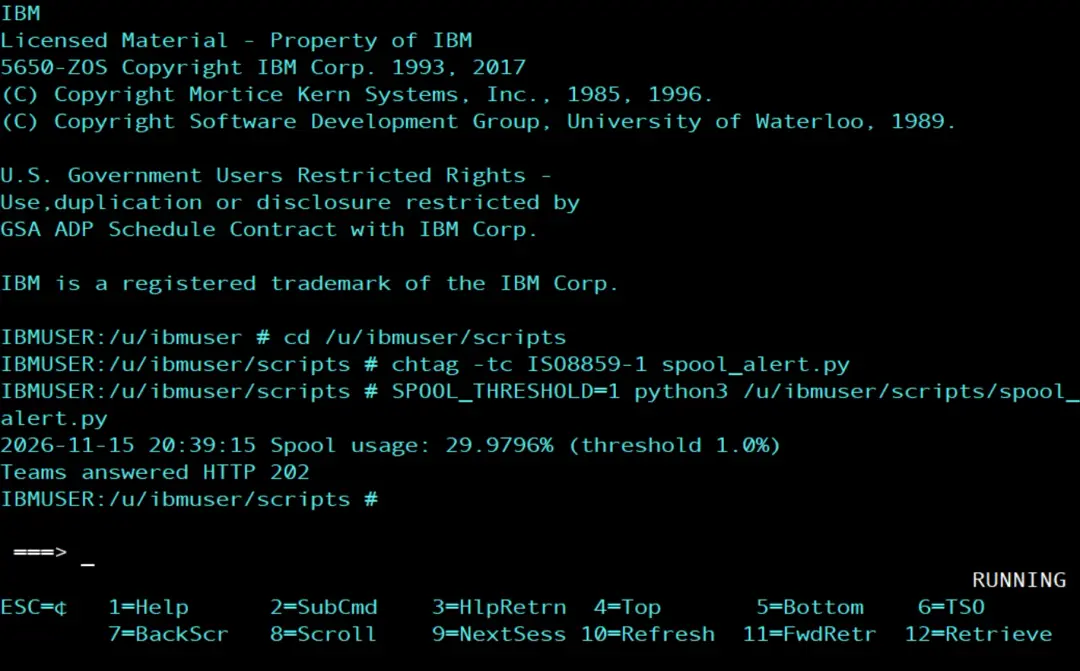
We check that it reaches Microsoft Teams.
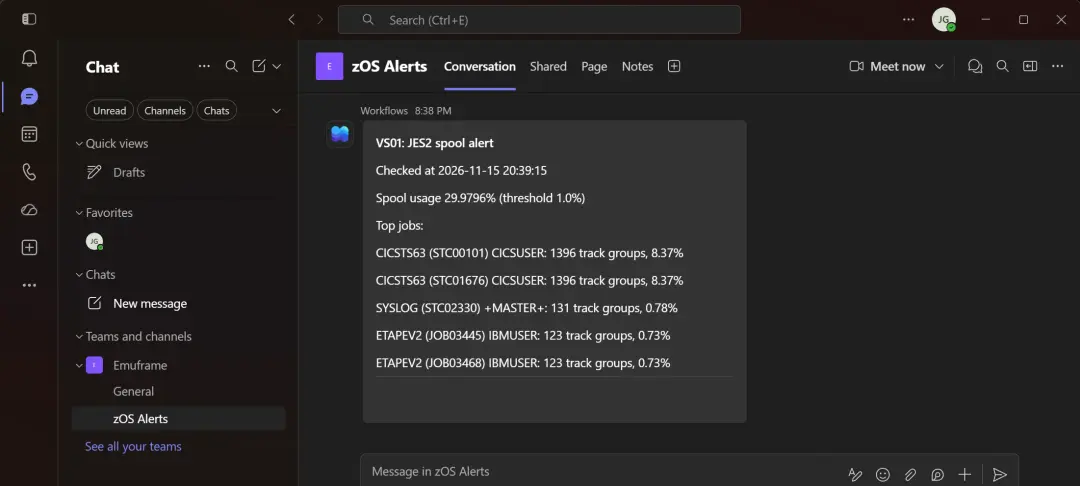
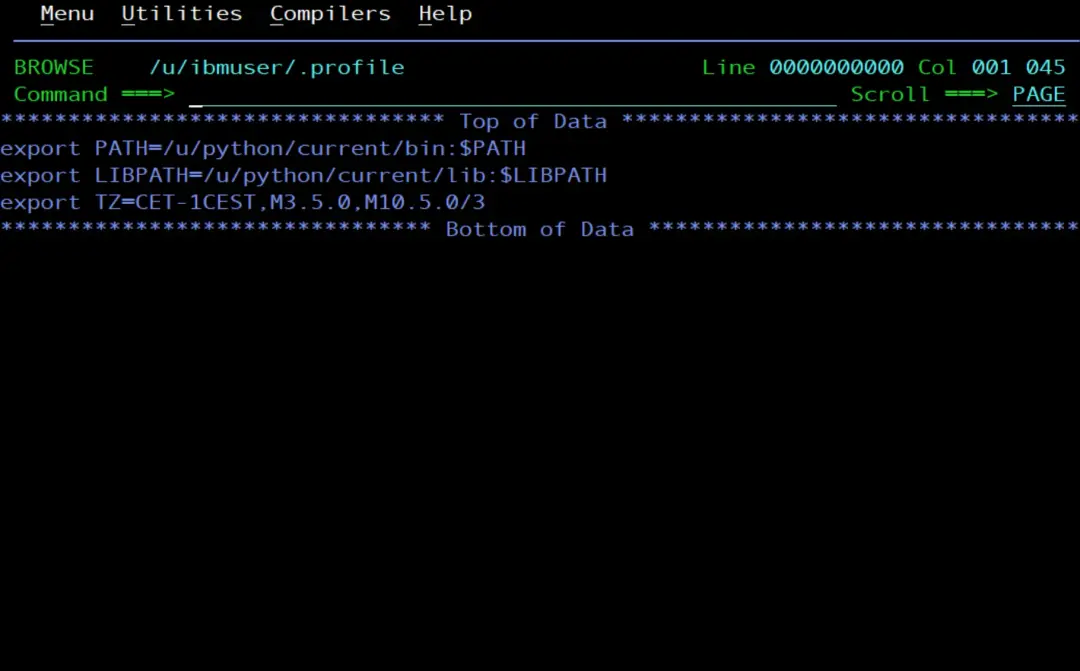
The time on the card comes from the shell's time zone. In the stock image, /etc/profile sets TZ=EST5EDT (New York time), so I changed it to Spanish peninsular time in my .profile, which is read afterwards and overrides it. That way I don't touch /etc/profile, which is shared by all users:
echo 'export TZ=CET-1CEST,M3.5.0,M10.5.0/3' >> $HOME/.profile
. $HOME/.profile
date
CET is UTC+1 in winter and CEST UTC+2 in summer, switching on the last Sunday of March and the last Sunday of October.
If the card does not reach Teams
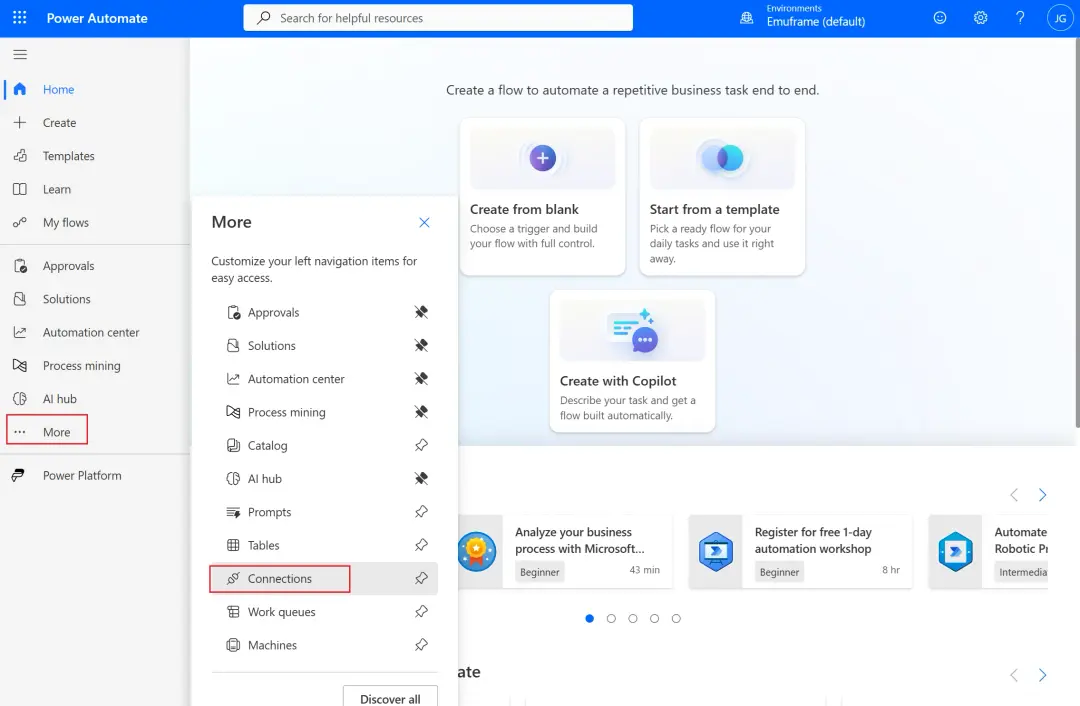
When the script says HTTP 202, it only means the webhook has accepted the request: the workflow runs afterwards, on its own. If the card does not appear in the channel, there are two places to look, both in Power Automate (make.powerautomate.com, with the same Teams account).
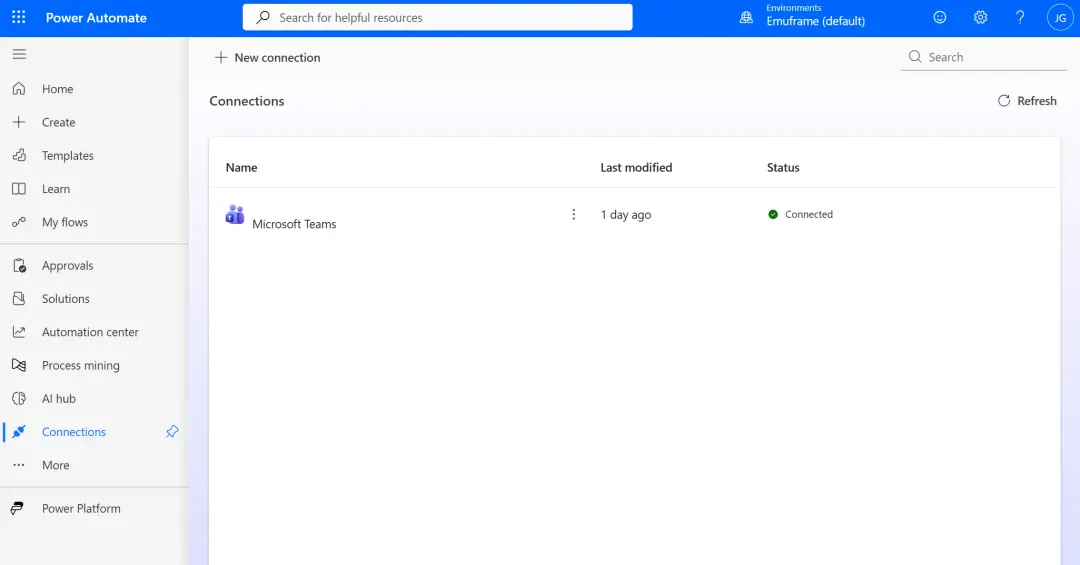
First, the connections. In the left menu, under Connections, is the Microsoft Teams connection the workflow uses. If it does not show as Connected, fix it with Fix connection and signing in again. This is the usual cause when an alert that used to work stops arriving without anything having changed.
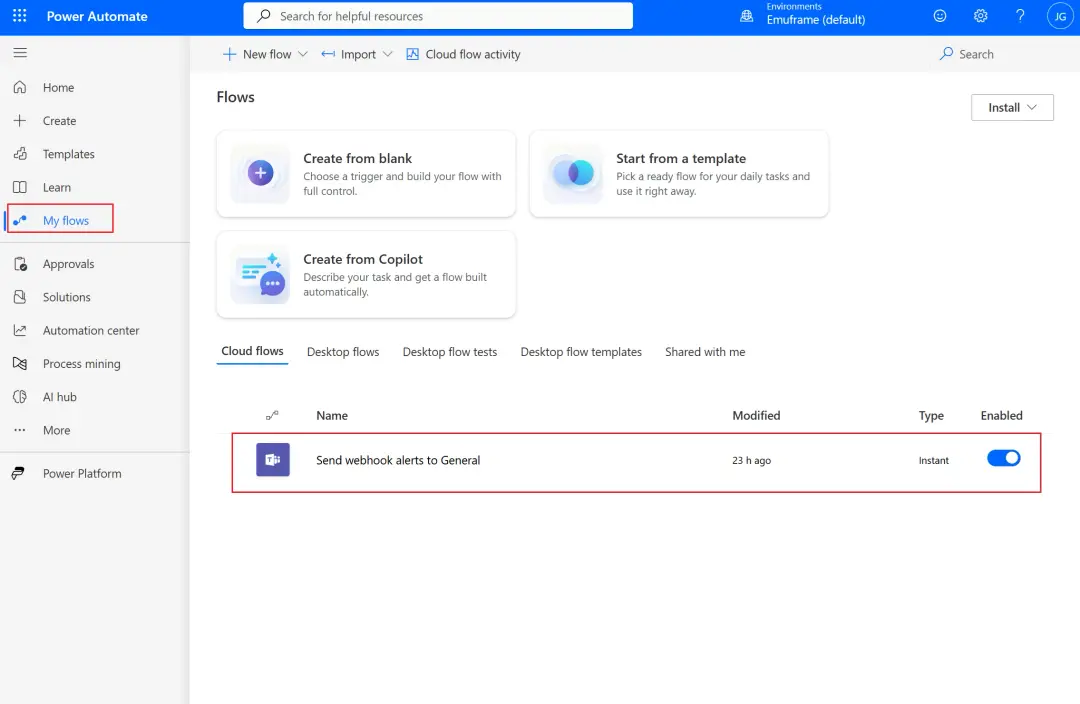
Then, the run history. In My flows, opening the workflow, you see the runs of the last 28 days, successful or failed. Inside each run are its steps (receiving the webhook and posting the card), with what each one received and the error of the one that fails. There you can also see whether the workflow is turned off.
Delete the test messages
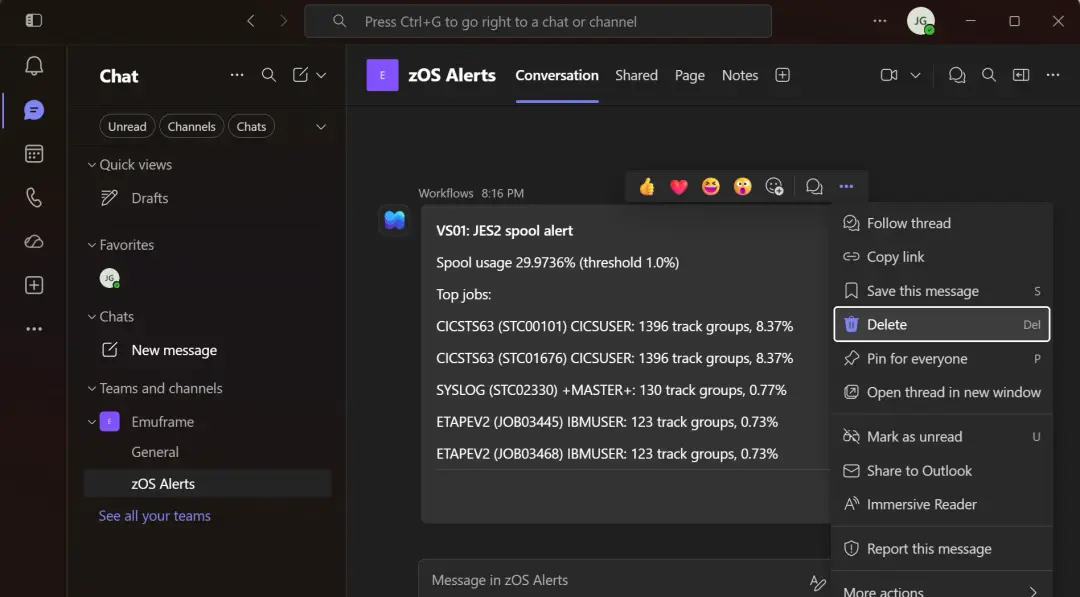
The cards are posted by the workflow's Flow bot, not by us, and by default nobody can delete them: not even the team owner. On top of that, workflows created from Teams templates open in Power Automate as read-only, so you cannot change them to post as a user either.
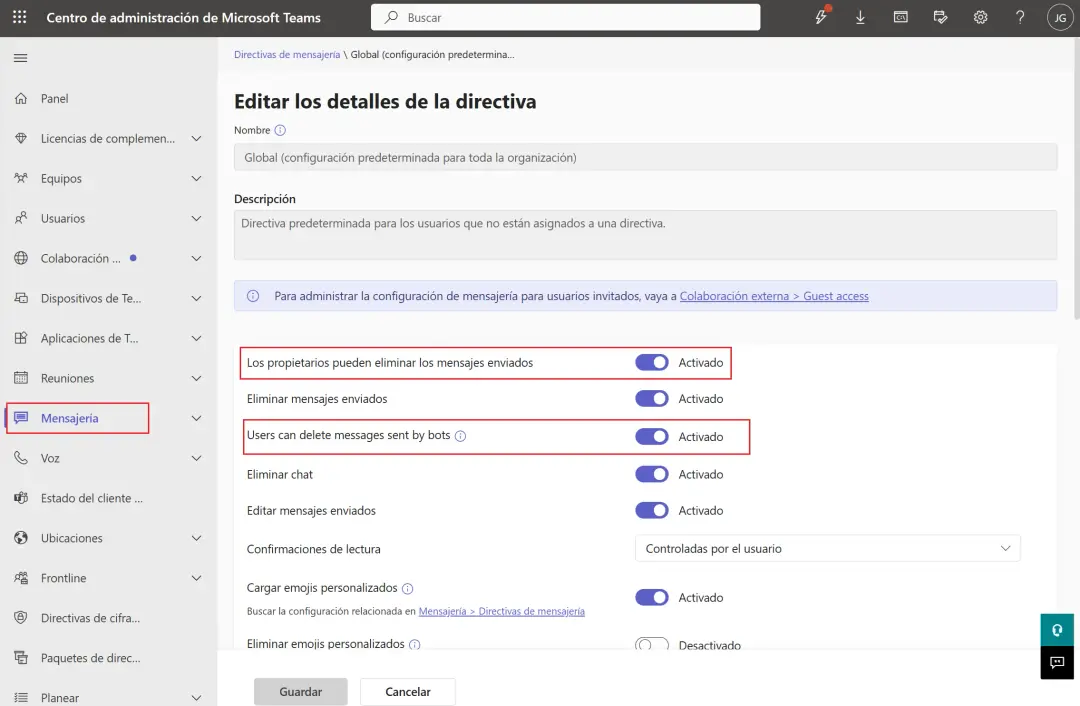
If you are a Teams administrator, you can allow it in the Microsoft Teams admin center (admin.teams.microsoft.com), under Messaging → Messaging policies, opening the policy that applies to your user (Global, if there is no other):
- Users can delete messages sent by bots: On. This is the one that allows deleting the Flow bot messages.
- Owners can delete sent messages: On, to delete other people's messages in your channels.
After saving, the change can take a while to apply, from a few minutes to several hours. If you change it in the Global policy it affects the whole organization; to limit it to one user, create a new policy and assign it only to that user.
After waiting a few minutes and closing and reopening Teams, it lets you delete the bot messages.
To avoid filling a channel with tests, another option is to create a channel just for the alerts and delete it entirely when it is no longer needed.
Run it in batch
This section is not complete. On my system I could not get the script to work in batch: my user shares UID 0 with BPXROOT, and in batch the job ends up with the BPXROOT identity, without permission for $D SPOOL. Here I explain what happened and why, but don't follow it as a recipe. The solution involves a dedicated user for the batch job, with its own UID and its permissions in RACF. From OMVS the script works without problems.
To run it in batch I use BPXBATCH. The first time it failed with ModuleNotFoundError: No module named 'pysdsf': the job was using the stock Python 3.14, not 3.13.
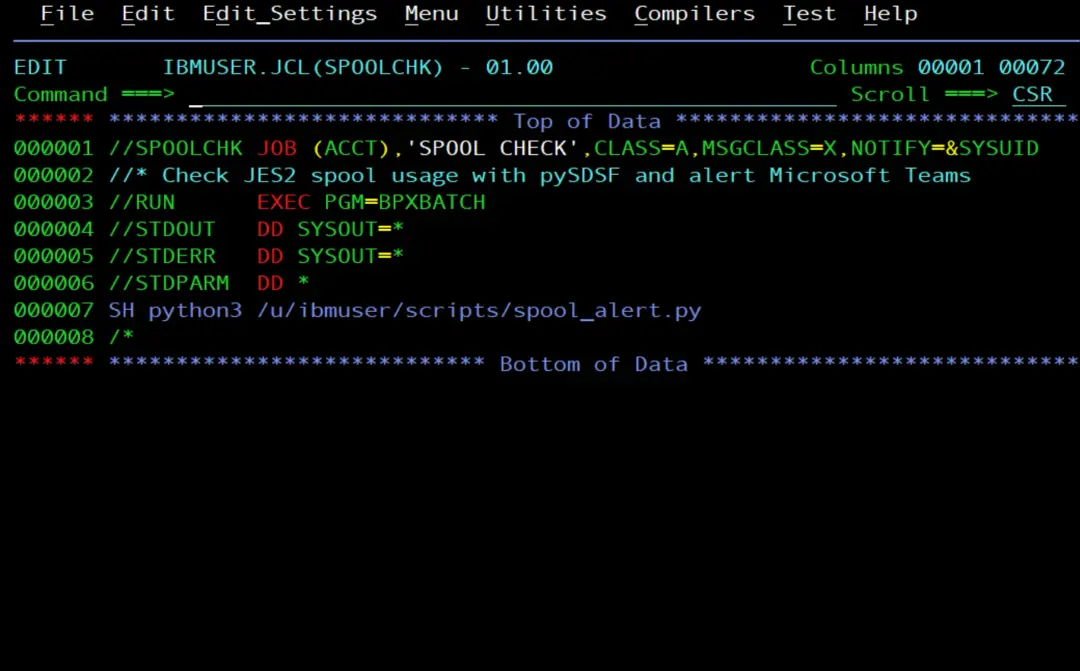
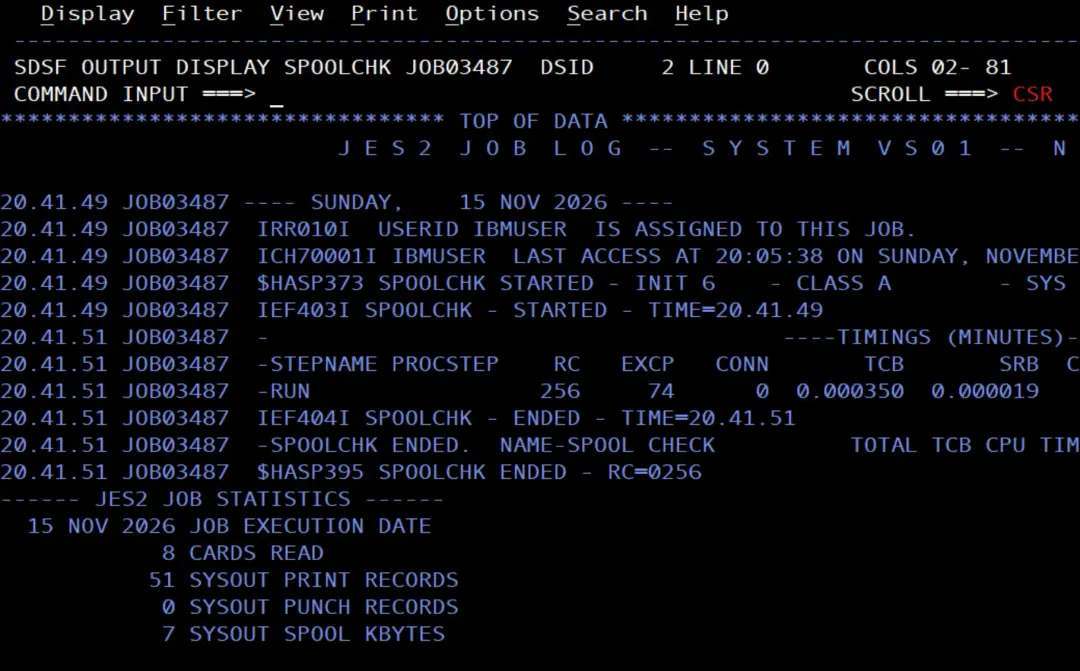
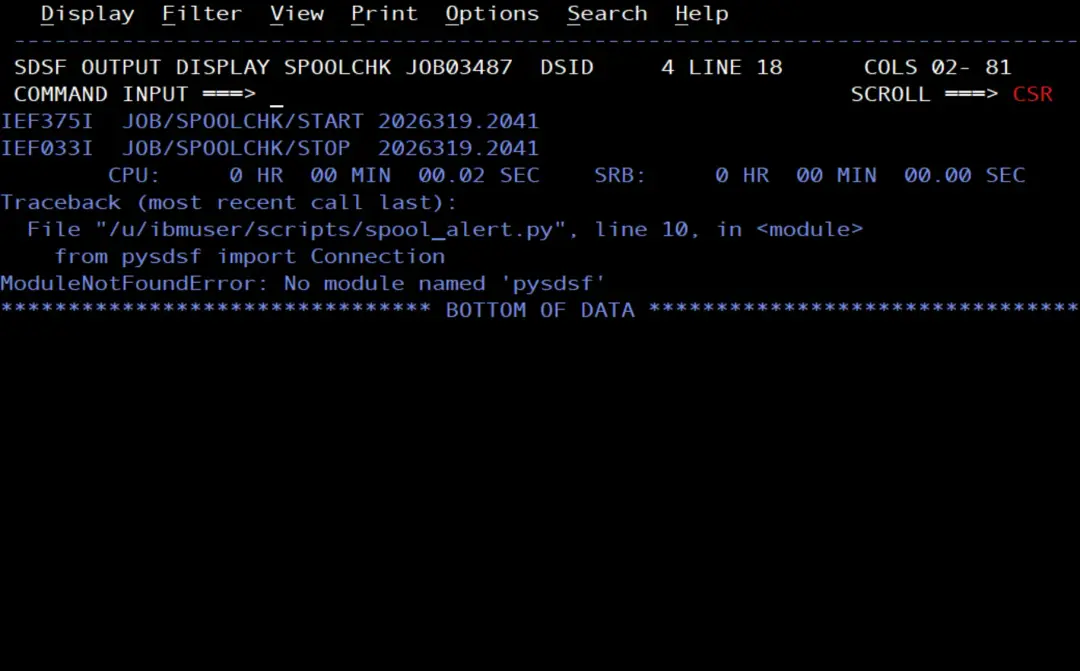
A diagnostic job (SH id; echo HOME=$HOME; which python3) shows why:
uid=0(BPXROOT) gid=0(SYS1) ...
HOME=/
/usr/lpp/IBM/cyp/v3r14/pyz/bin/python3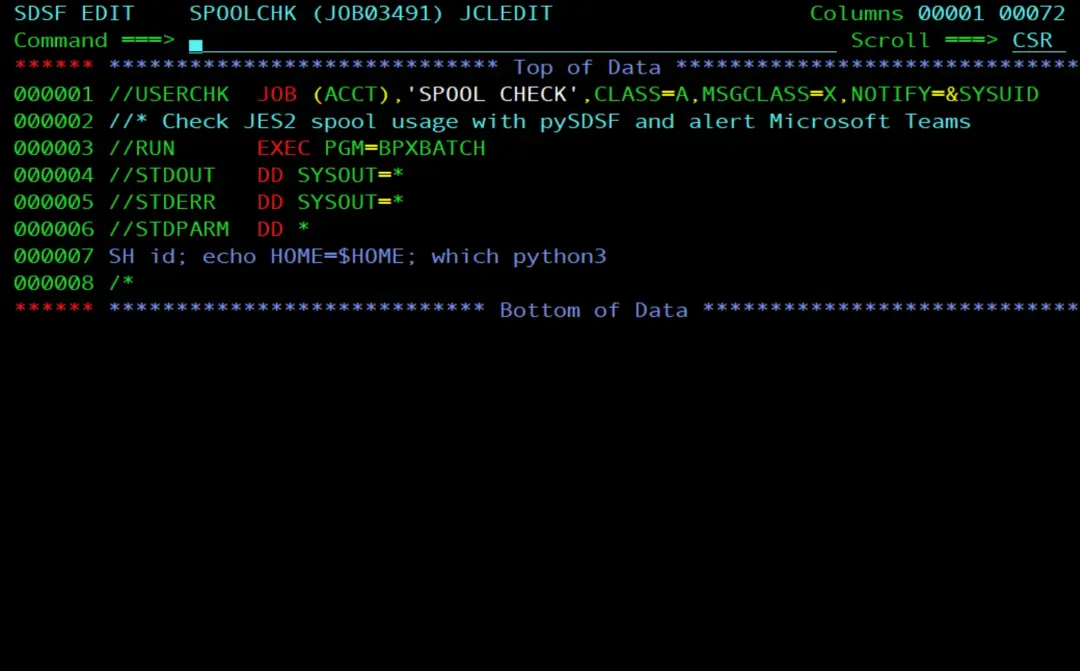
My user has UID 0 (superuser), the same as BPXROOT. In batch, the shell identifies the user by the UID, takes it as BPXROOT and uses its HOME, which is /. It reads /etc/profile, but looks for /.profile instead of mine, so it does not get my PATH, LIBPATH, time zone or webhook URL. In interactive OMVS this does not happen, because the session starts with my TSO user.
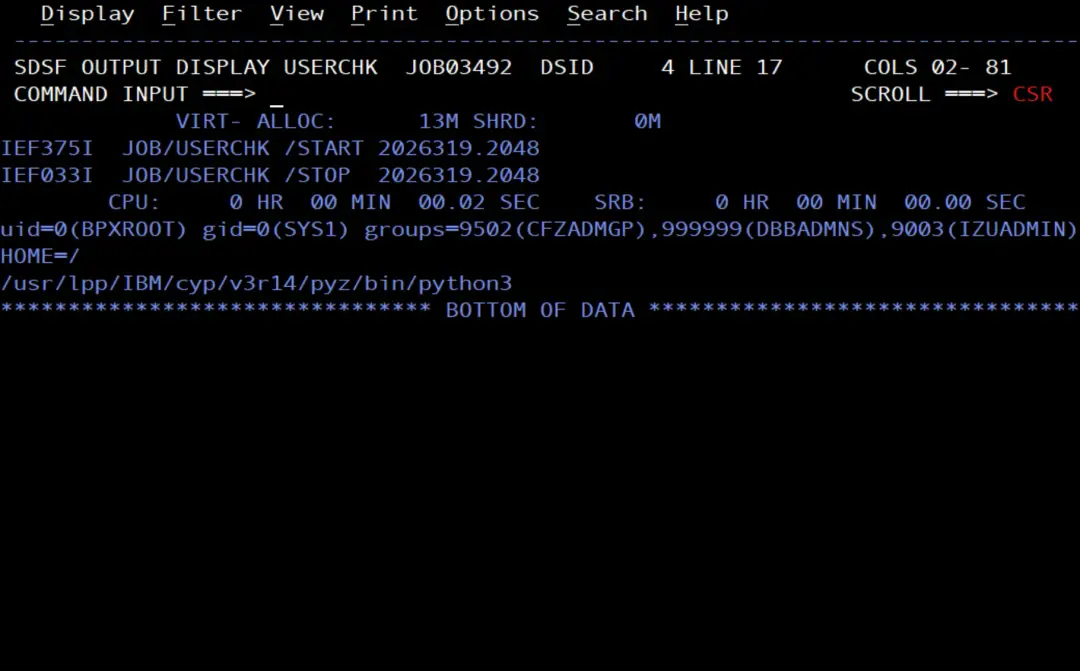
It looked easy to fix: set HOME and load .profile in the job itself. With the BPXBATCH STDENV DD it does not work: with SH, the login shell takes the HOME of the user it detects again, and you get .: //.profile: not found. Setting _BPX_USERID=IBMUSER in STDENV does not help either. What does work is a small shell script, spool_check.sh, that sets HOME, loads .profile and runs Python:
#!/bin/sh
# Run spool_alert.py in batch with the user's profile (PATH, LIBPATH, TZ, webhook URL).
# BPXBATCH finds HOME=/ for a UID 0 user, so set it before loading the profile.
export HOME=/u/ibmuser
. $HOME/.profile
exec python3 $HOME/scripts/spool_alert.py "$@"
I upload and tag it like the .py files, and give it execute permission (chmod 700 spool_check.sh).
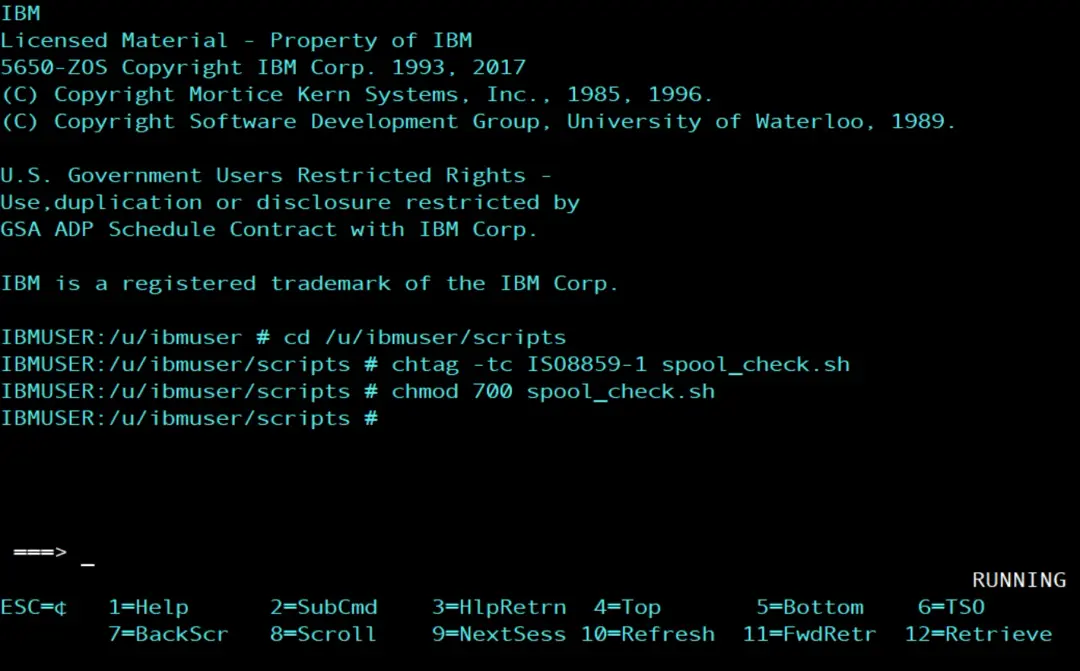
The JCL fits in one line, within the 71 columns, and the URL still does not appear in it:
//SPOOLCHK JOB (ACCT),'SPOOL CHECK',CLASS=A,MSGCLASS=X,NOTIFY=&SYSUID
//* Check JES2 spool usage with pySDSF and alert Microsoft Teams
//RUN      EXEC PGM=BPXBATCH
//STDOUT   DD SYSOUT=*
//STDERR   DD SYSOUT=*
//STDPARM  DD *
SH /u/ibmuser/scripts/spool_check.sh
/*
With it, the job now starts 3.13 and imports pySDSF, but JES2 rejects the command:
ISF061I User BPXROOT assigned destination operator authority.
ISF031I CONSOLE BPXROOT ACTIVATED
-$D SPOOL
$HASP690 COMMAND REJECTED - AUTHORIZATION FAILURE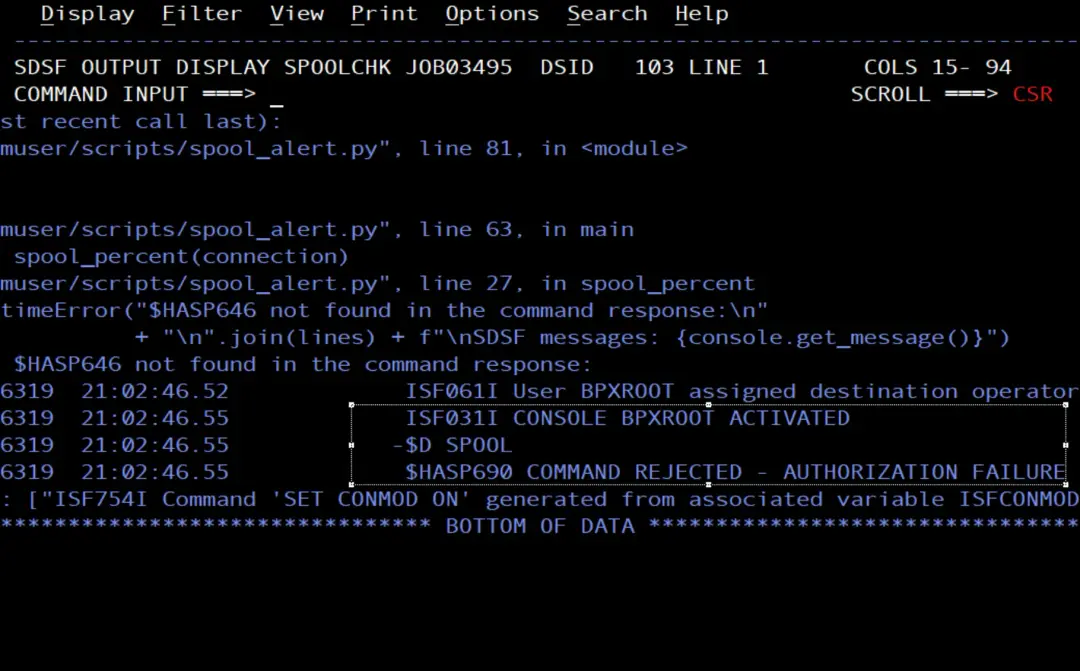
It is the same cause: in batch, SDSF works with the BPXROOT identity, and BPXROOT is not allowed to issue $D SPOOL.
No environment variable changes that, because the security identity is decided by RACF.
To fix it, RACF has to be changed: give BPXROOT the permission or, better, use a user with its own UID, which is what IBM recommends (do not share UID 0).
In this article, the script is tested from OMVS.
To run it every few minutes there are several options: a JES2 automatic command $TA, the scheduler (for example, TWS or OPC) or cron.
Security
pySDSF checks the same permissions as interactive SDSF: panels, actions and console commands. If something gets access denied, with export _ISF_SECURITY_TRACE=ON the messages can be read with get_message(). If the connection itself fails, _ISF_SECURITY_TRACE=WTP sends them to the job log.
Wrap-up
With pySDSF, what used to be a REXX with ISFEXEC is now a Python script, and the alert reaches your phone through Teams.
References
- Using SDSF with the Python programming language (IBM Docs, z/OS 3.2).
- pySDSF documentation on the system itself:
/usr/lpp/sdsf/python/doc/pySDSF.md. - pySDSF samples (command, status, who, output, browse, syslog, purge…): on my system they are in
/u/python/python-v3.13.15.1/usr/lpp/IBM/cyp/v3r13/pyz/lib/python3.13/site-packages/pysdsf/samples. On another system, the path is given by the commandls $(dirname $(python3 -c "import pysdsf; print(pysdsf.__file__)"))/samplesin the "Install pySDSF" section. - Article: Update Python on z/OS.