NewETAPE projectEmuframe Tape Server (ETAPE) project
IBM Z Workload Schedulerv9.5
This page was auto-translated from Spanish

IBM Z Workload Scheduler 9.5 - Creating the Long Term Plan and Current Plan

After defining the WorkStations, a calendar and an application (IBM Z Workload Scheduler 9.5 - Creating Workstations, Calendars and Applications), in this article we create the Long Term Plan and the Current Plan to run that application. The steps are very simple.

Long Term Plan

The Long Term Plan (LTP) is the long-term plan, built from the run cycles we have defined and the applications we created in previous posts. The long-term plan can cover several months and be changed later, adding or removing applications as needed.

From the TWS main panel, we go to option 2 - LTP.
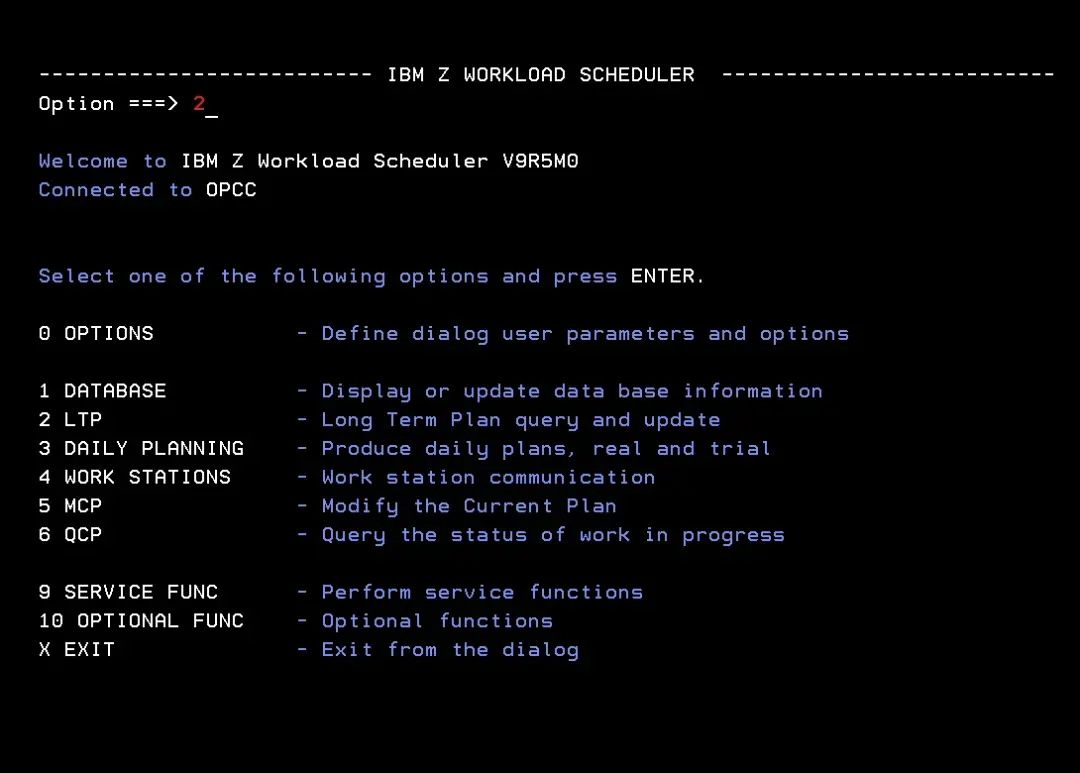
IBM Z Workload Scheduler 9.5 - Creating the Long Term Plan and Current Plan – screenshot 1

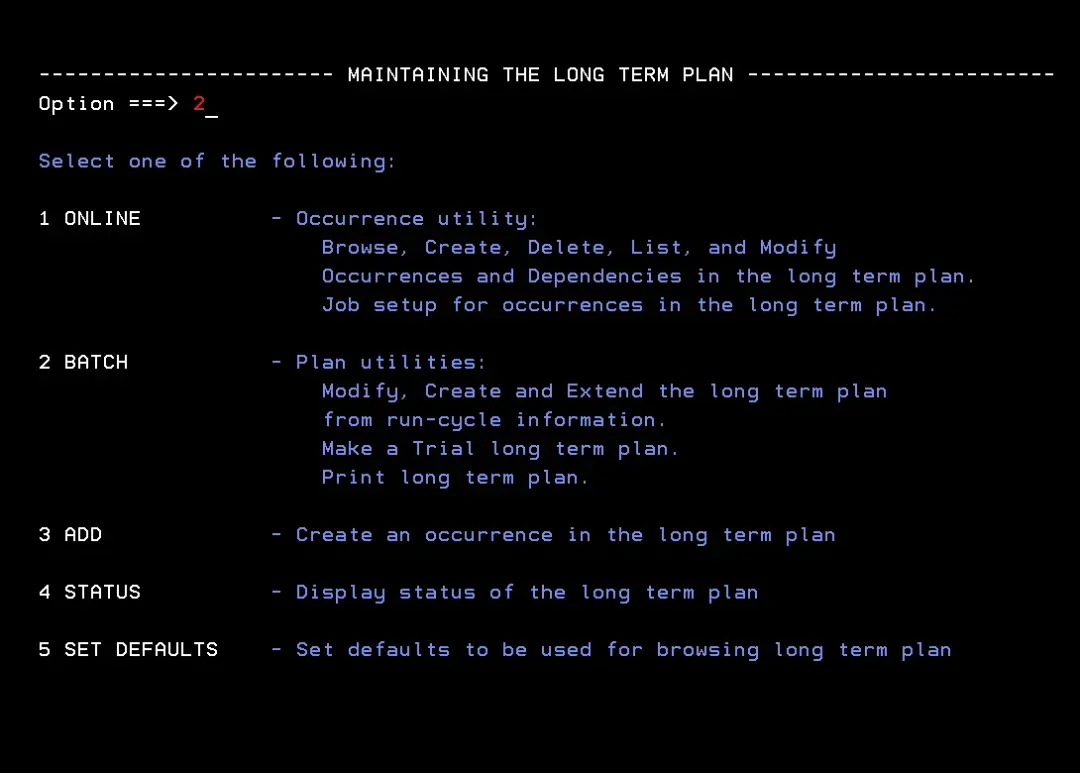
We enter option 2 – Batch.

IBM Z Workload Scheduler 9.5 - Creating the Long Term Plan and Current Plan – screenshot 2

A message shows "LTP IS EMPTY", which means we have none yet. We create it with option 7 – Create.
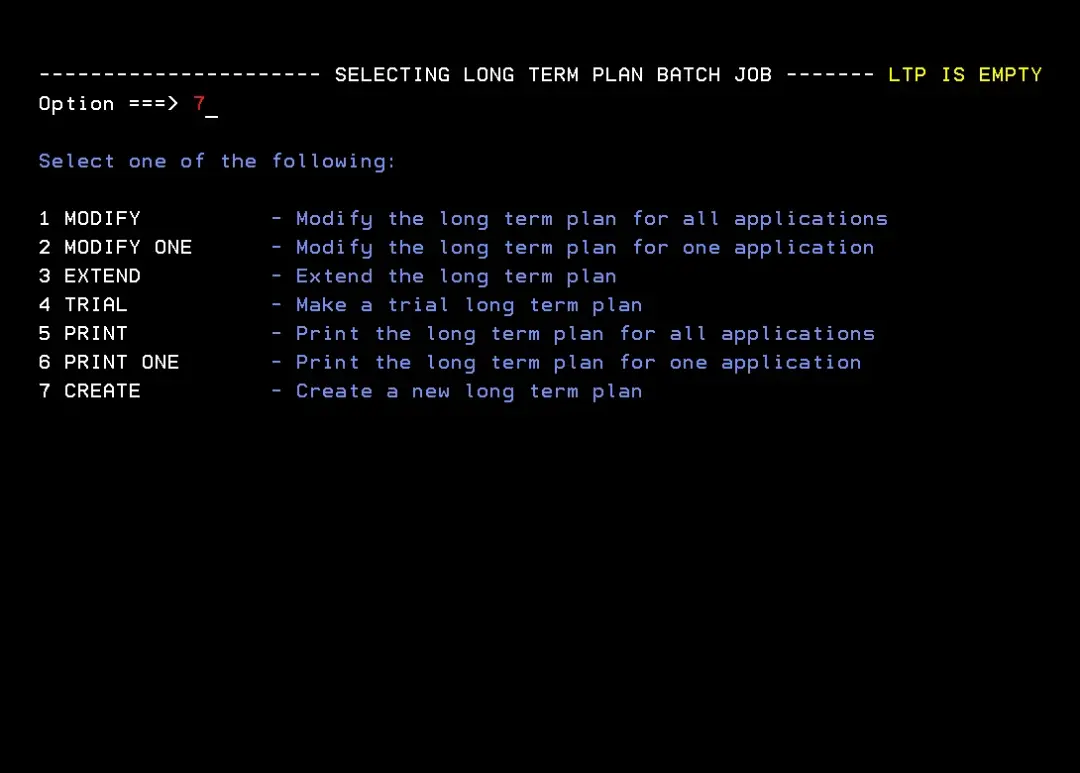
IBM Z Workload Scheduler 9.5 - Creating the Long Term Plan and Current Plan – screenshot 3

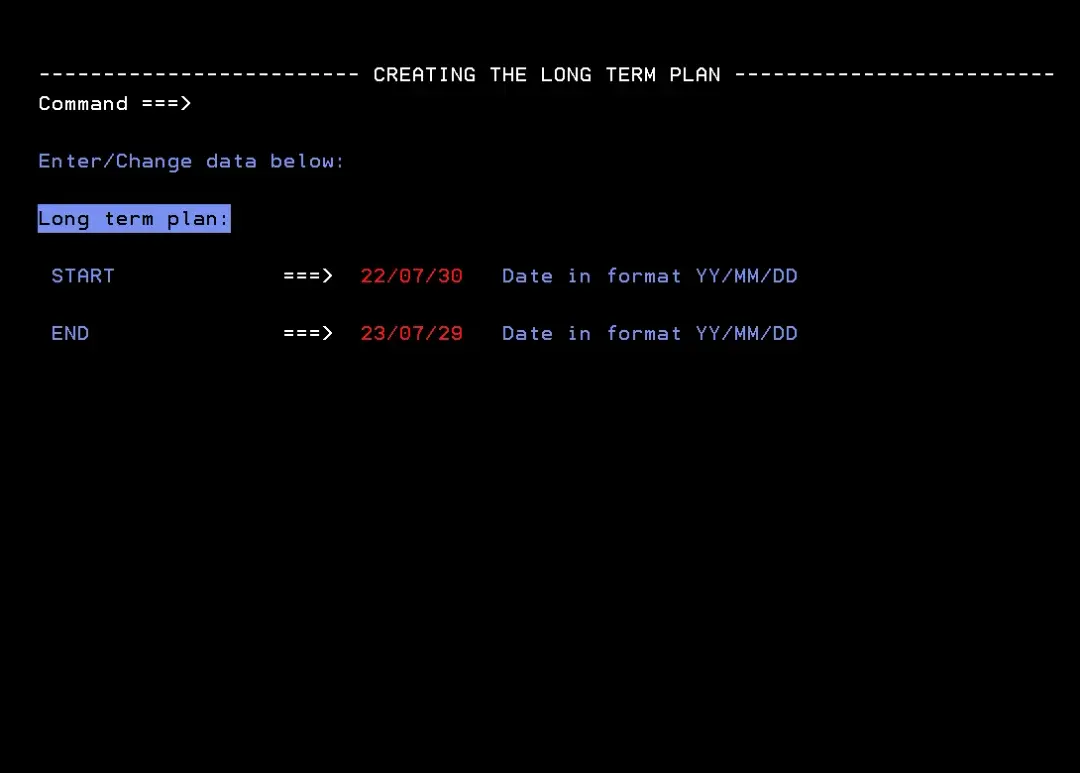
I give it one year.

IBM Z Workload Scheduler 9.5 - Creating the Long Term Plan and Current Plan – screenshot 4

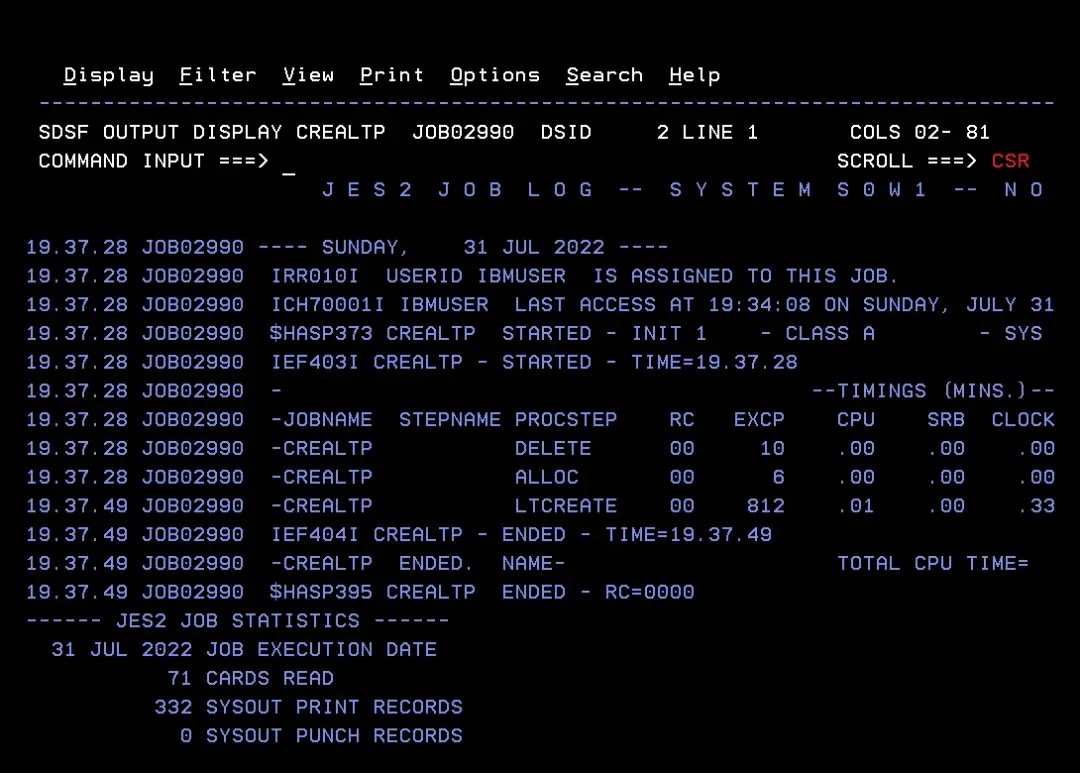
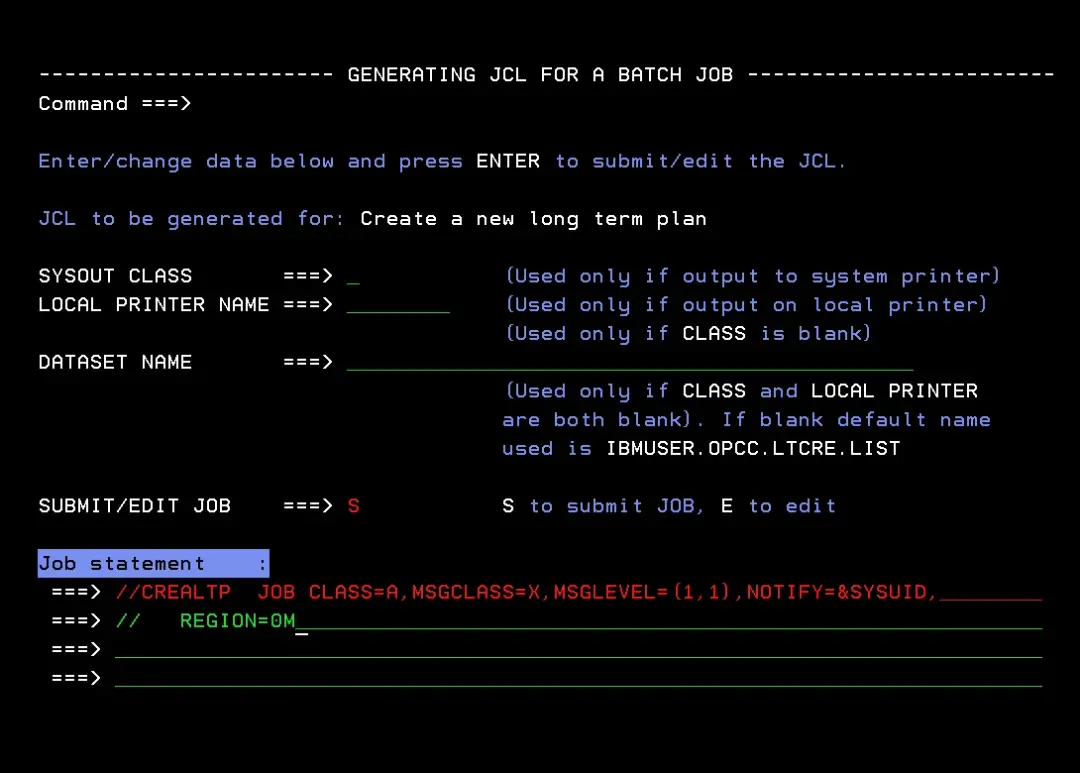
We type the job card for the job and press Enter. The job runs.

//CREALTP  JOB CLASS=A,MSGCLASS=X,MSGLEVEL=(1,1),NOTIFY=&SYSUID,
//   REGION=0M
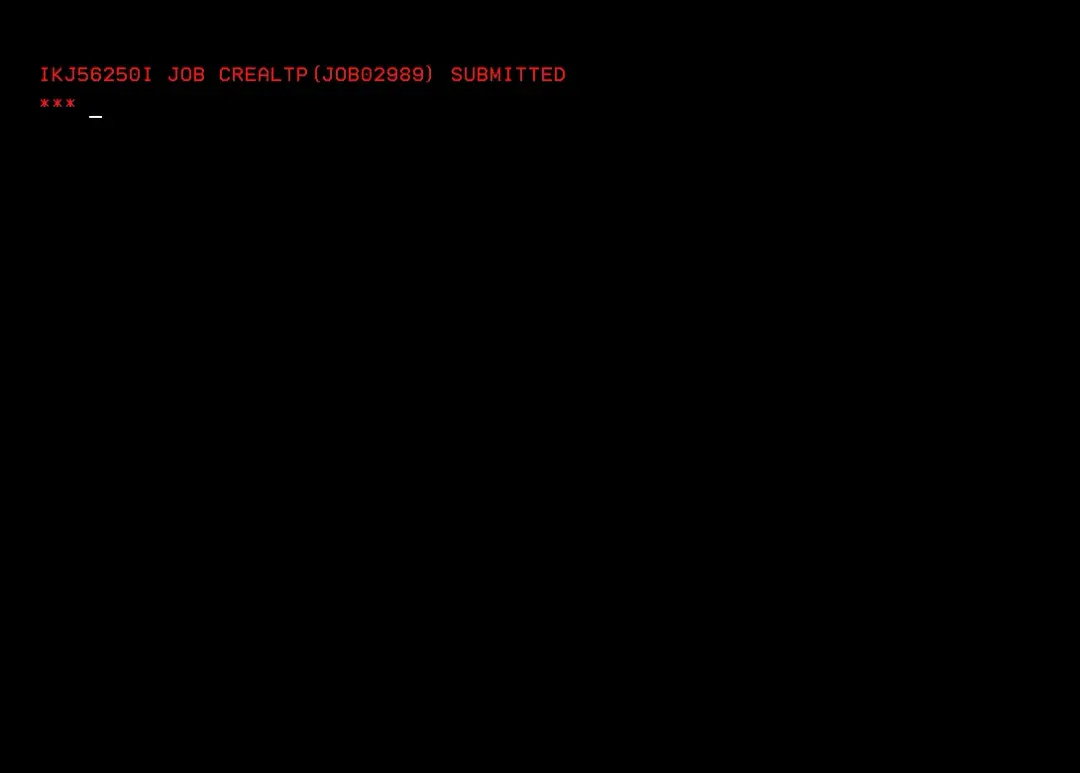
IBM Z Workload Scheduler 9.5 - Creating the Long Term Plan and Current Plan – screenshot 5

IBM Z Workload Scheduler 9.5 - Creating the Long Term Plan and Current Plan – screenshot 6

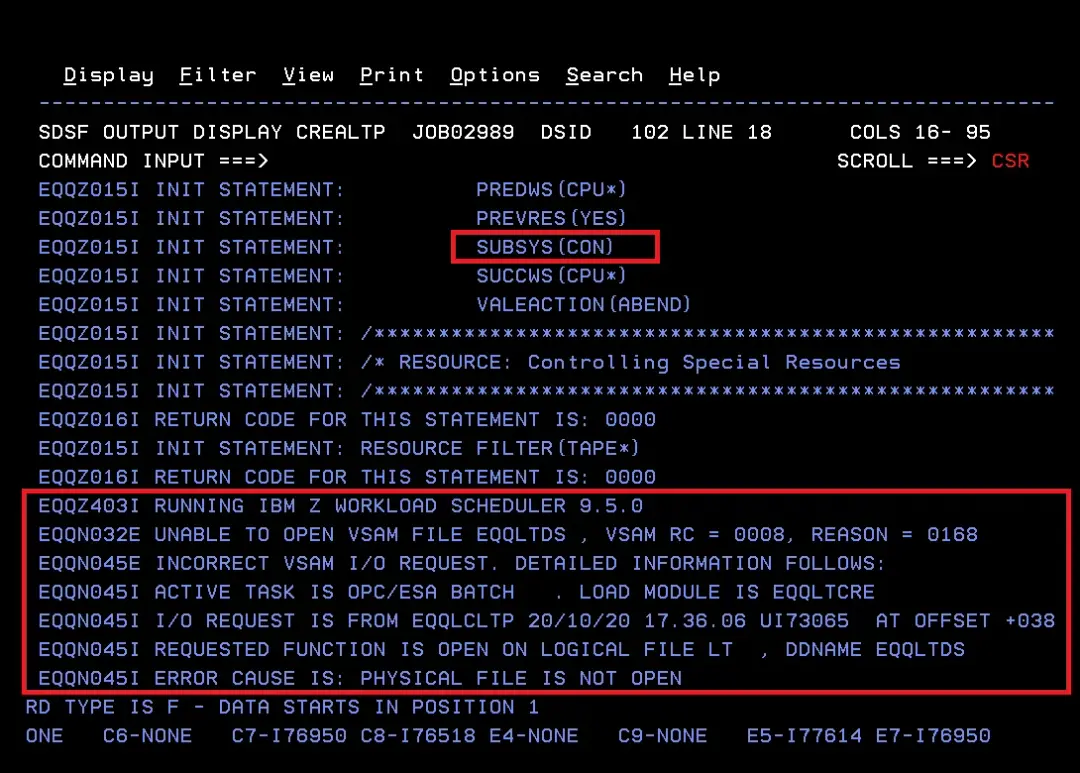
Error EQQN032E when creating the LTP

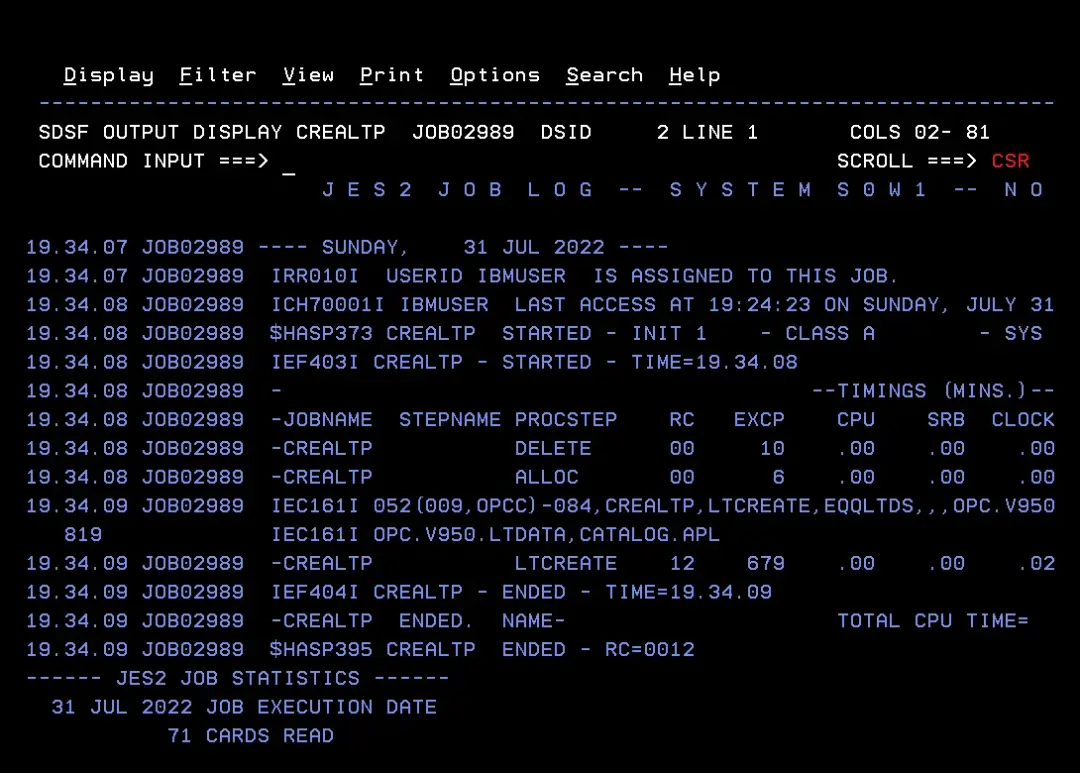
It gives the following error:

EQQN032E UNABLE TO OPEN VSAM FILE EQQLTDS , VSAM RC = 0008, REASON = 0168
EQQN045E INCORRECT VSAM I/O REQUEST. DETAILED INFORMATION FOLLOWS:
EQQN045I ACTIVE TASK IS OPC/ESA BATCH   . LOAD MODULE IS EQQLTCRE
EQQN045I I/O REQUEST IS FROM EQQLCLTP 20/10/20 17.36.06 UI73065  AT OFFSET +038
EQQN045I REQUESTED FUNCTION IS OPEN ON LOGICAL FILE LT  , DDNAME EQQLTDS
EQQN045I ERROR CAUSE IS: PHYSICAL FILE IS NOT OPEN
IBM Z Workload Scheduler 9.5 - Creating the Long Term Plan and Current Plan – screenshot 7

IBM Z Workload Scheduler 9.5 - Creating the Long Term Plan and Current Plan – screenshot 8

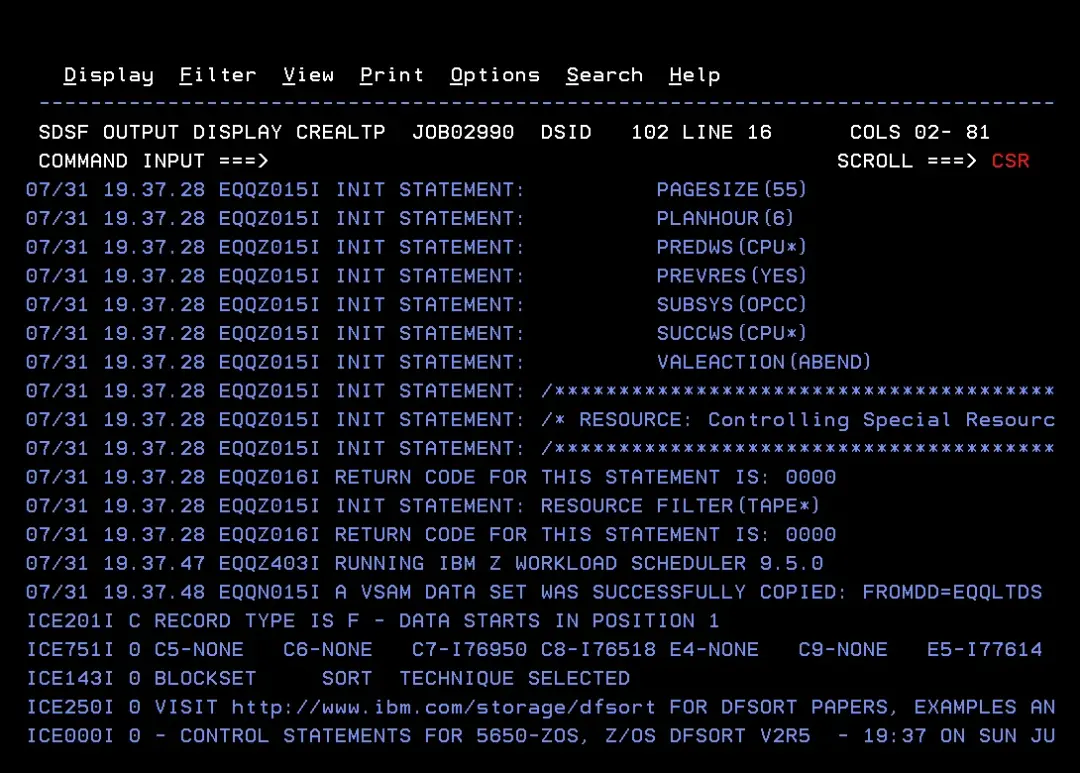
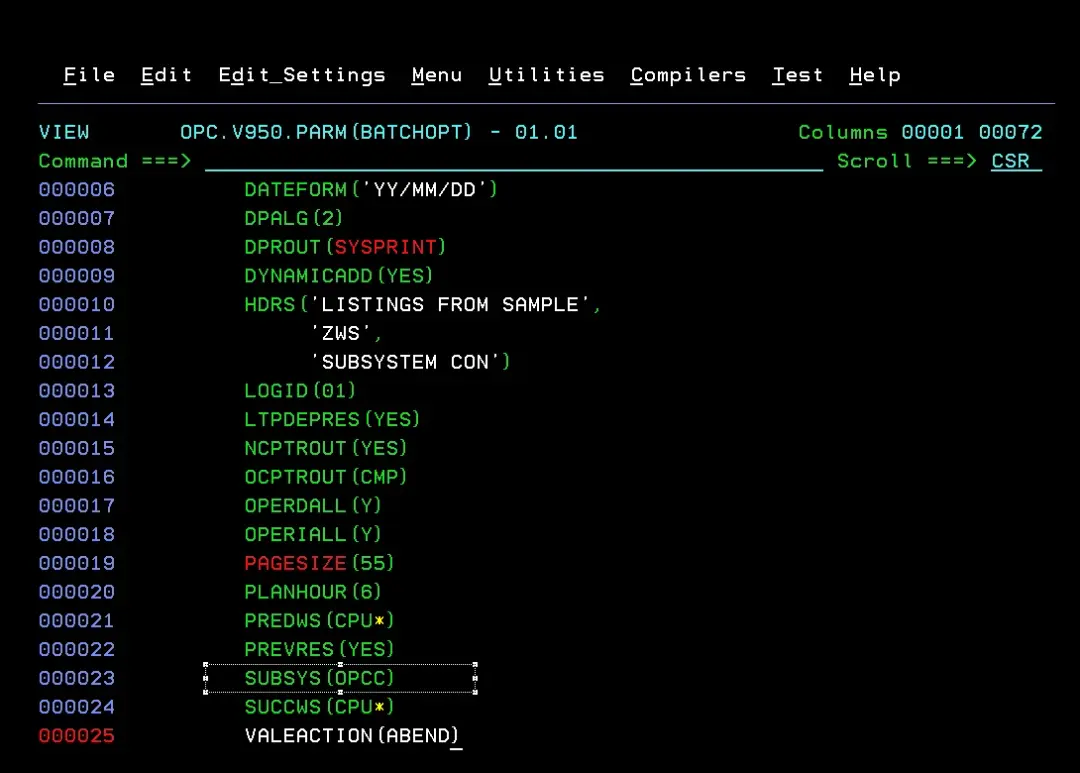
The fix for errors EQQN032E and EQQN045E was to change parameter SUBSYS(CON) to the controller name (OPCC) in the BATCHOPT member (data set OPC.V950.PARM) and run the job again.
IBM Z Workload Scheduler 9.5 - Creating the Long Term Plan and Current Plan – screenshot 9

Now it ends successfully.

IBM Z Workload Scheduler 9.5 - Creating the Long Term Plan and Current Plan – screenshot 10

IBM Z Workload Scheduler 9.5 - Creating the Long Term Plan and Current Plan – screenshot 11

We go back to TWS and enter option 2 – LTP.
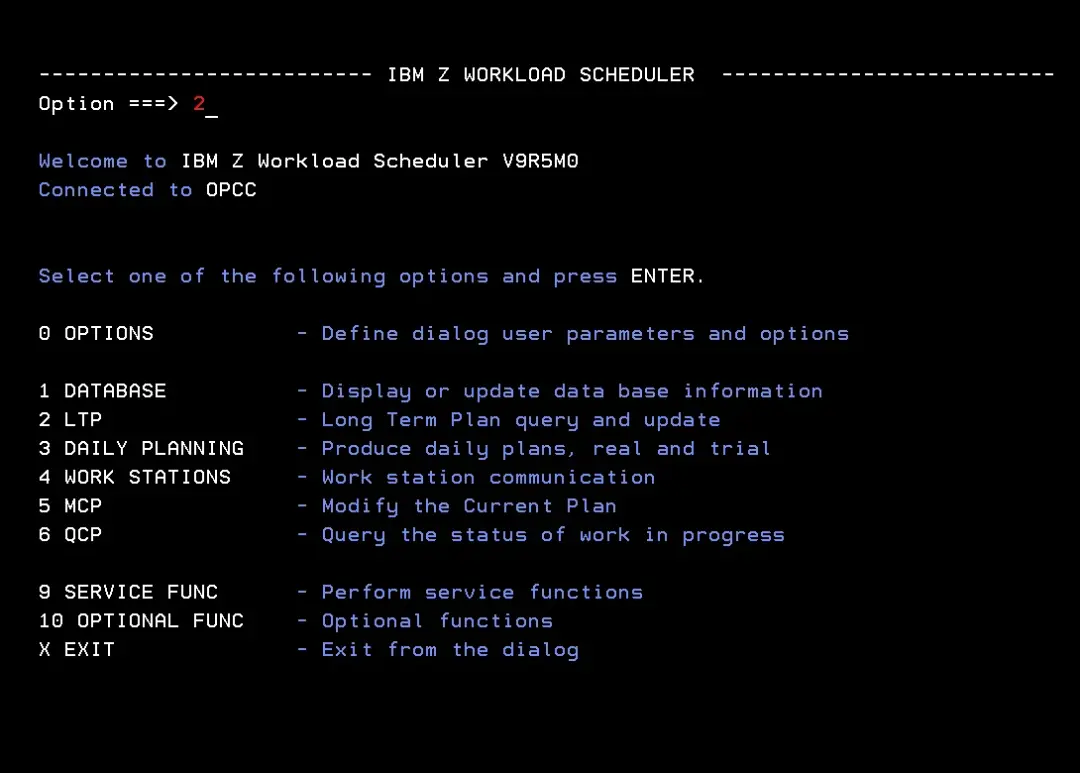
IBM Z Workload Scheduler 9.5 - Creating the Long Term Plan and Current Plan – screenshot 12

We check in the option that it was created correctly.
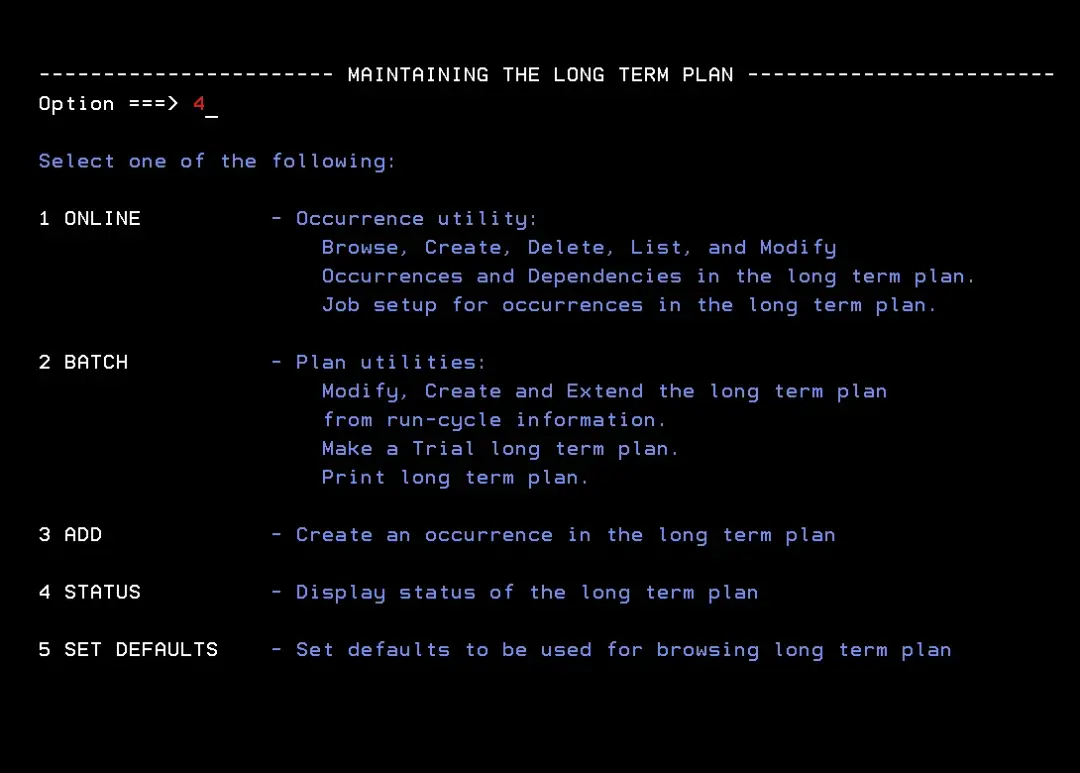
IBM Z Workload Scheduler 9.5 - Creating the Long Term Plan and Current Plan – screenshot 13

IBM Z Workload Scheduler 9.5 - Creating the Long Term Plan and Current Plan – screenshot 14

Current Plan

Now we create the Current Plan. We go back to the TWS main menu and enter option 3 – Daily Planning.
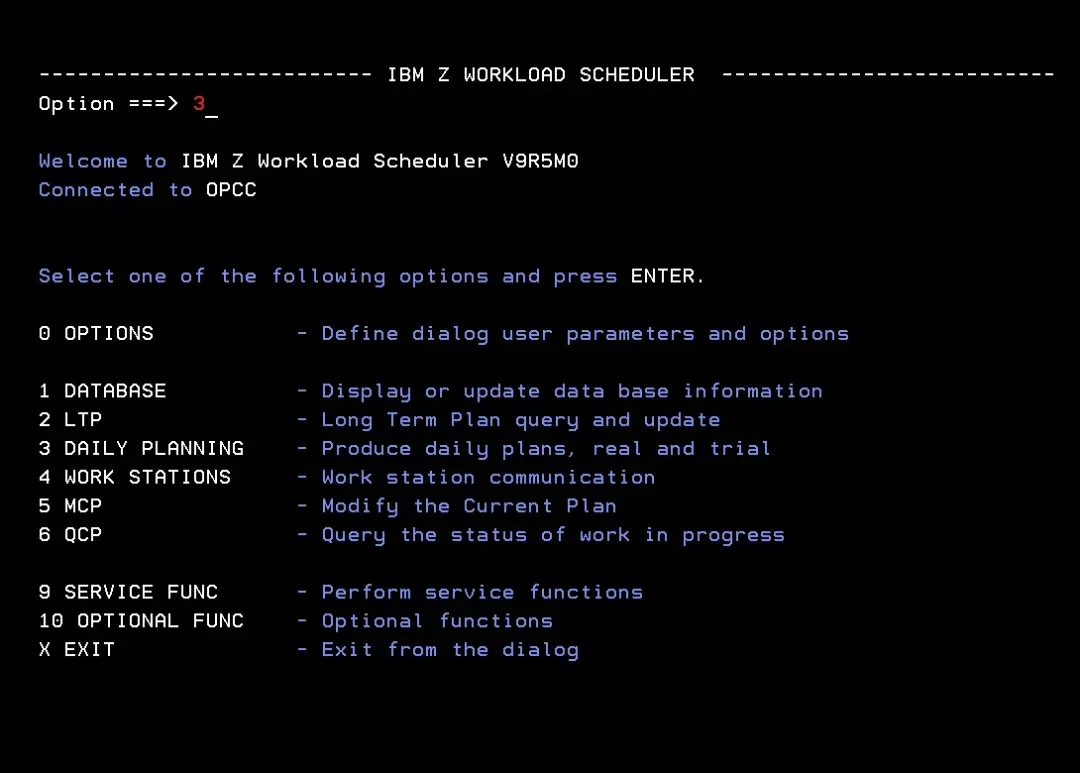
IBM Z Workload Scheduler 9.5 - Creating the Long Term Plan and Current Plan – screenshot 15

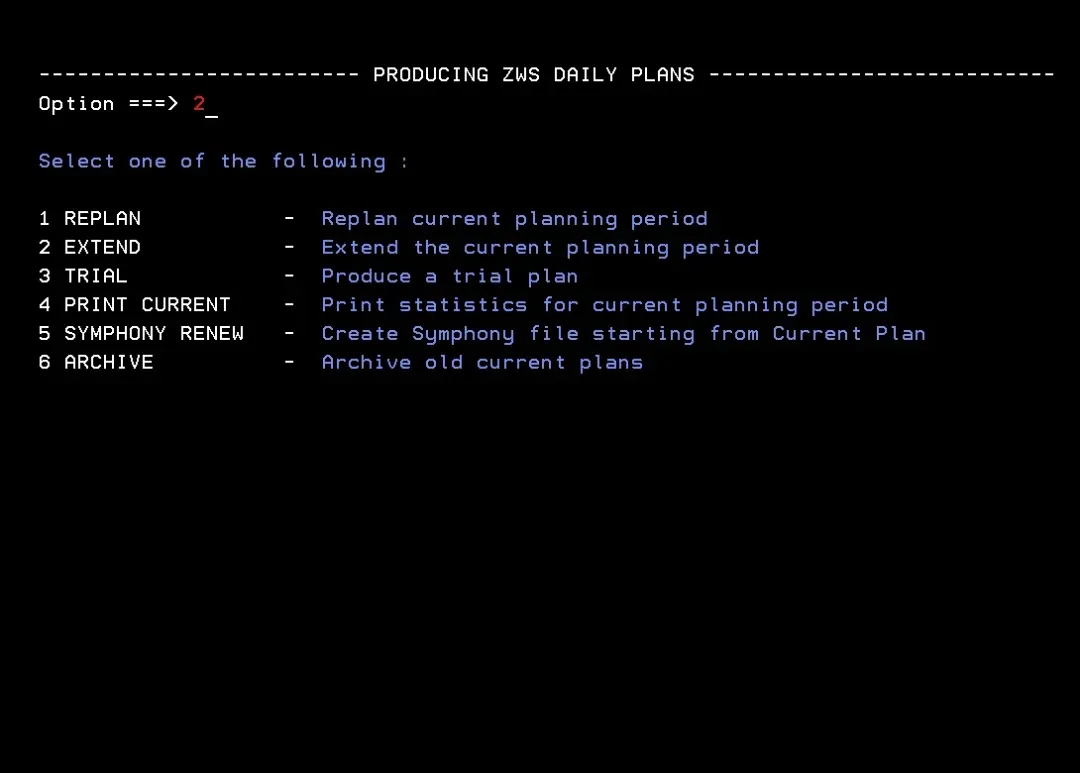
We enter option 2 – Extend.

IBM Z Workload Scheduler 9.5 - Creating the Long Term Plan and Current Plan – screenshot 16

We enter the hours the daily plan will be extended for. In my case, from 00:00 to 23:59.
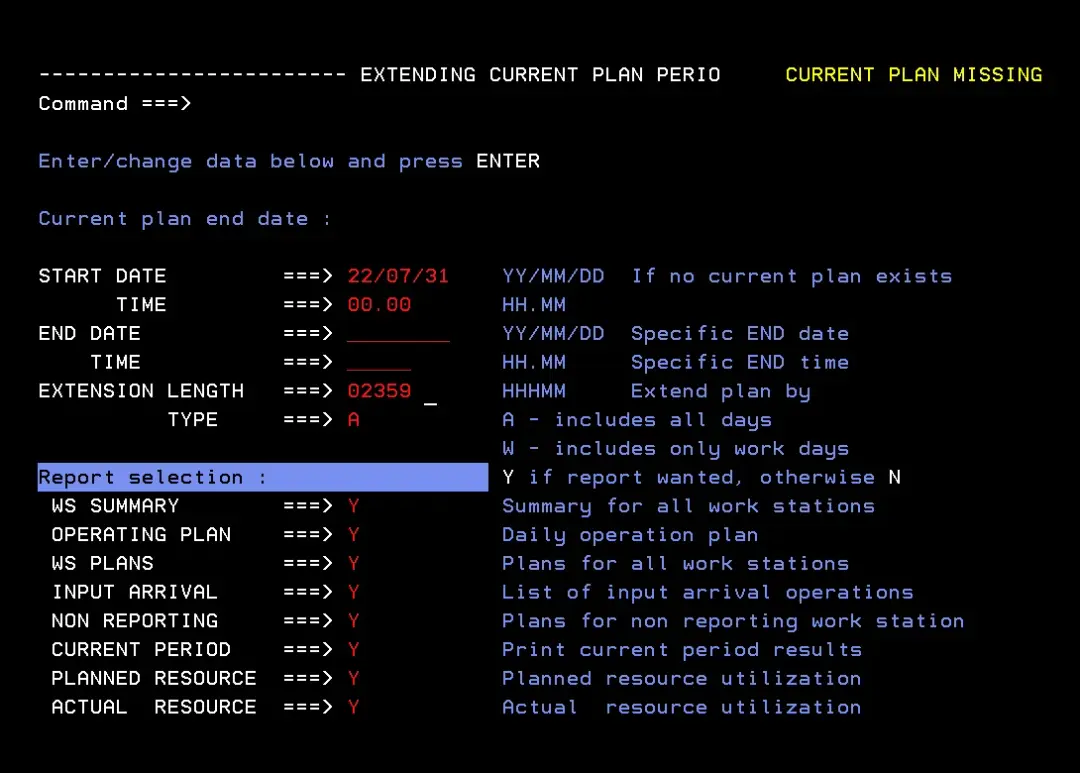
IBM Z Workload Scheduler 9.5 - Creating the Long Term Plan and Current Plan – screenshot 17

If there is no job card for the job, we add one.
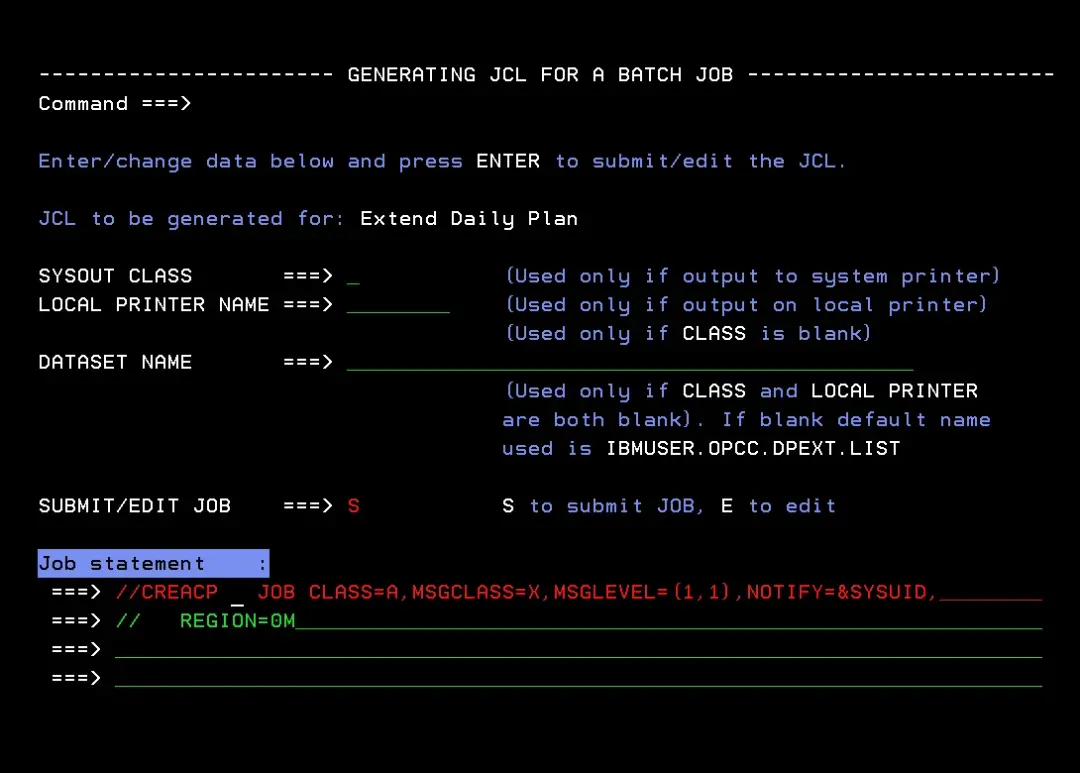
IBM Z Workload Scheduler 9.5 - Creating the Long Term Plan and Current Plan – screenshot 18

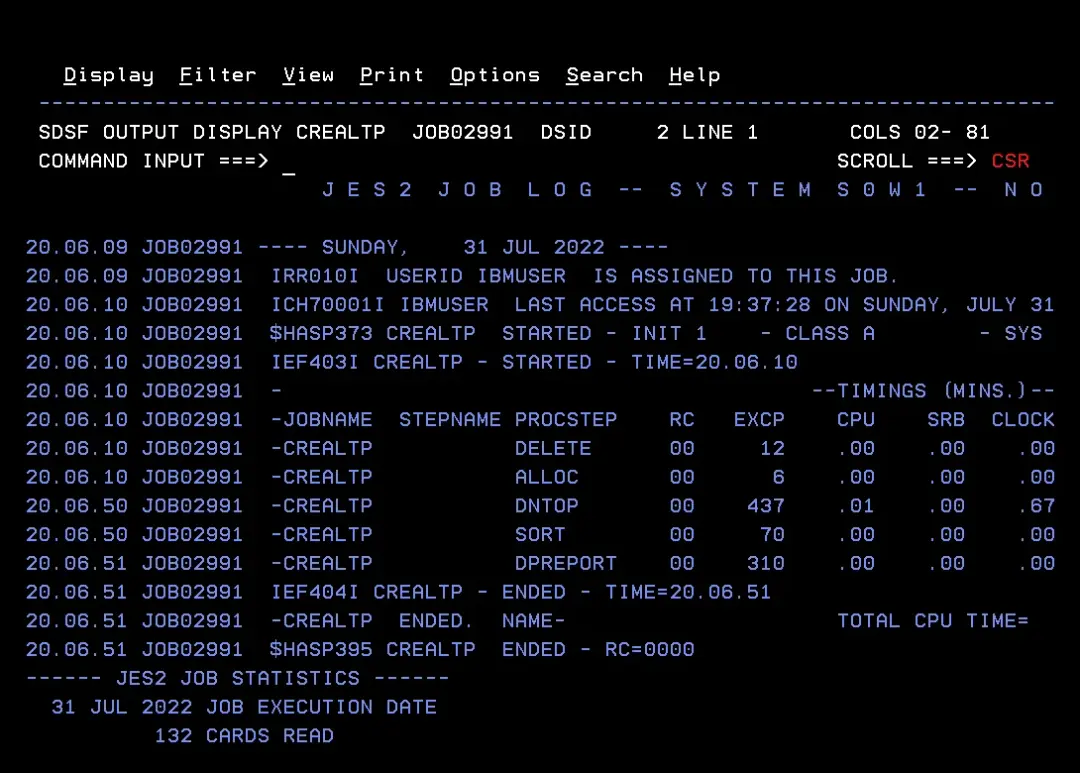
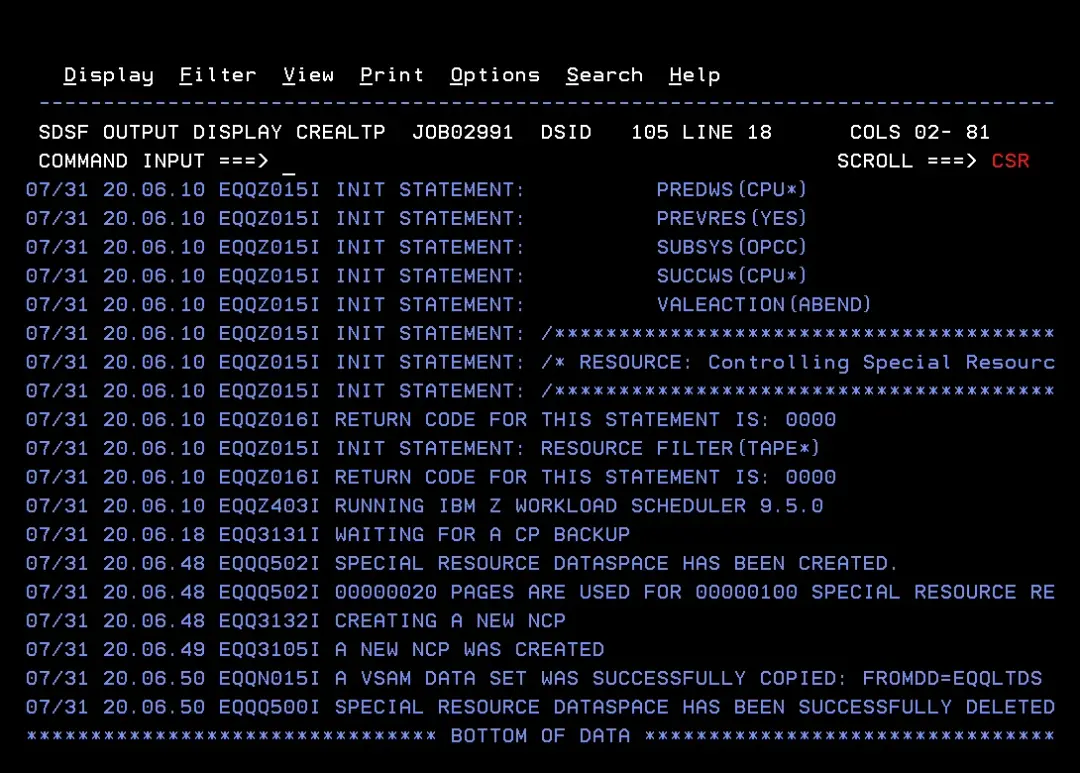
It ends successfully.

IBM Z Workload Scheduler 9.5 - Creating the Long Term Plan and Current Plan – screenshot 19

IBM Z Workload Scheduler 9.5 - Creating the Long Term Plan and Current Plan – screenshot 20

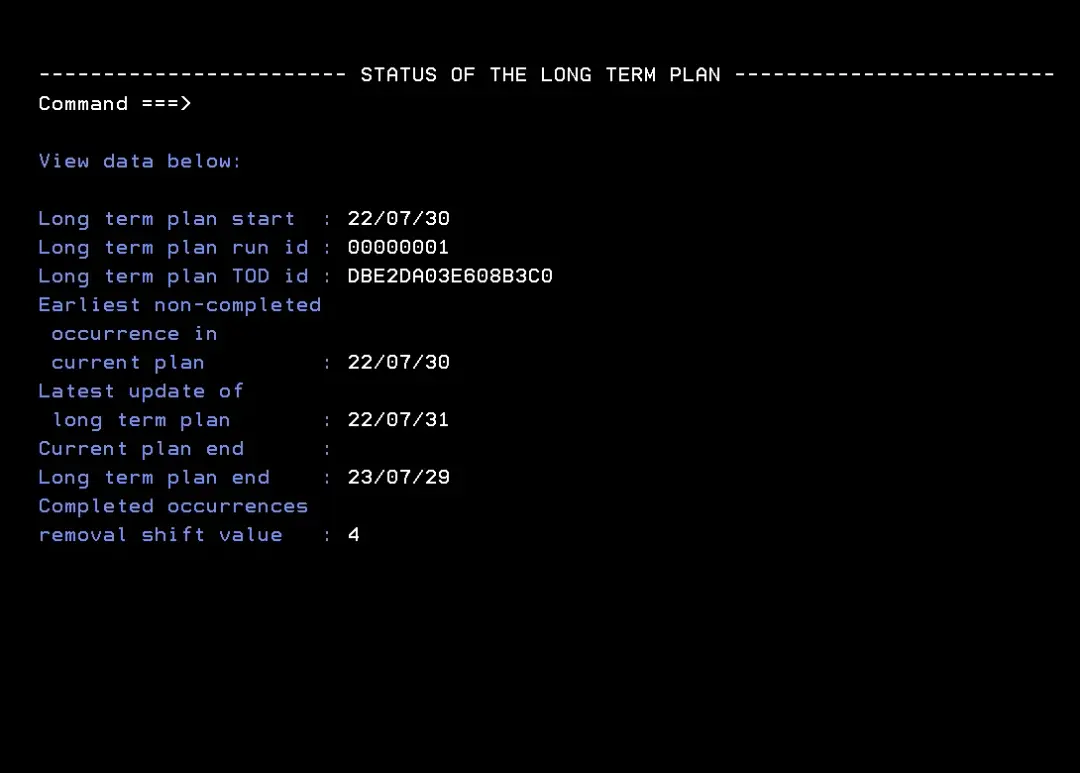
We enter TWS option 2.4 again and see the status of the Current Plan.
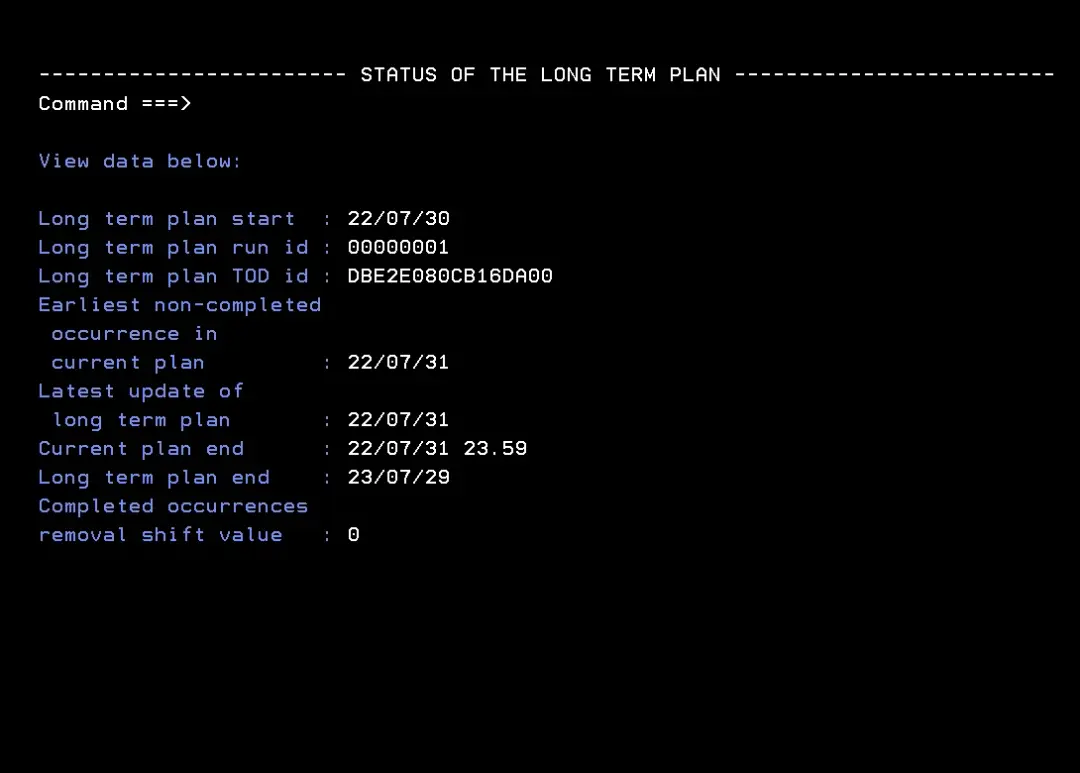
IBM Z Workload Scheduler 9.5 - Creating the Long Term Plan and Current Plan – screenshot 21

In option 5.2 we look for the applications that have been loaded.
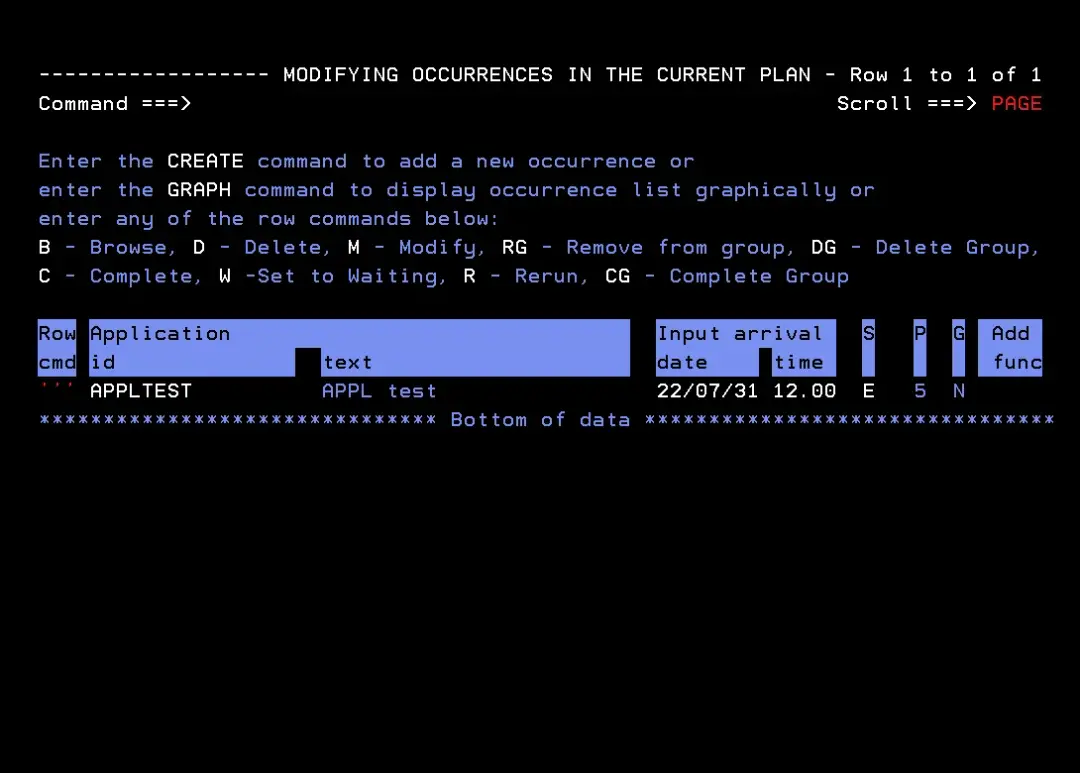
IBM Z Workload Scheduler 9.5 - Creating the Long Term Plan and Current Plan – screenshot 22

Fix and rerun the job

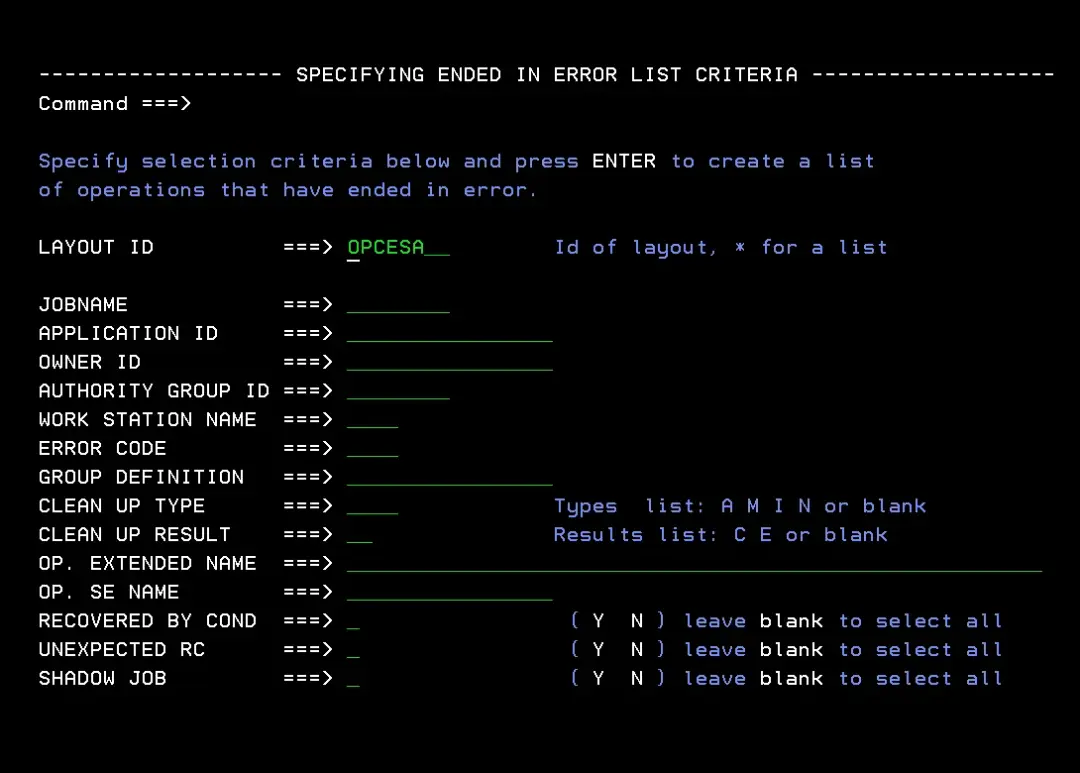
Now we check the failed job of the application we created in previous tutorials. We enter option 5.4.
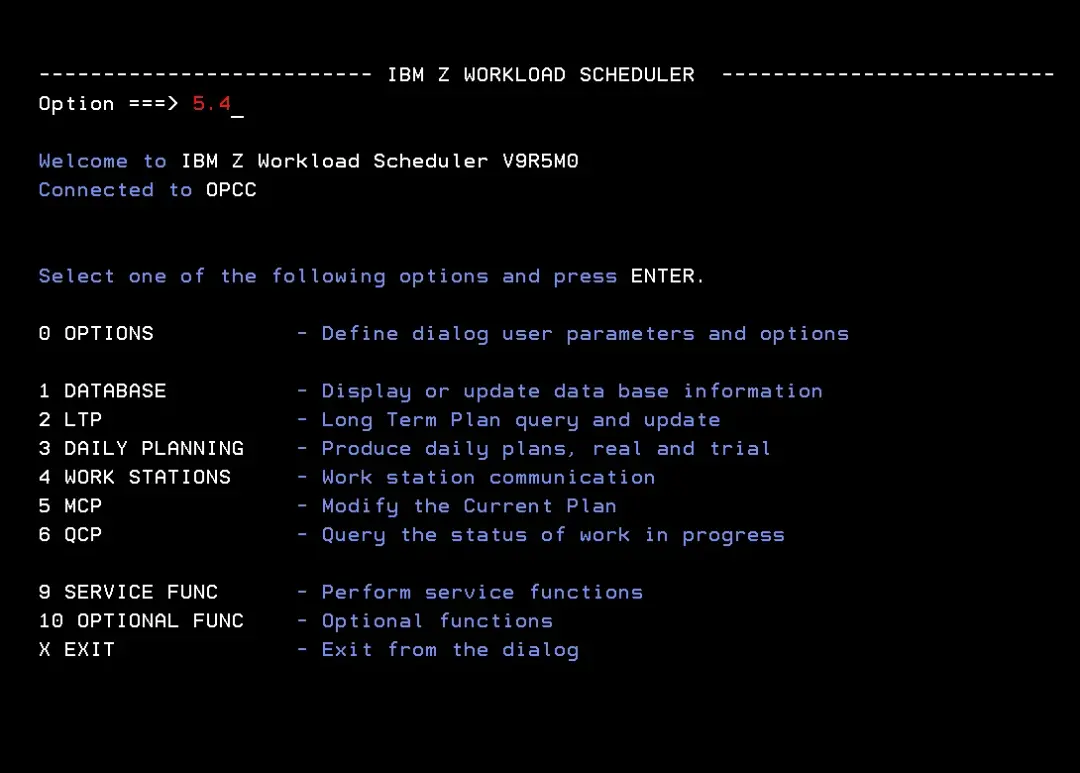
IBM Z Workload Scheduler 9.5 - Creating the Long Term Plan and Current Plan – screenshot 23

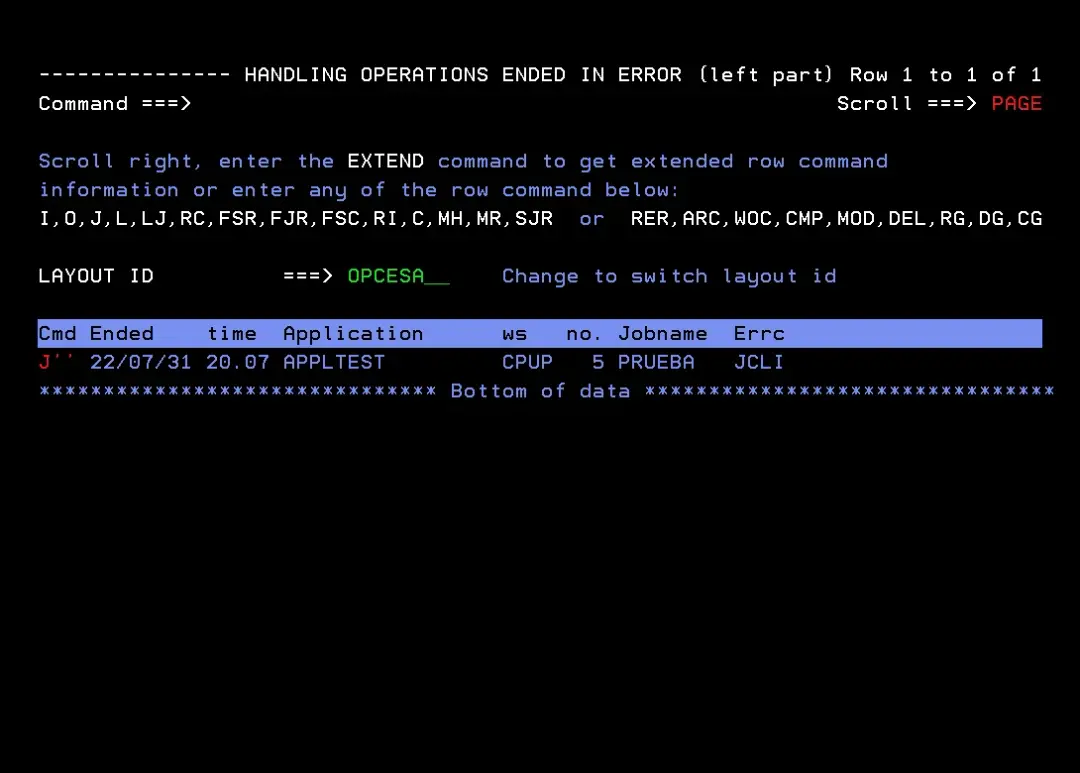
In LAYOUT ID we put OPCESA.

IBM Z Workload Scheduler 9.5 - Creating the Long Term Plan and Current Plan – screenshot 24

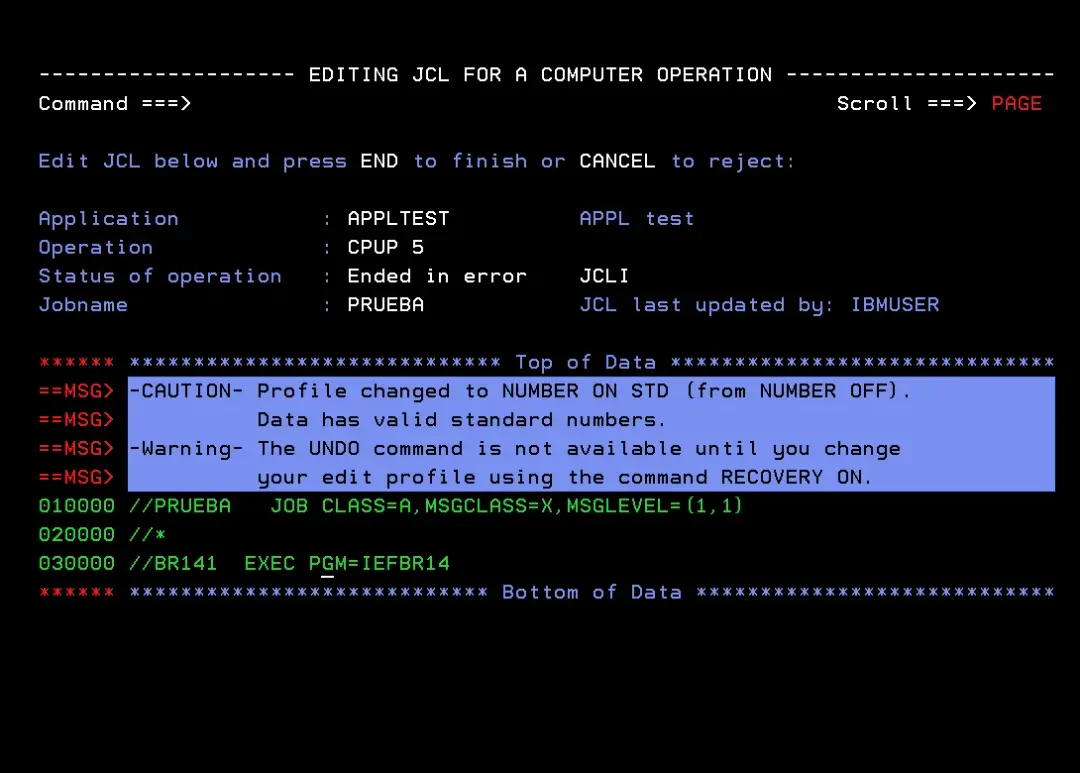
We type J to fix the job.

IBM Z Workload Scheduler 9.5 - Creating the Long Term Plan and Current Plan – screenshot 25

We change XGM to PGM. We press F3.

IBM Z Workload Scheduler 9.5 - Creating the Long Term Plan and Current Plan – screenshot 26

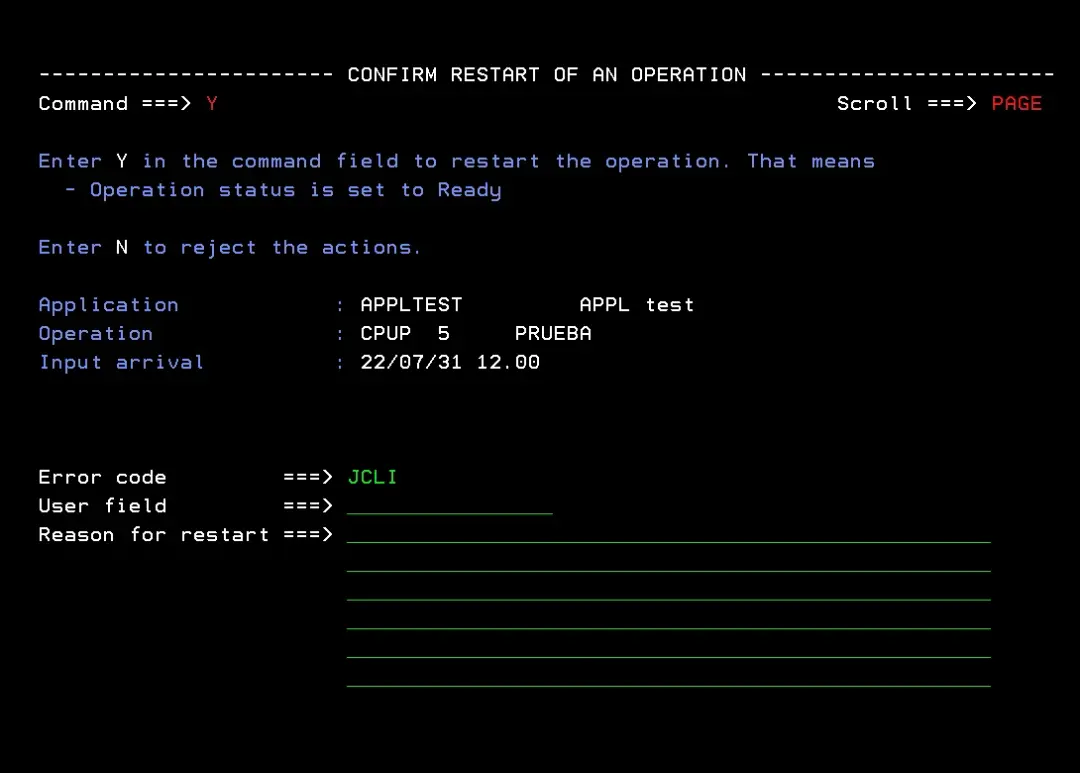
We rerun the job with the SJR command. Another panel appears, where we confirm with Y.
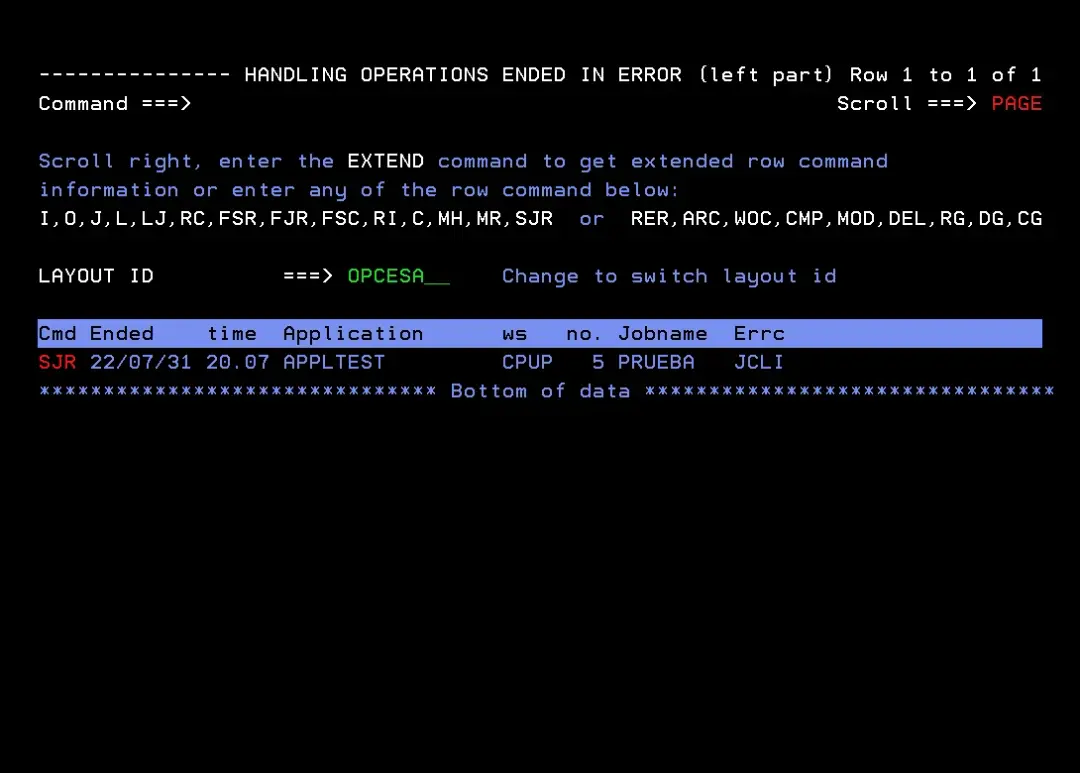
IBM Z Workload Scheduler 9.5 - Creating the Long Term Plan and Current Plan – screenshot 27

IBM Z Workload Scheduler 9.5 - Creating the Long Term Plan and Current Plan – screenshot 28

The job ends successfully.

IBM Z Workload Scheduler 9.5 - Creating the Long Term Plan and Current Plan – screenshot 29

In OPC all the operations show as completed.
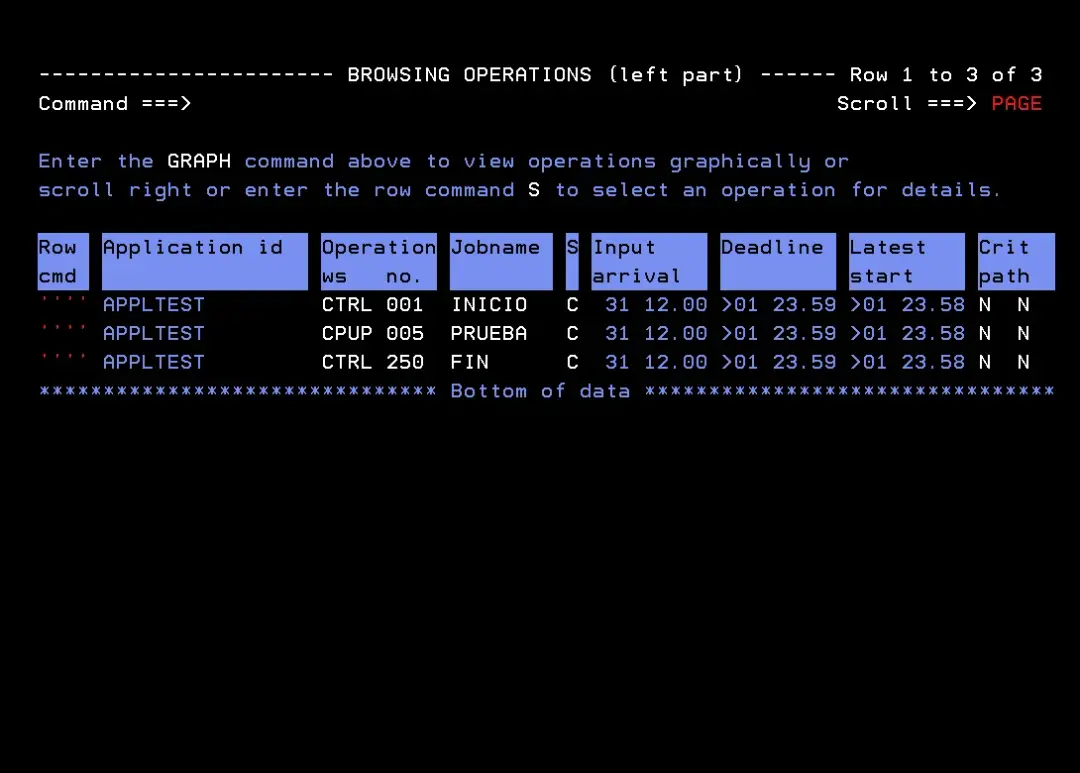
IBM Z Workload Scheduler 9.5 - Creating the Long Term Plan and Current Plan – screenshot 30

We have now created the Long Term Plan and the Current Plan. We have also seen our test application run.

It ran correctly and, in the end, it was completed in the scheduler.

© 2026 Emuframe·🍪 This site only uses functional cookies. No tracking or personal data collection.

On this page