System Automation 4.3 - Extending the policy database (part 2)
This article continues System Automation 4.3 - Extending the policy database (part 1), which covers the PDB backup, importing tasks from the add-ons and the ASCH, CZFCIM, CICS, DB2, FTP, MQ and SSHD tasks. Here I keep adjusting tasks to my system from option 6 - Applications of the Customization Dialog.
WEBSRV - HTTPD task - VERY INTERESTING!
This task is interesting because I am going to explain how the tasks that run under OMVS are monitored. As this task works a bit differently on the ADCD system, we also have to adjust it in System Automation.
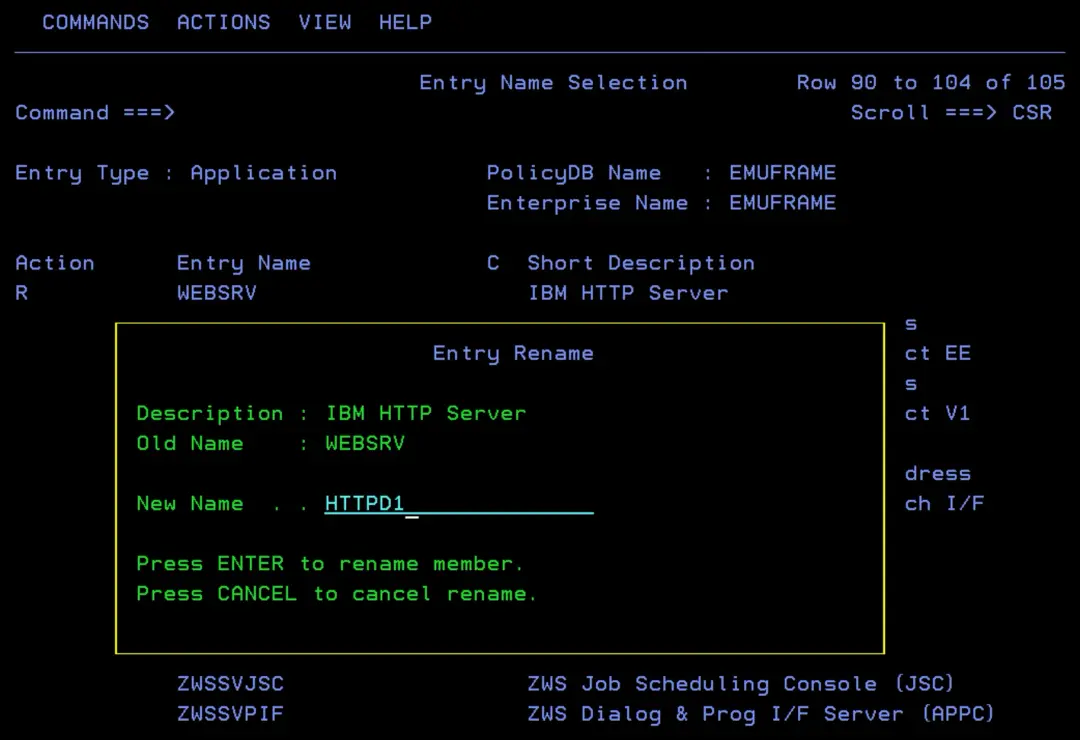
On the ADCD system, the task is called HTTPD1.
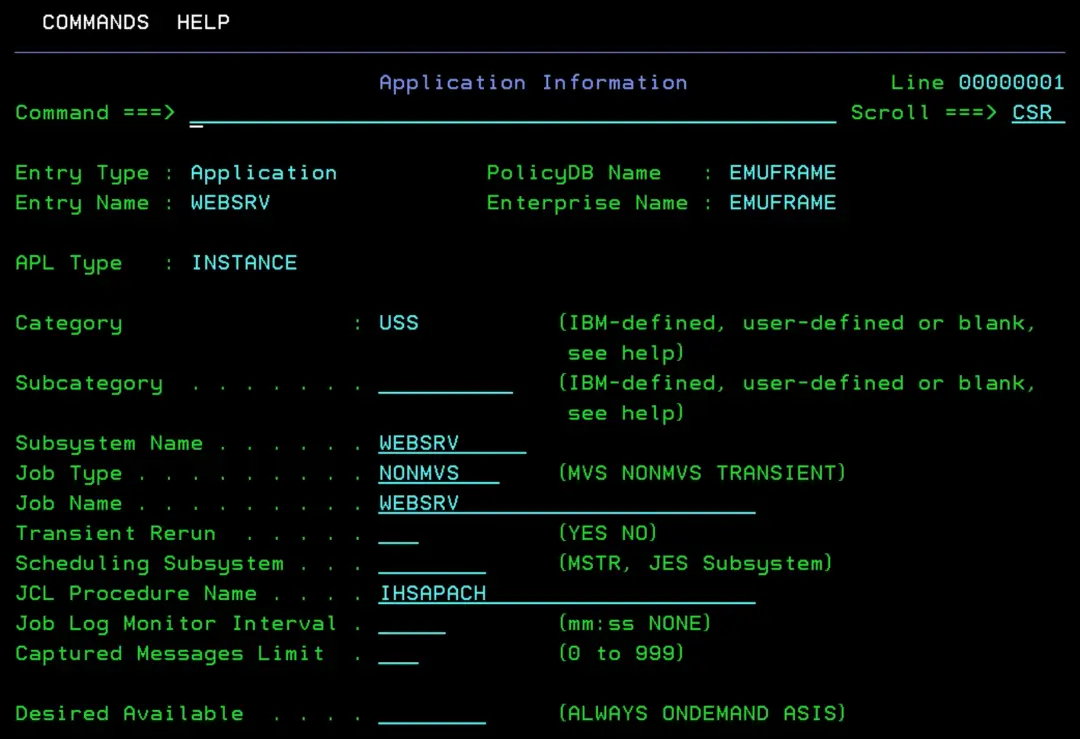
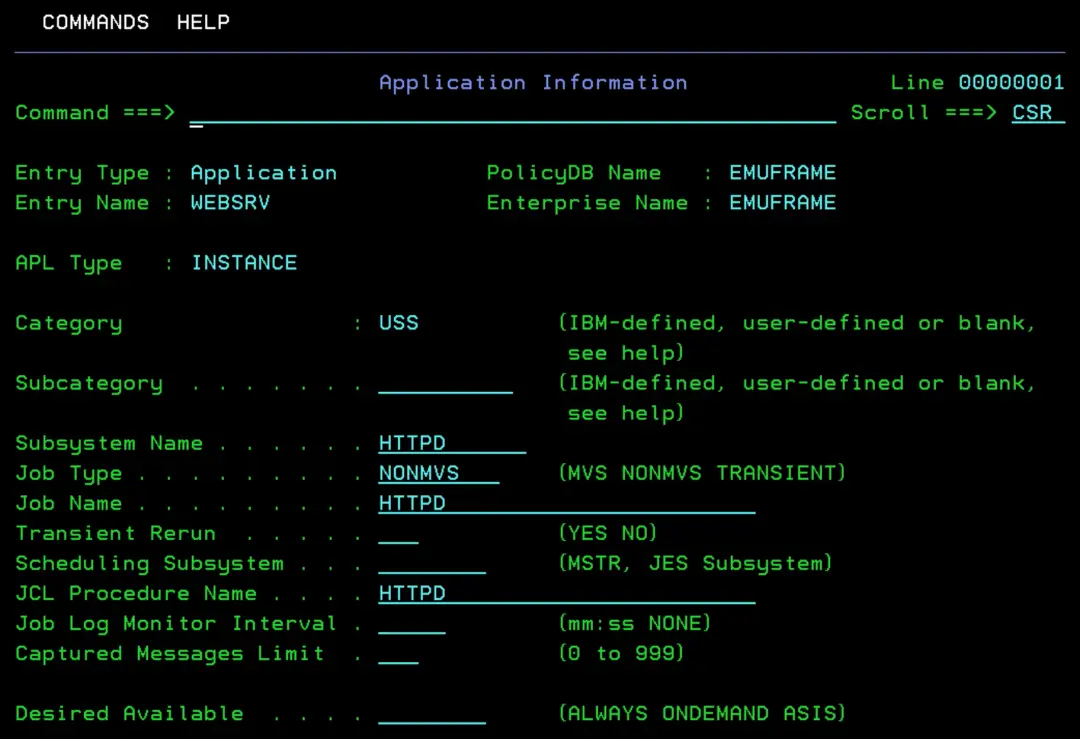
In APPLICATION INFO, we change the “System Name”, “Job Name” and “JCL Procedure Name” parameters
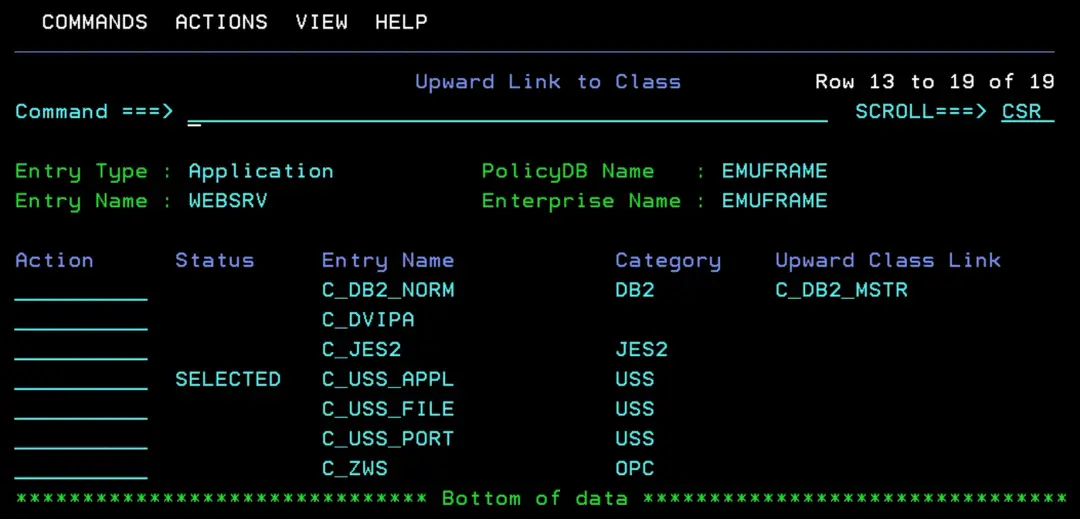
As we did with the SSHD task, we select the “C_USS_APPL” class in the UPWARD CLASS section.
This is the most important part:
We go to the “USS CONTROL” section. Here we see that we must change the “Process Command/Path” and “with filter” fields
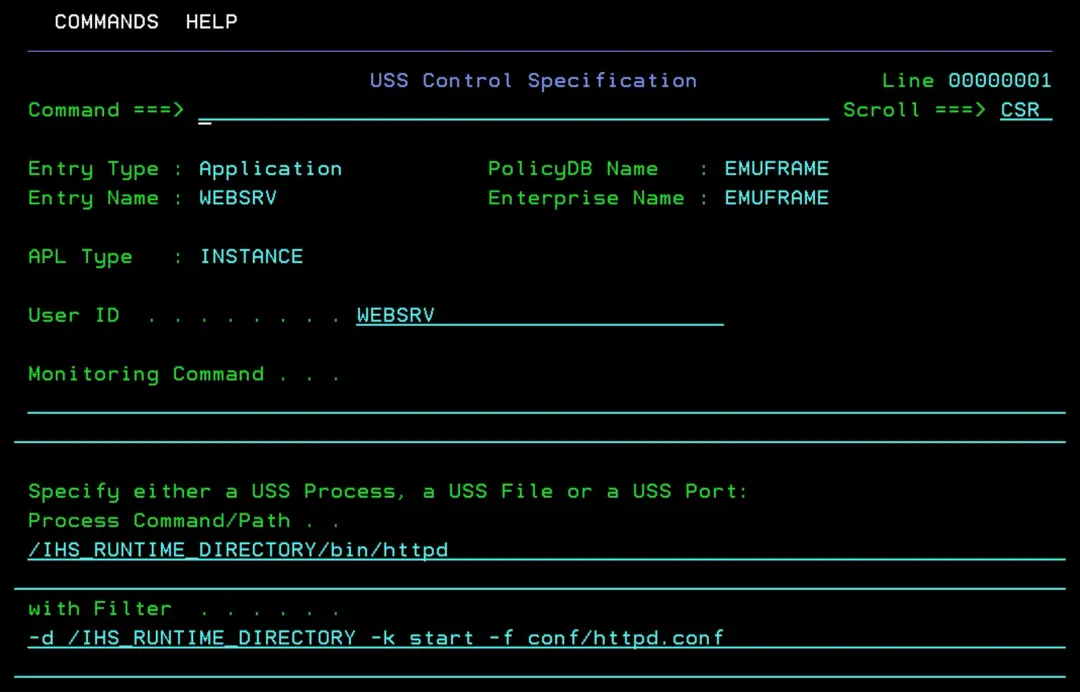
The documentation says the following. It must be done with the task we are going to monitor running (in this case, HTTPD1)
For the “Process Command/Path” parameter, we must use the following command in OMVS (TSO OMVS):
ps -e -o pid -o jobname -o commThe result shows the command that runs in each started task. (Example below)
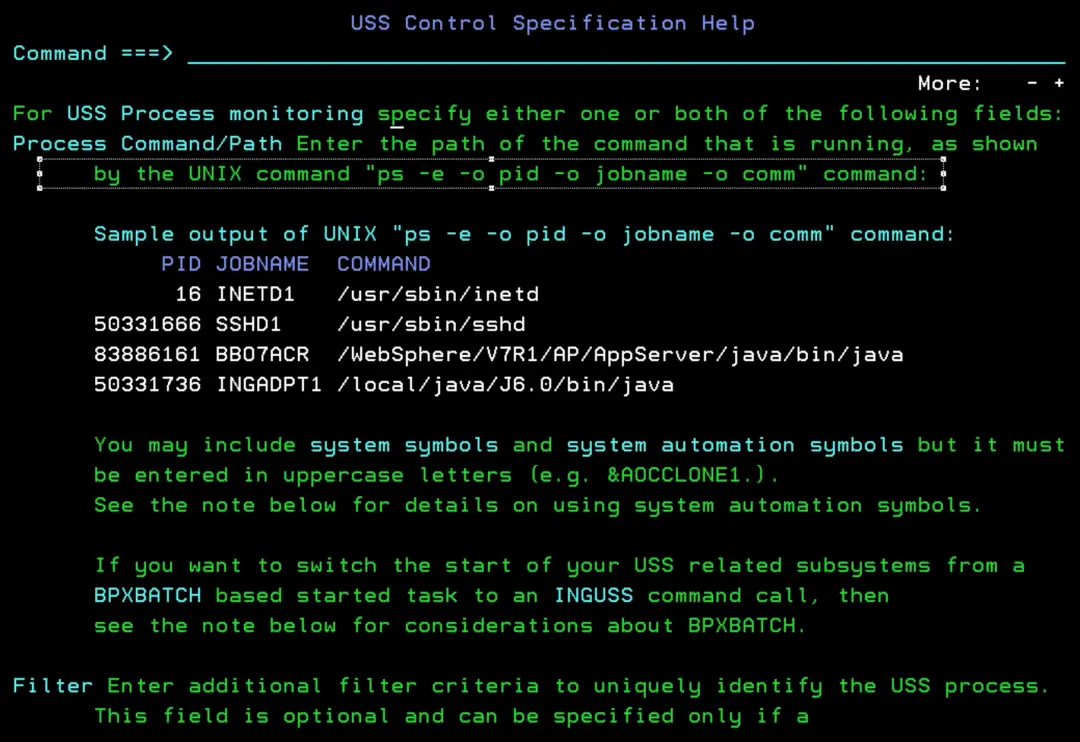
For the “Filter” parameter, we use the following command in OMVS:
ps -efThis command shows the details of the definition the task runs. (Example below)
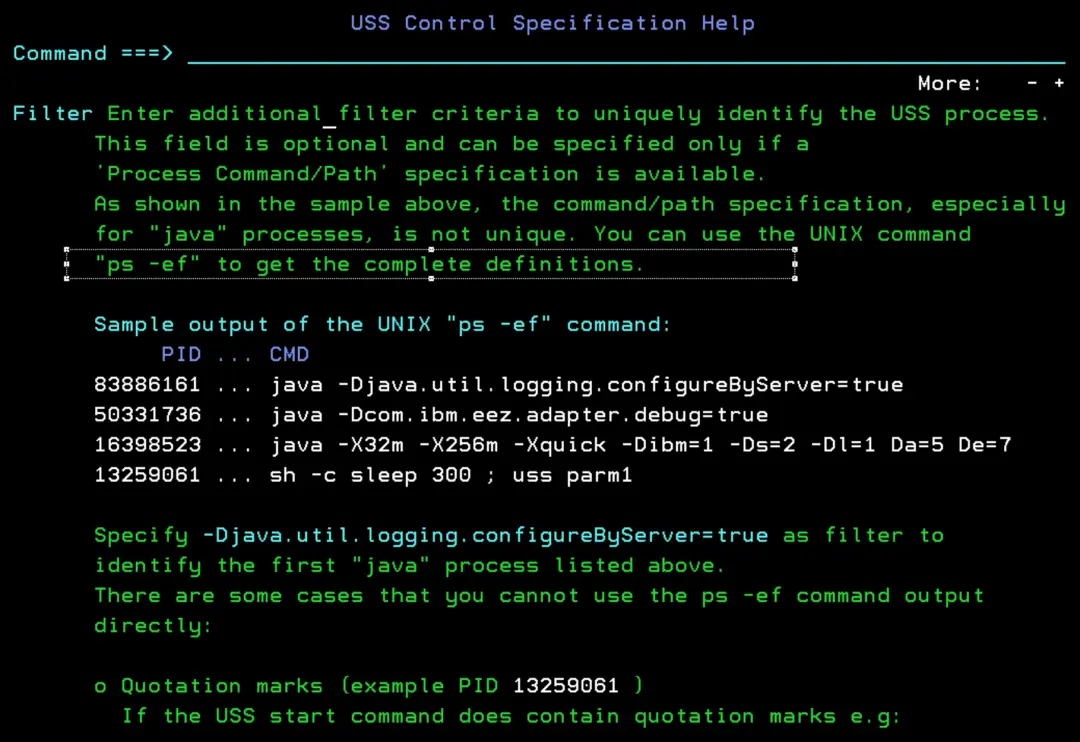
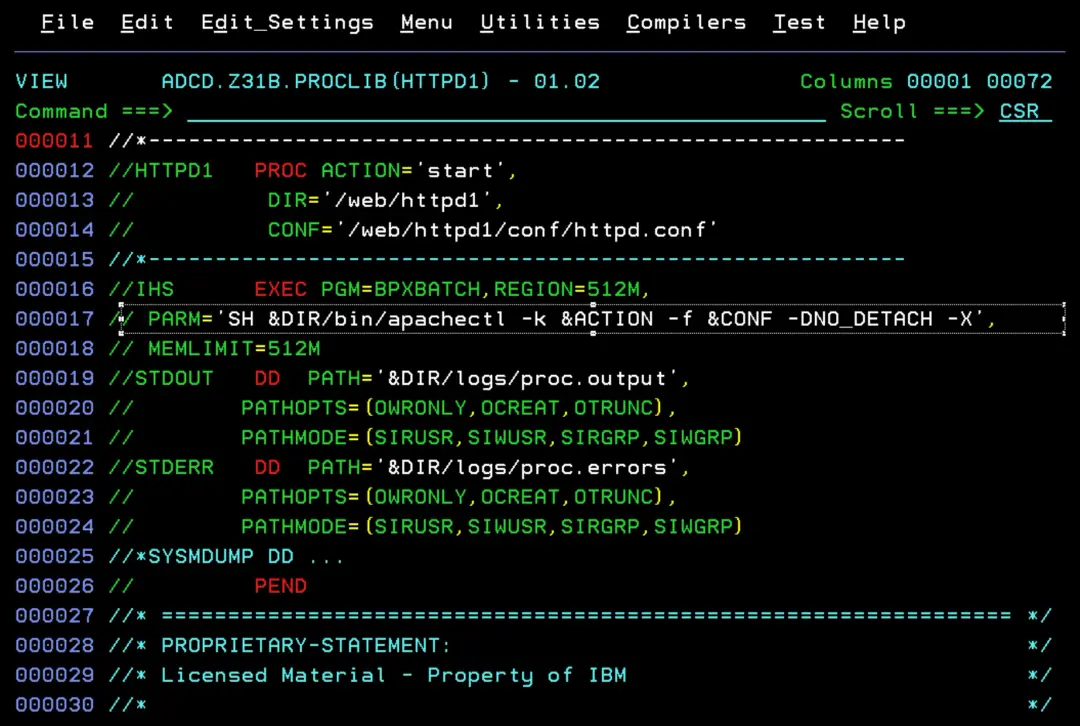
In the HTTPD1 started task, we can also find the command it runs to start the task.
If we look closely, it does not run: … /bin/httpd
It runs: … /bin/apachectl
This also helps us fill in the fields mentioned before.
For the “Process Command/Path” parameter we run in OMVS:
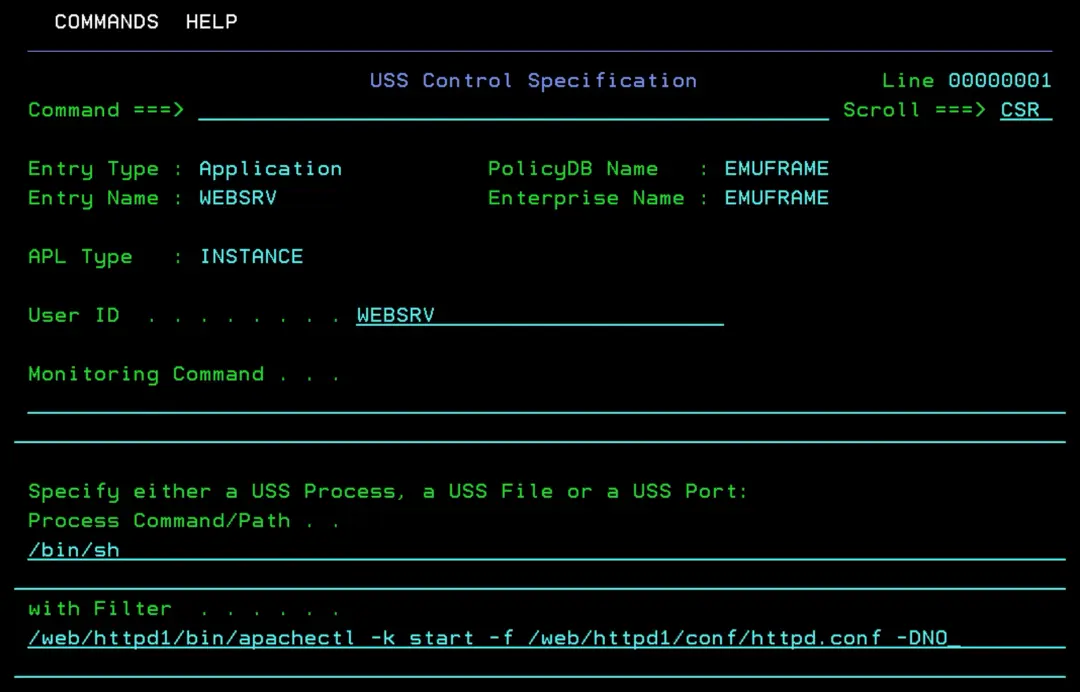
ps -e -o pid -o jobname -o commIn this case, we look at the HTTPD1 task and PID 67175152. In the “Process Command/Path” parameter we must put:
/bin/sh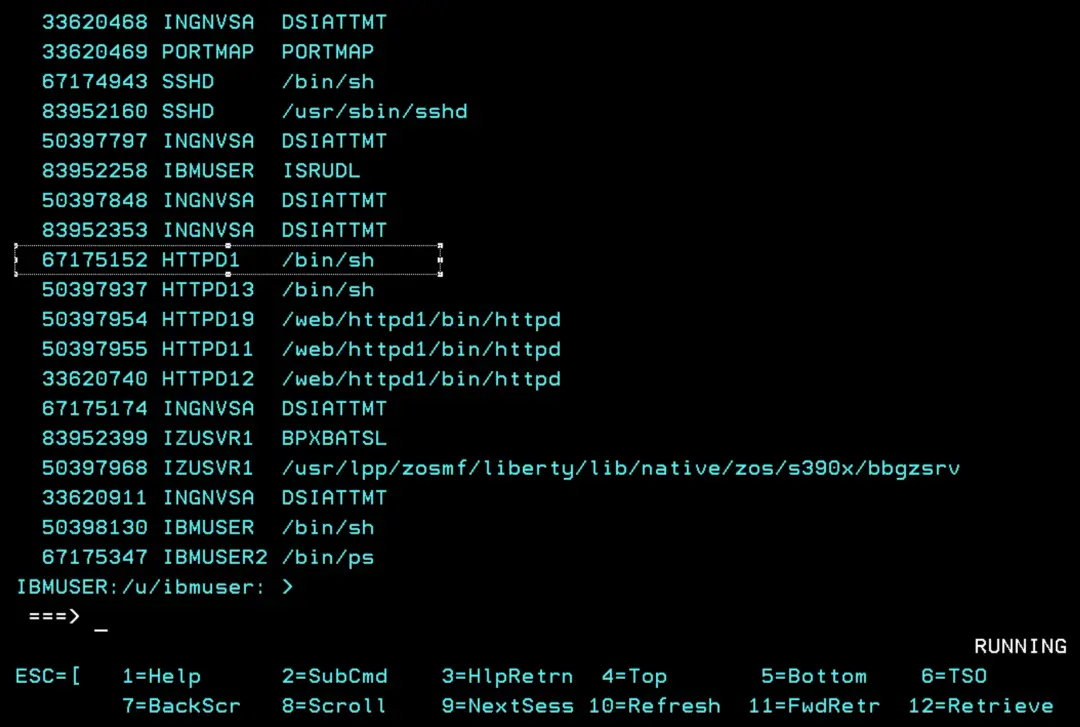
As many tasks can use the “/bin/sh” command, we must add the “Filter” field to say which one is ours.
For this we use the command in OMVS:
ps -efIn this result we do not see the name of the HTTPD1 task, so we must look at the PID we saw with the previous command (67175152).
There we see “-sh -c /web/httpd1/bin/apachectl -k start -f /web/httpd1/conf/httpd.conf -DNO_”. In my case, putting the following in the Filter field worked fine:
/web/httpd1/bin/apachectl -k start -f /web/httpd1/conf/httpd.conf -DNO_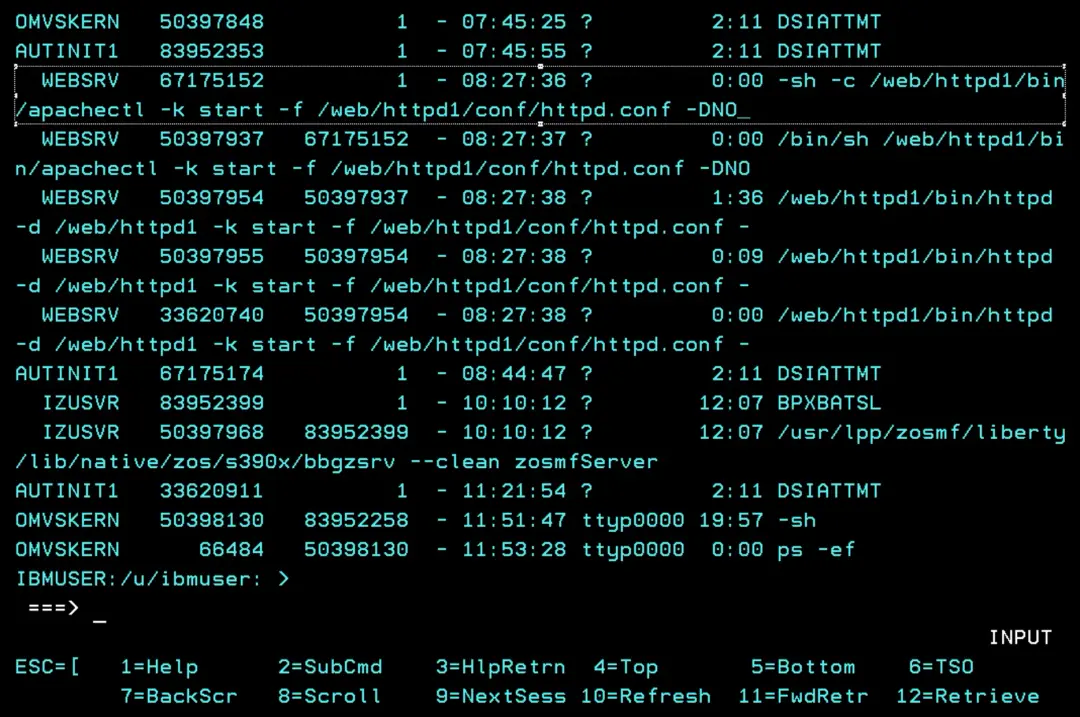
This would be the result.
Finally, we rename the entry.
In System Automation 4.3 - INGLKUP: exclude tasks I explain how to make an “EXCLUDE” type list for INGLKUP. That way, as we already monitor the main HTTPD1 task, the rest of the tasks do not show up (HTTPD11, HTTPD12, HTTPD13, HTTPD19…)
https://www.ibm.com/docs/en/z-system-automation/4.3.0?topic=commands-inglkup
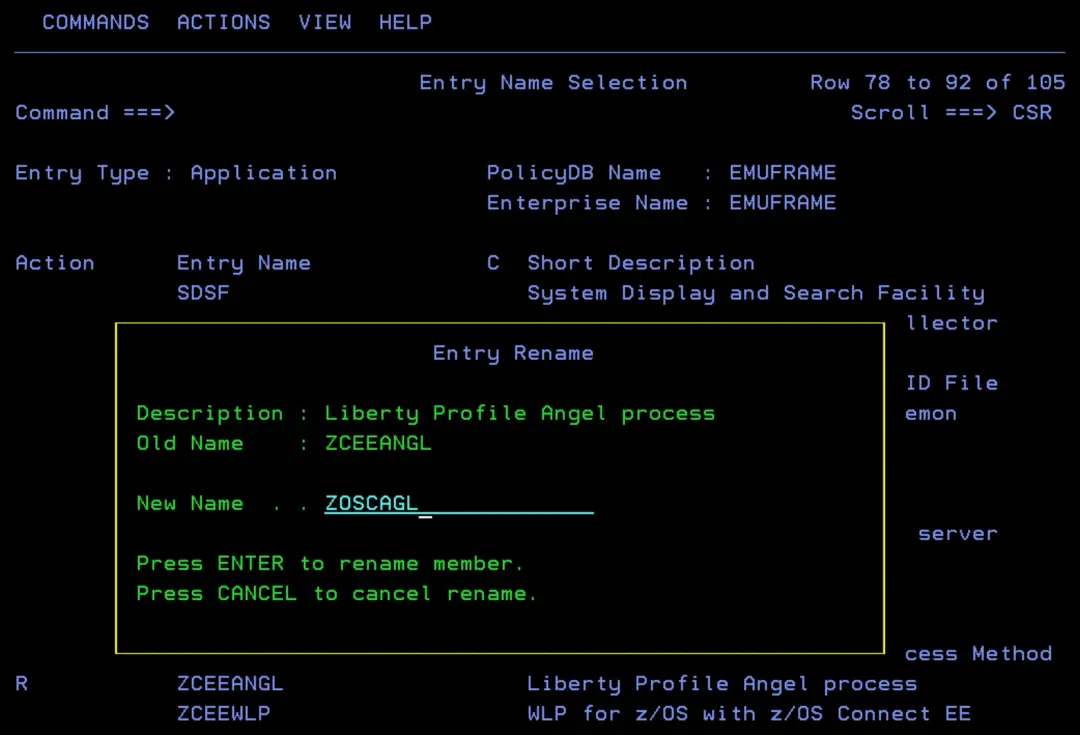
ZCEEANGL - ZOSCAGL task
I rename the entry to fit my system.
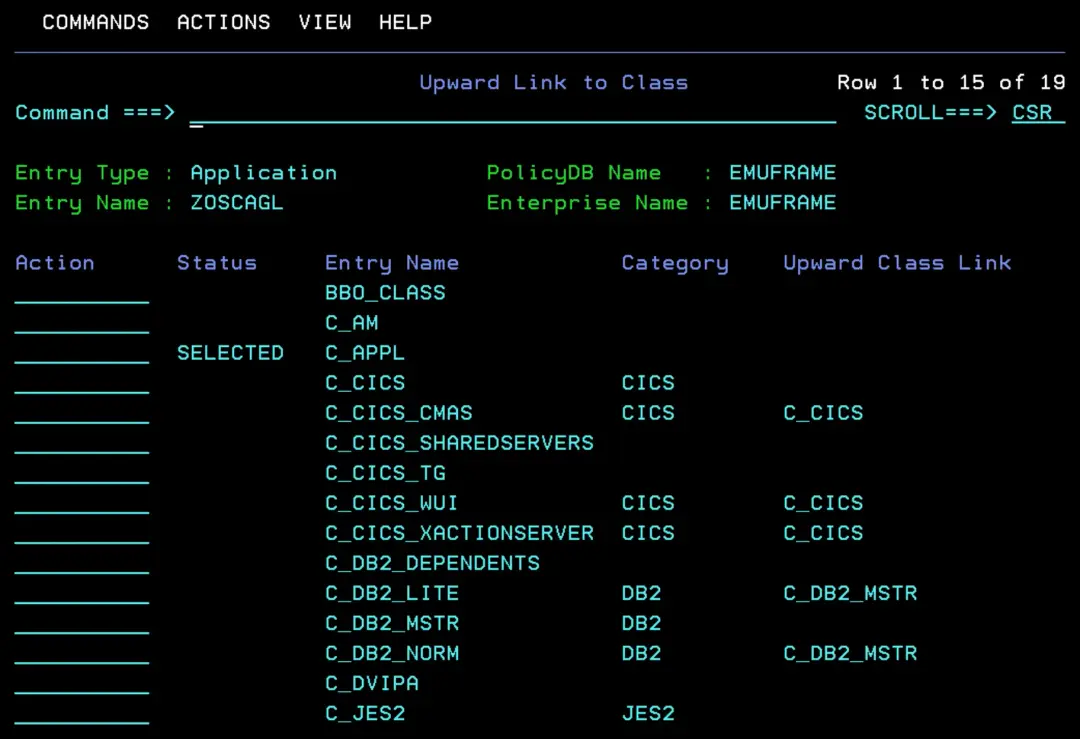
In UPWARD CLASS, choose C_APPL
In APPLICATION INFO, adjust the “Subsystem Name”, “Job Name” and “JCL Procedure Name” parameters to match your system.
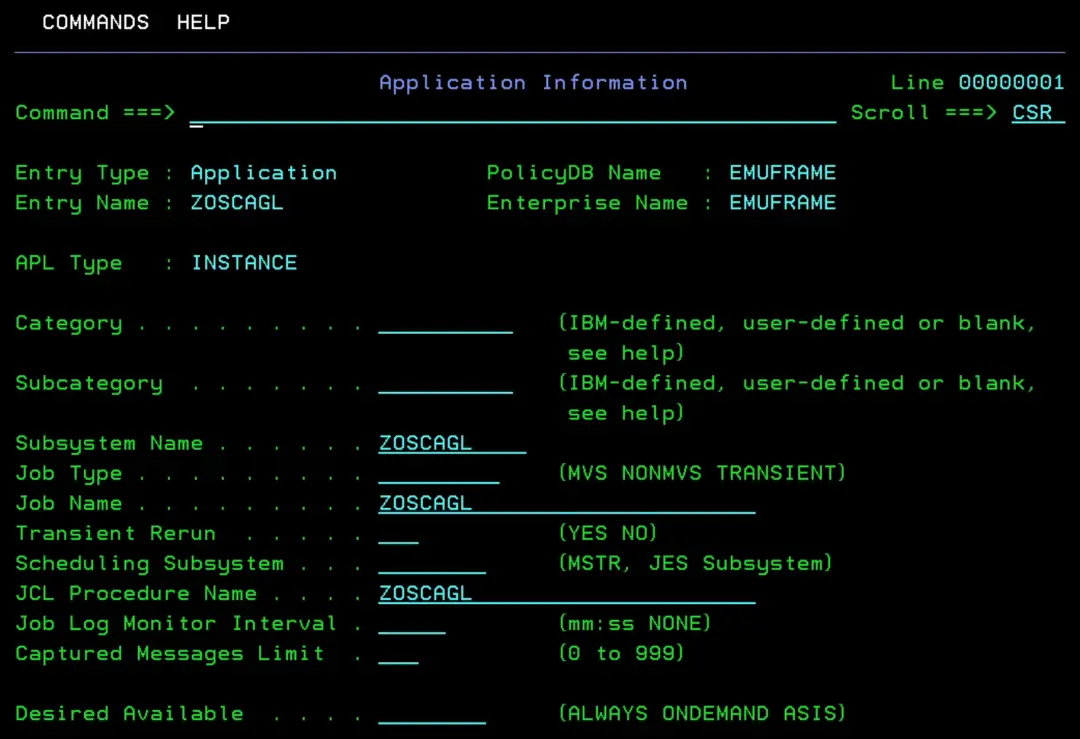
The following configuration can also be applied to the IZUANG1 (ZOSMFANG) task
As this task cannot stop while the ZOSCSRV (ZCEEWLP) task is running, when I configure the ZOSCSRV (ZCEEWLP) task I will add a dependency so that ZOSCSRV also stops if we stop ZOSCAGL.
But as the ZOSCSRV task takes from a few seconds to a few minutes to stop, I am going to change the shutdown phases of ZOSCAGL.
Go into the SHUTDOWN section.
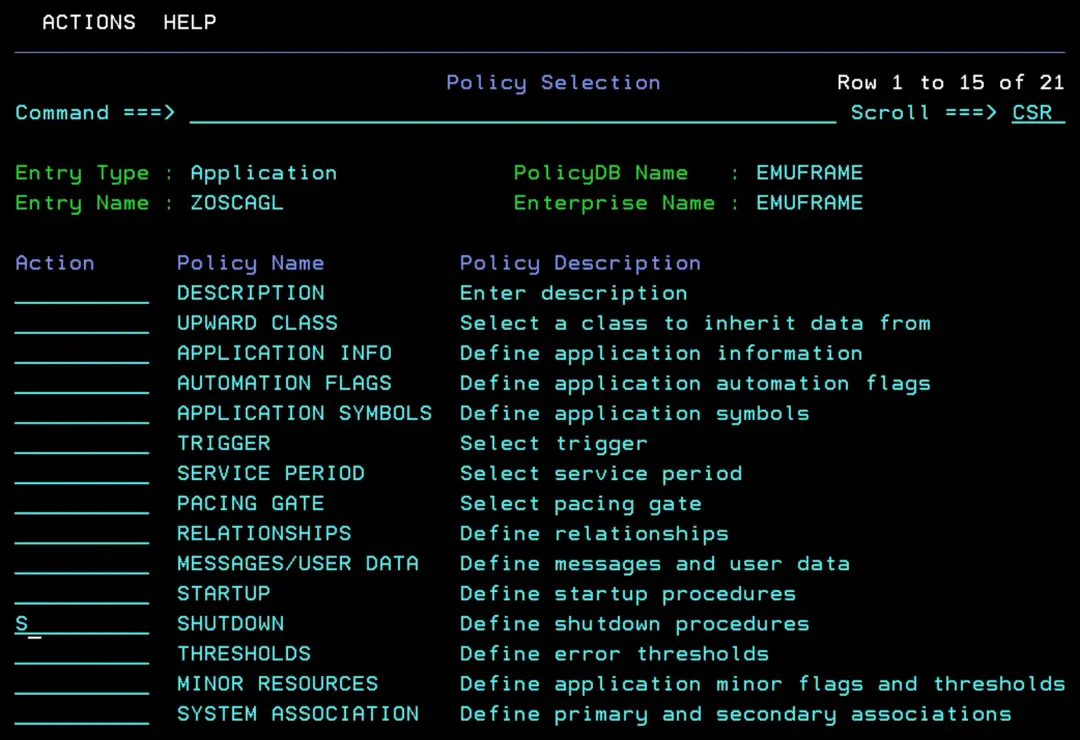
Go into the shutdown type: NORM
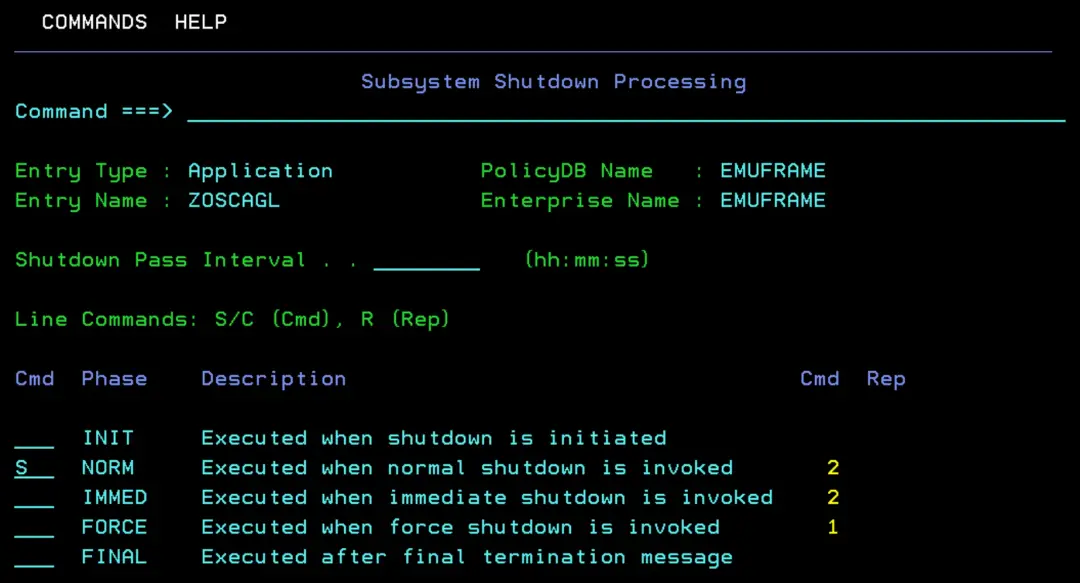
We have the following commands:
First it runs the stop command: MVS P ZOSCAGL
It waits 3 minutes and runs: MVS C ZOSCAGL.
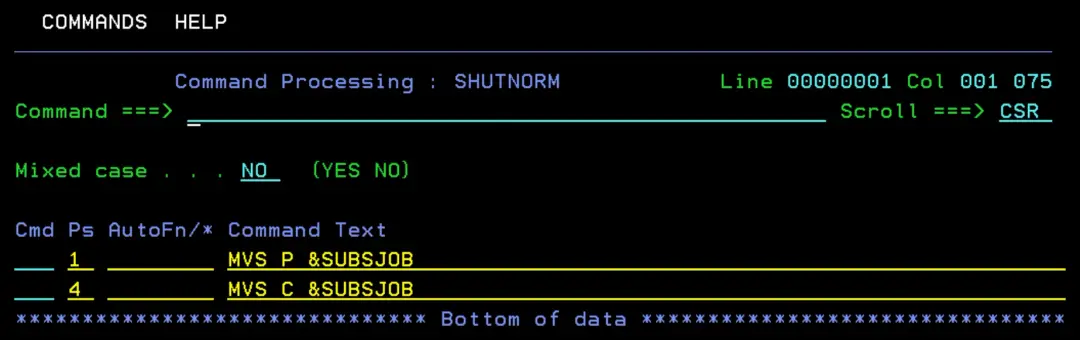
The ZOSCAGL task does not stop with the first command because the ZOSCSRV task is active and takes a few seconds to stop. The result would be that it ends up cancelling ZOSCAGL.
To avoid that, we repeat the first stop command so that it retries the “MVS P ZOSCAGL” command more times.
It retries it 1 minute after the first command and 2 minutes after the first command ran.
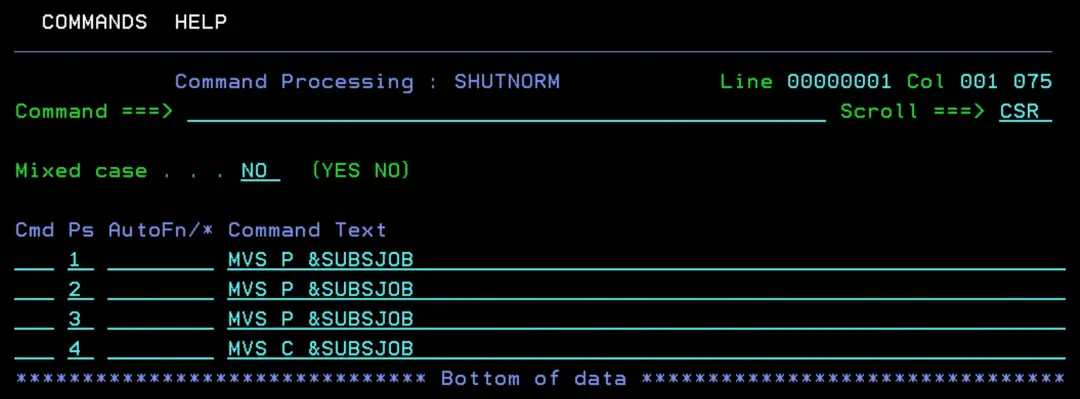
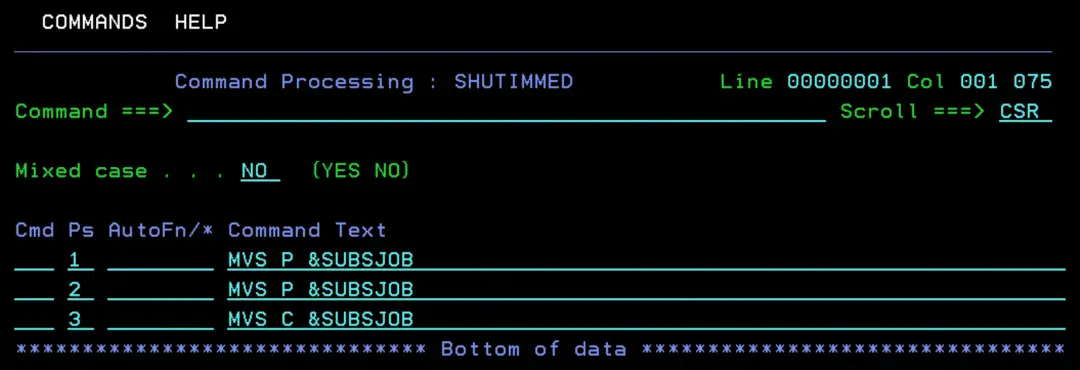
We can also add an extra stop attempt in the “IMMED” shutdown type.
ZCEEWLP - ZOSCSRV task
I rename the entry to fit my system.
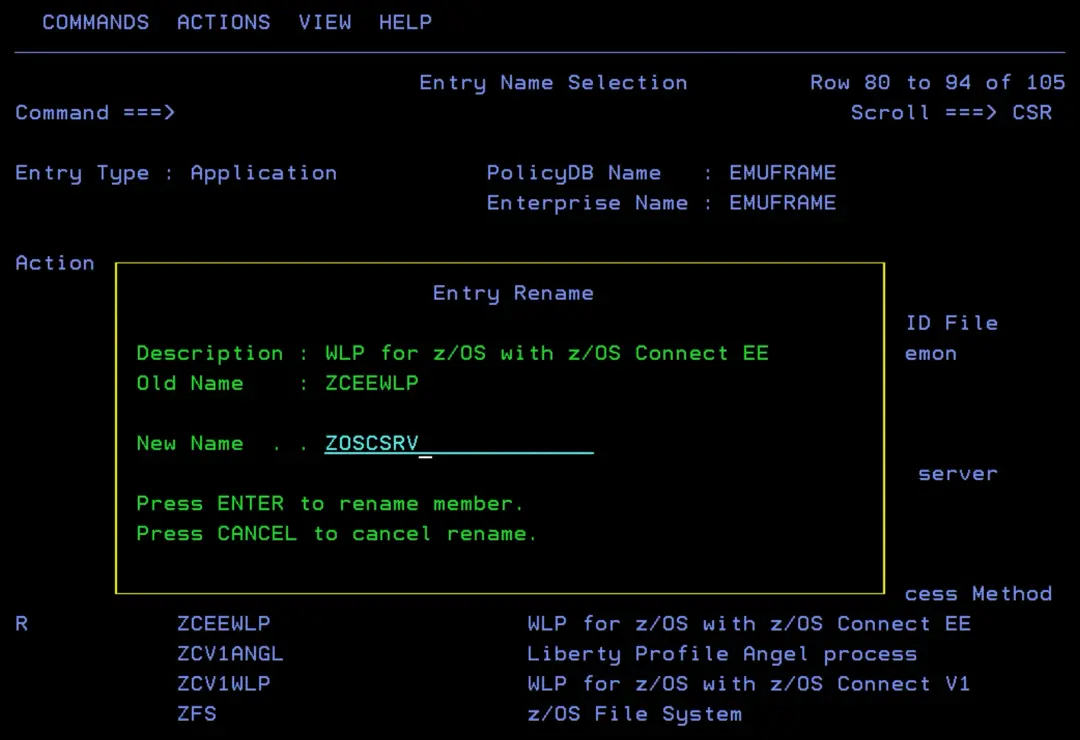
In UPWARD CLASS, choose C_APPL
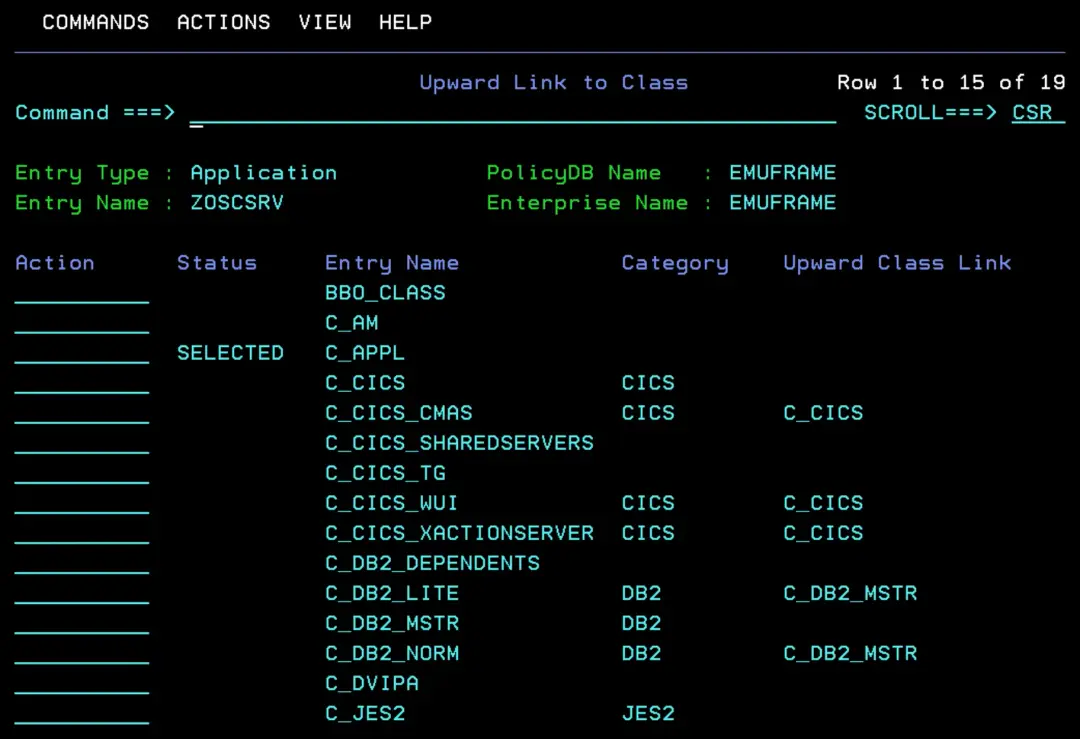
In APPLICATION INFO, adjust the “Subsystem Name”, “Job Name” and “JCL Procedure Name” parameters to match your system.
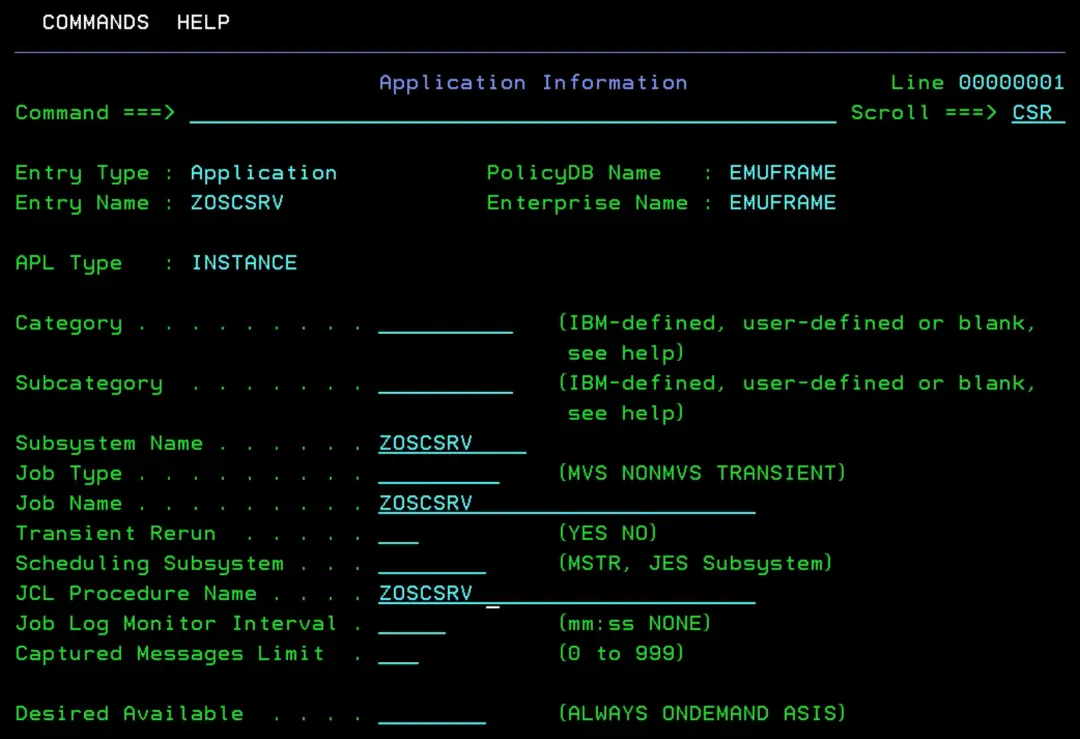
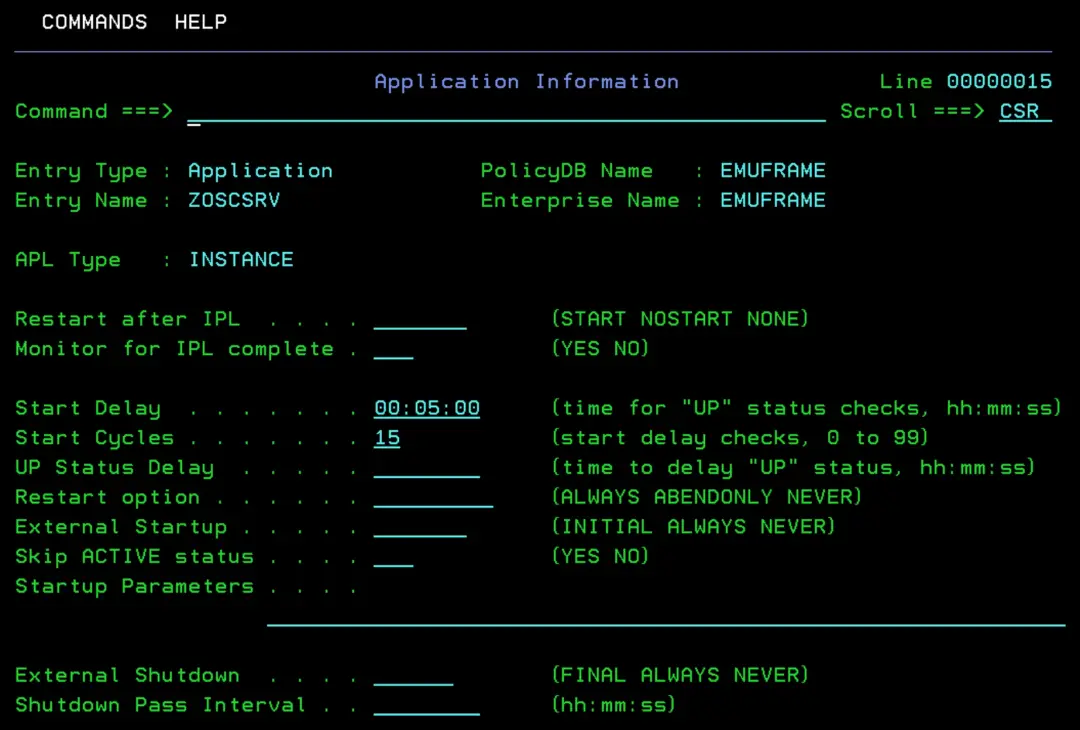
As this is a JAVA task that takes a while to start on emulated systems (ZD&T), we can include the “Start Delay” and “Start Cycles” parameters.
Now we go to RELATIONSHIPS.
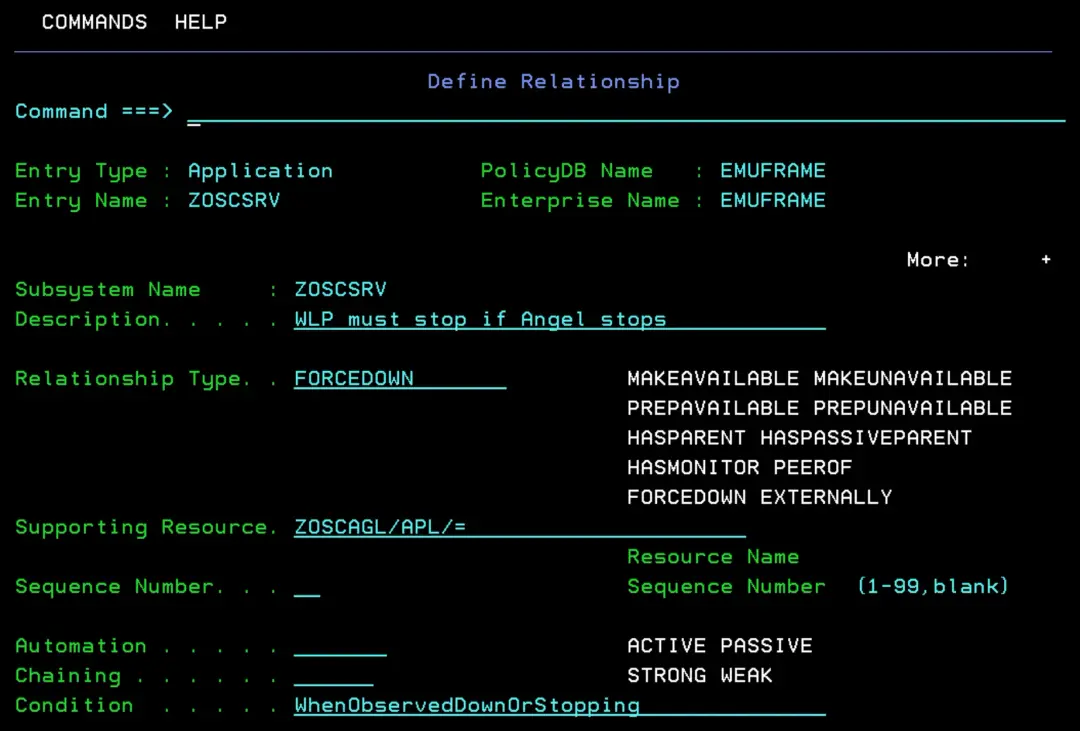
We go into the definition:
FORCEDOWN ZOSCAGL/APL/=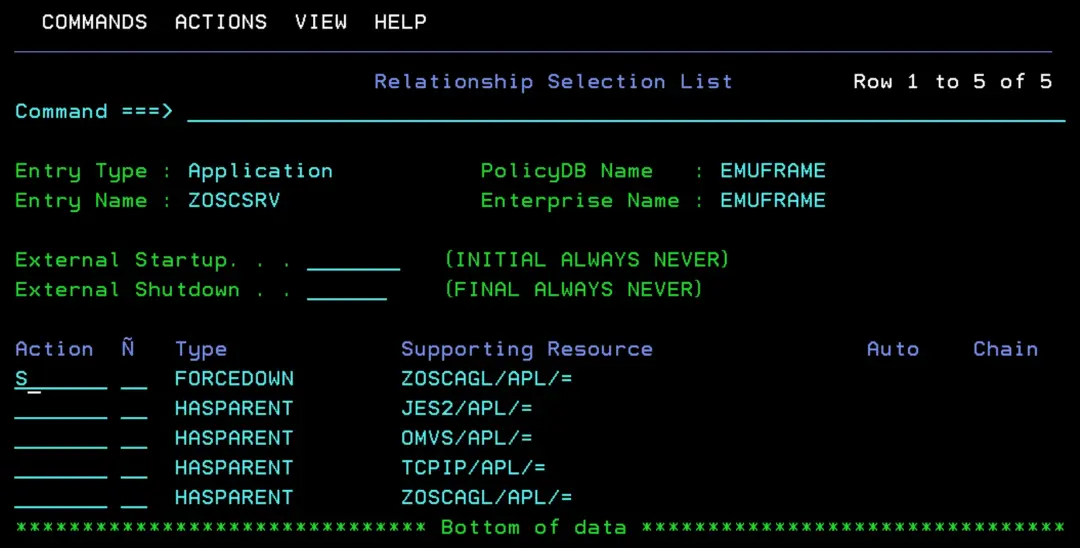
We change the condition to:
WhenObservedDownOrStoppingThis makes ZOSCSRV stop when the ZOSCAGL task starts stopping. It is important to set this condition because the ZOSCAGL task will never reach the DOWN status while ZOSCSRV is active.
PACING GATE - Limit the started tasks that start/stop at the same time
The “PACING GATE” option creates a start/stop resource and limits how many started tasks use that resource at the same time. This is interesting for emulated systems.
With this resource we can limit the JAVA tasks that start/stop at the same time. That way it is done one after another, because JAVA performance on these systems is not very good.
In the “13 - Pacing Gate” panel.
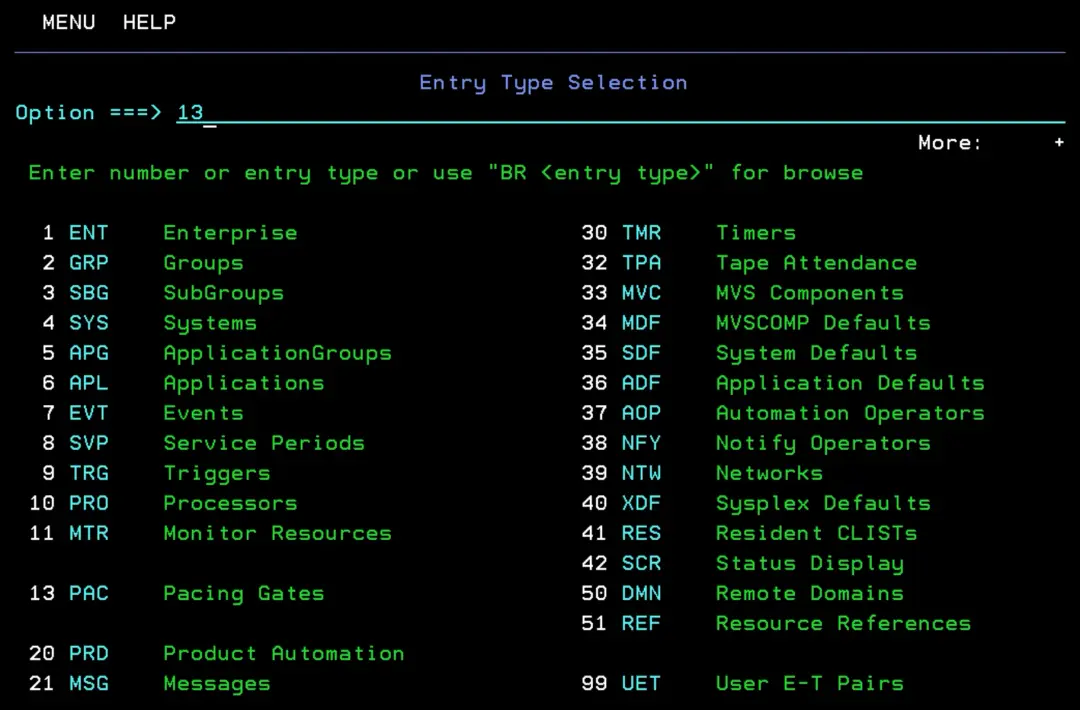
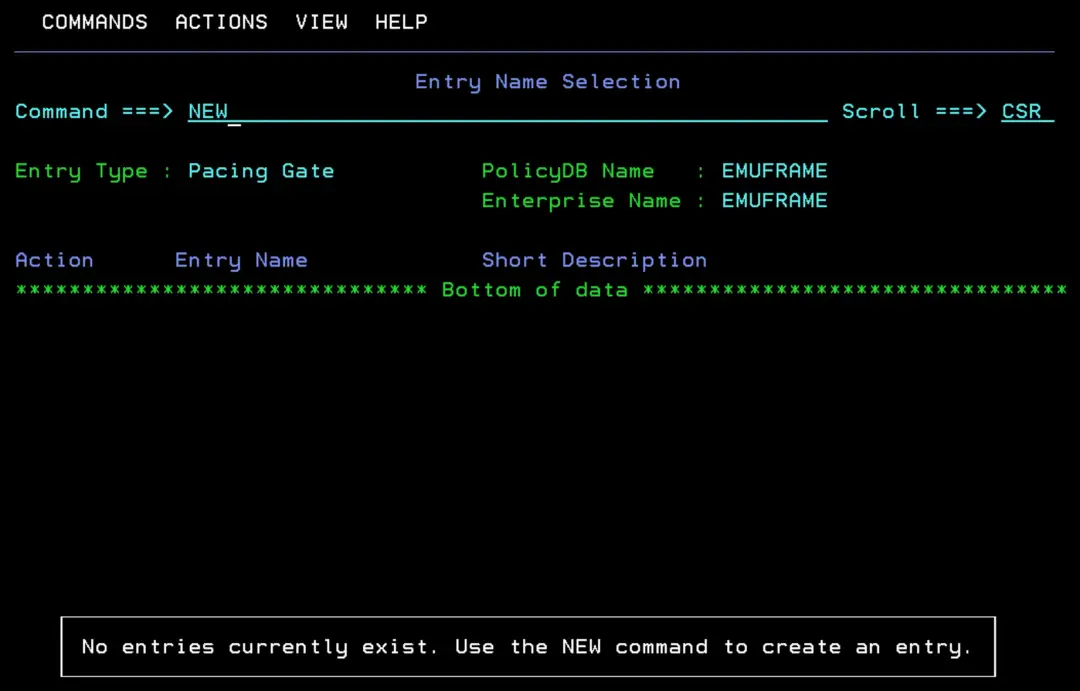
We create a new entry with the NEW command.
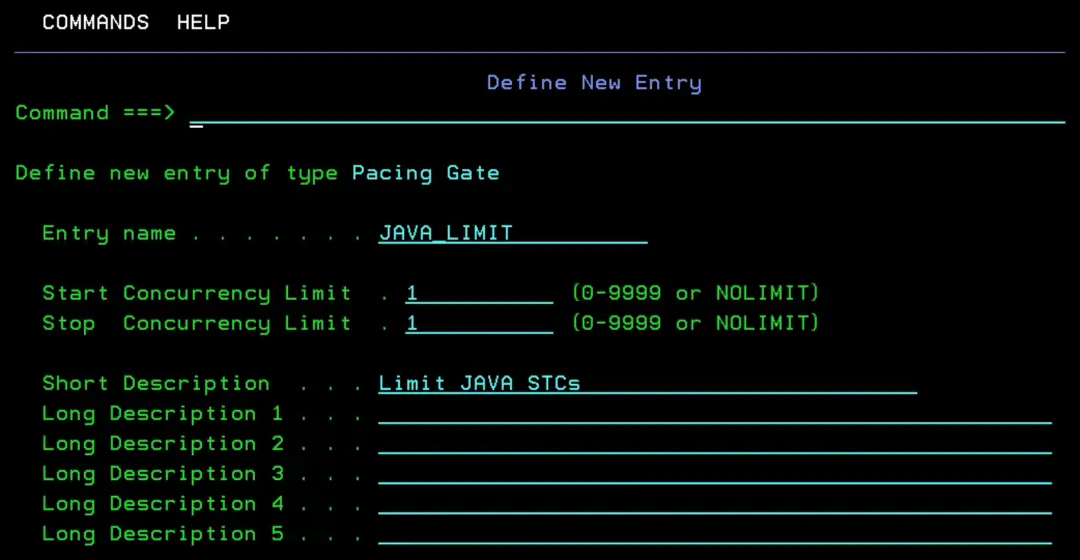
We can set the concurrency to “1” both for start and for stop.
In the Stop parameter you could put NOLIMIT, because stopping is not as slow as starting.
We exit with F3 and go into WHERE USED
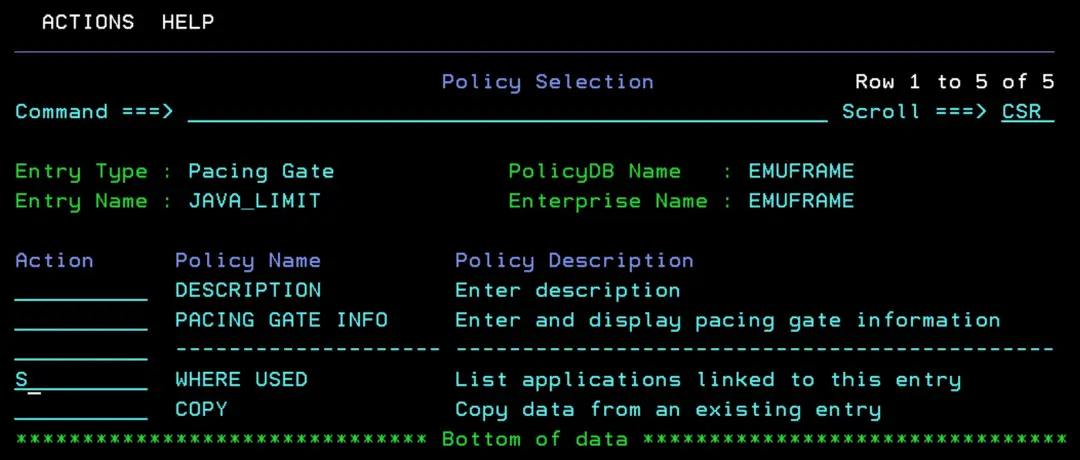
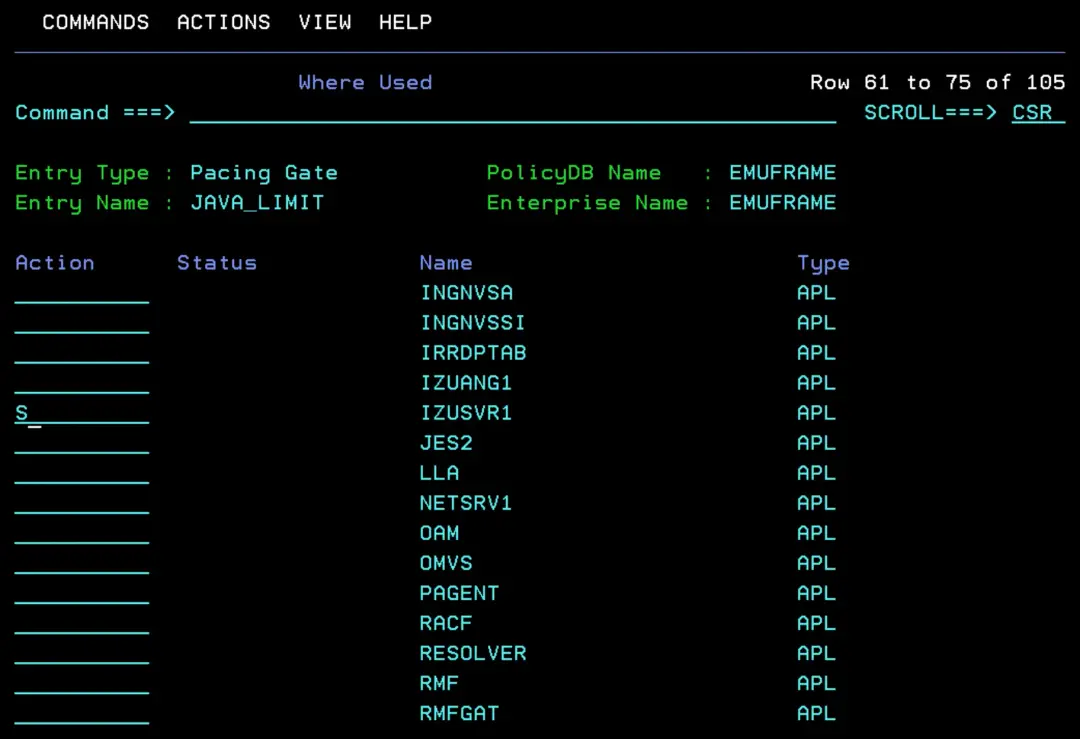
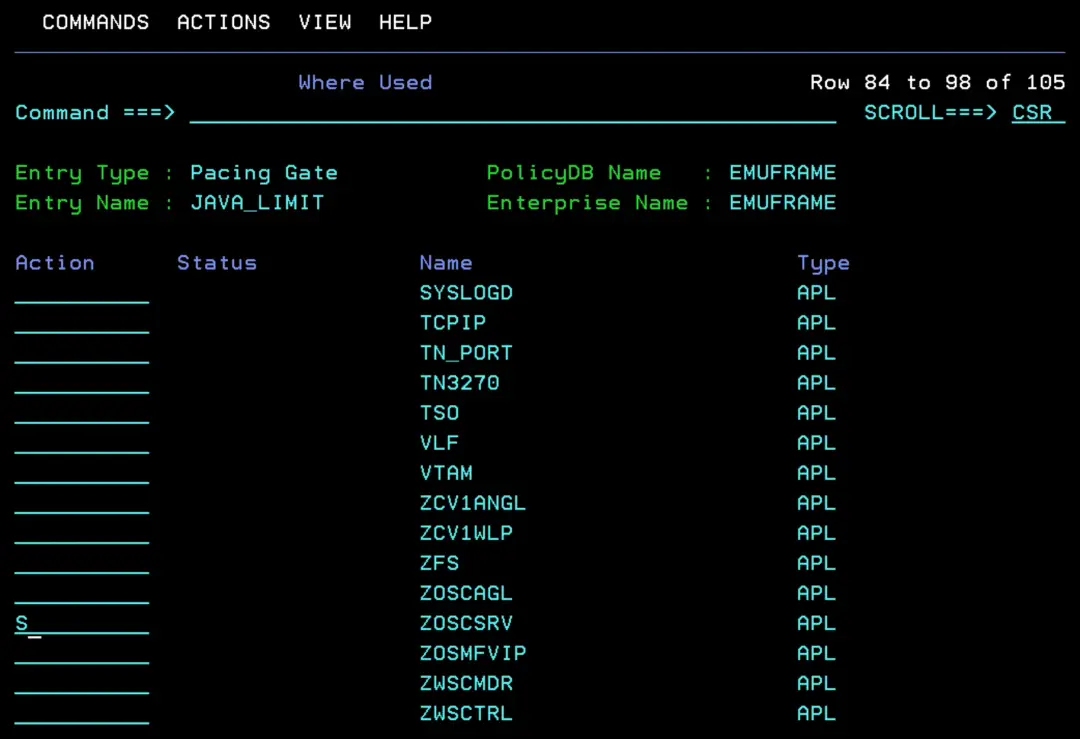
I selected the two JAVA tasks that I currently have in System Automation. If I add other JAVA tasks later (such as ZOWE), I will configure them in this resource too.
The selected started tasks are IZUSVR1 and ZOSCSRV.
That way, these tasks start/stop one after another if both want to start/stop at the same time.
NFSSERV - NFSCLNT tasks
These two tasks are the “Network File System Server and Client”. If we have them on our system, we can configure them as follows:
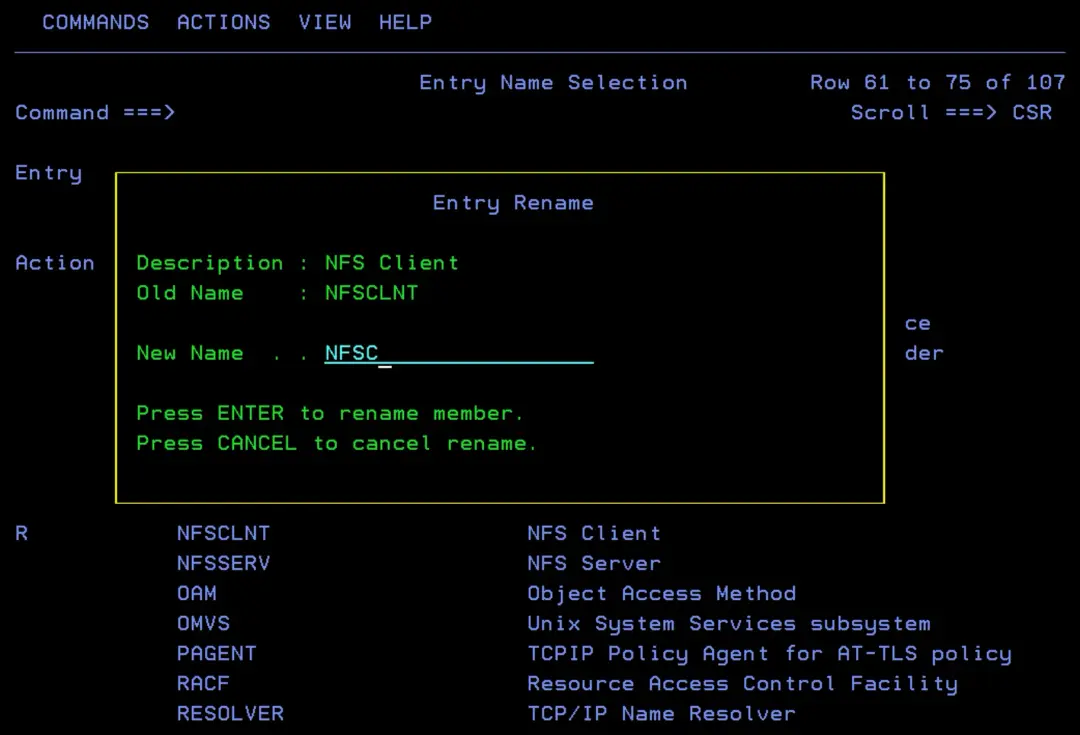
NFSCLNT - NFSC
I start by renaming the entry to fit my system.
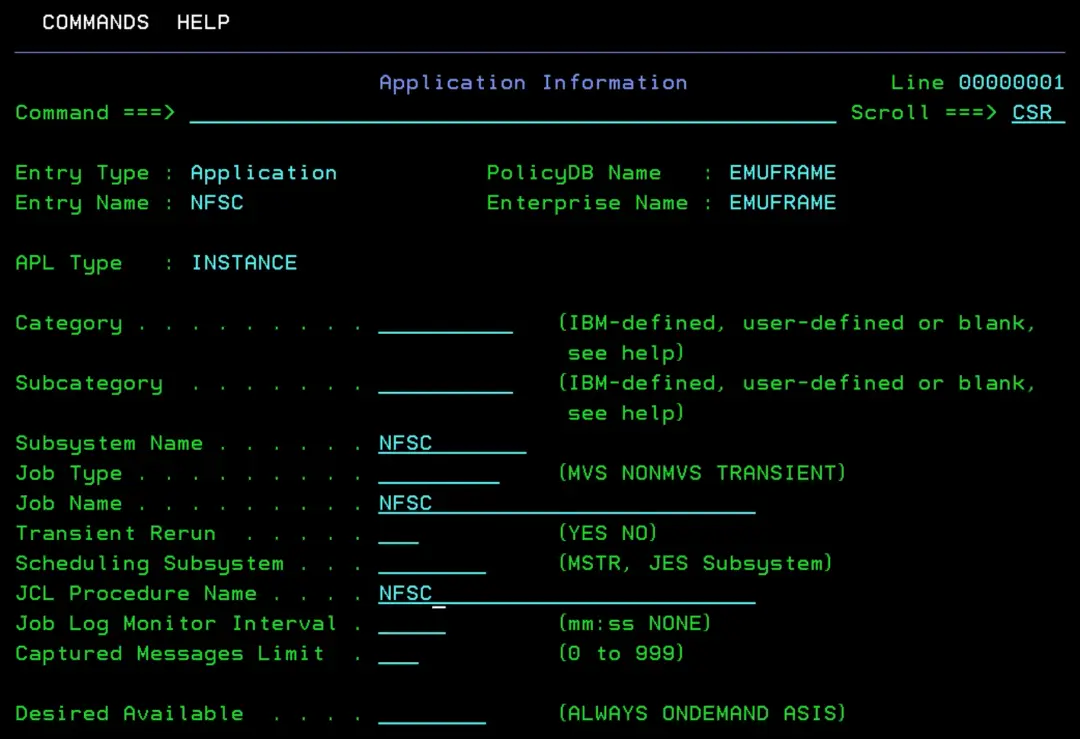
In my case, it is defined in the BPXPRMxx member
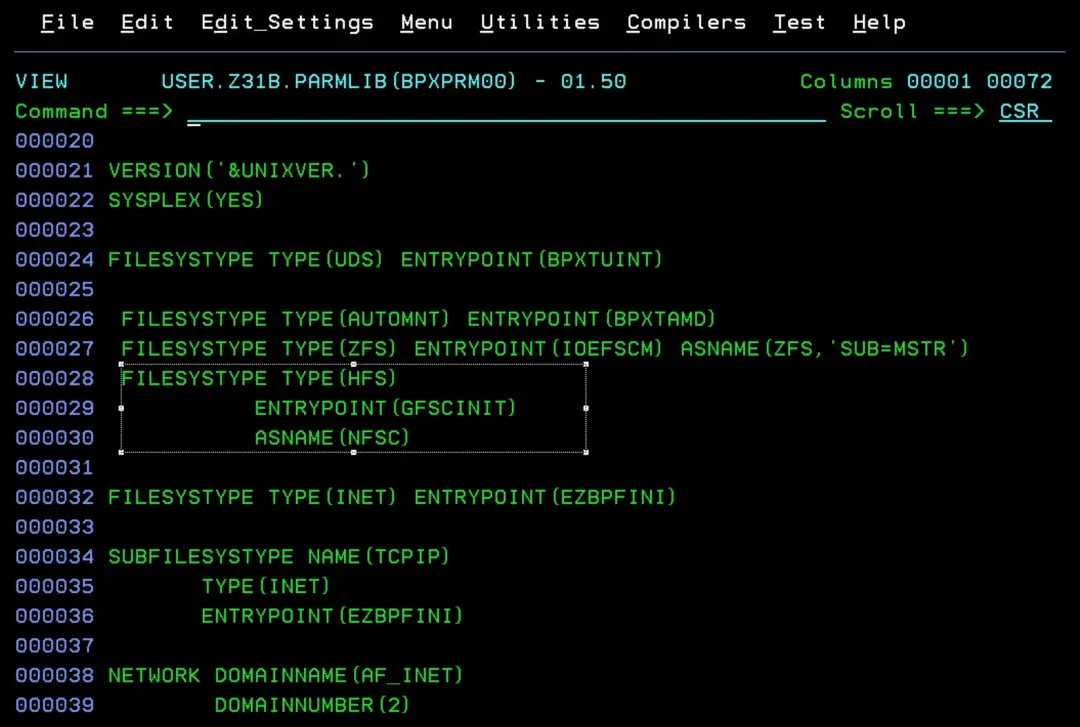
There is a wrong parameter in that definition. It says “TYPE(HFS)”, but this type no longer exists in z/OS 3.1.
https://www.ibm.com/docs/en/zos/3.1.0?topic=parameters-statements-bpxprmxx
We must change it to TYPE(NFS). This also lets System Automation stop the task properly.
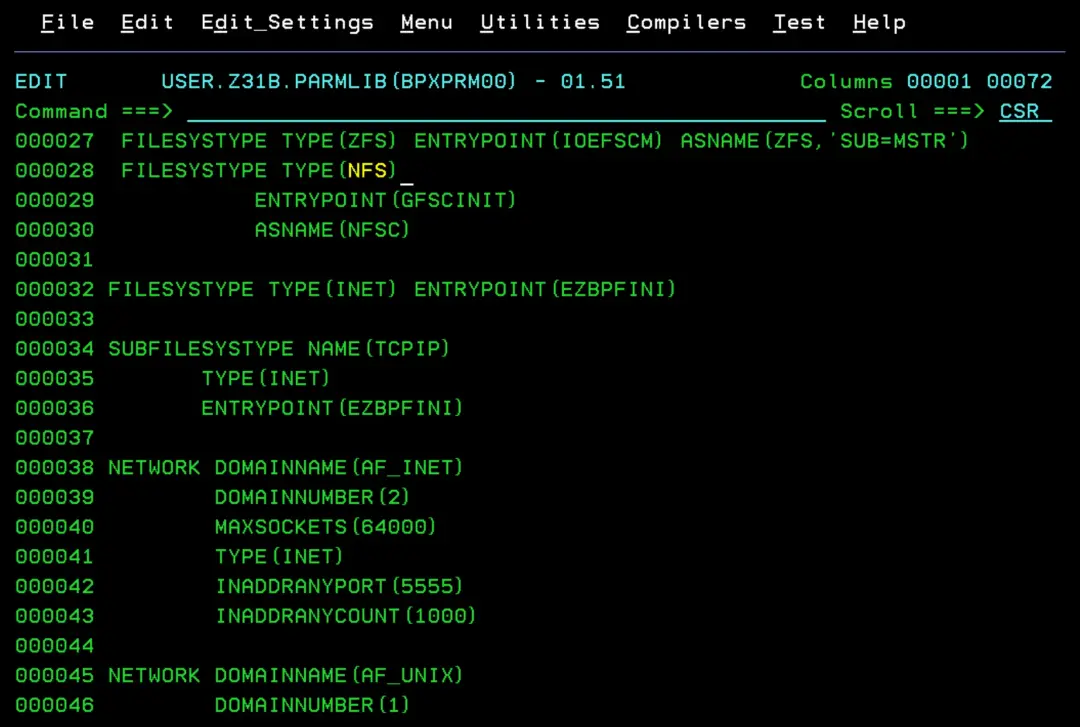
This link has more details on how this task starts.
https://www.ibm.com/docs/en/zos/3.1.0?topic=operation-starting-zos-nfs-client
When this task stops, it issues a reply like this one
BPXF032D FILESYSTYPE type TERMINATED. REPLY 'R' WHEN READY TO RESTART.
          REPLY 'I' TO IGNORE
If we answer “I” by mistake, but we really wanted to start it, we must use the command:
SETOMVS RESET=(xx)

xx Es el miembro BPXPRMxx que contiene la definición
En mi caso, BPXPRM00
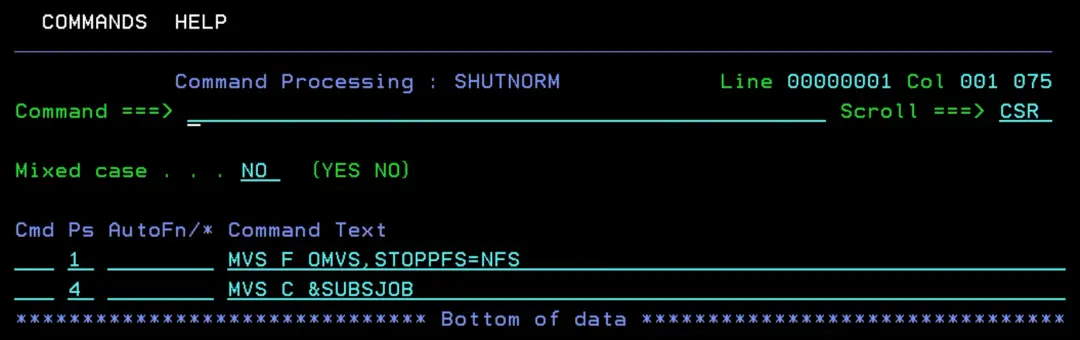
We go to the SHUTDOWN section. We go into Phase: NORM
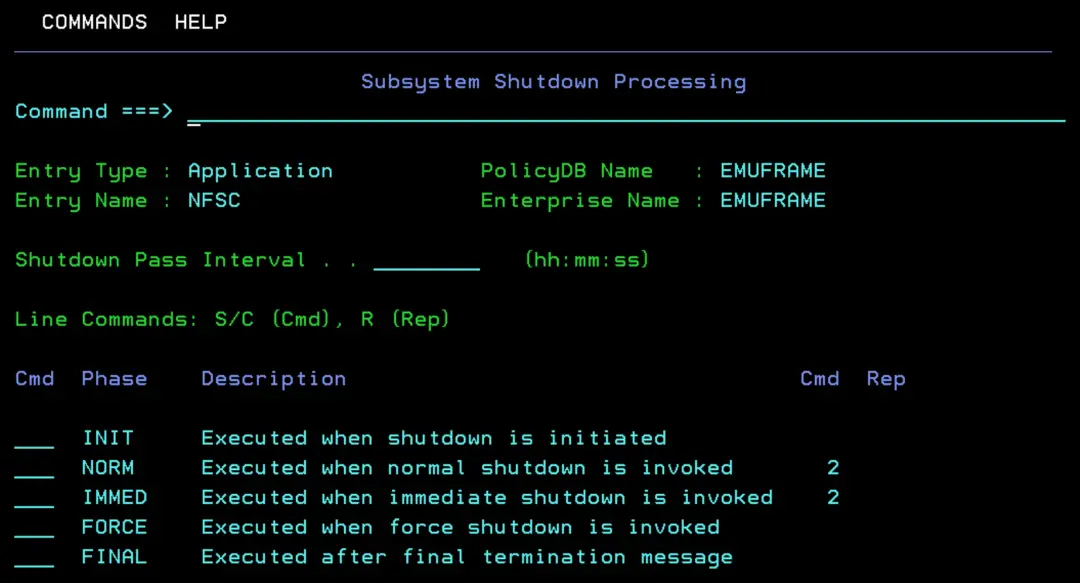
Here you can see that the task is stopped with the command “F OMVS,STOPPFS=NFS”. If we do not change the TYPE parameter in the BPXPRMxx member mentioned before, this command will not work.
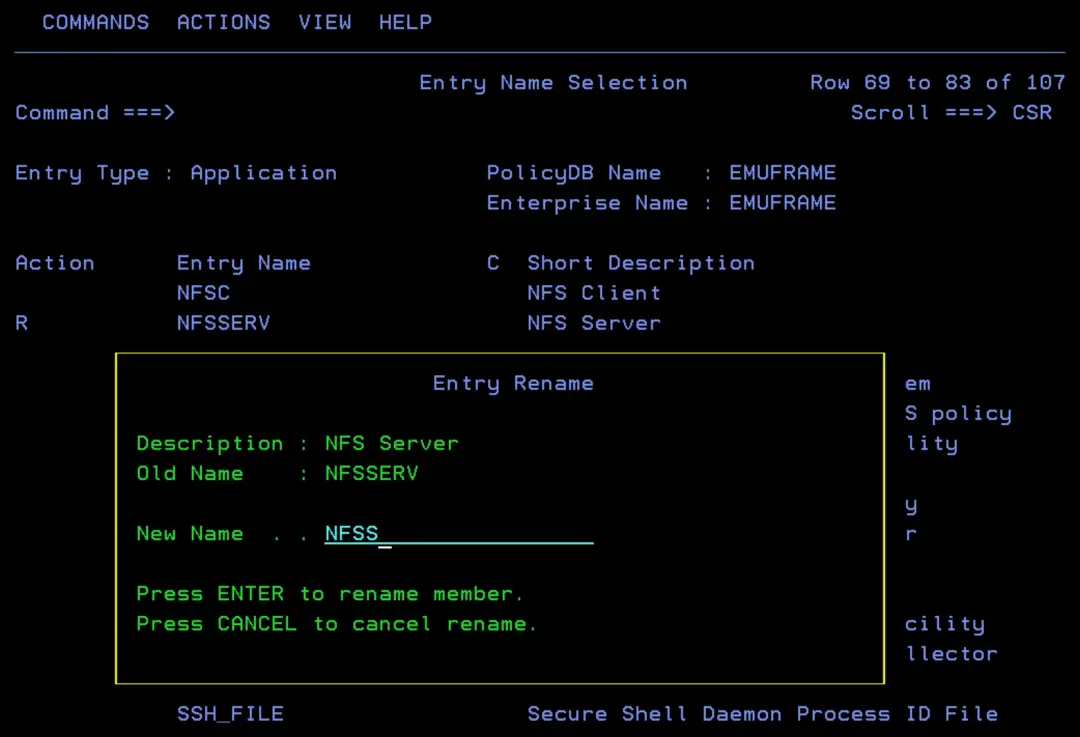
NFSSERV - NFSS
I rename the entry.
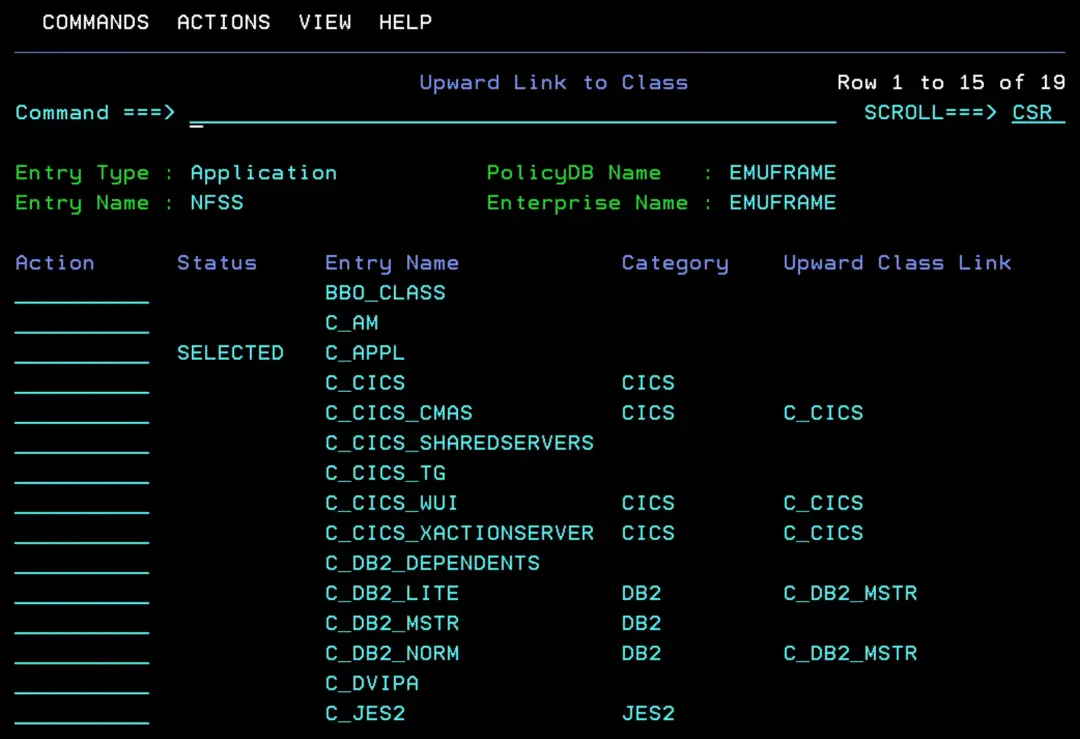
In UPWARD CLASS, choose C_APPL
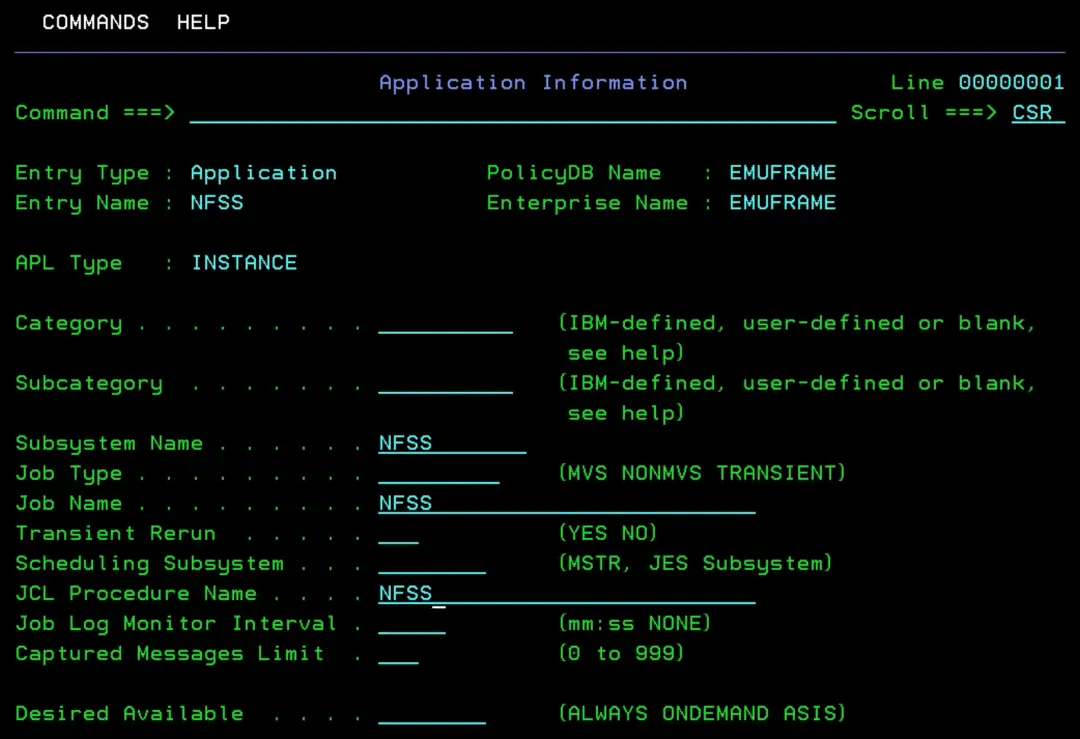
Adapt the “Subsystem Name”, “Job Name” and “JCL Procedure Name” parameters in APPLICATION INFO
Go into RELATIONSHIPS.
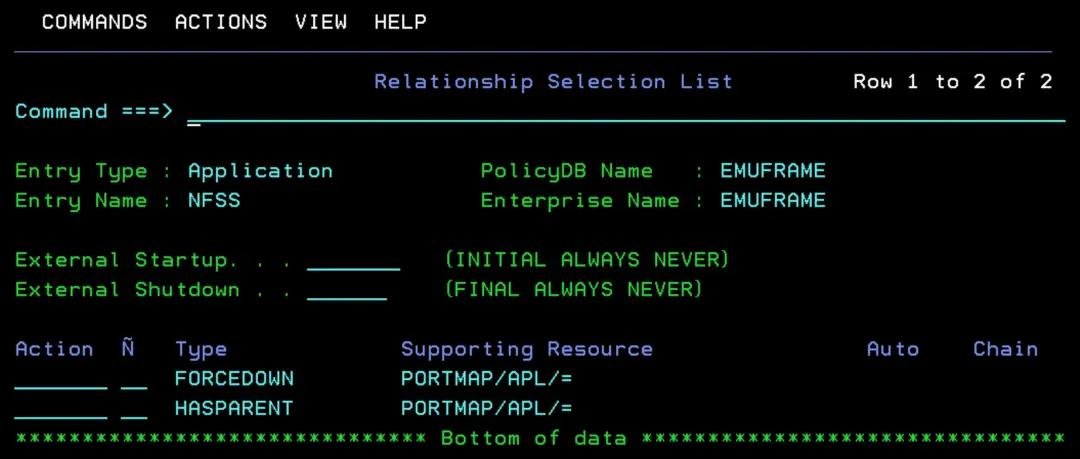
We see that it has the RPCBIND task defined. My system does not use RPCBIND, it uses PORTMAP.
Here is a link with more details on PORTMAP and RPCBIND
https://www.ibm.com/docs/en/zos/3.1.0?topic=applications-remote-procedure-calls
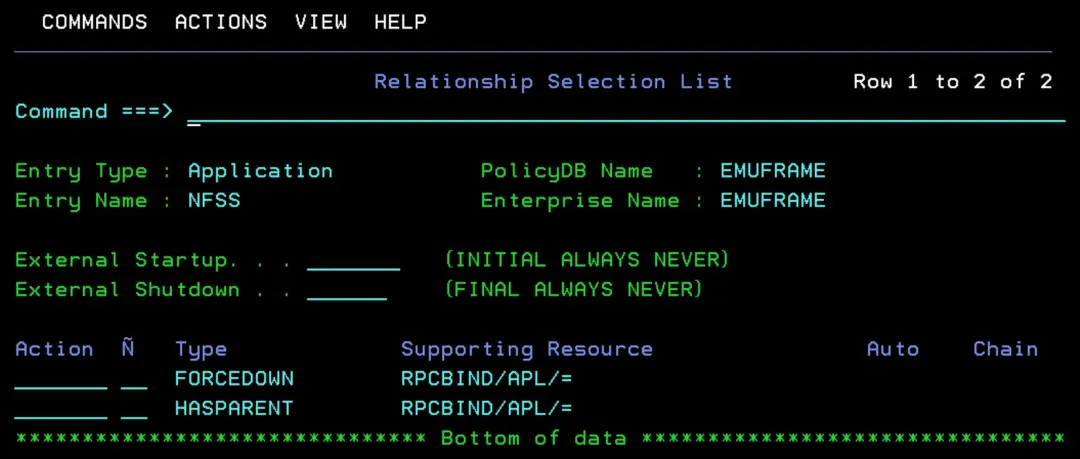
I changed the APP of both entries to change the resource to PORTMAP.
PORTMAP task - VERY INTERESTING!
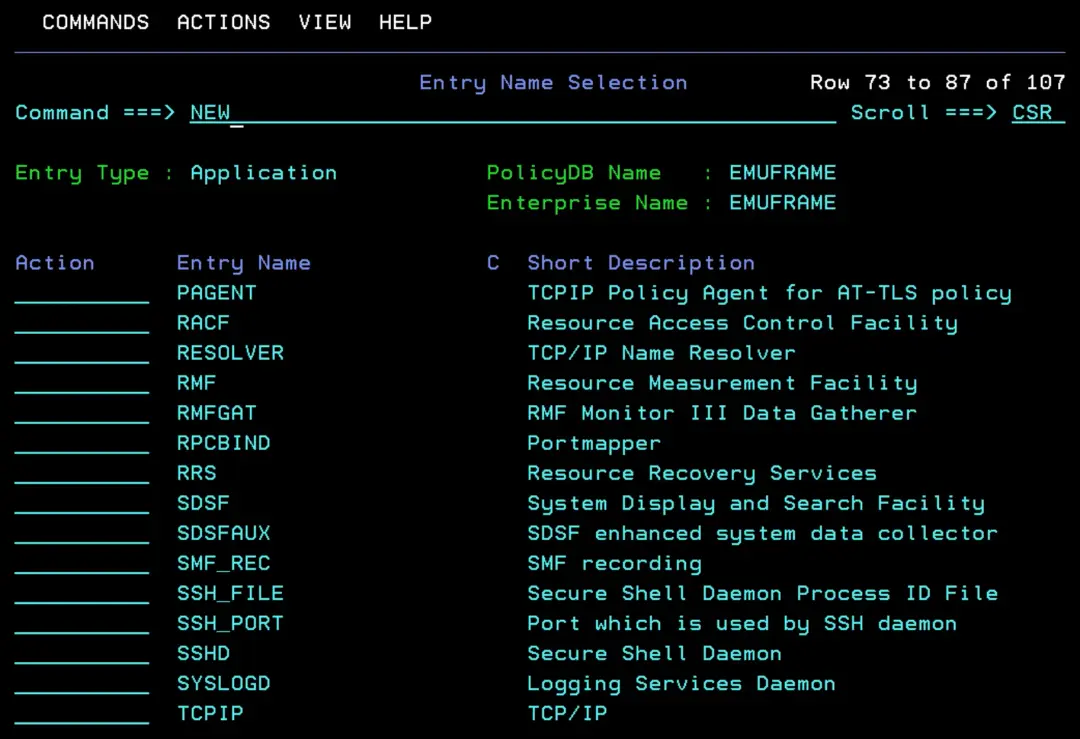
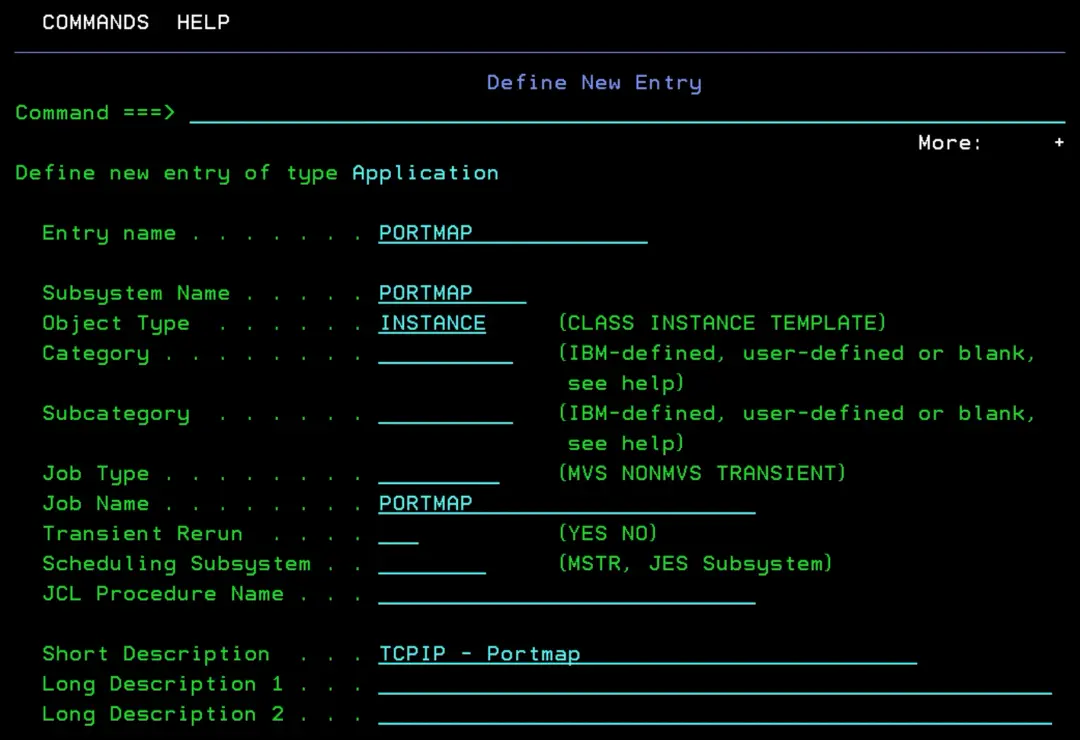
In my case, I have to create this task from scratch. I am also going to show how to define the message that System Automation looks for to set the task as “UP”.
NEW command.
I fill in the data as in the image.
In UPWARD CLASS, select C_APPL.
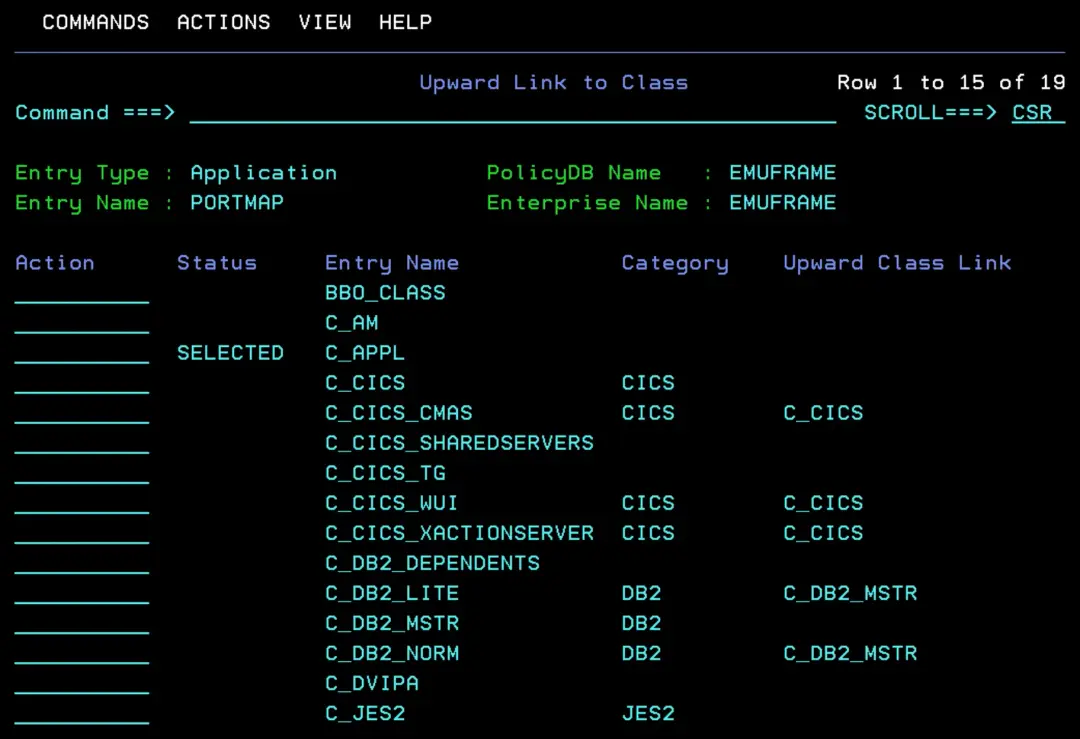
In the RELATIONSHIPS section, add the dependency on TCPIP
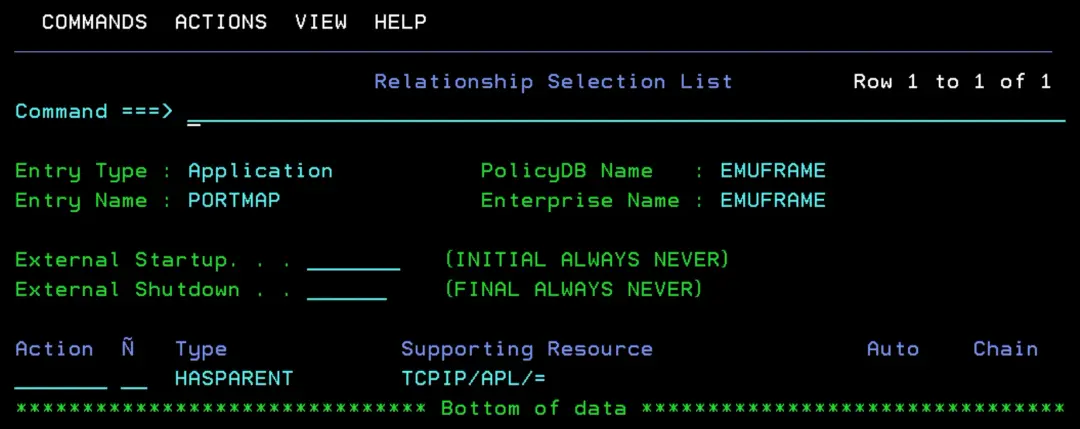
HASPARENT TCPIP/APL/=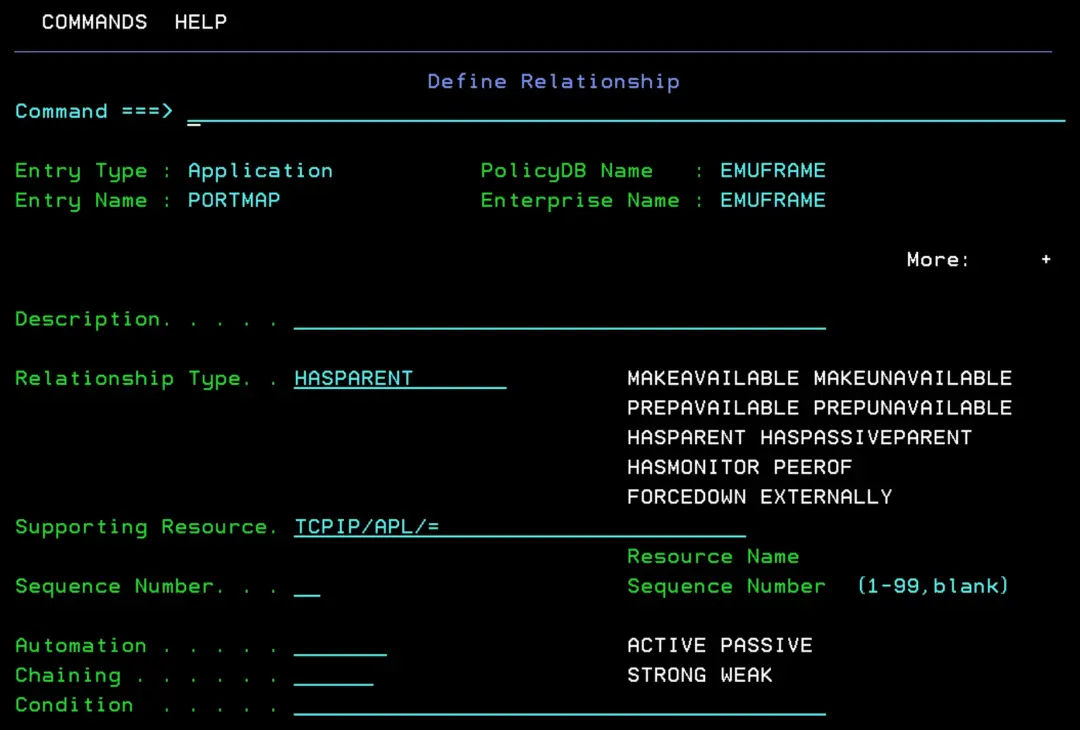
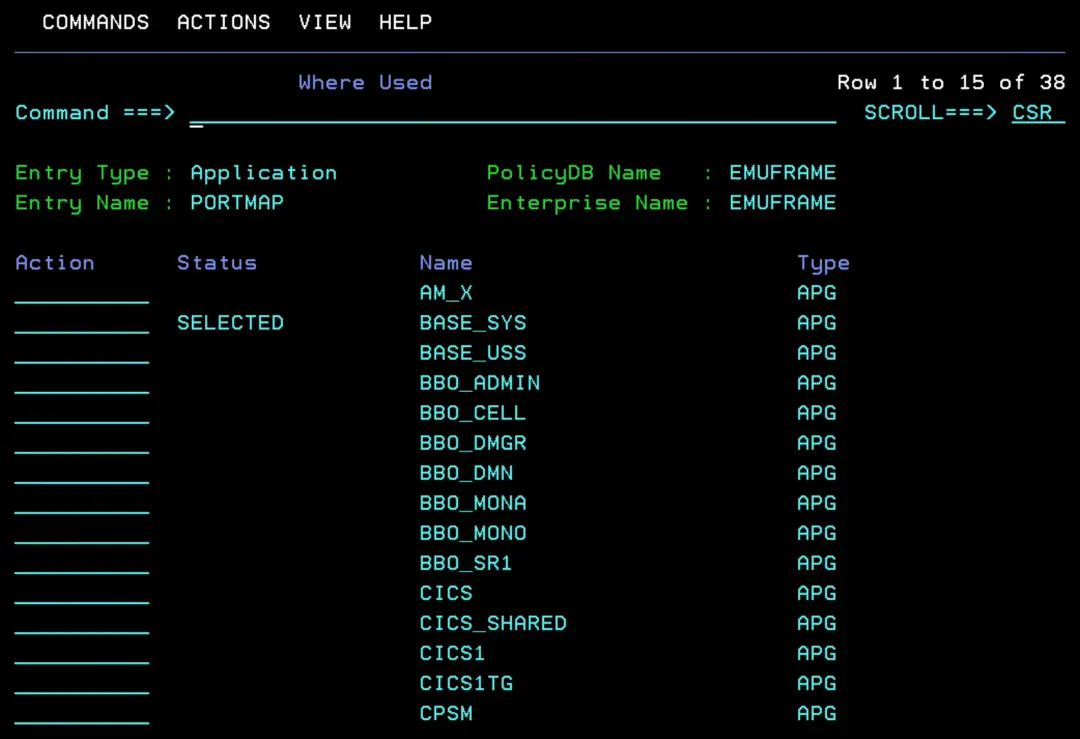
In the WHERE USED section, add it to BASE_SYS.
And the most important part. As this is a new task, we must add the message that tells System Automation that the task is “UP”.
For this task the message is:
EZA4252I portmap: started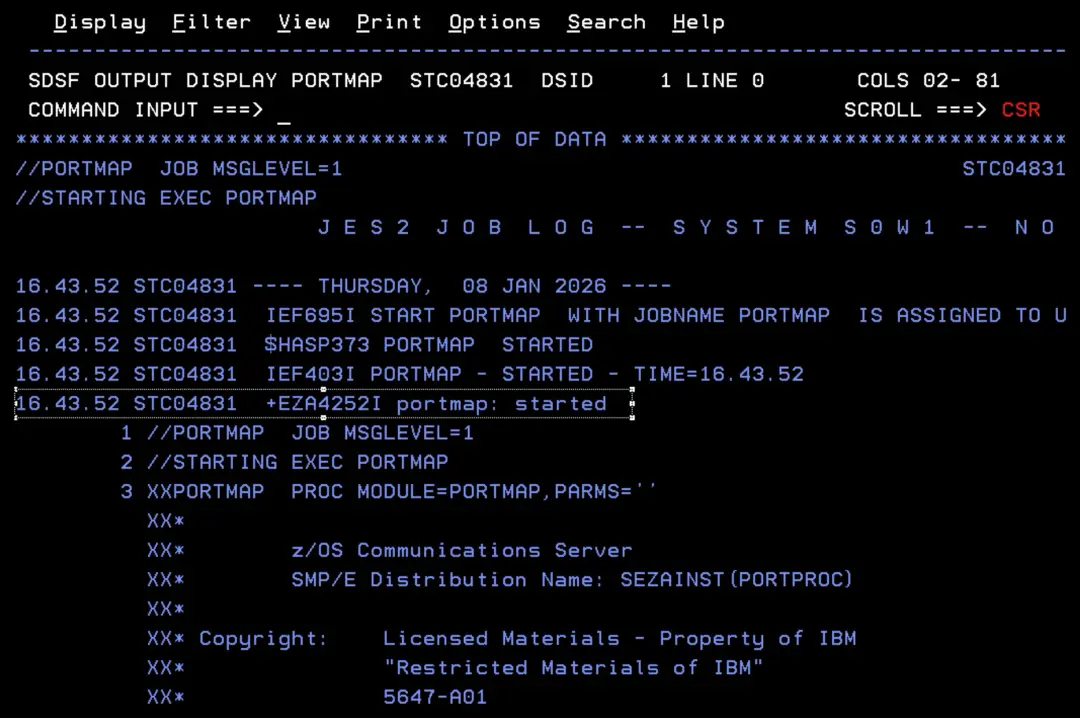
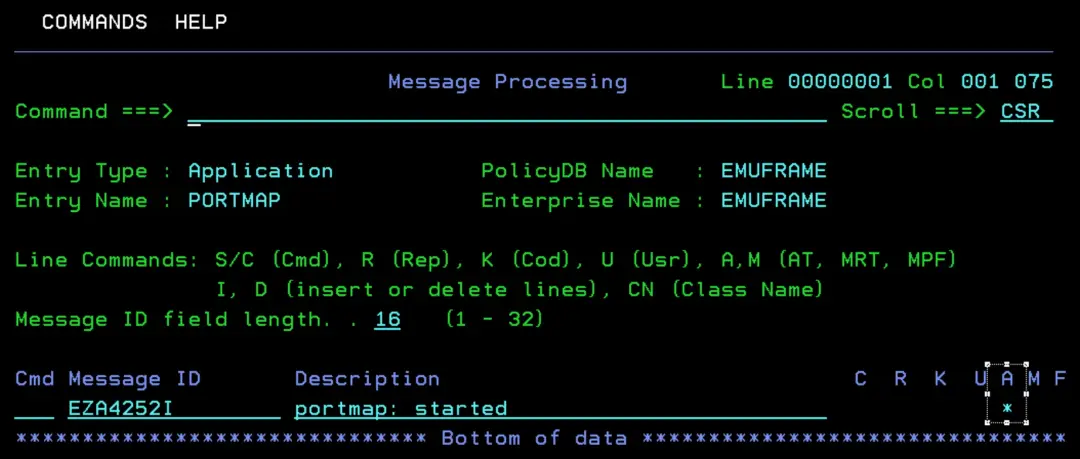
Go into the MESSAGES/USER DATA section.
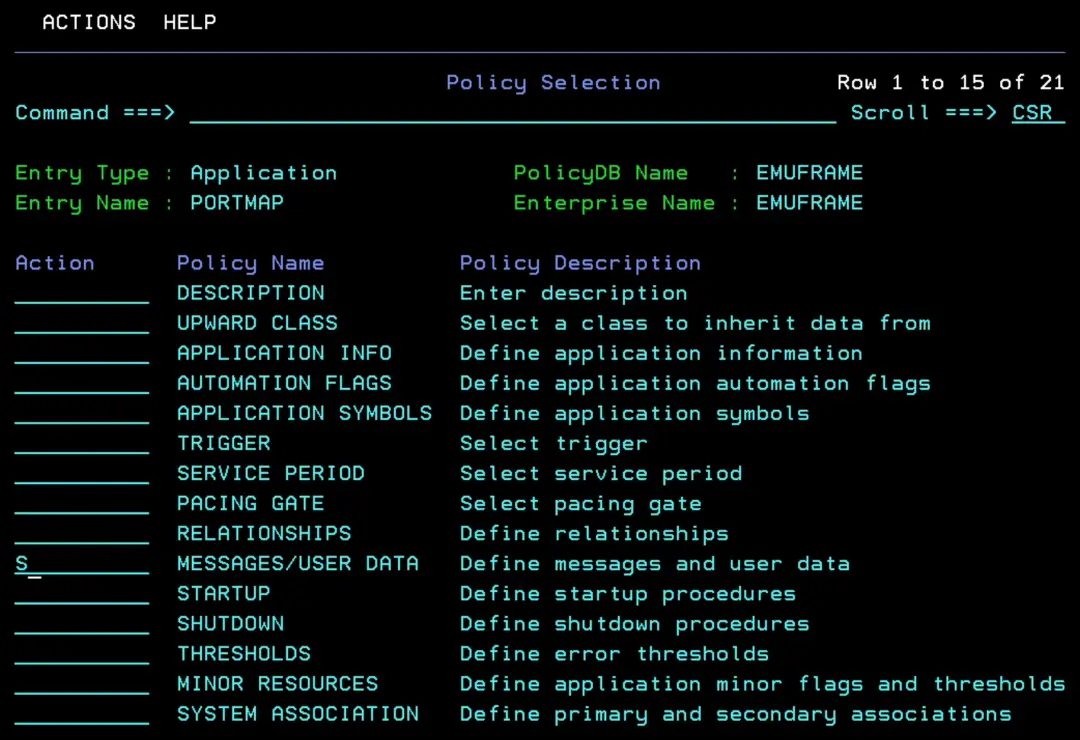
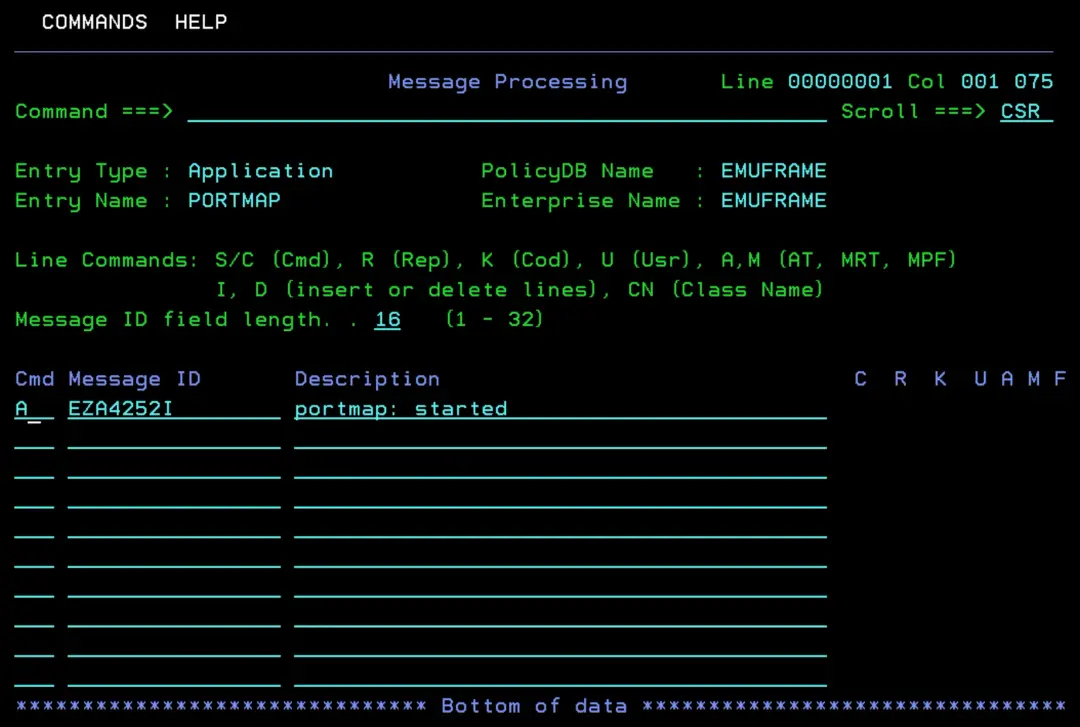
Here we fill in the fields:
Message ID: EZA4252I
Description: portmap: started
We use the command (cmd) A.
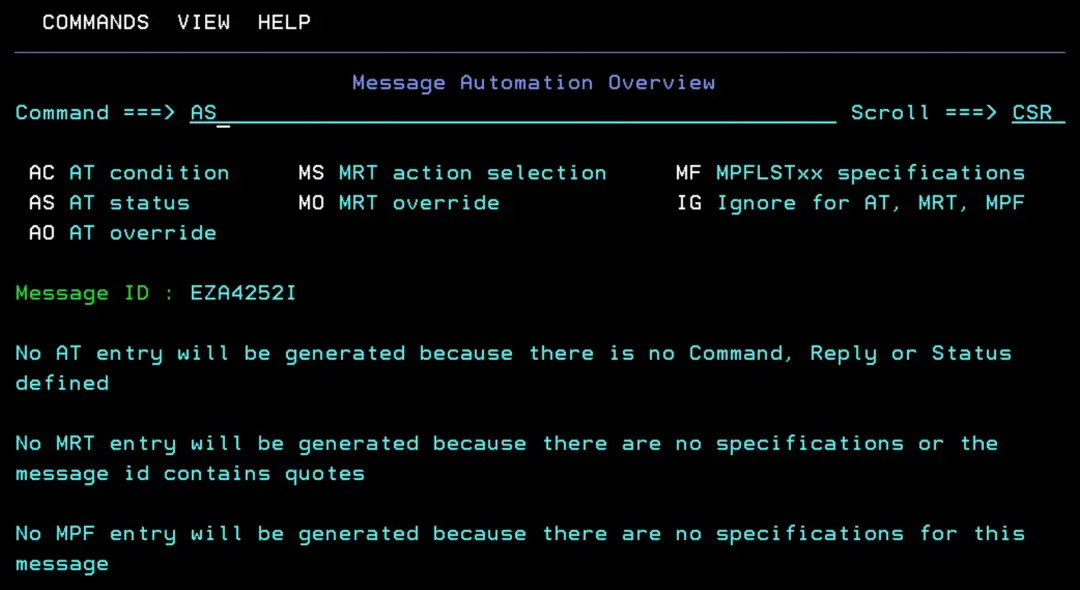
We go into the option “AS - AT status”
We select the option “UP”.
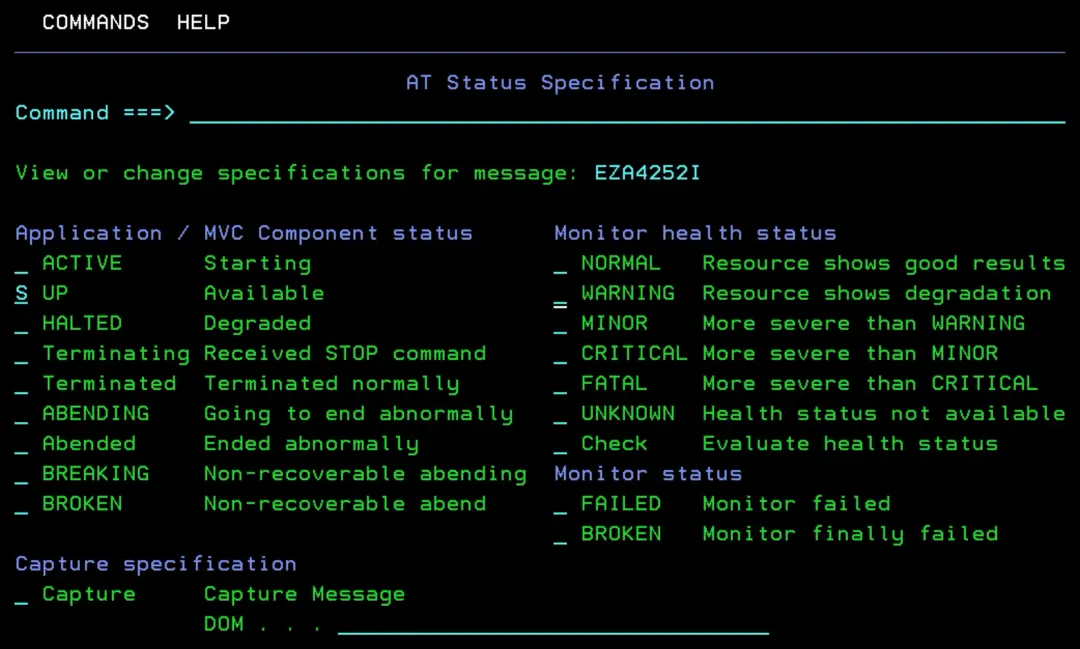
The following definition appears automatically. It means that if the message EZA4252I is received, it is set as UP=YES.
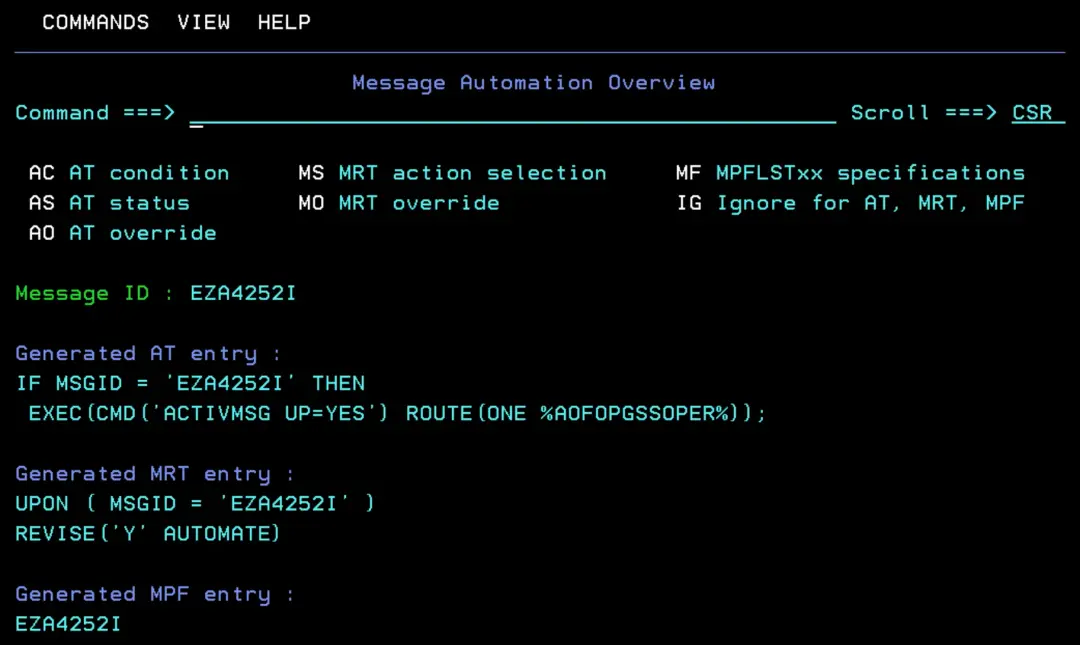
We exit with F3.
The asterisk “*” means that we have defined some parameter in the “A” parameters.
IBM Explorer for z/OS tasks - JMON and RSED
These two tasks are not in the System Automation samples by default. We have to create them new, choosing their “UP” message. The process is similar to the definition of the PORTMAP task, but here we also add an application group.
Create a new “Application Group”.
Option 5 - ApplicationGroups
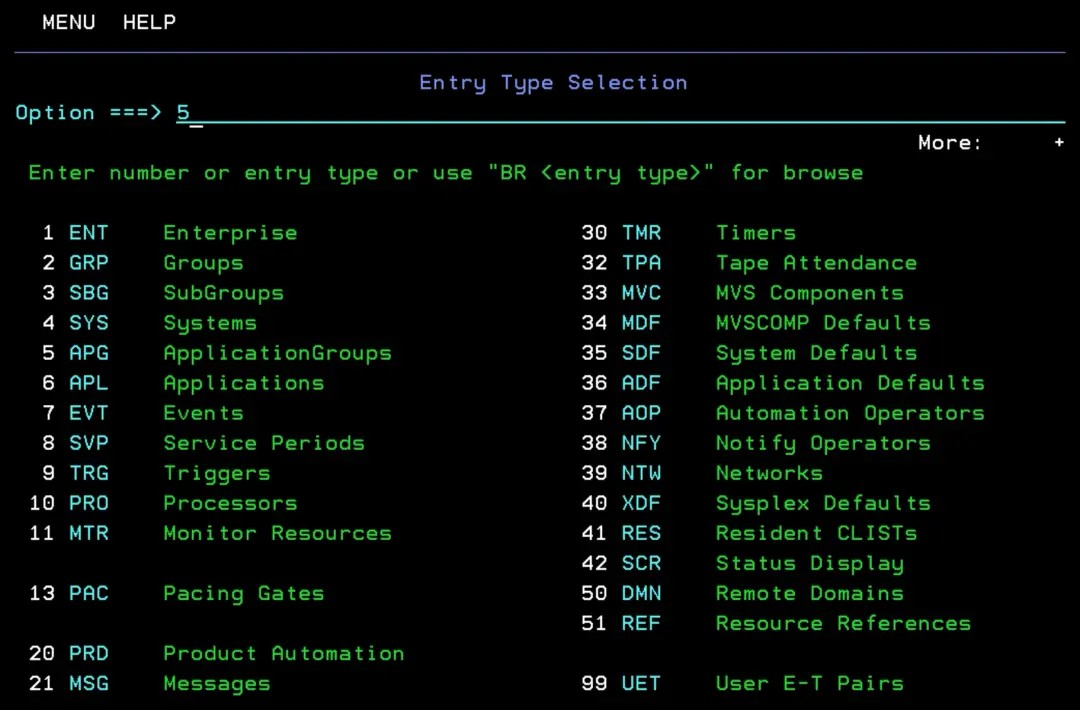
NEW command
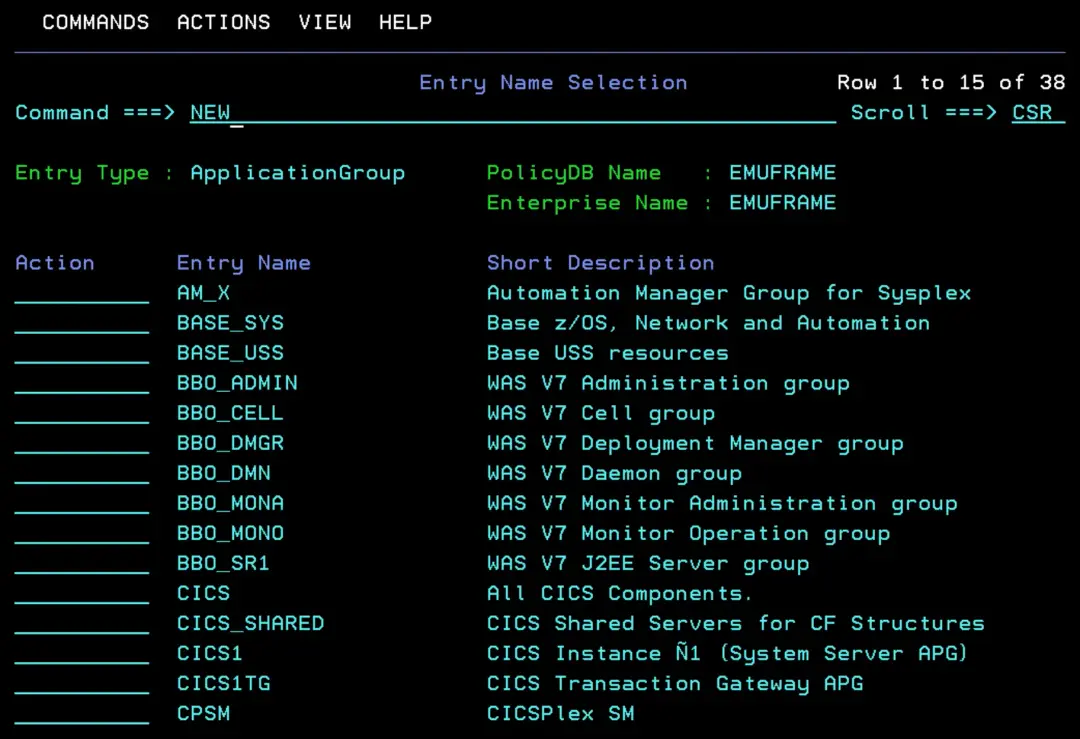
Fill in the data:
Entry Name: APG_ZEXPLO
Type: System
Nature: Basic
Automation Name: APG_ZEXPLO
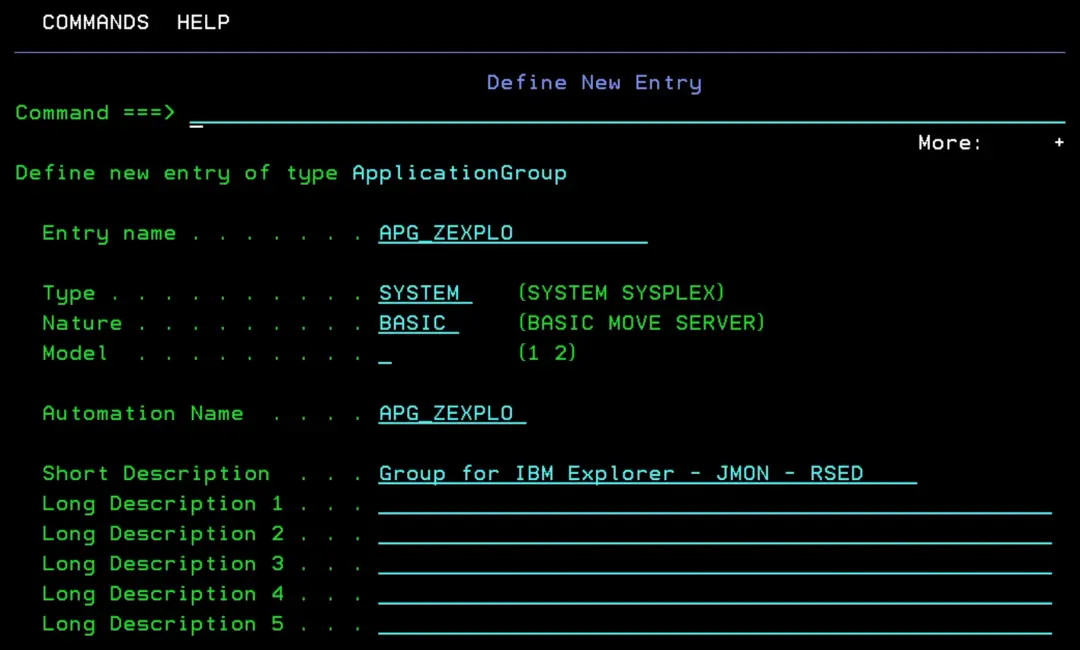
In RELATIONSHIPS, add the following dependencies:
HASPARENT        OMVS/APL/=
HASPARENT        TCPIP/APL/=

FORCEDOWN        TCPIP/APL/=
Condition: WhenObservedAssumedDownOrStopping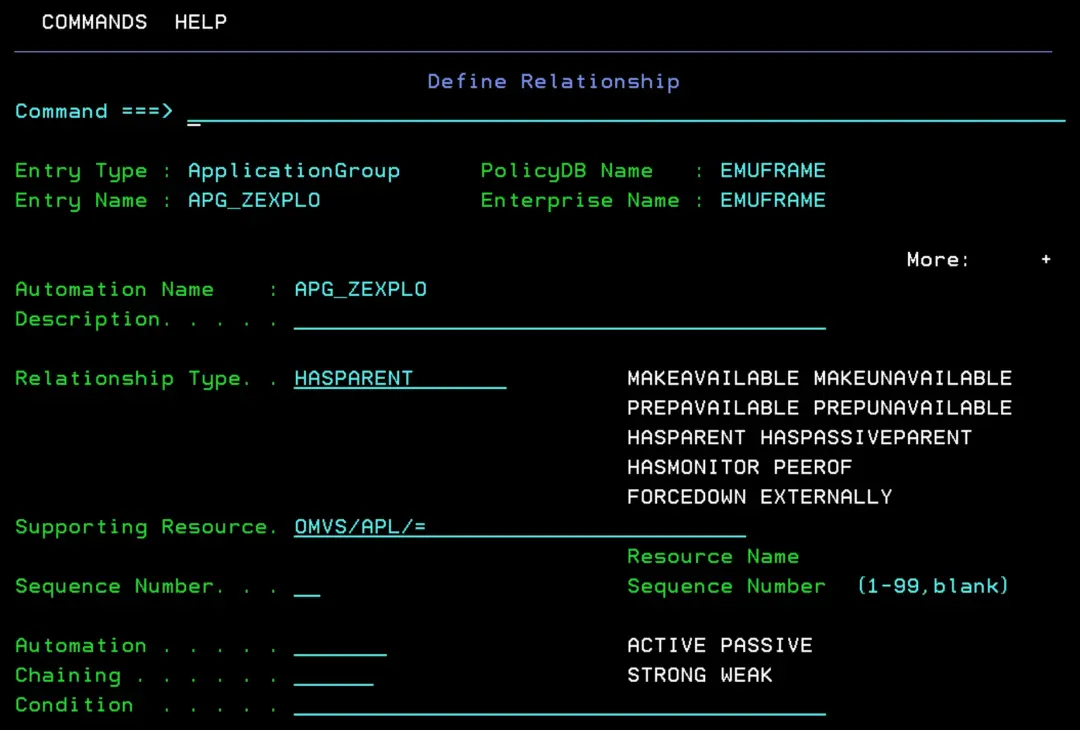
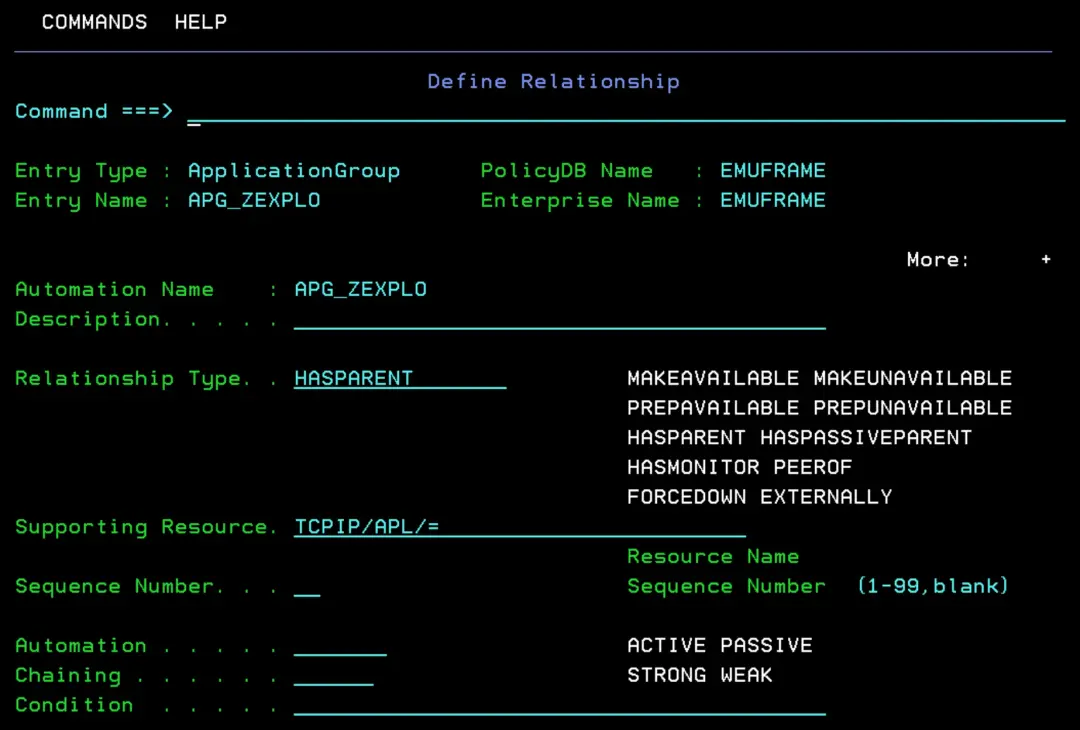
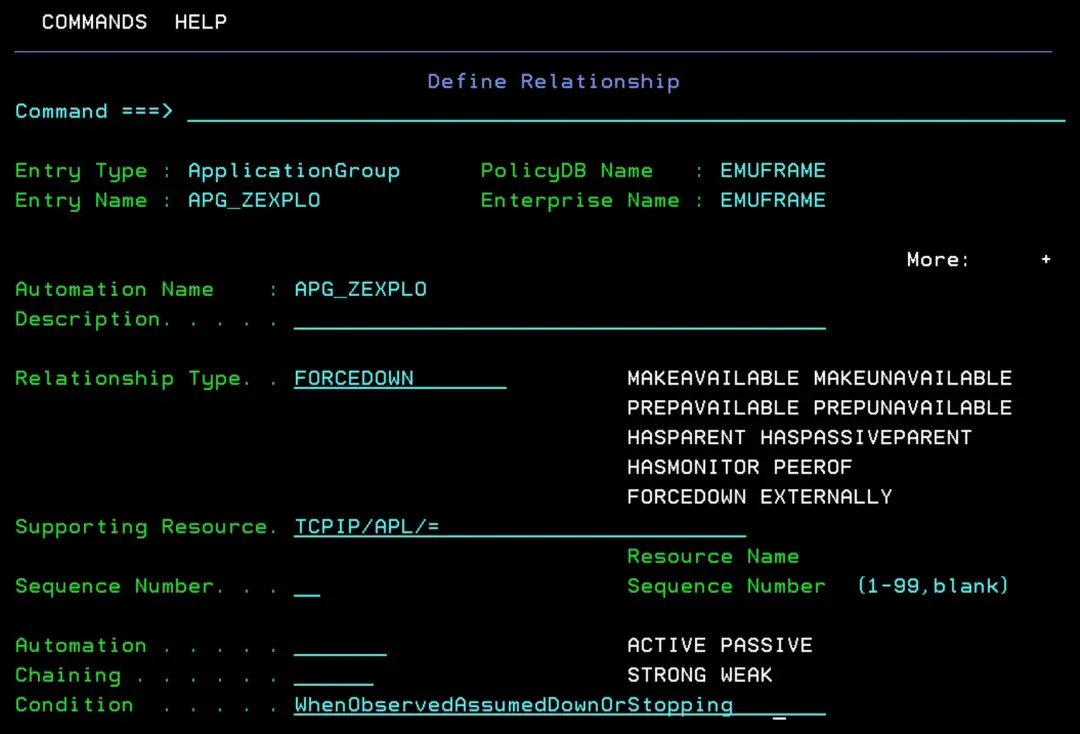
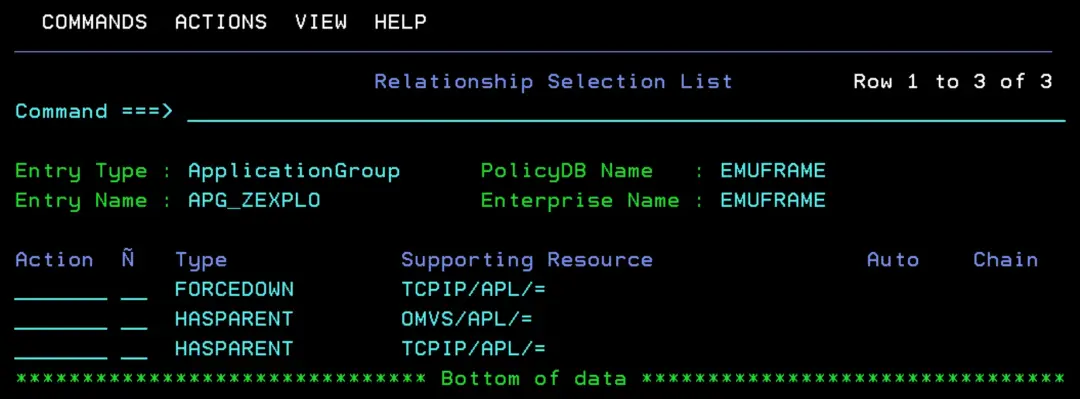
In WHERE USED, select the system or systems you want.
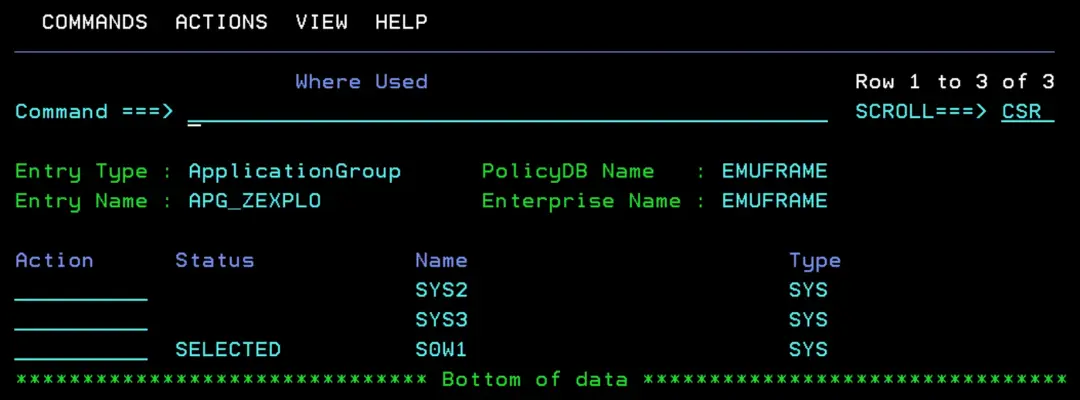
JMON task
To create this task, we follow the example of the PORTMAP task.
In option 6 - Application, create a new application (NEW command).
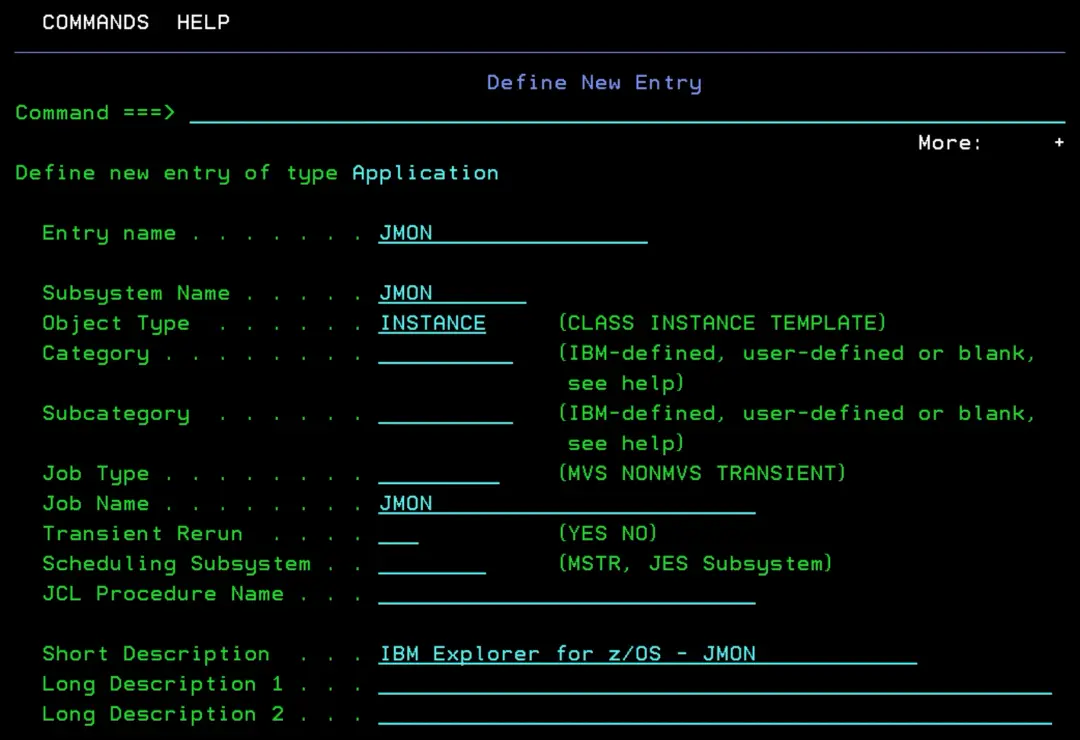
In UPWARD CLASS, choose C_APPL
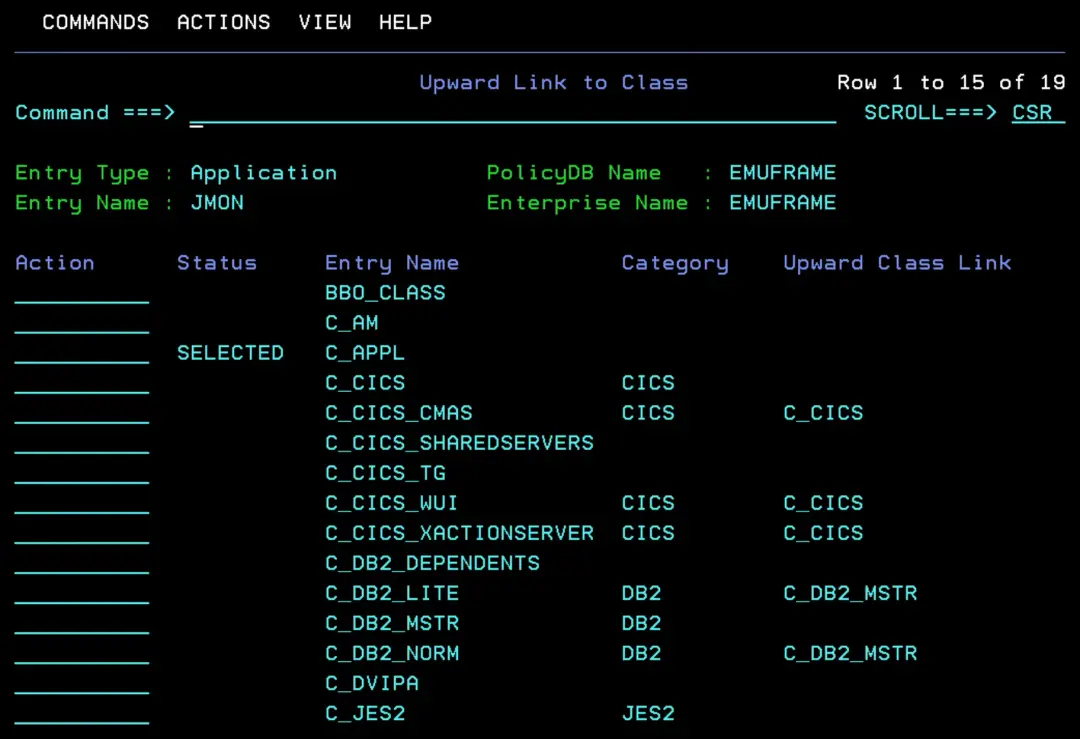
In this case, there is no need to define entries in RELATIONSHIPS because we already did it at group level.
In MESSAGES/USER DATA, we use the following message so that System Automation knows that the application is in UP status.
FEJ211I Server ready to accept connections on port 6715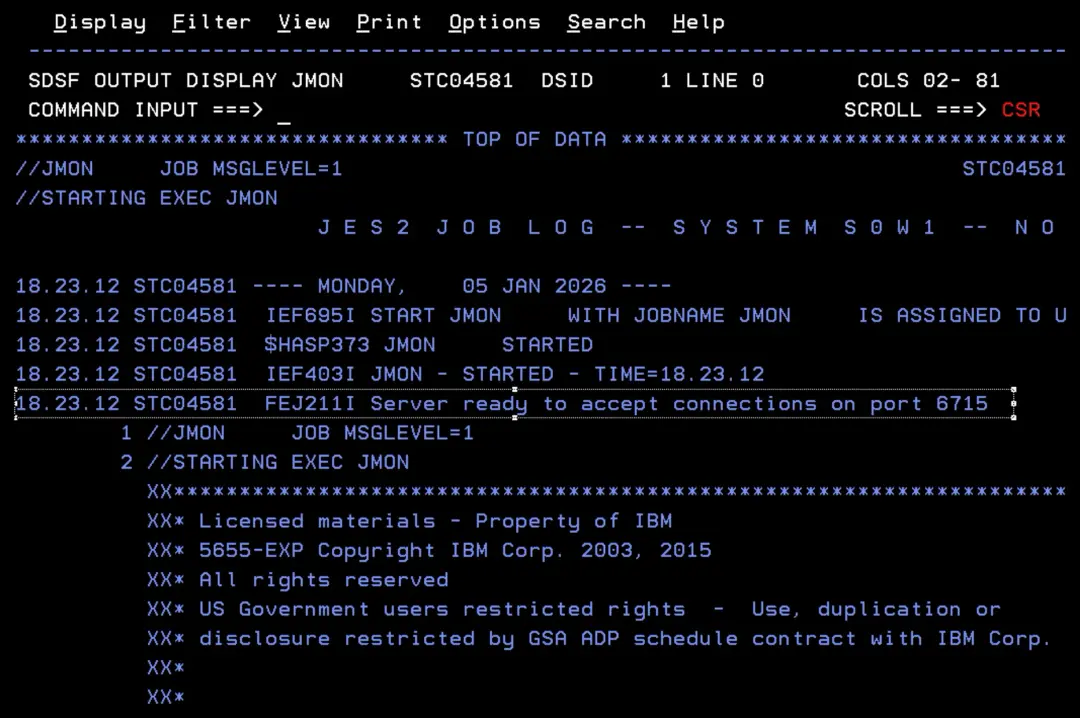
For more detail, see the explanation of the process in the PORTMAP task (above)
Here we fill in the fields:
Message ID: FEJ211I
Description: Server ready to accept connections
We use the command (cmd) A.
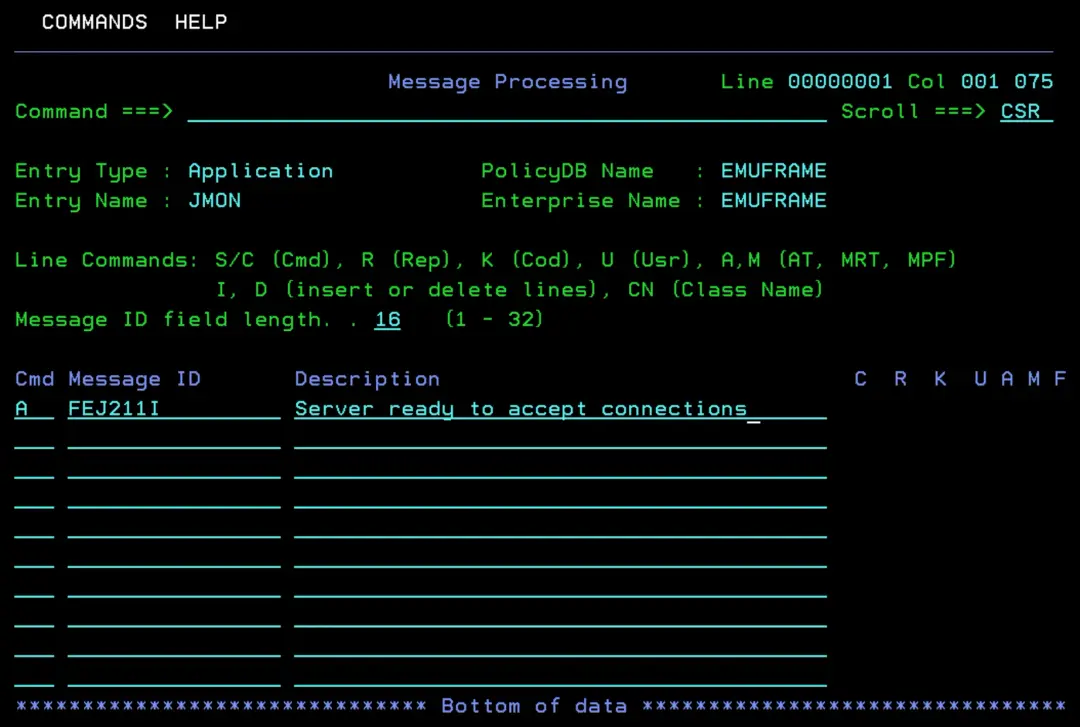
We go into the option “AS - AT status”
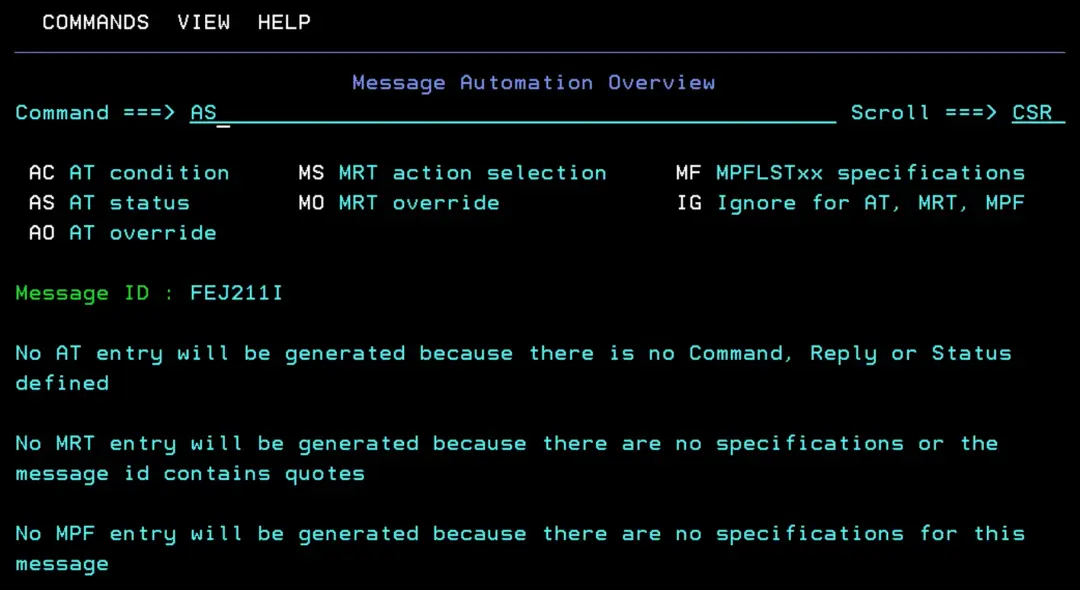
We select the option “UP”.
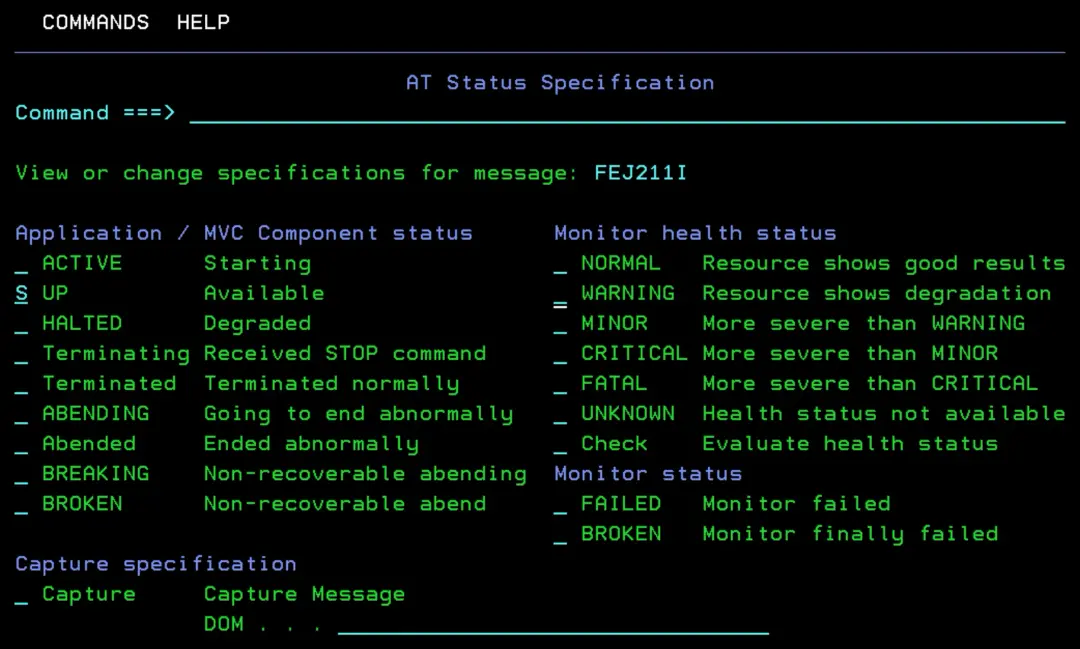
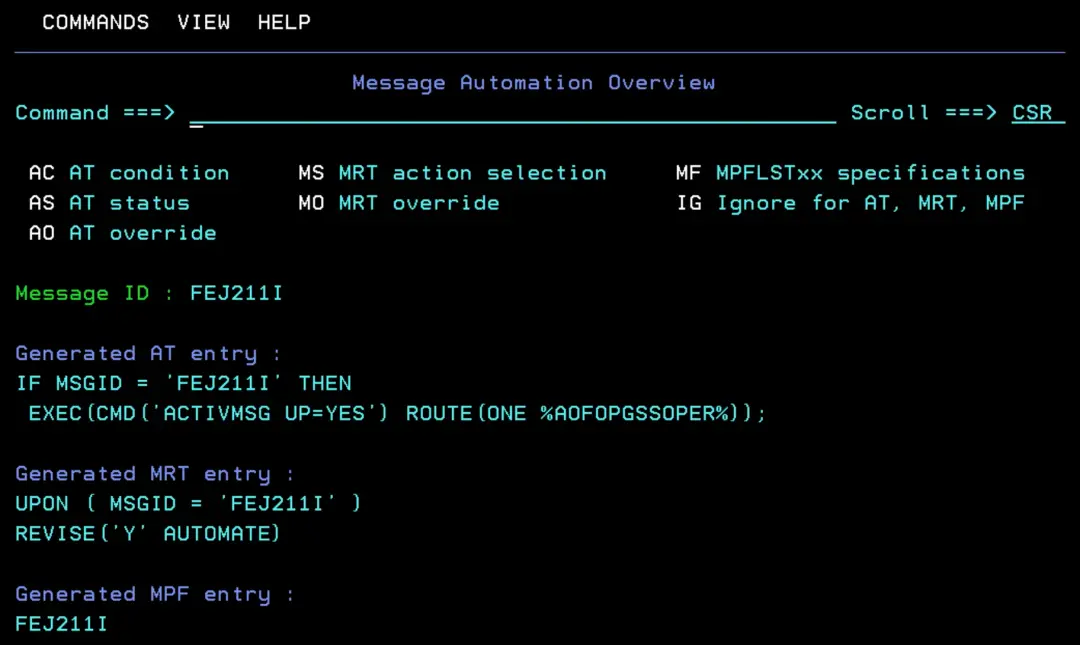
The following definition appears automatically. It means that if the message FEJ211I is received, it is set as UP=YES.
We exit with F3.
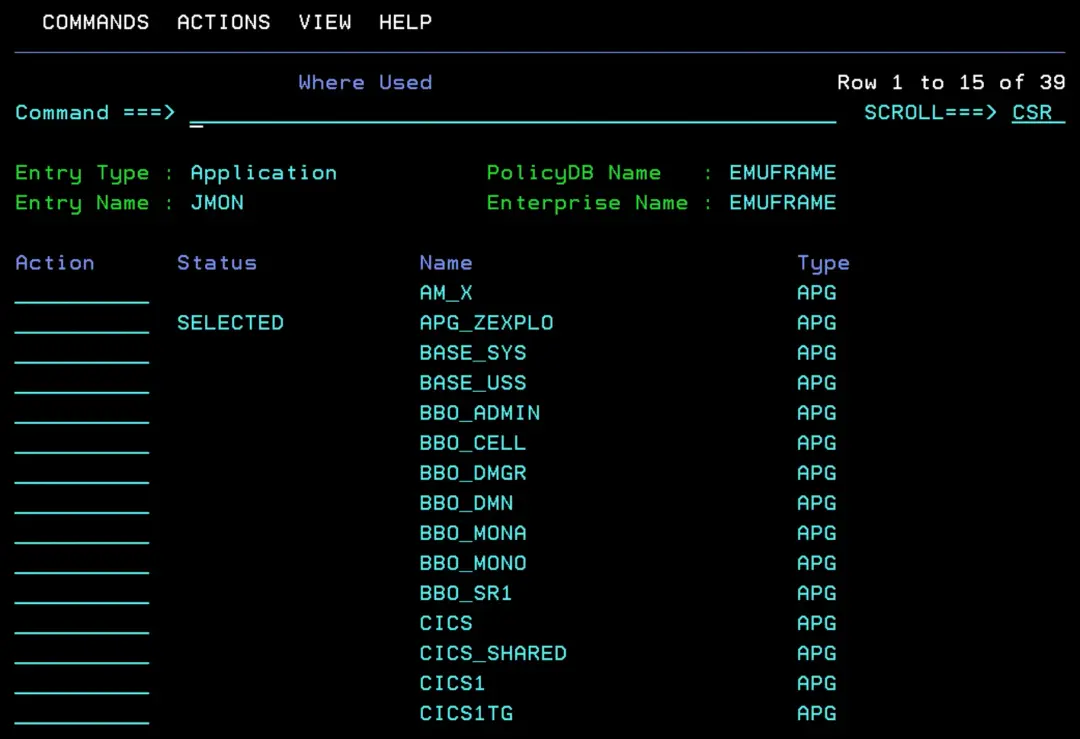
In WHERE USED, we choose the group we created before: APG_ZEXPLO
RSED task
To create this task, we follow the example of the PORTMAP task.
In option 6 - Application, create a new application (NEW command).
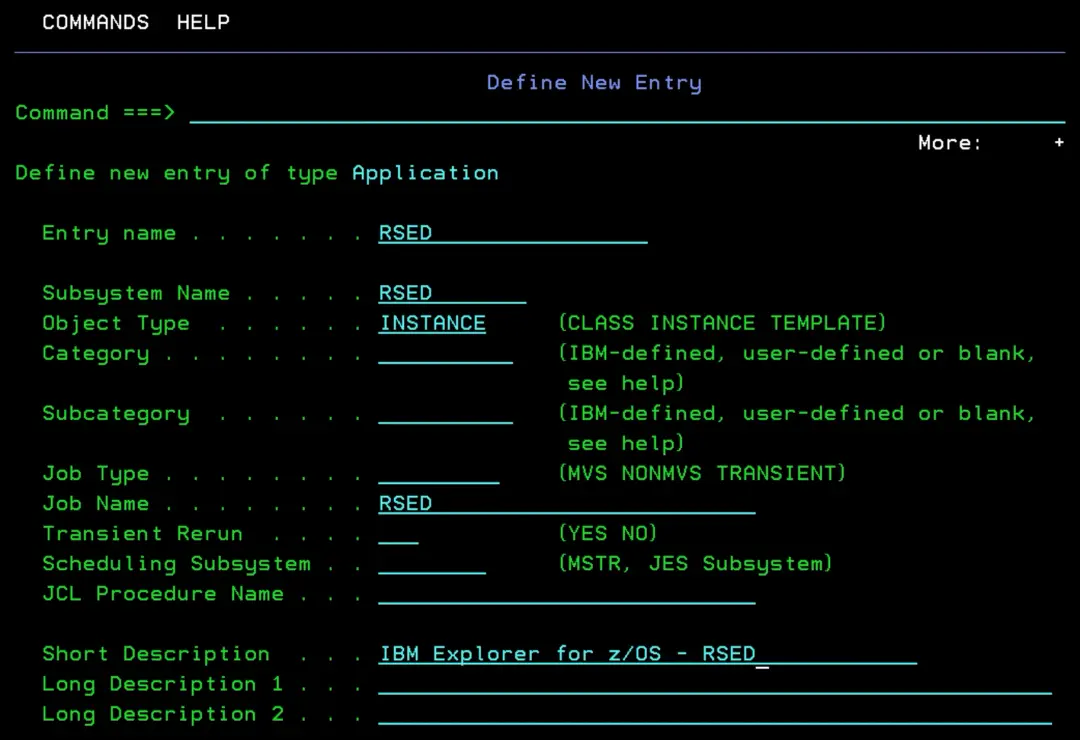
In UPWARD CLASS, choose C_APPL
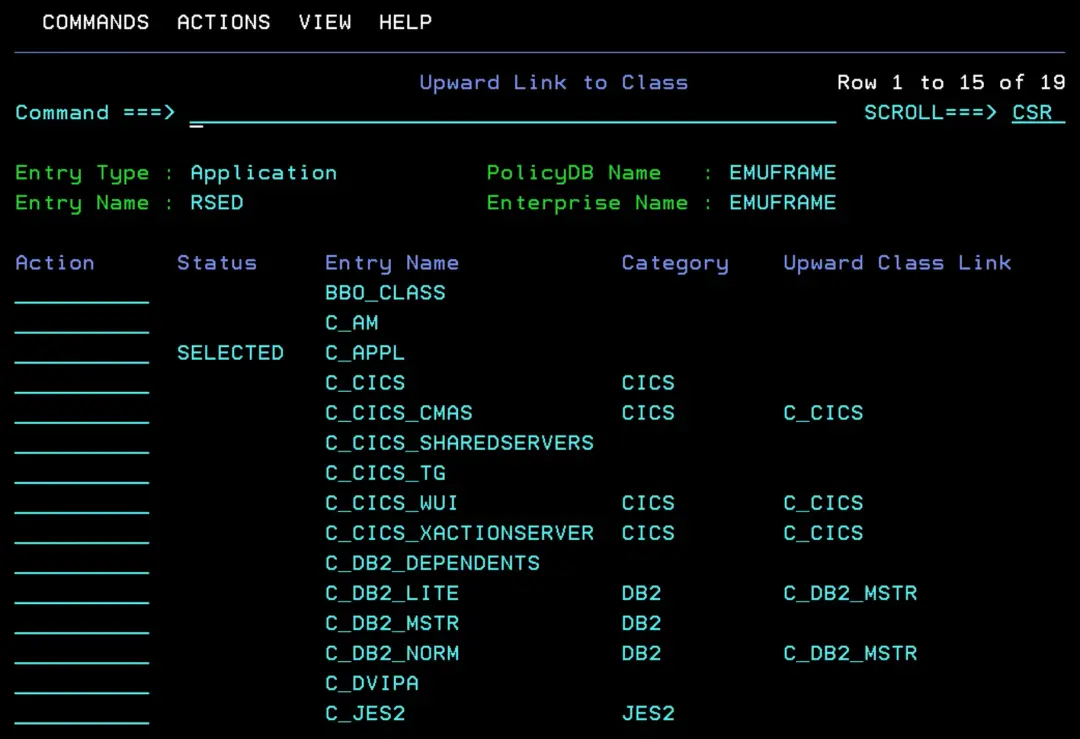
In this case, there is no need to define entries in RELATIONSHIPS because we already did it at group level.
In MESSAGES/USER DATA, we use the following message so that System Automation knows that the application is in UP status.
FEK002I RseDaemon started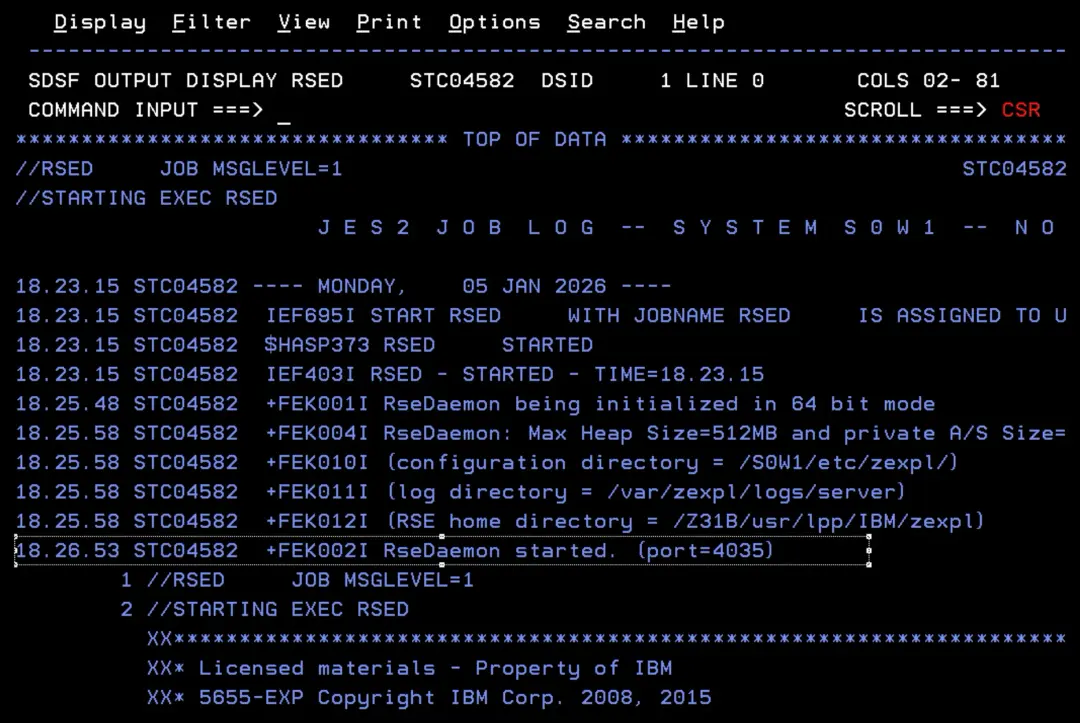
For more detail, see the explanation of the process in the PORTMAP task (above)
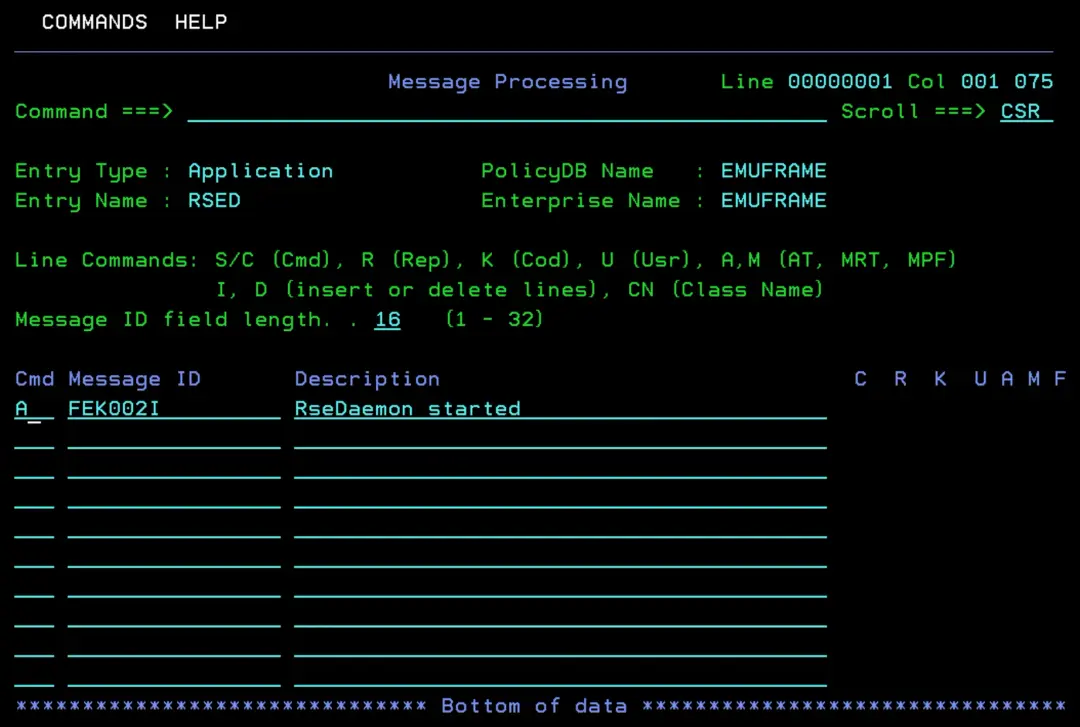
Here we fill in the fields:
Message ID: FEK002I
Description: RseDaemon started
We use the command (cmd) A.
We go into the option “AS - AT status”
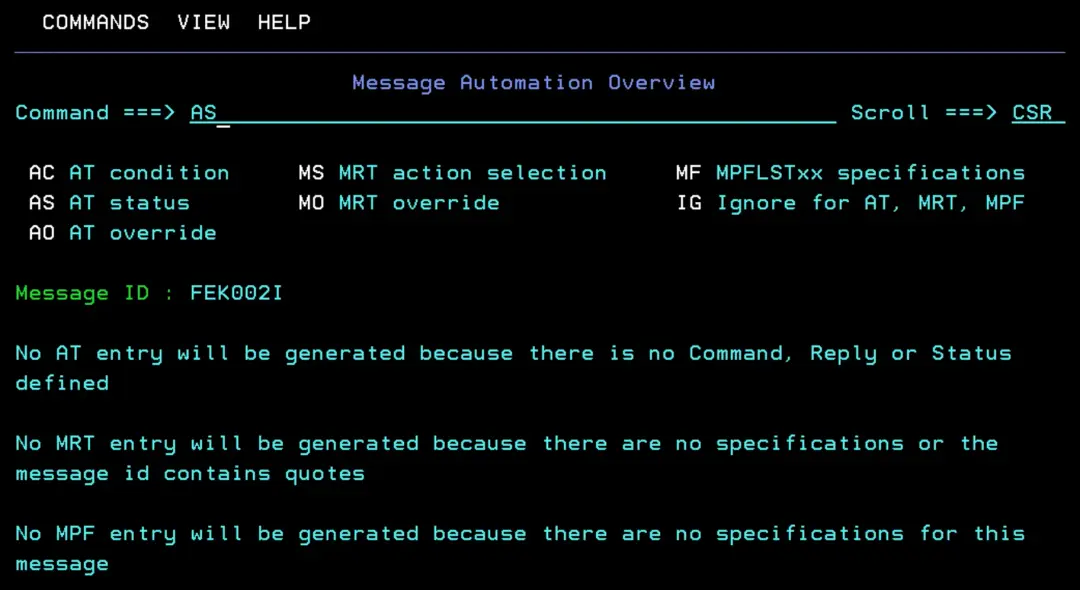
We select the option “UP”.
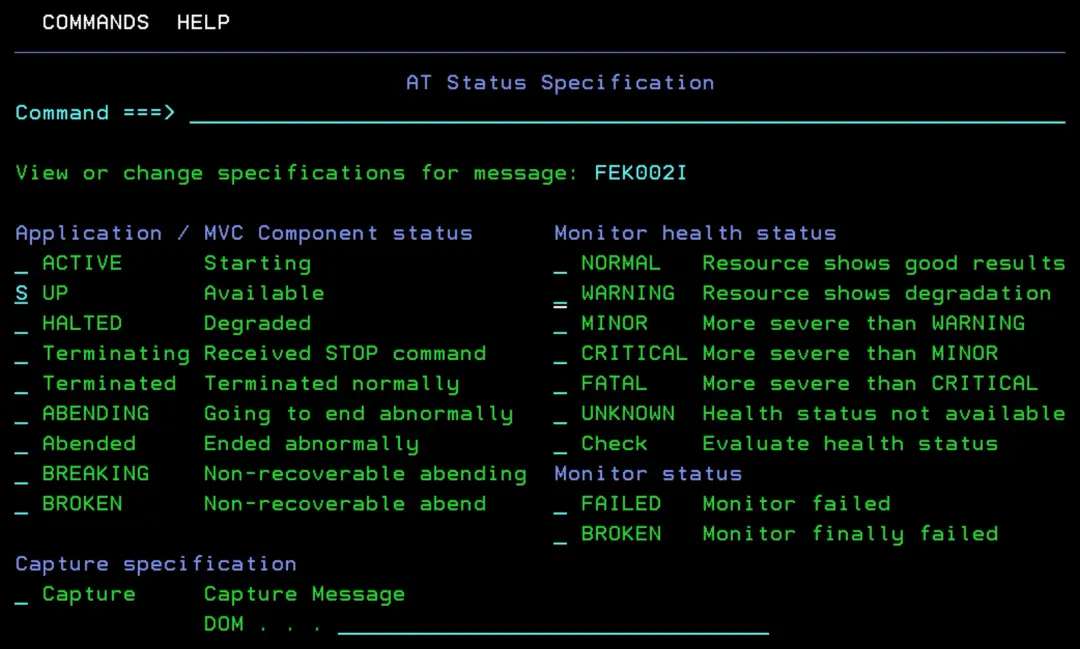
The following definition appears automatically. It means that if the message FEK002I is received, it is set as UP=YES.
We exit with F3.
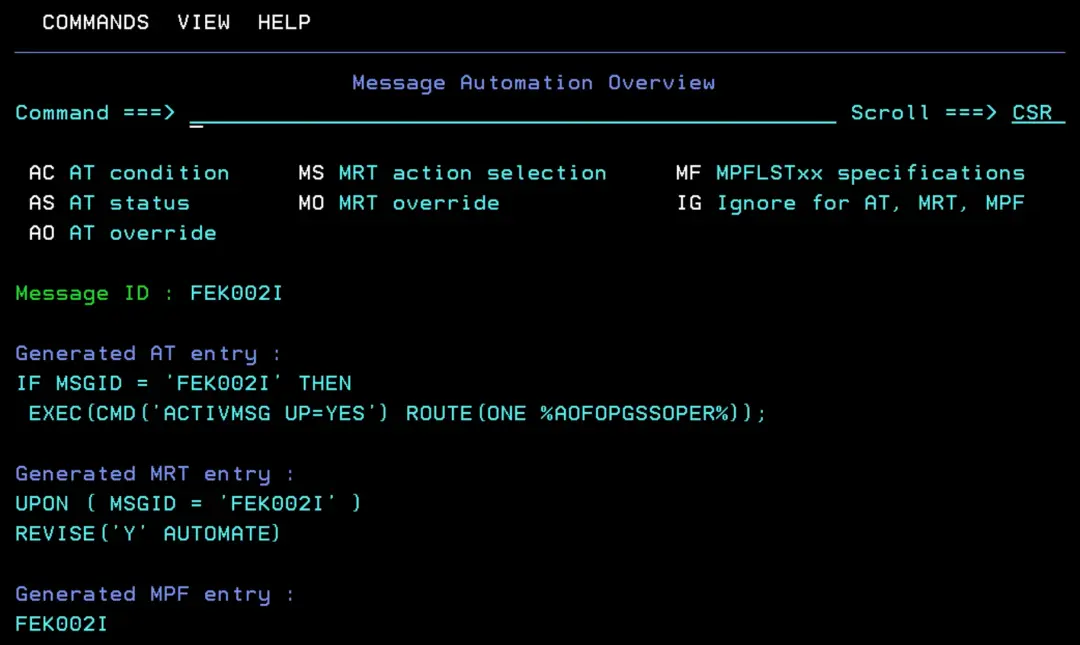
In WHERE USED, we choose the group we created before: APG_ZEXPLO
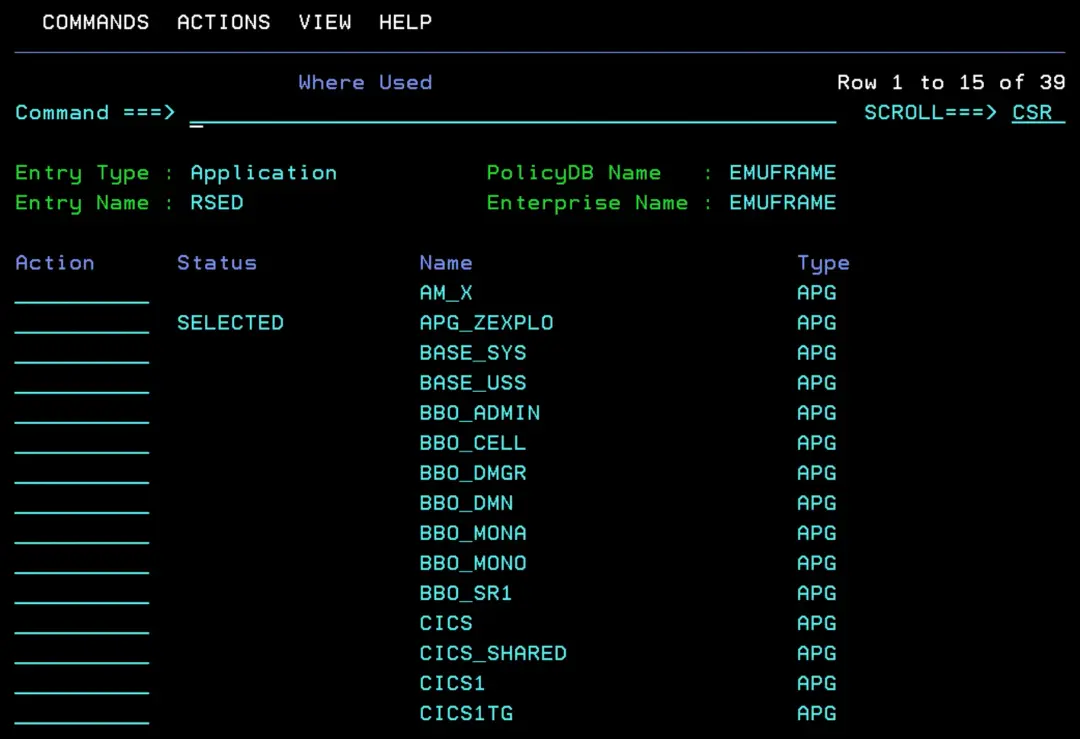
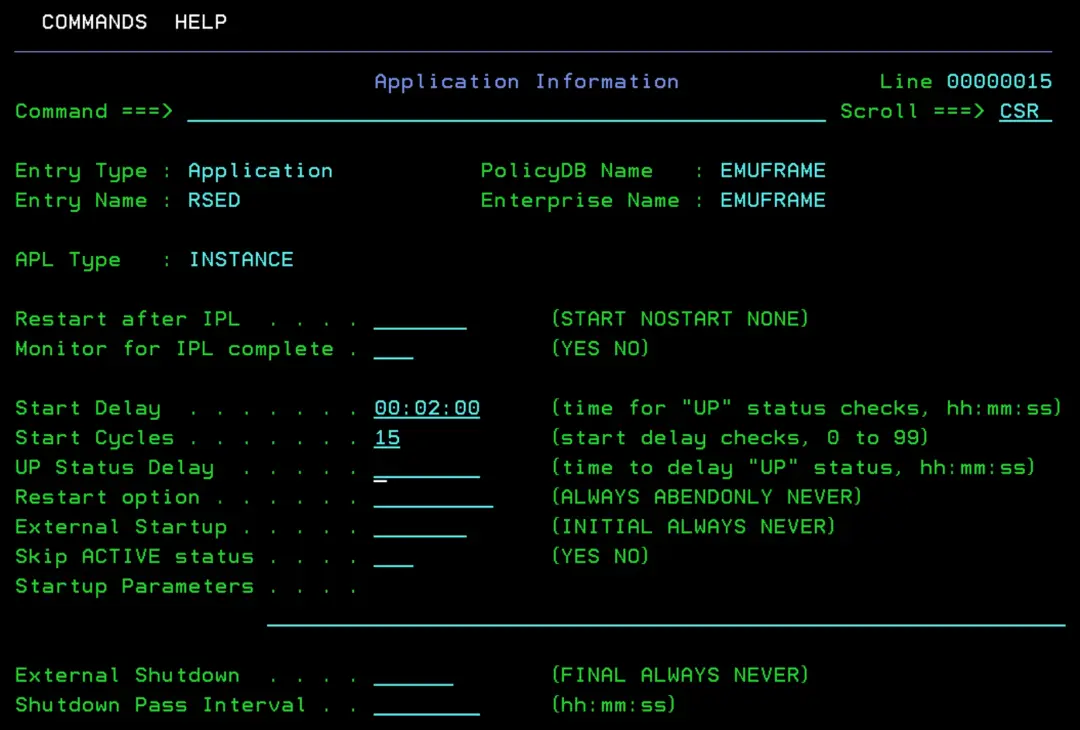
As RSED is a task that runs JAVA, optionally, on emulated systems (such as ZD&T), we can include the following changes in the task.
In APPLICATION INFO, we can add “Start Delay” and “Start Cycles” to give the task time to start.
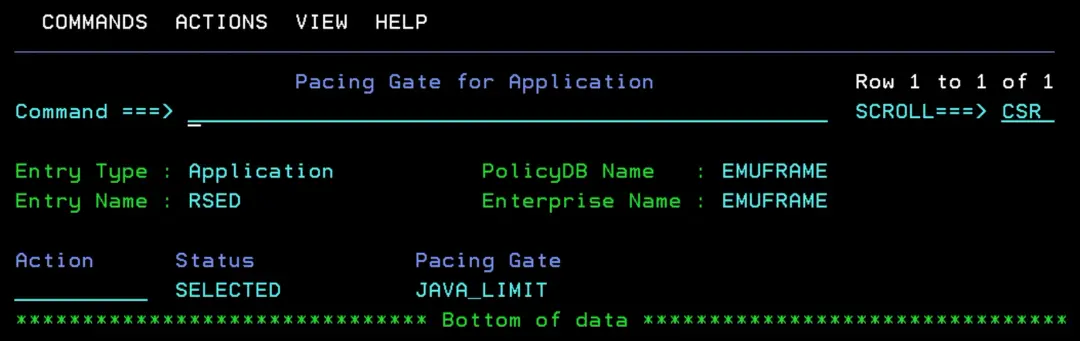
Also, in PACING GATE, we can use the JAVA_LIMIT resource explained in this article (section: PACING GATE - Limit the started tasks that start/stop at the same time).
That way only one started task that uses JAVA starts/stops at a time.
We have covered quite a few entries that can serve as an example to define many new ones. Tasks such as IMS or TWS/OPC/ZWS (IBM Z Workload Scheduler) are not covered in this article.
The next step would be to review all the “Applications Groups” to assign them to the system we want. Then we would build the configuration and finally refresh the Automation Manager in NetView to activate the changes. I explain these two steps in System Automation 4.3 - INGLKUP: exclude tasks.