Create, Initialize, and Share Disks
In any system, we need user disks to store our data.
We will see how to:
- Create disks in ZD&T (3390 model 1, 2, 3, 9, 27, 54, and EAV),
- Initialize them in z/OS (SMS and NO-SMS)
- Share them with another system (ZD&T and z/OS).
As a reference, we will use the zPDT Redbook.
To create emulated disks, we will use the alcckd command.
alcckd file_name -ddevice_typePredefined models can be created using the device_type option. The models can be:
- 3390-1 (cyl: 1,113)
- 3390-2 (cyl: 2,226)
- 3390-3 (cyl: 3,339)
- 3390-9 (cyl: 10,017)
- 3390-27 (cyl: 32,760)
- 3390-54 (cyl: 65,520)
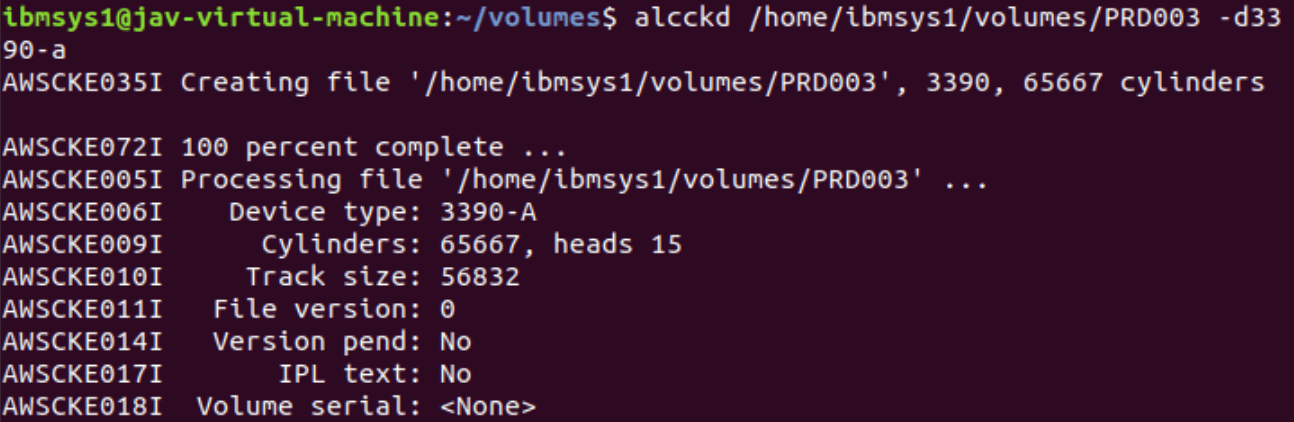
- 3390-A (EAV – Extended Address Volumes – cyl: 65,667)
Create Disks in IBM ZD&T
For example: Mod 3390-3 (cyl: 3,339)
alcckd /home/ibmsys1/volumes/PRD000 -d3390-3Mod 3390-9 (cyl: 10,017)
alcckd /home/ibmsys1/volumes/PRD000 -d3390-9Mod 3390-A EAV (cyl: 65,667)
alcckd /home/ibmsys1/volumes/PRD000 -d3390-A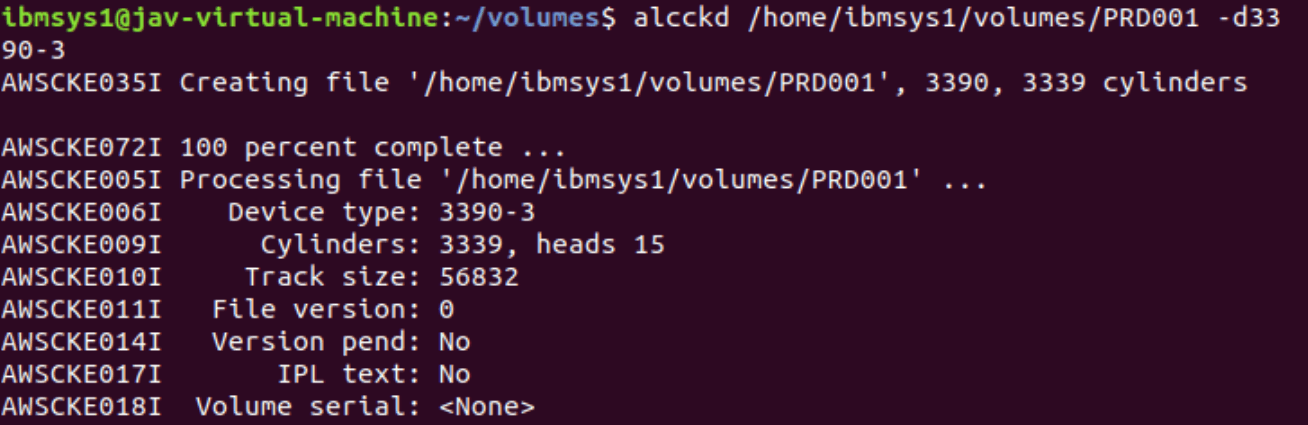
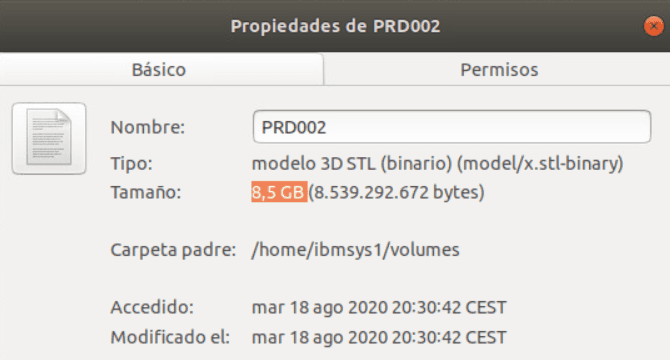
Size of model 3390-3.
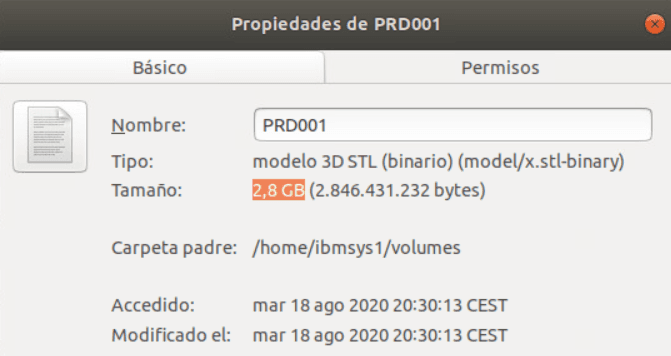
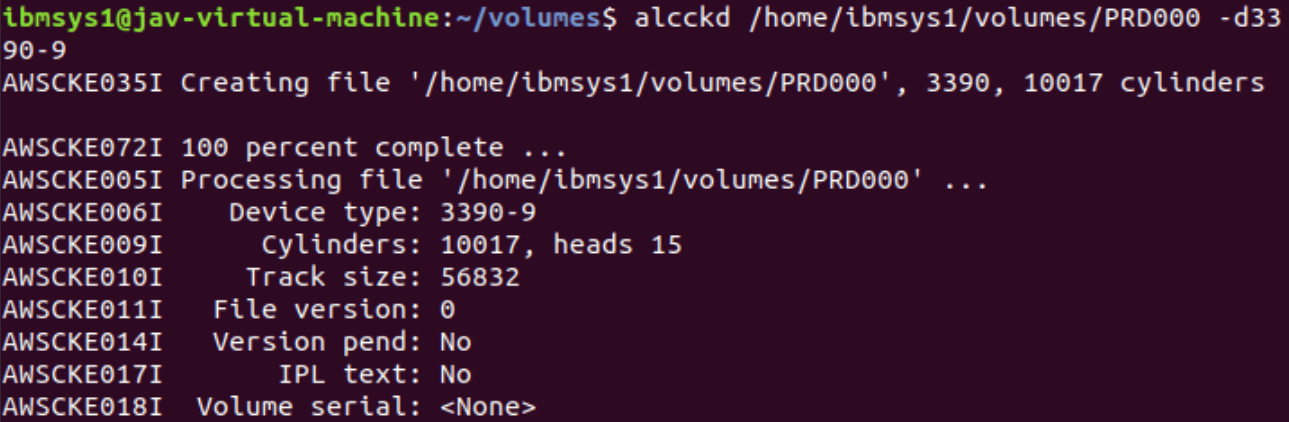
Size of model 3390-9.
We can also create other models that are not “predefined”, such as model 3390-27, 3390-54, and EAV (more than 65,520 cylinders). We will use the command:
alcckd file_name -d3390 -snumber_of_cylindersFor example: Mod 3390-27 (cyl: 32,760)
alcckd /home/ibmsys1/volumes/PRD000 -d3390 -s32760Mod 3390-54 (cyl: 65,520)
alcckd /home/ibmsys1/volumes/PRD000 -d3390 -s65520Mod 3390-A EAV (more than cyl: 65,667. It must always be a multiple of 1,113 cyl, for example, 72,345 cyl)
alcckd /home/ibmsys1/volumes/PRD000 -d3390 -s72345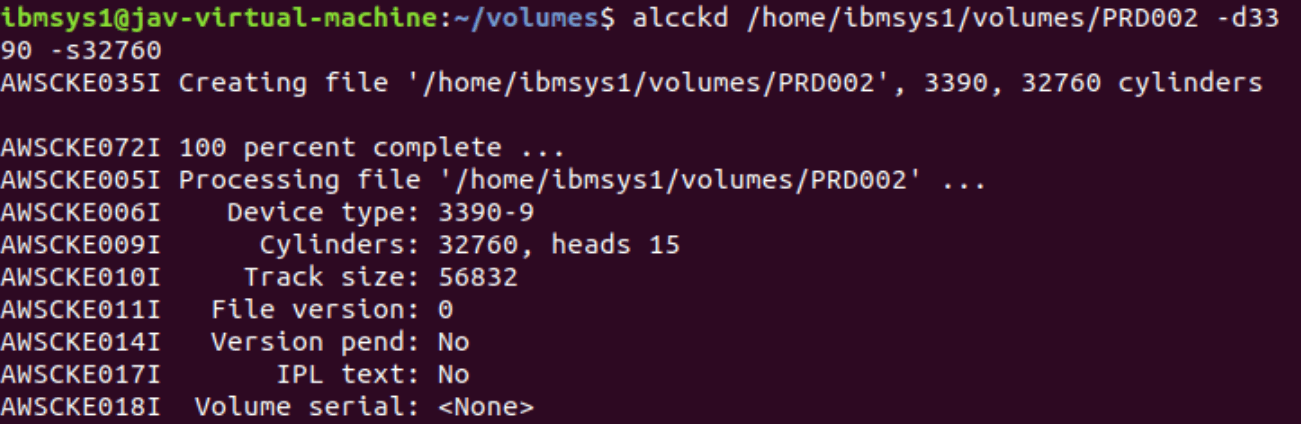
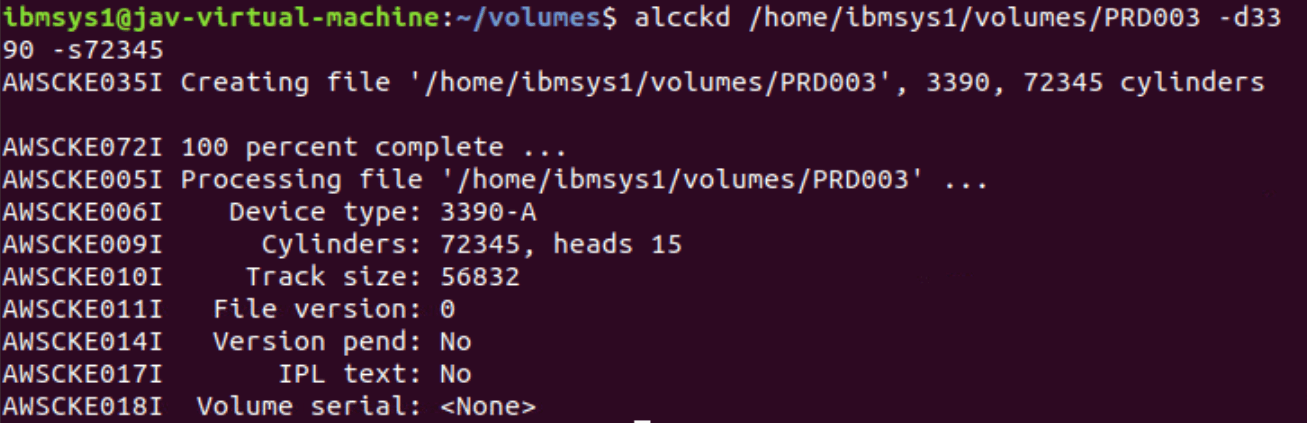
Size of EAV – 72,345 cyl.
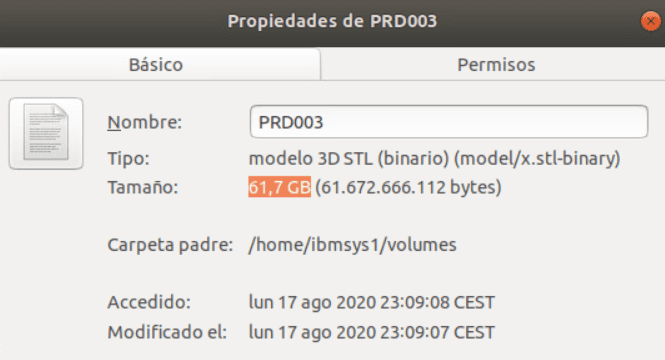
To access these disks from z/OS, we must add them to the configuration file (in the same way as the volumes we already have).
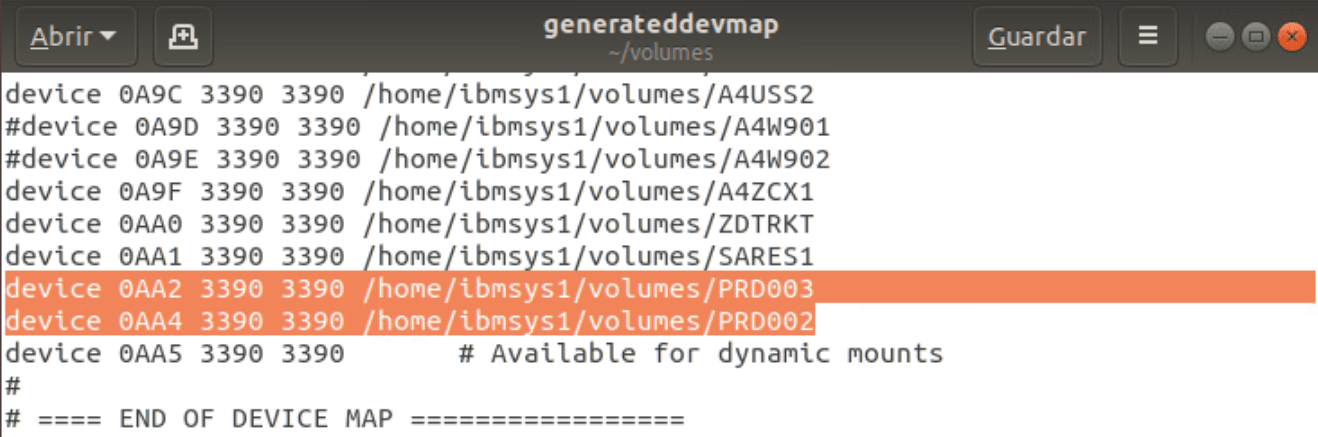
Mount Disks
If we already have a system running, we can add them to the file and then dynamically assign them to the system with the command:
awsmount device -m volumen_pathFor example:
awsmount 0AA5 -m /home/ibmsys1/volumes/PRD001We can check the disk mounted on a device with the command:
awsmount device -qFor example:
awsmount 0AA5 -q
Once we have the disks mounted on the z/OS system, we will initialize them so we can start using them.
Before initializing a disk, we must decide whether this disk will be SMS (if we will include it in a Storage Group) or NO-SMS.
Let’s look at both examples:
Initialize NO-SMS Disk in z/OS
To initialize a NO-SMS disk, we need to:
Put the unit offline. Command:
VARY xxxx,OFFLINEFor example:
V 0AA2,OFFLINE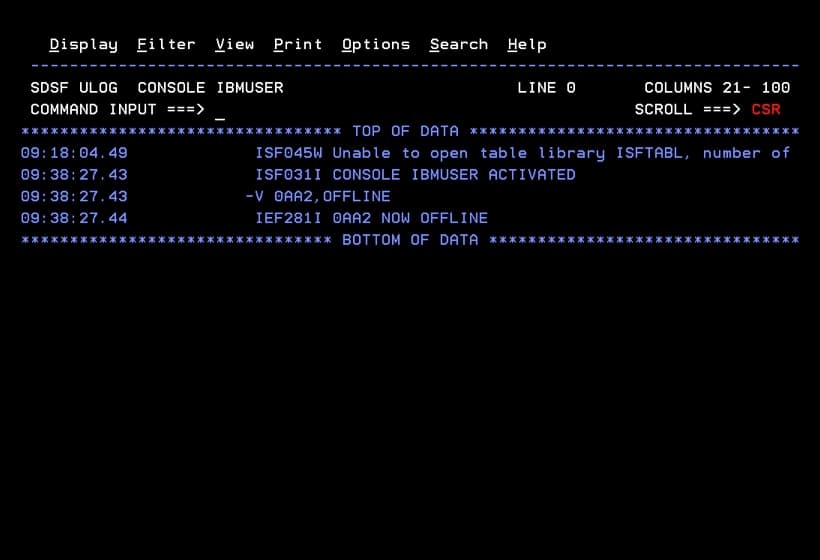
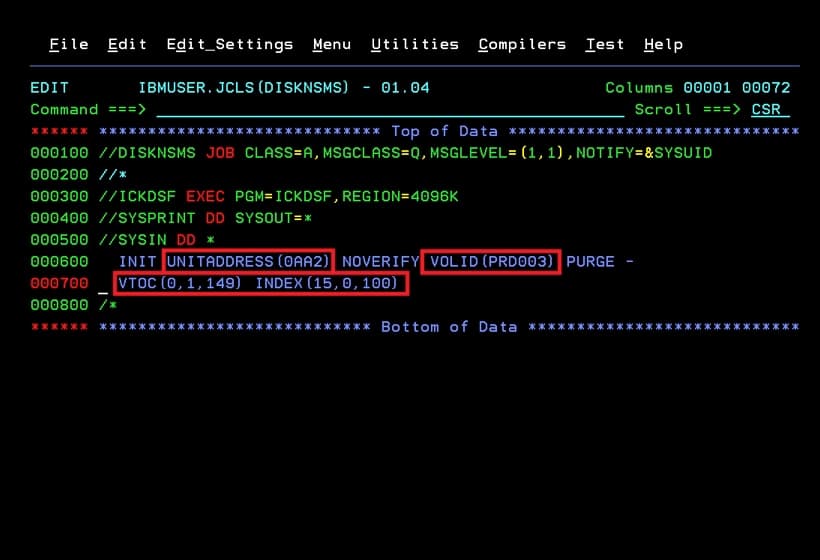
Job to Initialize the NO-SMS Disk
//DISKNSMS JOB CLASS=A,MSGCLASS=Q,MSGLEVEL=(1,1),NOTIFY=&SYSUID
//*
//ICKDSF EXEC PGM=ICKDSF,REGION=4096K
//SYSPRINT DD SYSOUT=*
//SYSIN DD *
  INIT UNITADDRESS(0AA2) NOVERIFY VOLID(PRD003) PURGE -
  VTOC(0,1,149) INDEX(15,0,100)
/*
UNITADDRESS Unit we put offline.
VOLID Name we will give to the volume. It must be unique.
VTOC Volume Table Of Contents. This number can vary because it depends on the number of files we will have on the disk. The three parameters we will use are: cylinder, head, and extent. Cylinder and head are the “position” on the disk, and extent is how much space it will occupy.
INDEX This is the VTOC index. The three parameters we will use are: cylinder, head, and extent. Cylinder and head are the “position” on the disk, and extent is how much space it will occupy. The index can be placed after the VTOC on the disk (if our VTOC is 149 tracks, the next cylinder would be 10 (150 tracks divided by 15)).
If we want to extend this VTOC because it has filled up, I think it’s easier to move any other file to another disk than to move the index, so I don’t place them consecutively.
Another option is to place the index first and then the VTOC.
We respond U to the reply.
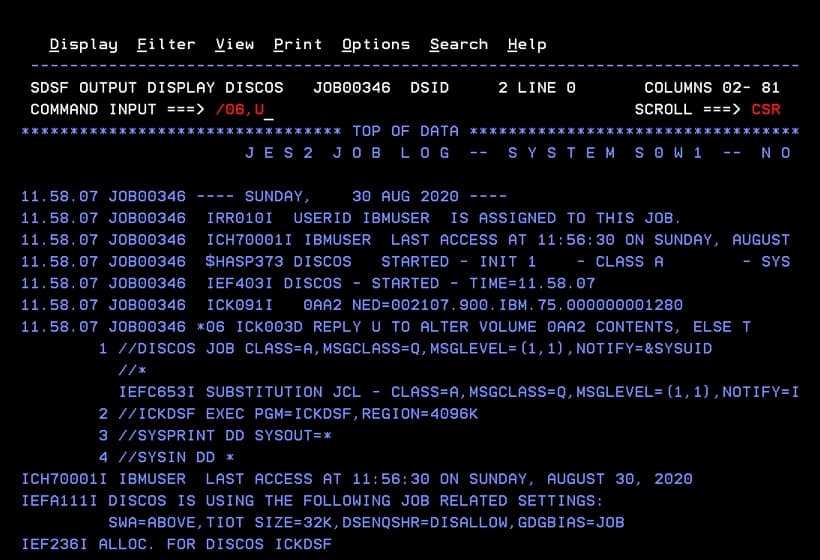
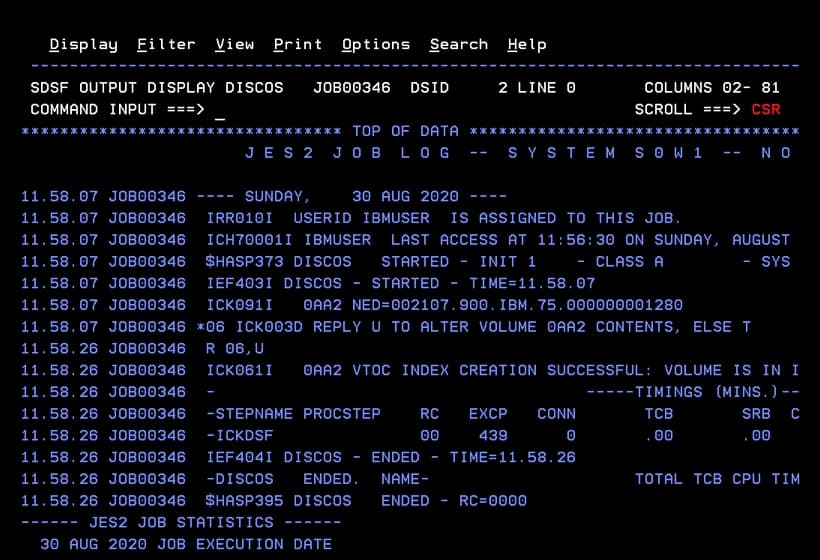
It will complete successfully.
Put the unit online. Command:
VARY xxxx,ONLINEFor example:
V 0AA2,ONLINE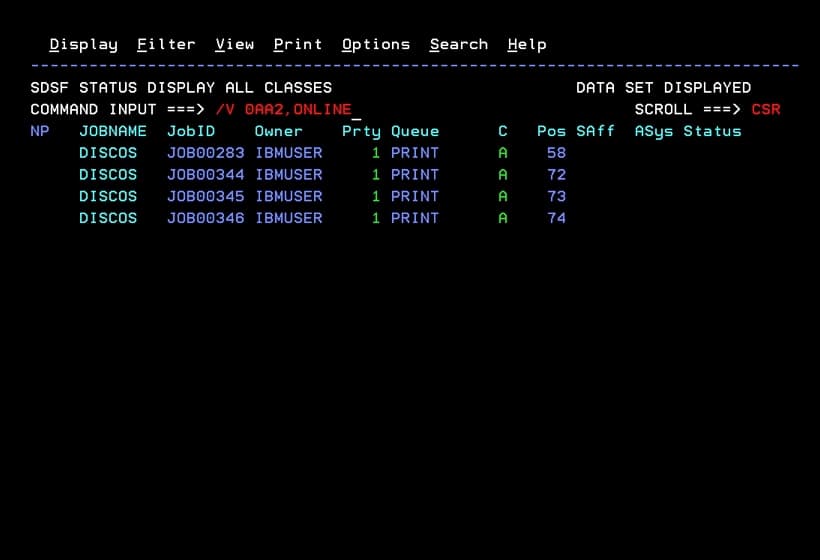
Now we can check the unit.
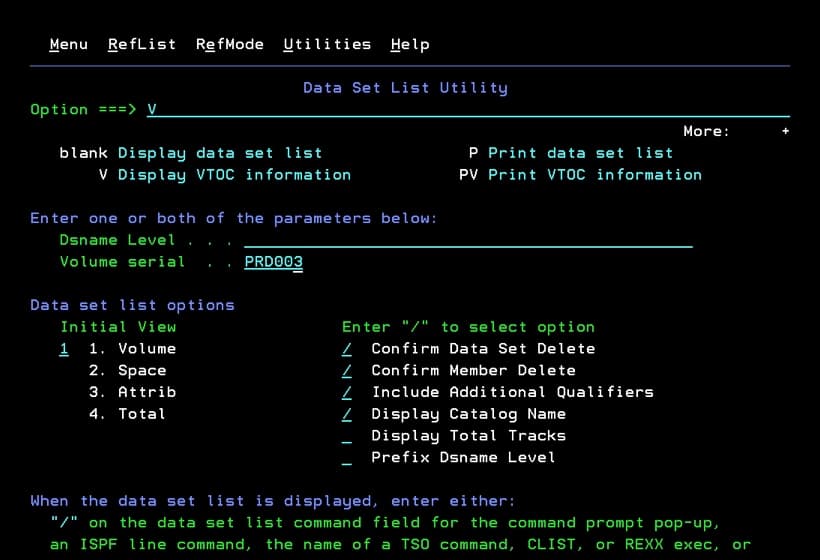
When we have an EAV disk, we will see the VTOC information as follows.
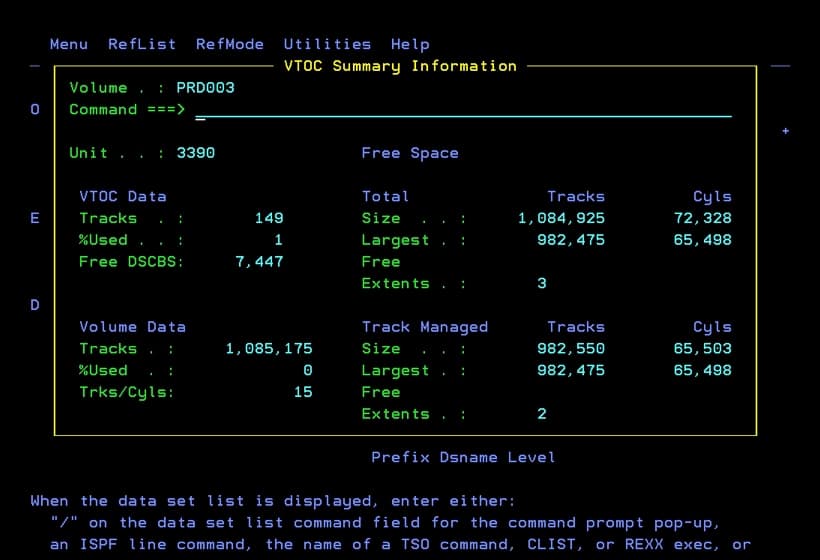
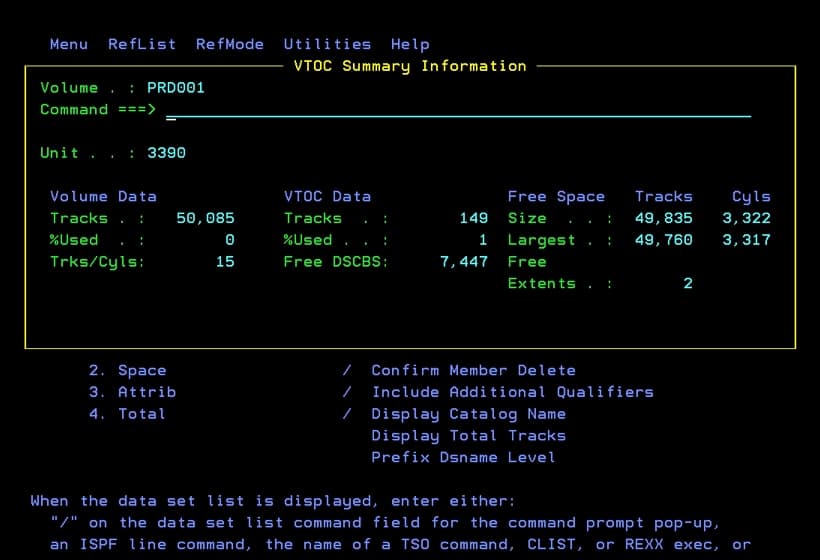
If we have a disk up to model 54, we will see it like this.
Mount Disk - VATLSTxx
This step is optional
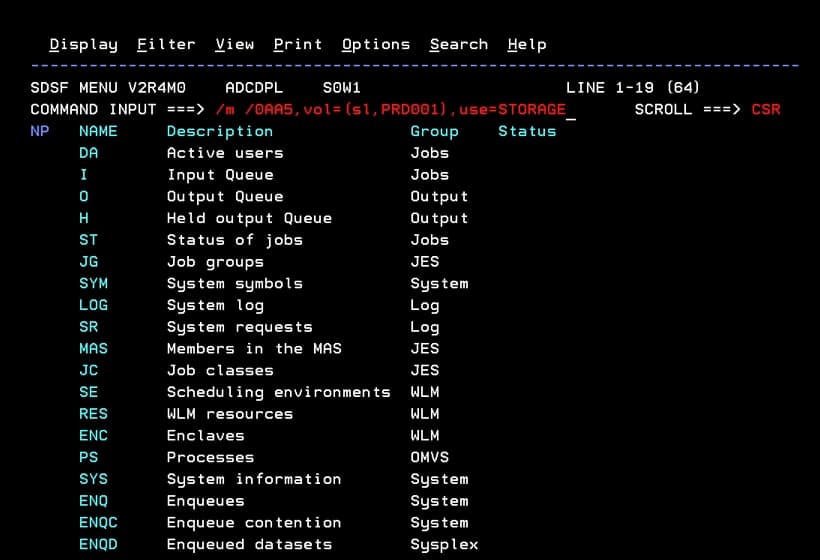
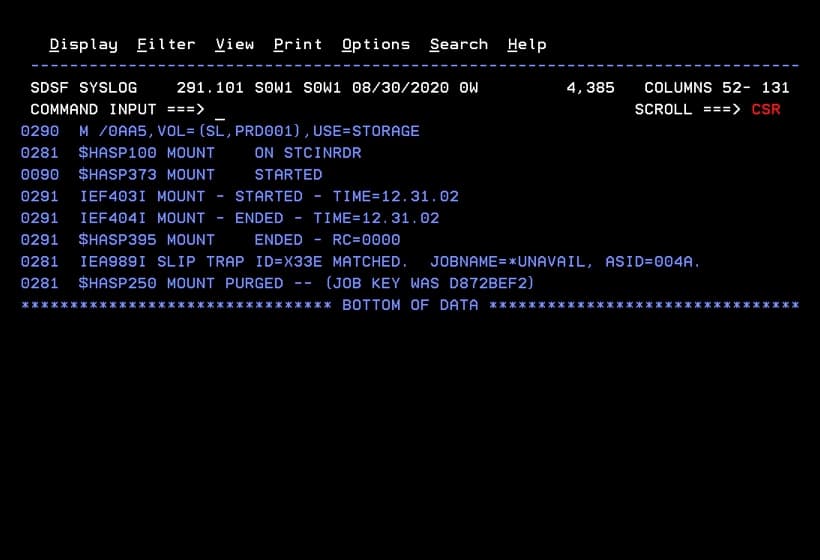
Now we will mount a unit. In my case, I use the command:
m /0AA5,vol=(sl,PRD001),use=STORAGENOTE If the command is given from SDSF, it will be:
/m /0AA5,vol=(sl,PRD001),use=STORAGEThe use attribute can be one of the following:
PRIVATE New libraries will only be created on that disk if we specify that volume when creating them (VOL=SER=xxxxxx).
PUBLIC Temporary libraries will be stored if no volume is specified when creating them. Libraries that we specify to be created on that volume will also be stored (as with private).
STORAGE Permanent and temporary libraries for which no volume is specified when creating them will be stored. Also, those we specify to be saved on that volume.
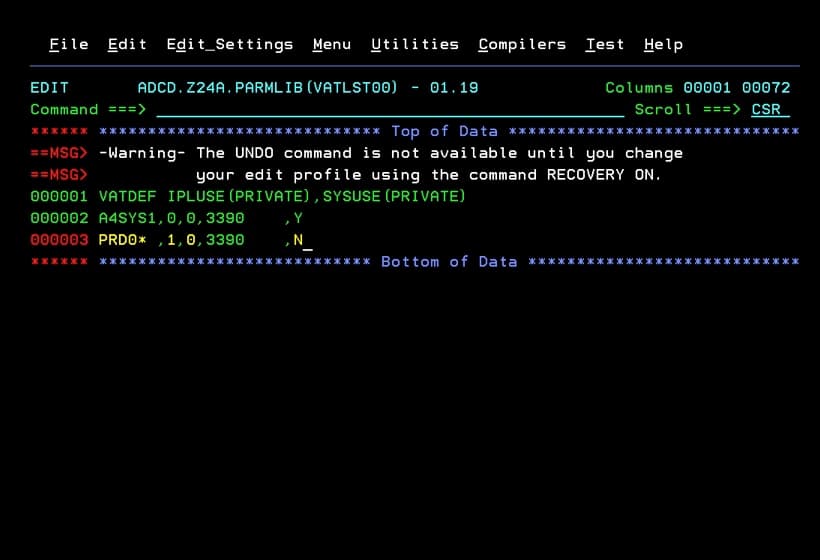
Additionally, we can add the NO-SMS disk to the VATLSTxx member of the PARMLIB so that it mounts automatically after an IPL.
The following link explains this: https://www.ibm.com/docs/en/zos/2.4.0?topic=list-examples-vatlstxx-entries
The parameters for each entry follow this structure:
Column 1 to 6. Volume name. We can use wildcards: * or %.
Column 8. 0 for “resident volumes” and 1 for “reserved volumes”.
Column 10. To define the use attribute. 0 - STORAGE, 1 - PUBLIC, 2 - PRIVATE.
Column 12 to 19. Disk type. It is necessary to specify the correct type, as the system will unmount it during startup if it is incorrect.
Column 21. (Y or N) Indicates whether the volume is required for the system to start. If we put “Y”, a reply will appear requesting that the disk be mounted.
Column 23 to 71. Used for comments.
Initialize SMS Disk in z/OS
To initialize an SMS disk, we need to:
Put the unit offline. Command:
VARY xxxx,OFFLINEFor example:
V 0AA4,OFFLINE
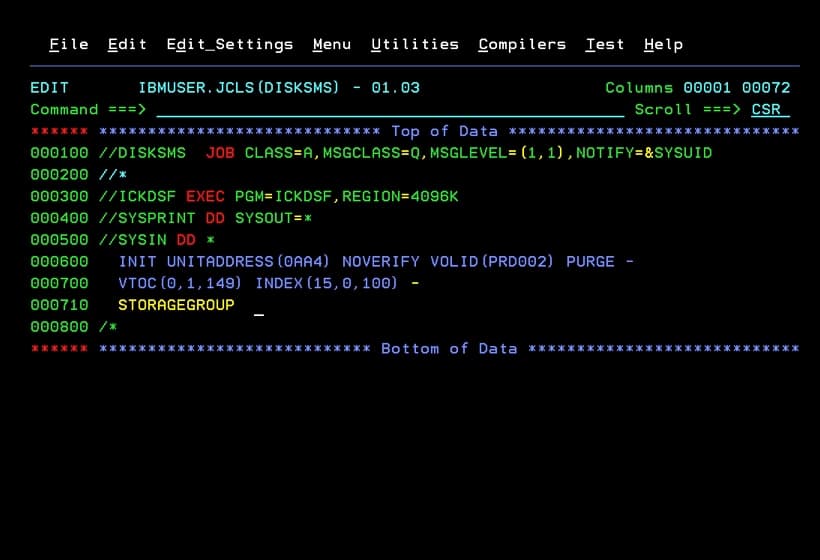
Job to Initialize the SMS Disk
//DISKSMS  JOB CLASS=A,MSGCLASS=Q,MSGLEVEL=(1,1),NOTIFY=&SYSUID
//*
//ICKDSF EXEC PGM=ICKDSF,REGION=4096K
//SYSPRINT DD SYSOUT=*
//SYSIN DD *
  INIT UNITADDRESS(0AA4) NOVERIFY VOLID(PRD002) PURGE -
  VTOC(0,1,149) INDEX(15,0,100) -
  STORAGEGROUP
/*
UNITADDRESS Unit we put offline.
VOLID Name we will give to the volume. It must be unique.
VTOC Volume Table Of Contents. This number can vary because it depends on the number of files we will have on the disk. The three parameters we will use are: cylinder, head, and extent. Cylinder and head are the “position” on the disk, and extent is how much space it will occupy.
INDEX This is the VTOC index. The three parameters we will use are: cylinder, head, and extent. Cylinder and head are the “position” on the disk, and extent is how much space it will occupy. The index can be placed after the VTOC on the disk (if our VTOC is 149 tracks, the next cylinder would be 10 (150 tracks divided by 15)).
If we want to extend this VTOC because it has filled up, I think it’s easier to move any other file to another disk than to move the index, so I don’t place them consecutively.
Another option is to place the index first and then the VTOC.
STORAGEGROUP Required to initialize the disk as SMS and to be able to add it to a Storage Group.
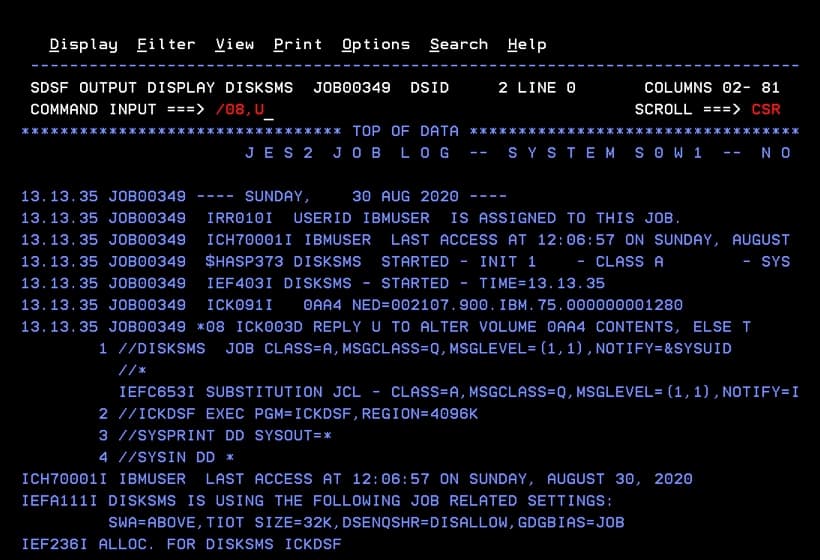
We respond to the reply. The job should complete successfully.
Put the unit online. Command:
VARY xxxx,ONLINEFor example:
V 0AA4,ONLINEAdd Disk to a STORAGE GROUP
Let’s see an example of adding a disk to a storage group.
We enter ISMF.
If it’s the first time we enter, we may not see all the options. We go to option 0 – ISMF Profile.
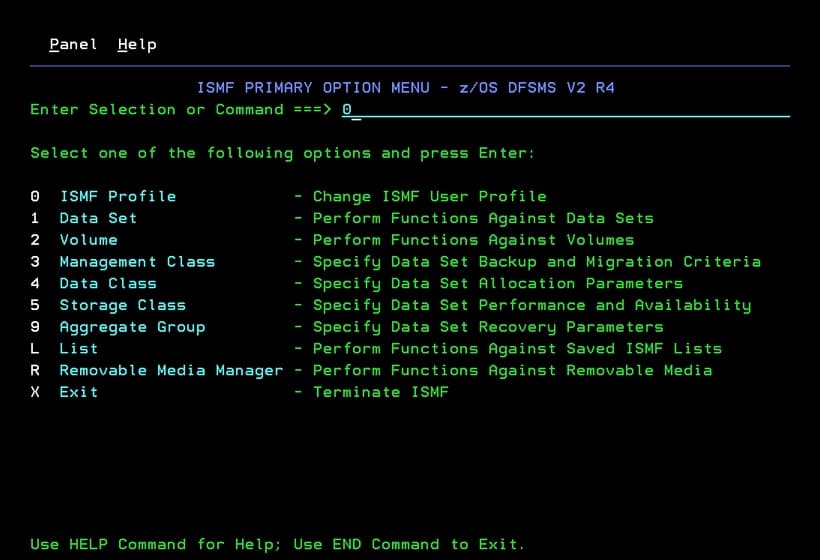
Option 0 – User Mode Selection.
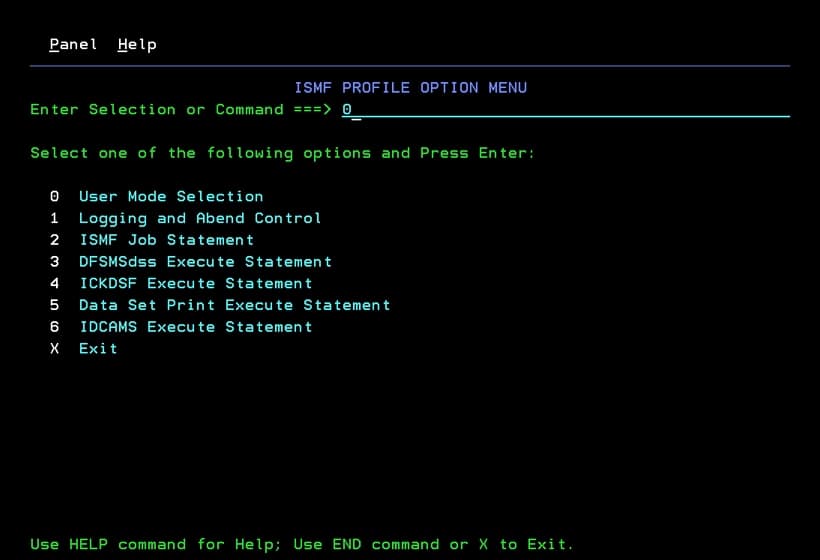
We select option 2 – For a Storage Administrator (SA). Press enter, exit, and enter ISMF again.
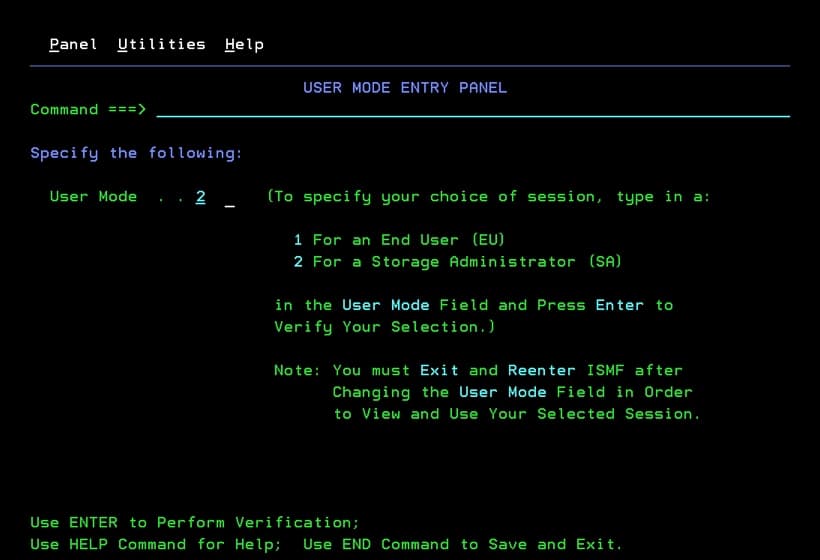
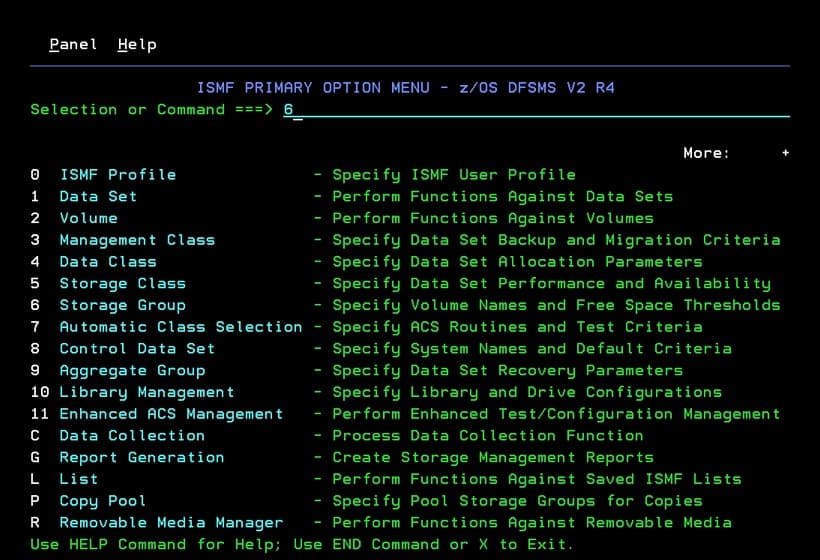
Now we have option 6 – Storage Group available.
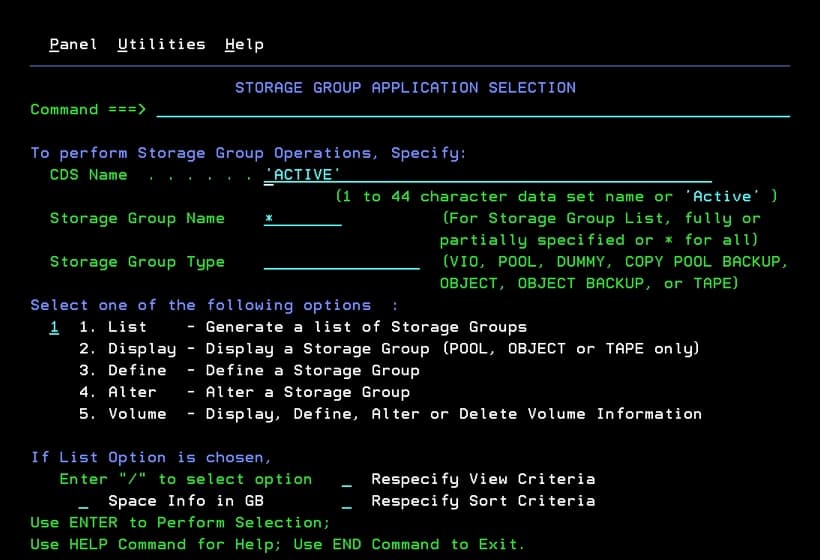
If we want to check the active SMS configuration, we must put ACTIVE in the CDS Name field. We put * in Storage Group Name.
Press enter to see the list of all Storage Groups.
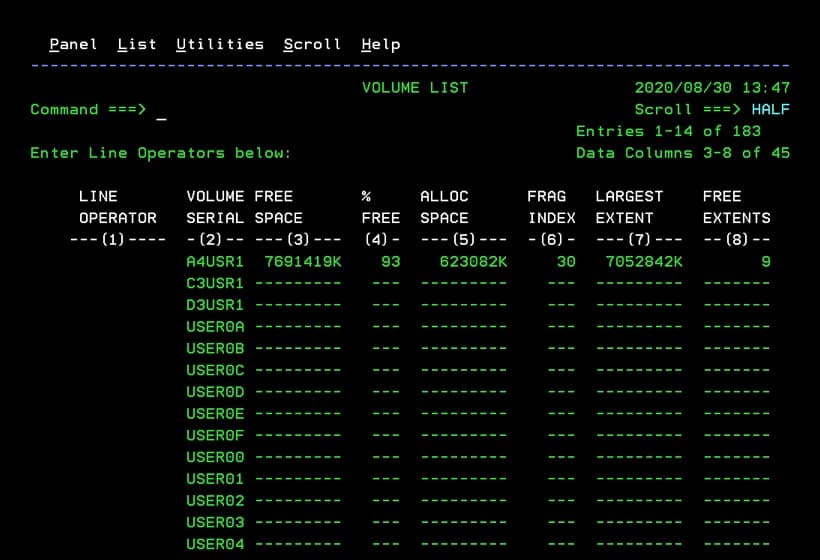
If we want to see the disks contained in a SG, we use the LISTV command.
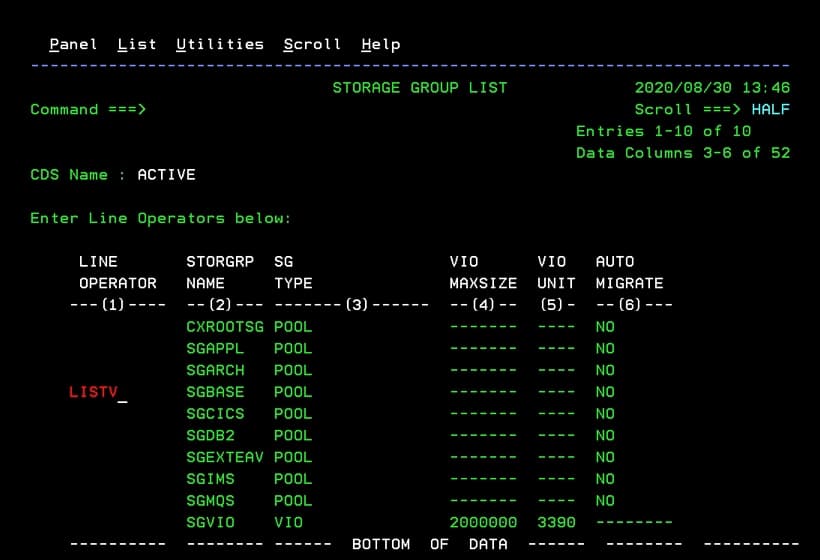
In my case, there are many disks defined, but only the A4USR1 disk is online in the system.
To add a disk to the storage group SGBASE, we must first know the name of the CSD file.
In SDSF, we use the command:
D SMS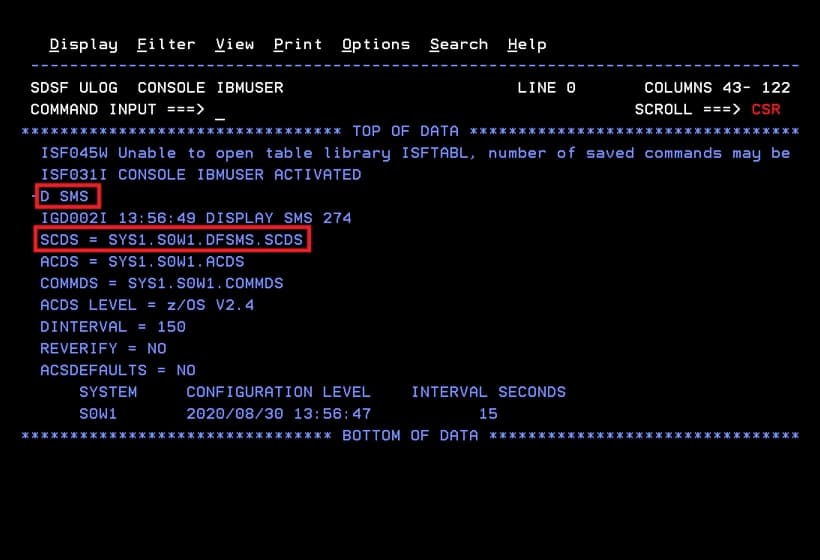
In CDS Name, we put the name we saw with the D SMS command.
In Storage Group Name, we put the storage group where we will add it.
We choose option 5 – Volume.
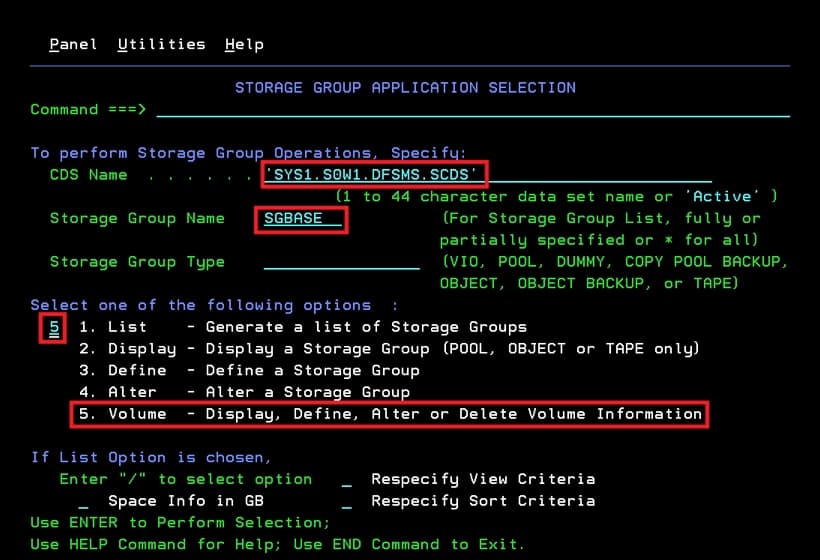
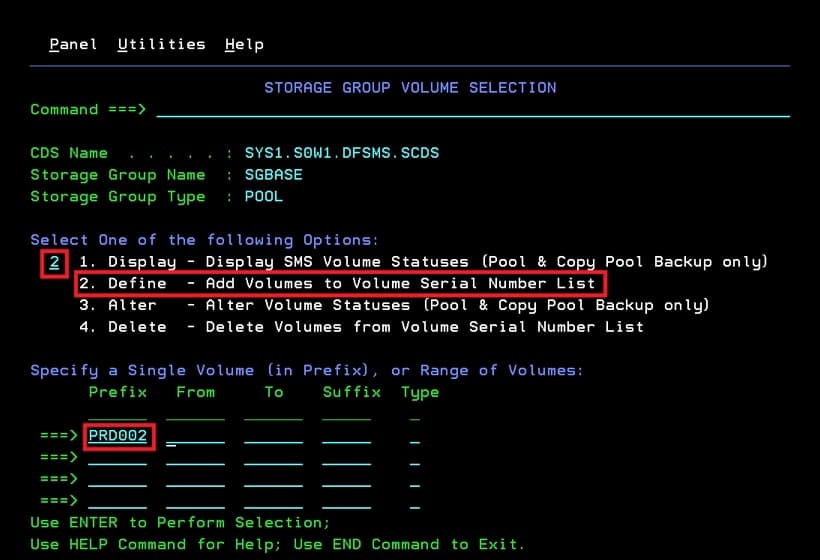
We choose option 2 – Define and put the disk name. Press enter.
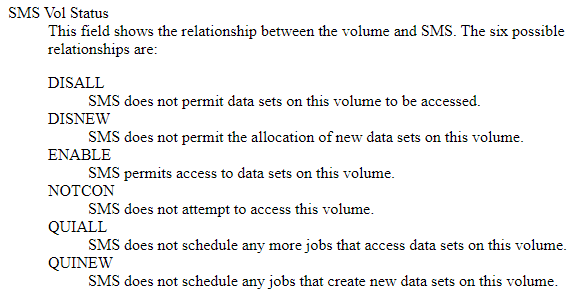
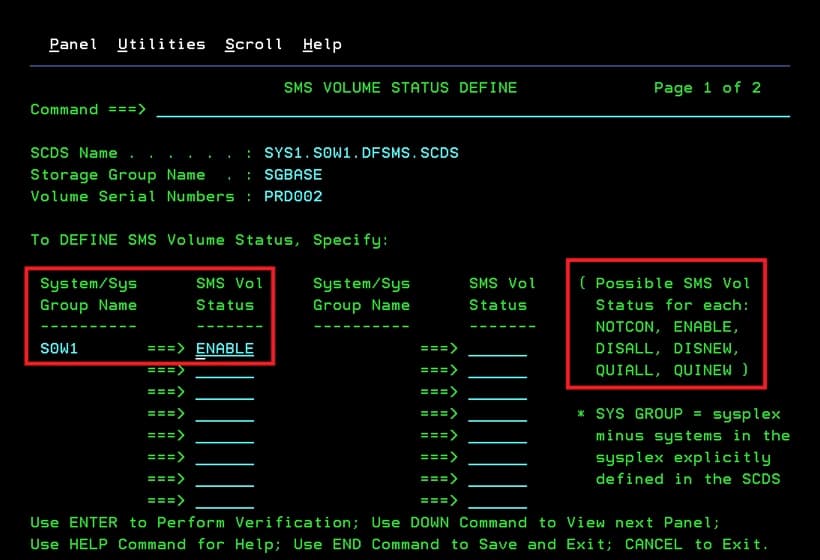
In the SMS Vol Status option, we can put one of the options shown on the right.
In my case, I will put ENABLE.
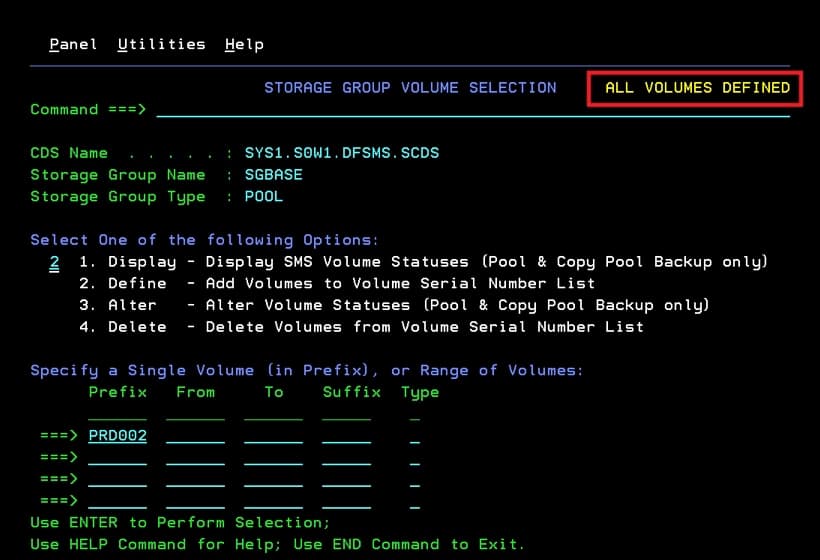
Press F3 and we will see the message ALL VOLUMES DEFINED.
We activate the new configuration so that the new volume is used.
We enter option 8 – Control Data Set from the main panel.
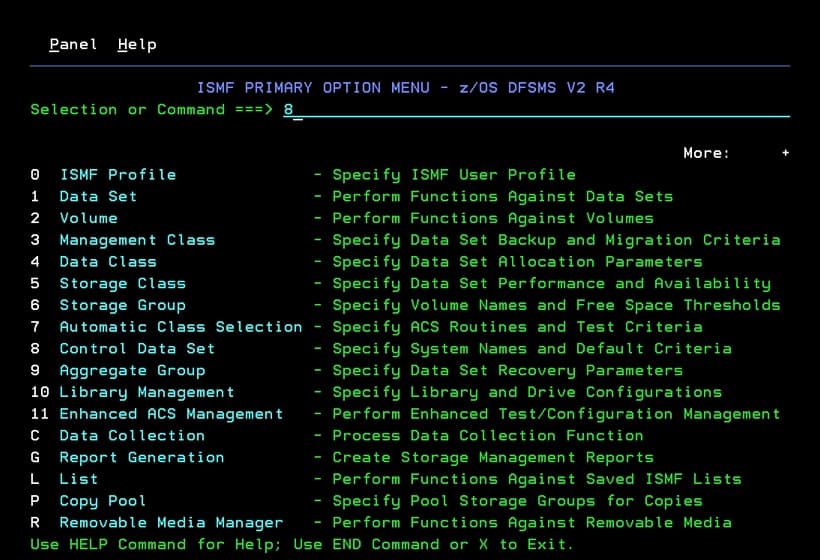
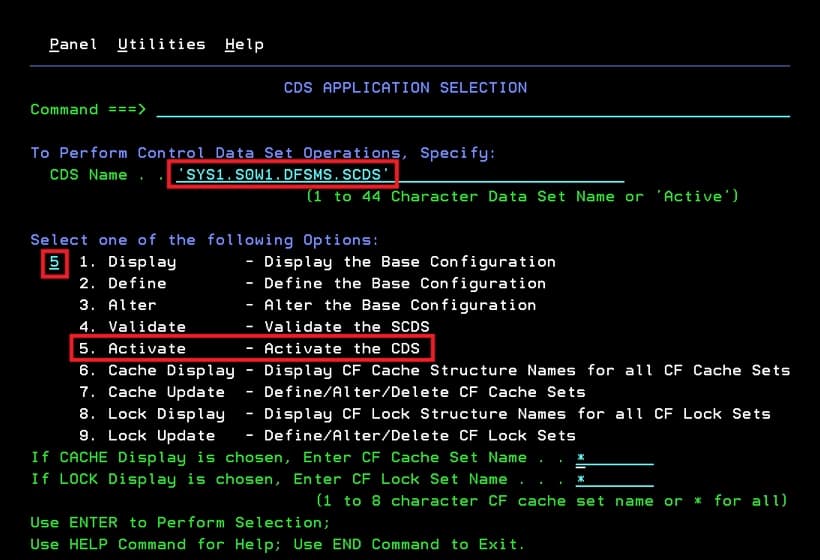
In CDS Name, we put the dataset name.
We choose option 5 – Activate.
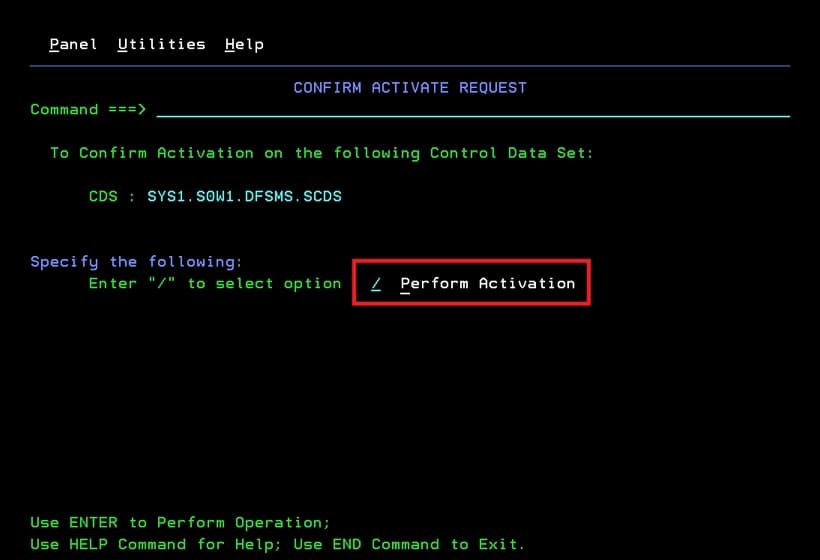
We mark the option Perform Activation.
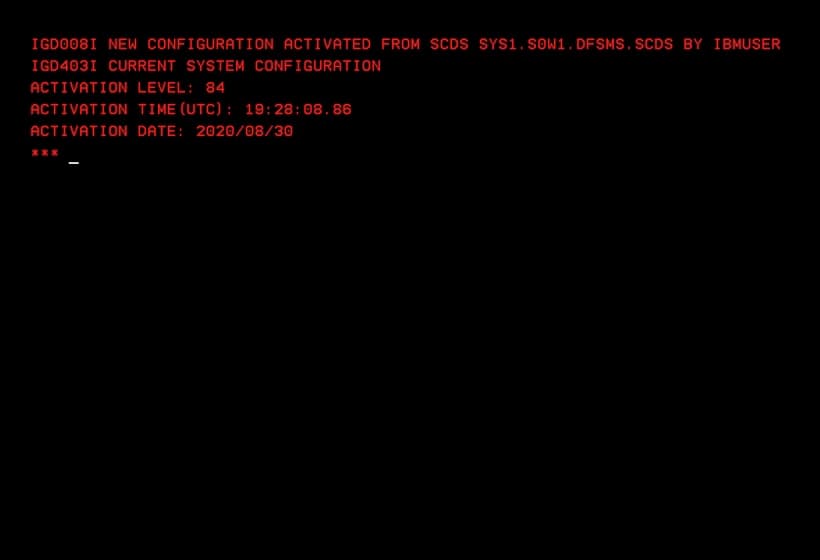
A confirmation message will appear.
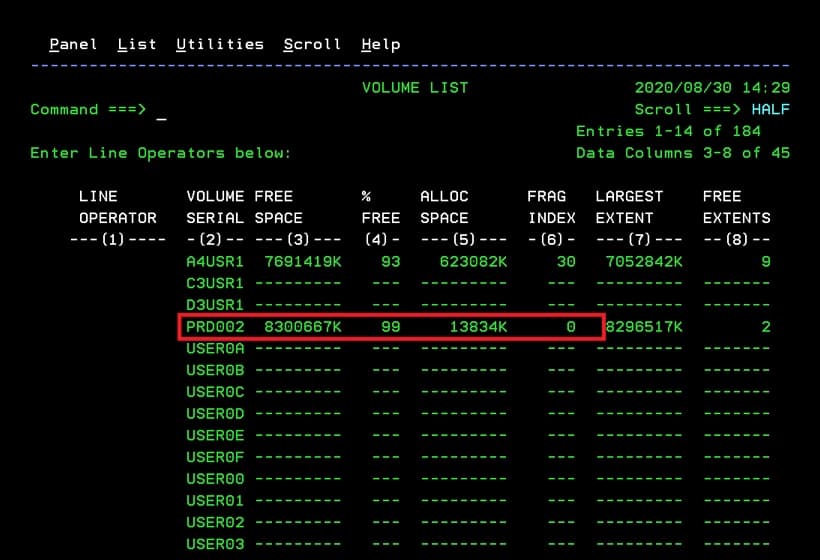
If we check the disks of the storage group in the active configuration (ACTIVE), we will see the new disk.
Now we have the SMS disk initialized and added to a Storage Group.
Share Disks Between Two z/OS Systems (applicable to IBM ZD&T)
We need to have an NFS (Network File System) server installed on the Ubuntu system that will share the disks (SERVER).
We can install it with the command:
apt-get install nfs-kernel-server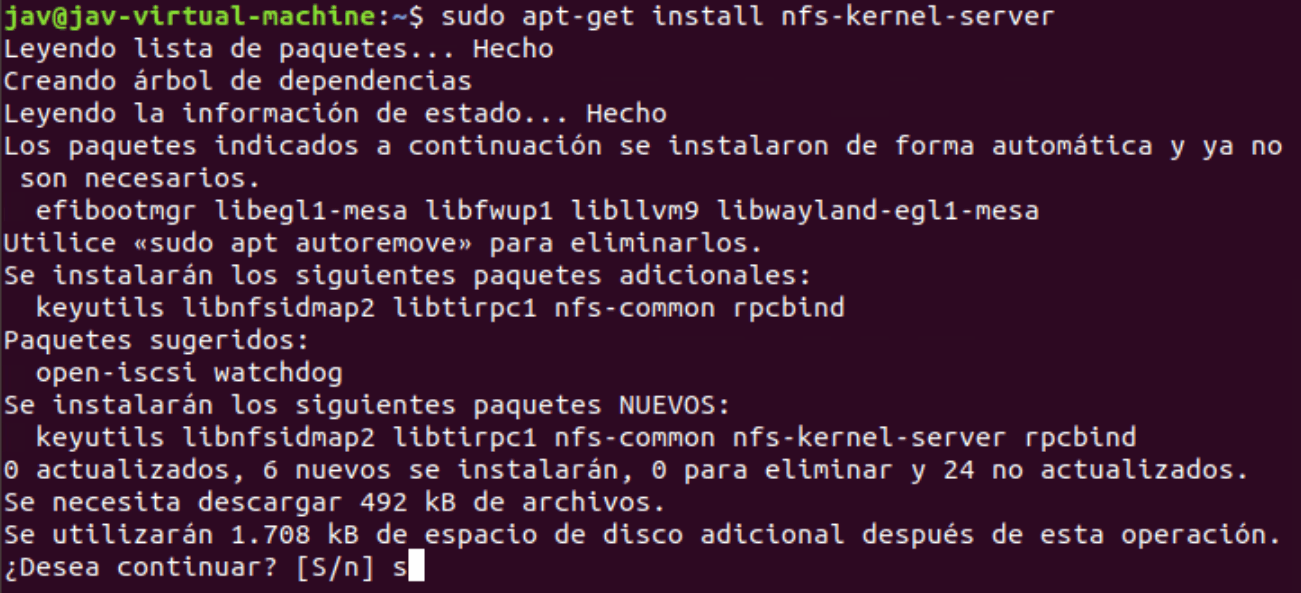
The next step is to add to the /etc/exports file the directory we want to share and the IP that will have access.
For example:
/home/ibmsys1/volumes 192.168.1.0/24(rw,sync,no_subtree_check)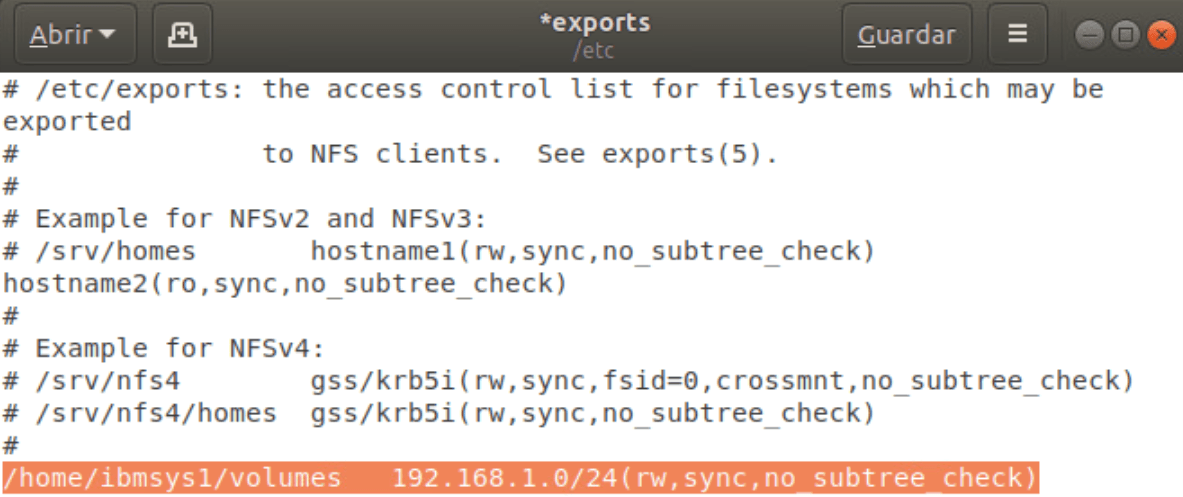
Now we will use the following command to load the permissions we have set in the /etc/exports file:
exportfs -aWe restart the NFS server service:
systemctl restart nfs-kernel-server
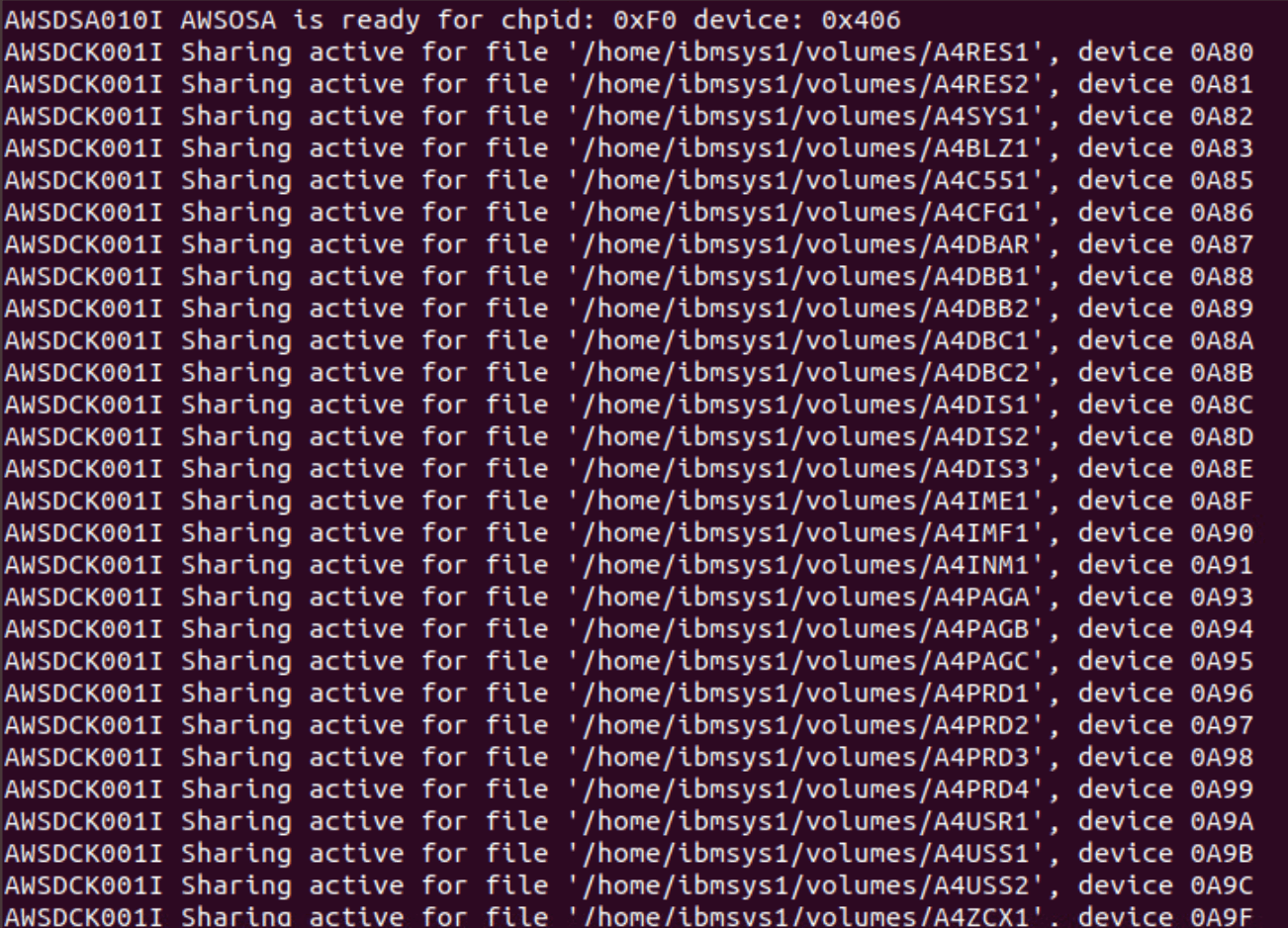
In the emulator configuration file, we must add the —shared parameter in the disk definition.
This way, the emulator will know that these files are shared and will be able to manage their use (reading, writing…).
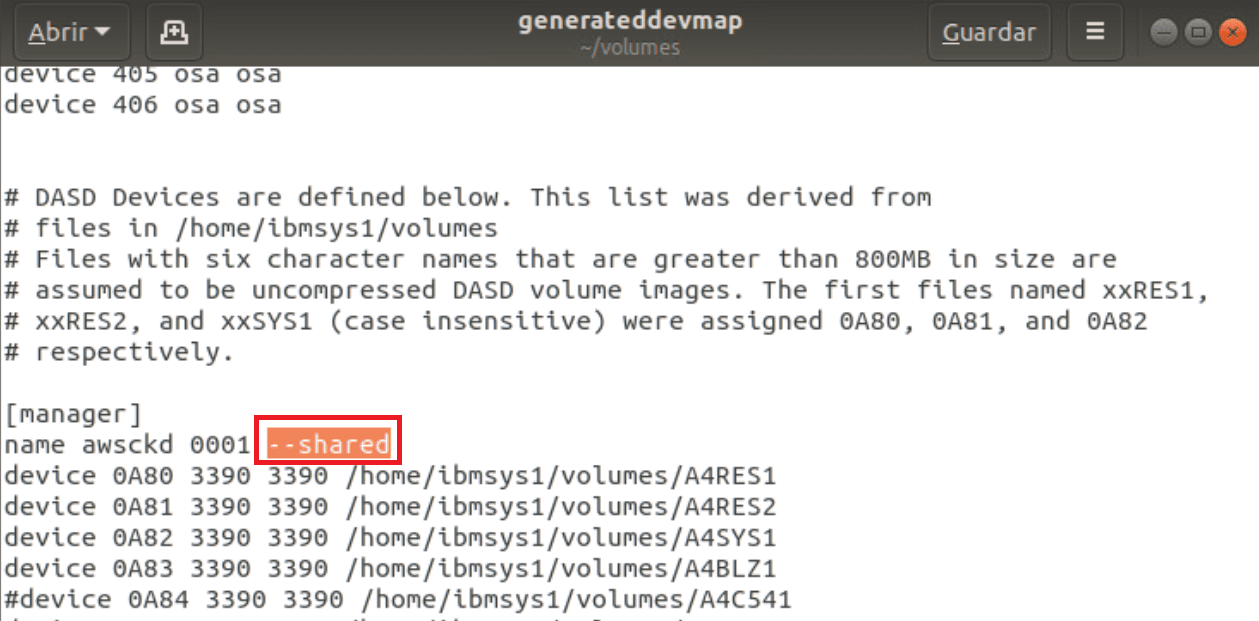
When we start the z/OS system emulator, we will see the following:
Now on the client Ubuntu system (the system that will use the shared disks), we install the NFS client.
Command:
apt-get install nfs-common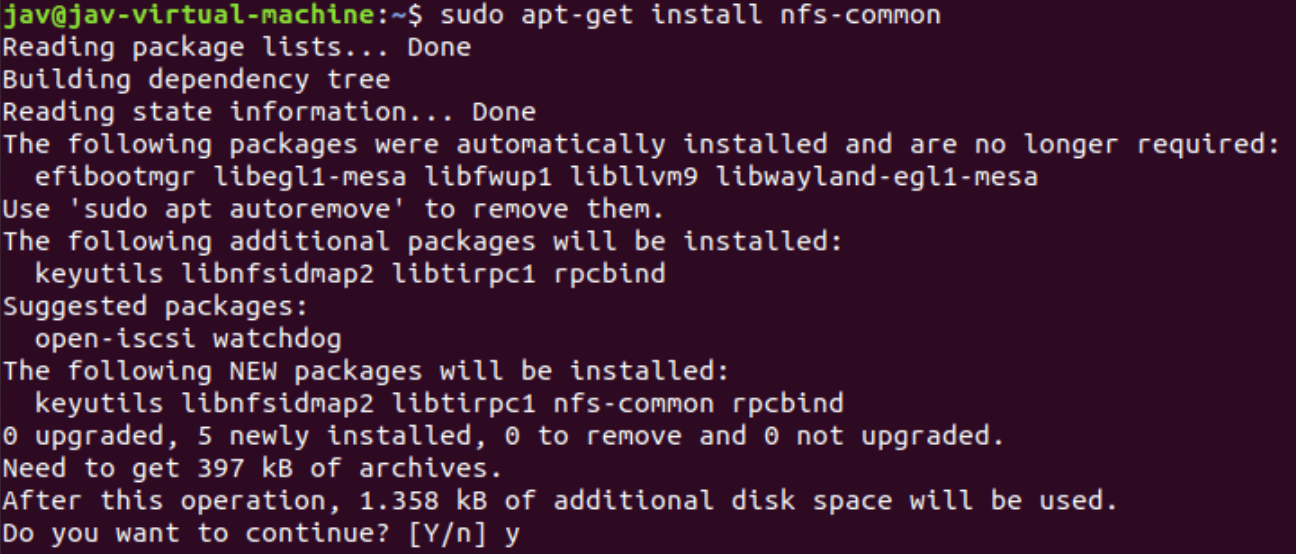
Once installed, we create a directory to mount the shared resource:
mkdir -p /mnt/zdt-volumesWe mount the shared resource (in my case, the server IP is 192.168.1.34) and the directory we just created. For example:
mount 192.168.1.34:/home/ibmsys1/volumes /mnt/zdt-volumesNOTE If we are going to use these shared disks regularly, it is recommended to add them so they mount when the Ubuntu system starts.

Now they will be available:
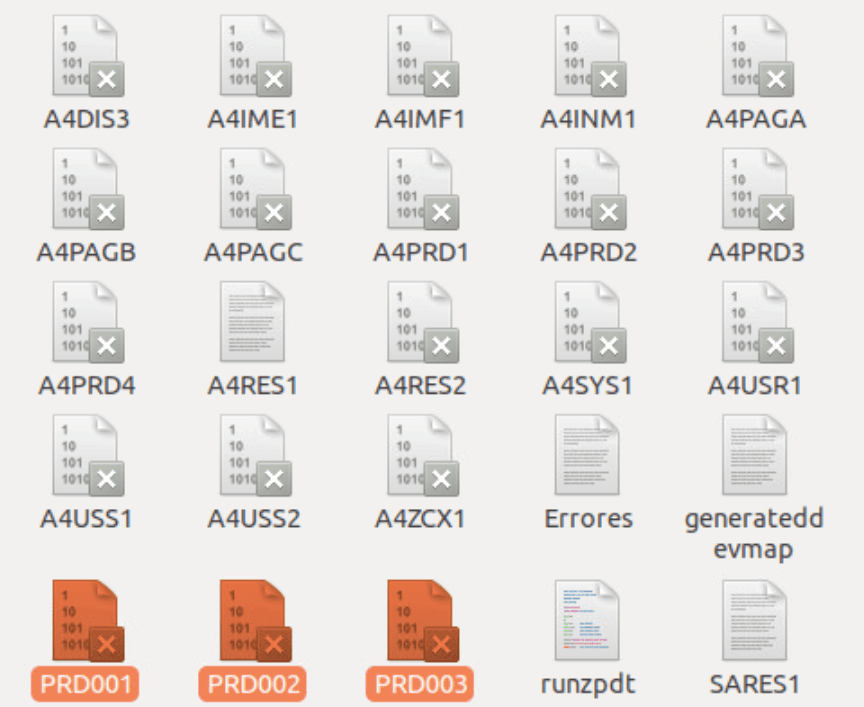
We add them to the configuration file:
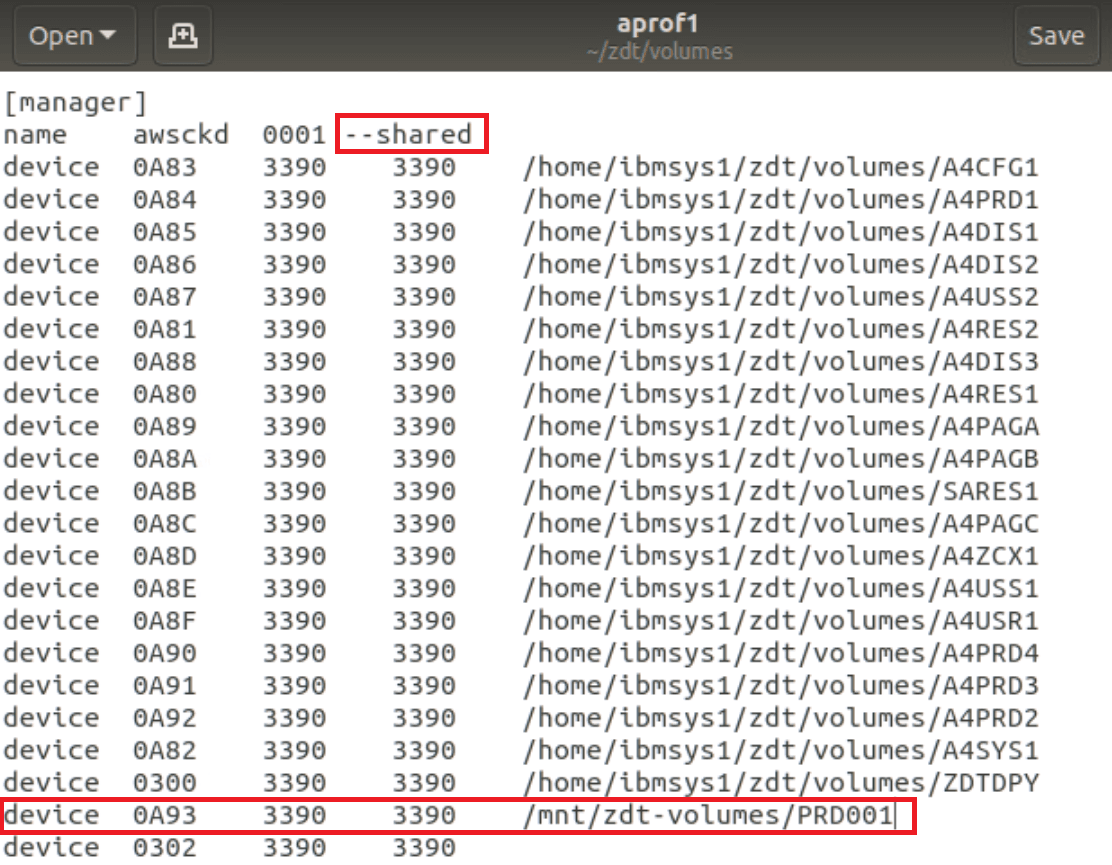
When we start the second z/OS system, we should be able to access the disk.
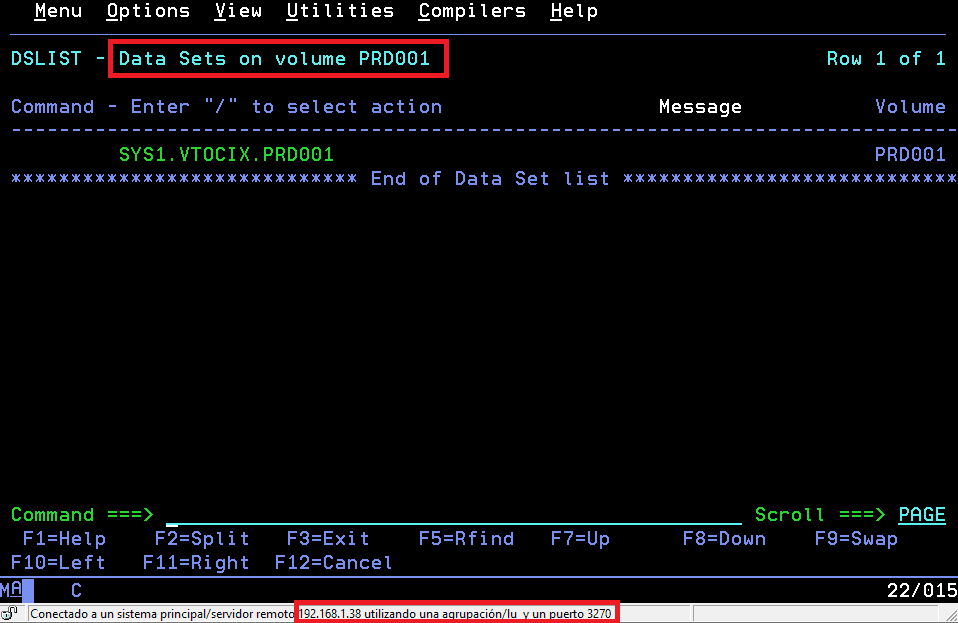
Now I will create a dataset from the first z/OS system.
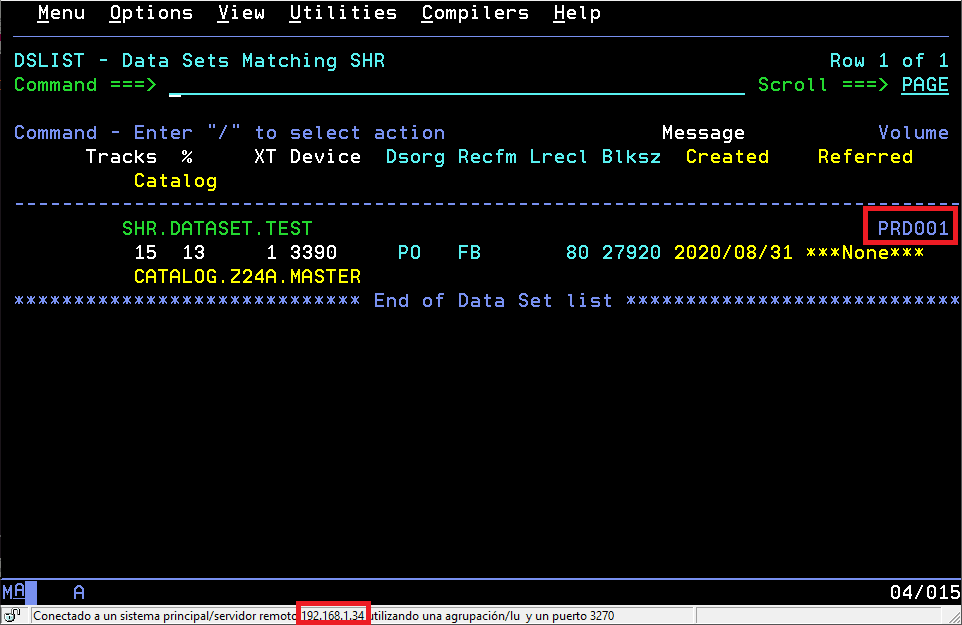
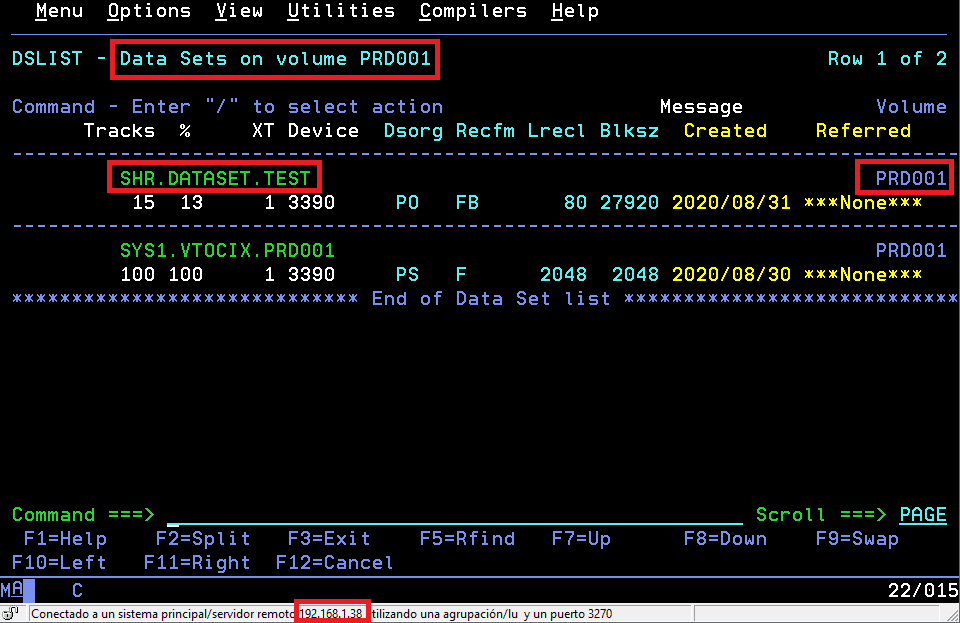
From the second z/OS system, when accessing by disk (since the catalogs are not shared), we will see the created dataset.