System Automation 4.3 - Automation Policies
Follow this section of the documentation to create a basic automation policy database.
https://www.ibm.com/docs/en/z-system-automation/4.3.0?topic=bscuca-start-sazos-first-time
Accessing the “Customization Dialog” Panel
The first thing we need to do is enter the panels to manage automation policies. There are several ways (commands or through an option in a panel):
https://www.ibm.com/docs/en/z-system-automation/4.3.0?topic=time-starting-customization-dialog
- Copy the REXX script “INGEDLG” from the **.CONFLIB library (SA430.ADCDPL.CONFLIB) to one of our SYSPROC or SYSEXEC libraries in the TSO concatenation.
To find out which SYSPROC or SYSEXEC libraries we use, one way is to use the command:
TSO ISRDDNIn my case, I could copy it to USER.Z31B.CLIST
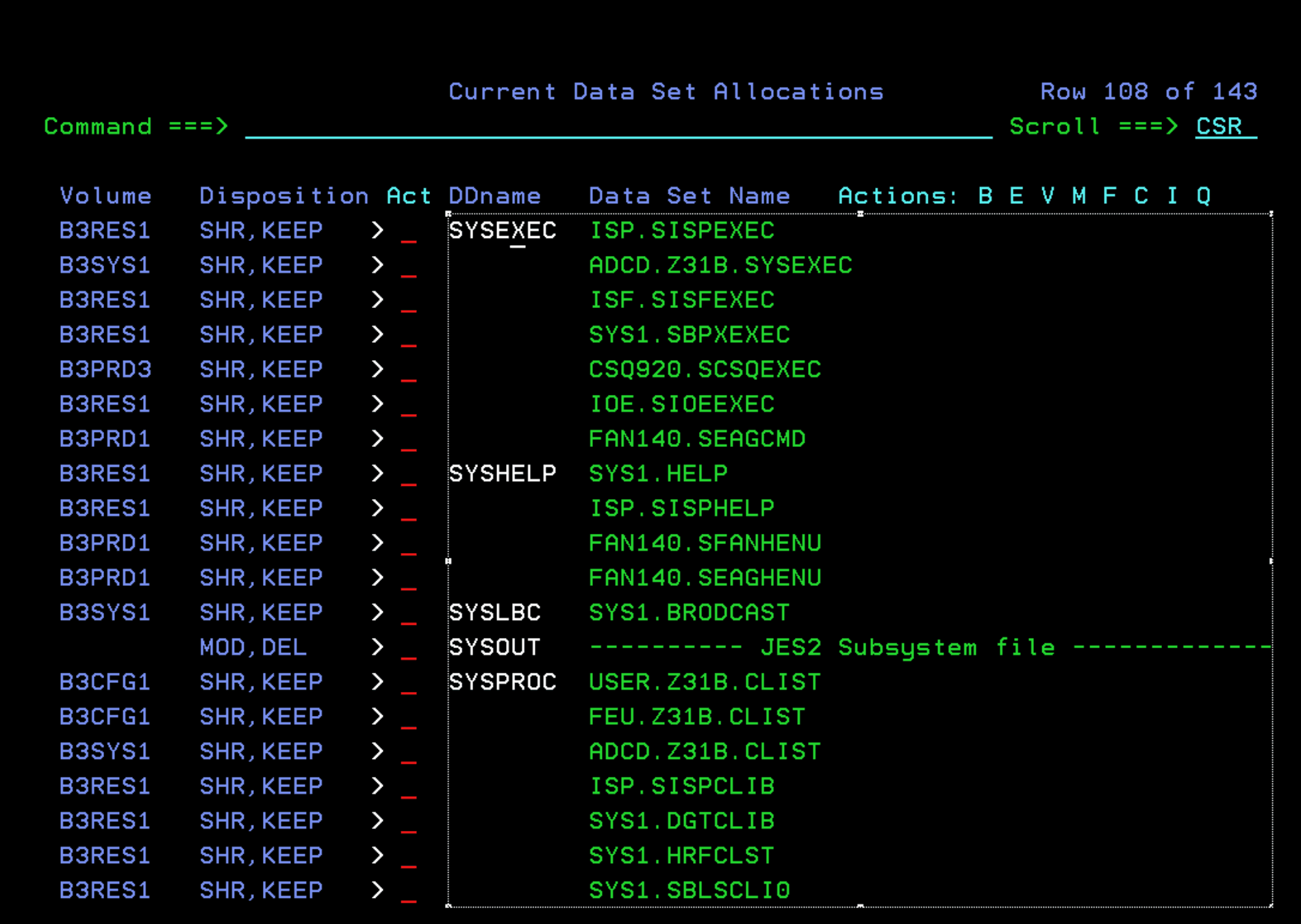
- We can also execute the command directly from any panel:
TSO EXEC 'MYHLQ.SYSA.CONFLIB(INGEDLG)'

In my case:
TSO EXEC 'SA430.ADCDPL.CONFLIB(INGEDLG)'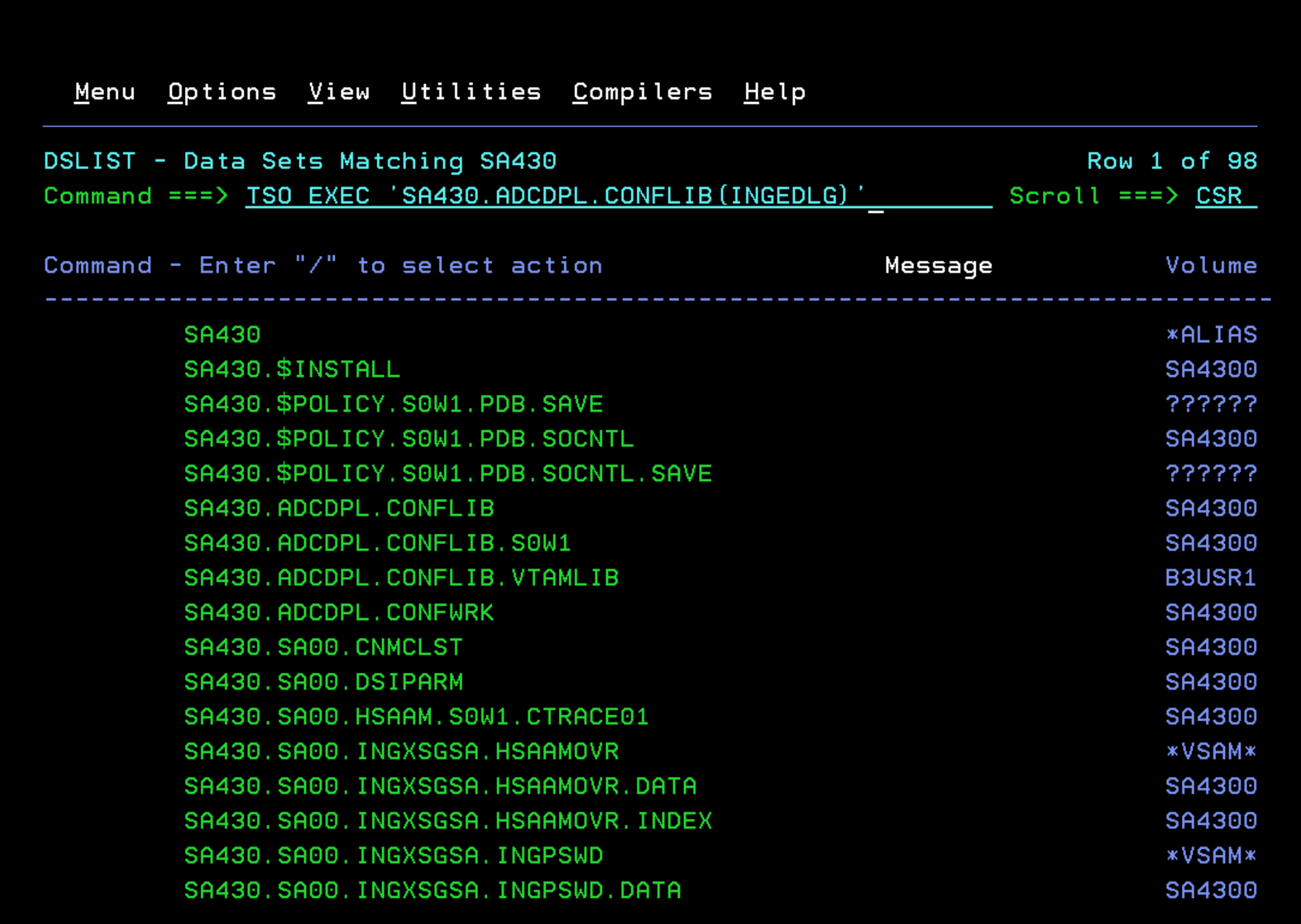
You may get an error like this:
IKJ56246I DATA SET SA430.SA00.S0W1.AOFTABL NOT ALLOCATED, FILE IN USE
Start of SA for z/OS Customization Dialog failed.
Error in INGDLG2 > Return code 12 from ALLOCATE for  AOFTABL data set SA430.SA00.S0W1.AOFTABL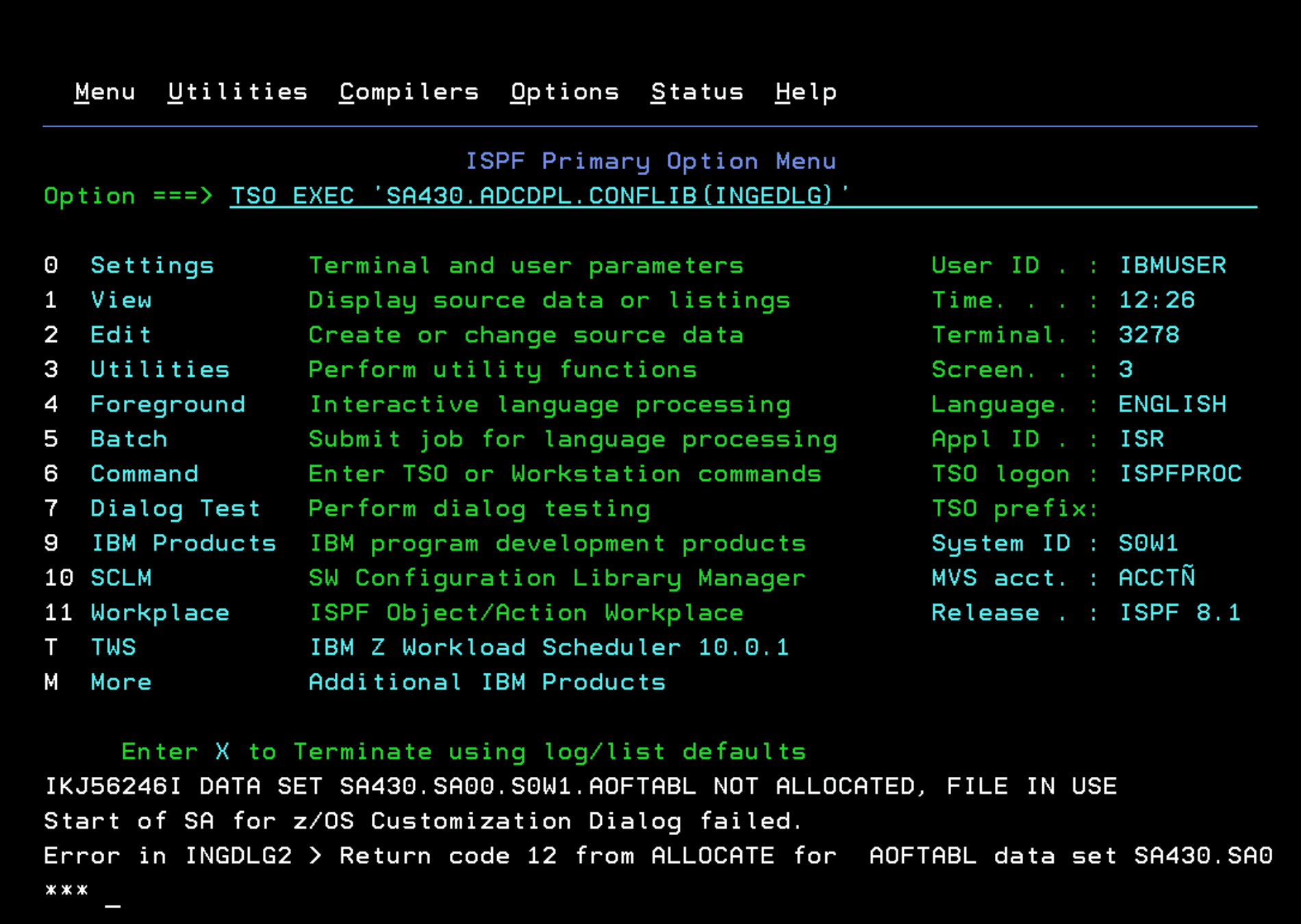
This happens to me because in the ADCD version the DDs “AOFPRINT”, “AOFTABL” and “IHVCONF” are already defined in the TSO logon procedure.
To find out the TSO logon procedure we use, there are several ways:
- When we logon to TSO, the “Procedure” parameter.
- In the main ISPF panel there may be a field called “TSO logon”
- If we have RACF, we can use the command to see the PROC parameter: TSO LU user TSO
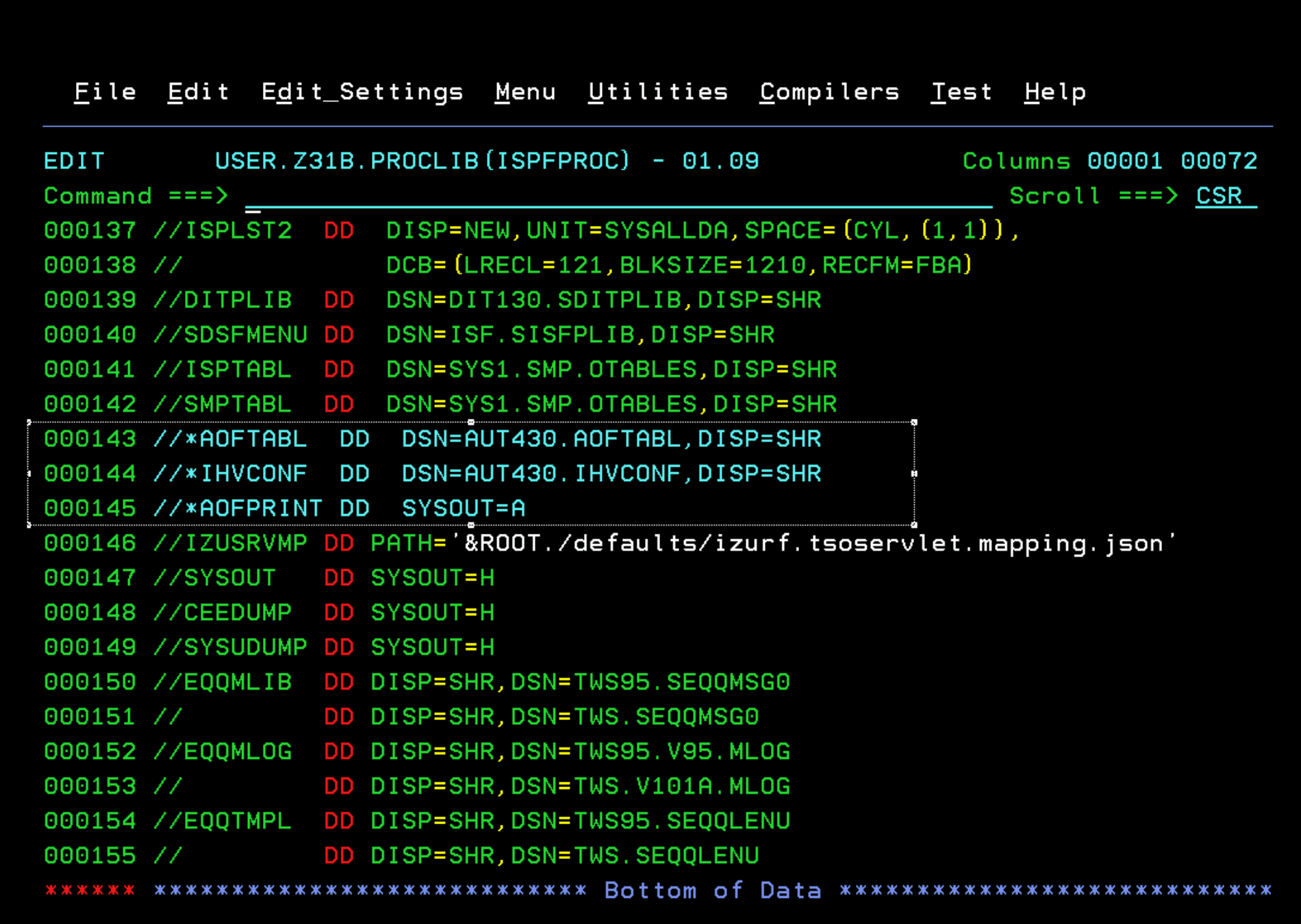
- We can also go to SDSF, search for our user’s sysout and it will indicate the procedure and library. In my case, ISPFPROC in the library USER.Z13B.PROCLIB.
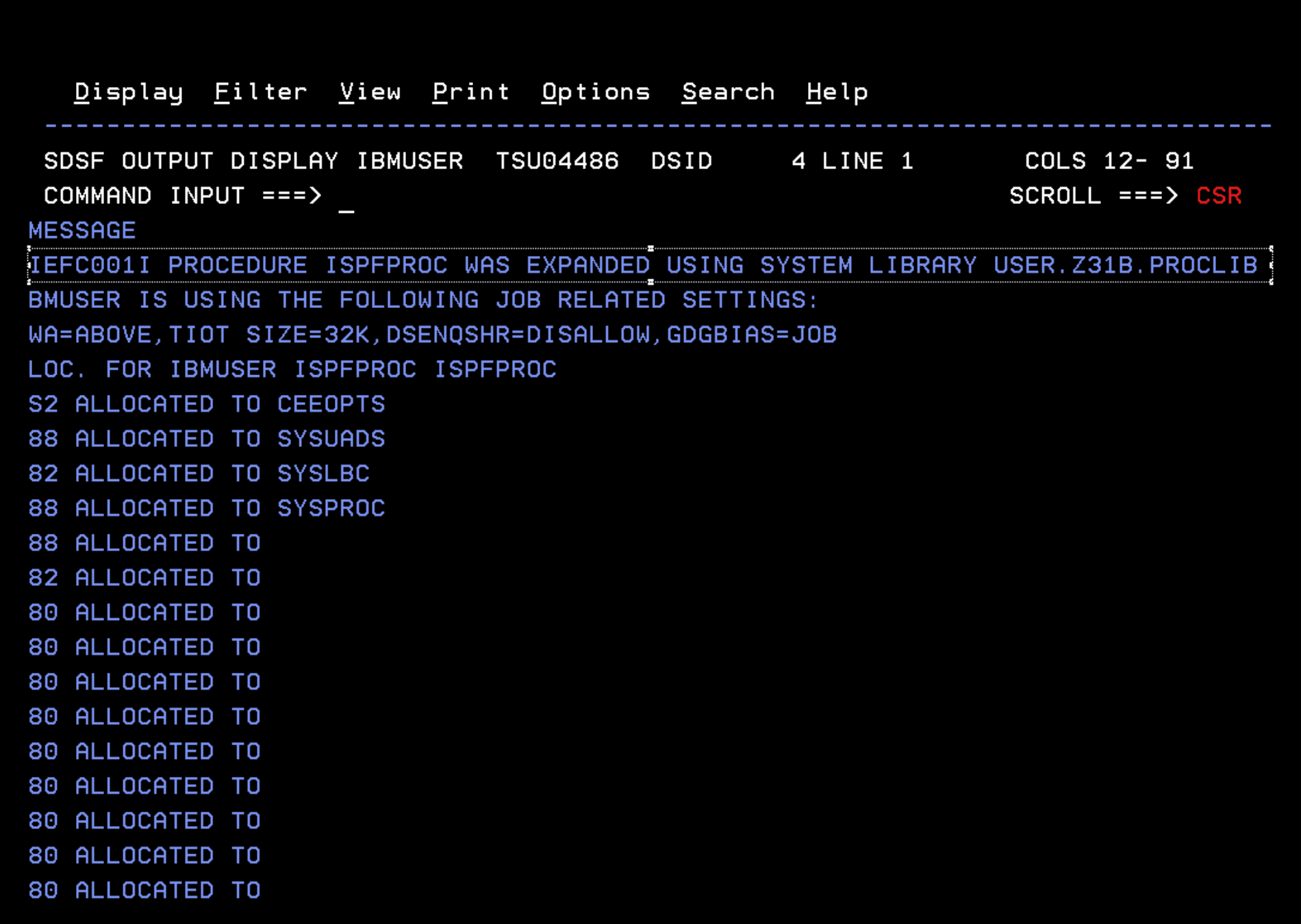
I will comment out the three DDs “AOFPRINT”, “AOFTABL” and “IHVCONF”.
Do logoff/logon of the session.
- Another interesting alternative to avoid having to remember commands is to add an option in an ISPF panel.
https://www.ibm.com/docs/en/z-system-automation/4.3.0?topic=dialogs-using-ingdlg
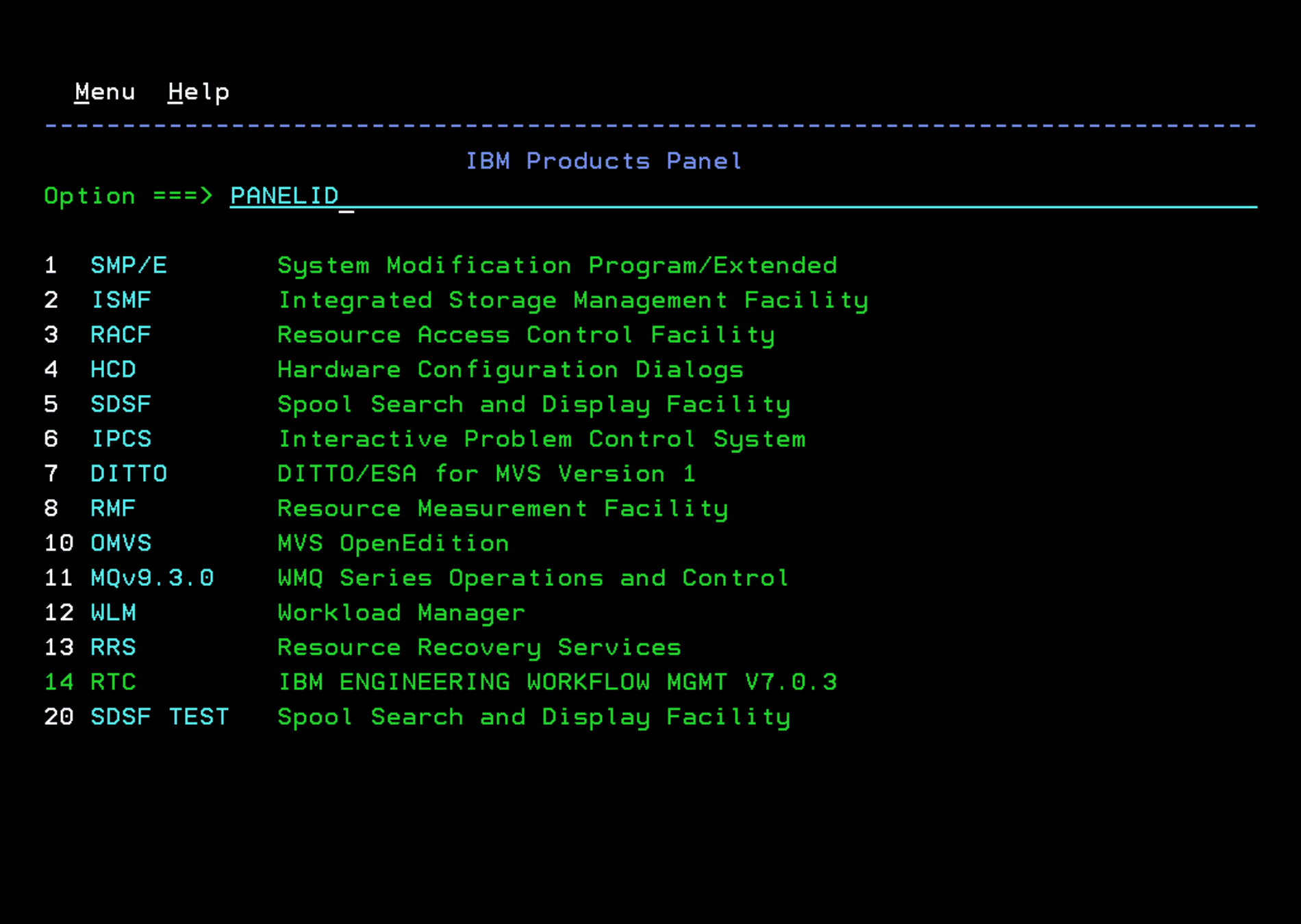
With the PANELID command we will see the panel name. In my case, IBMPRODS.
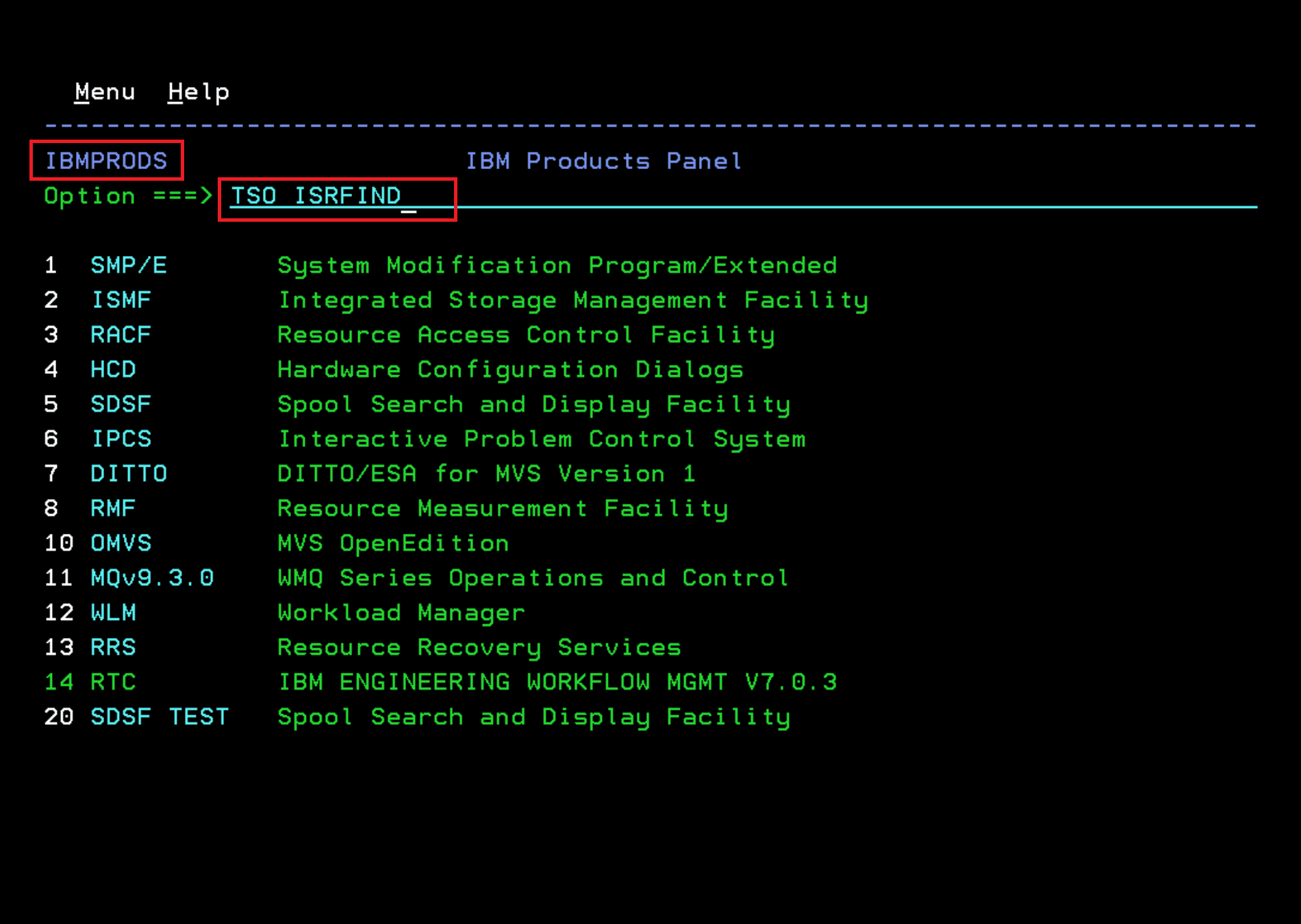
Now we search for the library where the panel is located with the command “TSO ISRFIND”
In “Member Name” indicate the panel name.
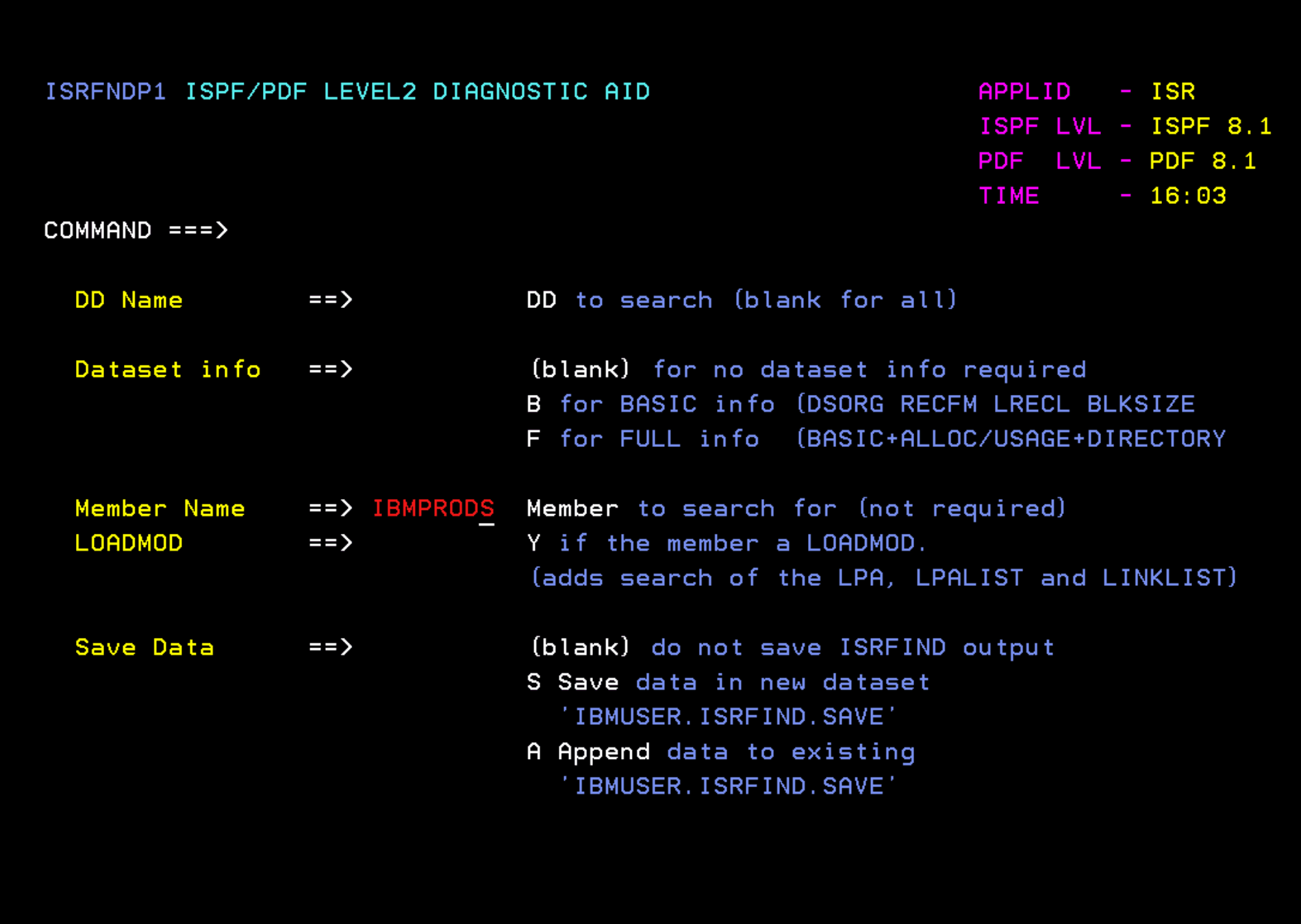
In my case, it is located in ADCD.Z31B.ISPPLIB
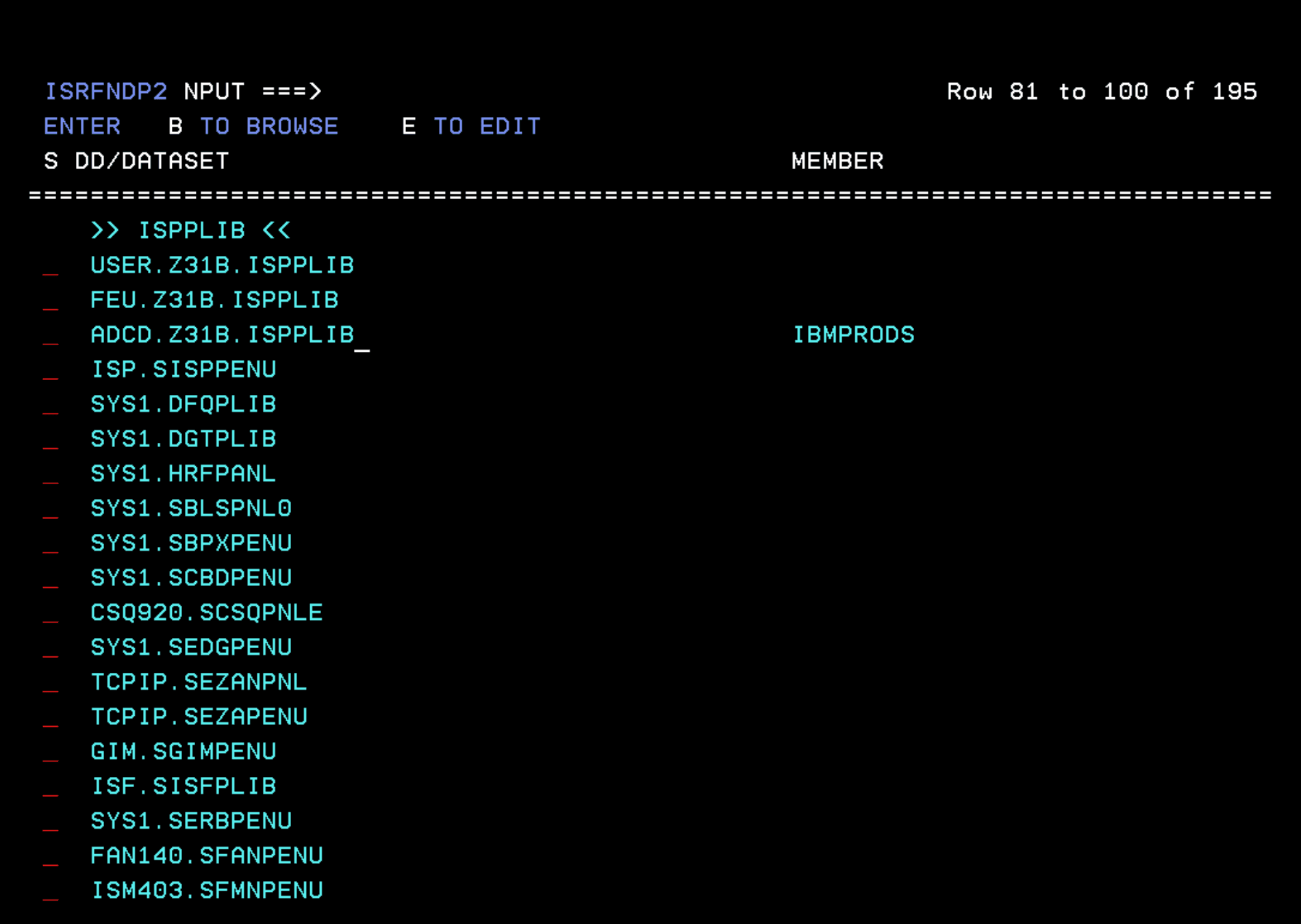
I copy it to USER.Z31B.ISPPLIB and edit it. In case we make a mistake and break the panel, we will have a backup in the original library.
In the panel file, I scroll down to the section where the visible panel options are defined. There I repeat the line of the last option that appears and put the following text:
SA System Aut System Automation 4.3 Customization Dialog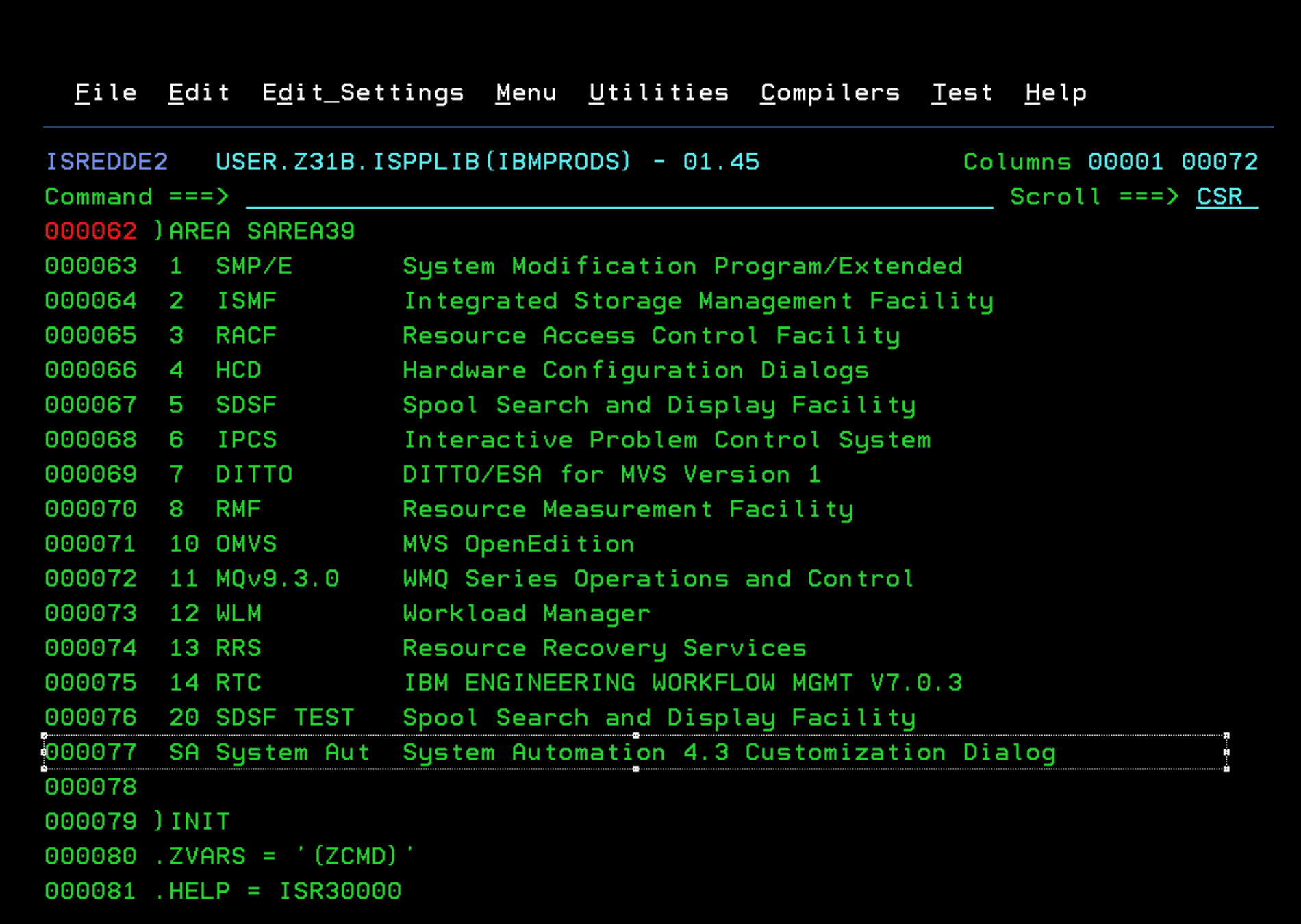
A little further down, we will see what each option we have available in the panel executes.
Just add a new option after the last one we have and put the following code (SA430.ADCDPL.CONFLIB you have to adjust to your installation and if you have followed the steps of “Configuration Assistant” to do the installation).
SA,'CMD(EXEC ''SA430.ADCDPL.CONFLIB(INGEDLG)'')'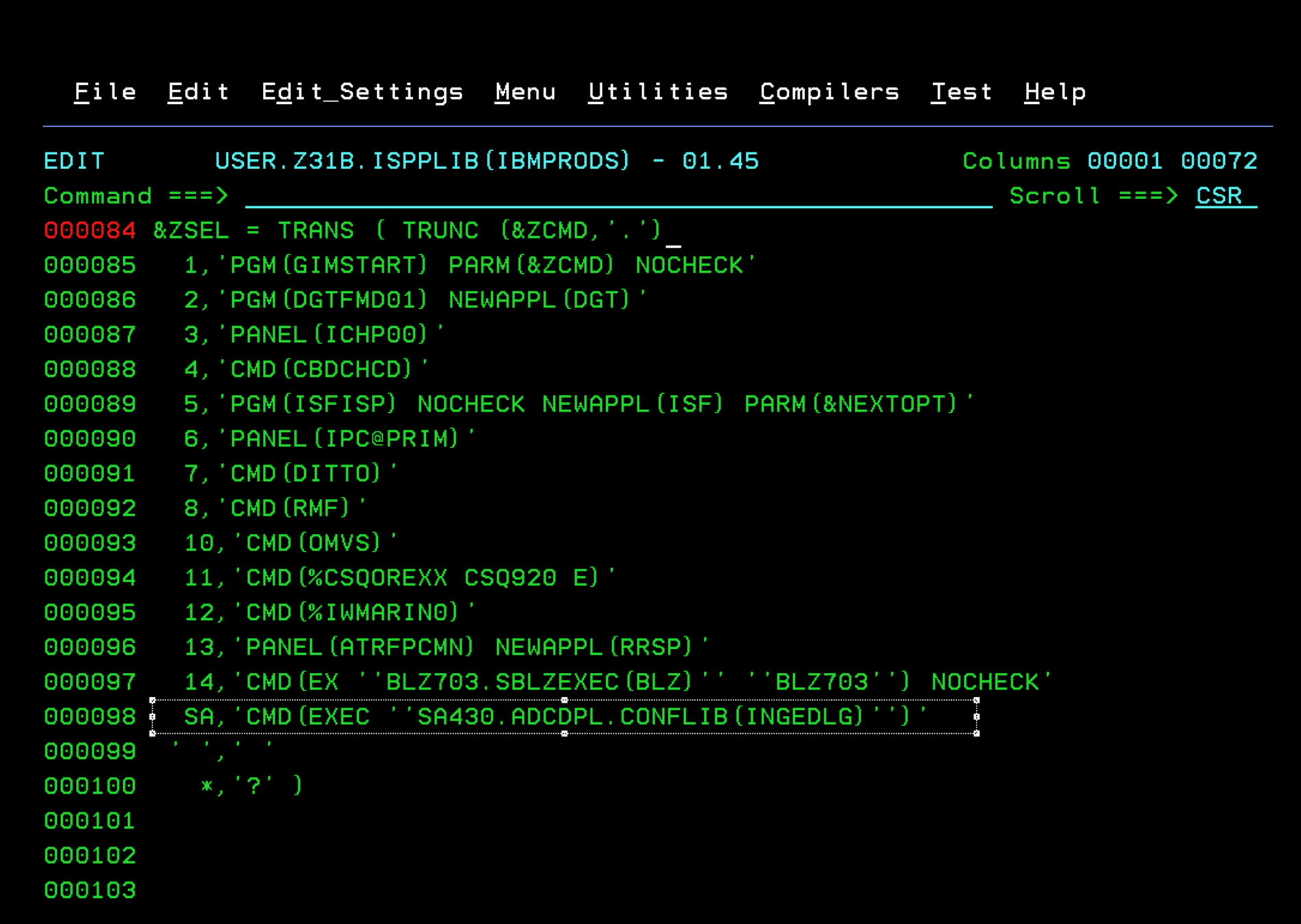
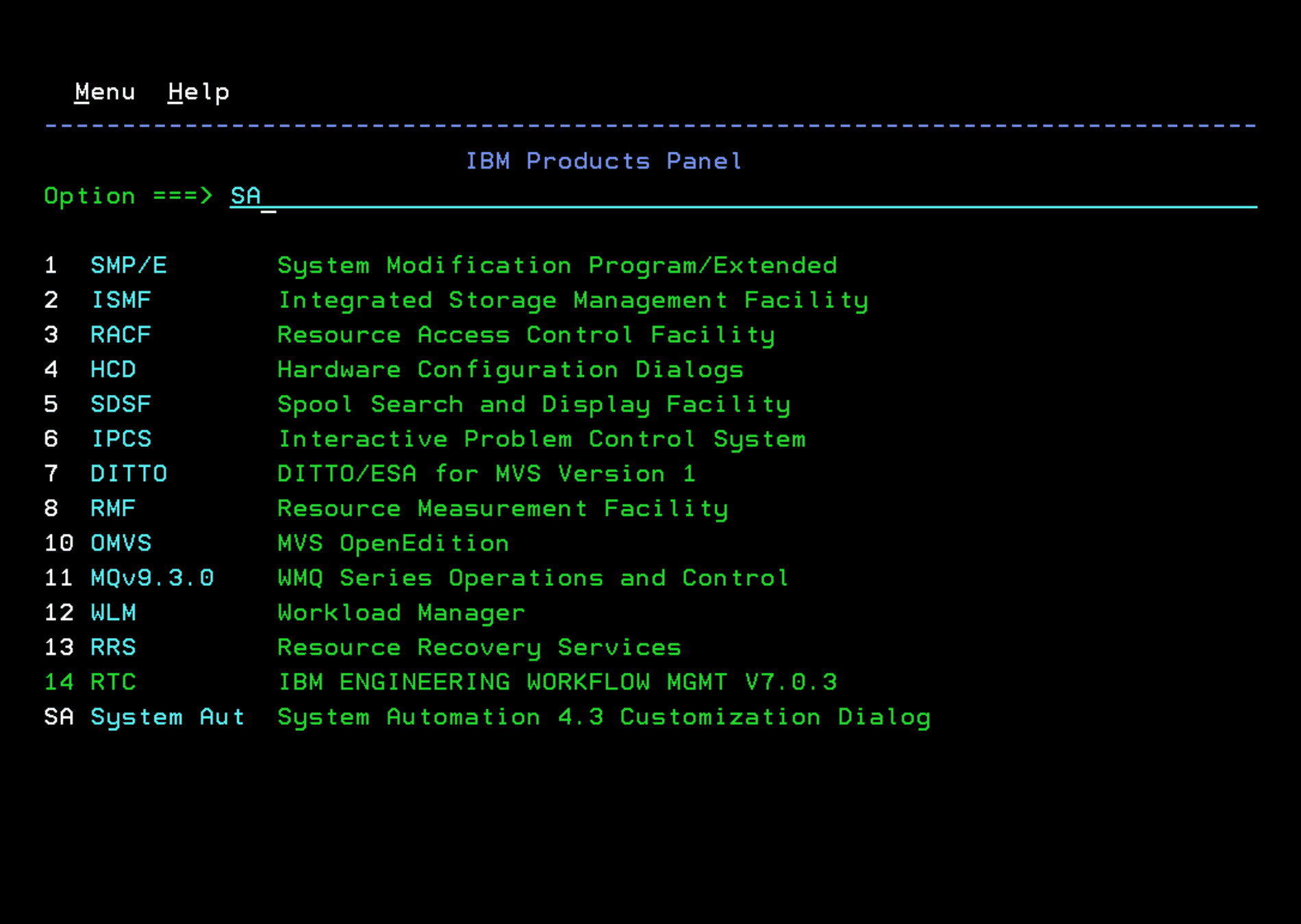
After logging out and logging back into TSO, we will have the panel option and we can enter.
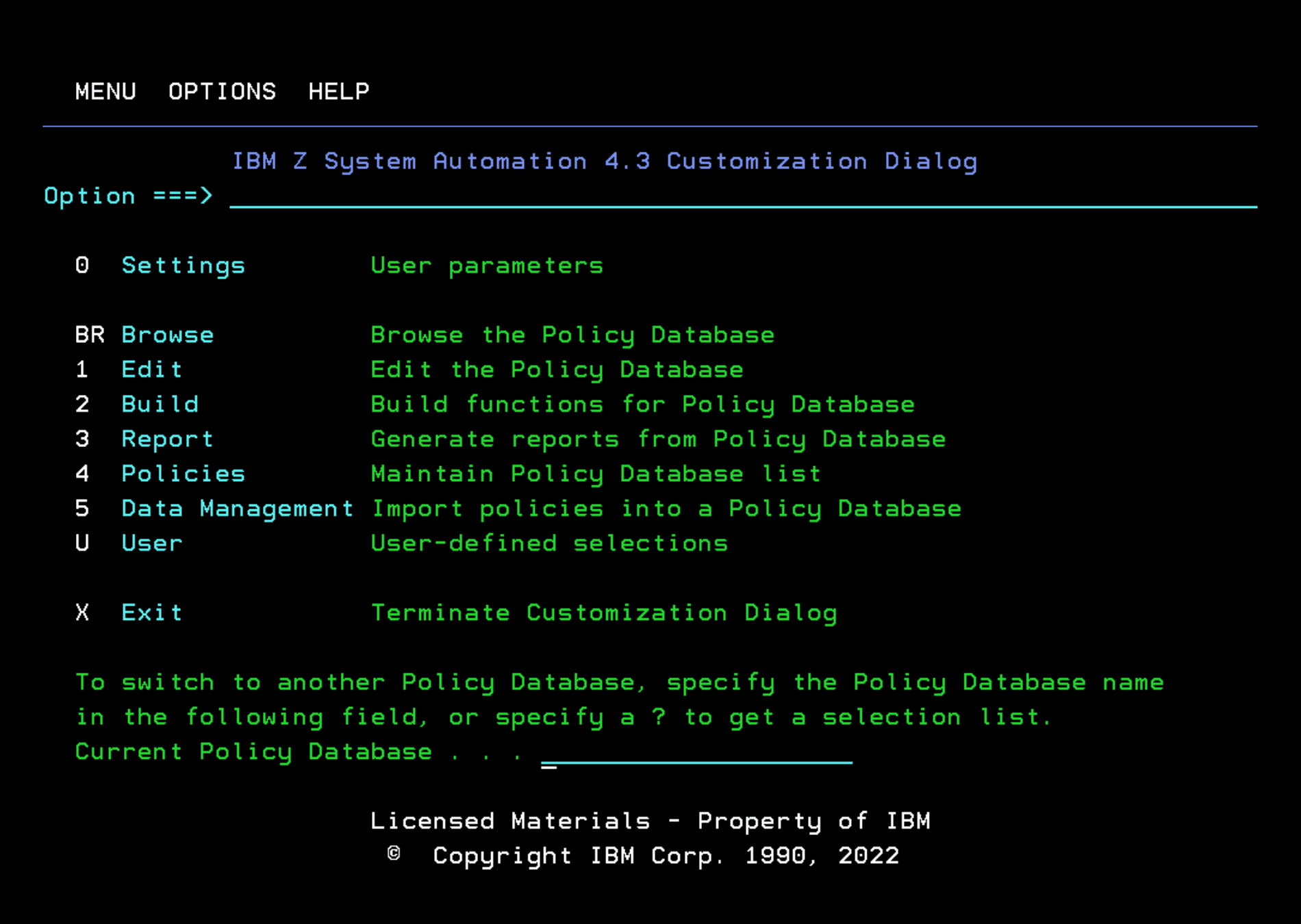
Creating a Basic Automation Policy Database (PDB)
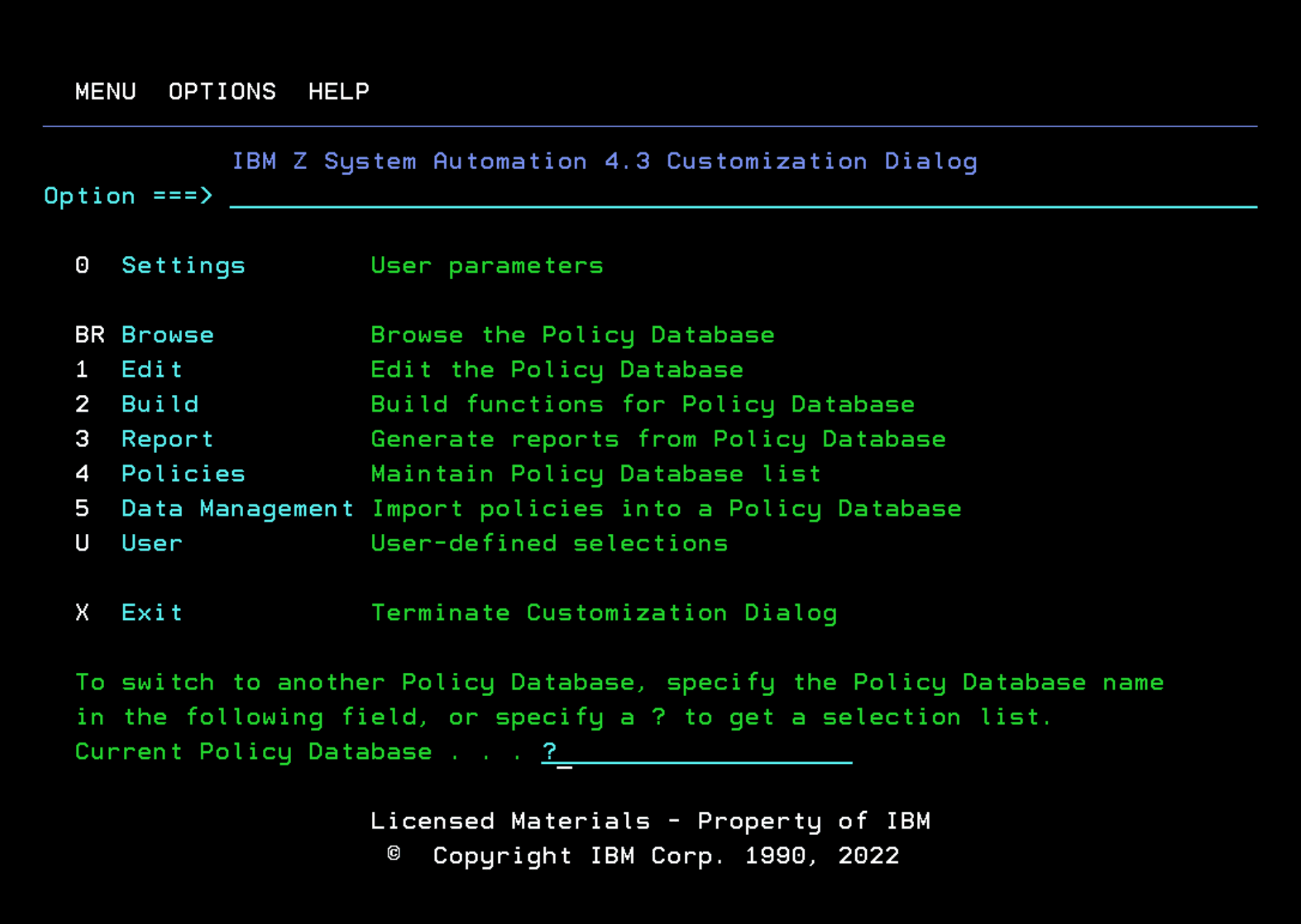
In the “Current Policy Database” field write ”?”.
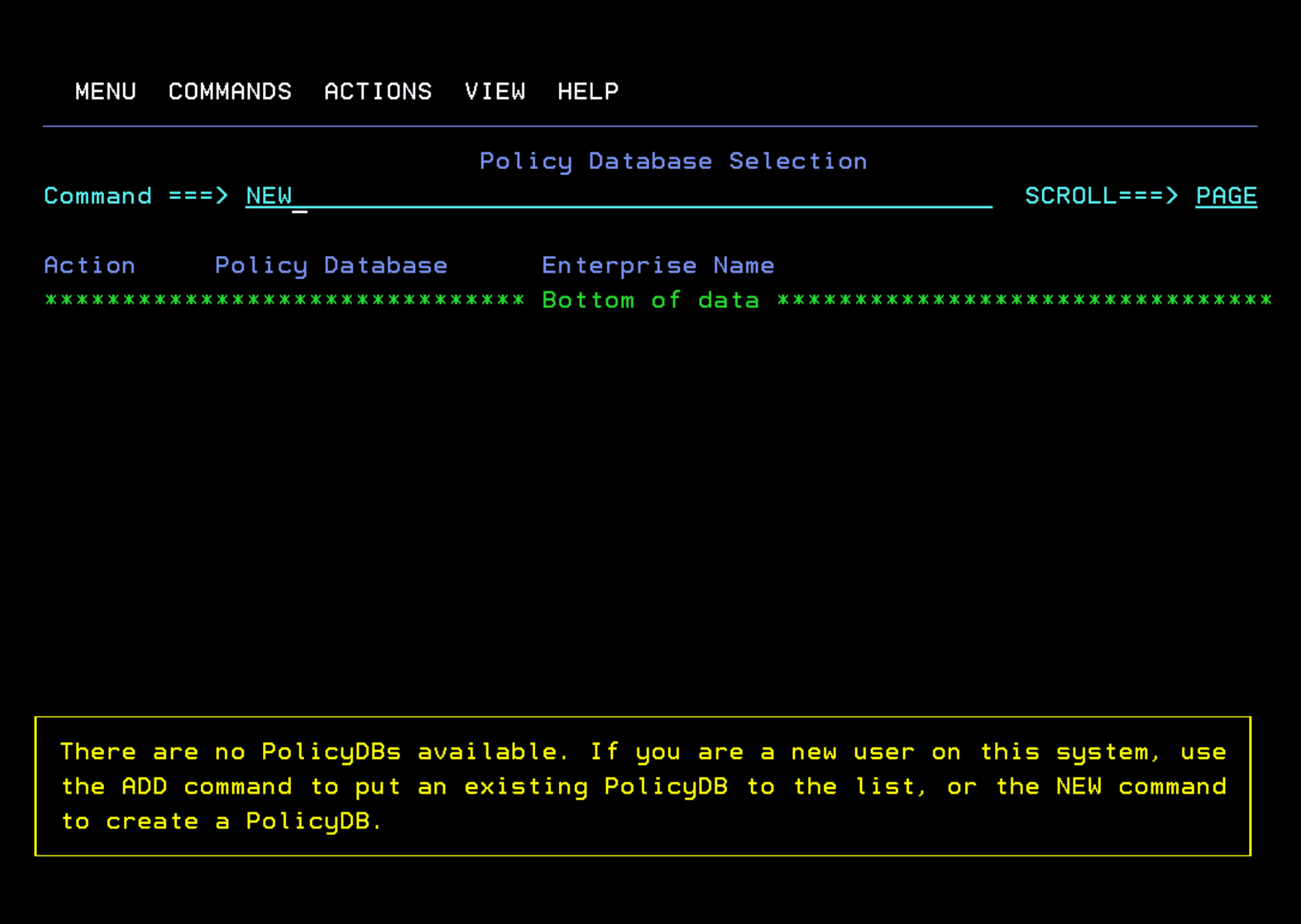
Type the “NEW” command to create a new PDB.
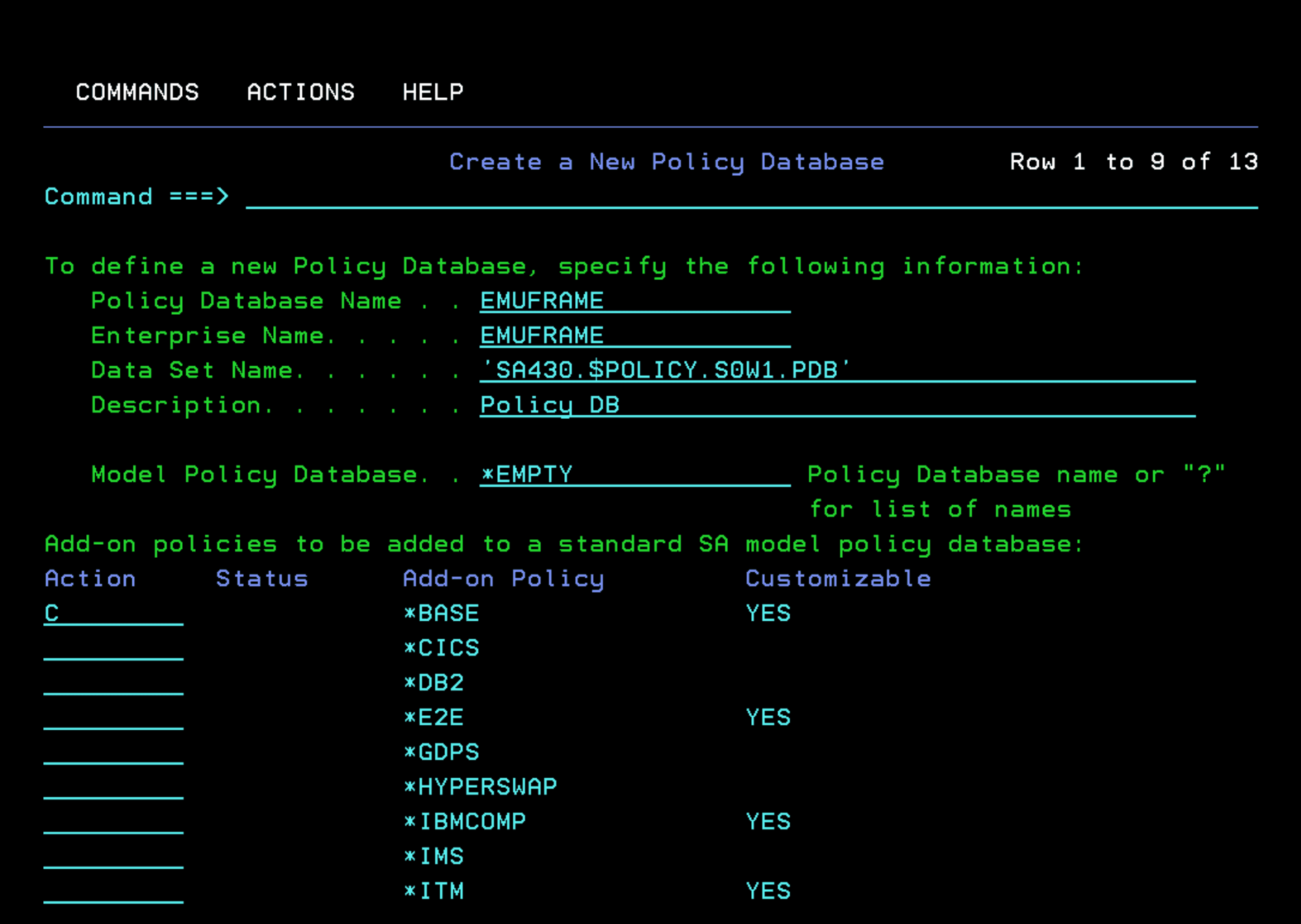
Fill in the data.
In the “Data Set Name” field we must add quotes. The name I use for the PDB file (SA430.$POLICY.S0W1.PDB) follows the nomenclature I established in the Installation section.
Since this first configuration is going to be basic, we will deselect some components of the *BASE policies.
You can create two DBs. One with all the “add-ons” to have it as a reference and another with some elements of the *BASE policies to add resources adapted to your system.
We will leave some basic components to do the test and show the process. Later, we will add more.
With “M” we deselect those we don’t want to define now.
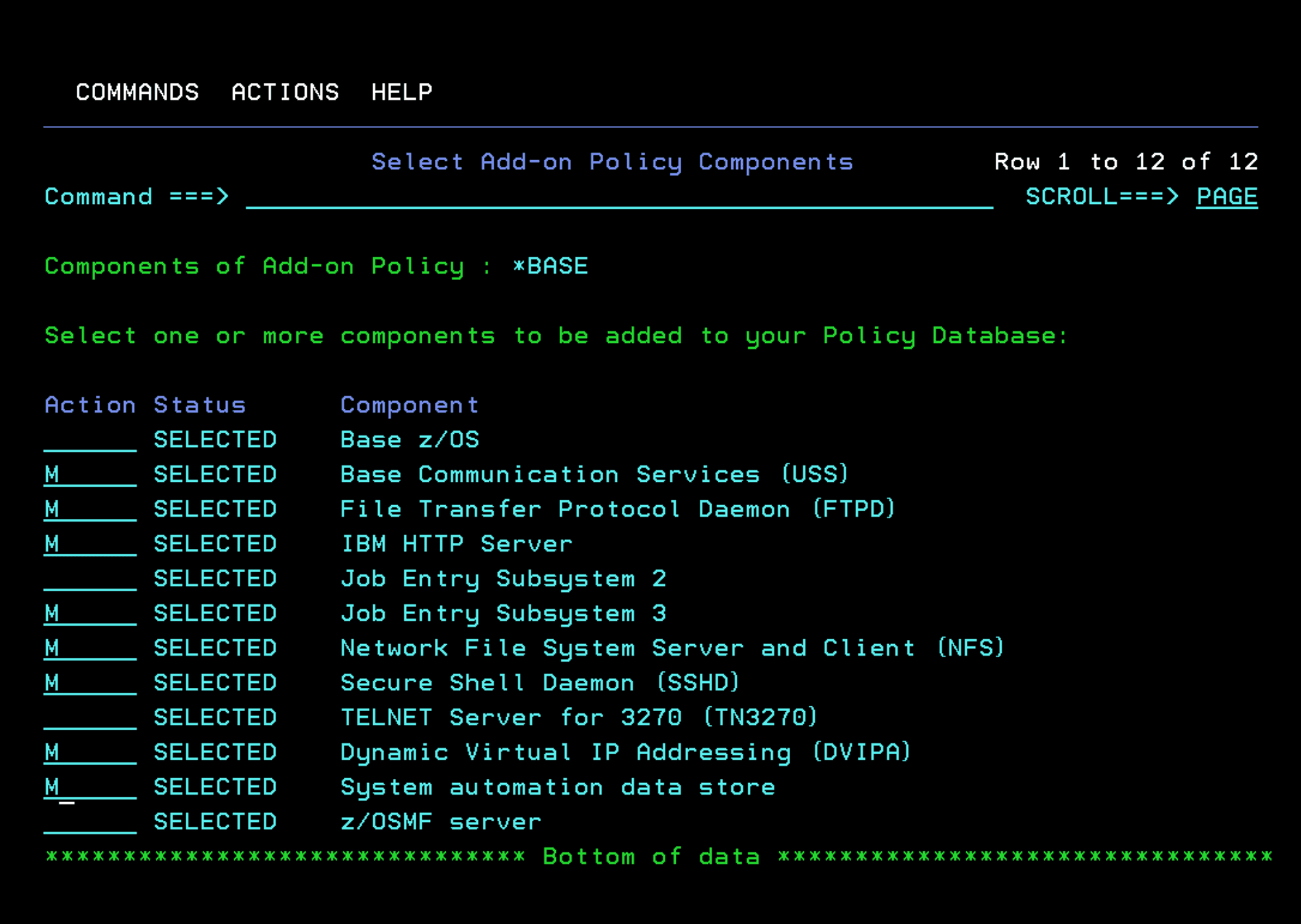
I will leave the following. Press F3.
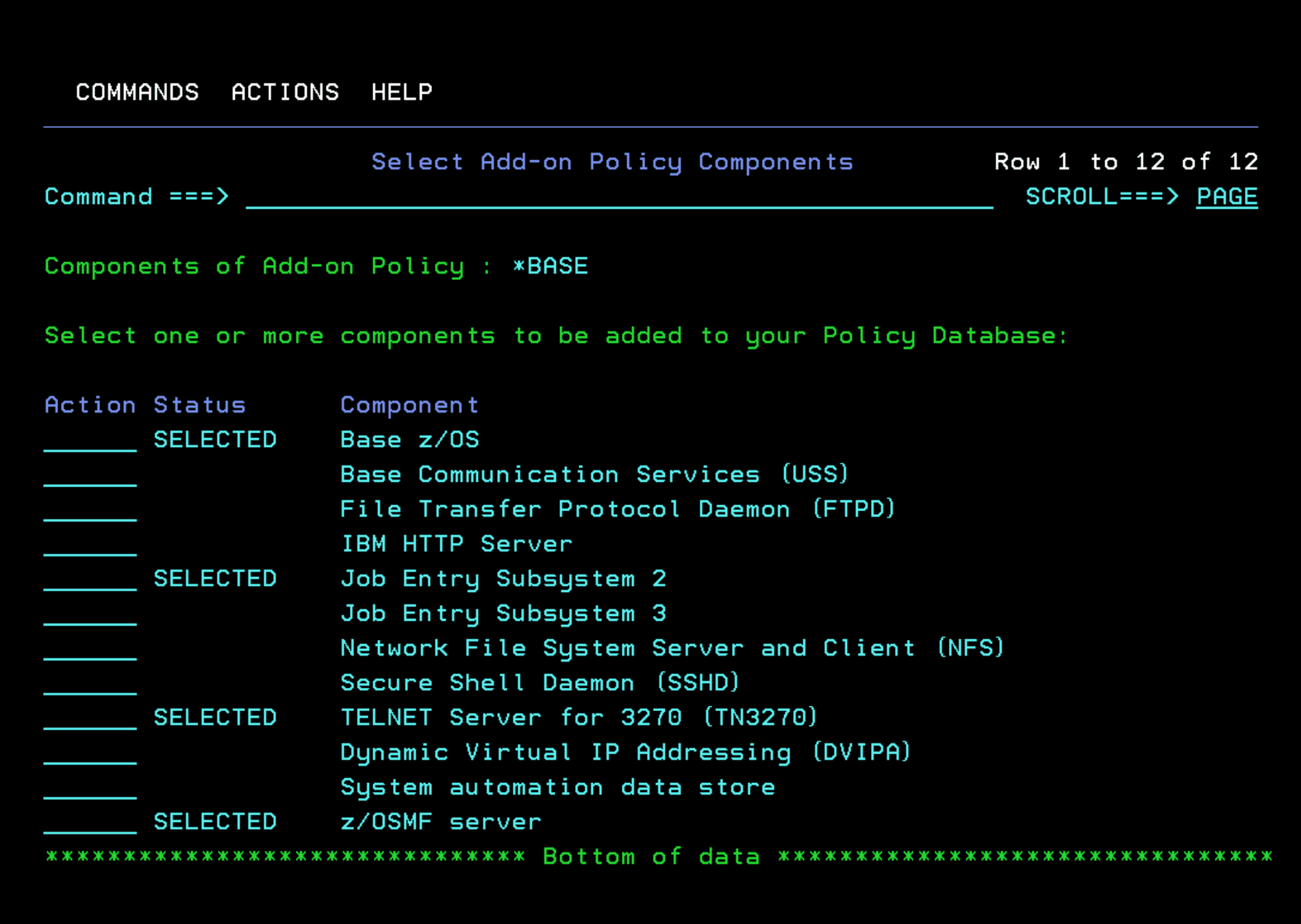
The message “CUSTOMIZED” will appear. Press Enter.
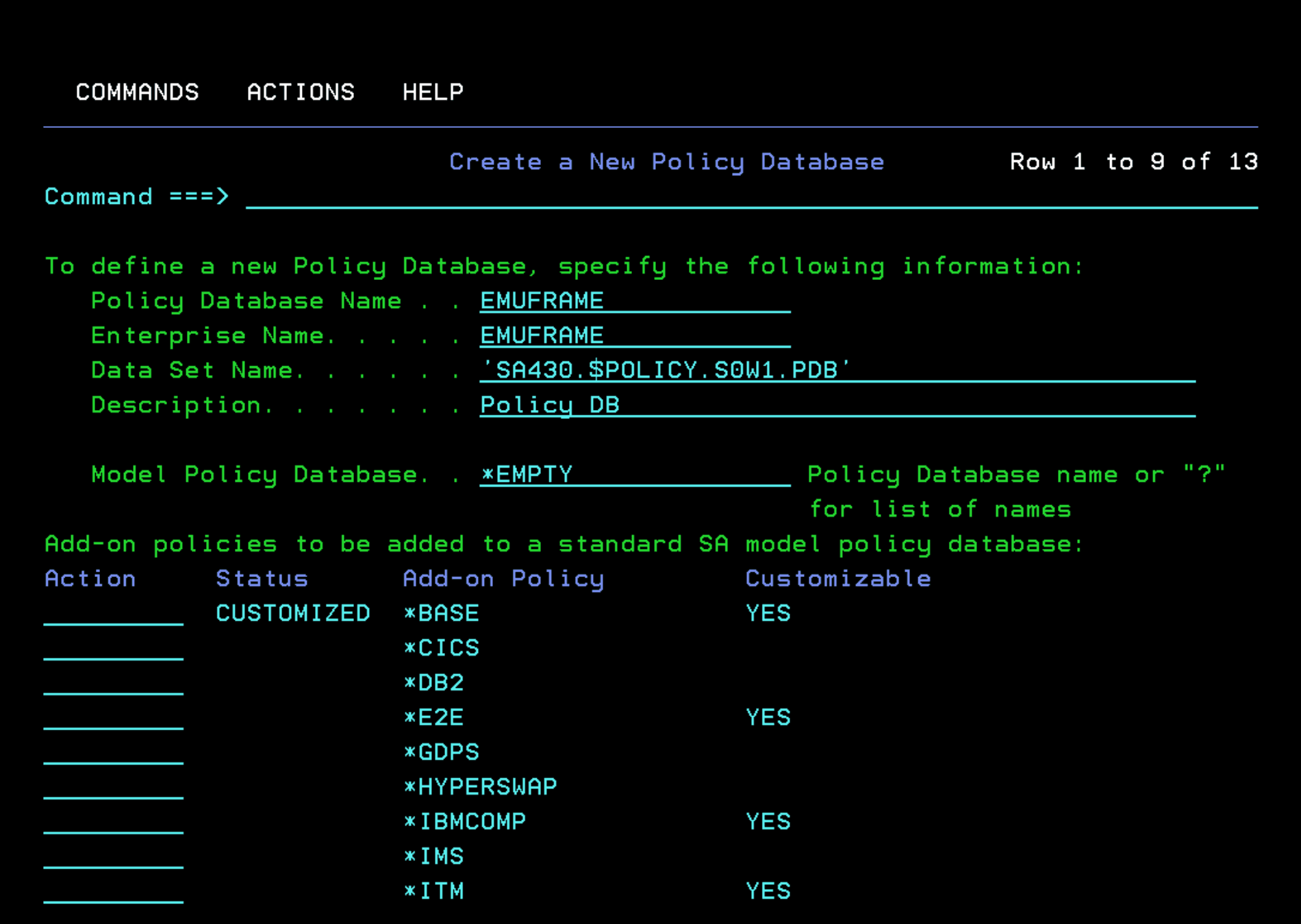
Here we define the characteristics that the **.PDB file will have.
In my case, I want to save it on the disk I created during installation (SA4300). Since I’m using the ADCD version, I must add SCNOSMS so that it is saved on my NO-SMS disk.
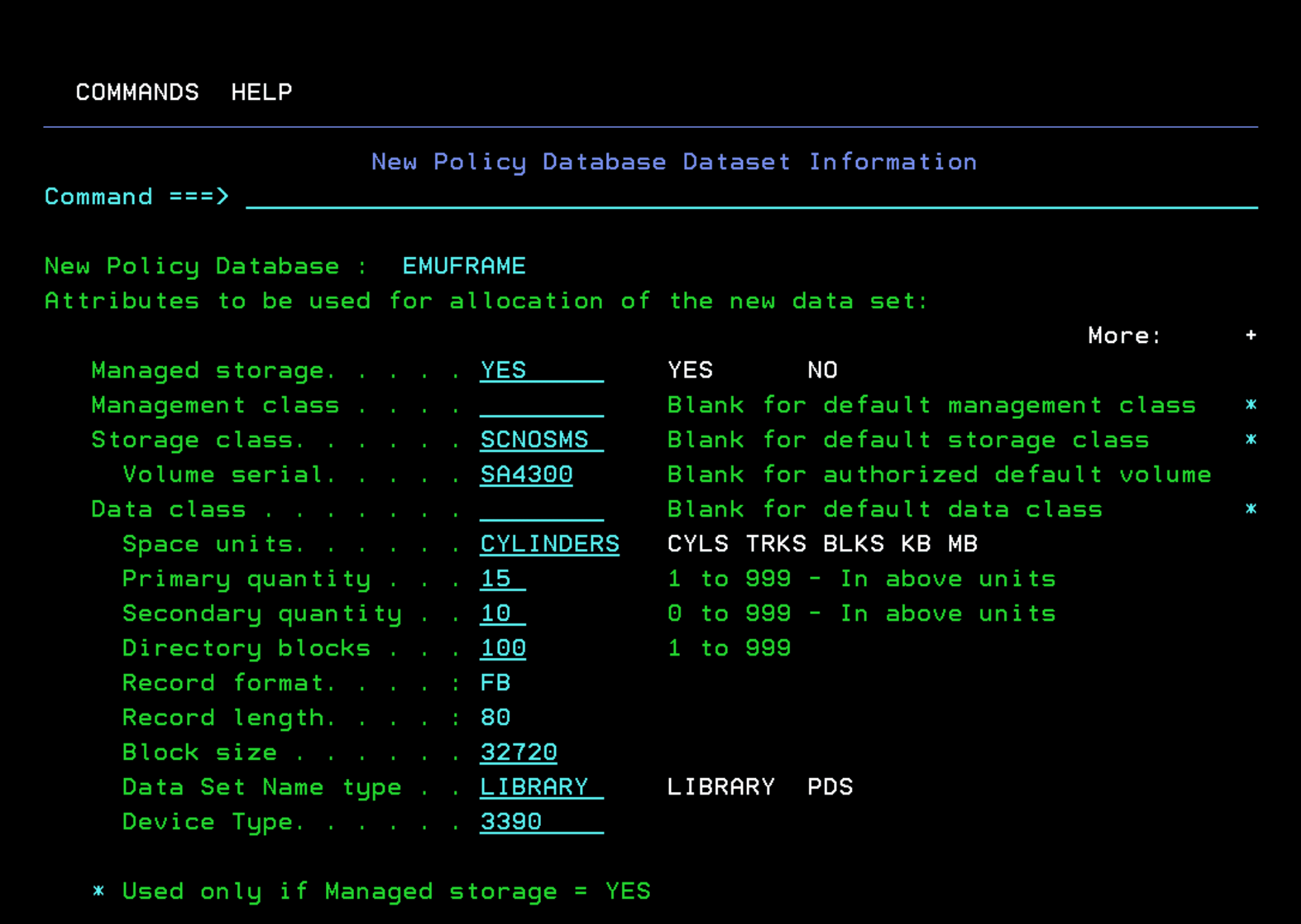
Wait for the new PDB to be created. It takes a few minutes.
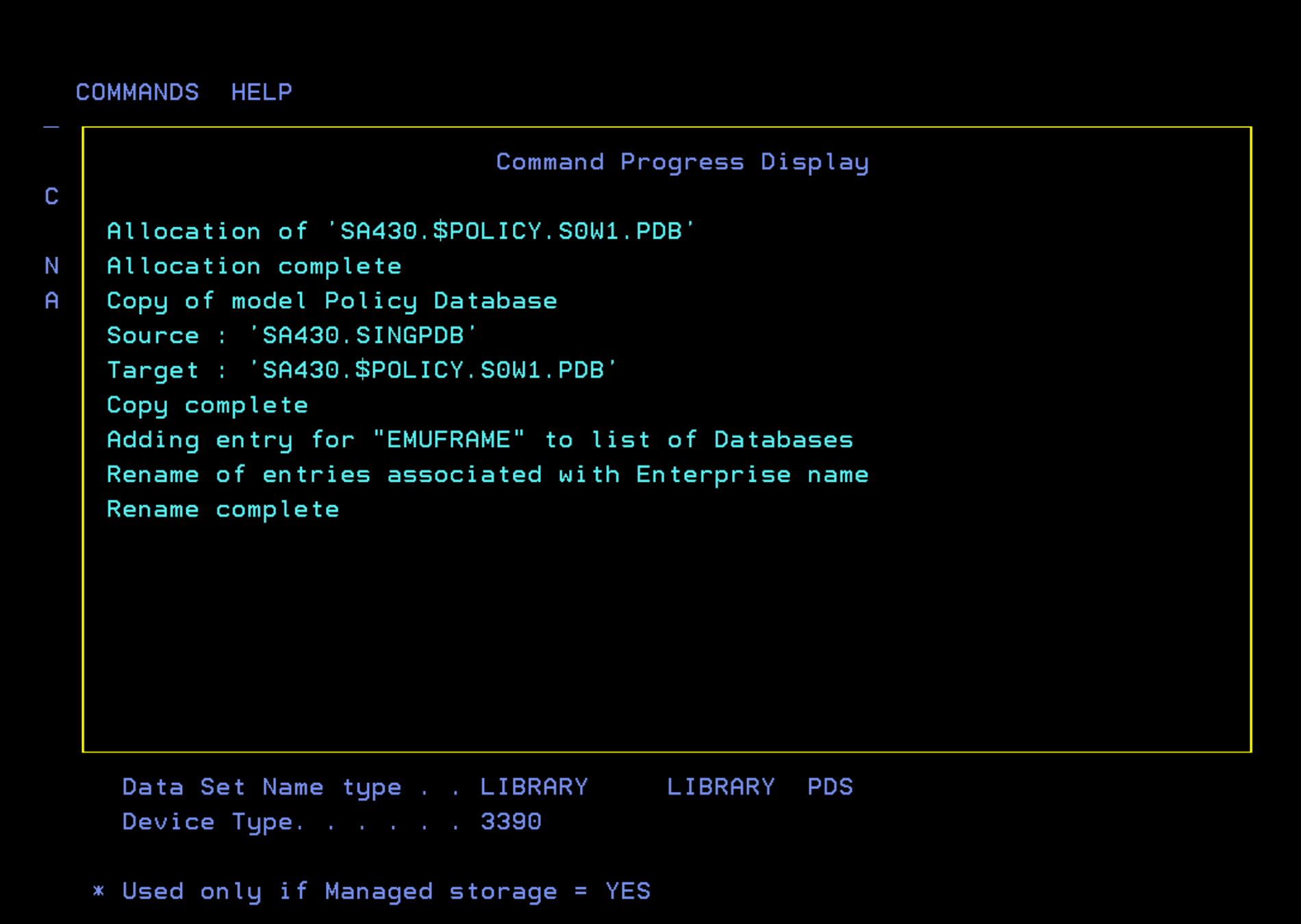
When the process finishes, we will see the following panel.
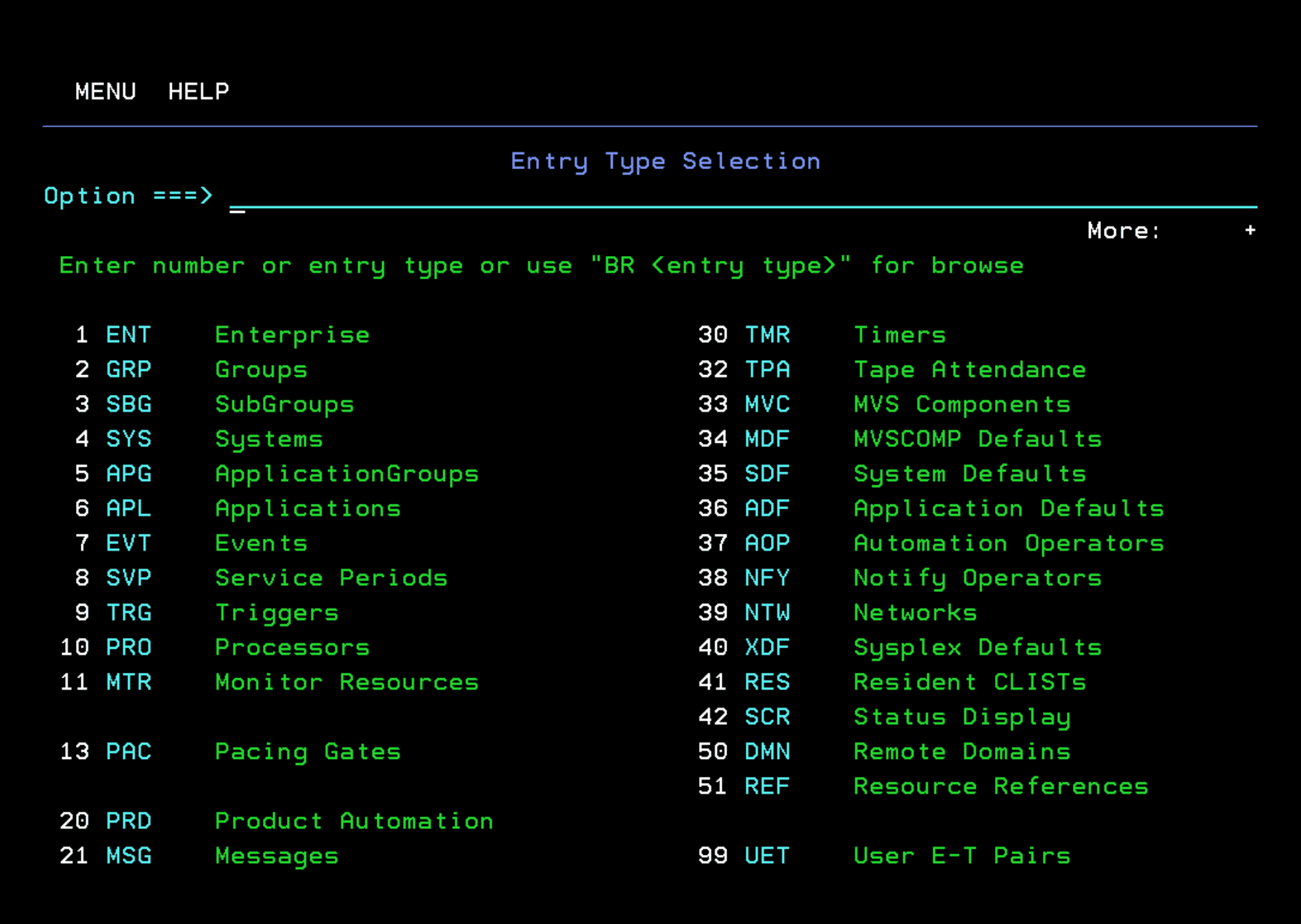
Adapting the PDB to Our System
After creating the basic PDB file, we will adapt it to our system.
Groups
Enter option 2 - Groups.
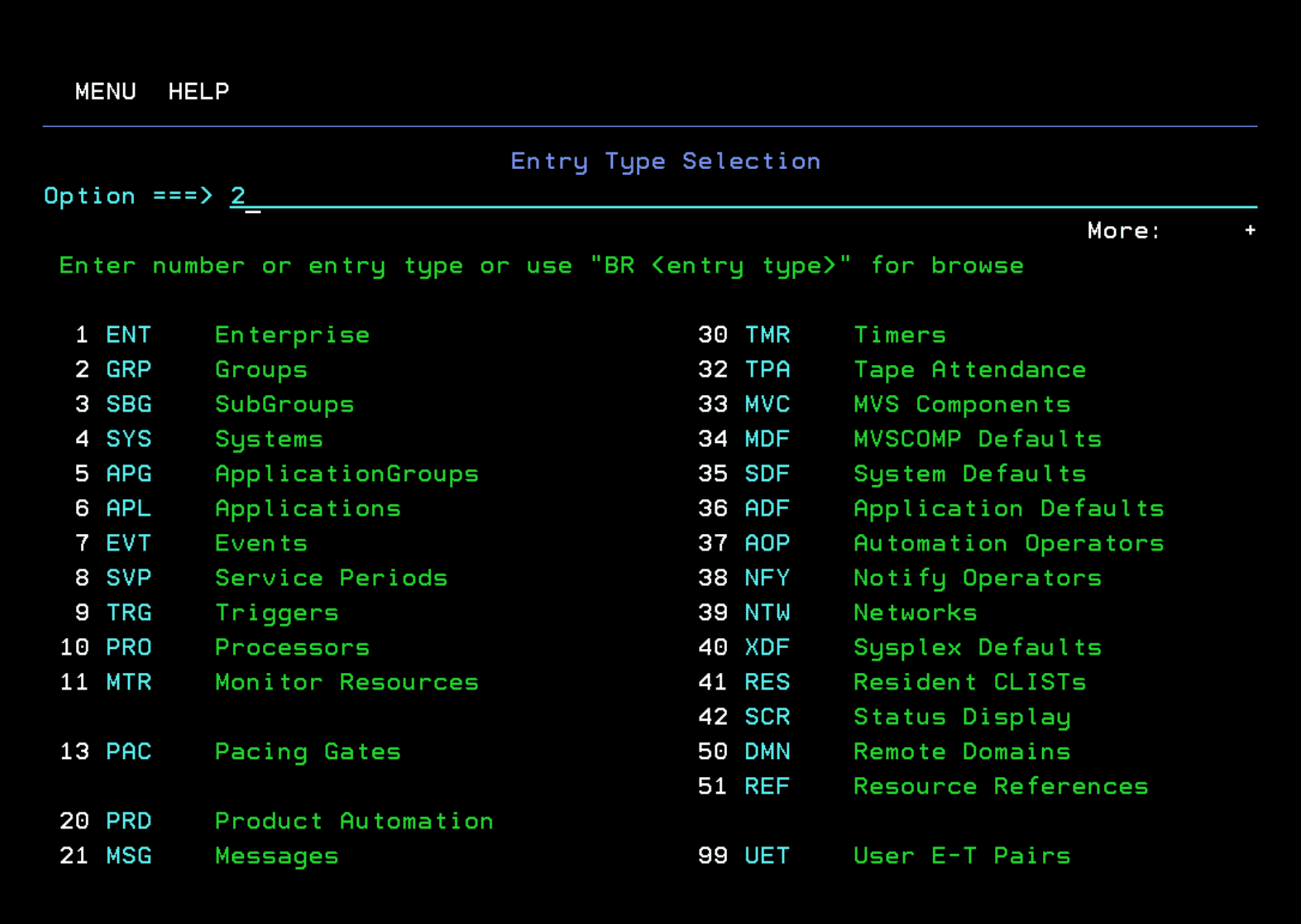
With “R”, rename the resource. I will put my sysplex name: ADCDPL
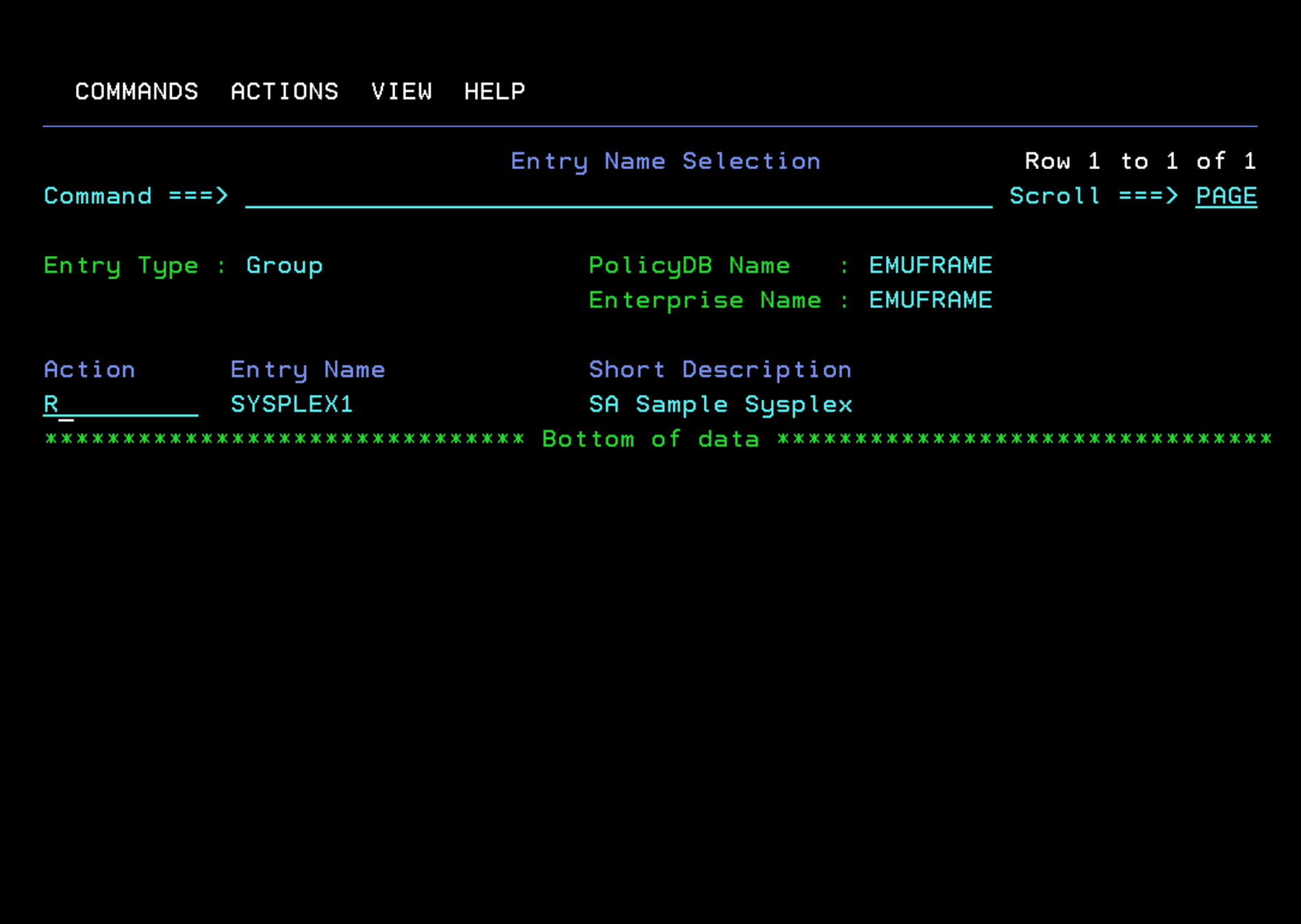
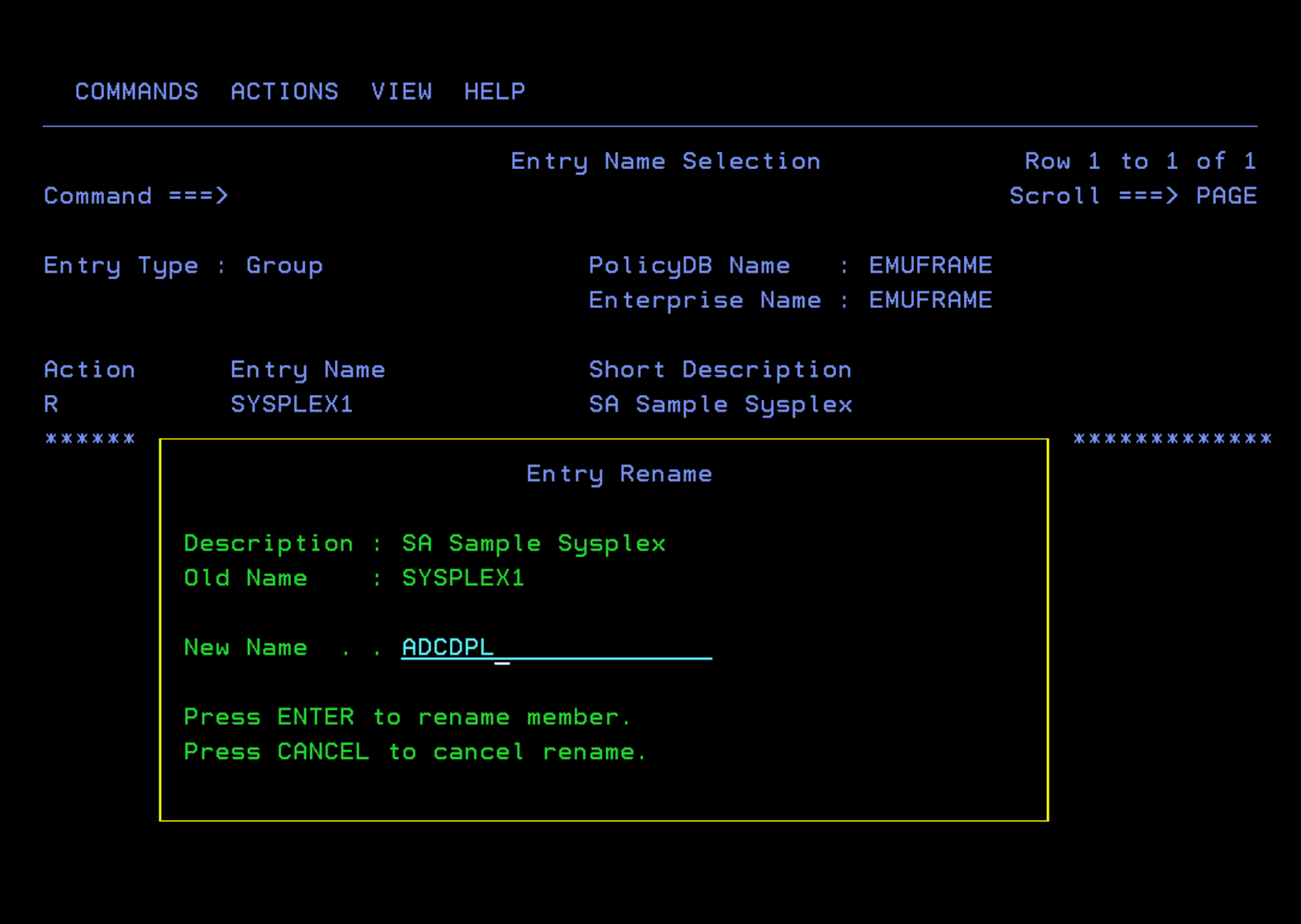
Now we can change the “Short Description” field. To do this, we enter the resource with “S”.
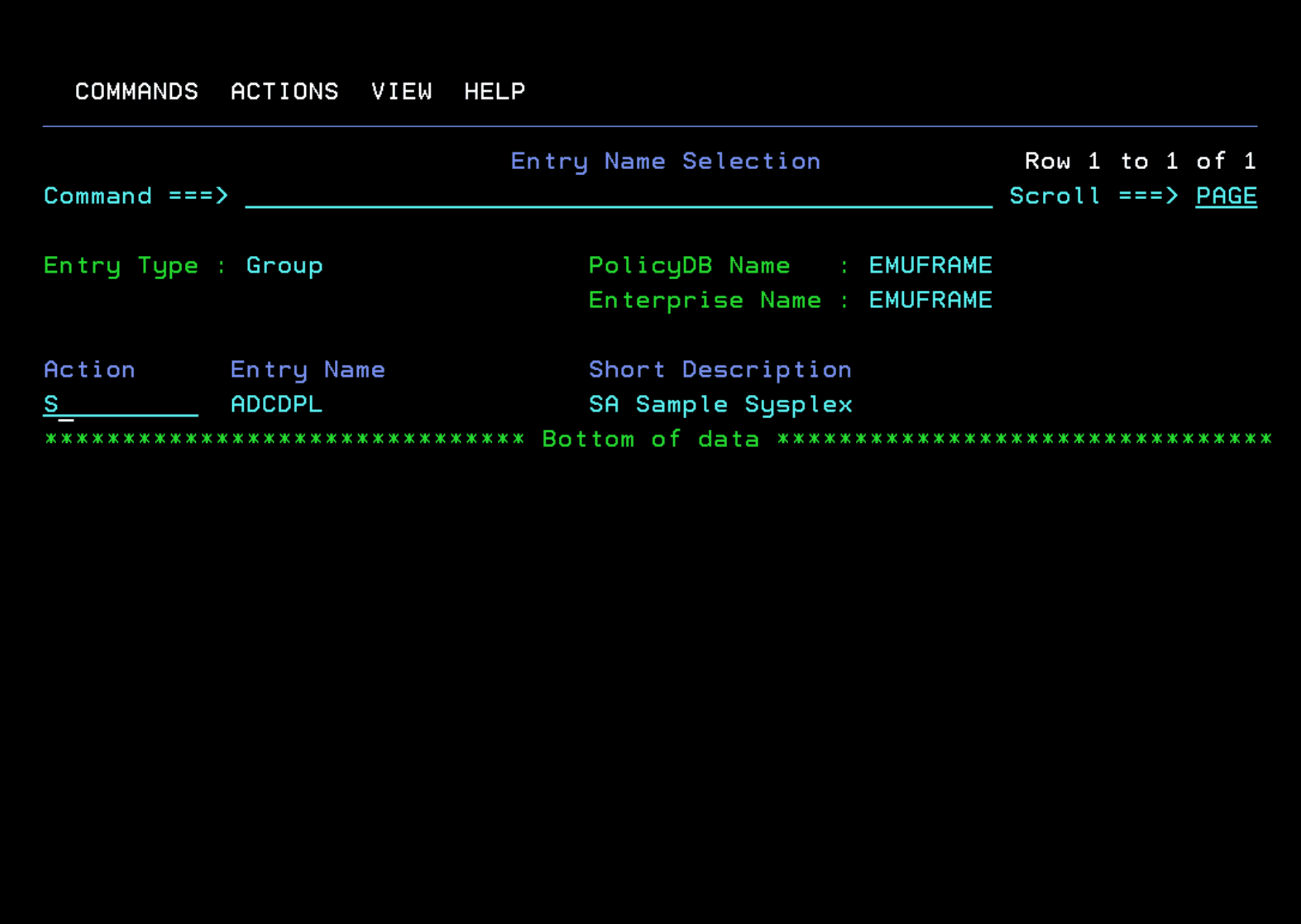
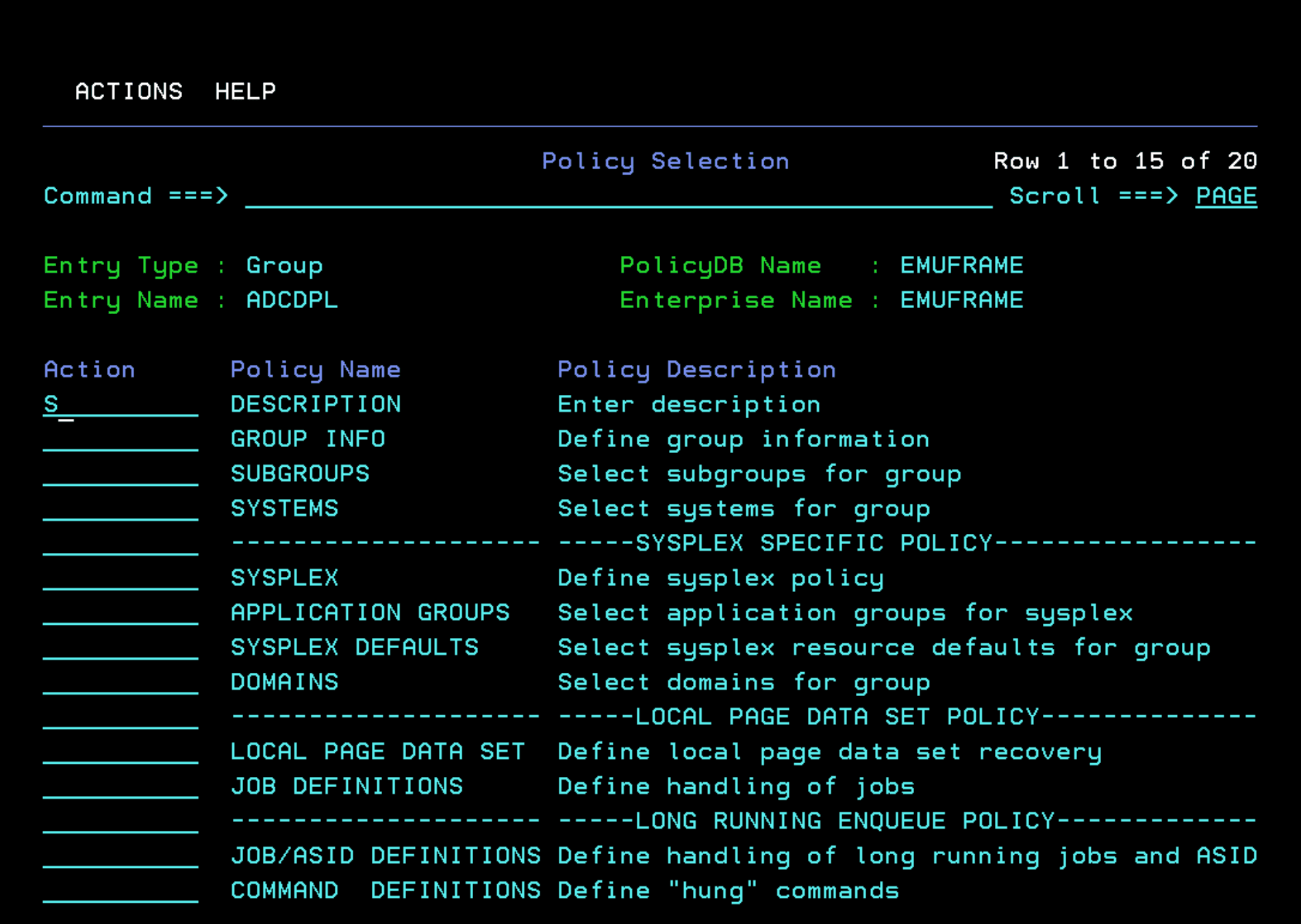
With “S” we enter “Description”.
We change the description as we want. Exit with F3 to save the changes.
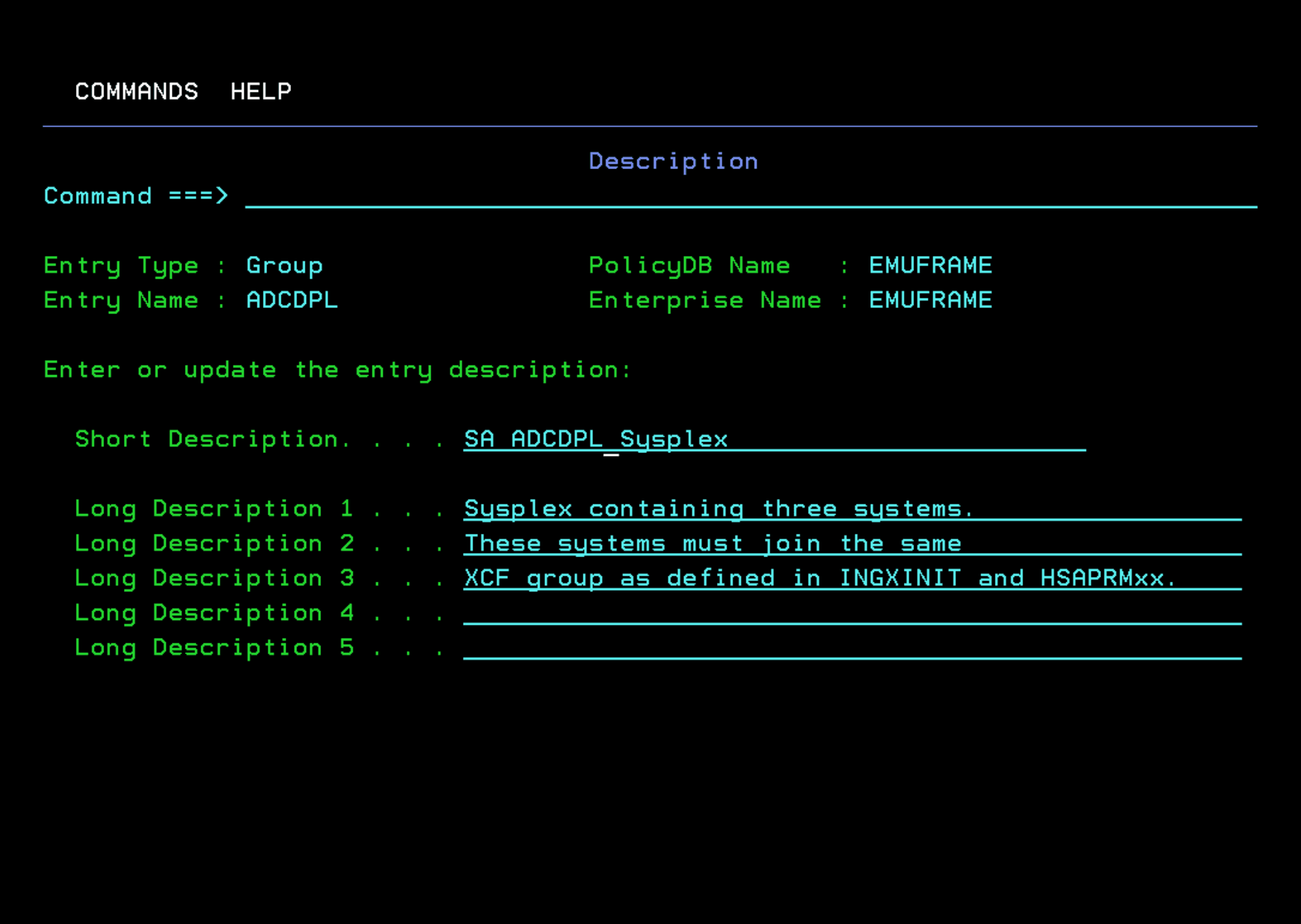
We enter Systems.
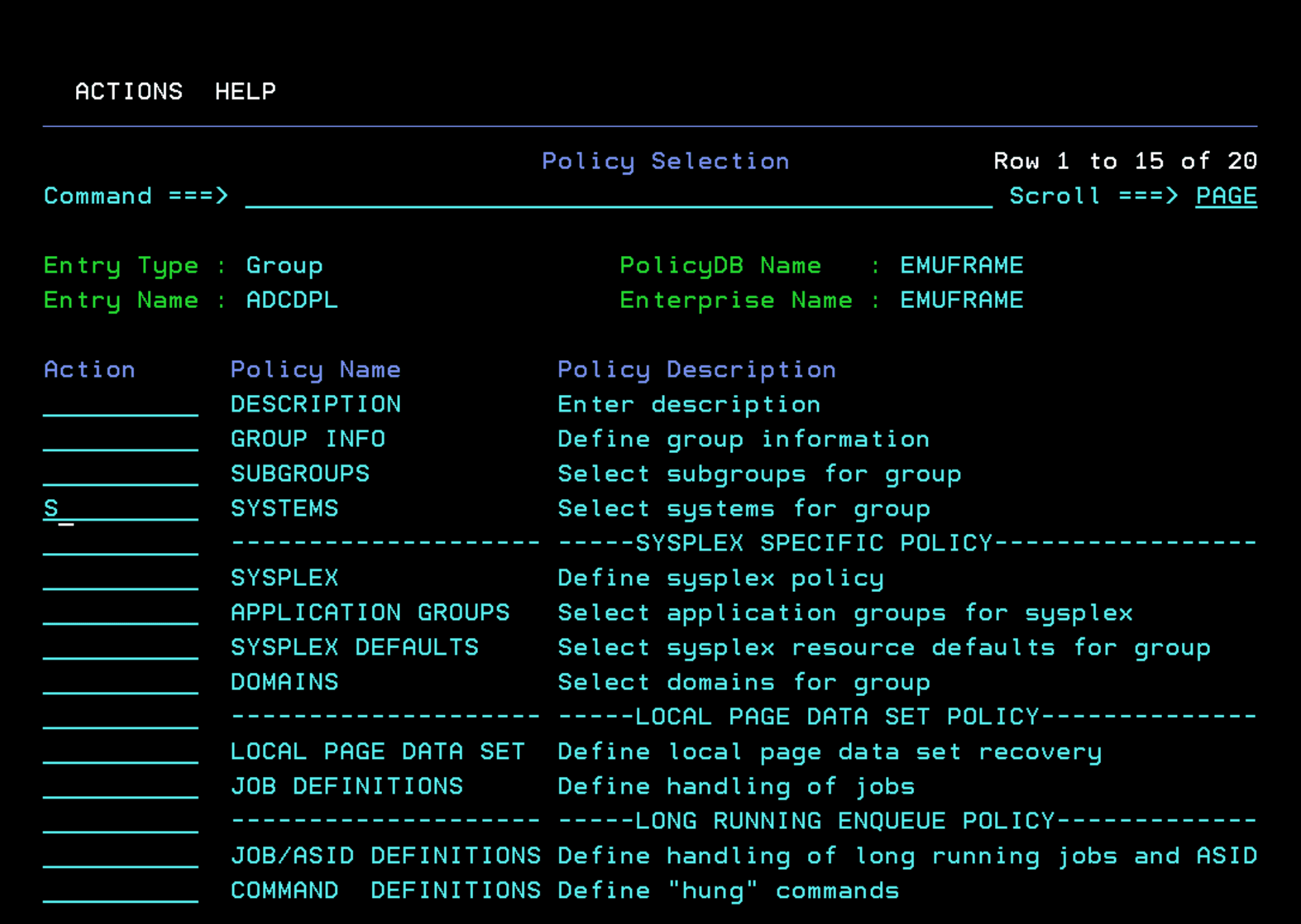
There are 3 systems defined as an example. I will remove 2 and keep SYS1 because I only have one system.
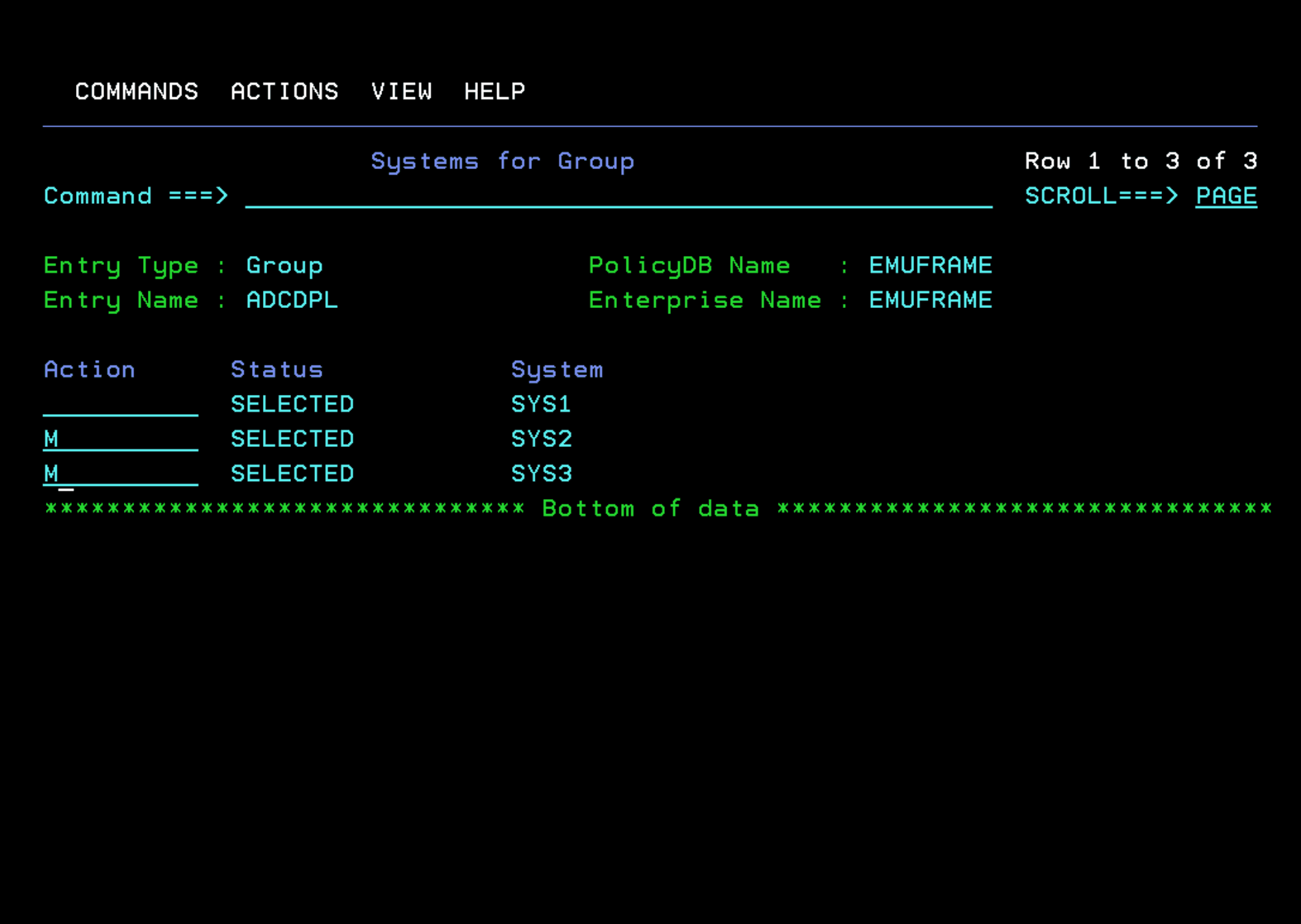
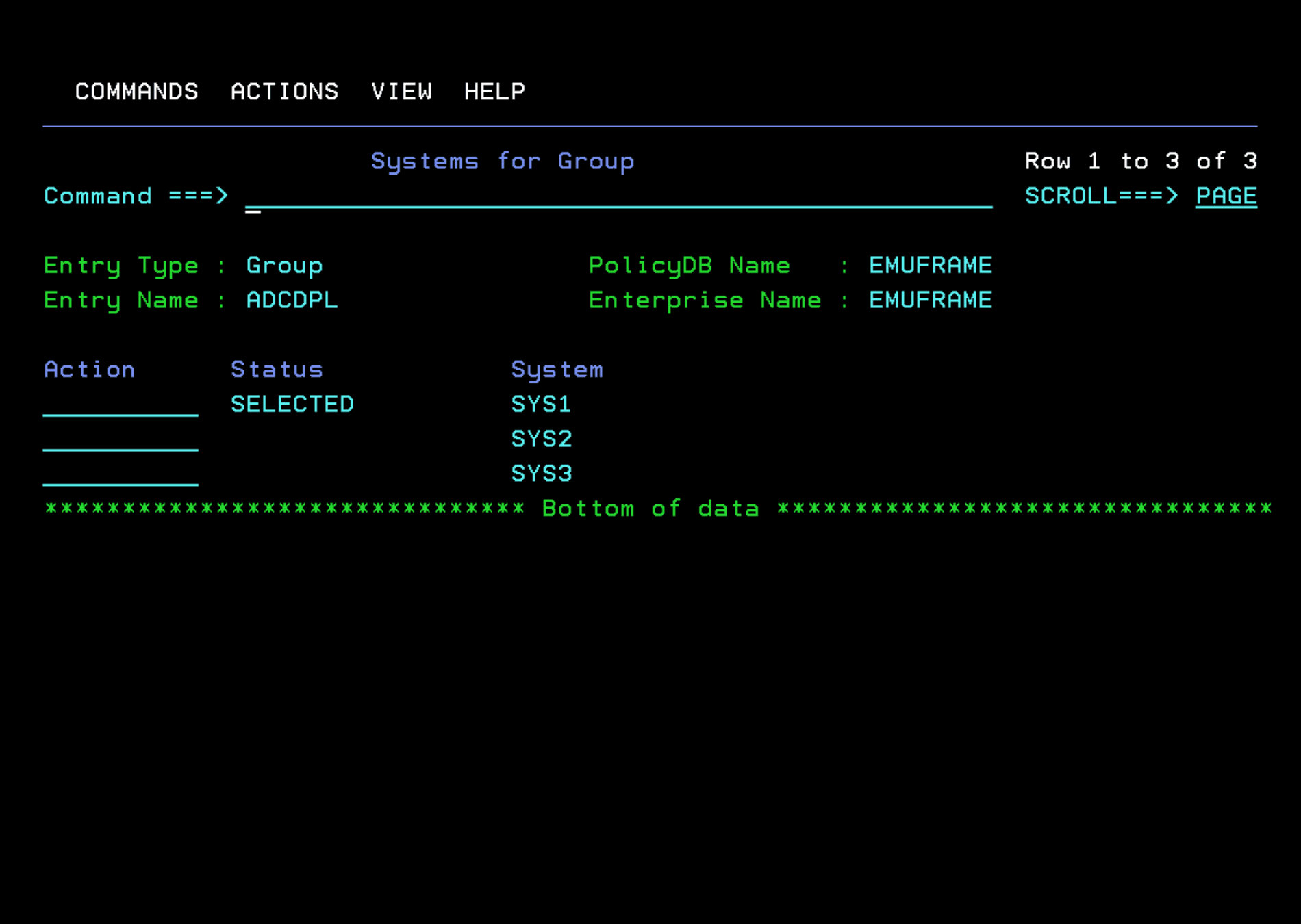
Only SYS1 will appear with the “SELECTED” status. Exit with F3.
Systems
Enter option 4 - Systems.
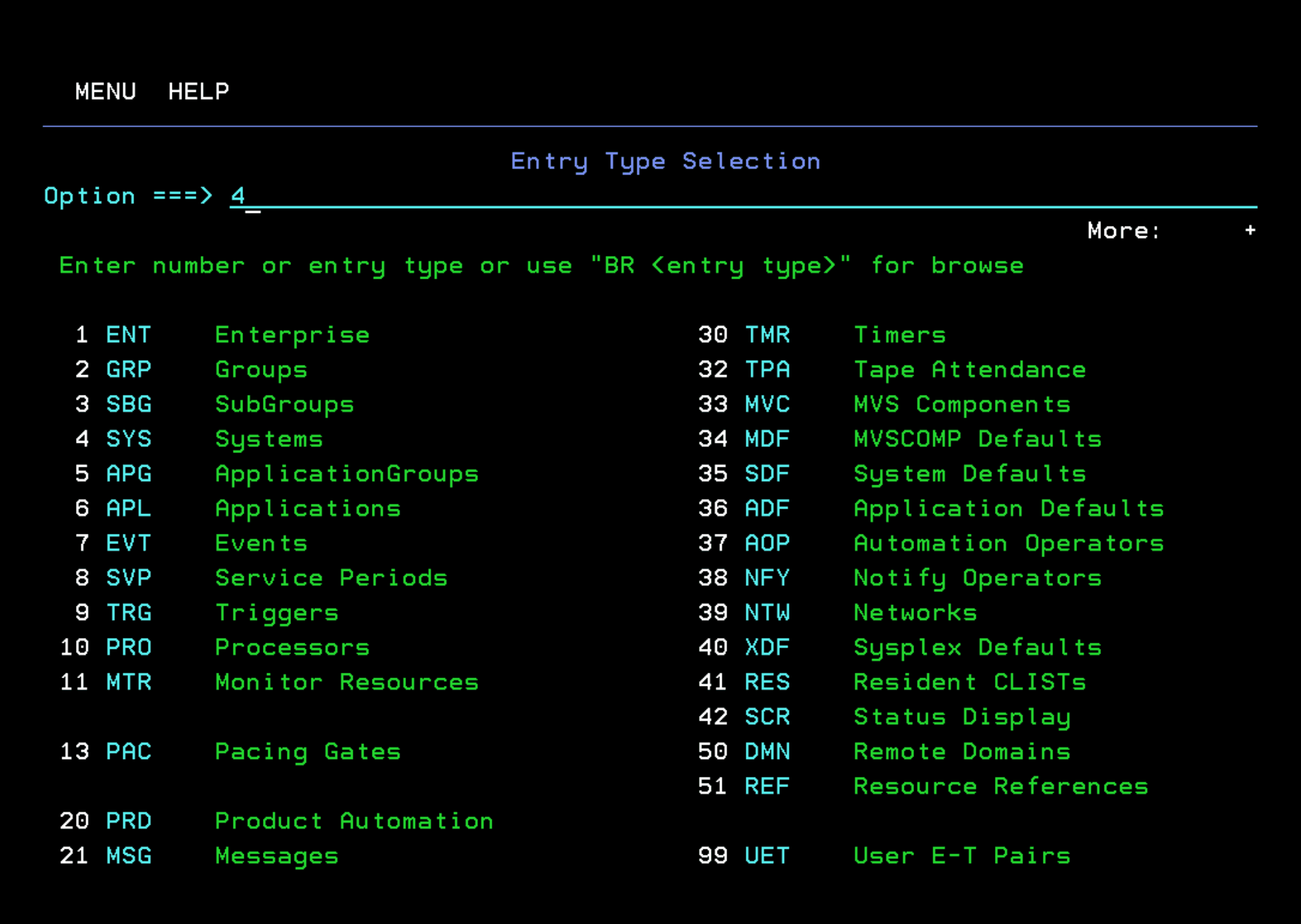
3 example systems will appear. I will rename the first one.
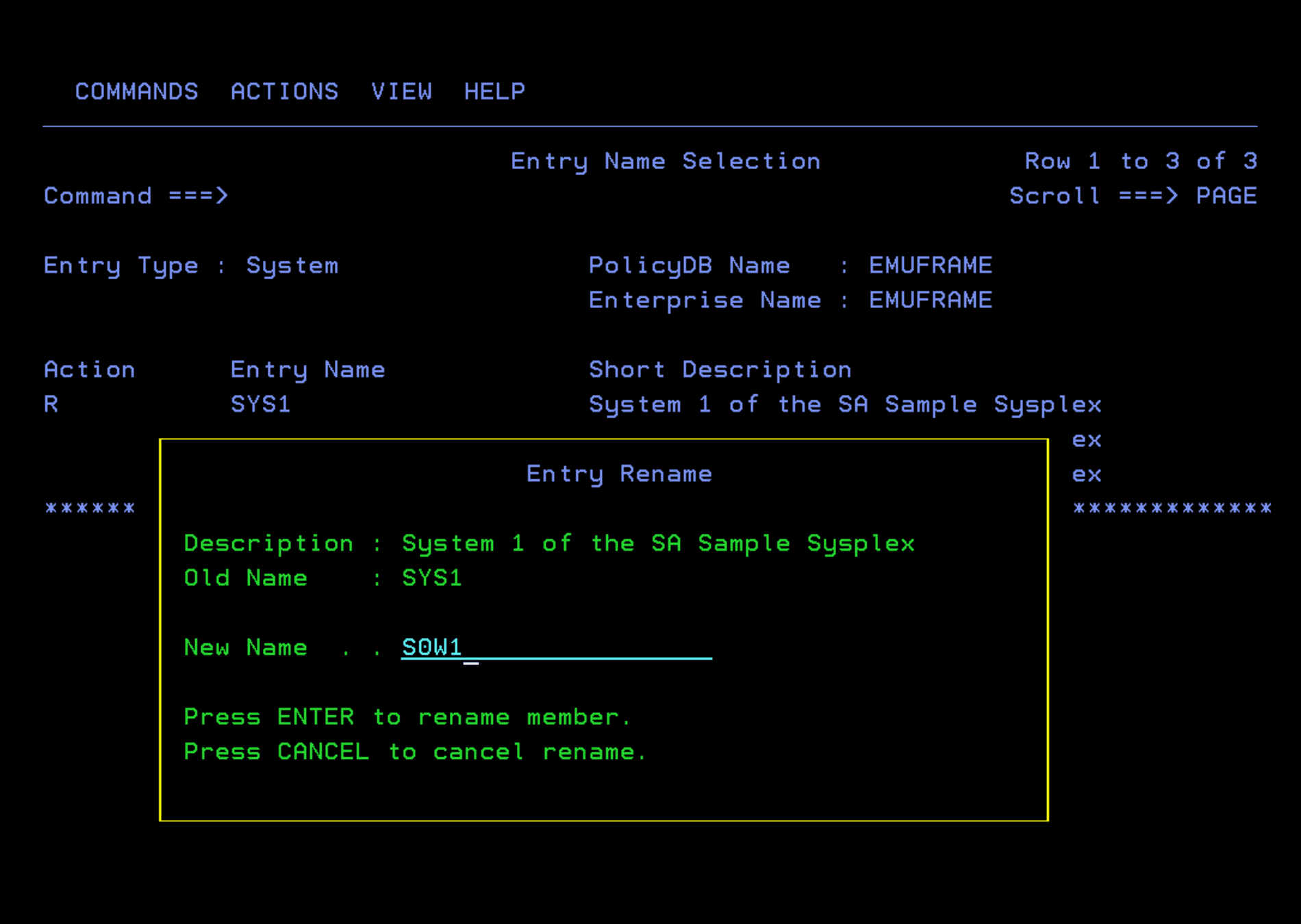
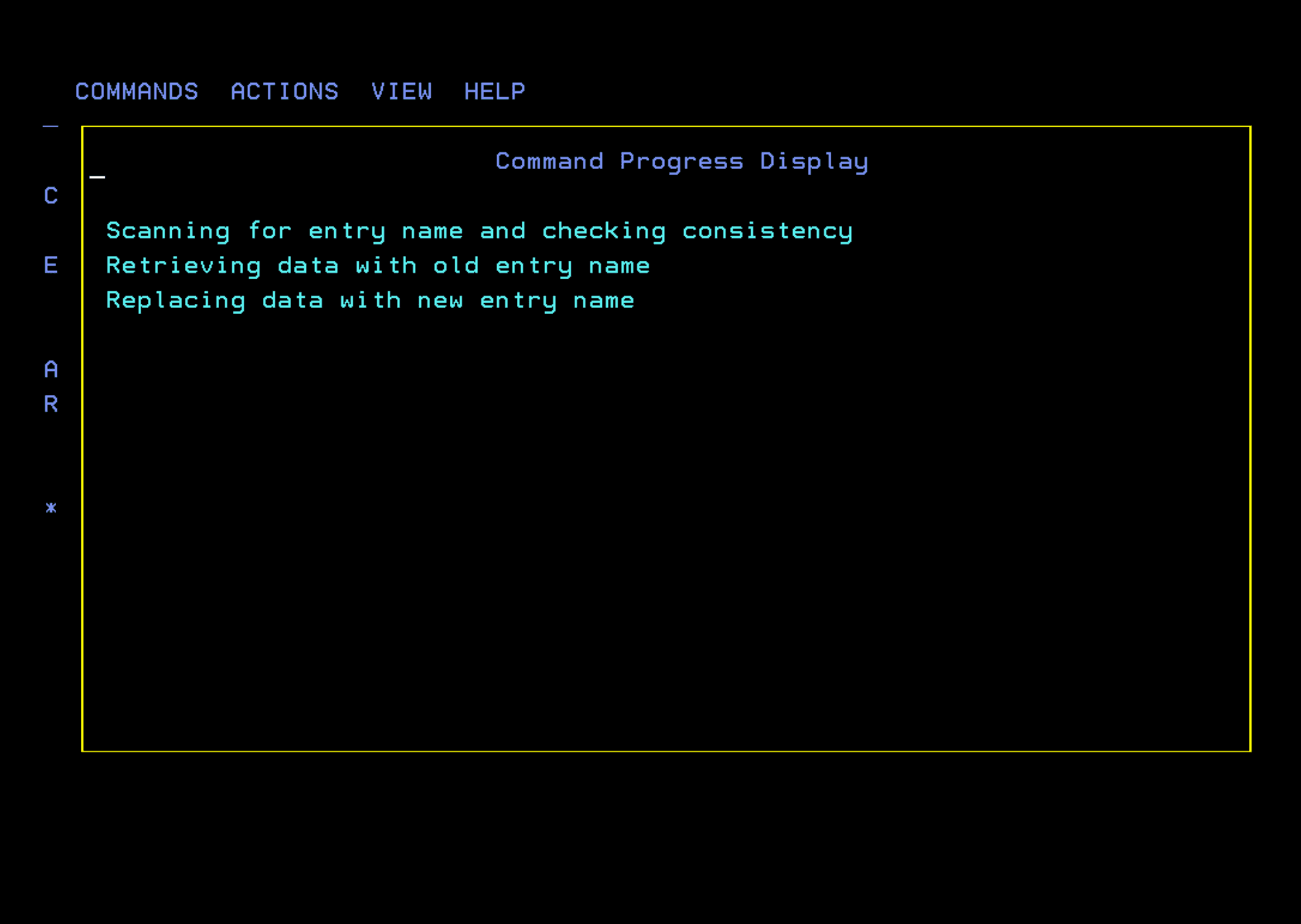
Wait for it to finish.
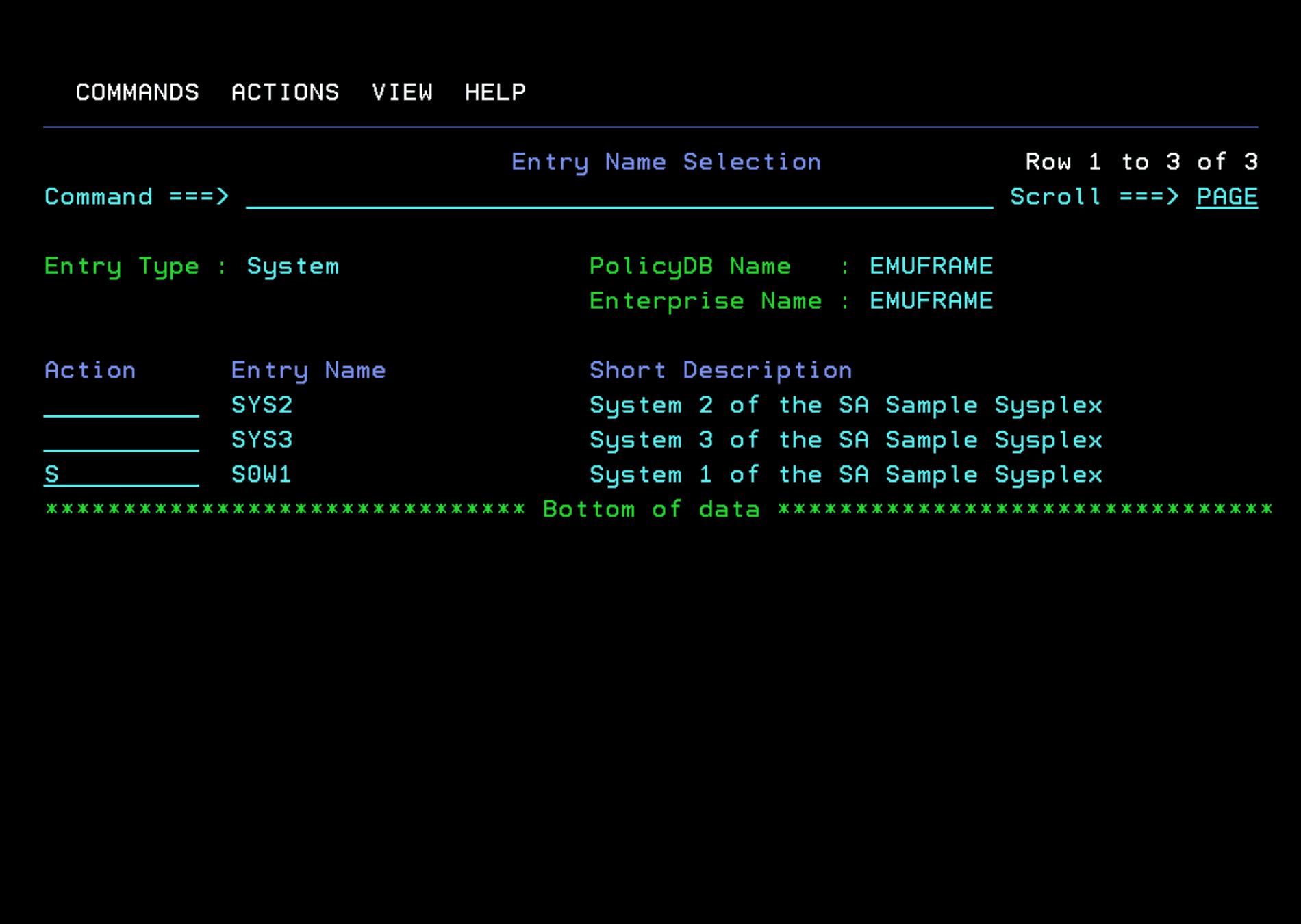
Enter the system we have renamed. “S”.
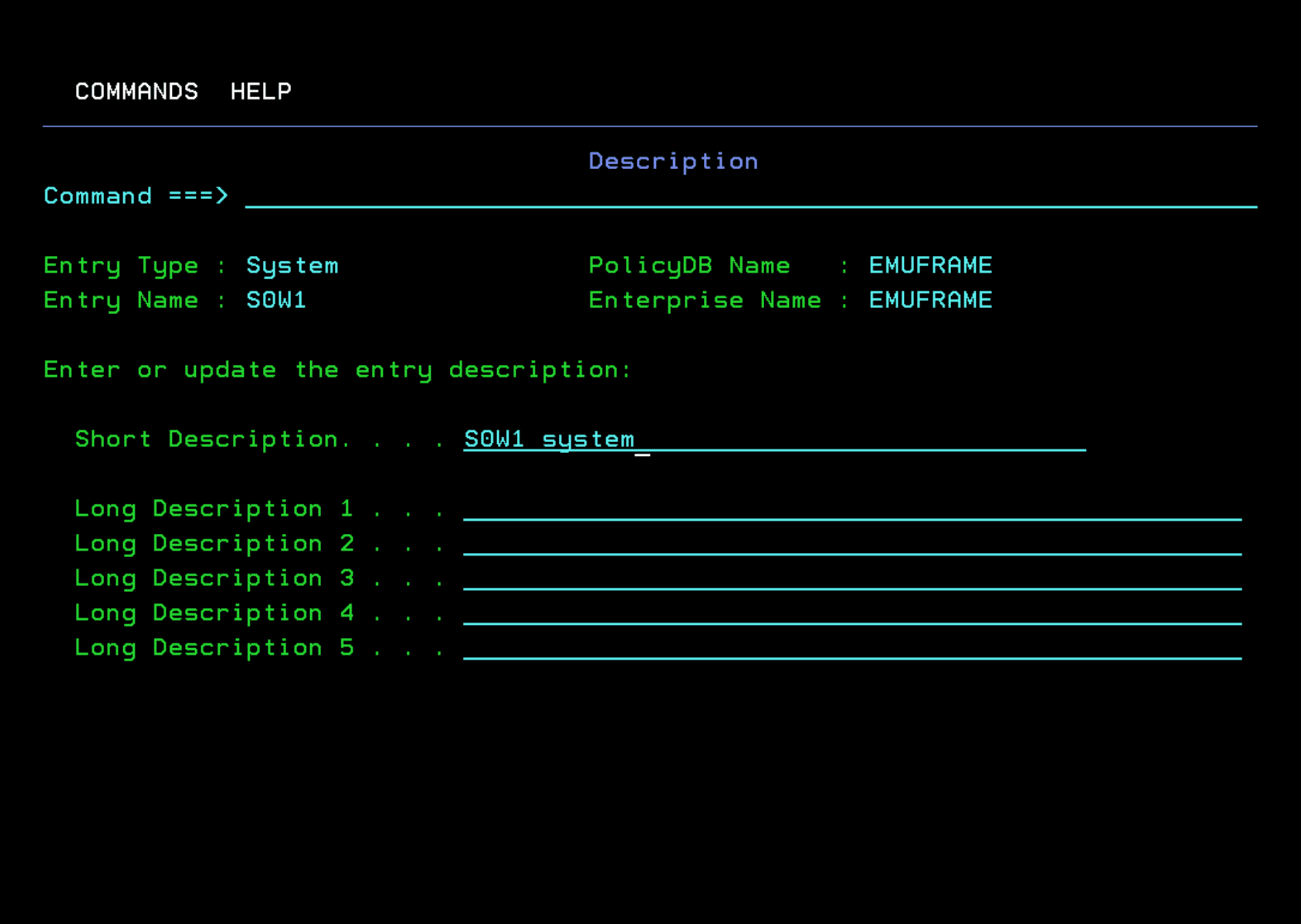
Enter Description and modify it.
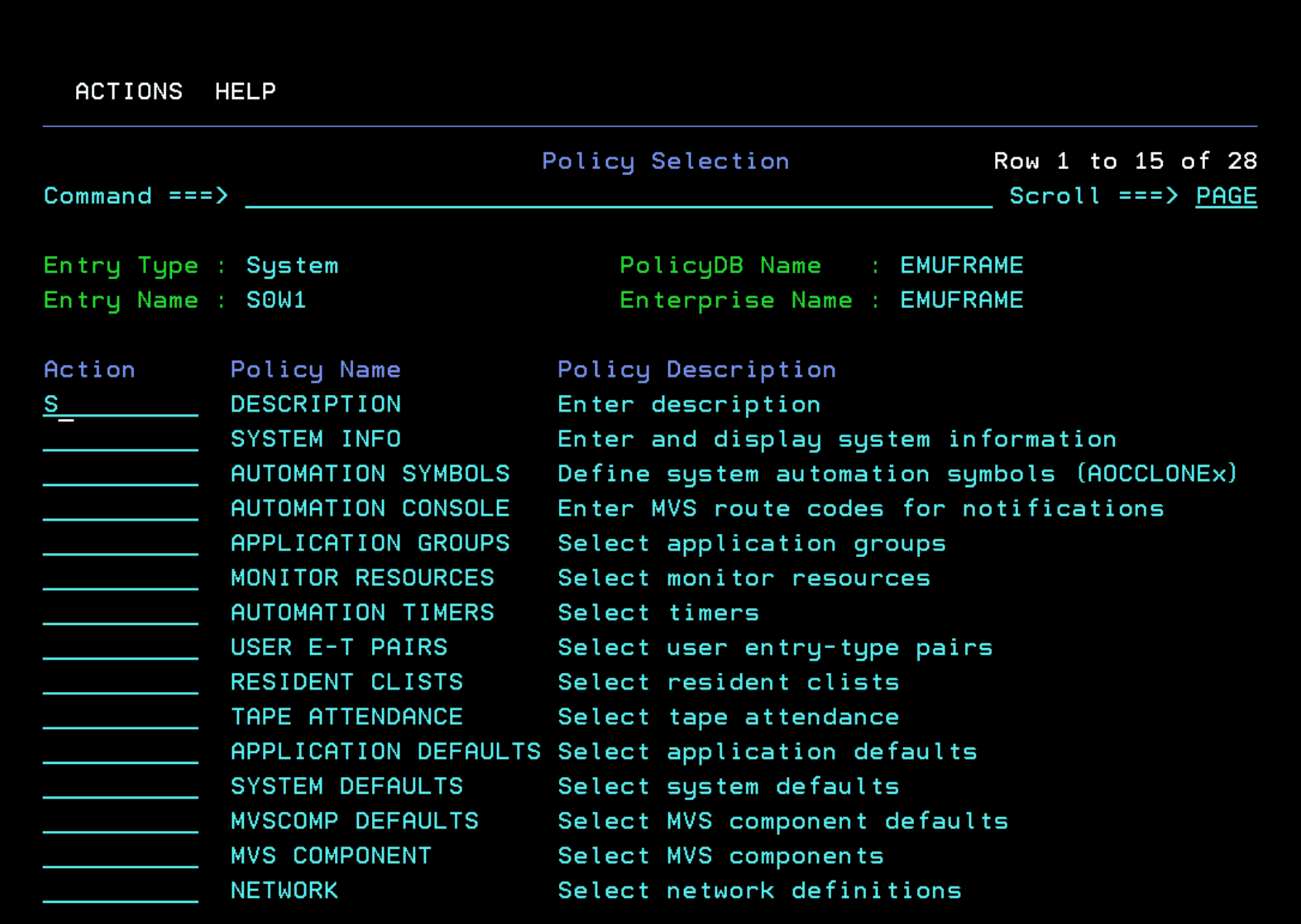
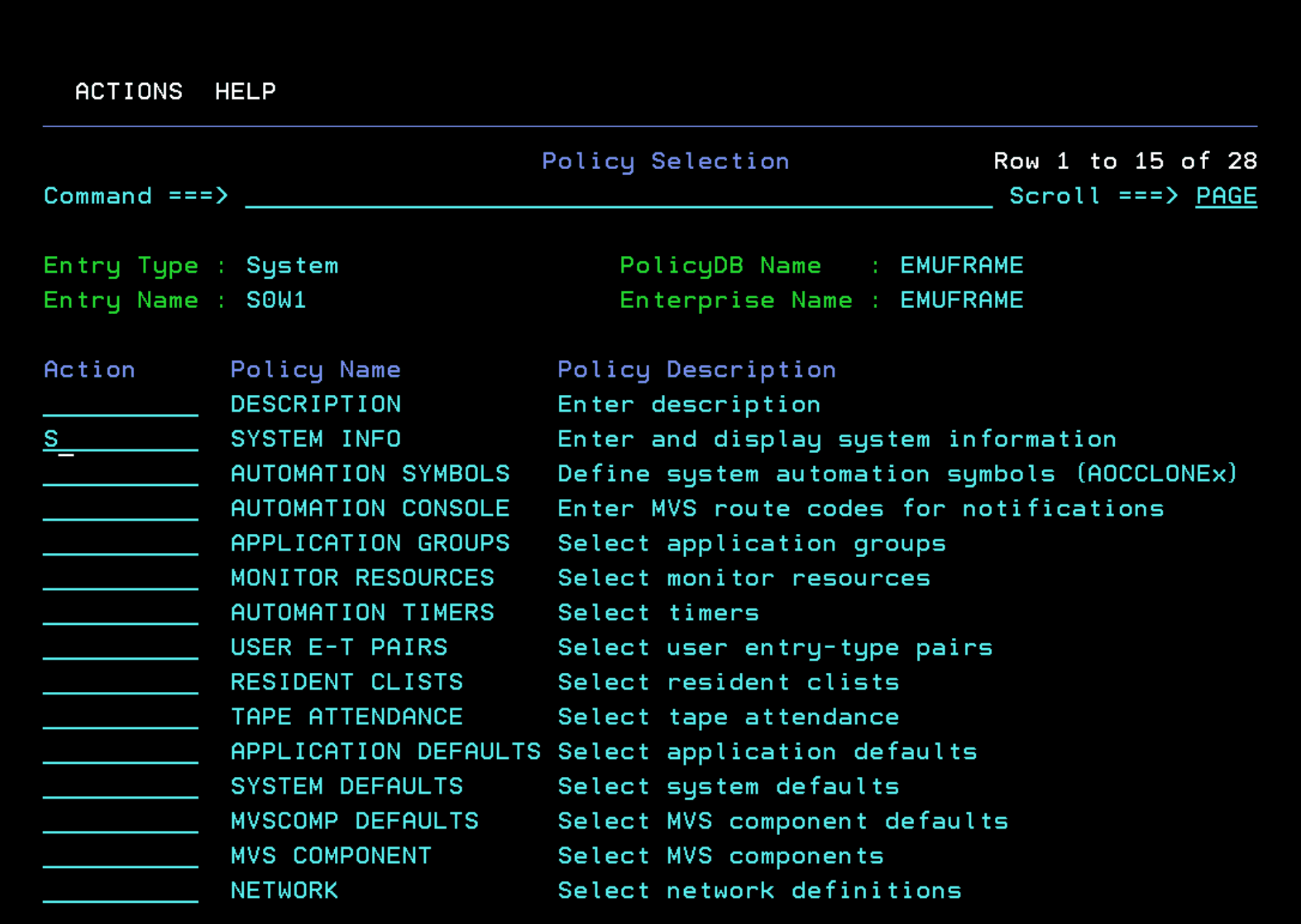
IMPORTANT - Enter “System Info”
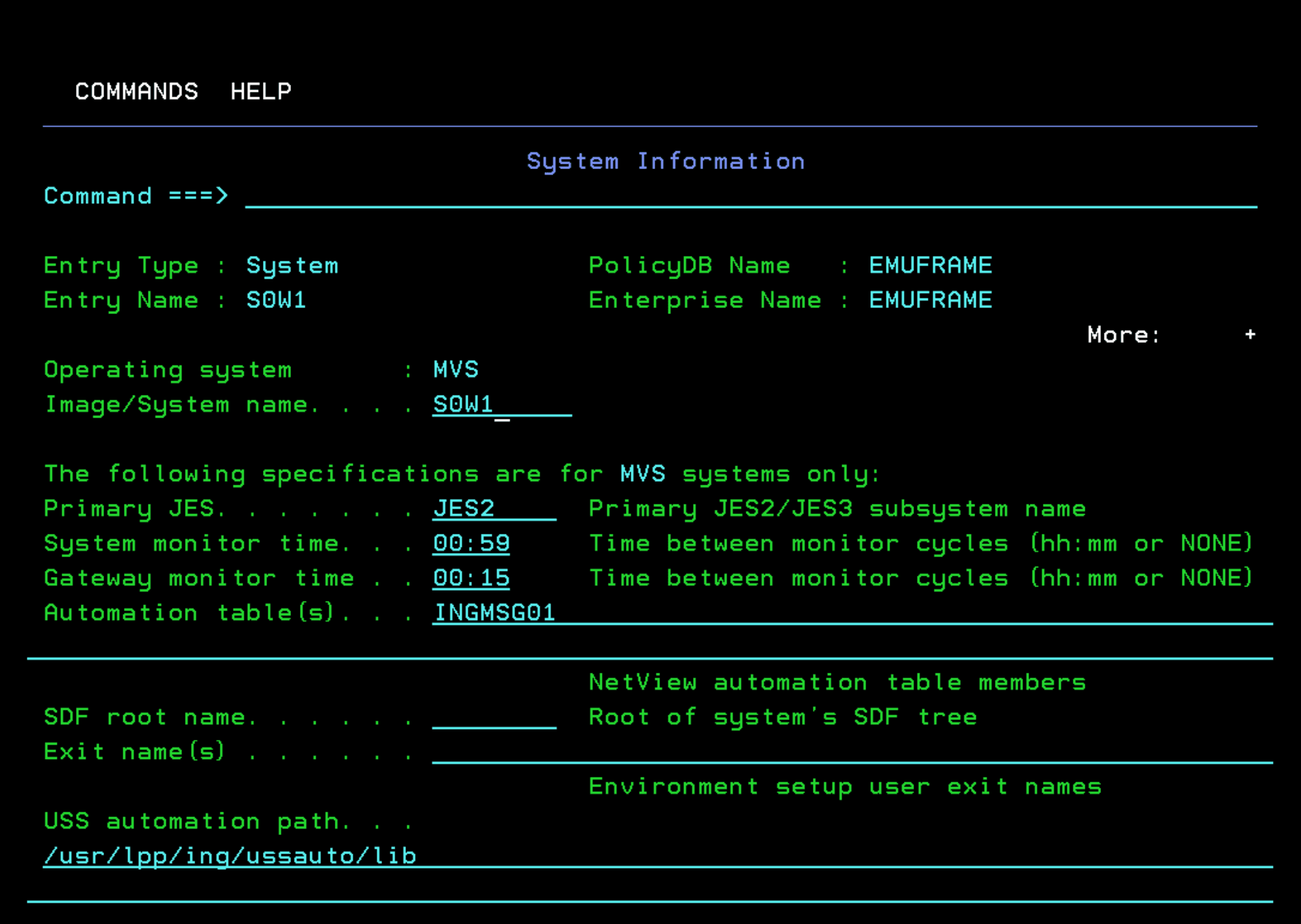
In “Image/System name”, indicate the real system name. In my case, S0W1.
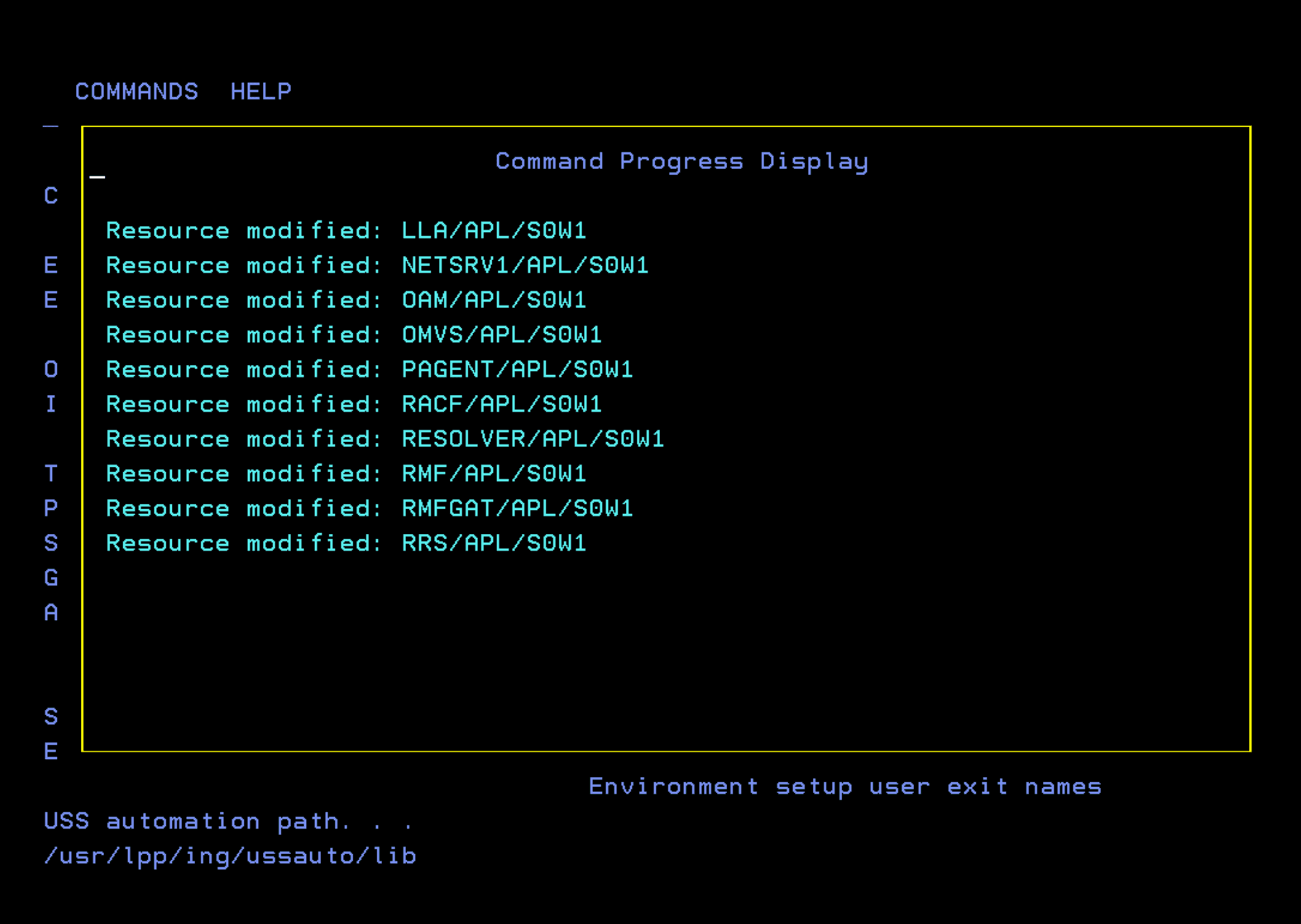
We will see a series of modified resources that will point to the new system name. Exit with F3.
Applications
This is the part that will take us the most time. It consists of defining in the automation all the tasks we have in the system. This is done to be able to monitor and automate IPLs.
I will structure it this way: in this section I will modify/explain a few applications to show the way of working. In another section within this article I will include how to define other tasks like CICSes, DB2, etc. to serve as an example.
Enter option 6 - Applications.
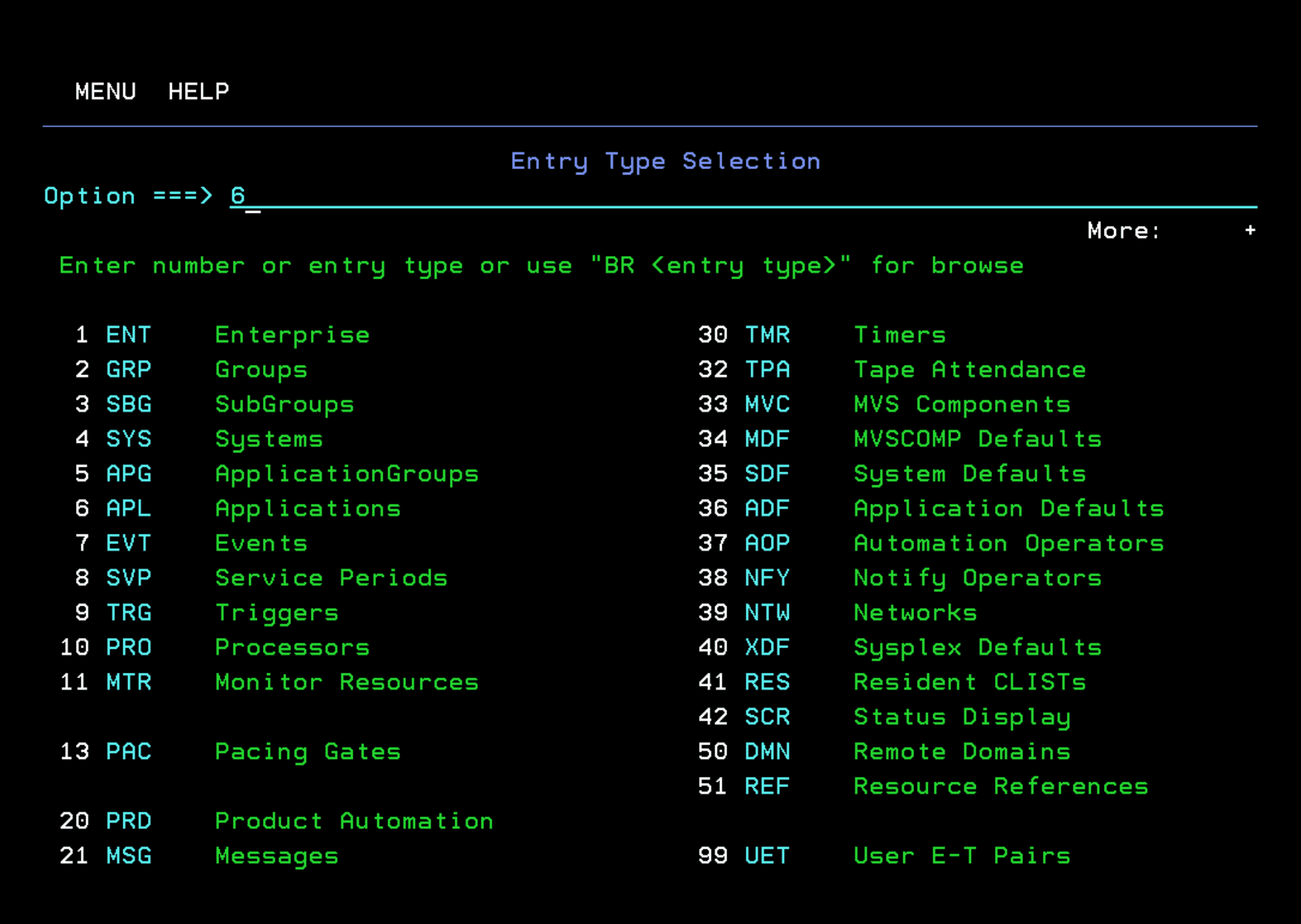
We will see a list of applications that were created when we included the *BASE “add-on” in previous steps.
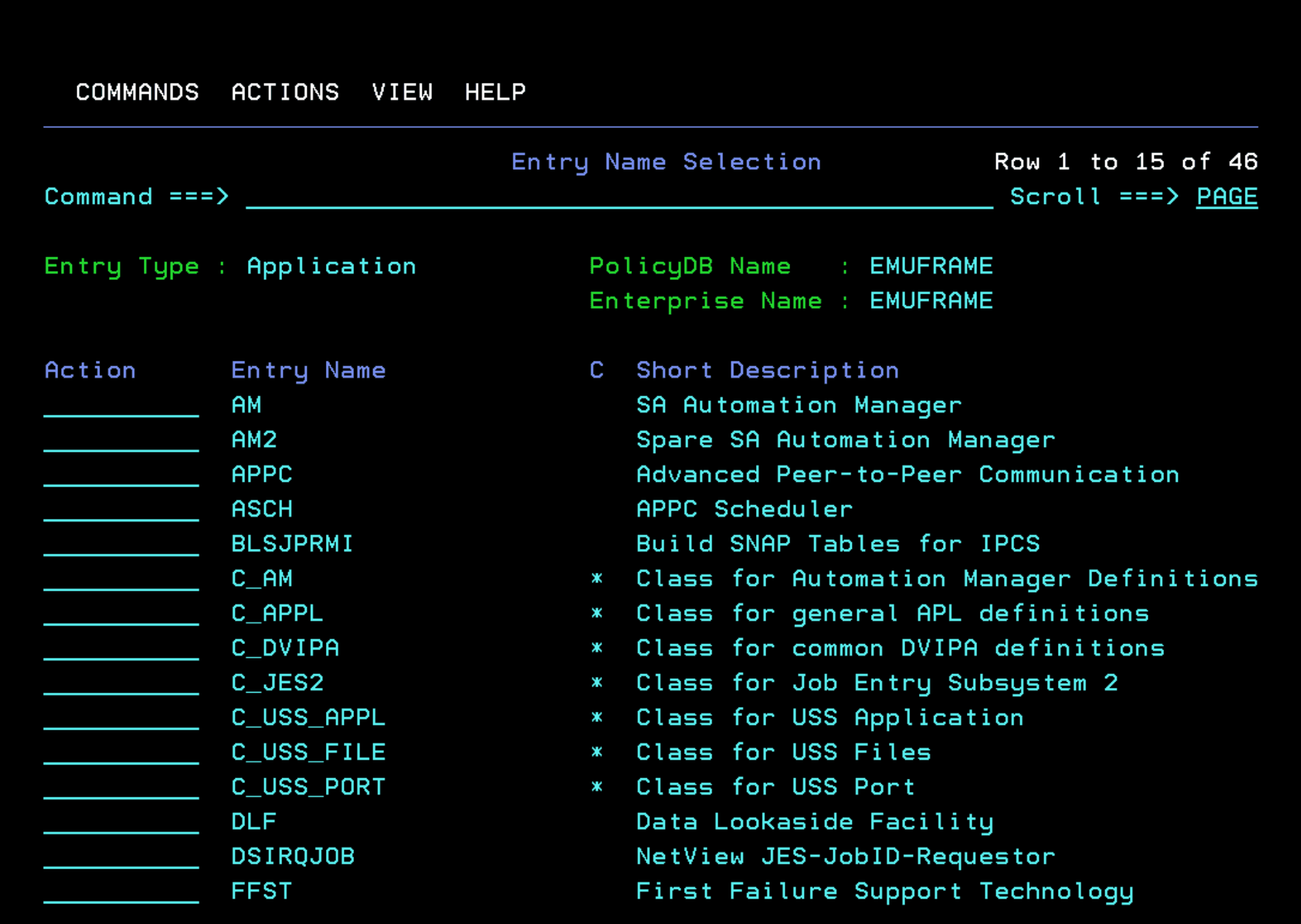
We must review this list and modify the necessary tasks to fit our system. We must also remove those that we don’t have in the system.
Since these are *BASE tasks, they will already be associated with the BASE_SYS application group. By default, the BASE_SYS application group will also be associated with the system group that is created when we import the *BASE add-on configuration. (ADCDPL in my case).
To review the configuration, you must enter option 5 - ApplicationGroups
Example - Modify AM Task
This task does need to be in my system, but we must check what the job is called.
We enter the task with “S”.
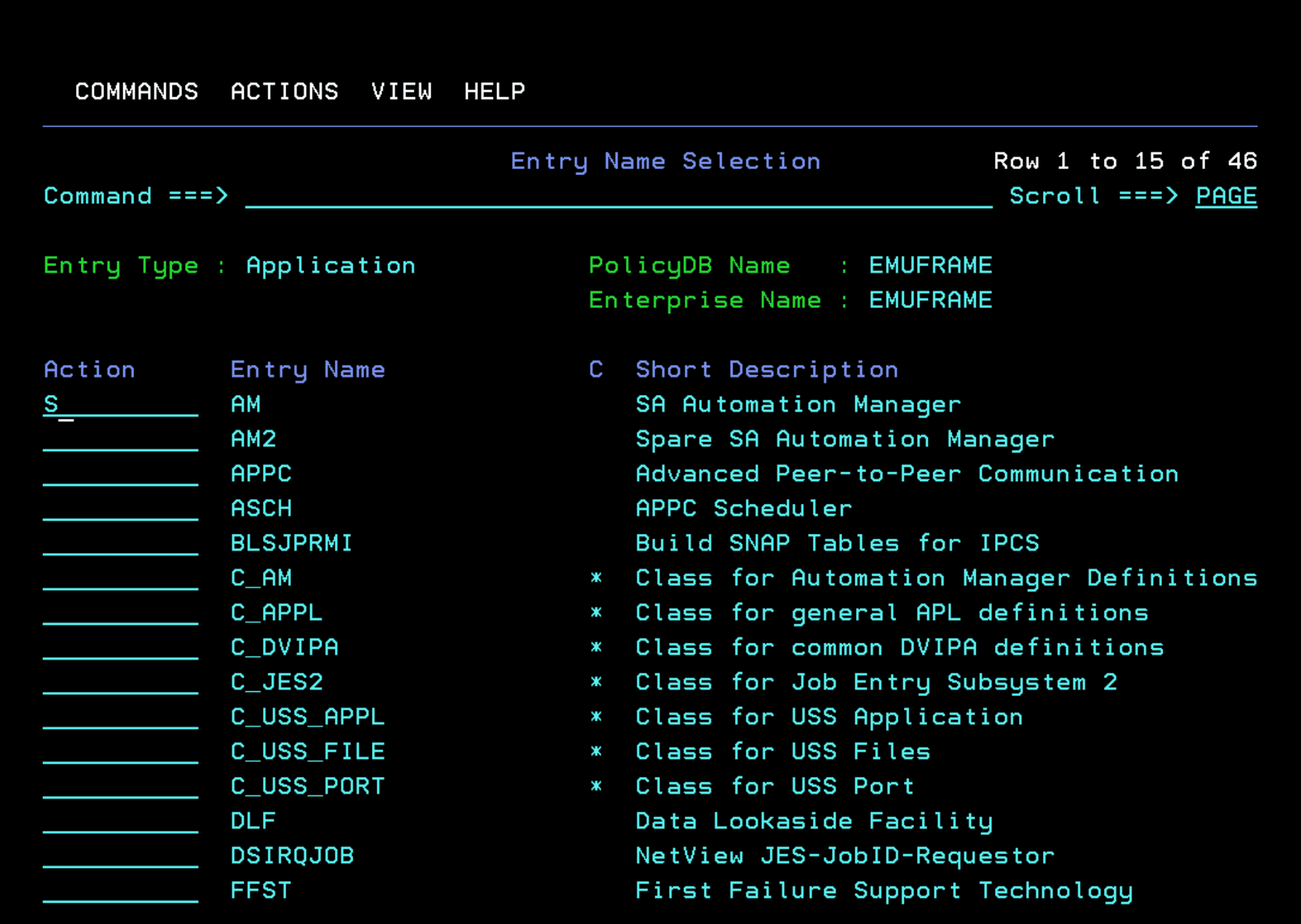
Enter “Application Info”.
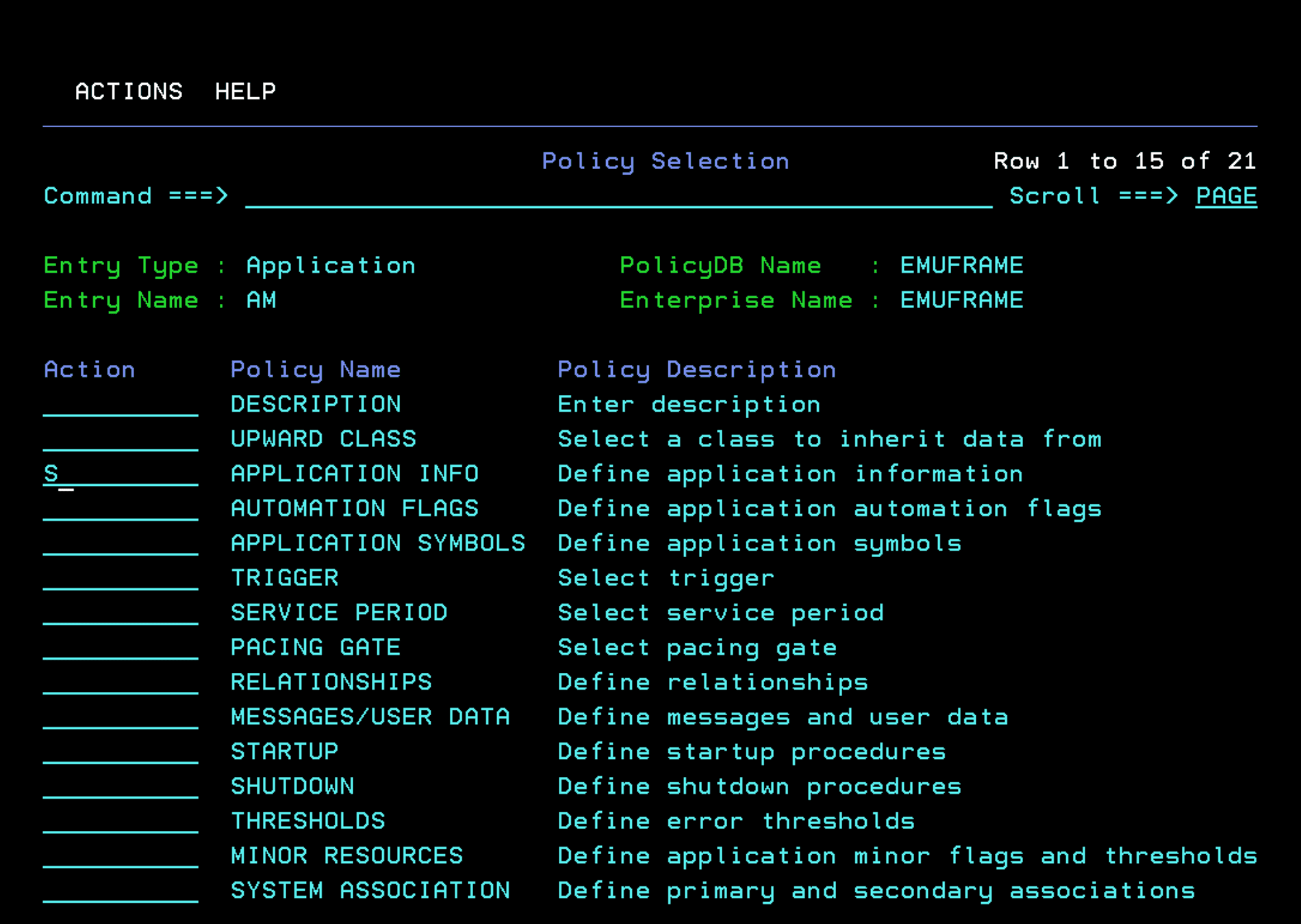
This is the default definition we have. In my case, the “Job Name” is not AM.
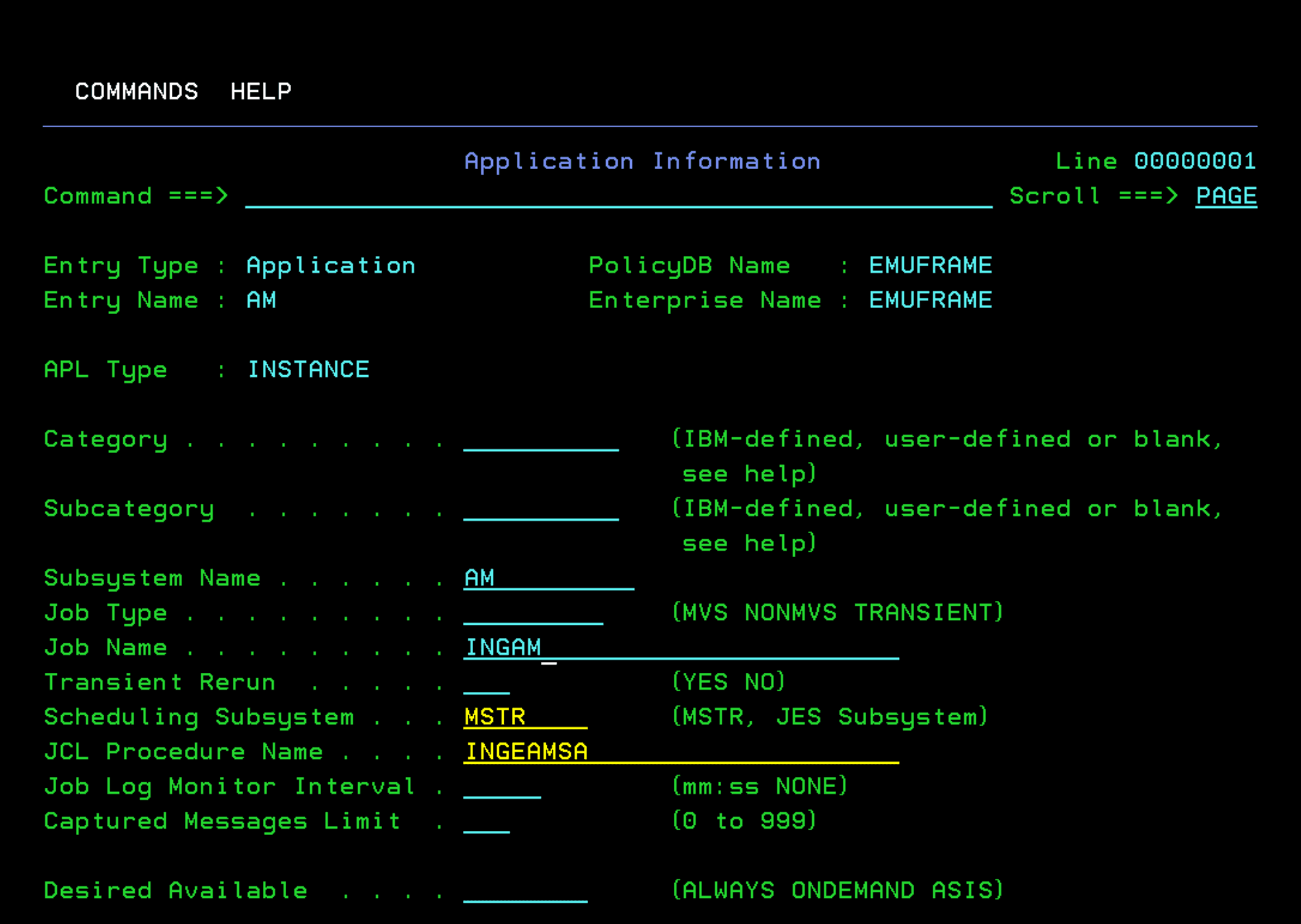
In the Installation section, I named it INGAM.
We can search for tasks in SDSF or with the command “D A,L”. If we know part of the name, we can also use the command, for example, “D A,ING*” to see tasks whose name starts with “ING”.
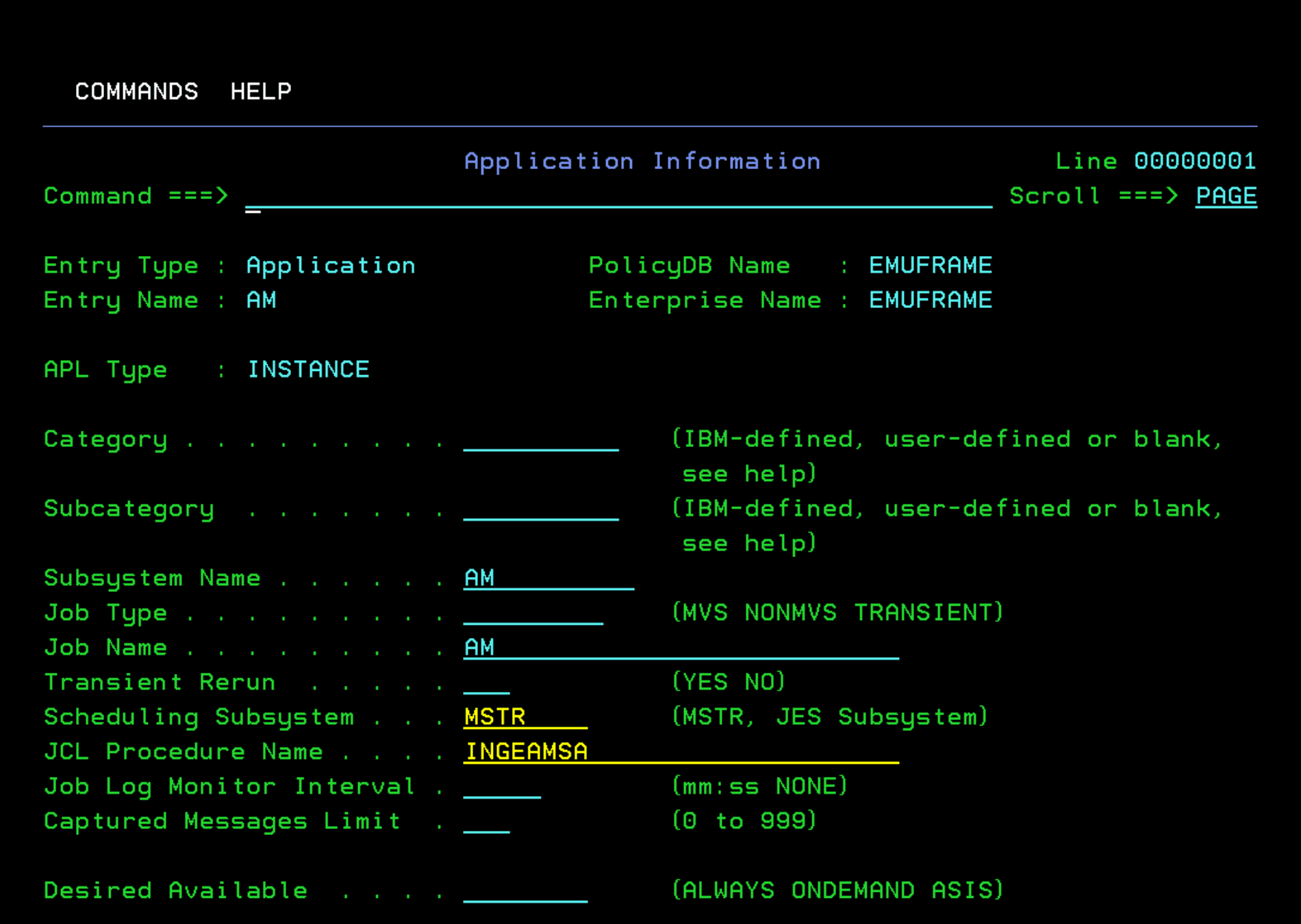
It will look like this. Exit with F3.
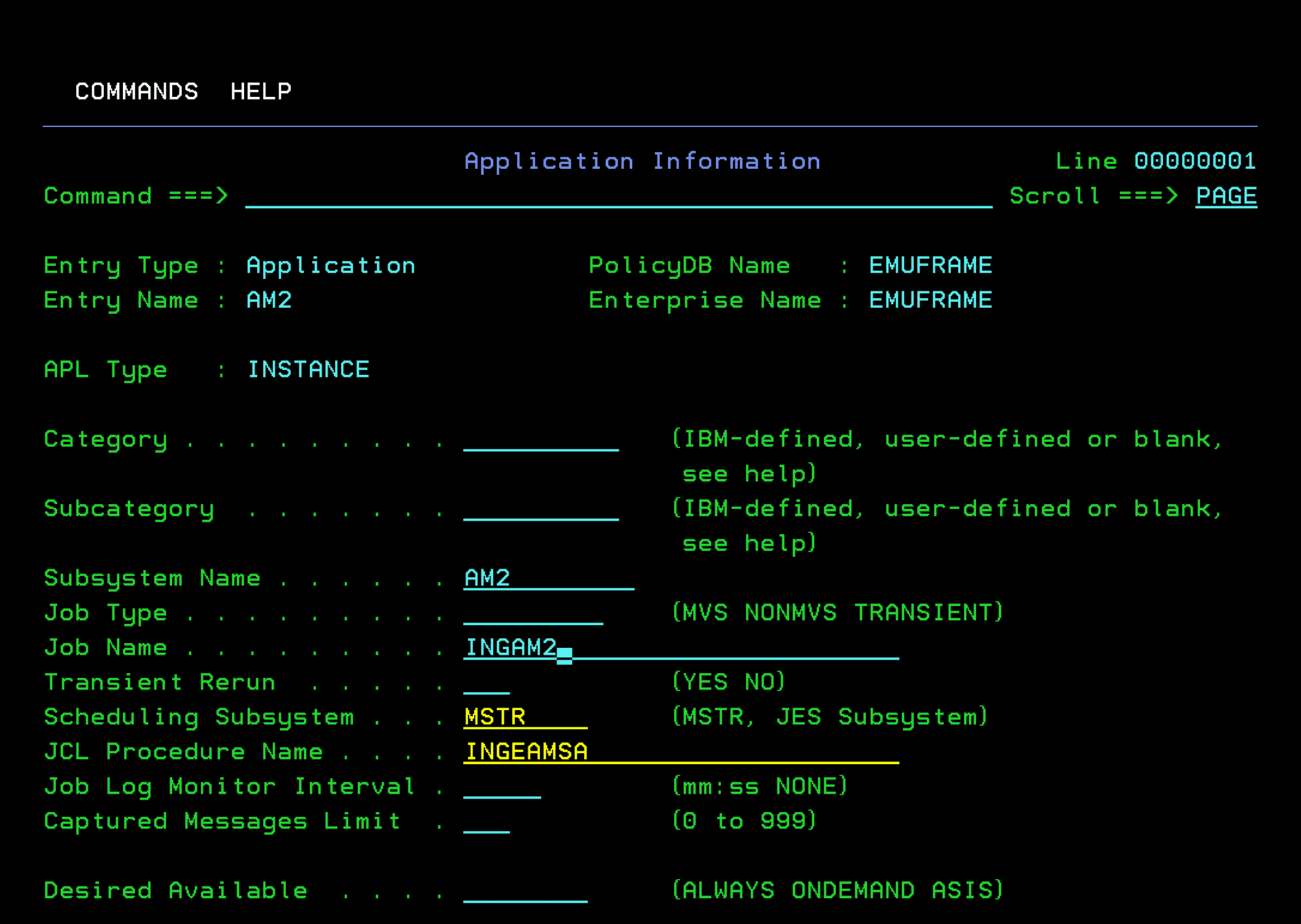
Example - Modify AM2 Task
We must do the same as with the AM task. Modify the “Job Name” name. In my case, INGAM2.
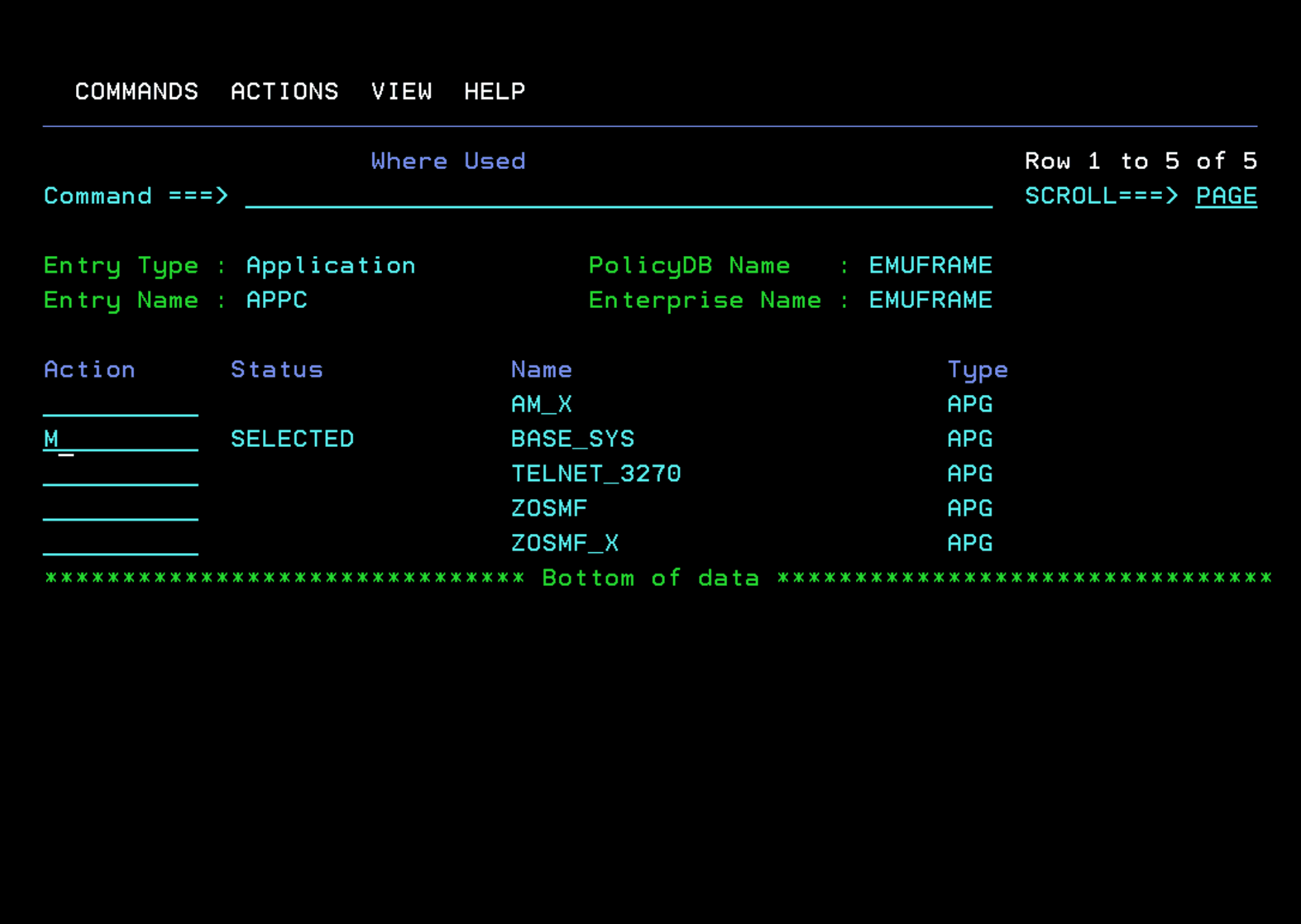
Example - Deactivate APPC Task
This task is currently not running on the system. Since I don’t want to delete it from the DB, but I also don’t want automation to use it, I will remove it from the application group.
Enter the “WHERE USED” option
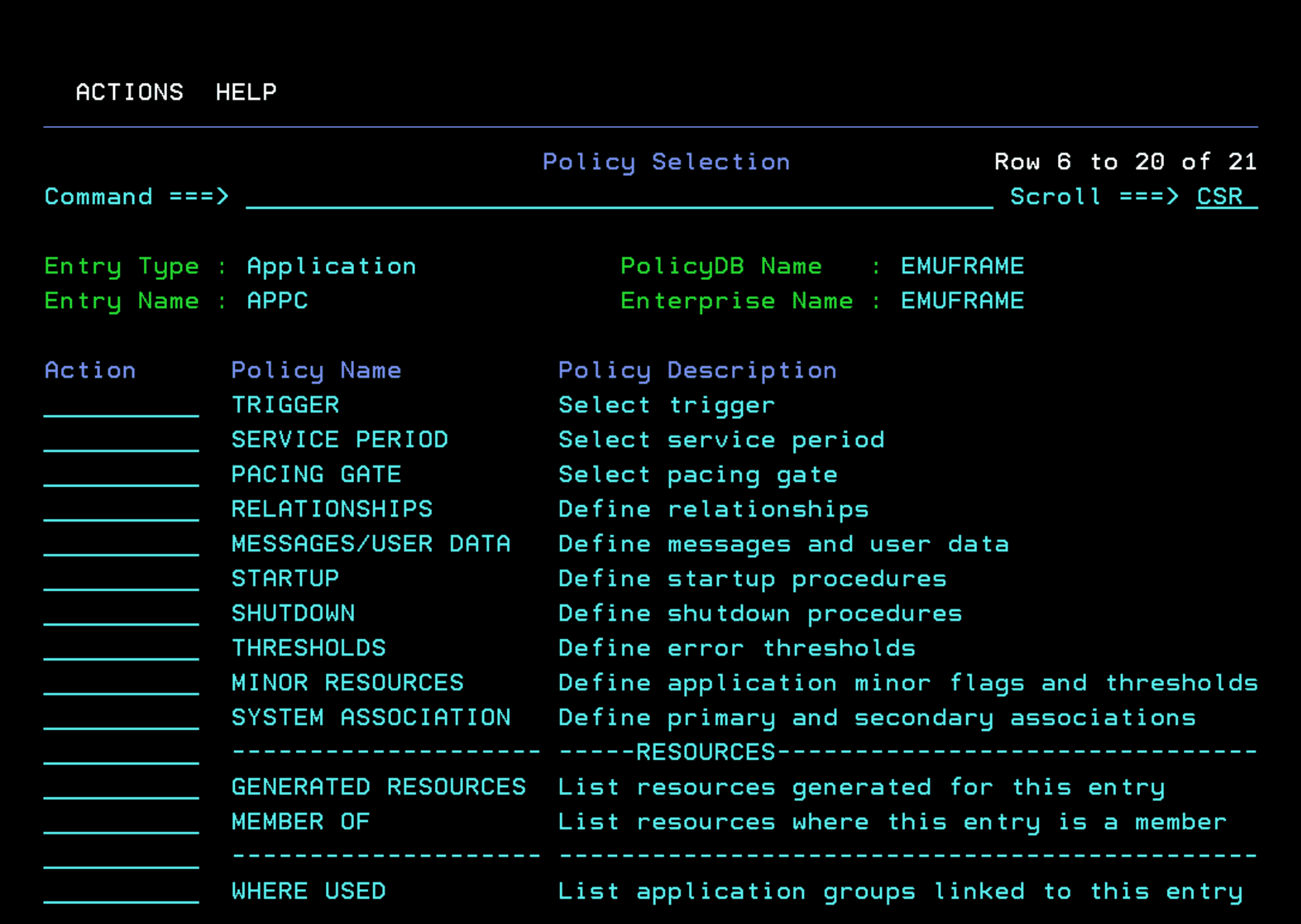
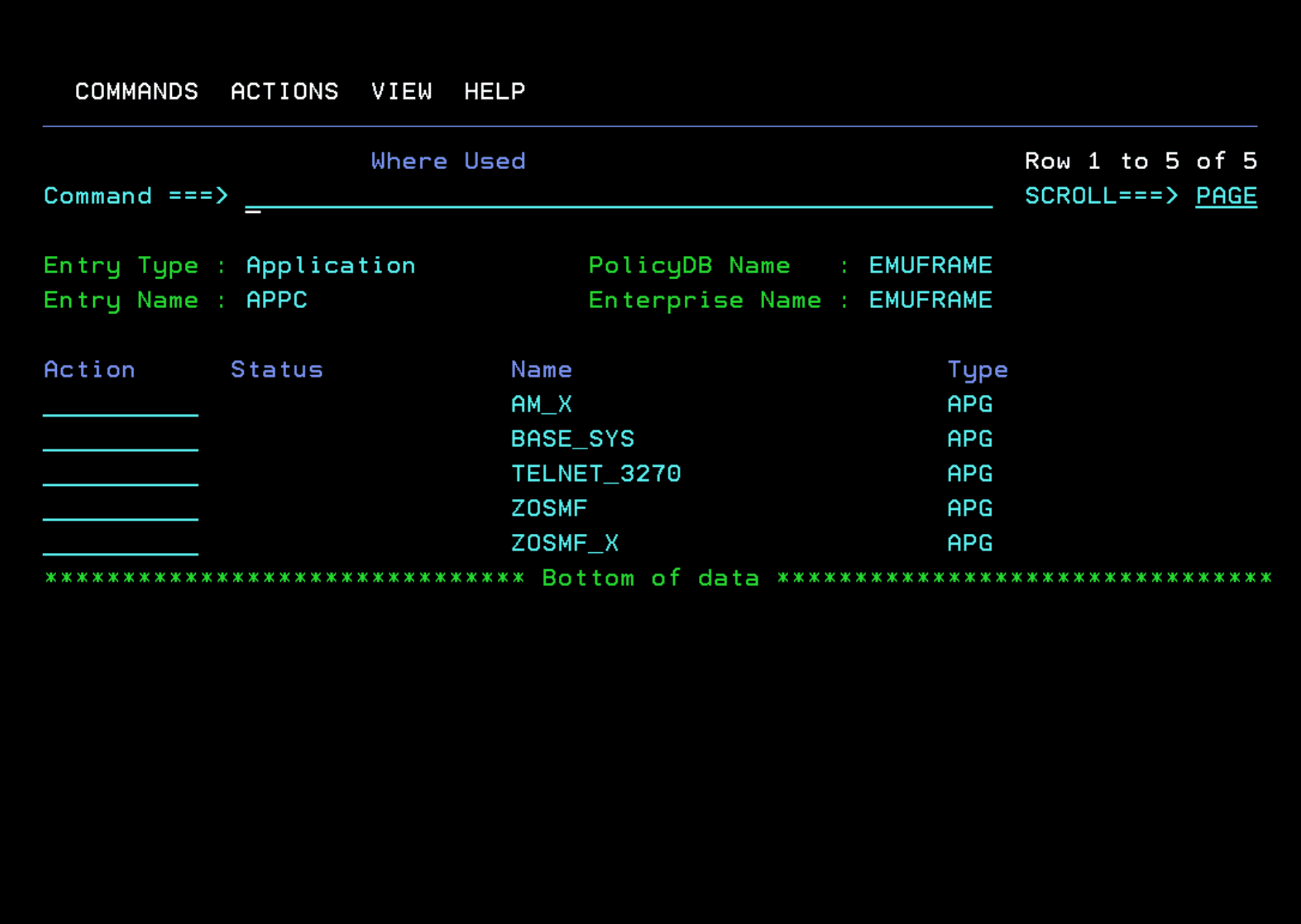
With “M” we remove it from the “BASE_SYS” group.
It will look like this. We exit with F3.
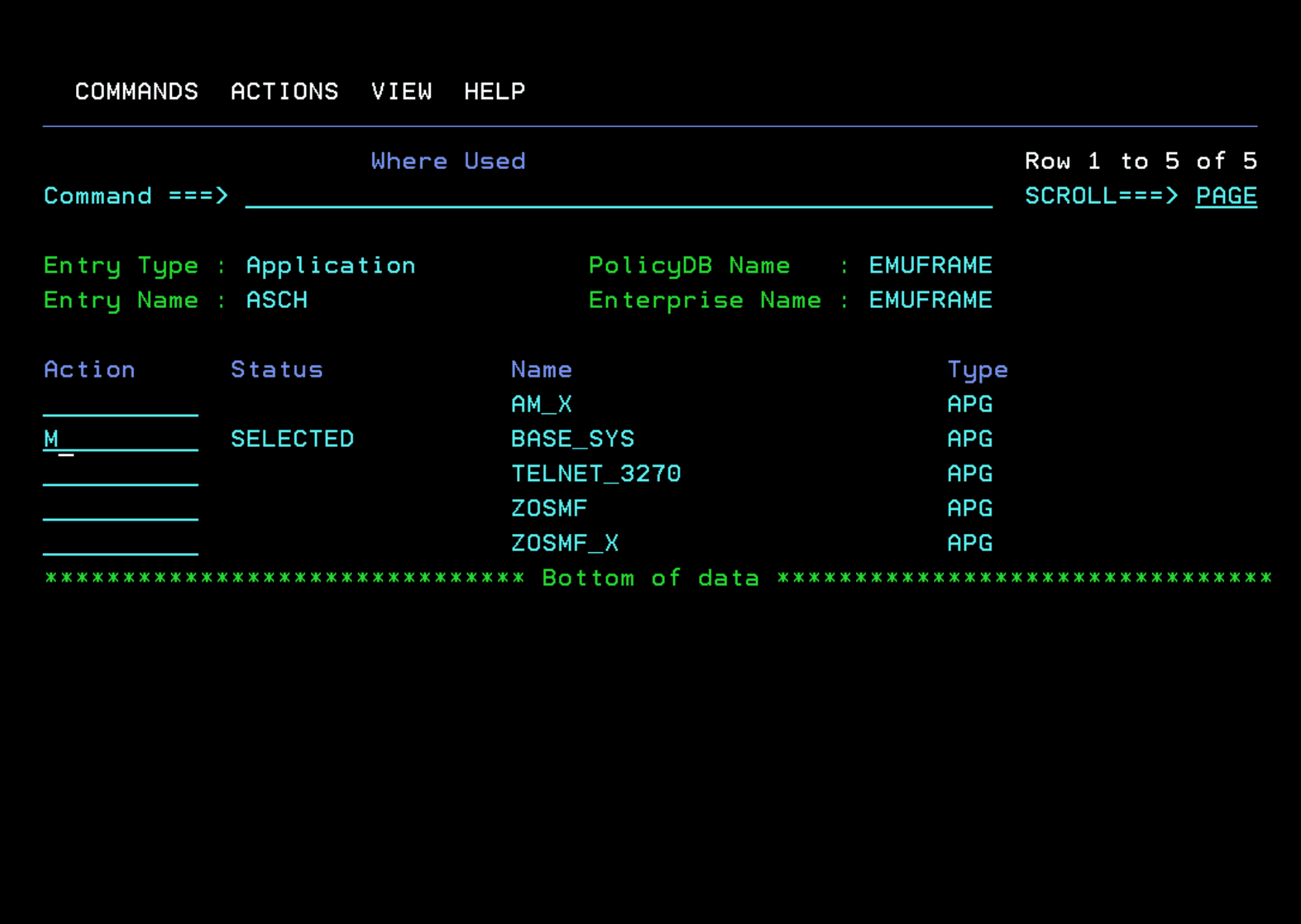
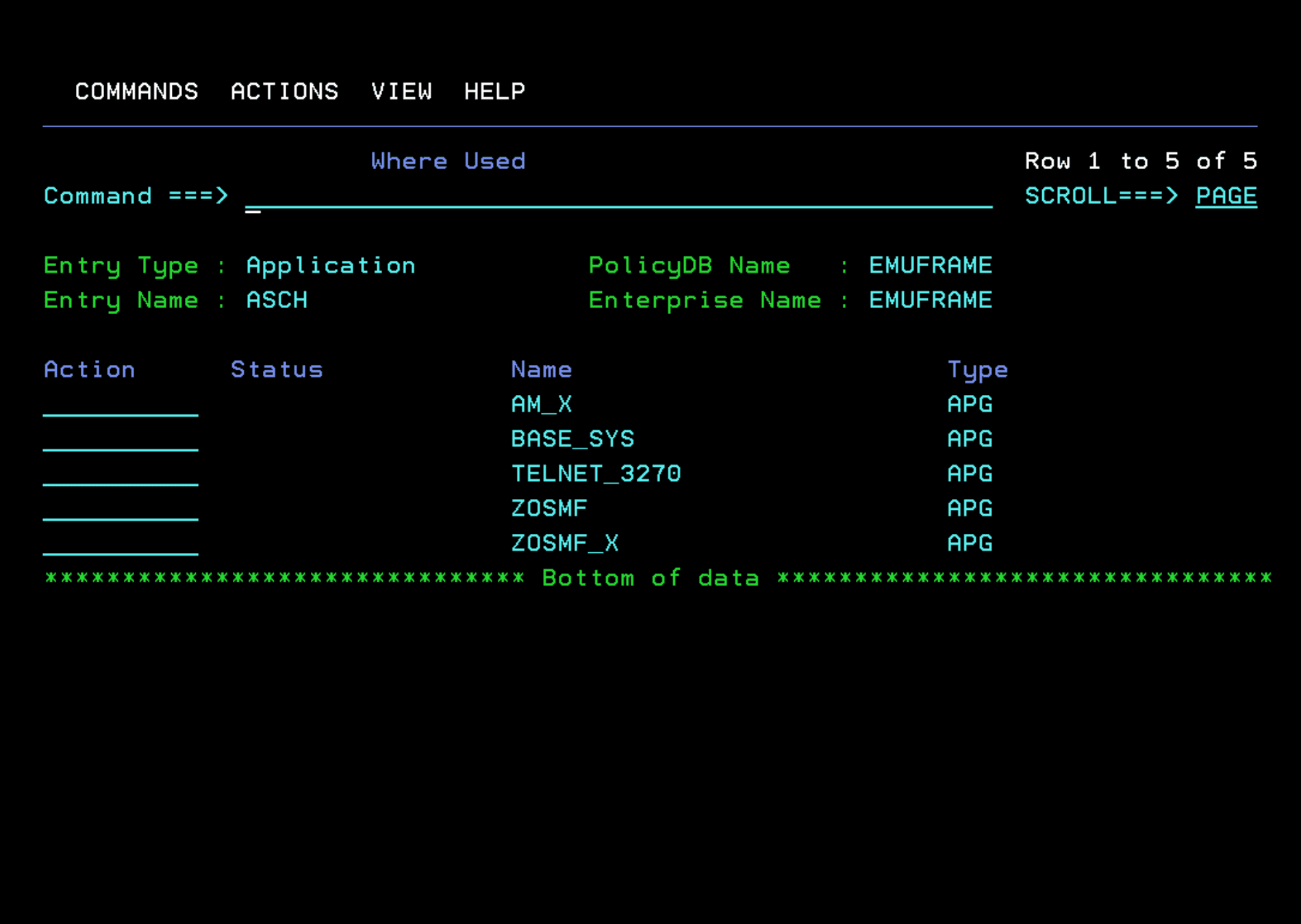
ASCH Task
I don’t use this task either. I will remove it from the BASE_SYS application group.
Depending on the LOADPARM we use in the ADCD version, this task may be used. In that case, it should not be removed.
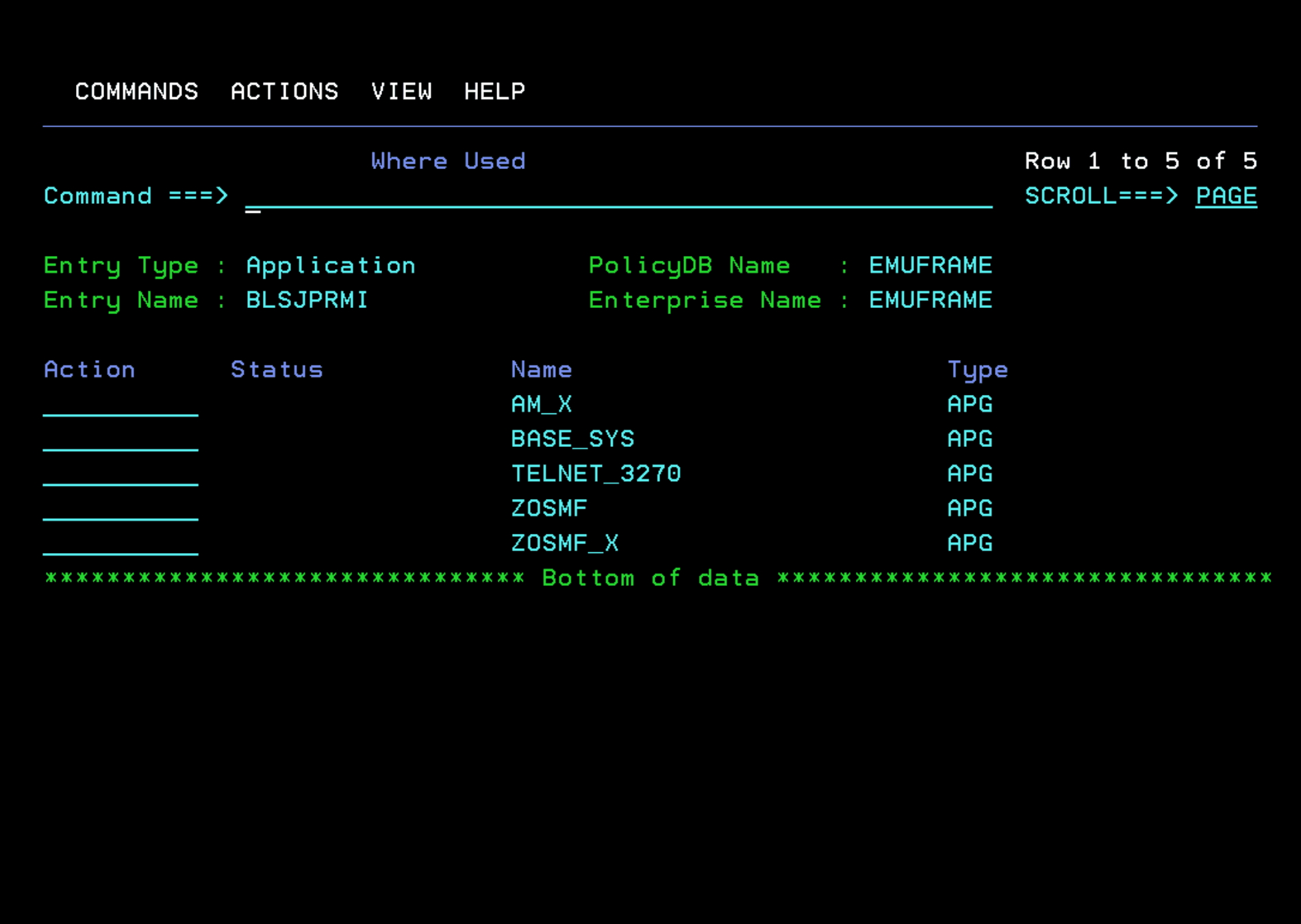
BLSJPRMI Task
I removed this task from the BASE_SYS application group.
DLF Task
I don’t make changes to this task.
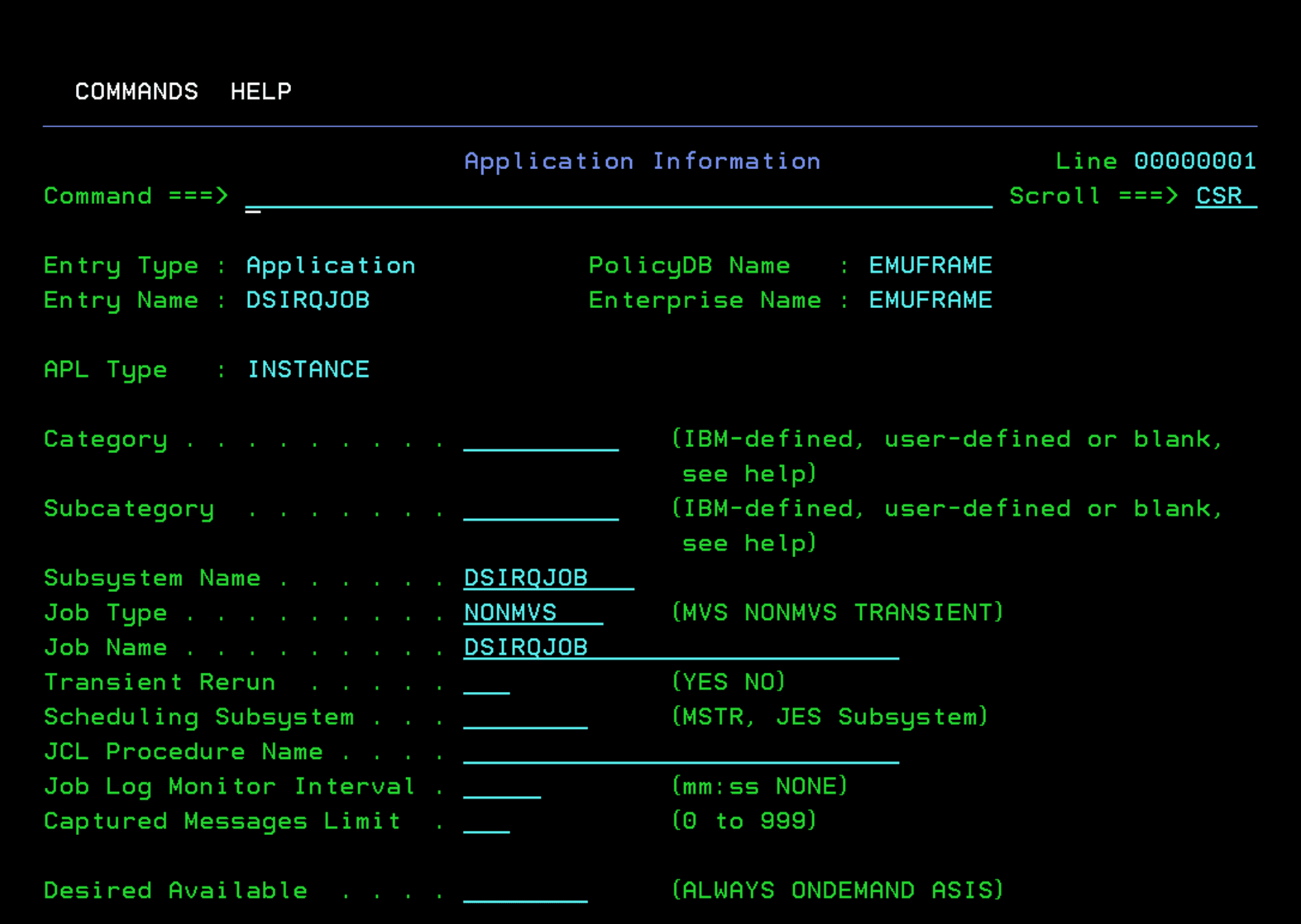
DSIRQJOB Task
This task is the one we saw during the installation section that was responsible for assigning a JobID for NetView. I will keep it unchanged.
I recommend comparing this task with others in the system, since it is an internal NetView task and is defined somewhat differently.
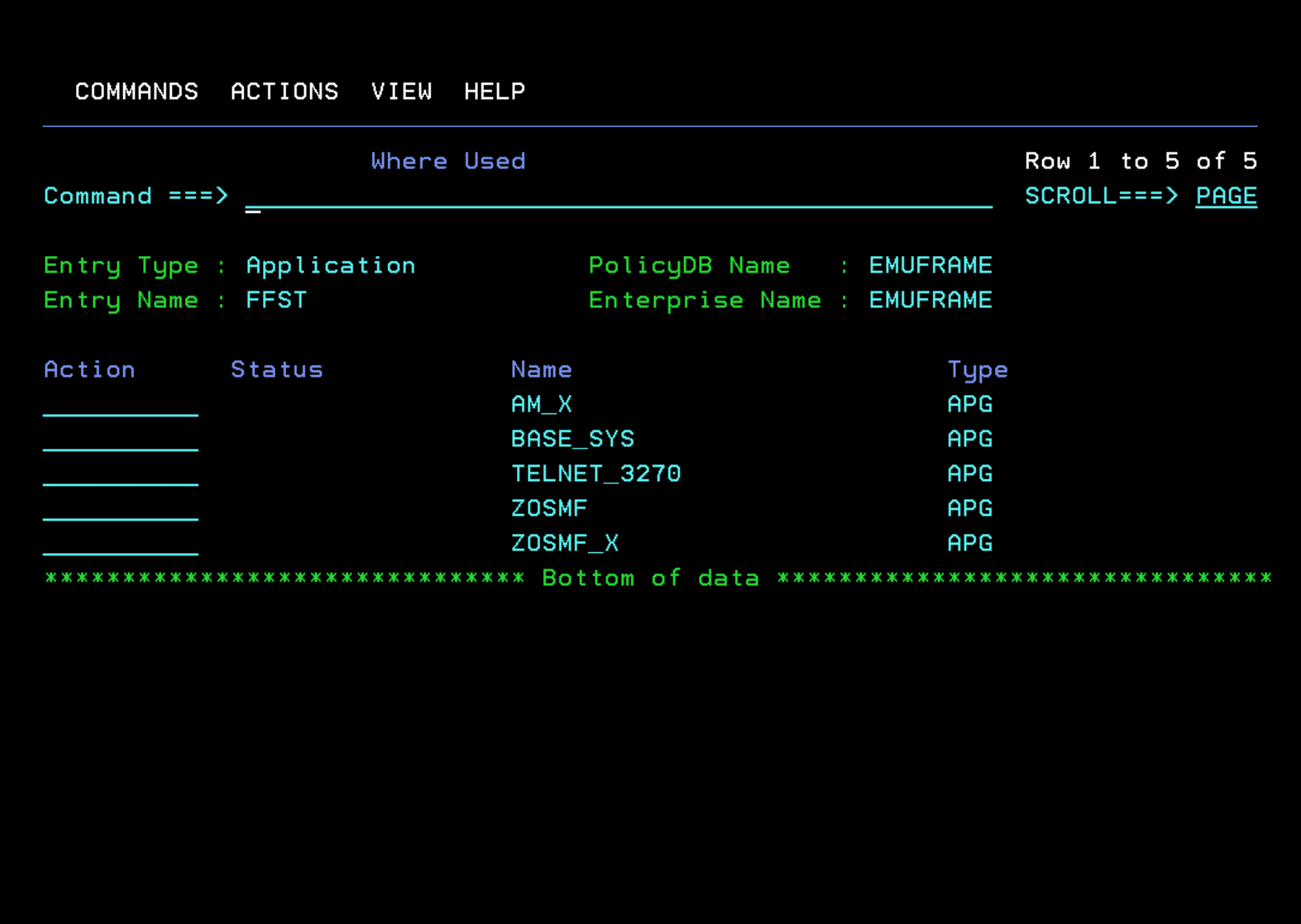
FFST Task
In the case of the ADCD system, it is not defined, therefore, I remove it from the application group.
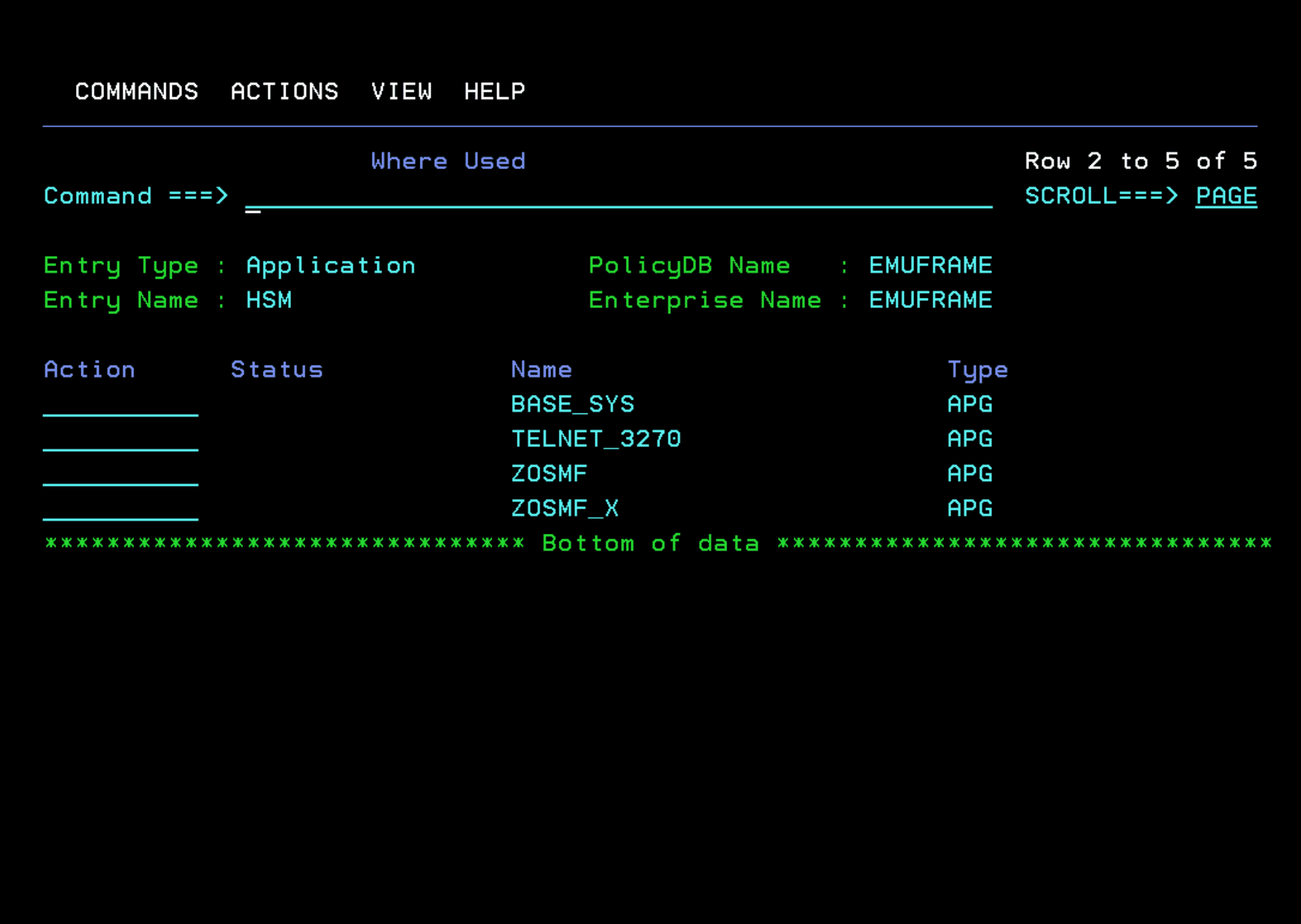
HSM Task
At this moment, I don’t have it defined in the system, therefore, I remove it from the application group.
HZSPROC Task
I don’t make changes to this task.
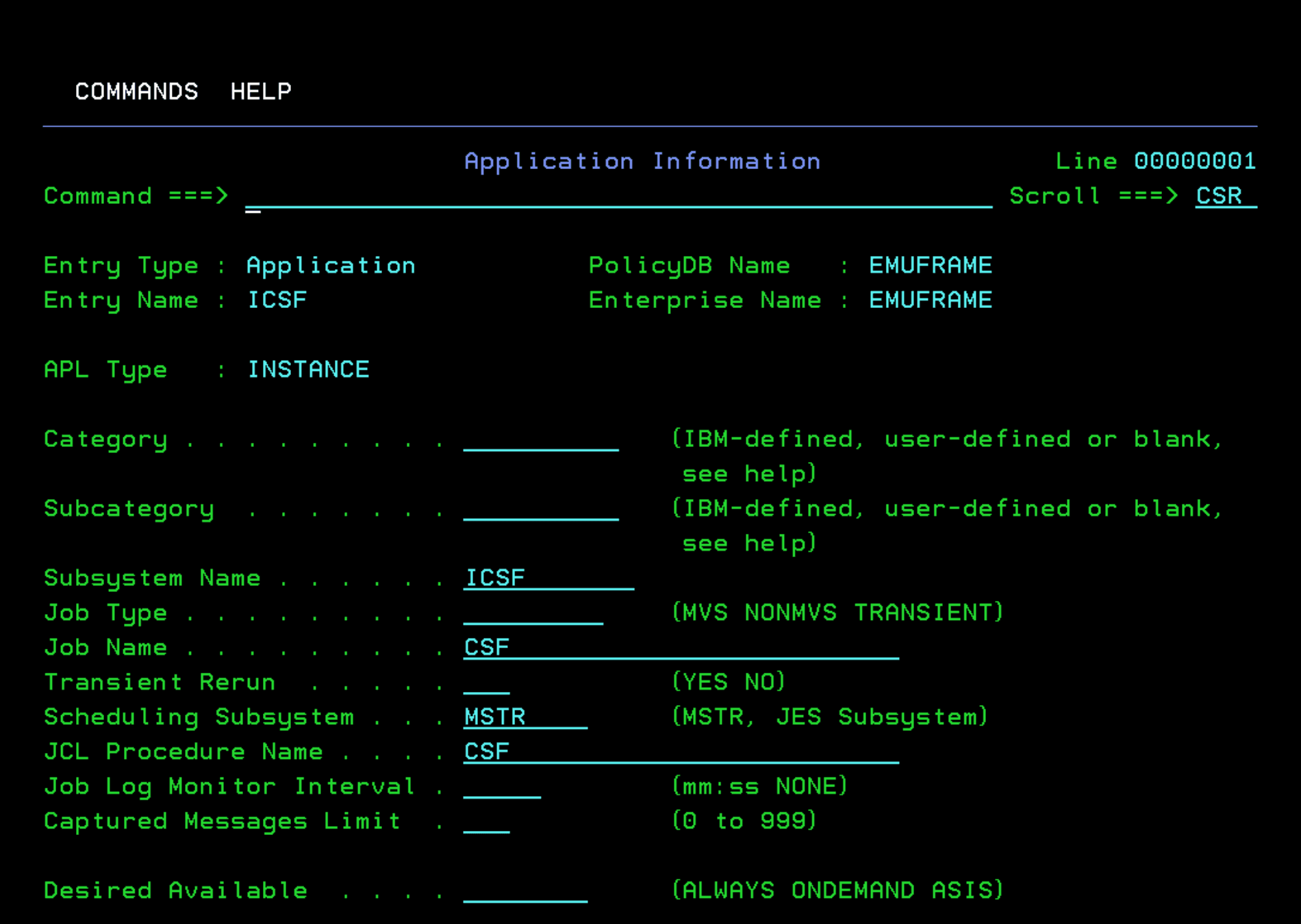
ICFS - CSF Task
In ADCD, this task exists with the name CSF. I modify the definition.
Additionally, in ADCD, it doesn’t start with SUB=MSTR, but I will keep the definition as MSTR since the documentation indicates that this is appropriate.
https://www.ibm.com/docs/en/zos/3.1.0?topic=icsf-manually-starting-stopping
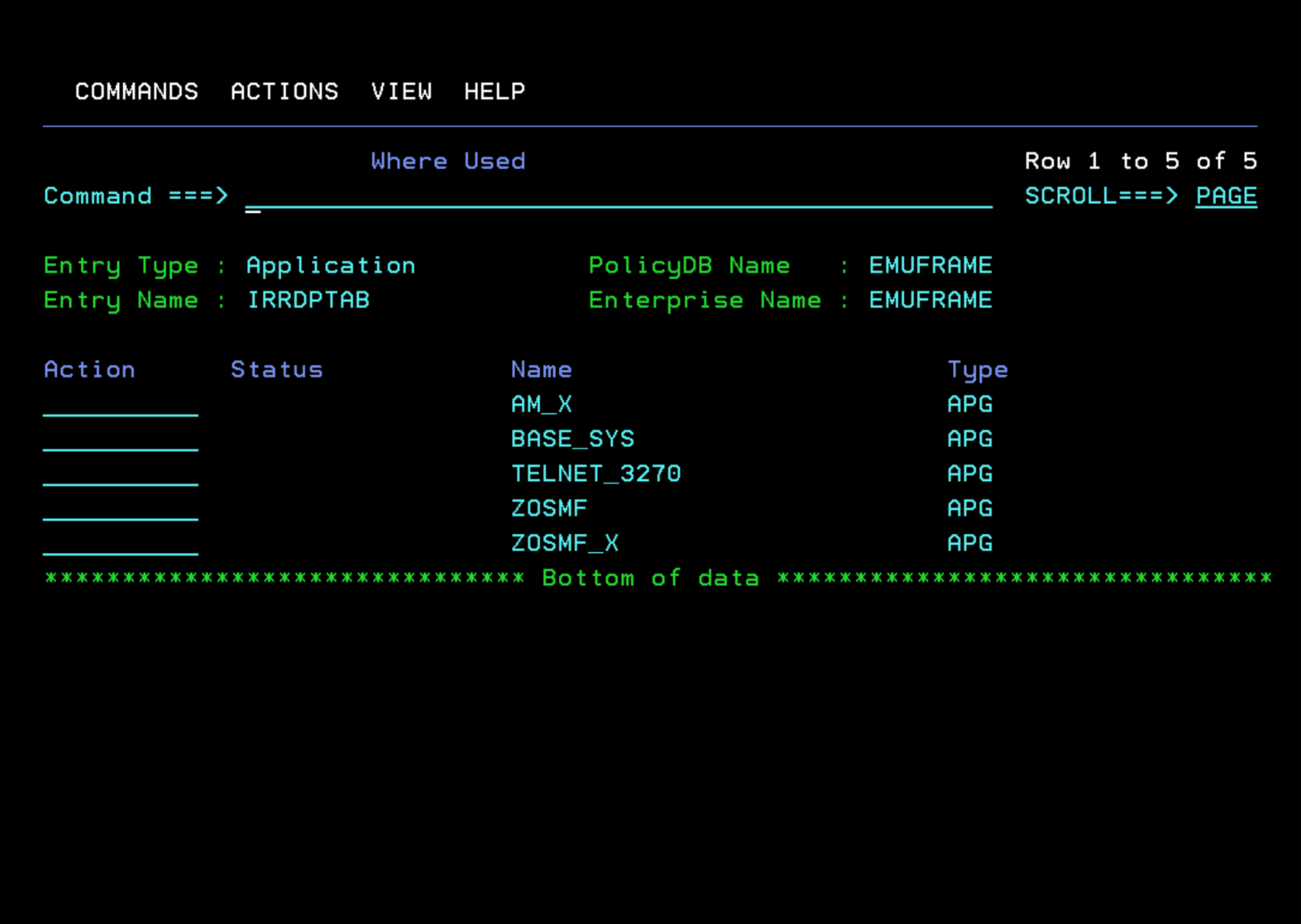
IRRDPTAB Task
I removed this task from the BASE_SYS application group.
JES2 Task
I don’t make changes to this task.
LLA Task
I don’t make changes to this task.
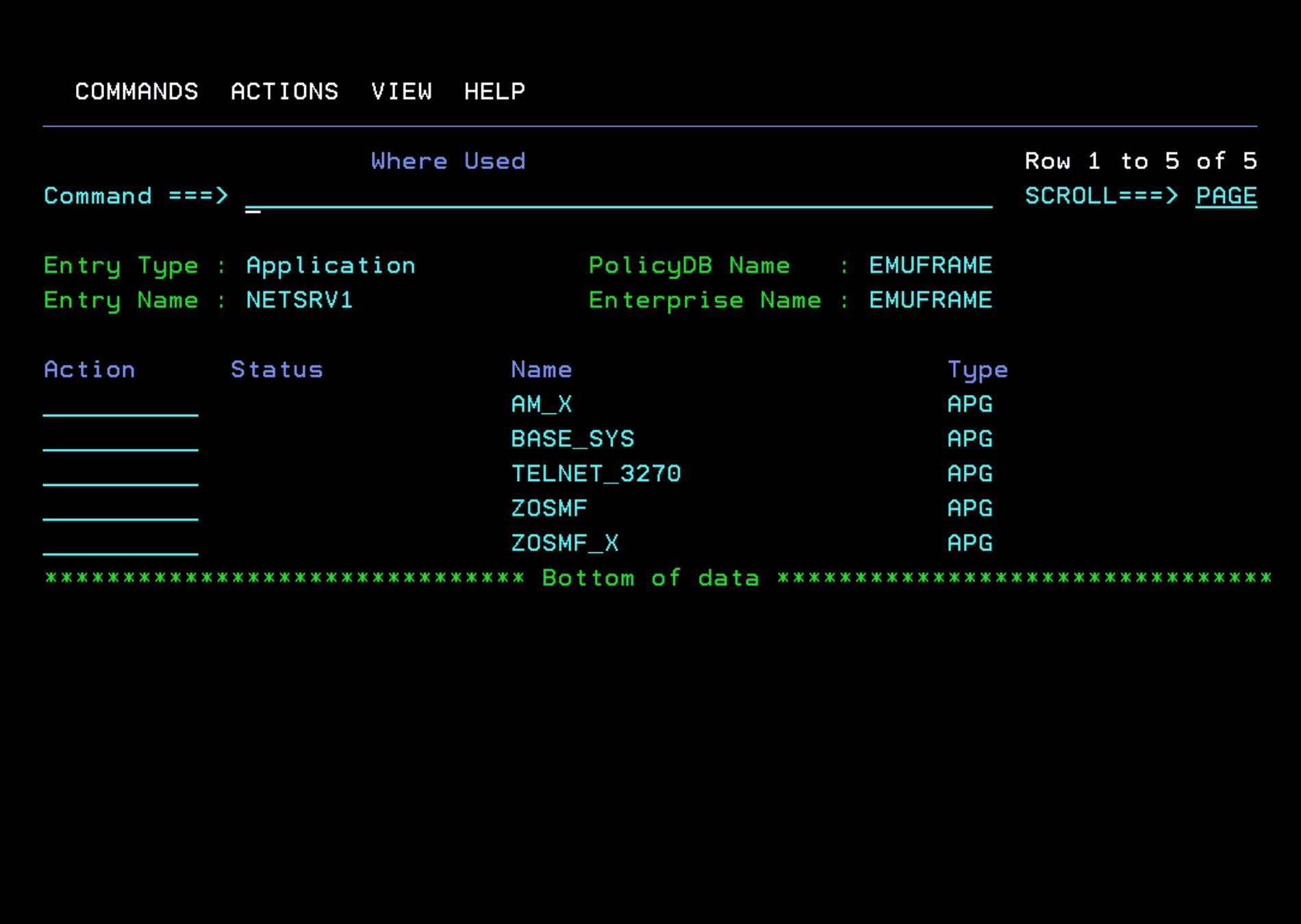
NETSRV1 Task
I removed this task from the BASE_SYS application group.
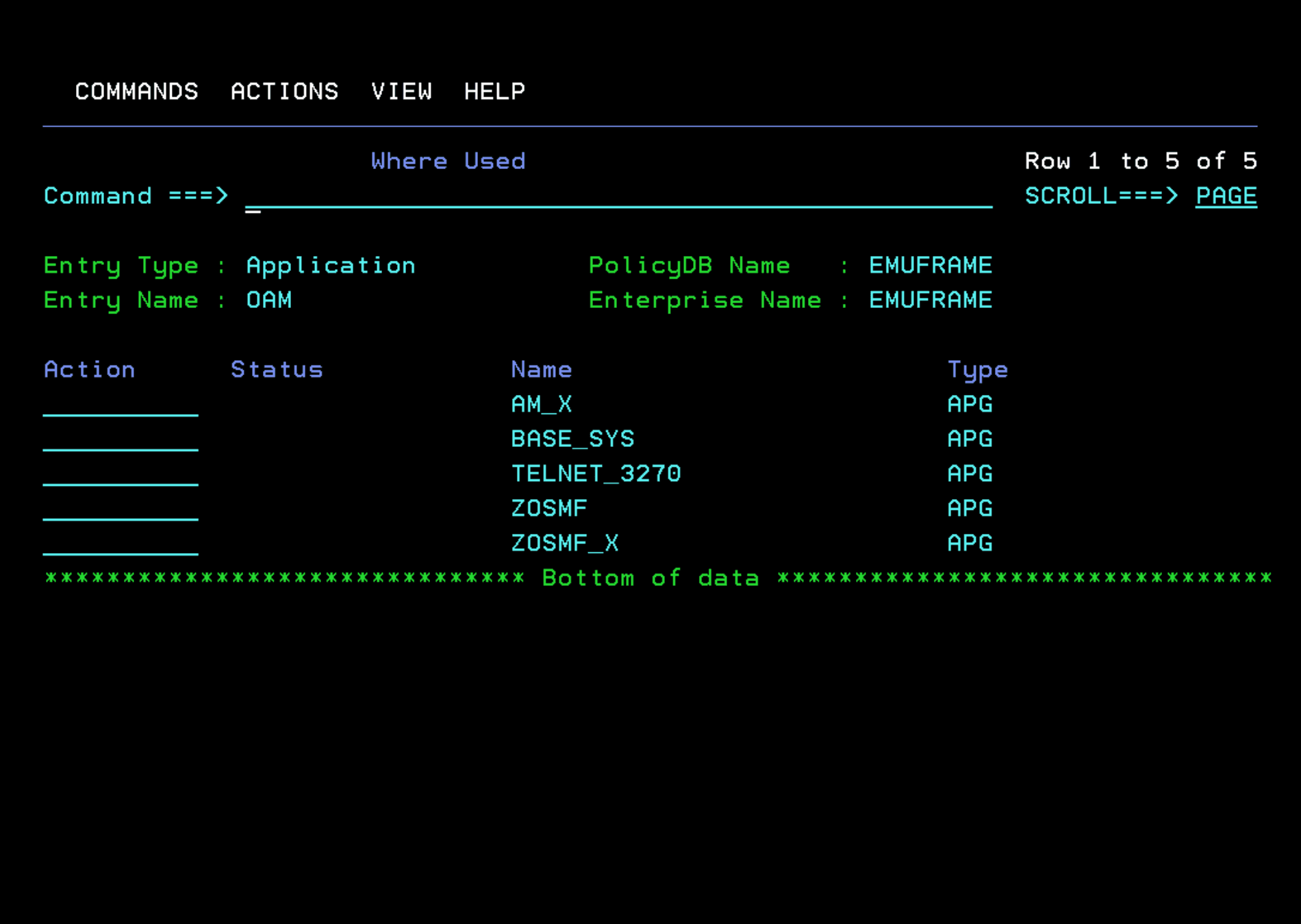
OAM Task
At this moment, I don’t have it defined in the system, therefore, I remove it from the application group.
OMVS Task
I don’t make changes to this task.
PAGENT Task
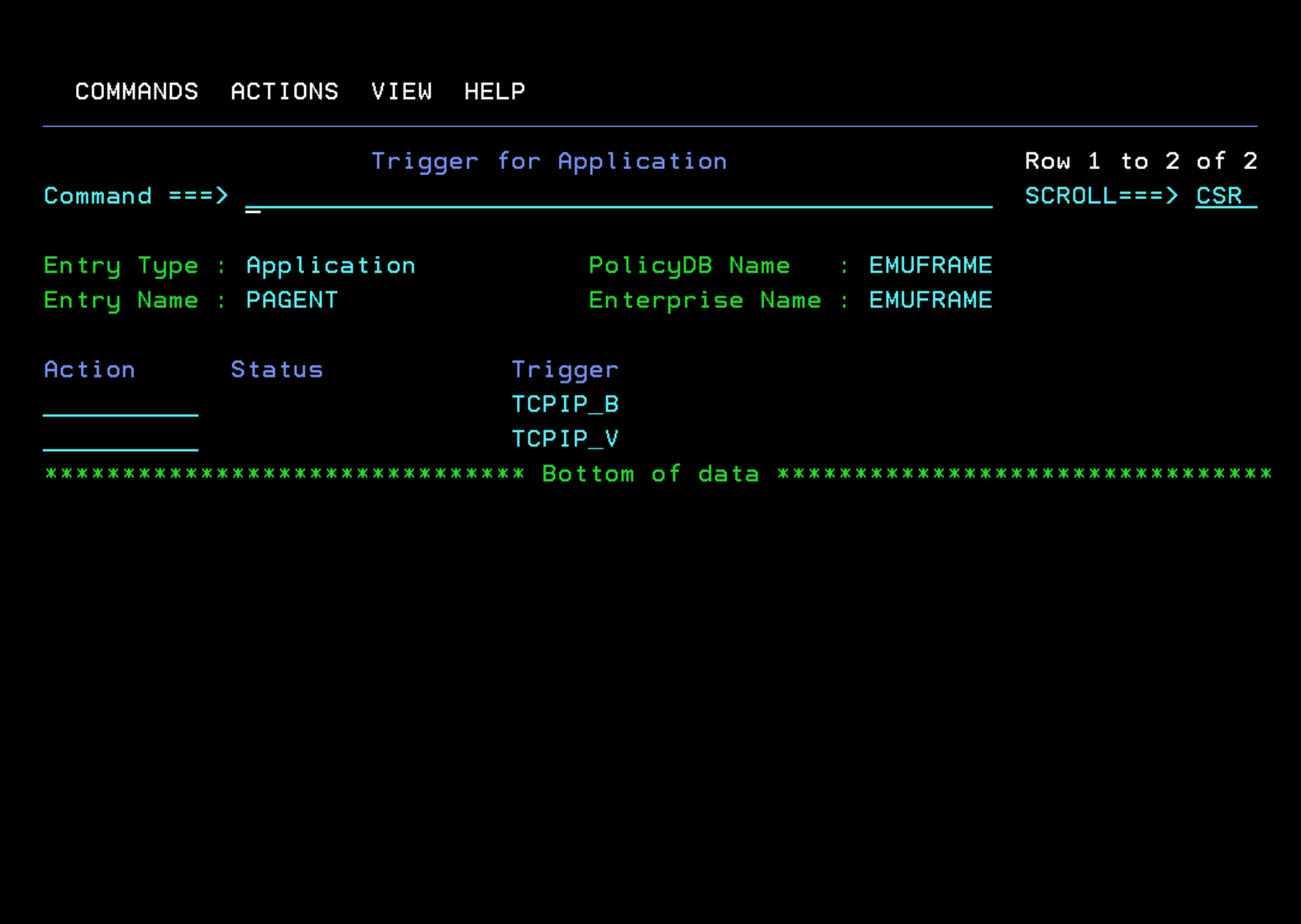
We need to remove a TRIGGER that is defined
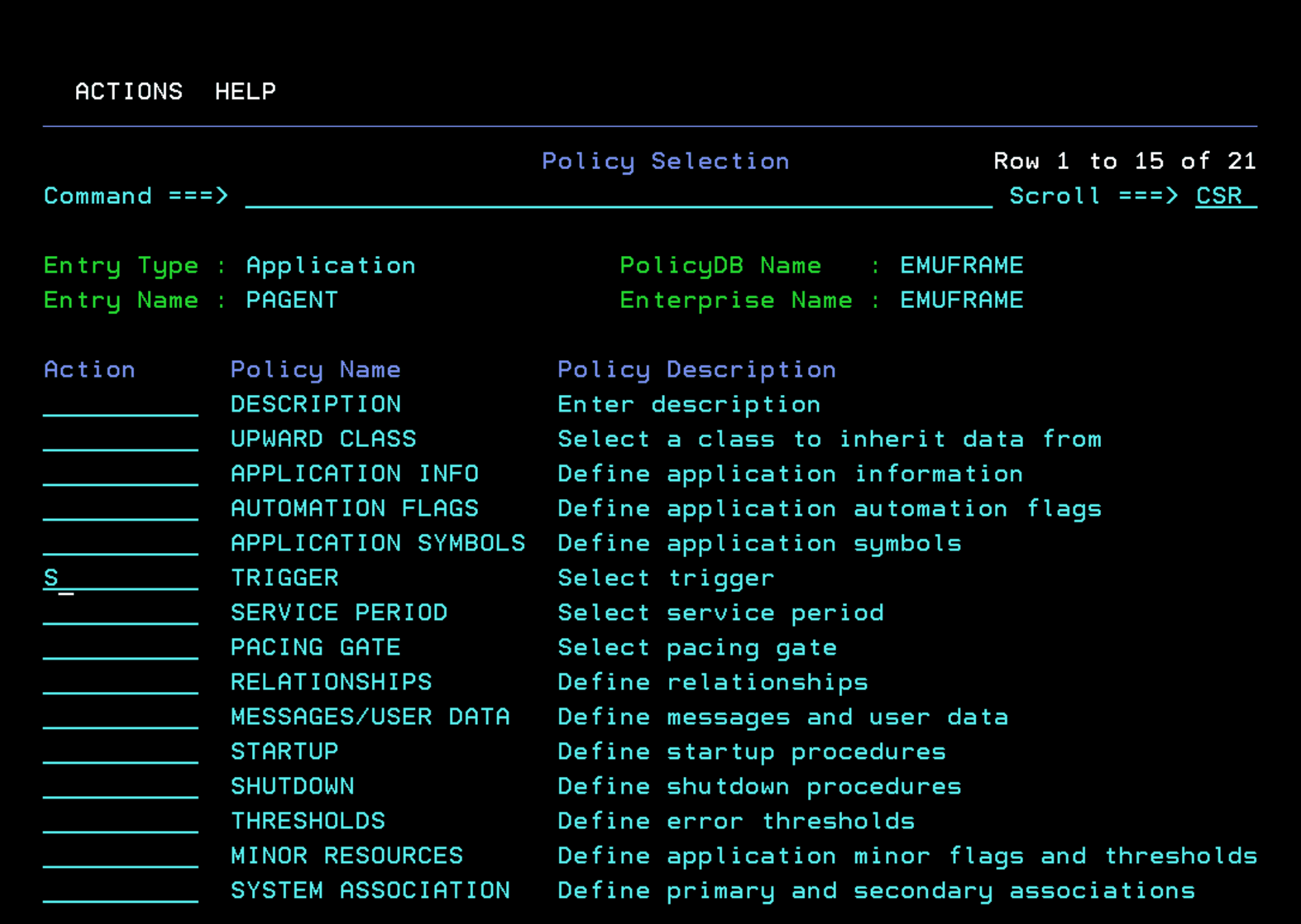
It should be left with nothing selected.
RACF Task
I don’t make changes to this task.
RESOLVER Task
I don’t make changes to this task.
RMF Task
I don’t make changes to this task.
RMFGAT Task
I don’t make changes to this task.
RRS Task
I don’t make changes to this task.
SDSF Task
I don’t make changes to this task.
SDSFAUX Task
I don’t make changes to this task.
SMF_REC Task
It seems this task is used to monitor SMF records. I will leave it unchanged to see how it works. More information:
https://www.ibm.com/docs/en/z-system-automation/4.3.0?topic=41-miscellaneous
SYSVAPPL - INGNVSA Task
I named this task INGNVSA in the System Automation Installation section.
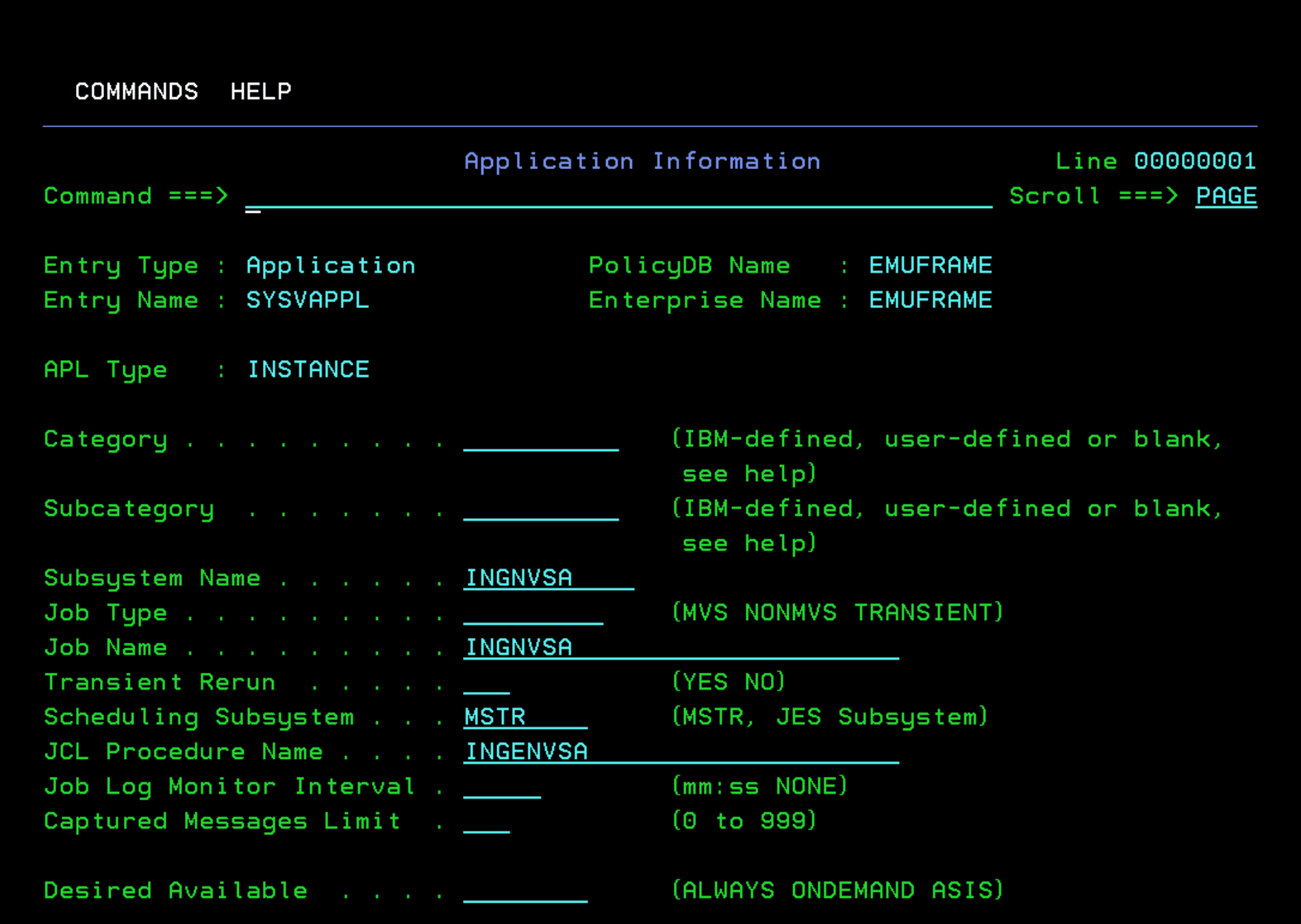
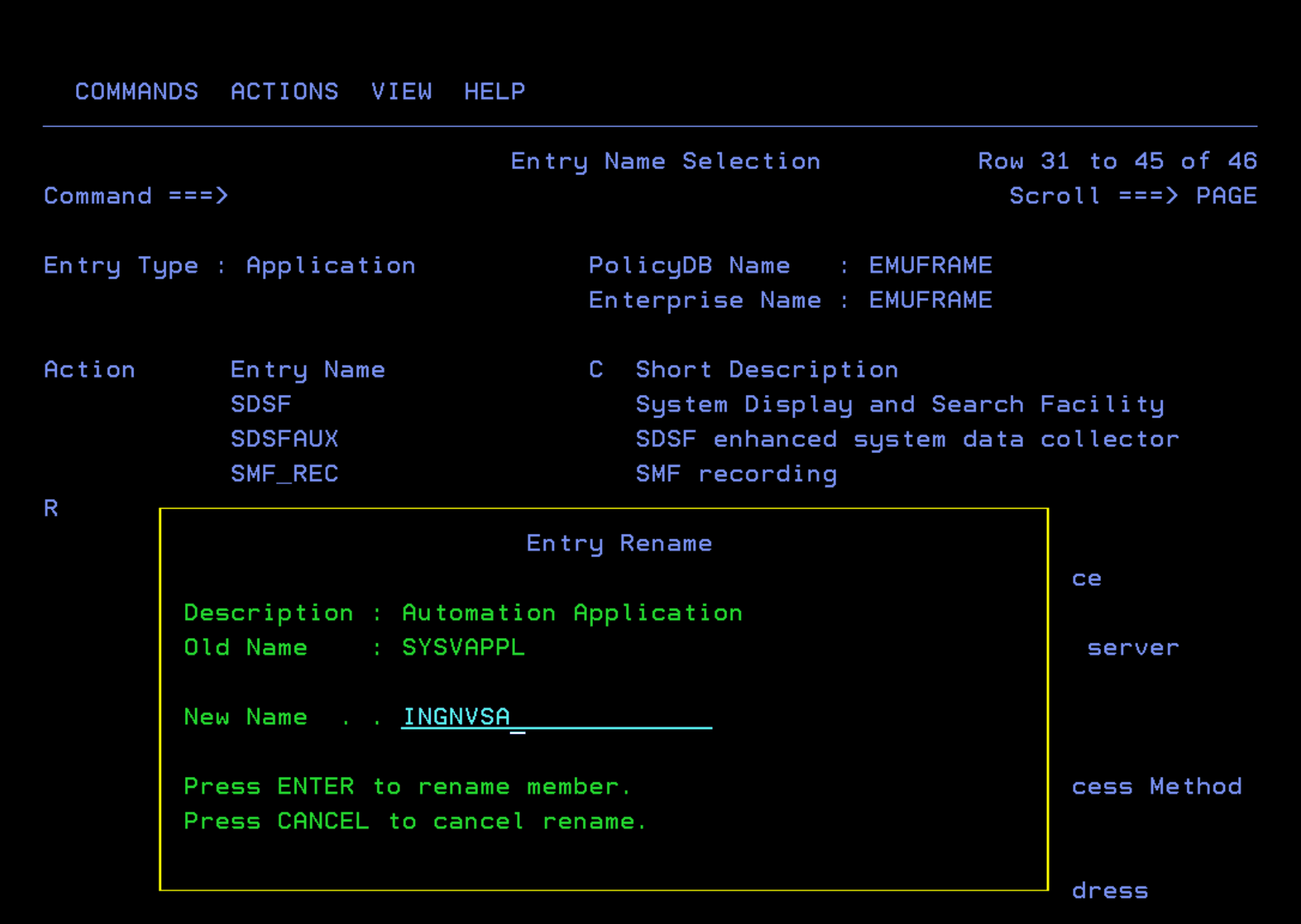
Additionally, I will also rename the entry to make it easier to identify. With “R” in the application list.
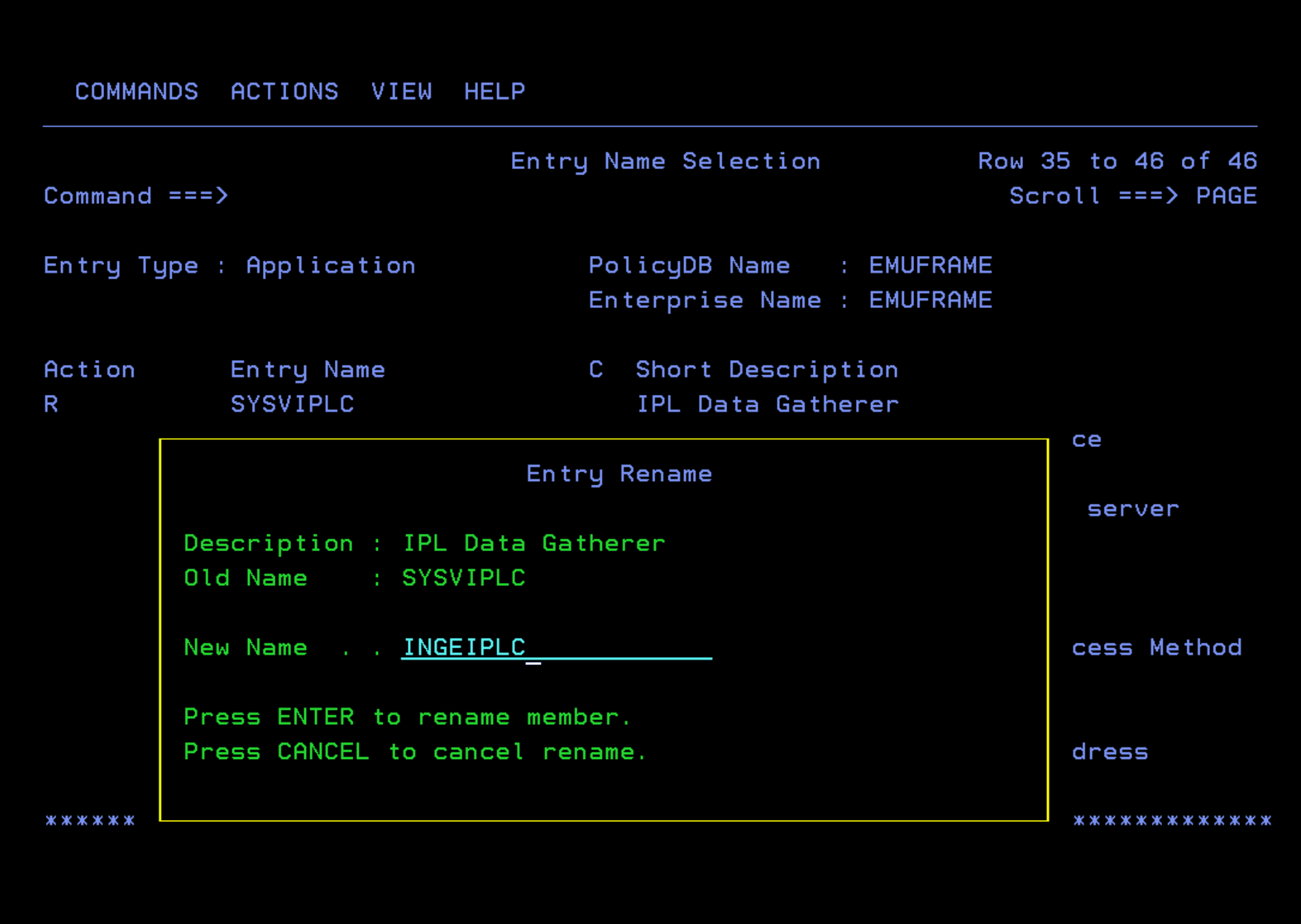
SYSVIPLC - INGEIPLC Task
I named this task INGEIPLC in the System Automation Installation section. The PROC is called INGEIPLC.
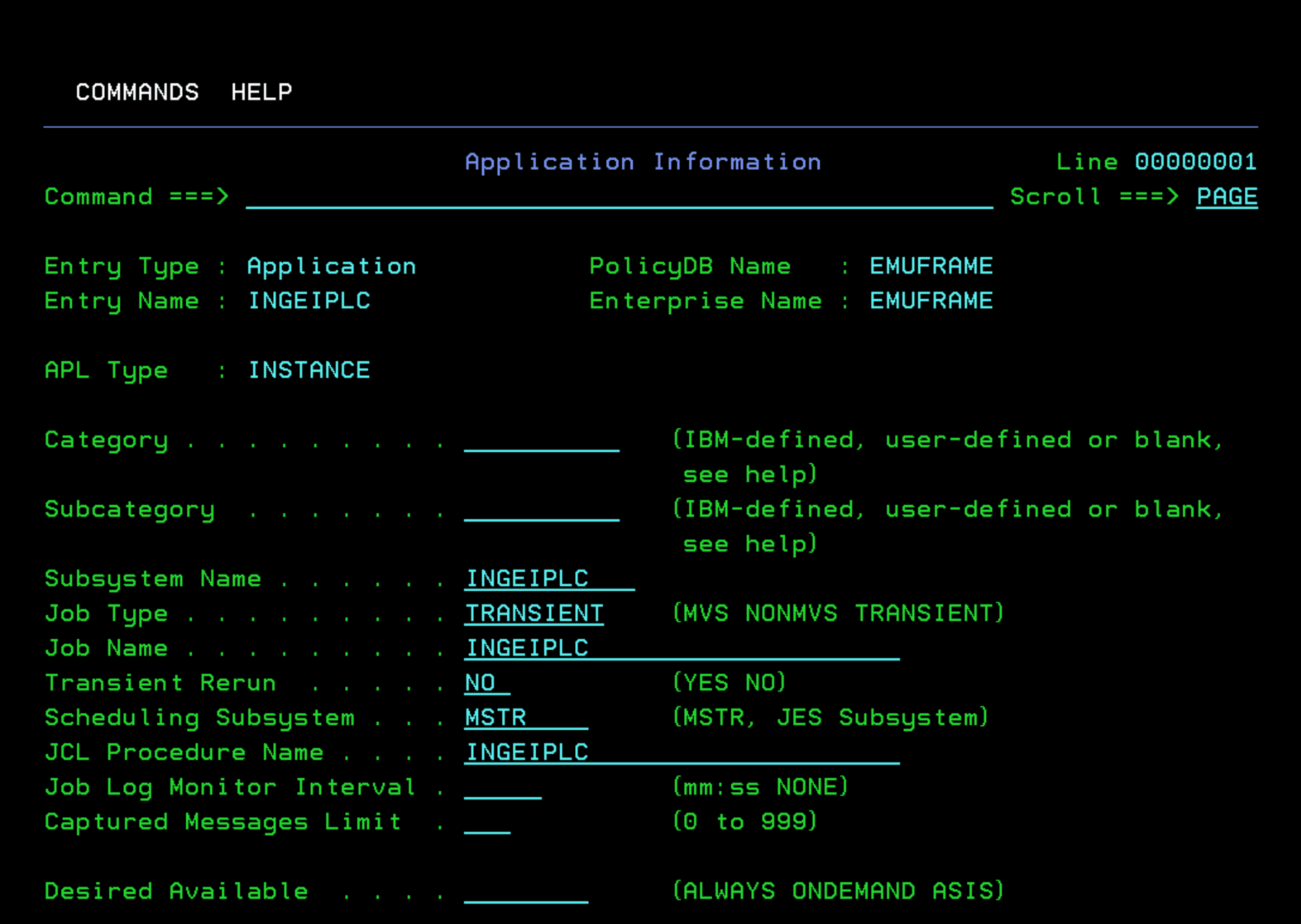
Additionally, I will also rename the entry to make it easier to identify. With “R” in the application list.
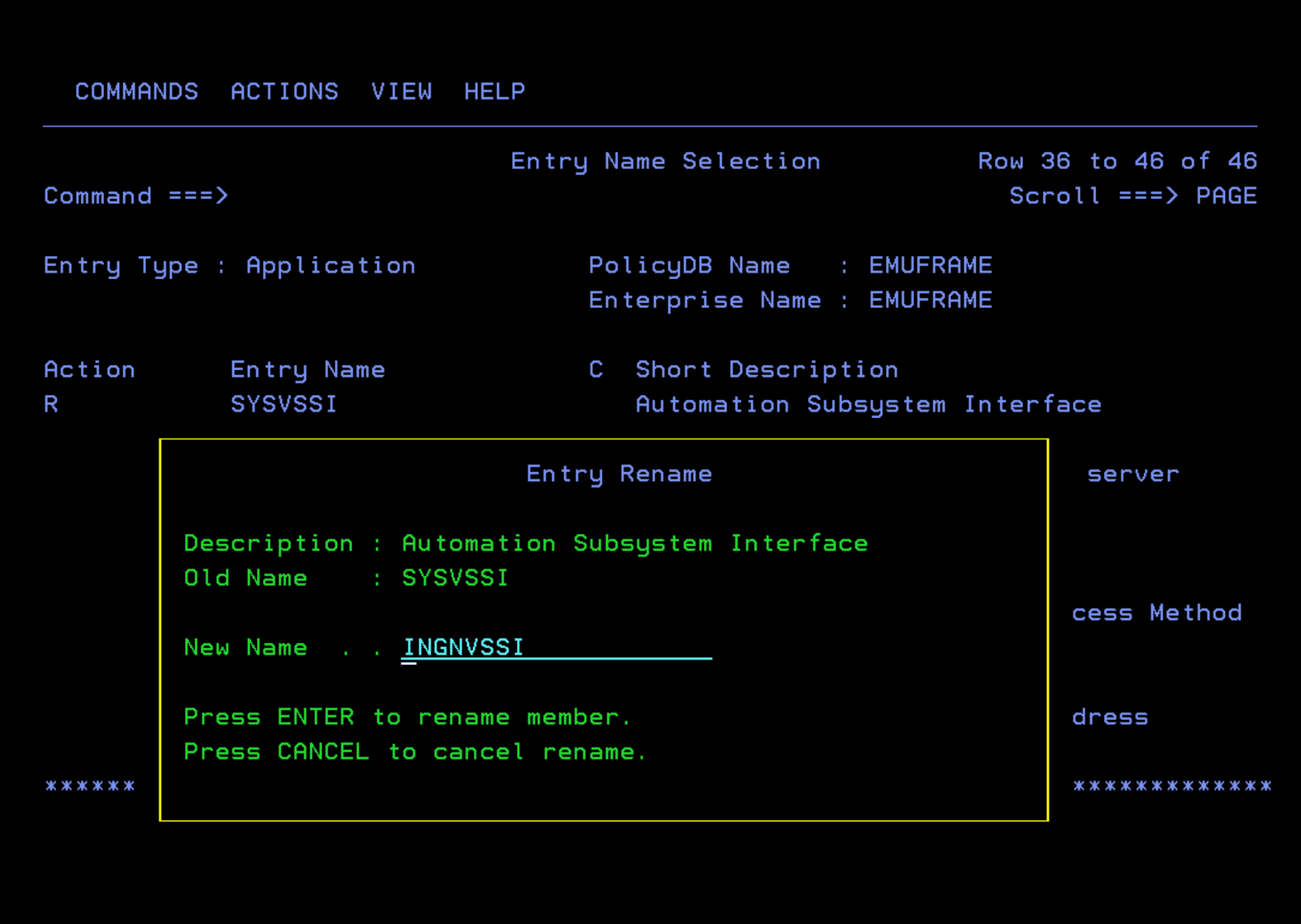
SYSVSSI - INGNVSSI Task
I named this task INGNVSSI in the System Automation Installation section. The PROC is called INGESSI.
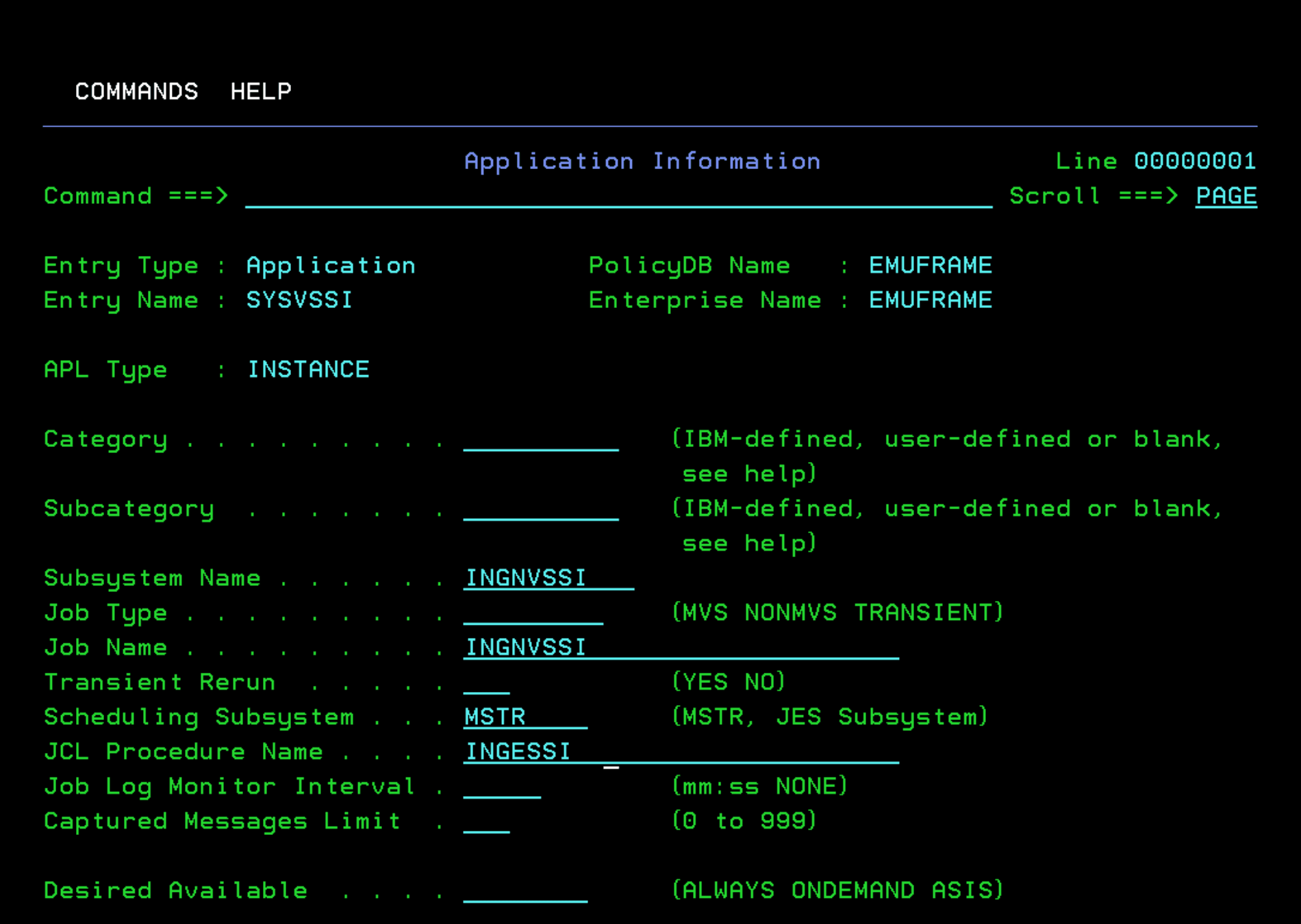
I will also rename the entry to make it easier to identify. With “R” in the application list.
TCPIP Task
I don’t make changes to this task.
TN_PORT Task
I don’t make changes to this task. I recommend reviewing this task as it is different from other tasks. This task is responsible for verifying that port 23 is listening.
TN3270 Task
I don’t make changes to this task.
TSO Task
I don’t make changes to this task.
VLF Task
I don’t make changes to this task.
VTAM Task
I don’t make changes to this task.
ZFS Task
I don’t make changes to this task.
ZOSMFANG - IZUANG1 Task
In my system it’s called IZUANG1, so I will use that name.
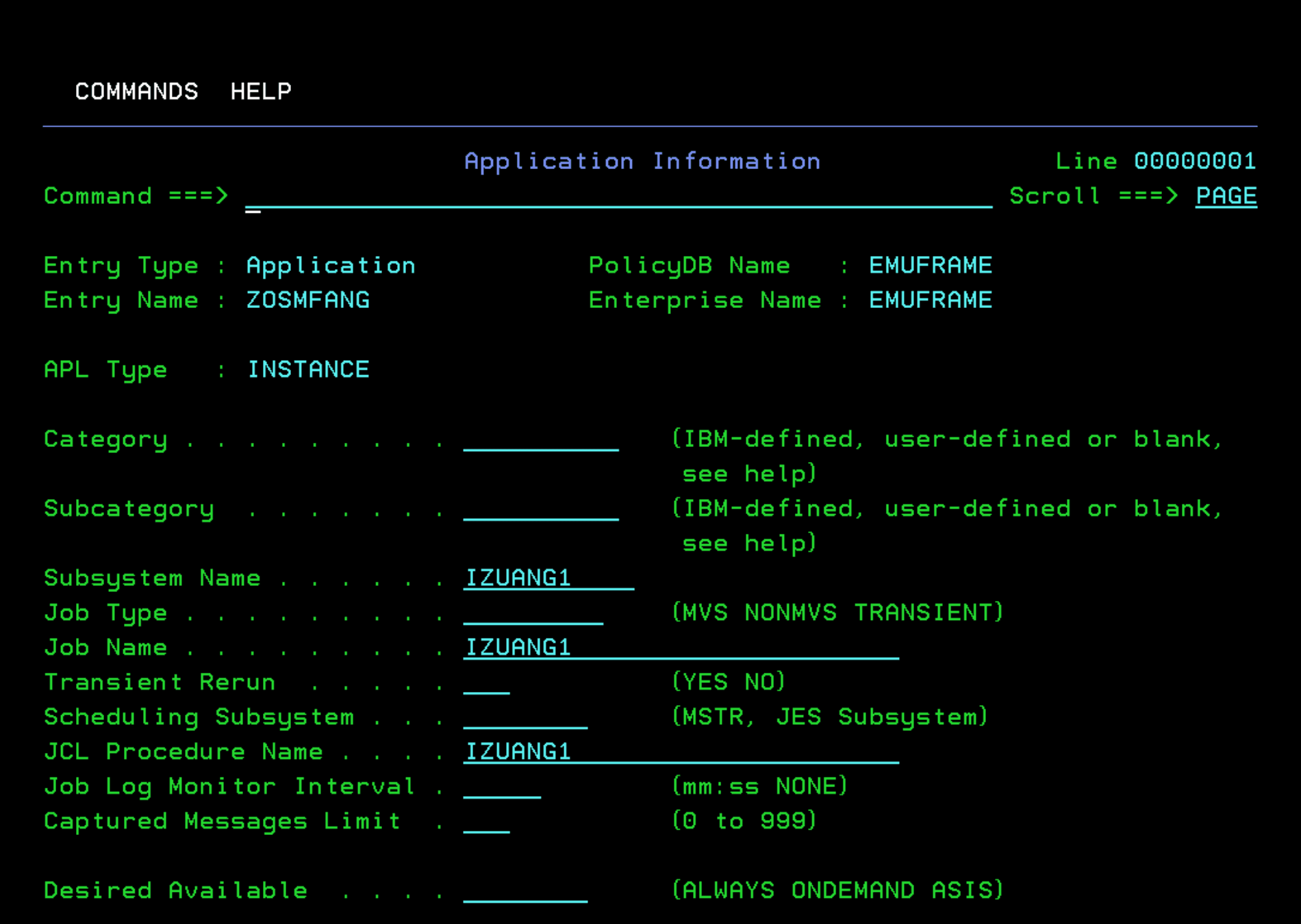
I also rename the entry (with “R” in the application list).
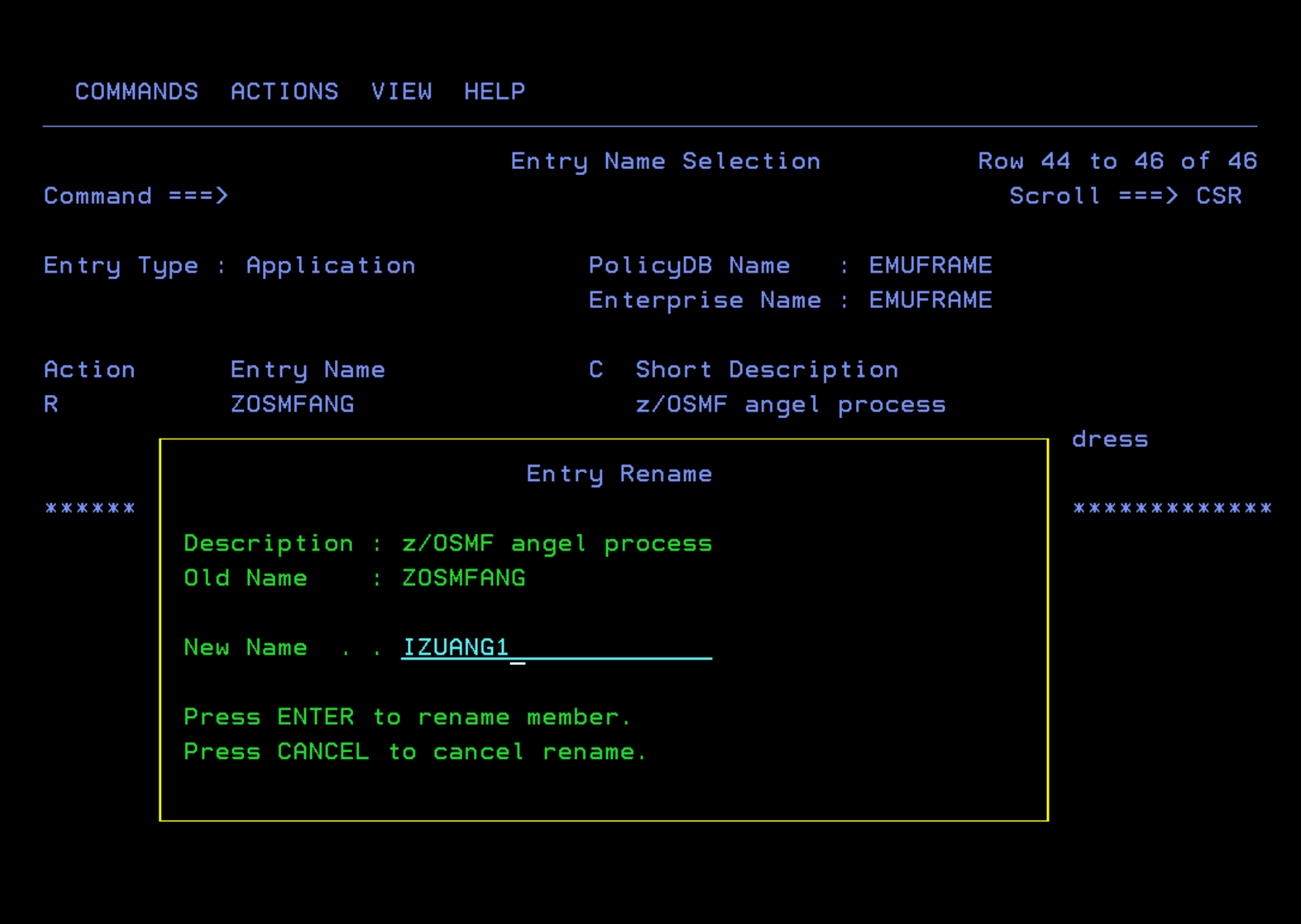
ZOSMFVIP Task
I removed this task from the ZOSMF application group.
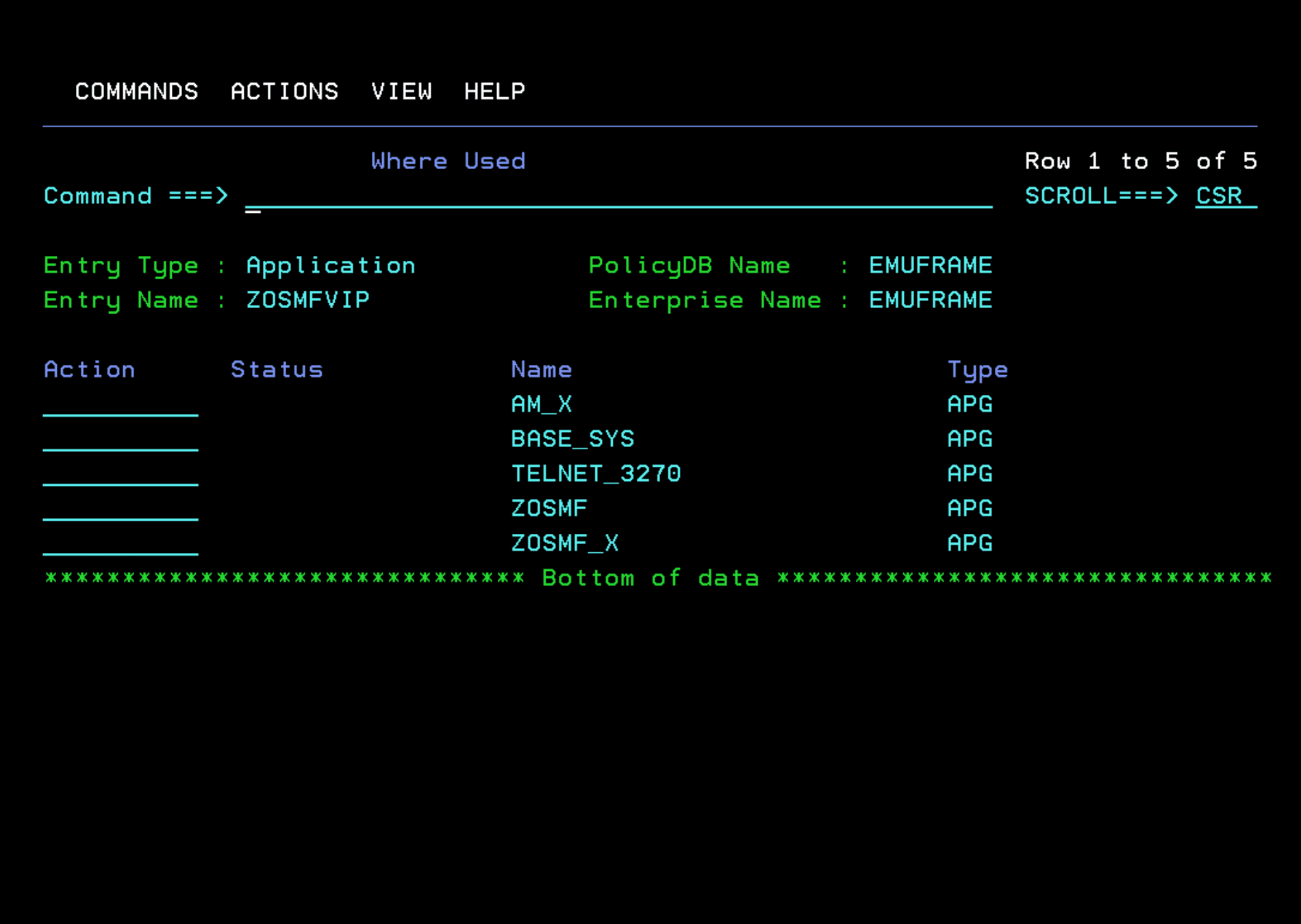
ZOSMFWLP - IZUSVR1 Task
In my system it’s called IZUSVR1, so I will use that name.
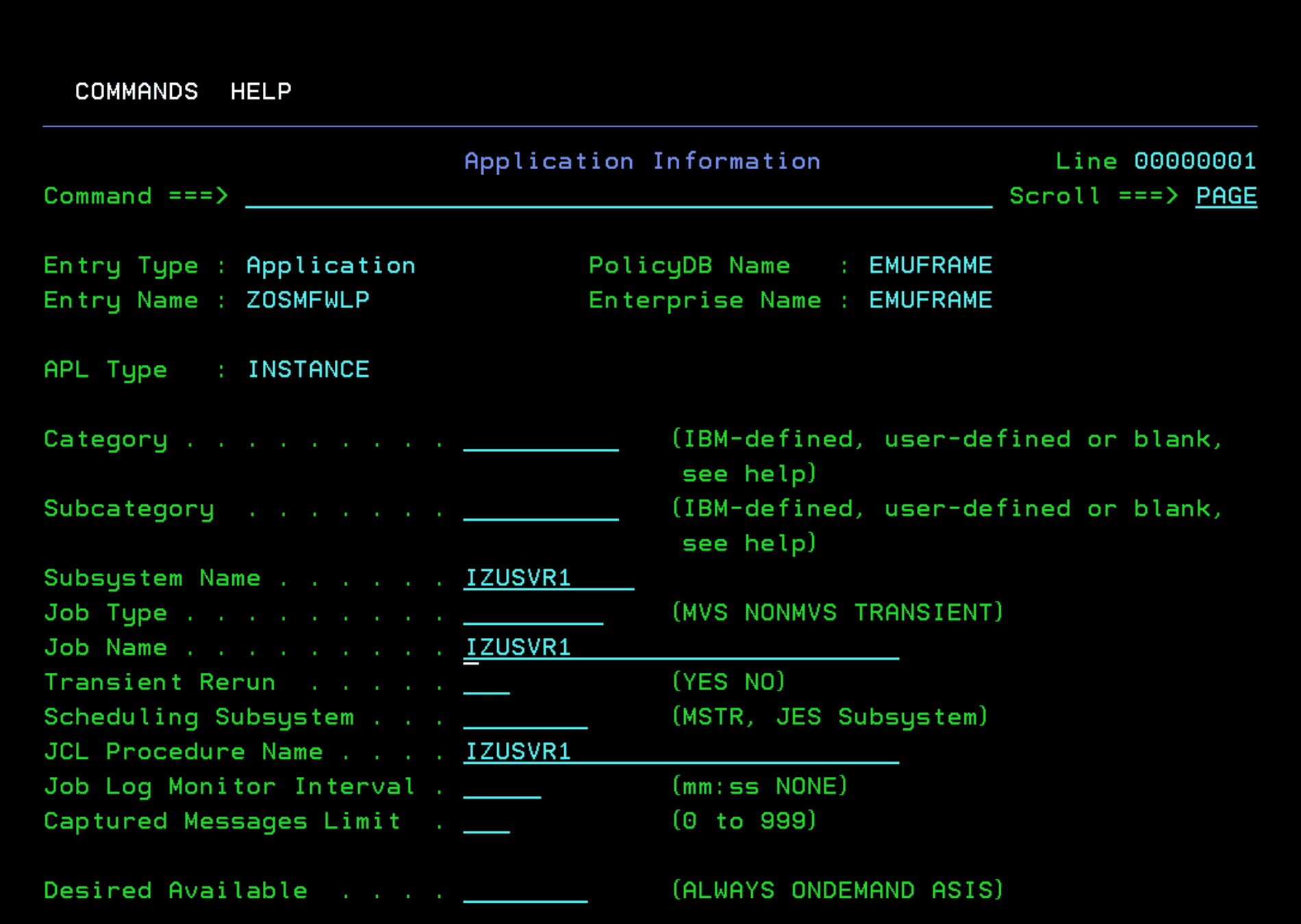
IMPORTANT! In emulated systems like ZD&T (zPDT) JAVA tasks take a long time to start. We can extend the time the task waits for the message indicating that the task is UP.
We adjust the “Start Delay” and “Start Cycles” parameters according to our needs.
Keep in mind that if we start JAVA tasks in parallel on these systems (z/OSMF, z/OS Connect, ZOWE, etc.) the time will increase.
As a recommendation, it’s better to start them one after another.
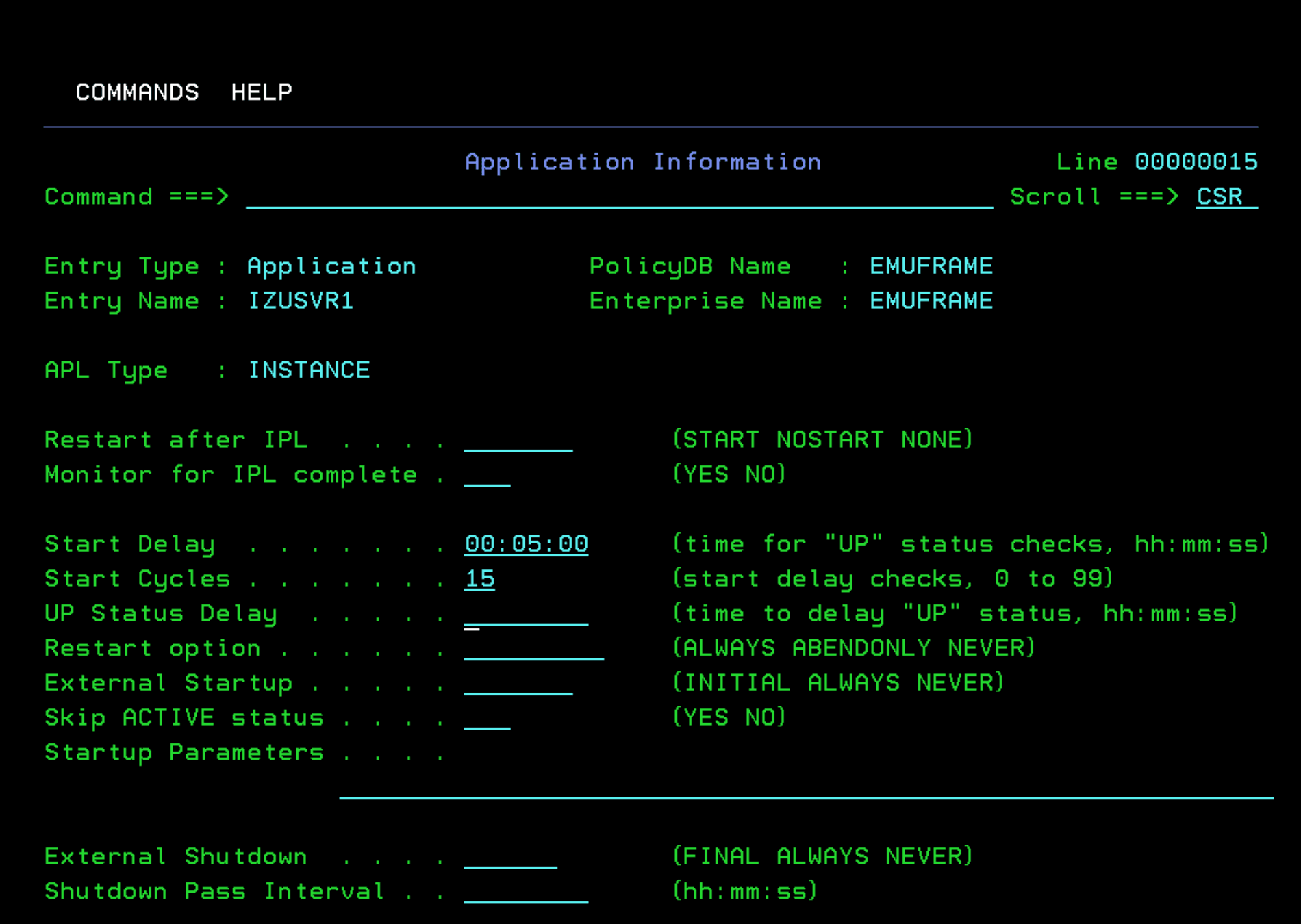
I also rename the entry (with “R” in the application list).
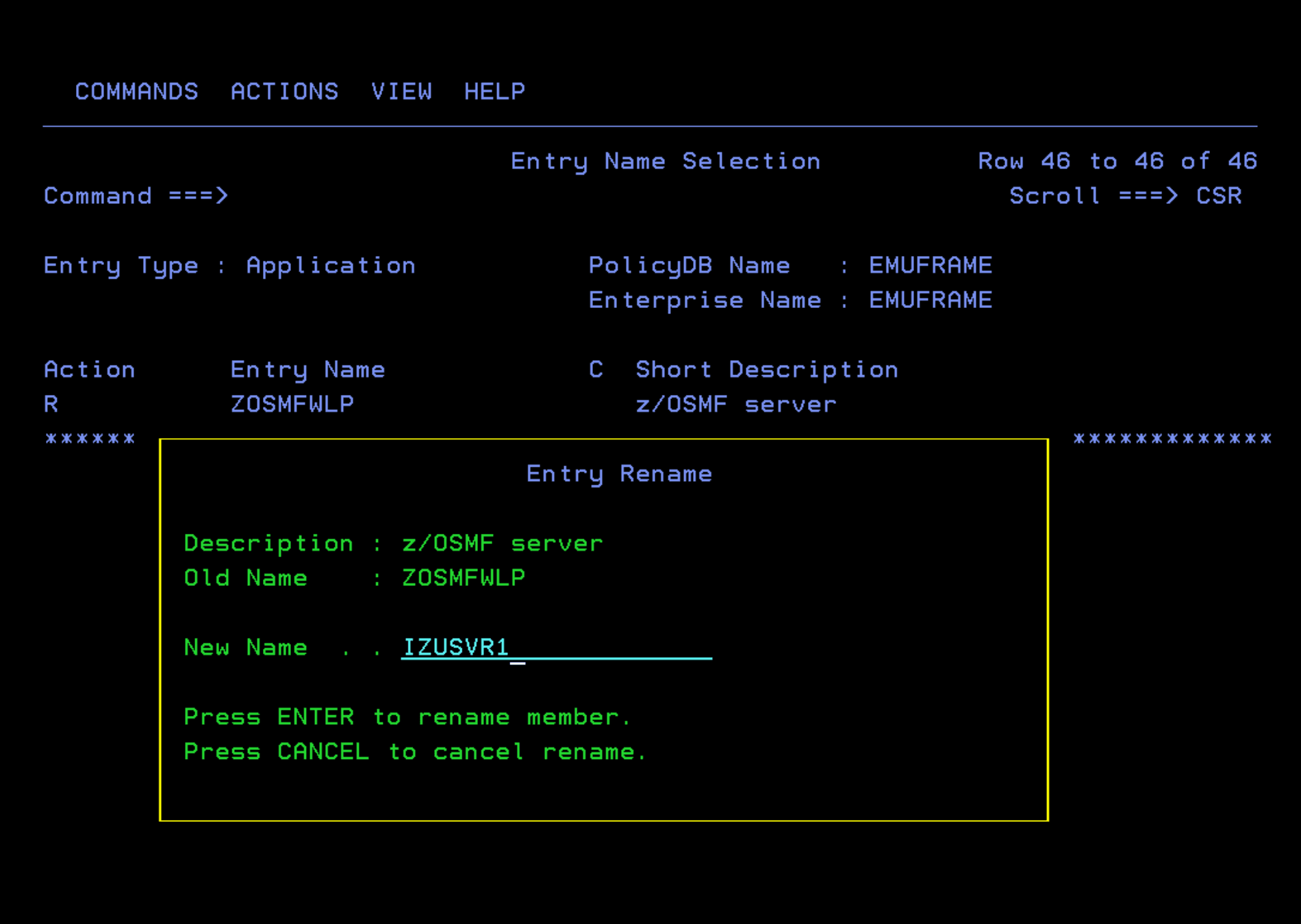
At this point we have already adjusted all the base applications we have.
System Defaults - Optional
Optionally, we can deactivate automation the first time so that it doesn’t execute commands, but does write in the log the commands it would execute. This way, we can review what it does without affecting the system.
https://www.ibm.com/docs/en/z-system-automation/4.3.0?topic=time-changing-system-defaults
This can also be configured individually for the desired application in option “6 - Applications”.
Enter option 35 - System Defaults.
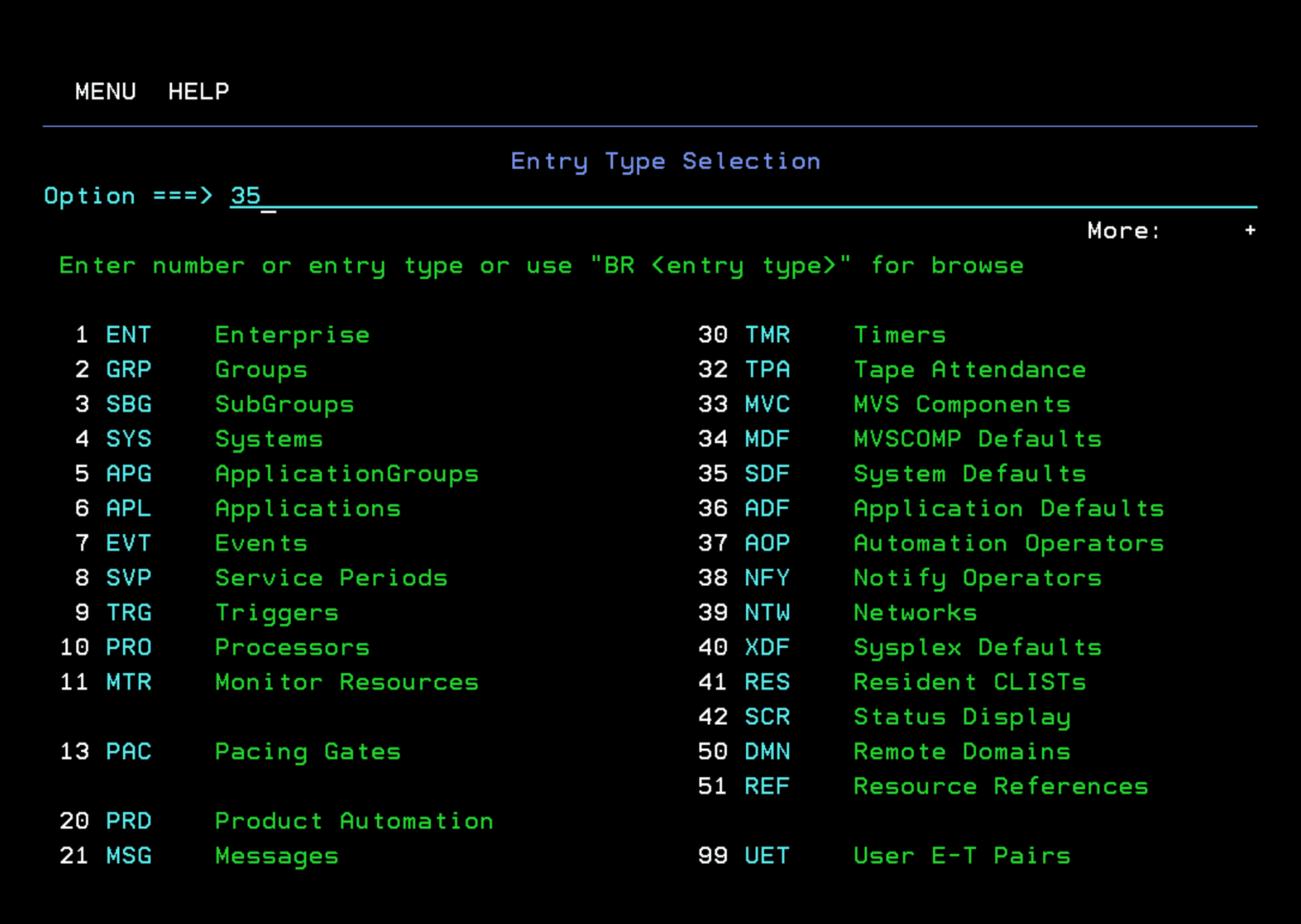
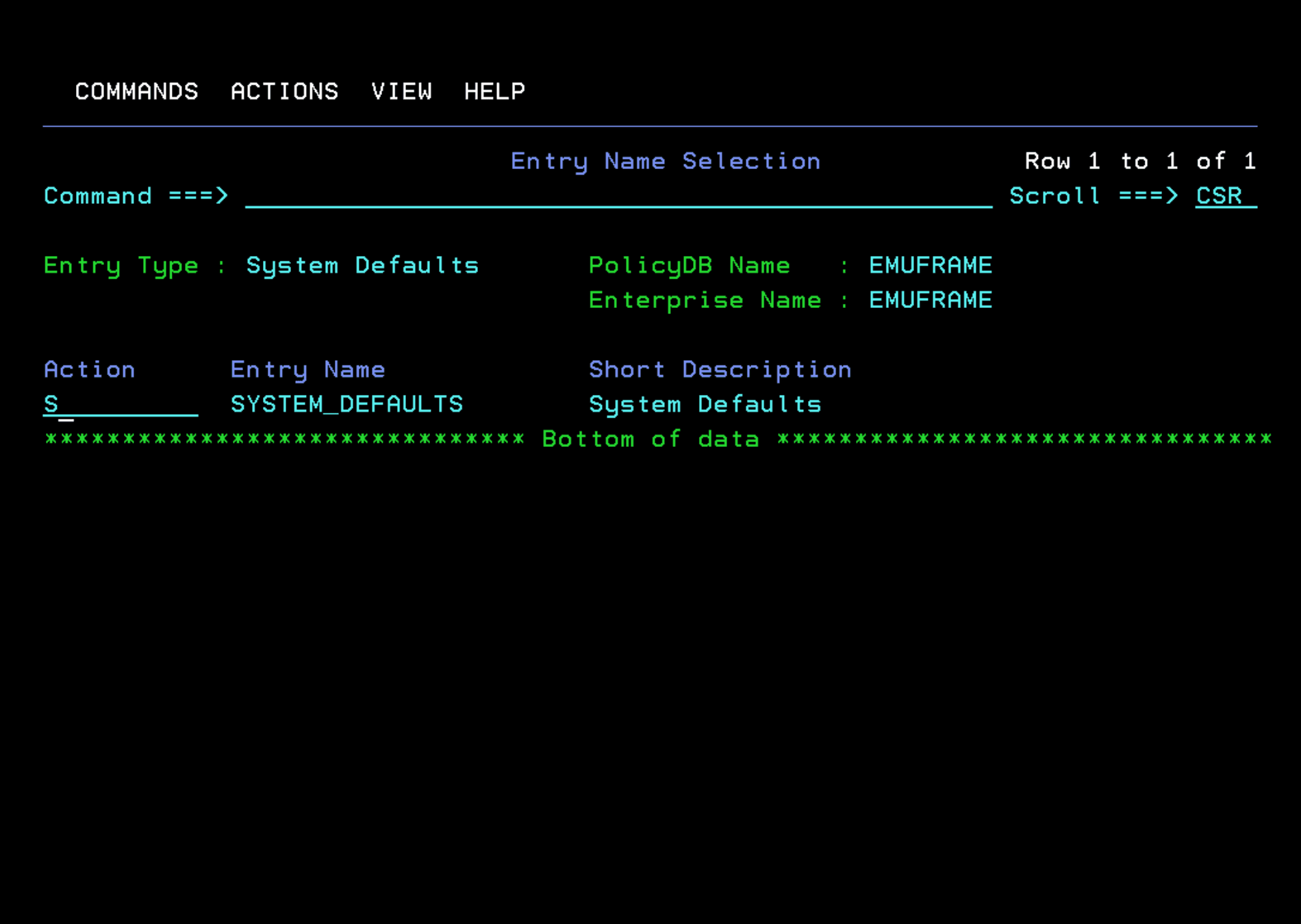
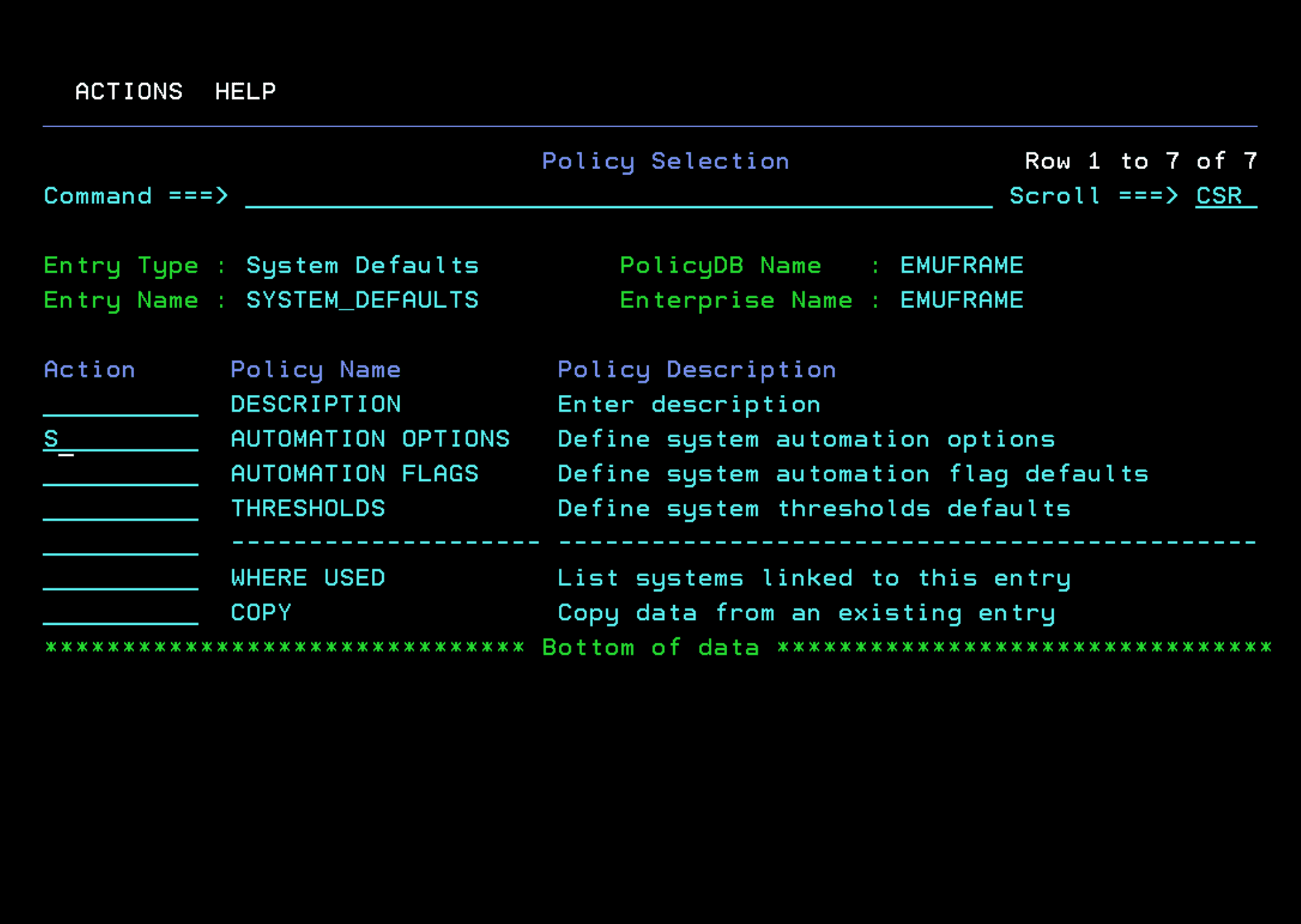
Enter with “S”.
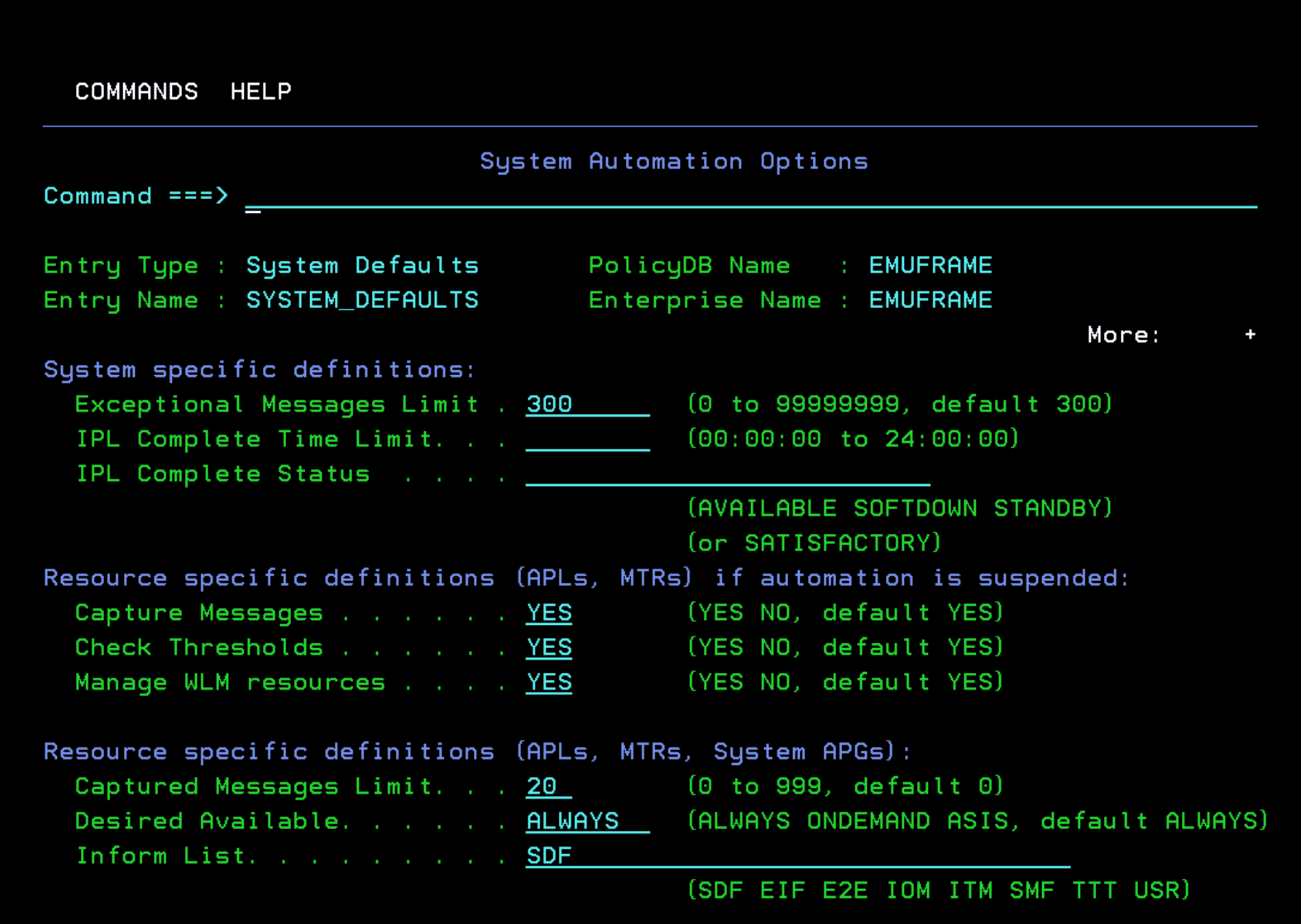
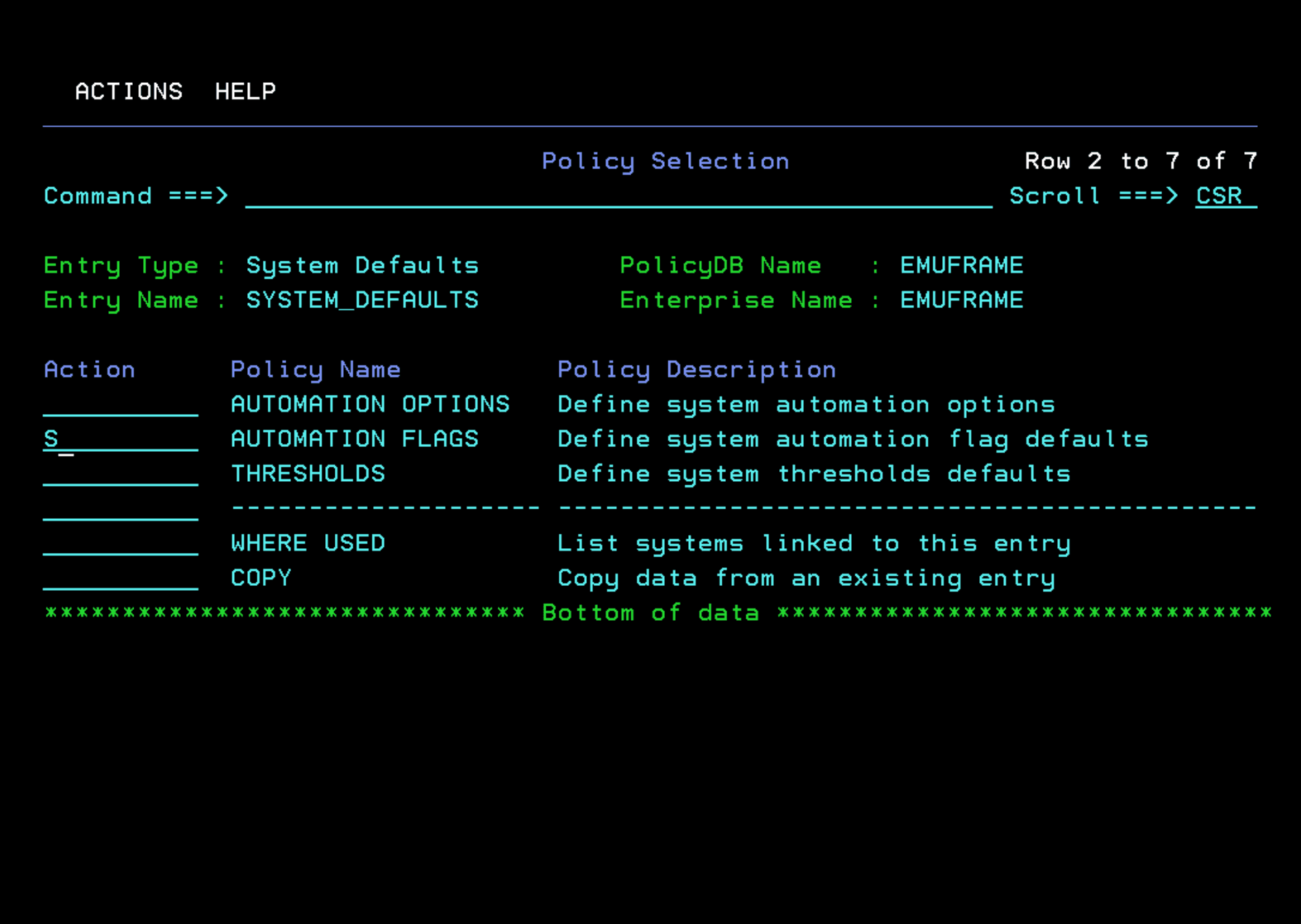
If we enter “AUTOMATION OPTIONS”, we will see some of the predefined options. For example, if tasks should always be started.
For example:
- The “Desired Available” field indicates how applications, resource monitors and application groups should be. “ALWAYS” indicates that, by default, they should always be started.
- The “Inform List” field indicates where we will see the status of resources. For example, the SDF panels in NetView.
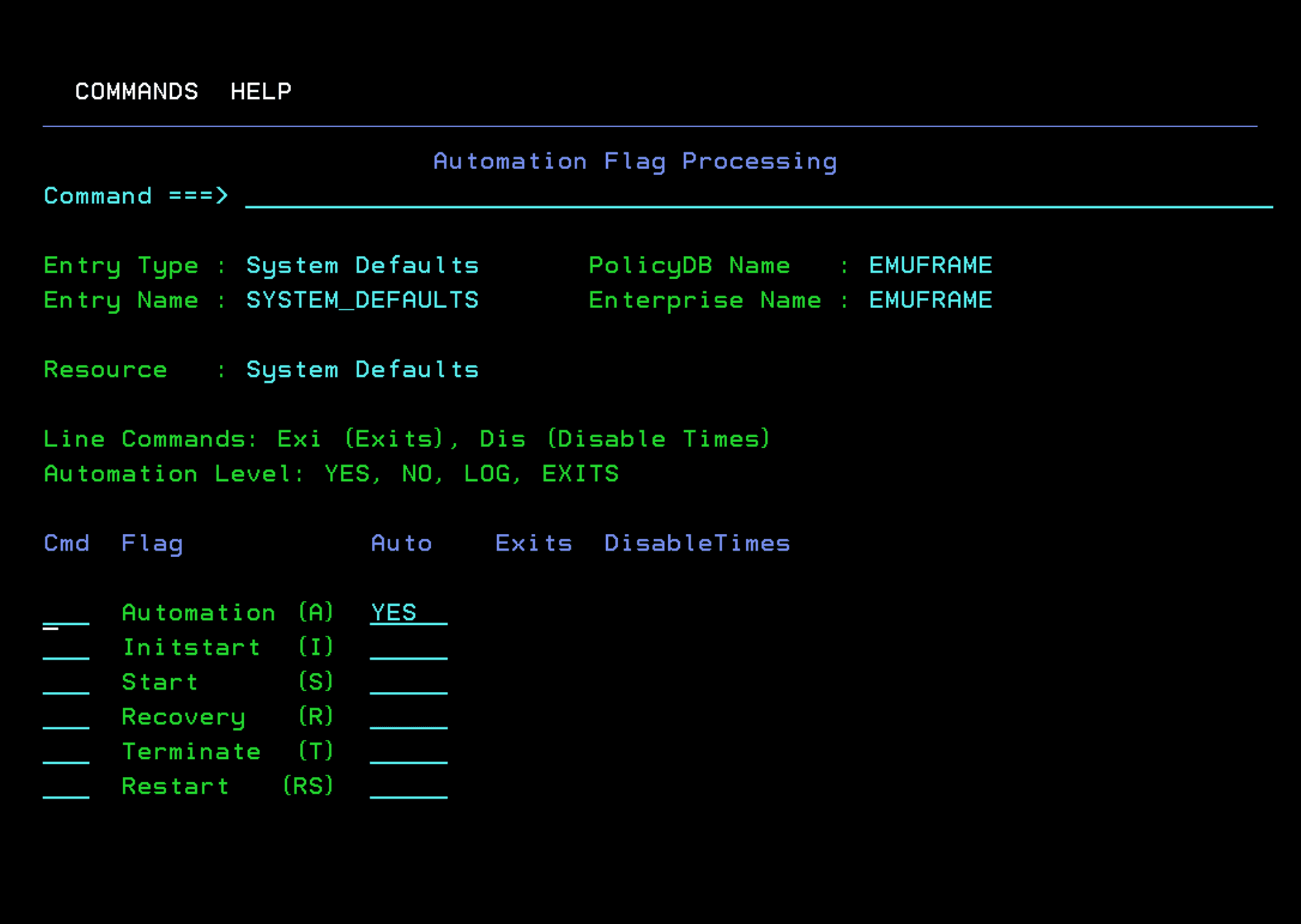
We enter “AUTOMATION FLAGS”.
In the “Automation” option, we can change from YES to LOG so that automation commands are recorded in the log, but not executed on the system.
Creating the Configuration File
In the main “Customization Dialog” panel we enter option 2 - Build.
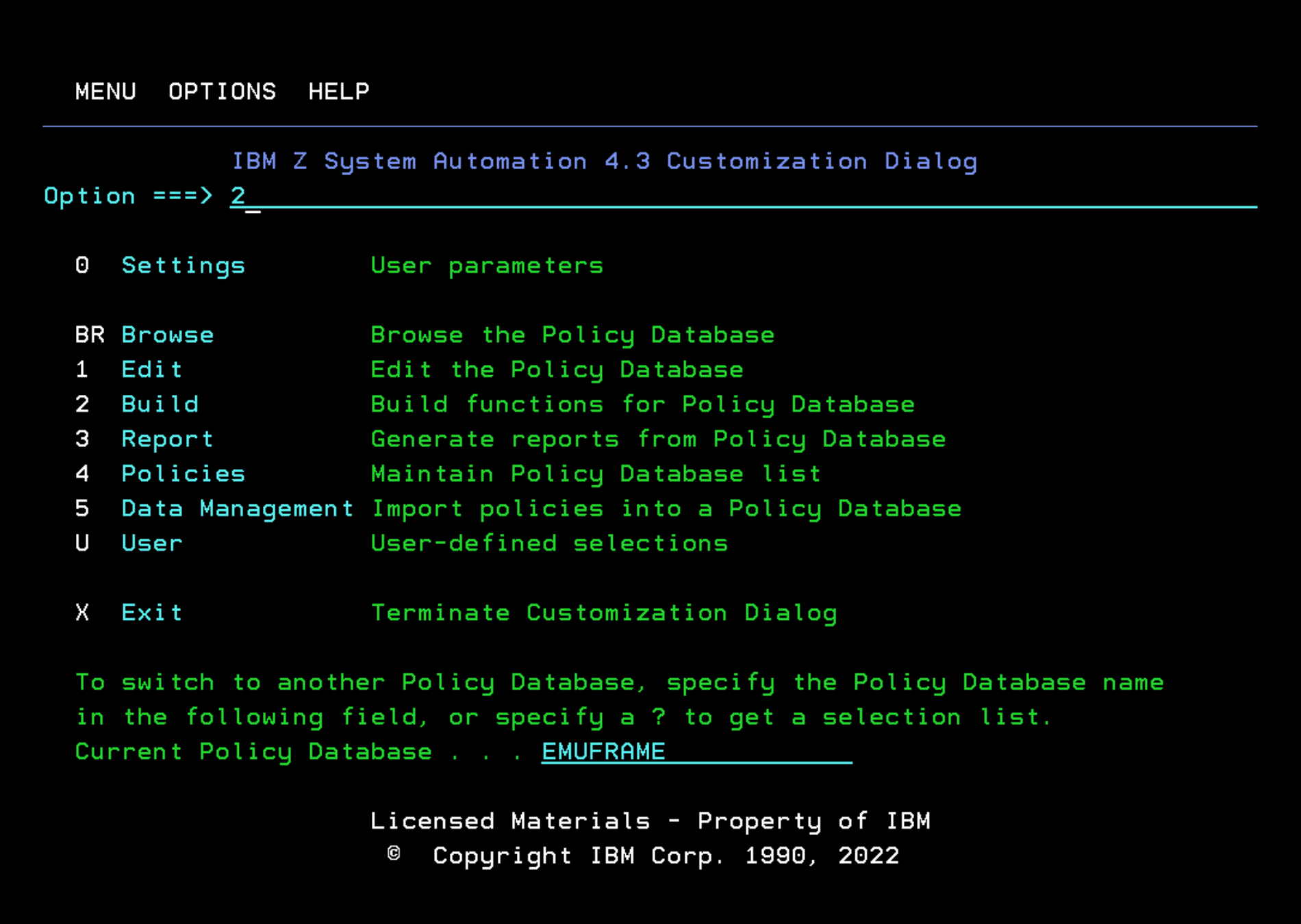
When it’s the first time we create the configuration file, we must choose the option:
- “Option” 1 - Build a complete enterprise
- “Output Data Set” will be the one created during the Installation section, in my case, SA430.$POLICY.S0W1.PDB.SOCNTL.
- “Mode” ONLINE
- “Type” ALL
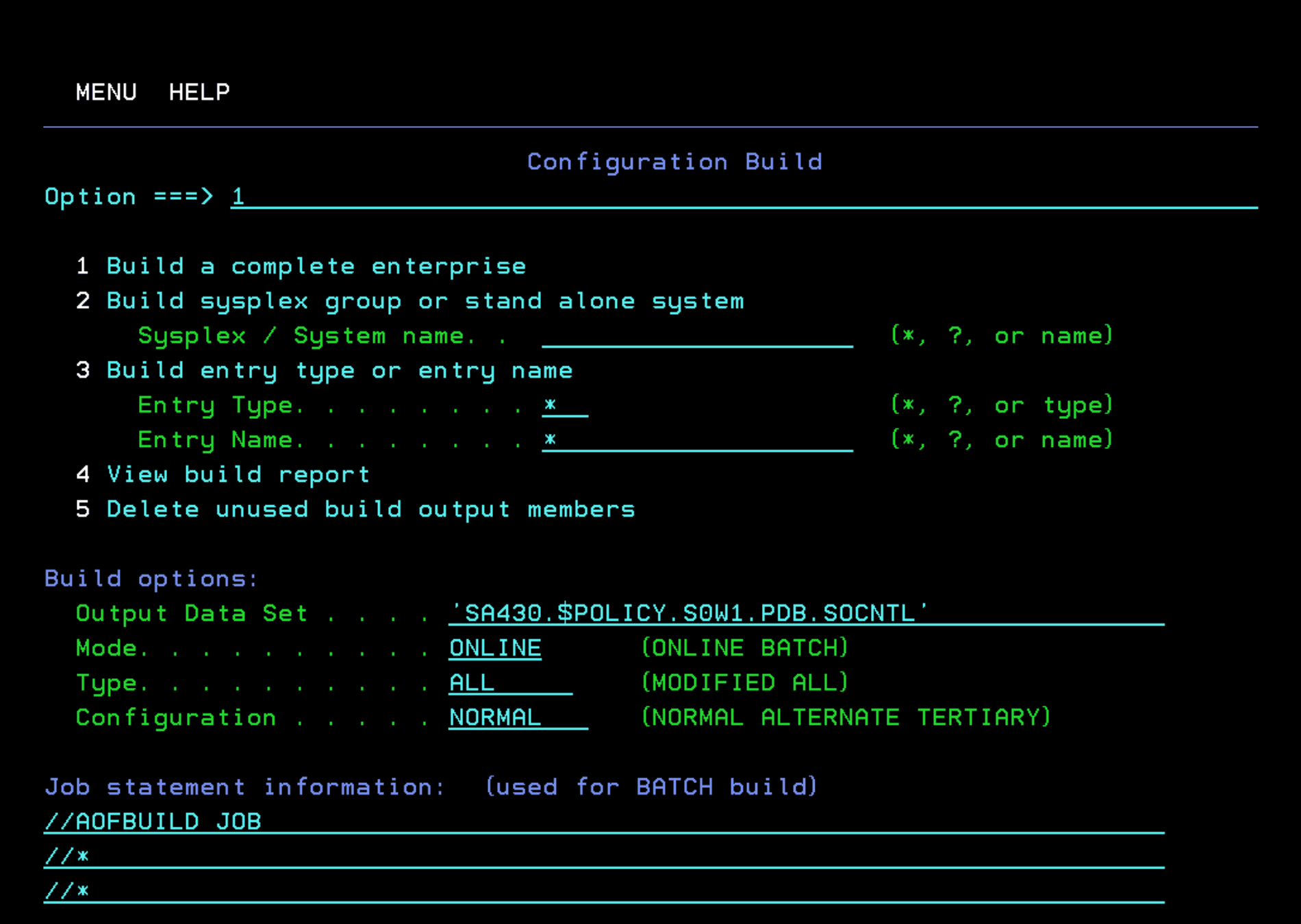
We wait for the process to finish.
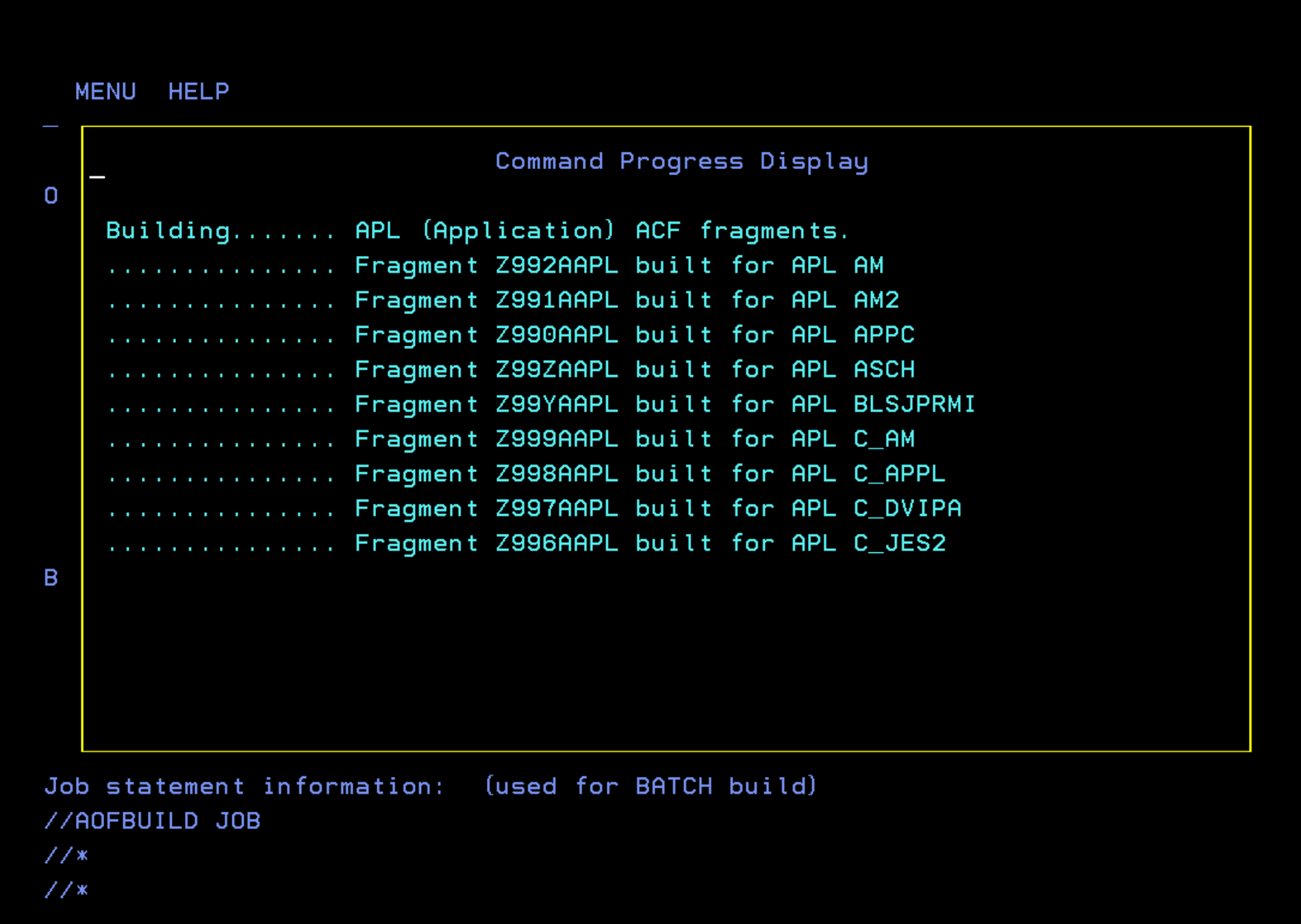
In the upper right corner the message “Build Successful” will appear.
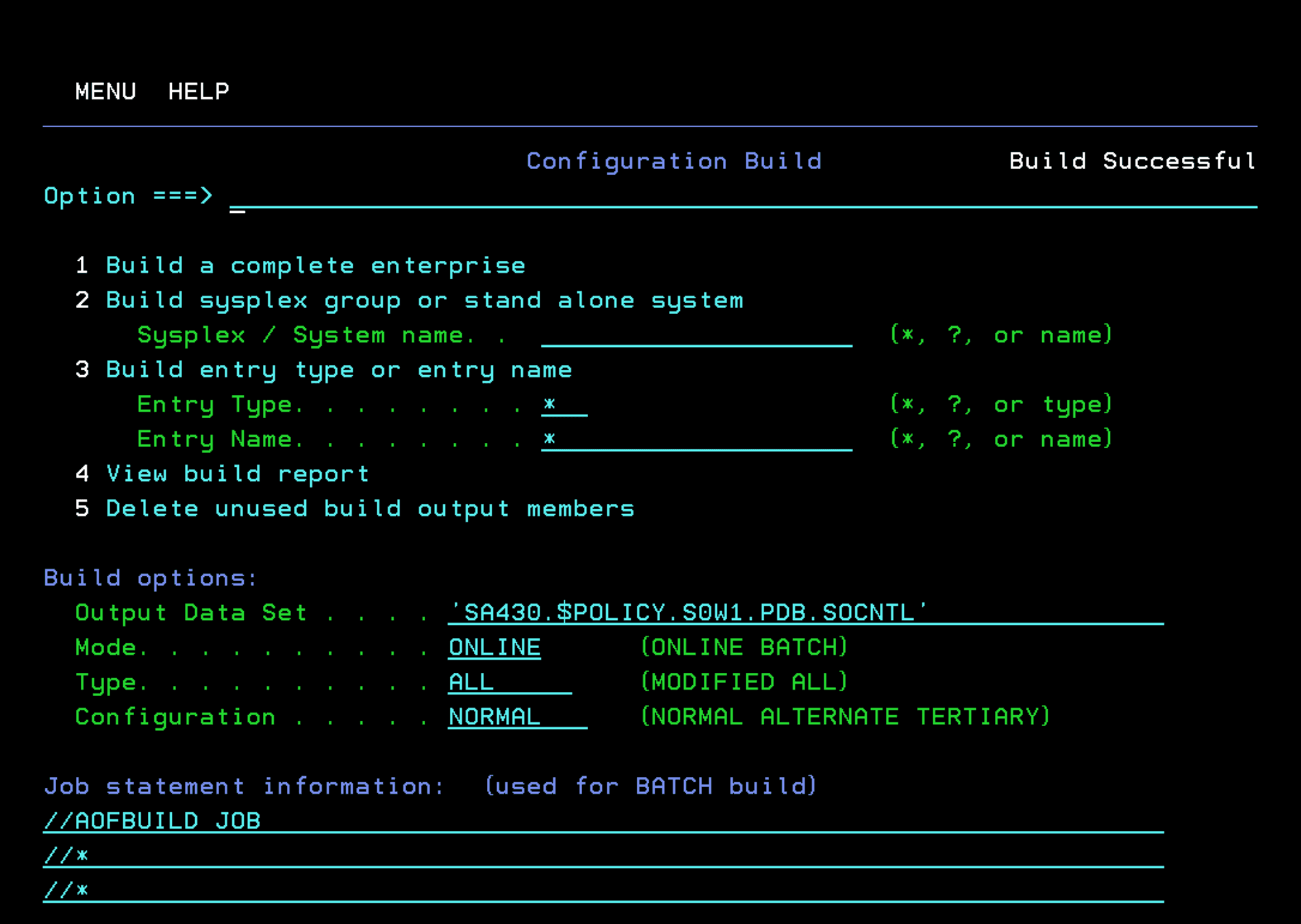
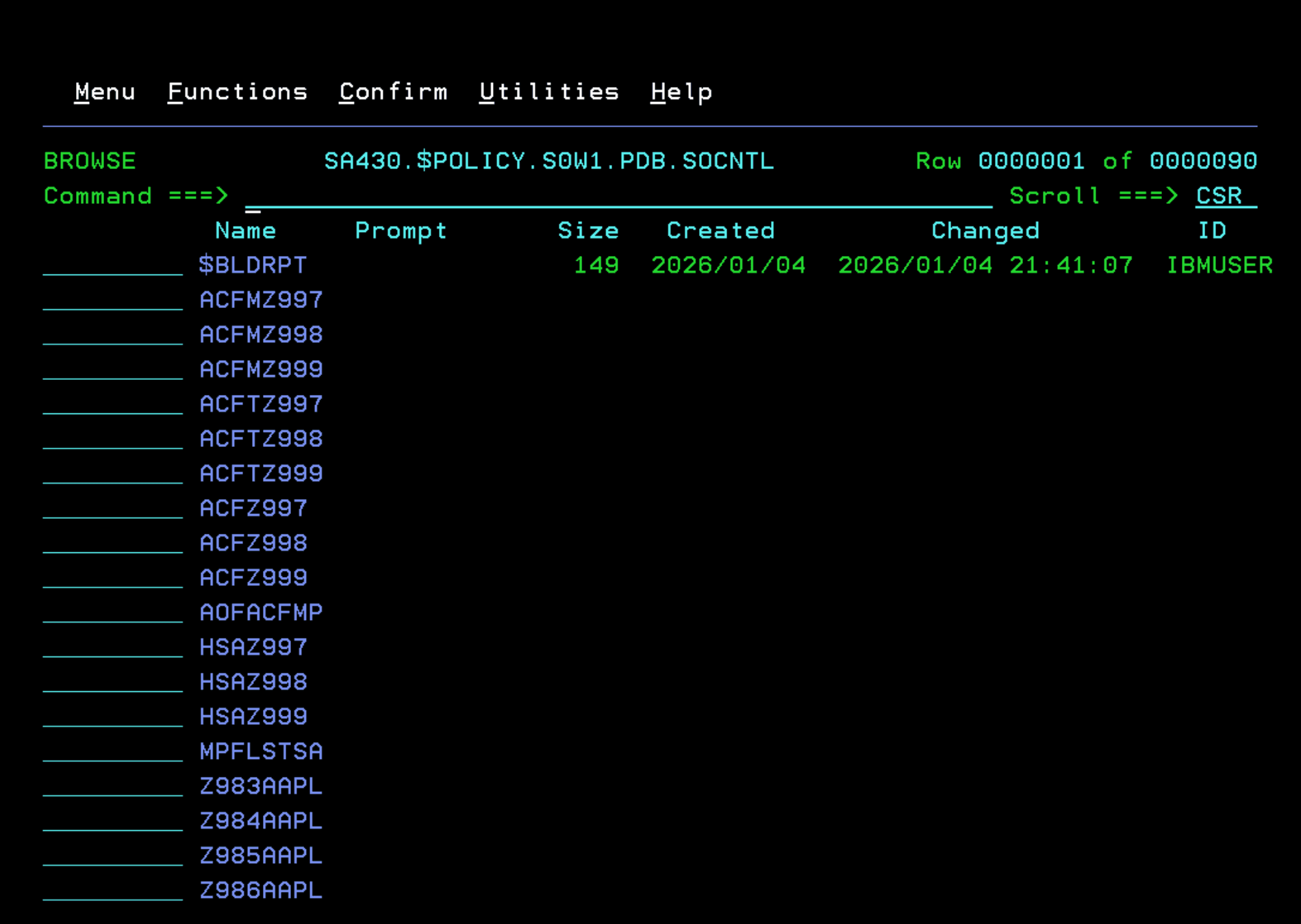
In the library SA430.$POLICY.S0W1.PDB.SOCNTL we will see all the files that have been created with the configuration.
$BLDRPT contains a report of the process.
Starting Automation
If we previously had the automation tasks running, we stop all 3
P INGNVSA
P INGNVSSI
P INGAM
Now we start them. It can be done without SUB=MSTR to check the startup messages.
S INGEAMSA,JOBNAME=INGAM,TYPE=COLD
S INGENVSA,JOBNAME=INGNVSA
S INGESSI,JOBNAME=INGNVSSI
INGAM
We must verify that the message appears:
HSAM1308I SA z/OS PRIMARY AUTOMATION MANAGER INITIALIZATION COMPLETE, TYPE=COLD.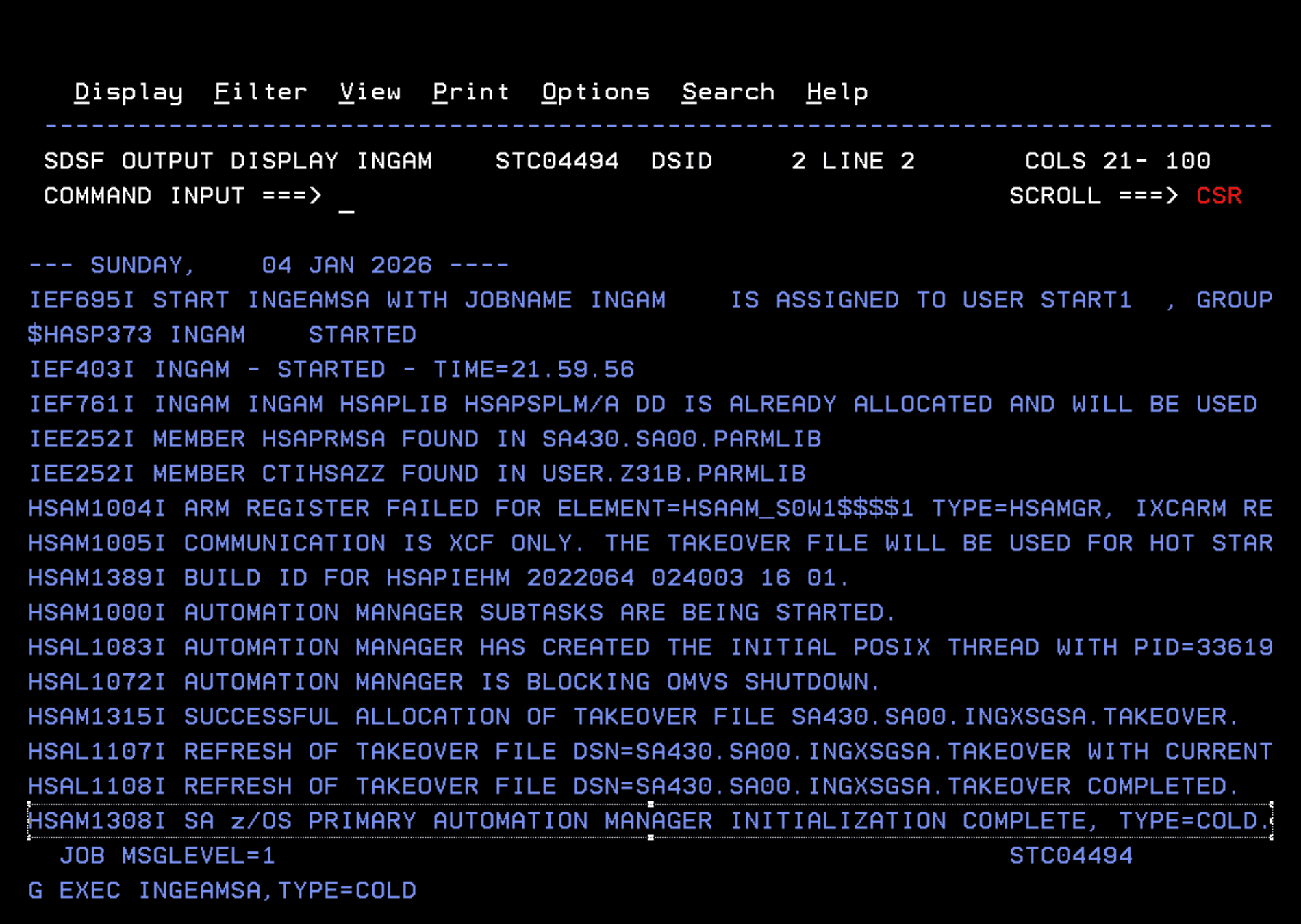
INGNVSSI
The following messages should appear:
CNM226I NetView Program to Program Interface initialization is completed
CNM541I NetView subsystem INGN is fully functional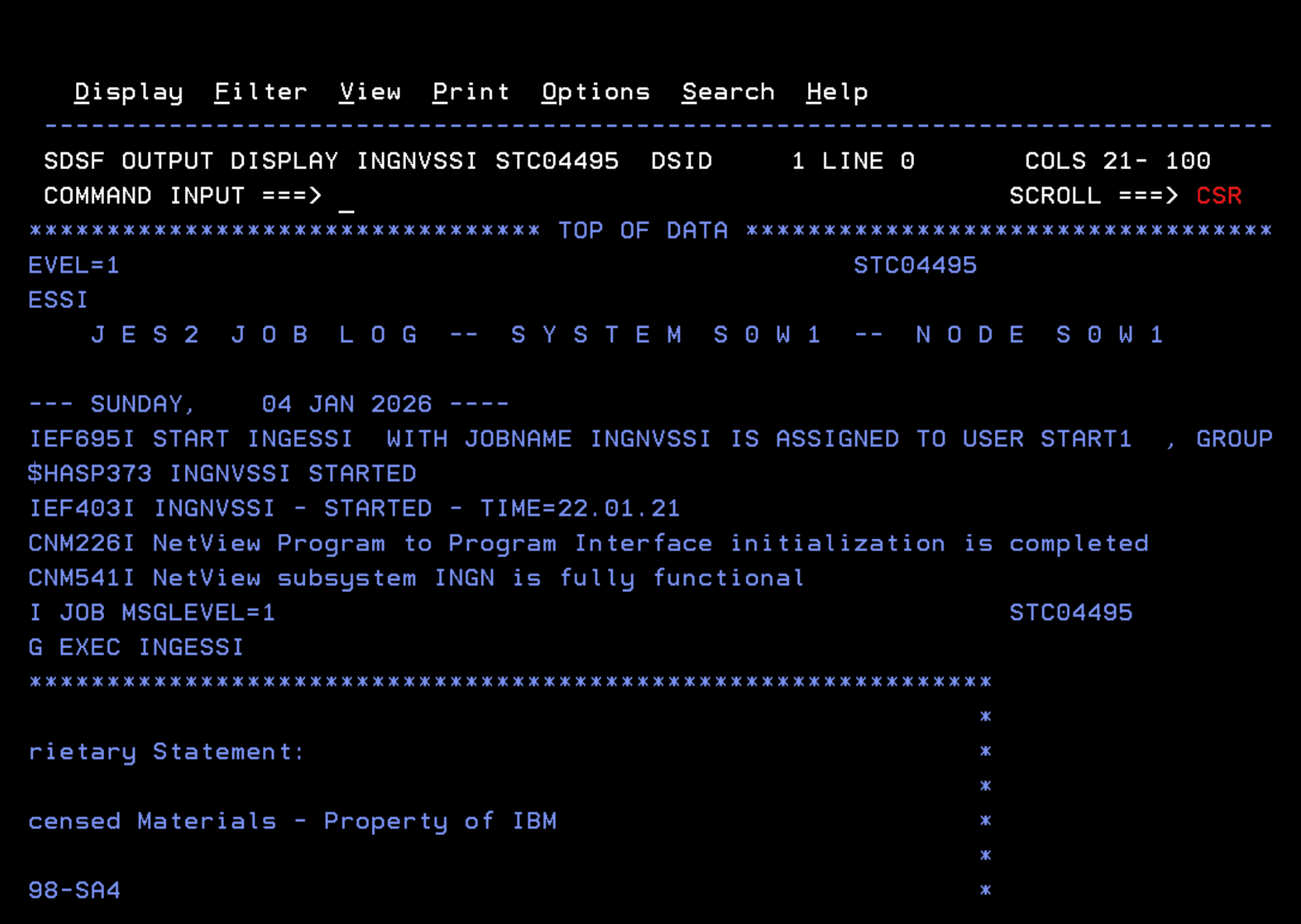
INGNVSA
In my case, I had this RACF error during startup because System Automation was trying to start a task that was not running. (This applies to the ADCD system).
ICH408I USER(AUTGSS  ) GROUP(INGAUTO ) NAME(AUTOOPERATOR        )  796
  MVS.START.STC.INGEIPLC.INGEIPLC CL(OPERCMDS)
  INSUFFICIENT ACCESS AUTHORITY
  FROM MVS.START.STC.* (G)
  ACCESS INTENT(UPDATE )  ACCESS ALLOWED(NONE   )
I executed the following commands to correct the error and prevent others in the future.
These commands apply to the ADCD system. In your system you will have to use or adjust them as needed.
PERMIT MVS.ROUTE.CMD.* CLASS(OPERCMDS) ID(INGAUTO) ACCESS(READ)

PERMIT MVS.CANCEL.STC.* CLASS(OPERCMDS) ID(INGAUTO) ACCESS(UPDATE)
PERMIT MVS.START.STC.* CLASS(OPERCMDS) ID(INGAUTO) ACCESS(UPDATE)
PERMIT MVS.MODIFY.STC.* CLASS(OPERCMDS) ID(INGAUTO) ACCESS(UPDATE)
PERMIT MVS.STOP.STC.* CLASS(OPERCMDS) ID(INGAUTO) ACCESS(UPDATE)

PERMIT MVS.* CLASS(OPERCMDS) ID(INGAUTO) ACCESS(UPDATE)

Refresh configuration:
SETROPTS RACLIST(OPERCMDS) REFRESH

PERMIT SUPERUSER.PROCESS.GETPSENT CLASS(UNIXPRIV) ID(INGAUTO) ACCESS(READ)

Refresh configuration:
SETROPTS RACLIST(UNIXPRIV) REFRESH
When the task starts, we must wait for the reply (WTOR) to appear:
AOF603D ENTER AUTOMATION OPTIONS OR 'R' (RE-DISPLAY) - DOMAIN SA01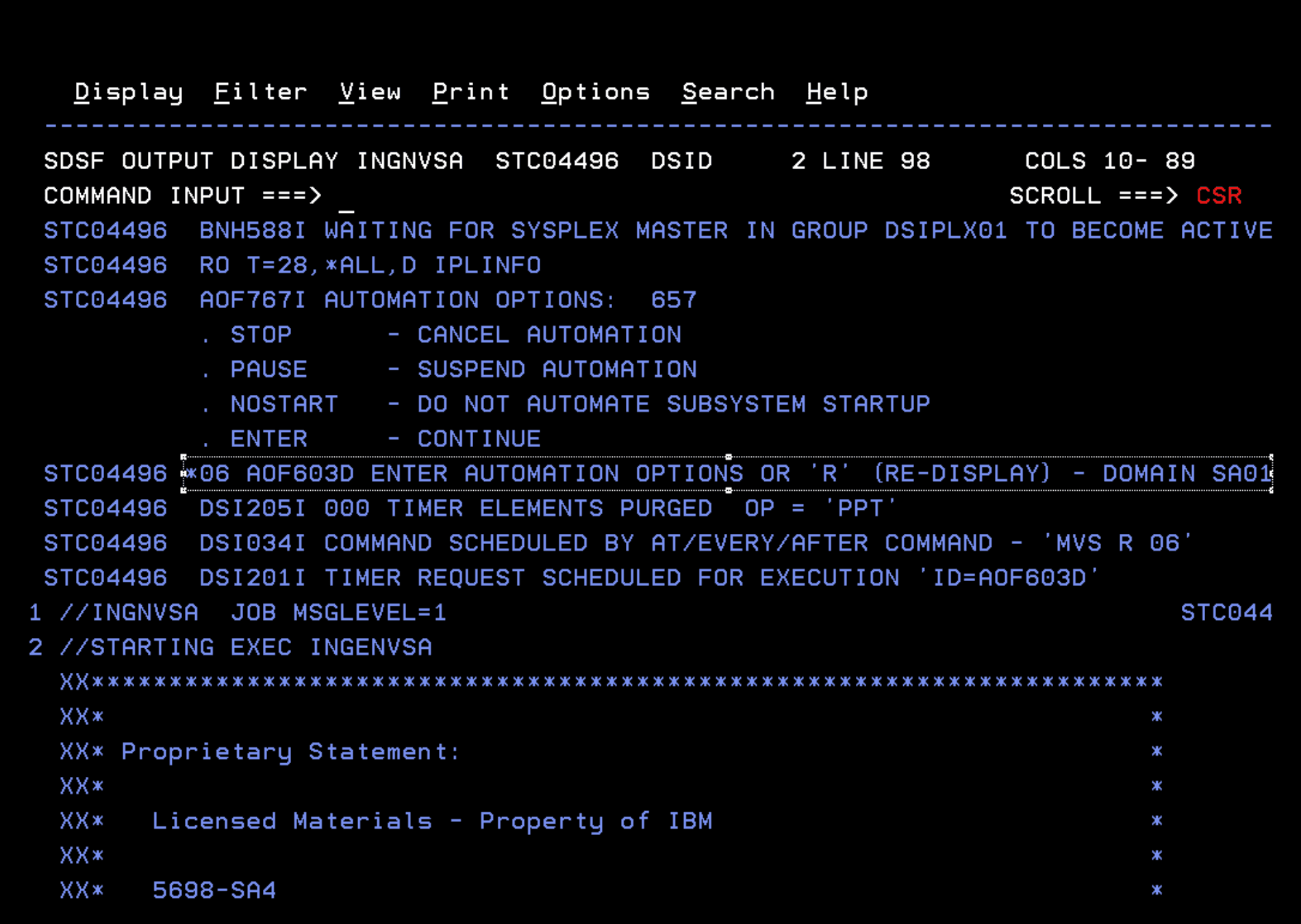
We must respond to this message without any parameters for it to start normally. If we take more than 2 minutes to respond, it will respond by itself
In my case:
/06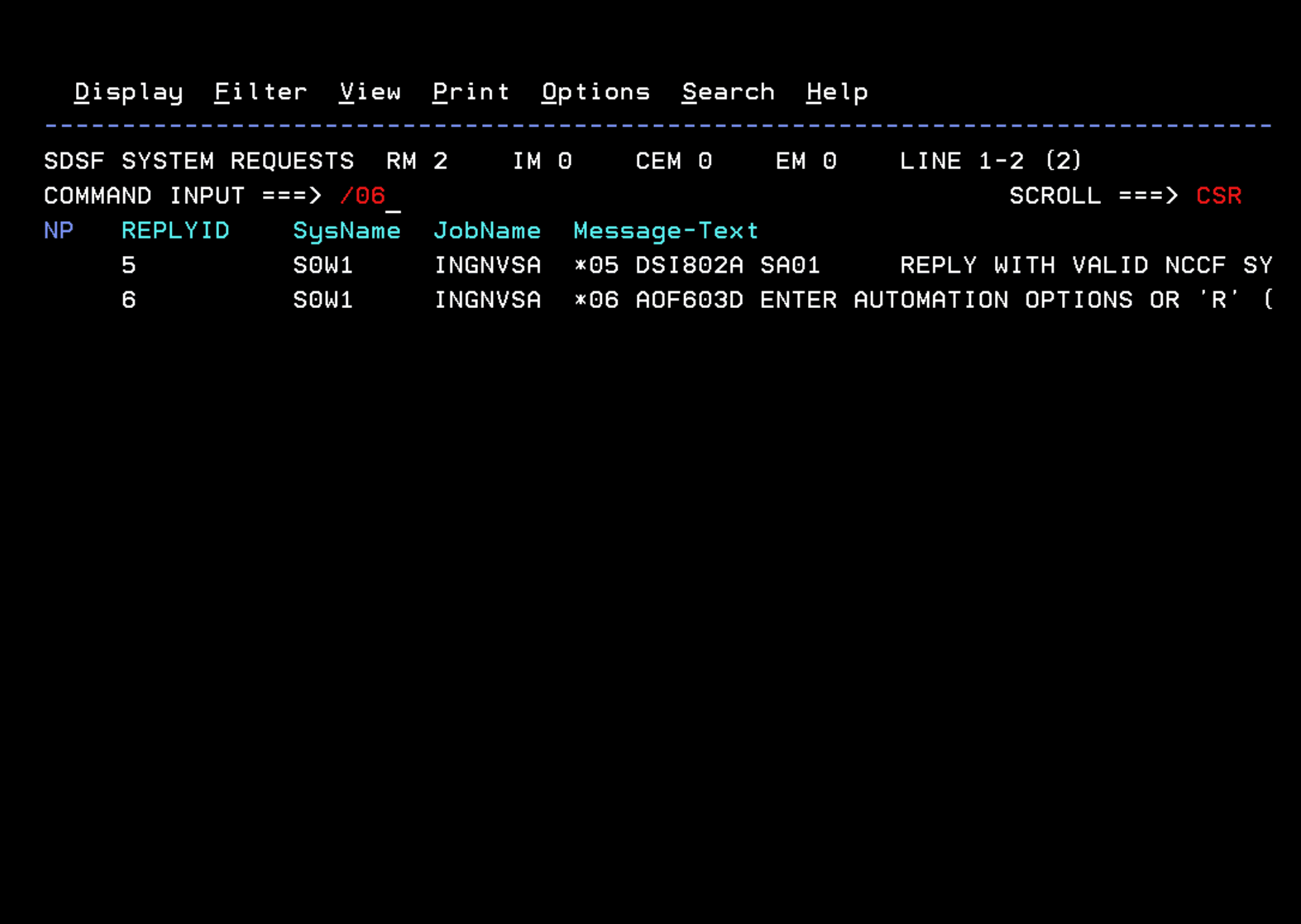
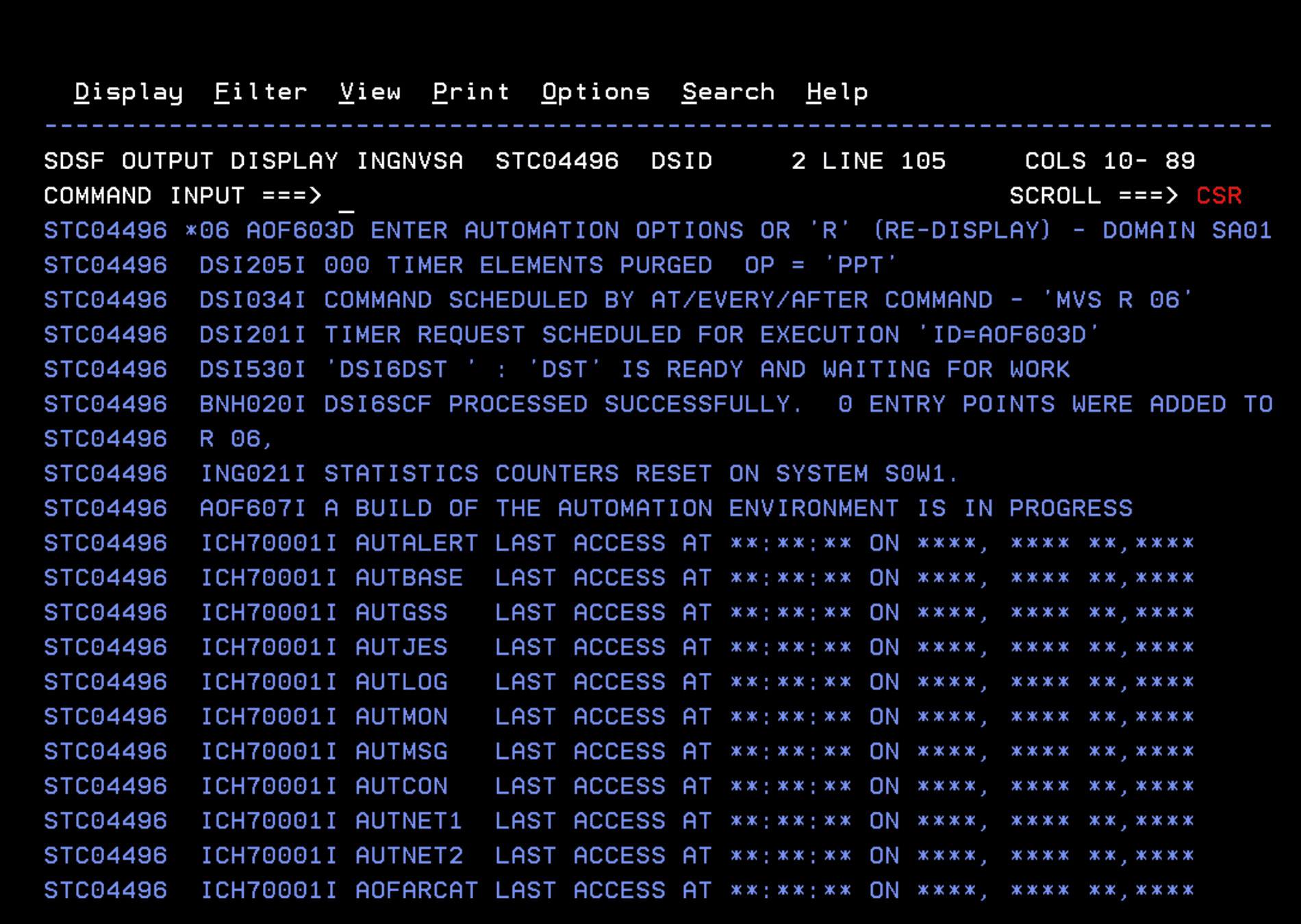
System Automation will start to boot.
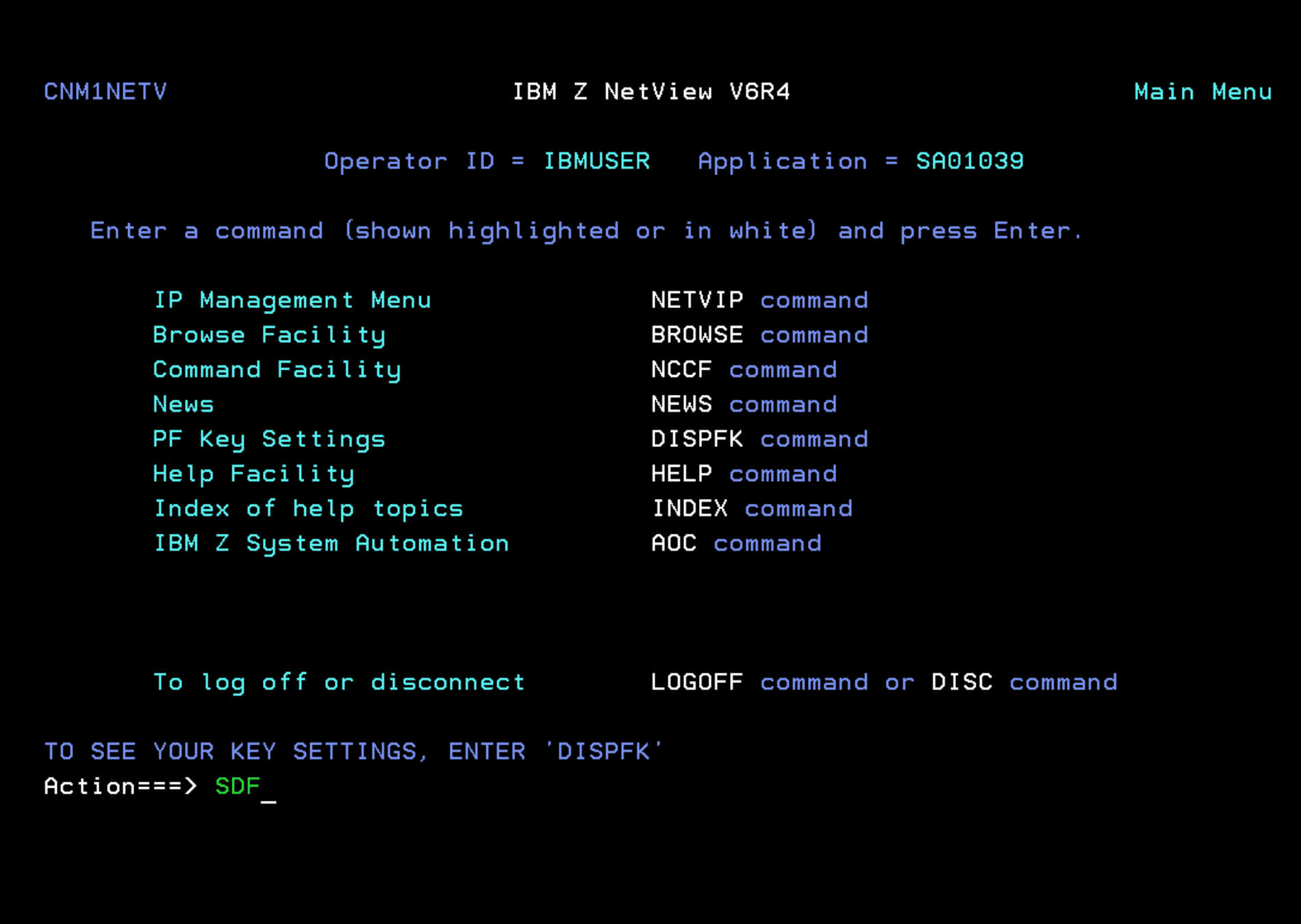
We enter NetView and go to the SDF option.
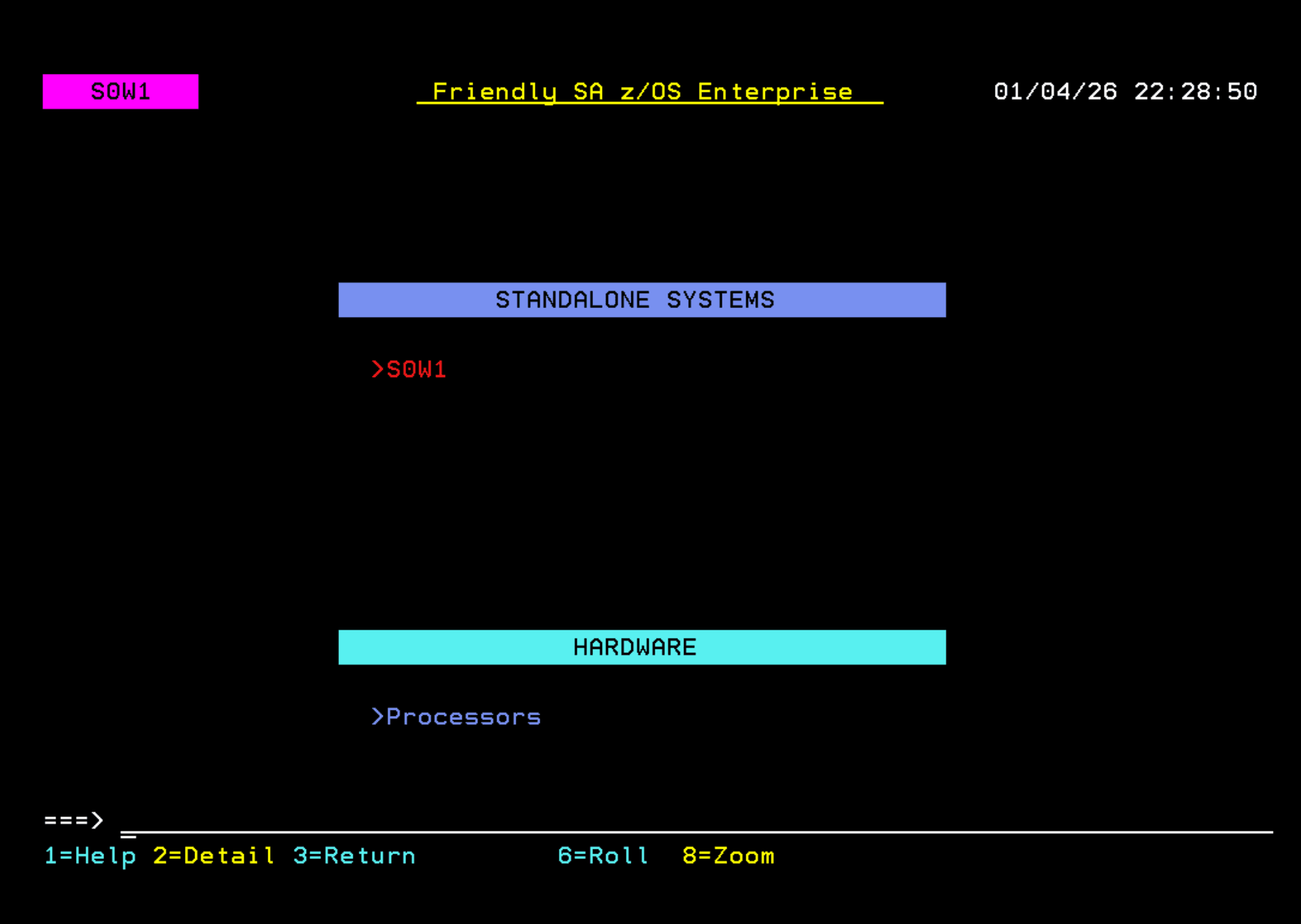
In my case, my system appears in red. We place the cursor on the system (S0W1) and press F8.
We will see the resource monitor. We place the cursor on APPLS and press F8.
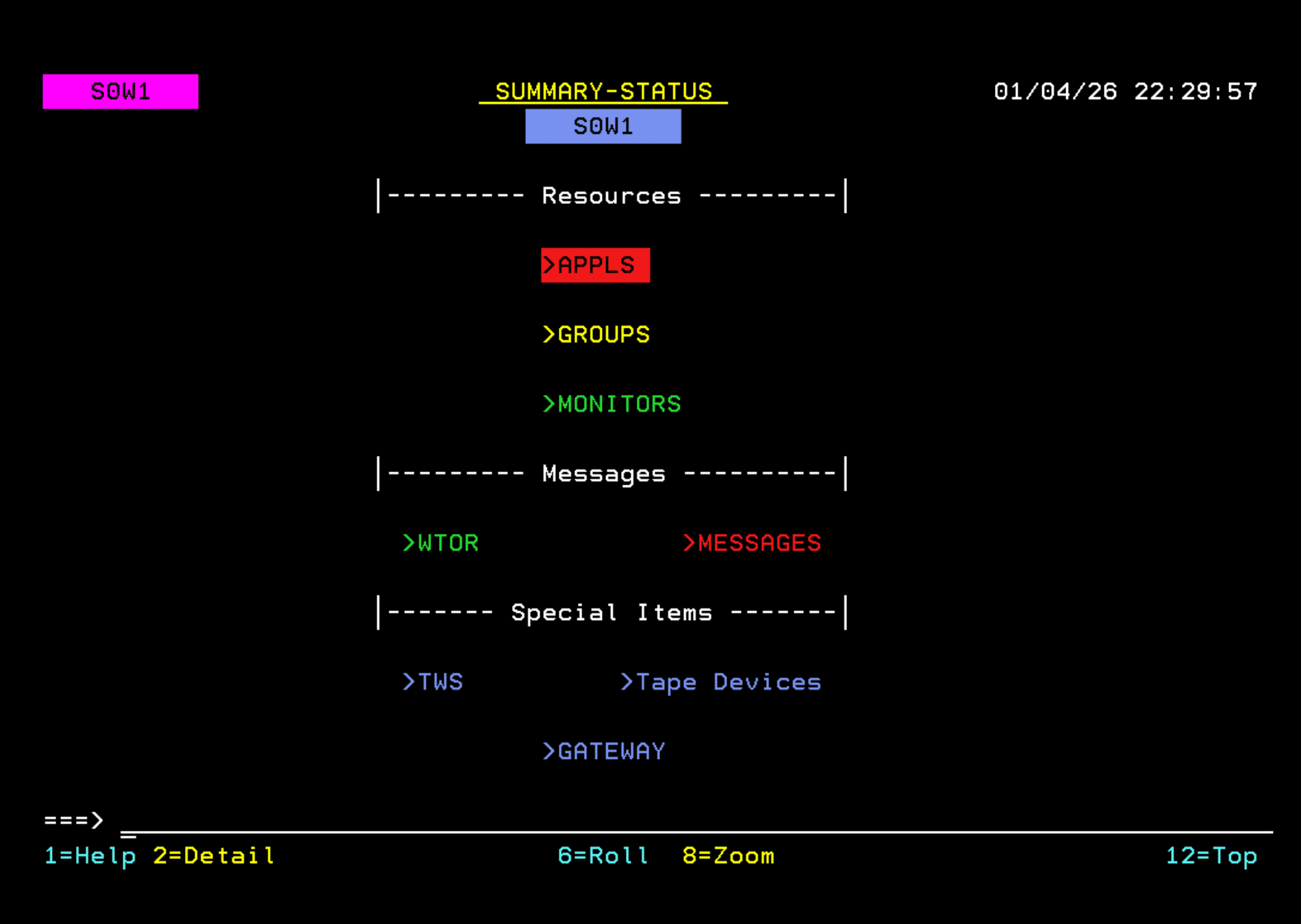
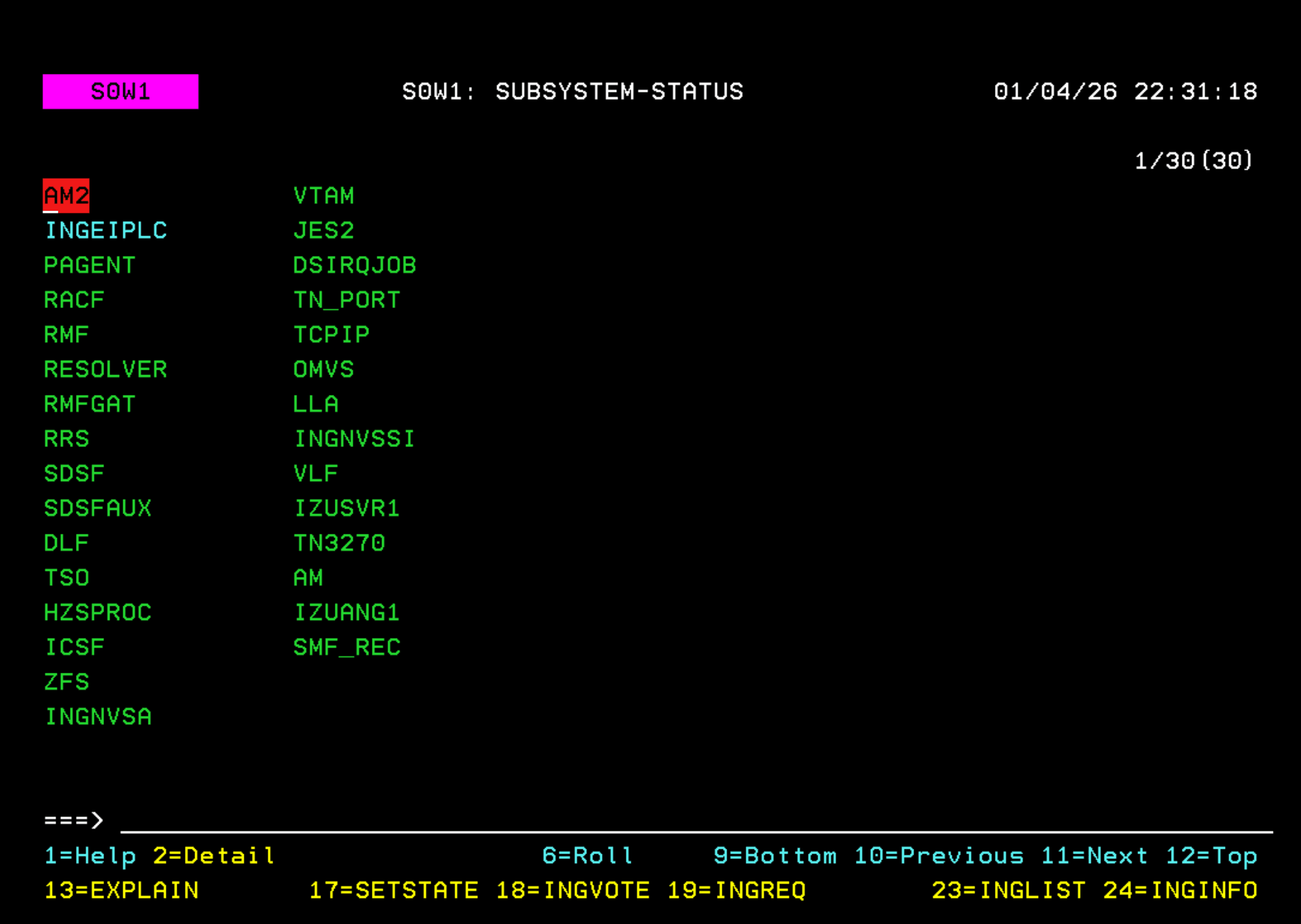
In my case, the AM2 task appears in red due to the RACF error I mentioned above.
Since I have already resolved it, I will restart the task.
You need to place the cursor on the task name and press F17 (Shift + F5).
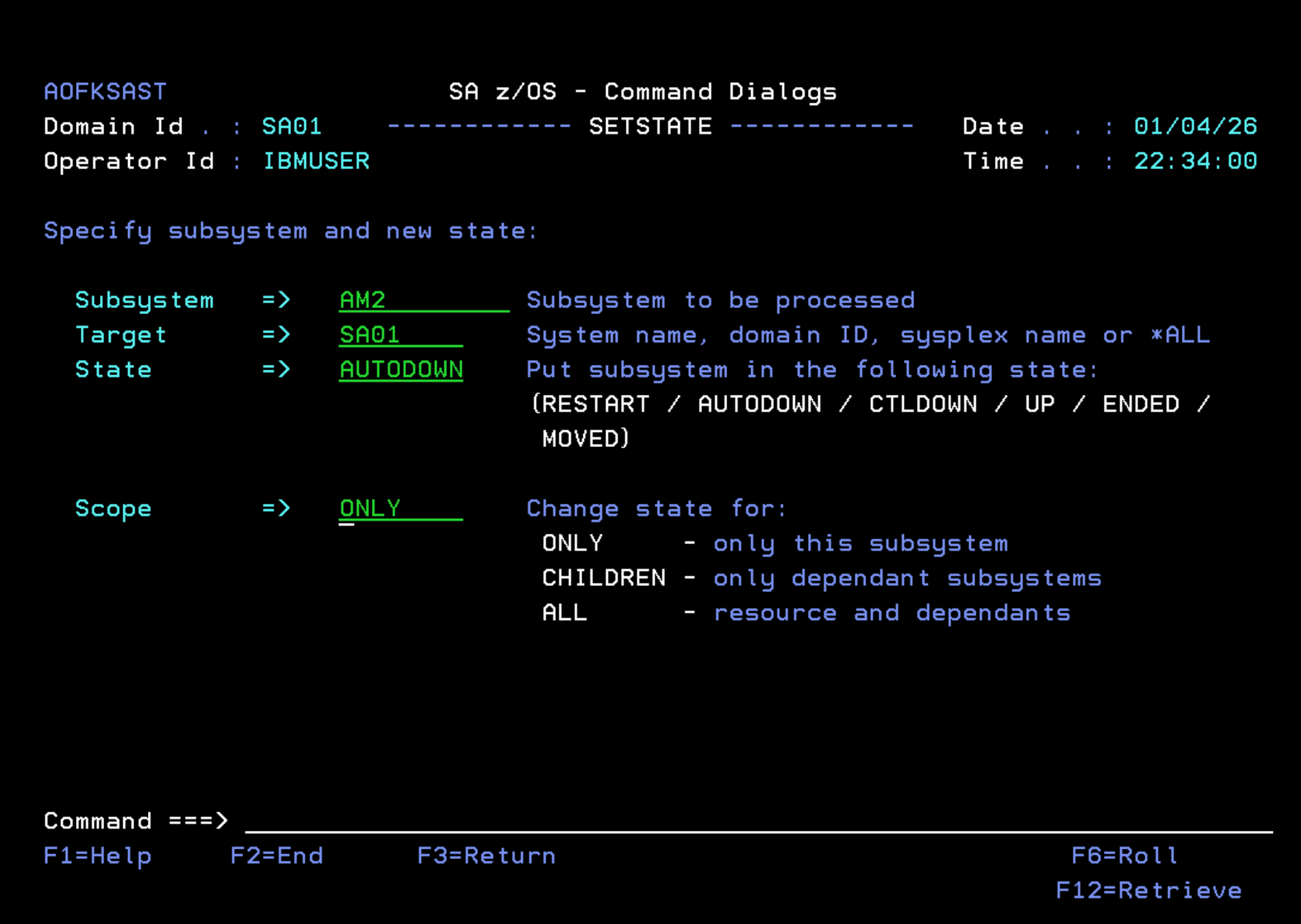
We will use the AUTODOWN option to tell System Automation to perform the action it has defined in automation for this task.
As we saw earlier, by default, tasks should always be running (Desired Available ALWAYS), for this reason, it will try to start it.
The default Scope should always be ONLY. This indicates that this action only affects this task. It will not affect related tasks.
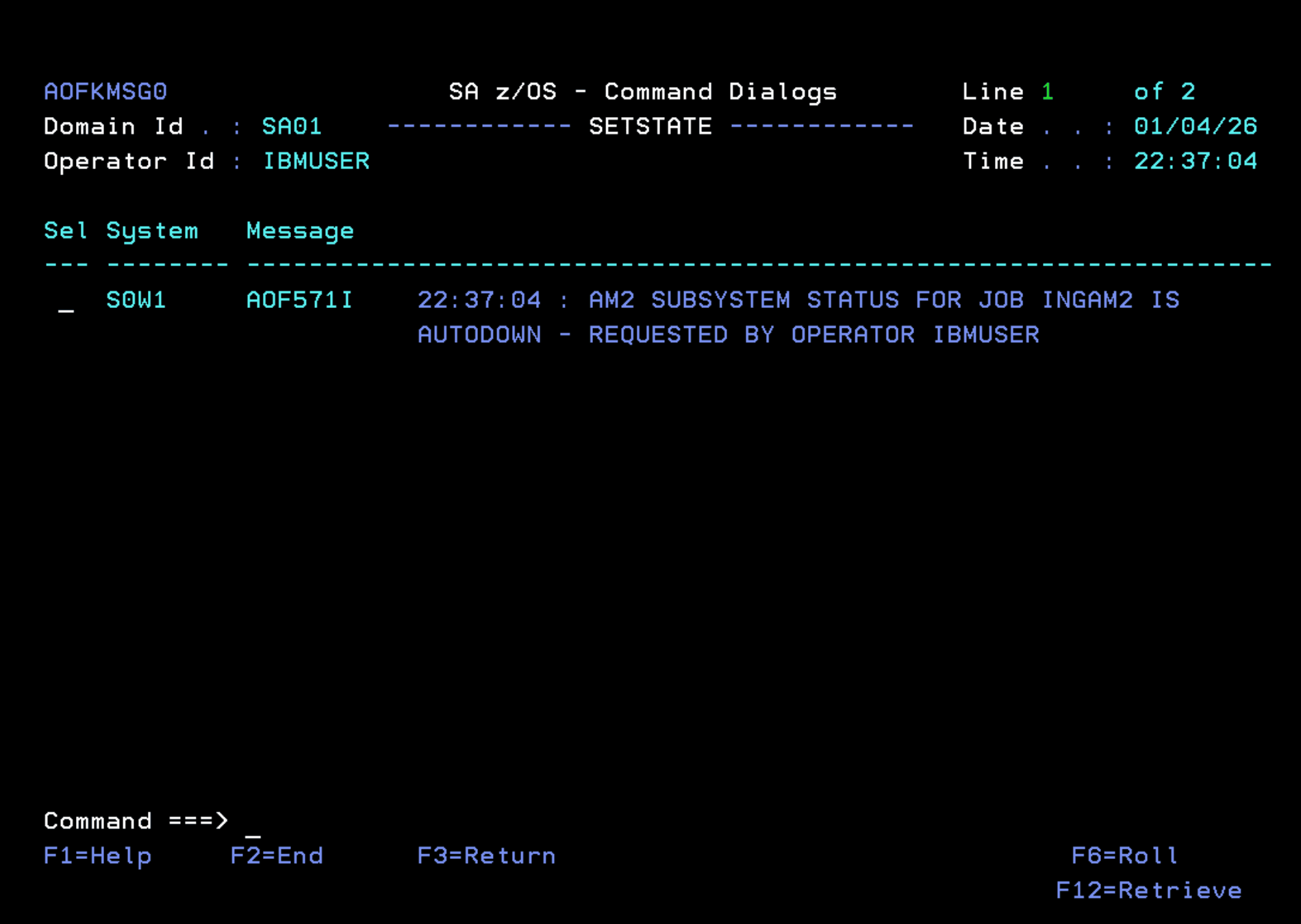
The task will turn green indicating that it is running.
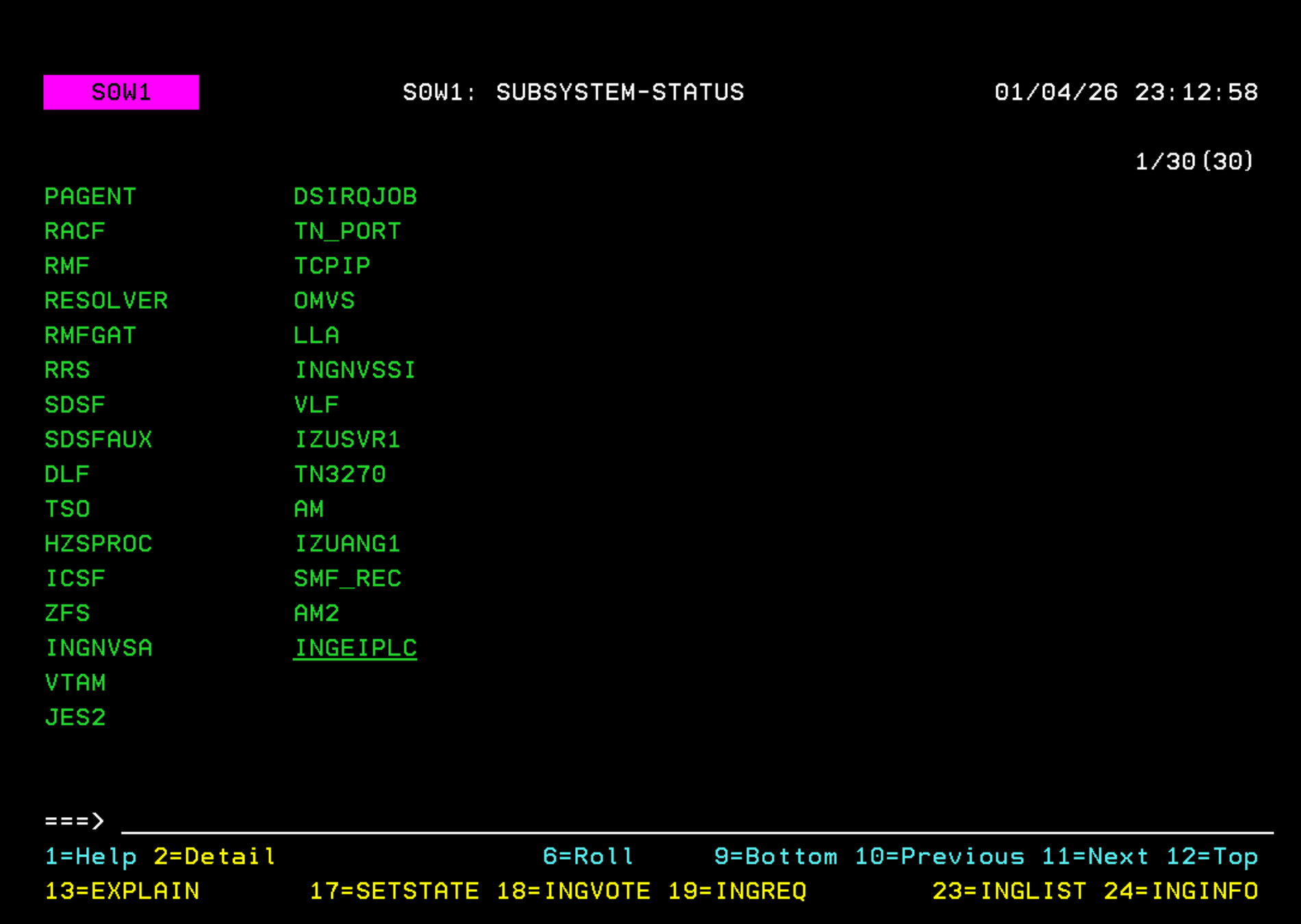
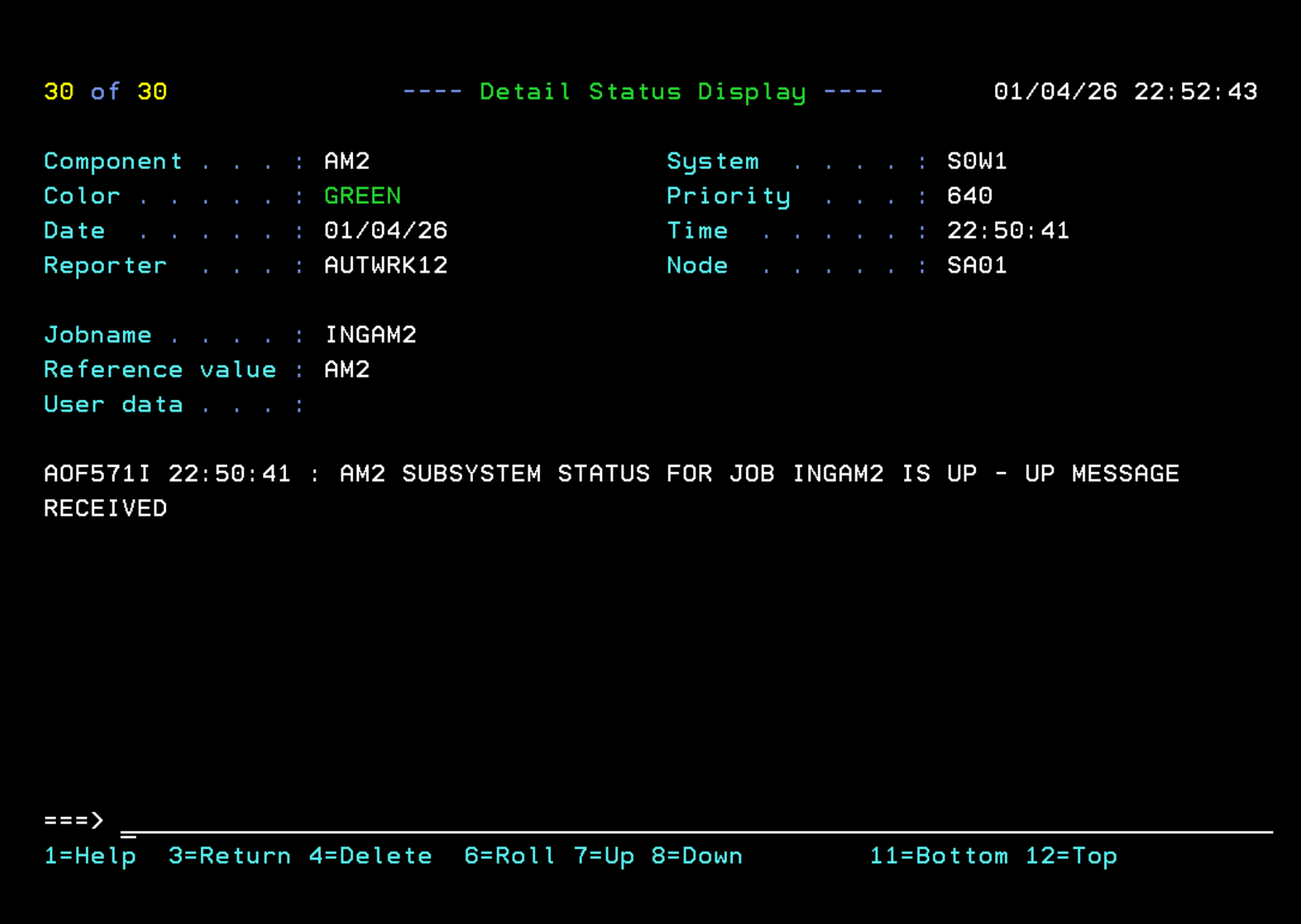
We have completed the creation of a basic automation policy database, we have built the configuration files and we have started the STCs with automation enabled.
Everything is now working correctly.
The next steps would be: define the rest of the tasks we have on our system (DB2, CICS, etc), verify the application groups, associate them with our system and configure the system so that System Automation starts/stops tasks during an IPL.
These topics are covered in another section of the System Automation section.