Purchase and Download
I was finally able to acquire the license for IBM Z Development and Test Environment Personal Edition!
Being an individual user and not a company, I had many difficulties buying it (I’ve been trying to buy it since 2018 and we’re now in 2021). The problem arose because IBM couldn’t sell directly to individuals and it had to be done through a partner. The bad thing about buying it through a partner is that they don’t know what they can sell and what they can’t. So, after many months of waiting, this option didn’t work out because they told me it was necessary to have a Mainframe.
After contacting the “Offering Manager” of this product, she confirmed that it wasn’t necessary to have a Mainframe and that the “Personal Edition” version is also designed for individuals.
Finally, IBM’s sales department registered me in IBM Passport Advantage Online as a customer. I had to wait a few more months because the license I wanted (D0M1VLL) wasn’t available.
With the intention of facilitating the process for those interested in acquiring this product, I’m going to explain how to acquire the license and download the product.
Acquire the Product
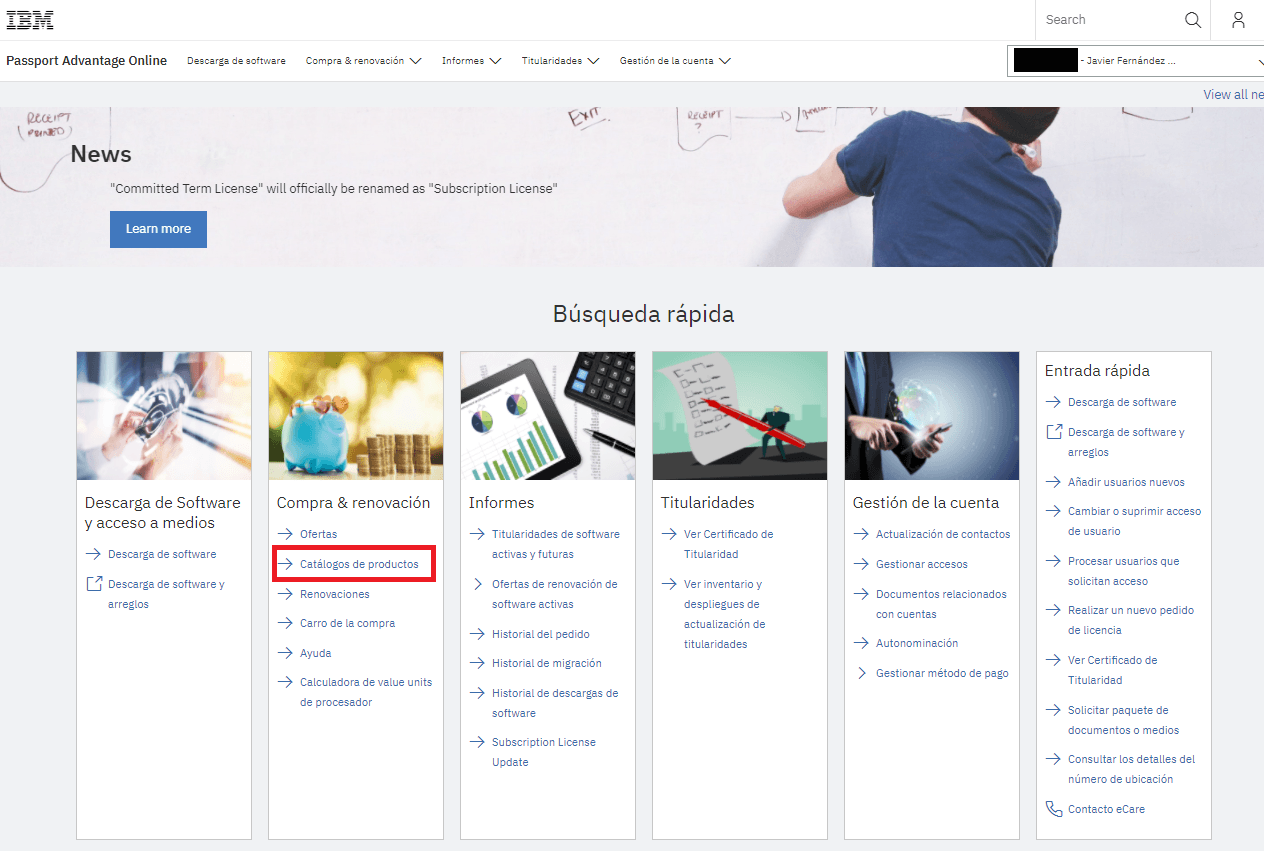
Once we are registered in IBM Passport Advantage Online as customers, we need to enter Product Catalogs.
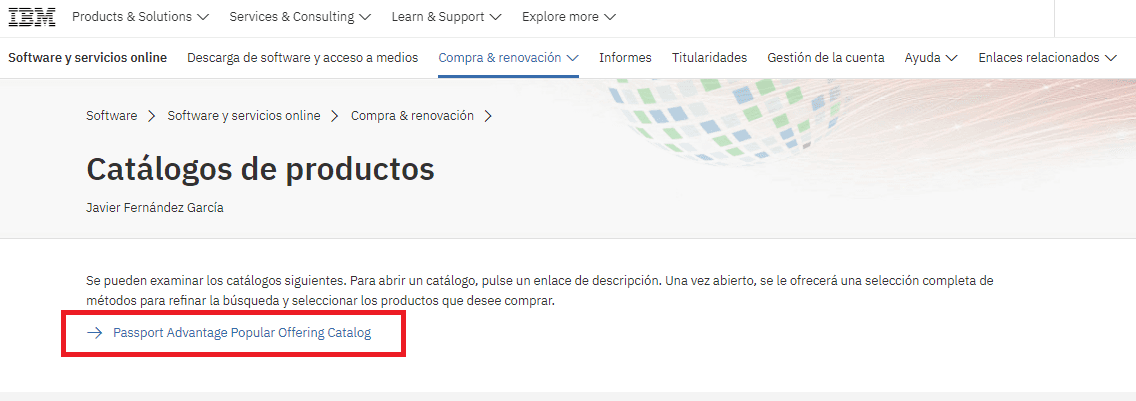
We enter Passport Advantage Popular Offering Catalog.
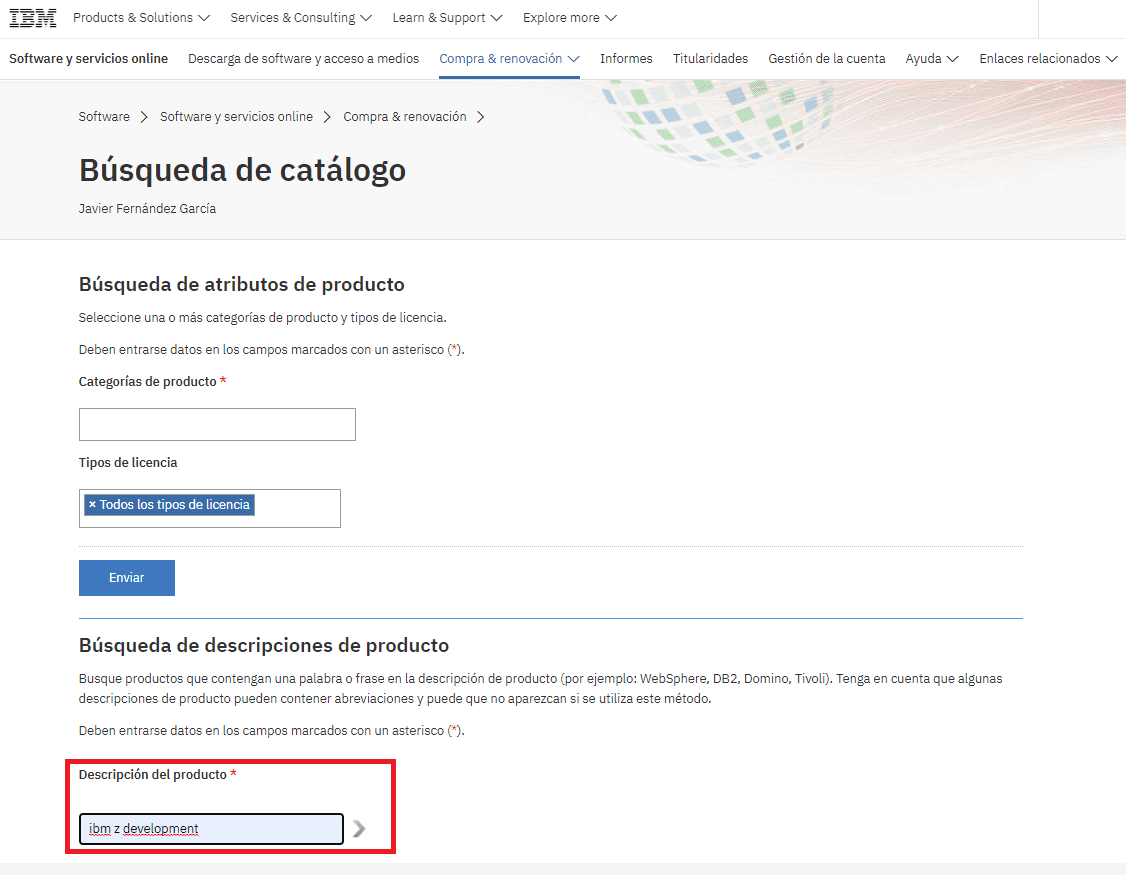
In the search field we put IBM Z Development.
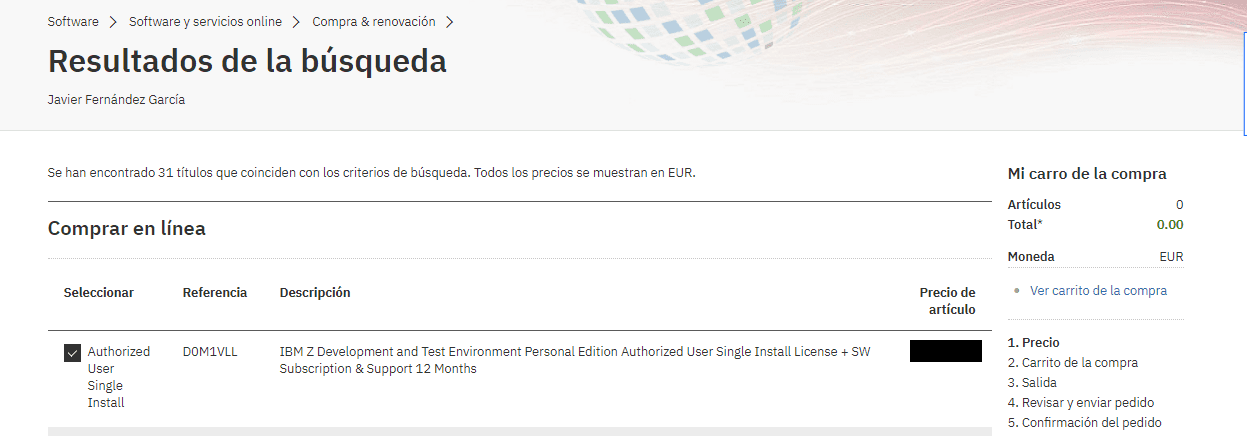
We choose the desired product, in my case, the permanent license with reference D0M1VLL.
There is another license called fixed term license. It’s a “rental” license, meaning we can only use the emulator and the ADCD system for 12 months.
If we want to continue using it, we will have to pay the full price again. In the long run, this license is more expensive.
This license allows using the Mainframe emulator and the software we have downloaded without time limit. It has 12 months of software support.
This means we can use the emulator and the ADCD system we have forever, but we will stop receiving updates for the emulator and the ADCD system after 12 months if we don’t renew this support (the renewal price is lower).
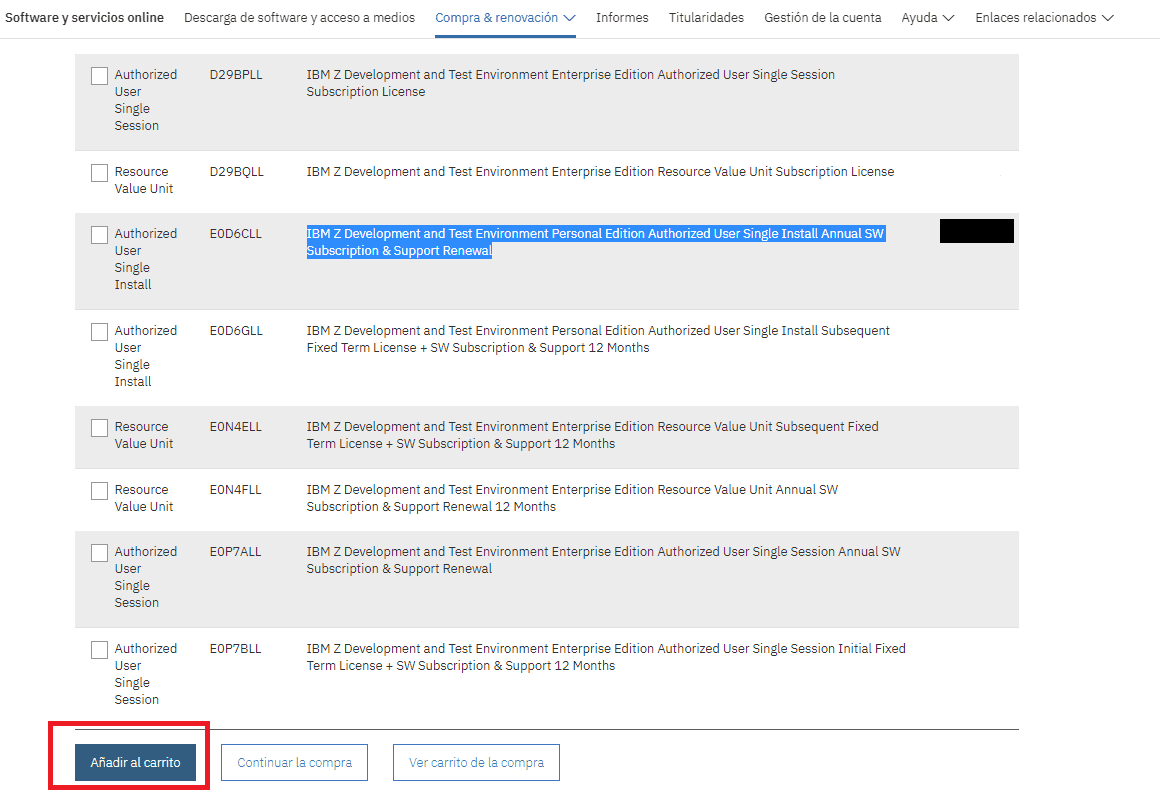
Once we have chosen the previous product, we click on Add to cart.
When we renew the software support, we will have to choose reference E0D6CLL.
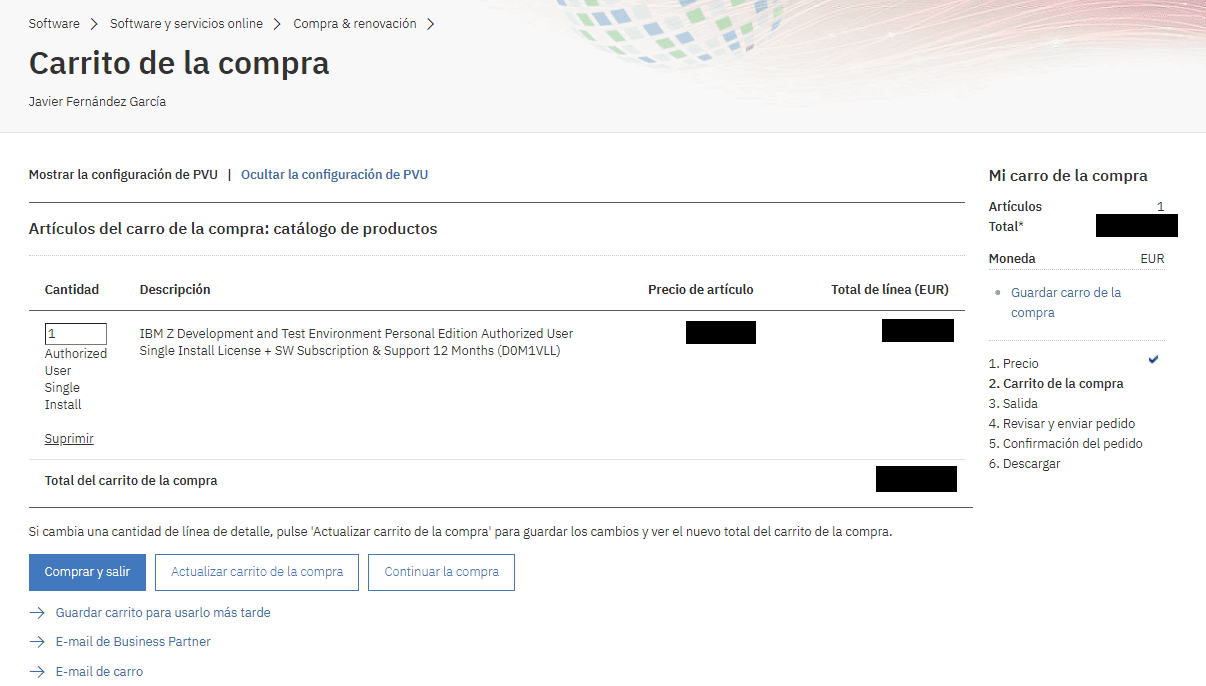
The purchase summary will appear.
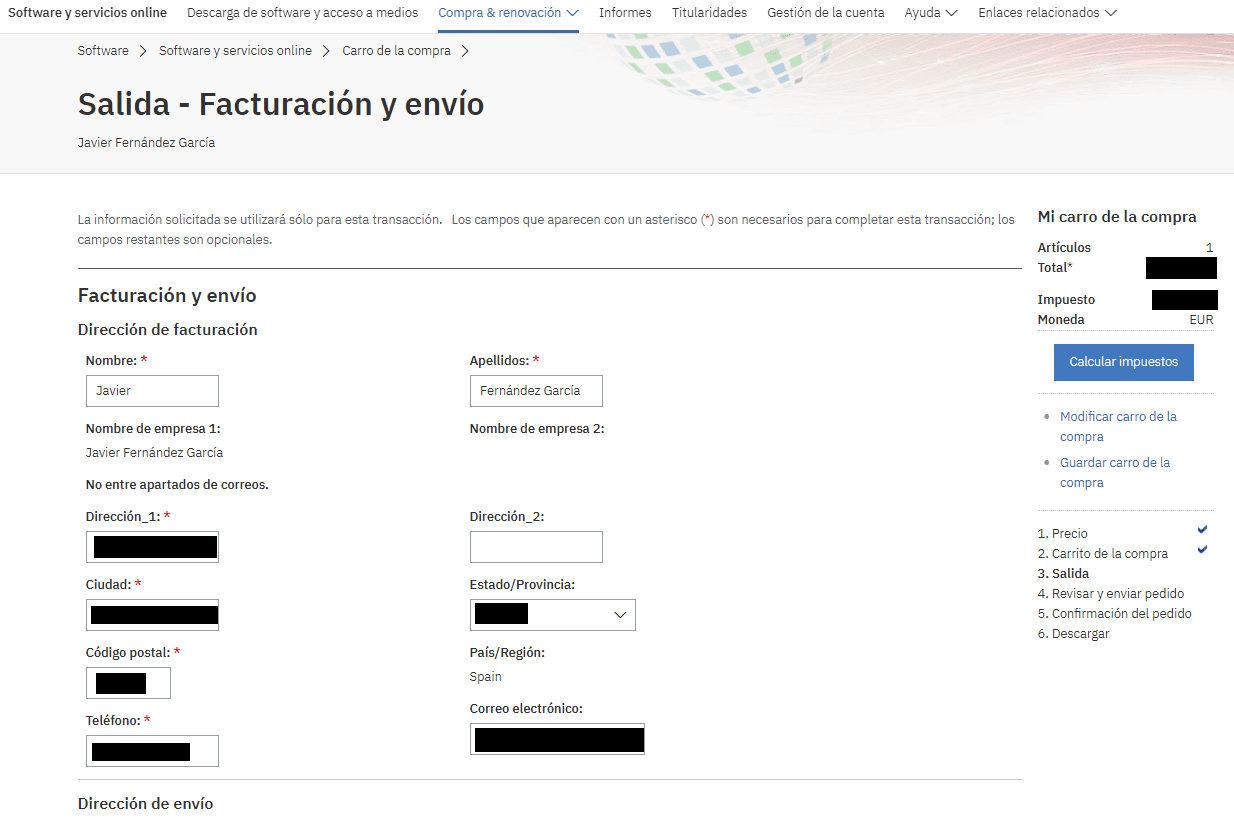
We verify that the data is correct and click Calculate taxes. We continue to the next step.
We review the order details, the final price and the personal data. In my case, I chose the Bill me option to pay.
Payment is not made at the time, the invoice will be received later.
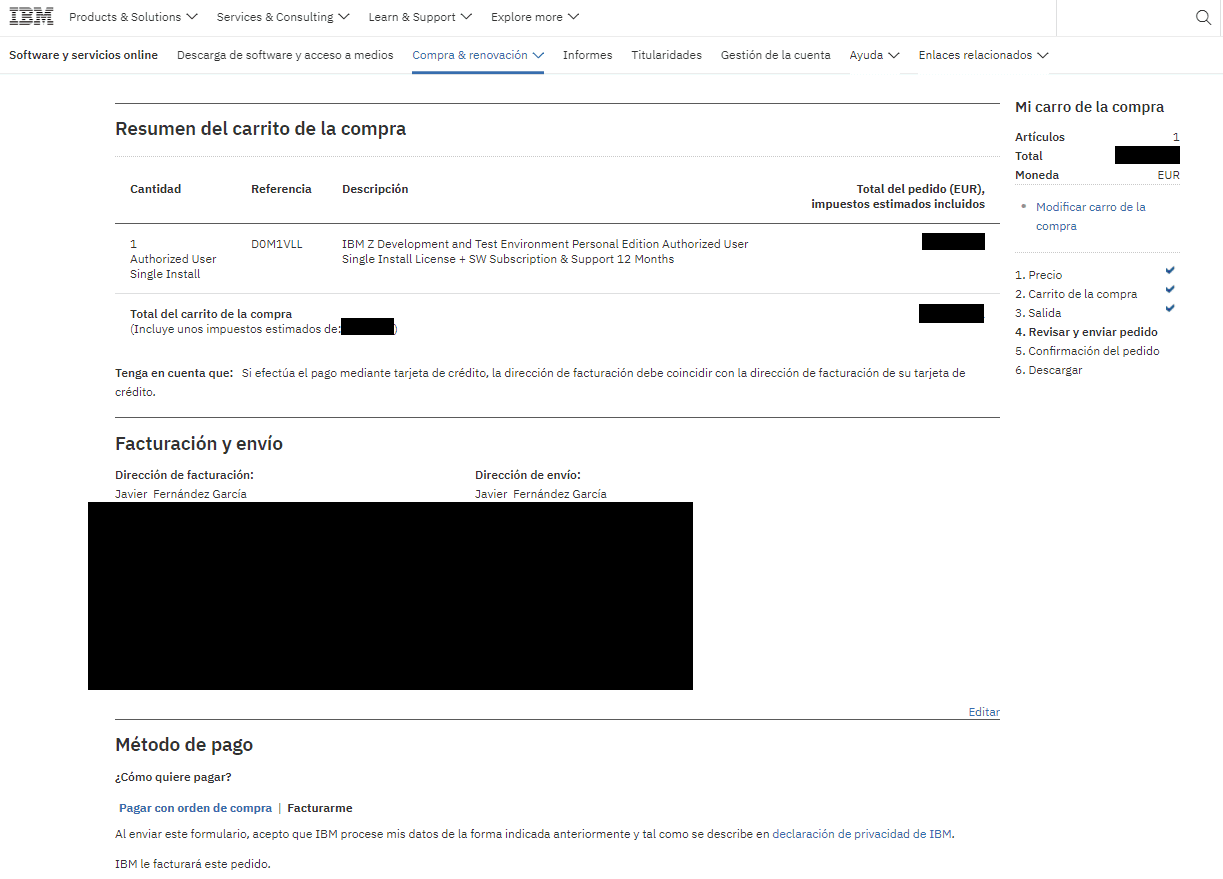
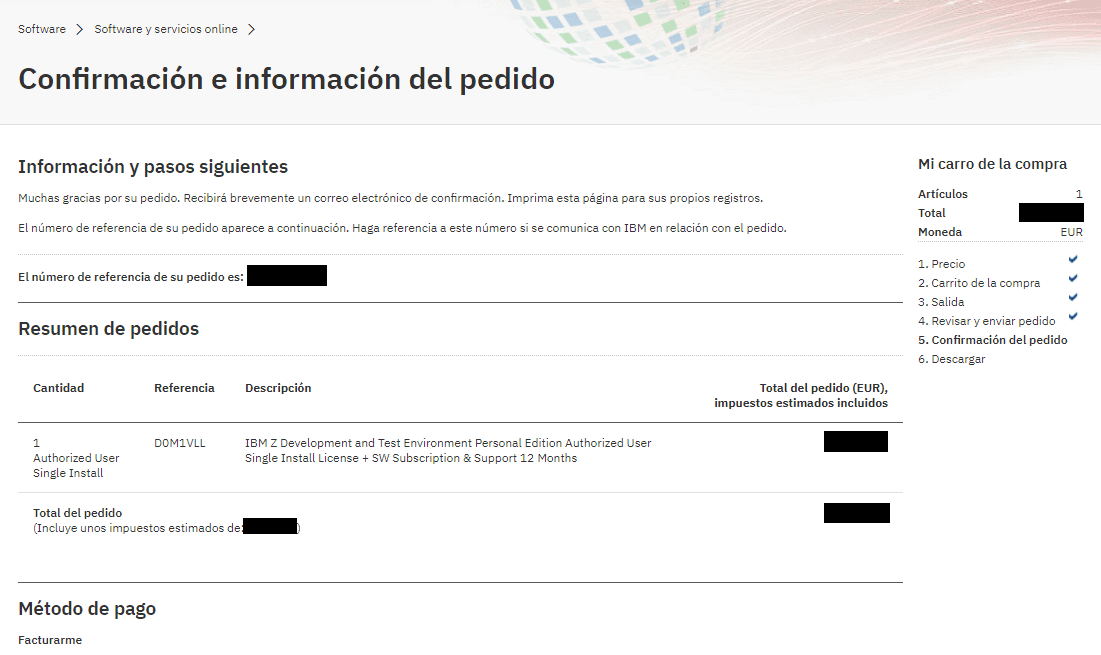
We will see the order summary. In my case, it took about 2 days to process because, as they told me, the order was not registered correctly.
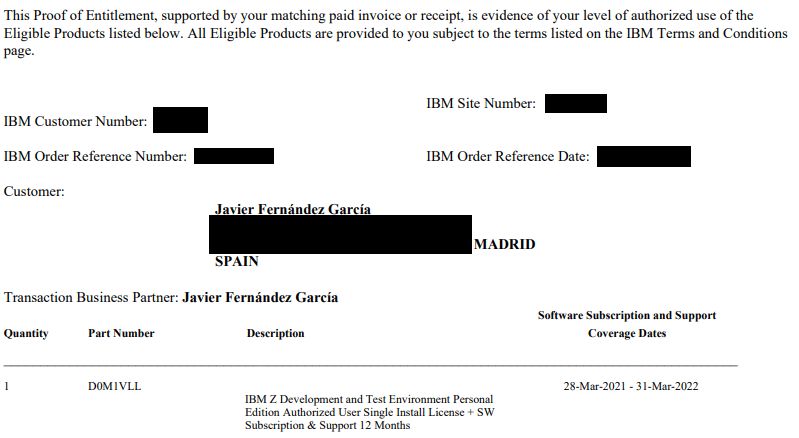
Once the order is processed, we will receive an email with the subject IBM PassportAdvantage Express Proof of Entitlement and it will have an attachment similar to the following image.
Generate License File
After a while we will also receive an email to access the license center. There we will generate the license for ZDT. The password must be created within 72 hours.
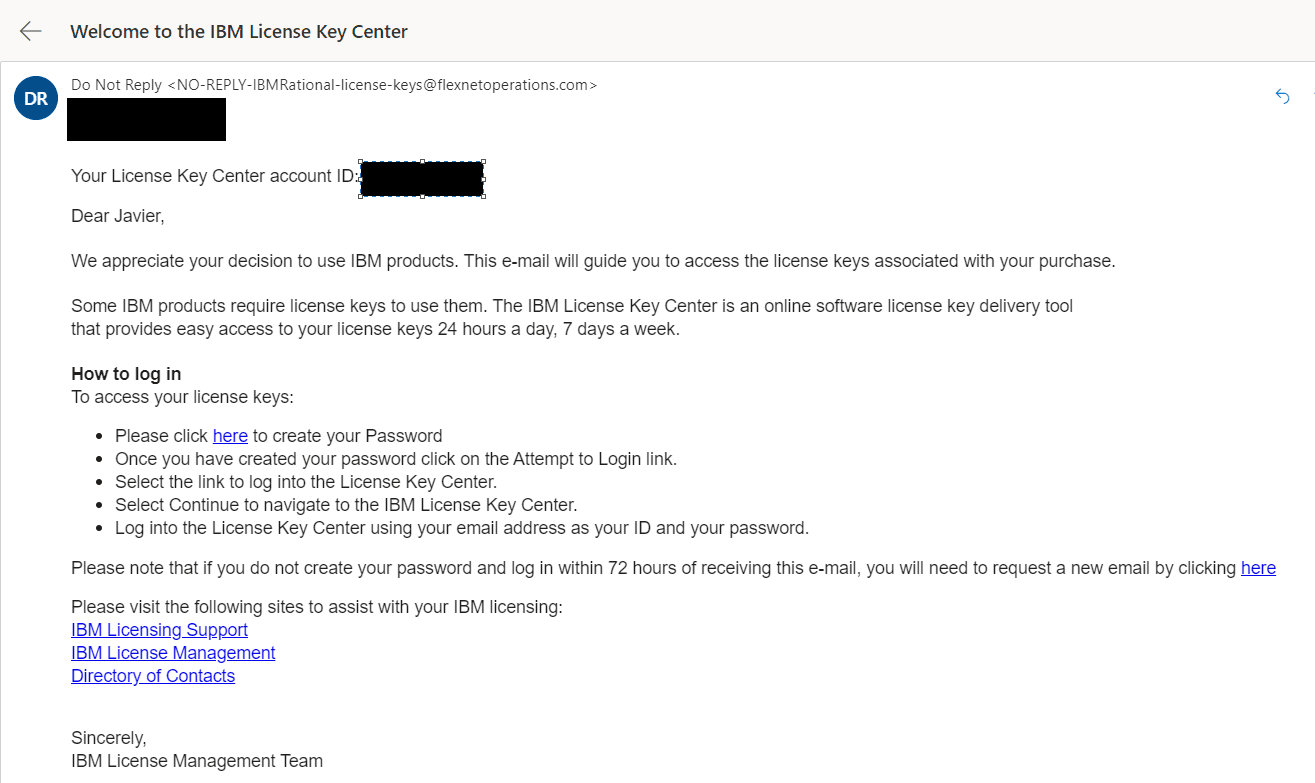
We set a new password.
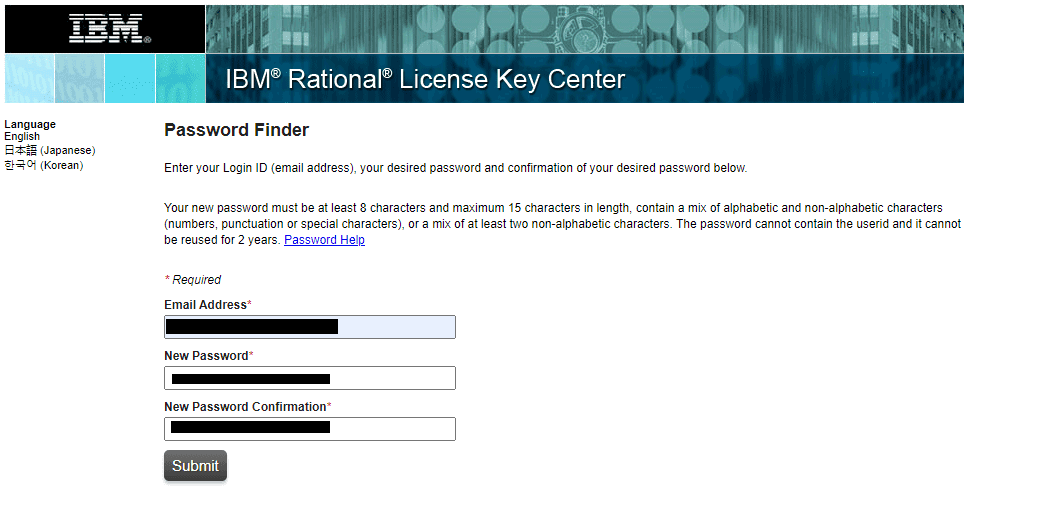
Now we log in to verify that everything is correct.
I’m leaving the link to the IBM website in case access changes in the future:
https://www.ibm.com/support/pages/ibm-support-licensing-start-page
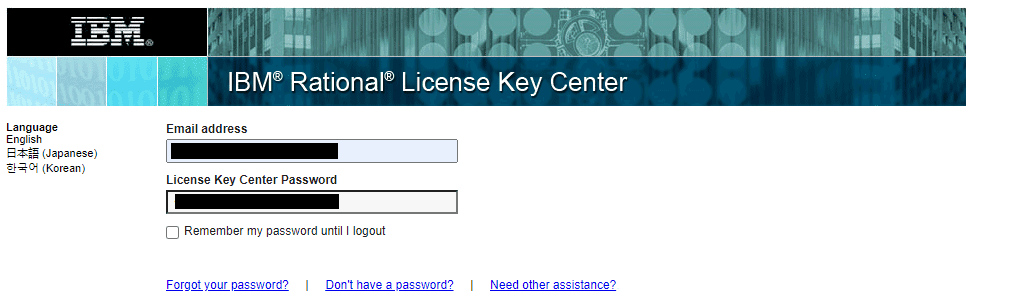
Let’s see what the license generation process would look like.
We can’t do it yet because we haven’t requested the required USB token. I just want to show why it’s necessary to request the USB token (we’ll do it later).
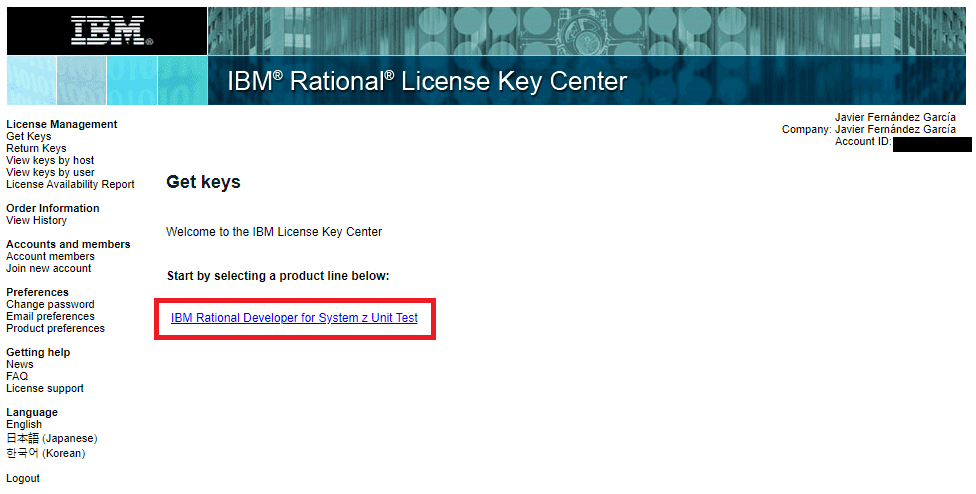
We will see the available licenses. We click on it.
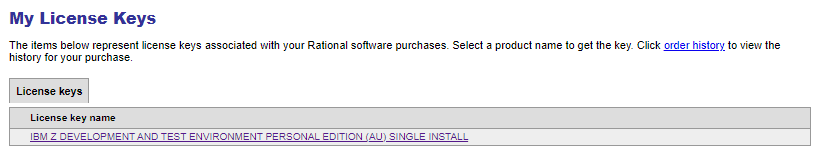
We click Next.
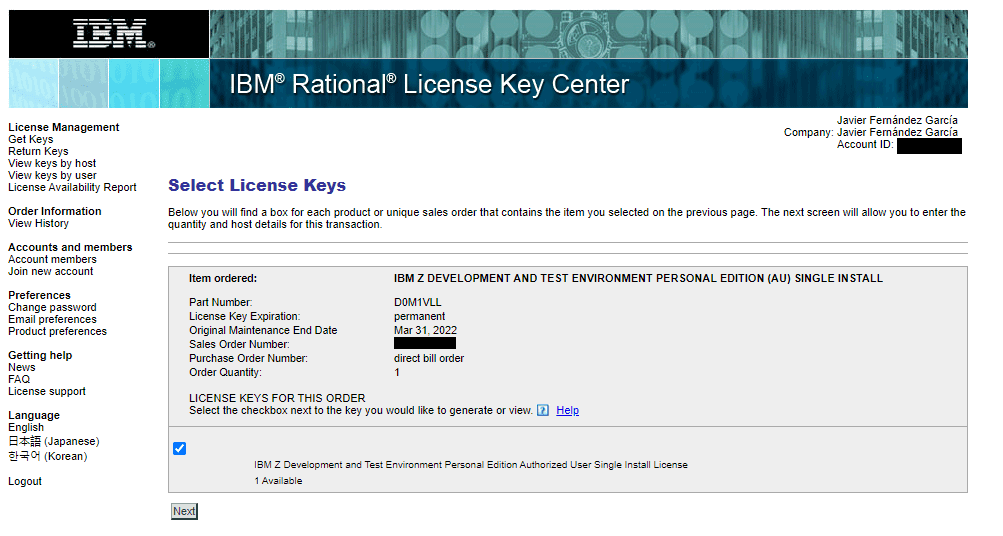
Here it will ask for the USB token serial number.
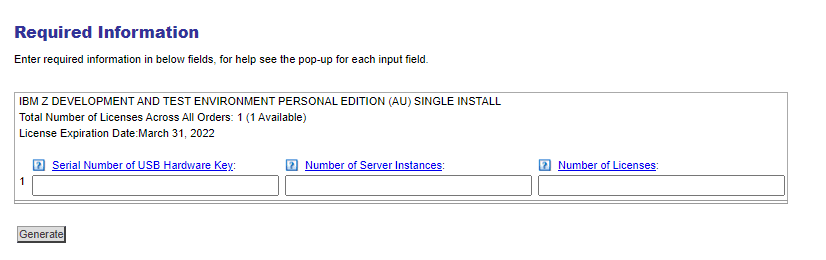
Since we can’t proceed without the USB token, let’s see how to request it to be delivered to our home.
Request USB Token
We go to Passport Advantage Online and enter Software Download.
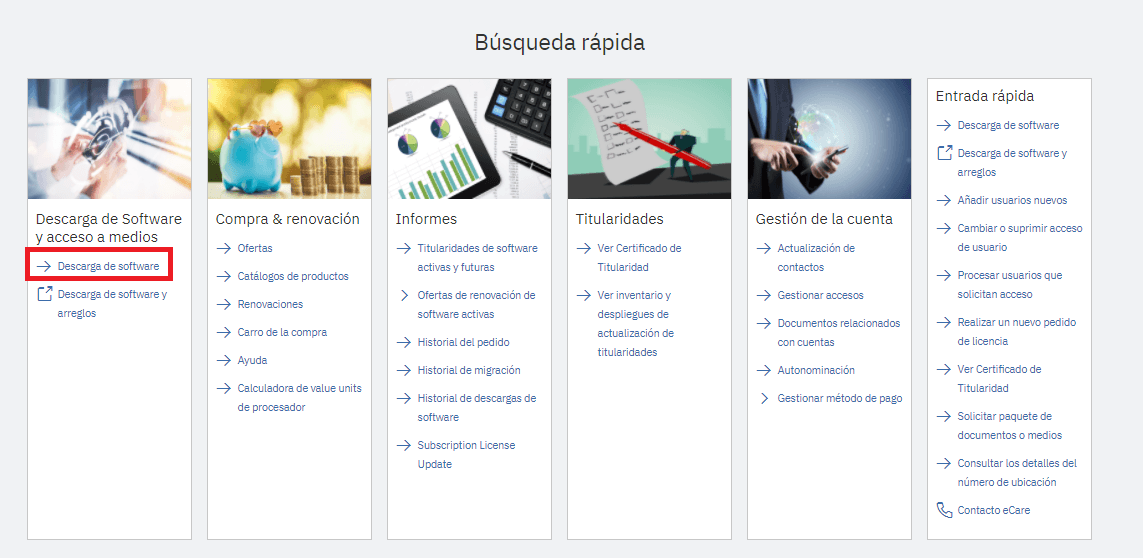
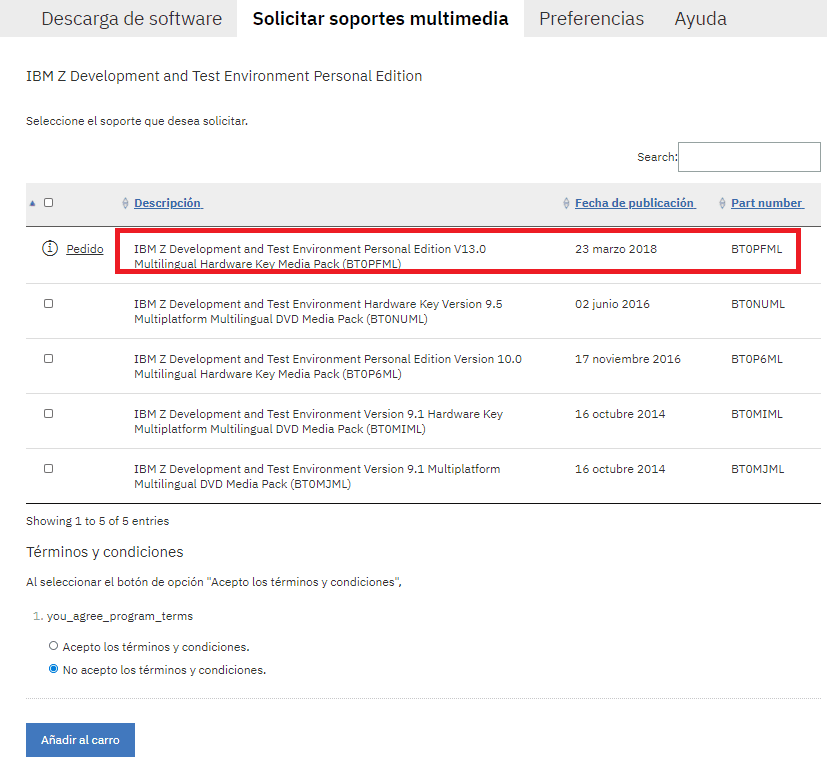
We go to Request media and choose the product IBM Z Development and Test Environment Personal Edition.
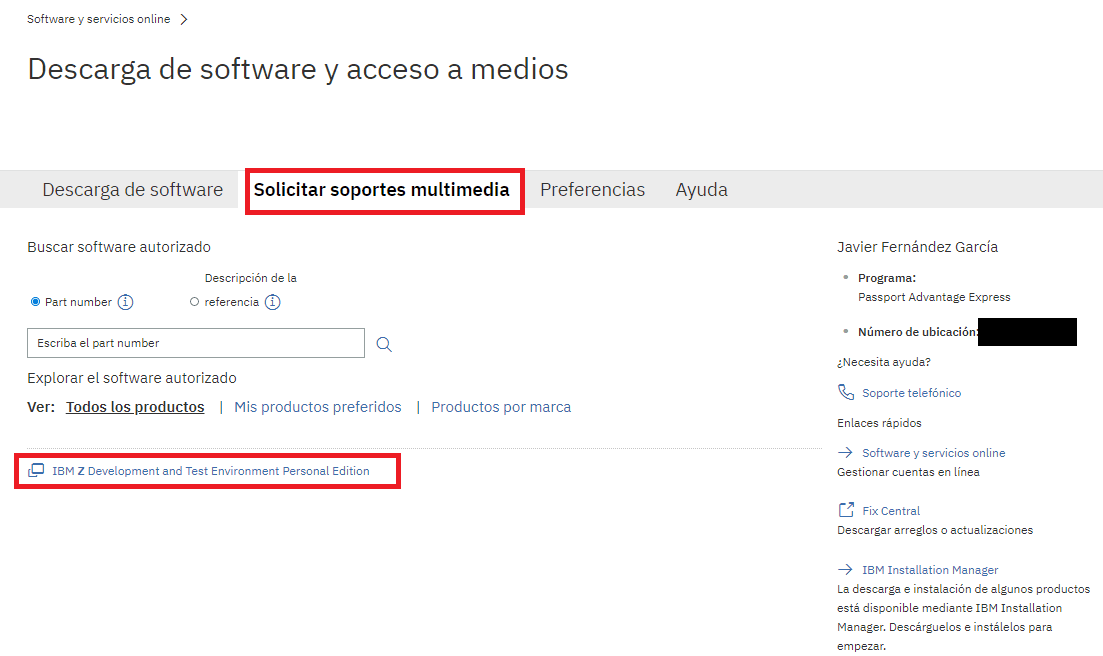
We will have to choose the Hardware Key Media Pack corresponding to the latest version of ZDT (in this case, V13). We will do the purchase process the same as when we bought the ZDT license (this product has no additional cost).
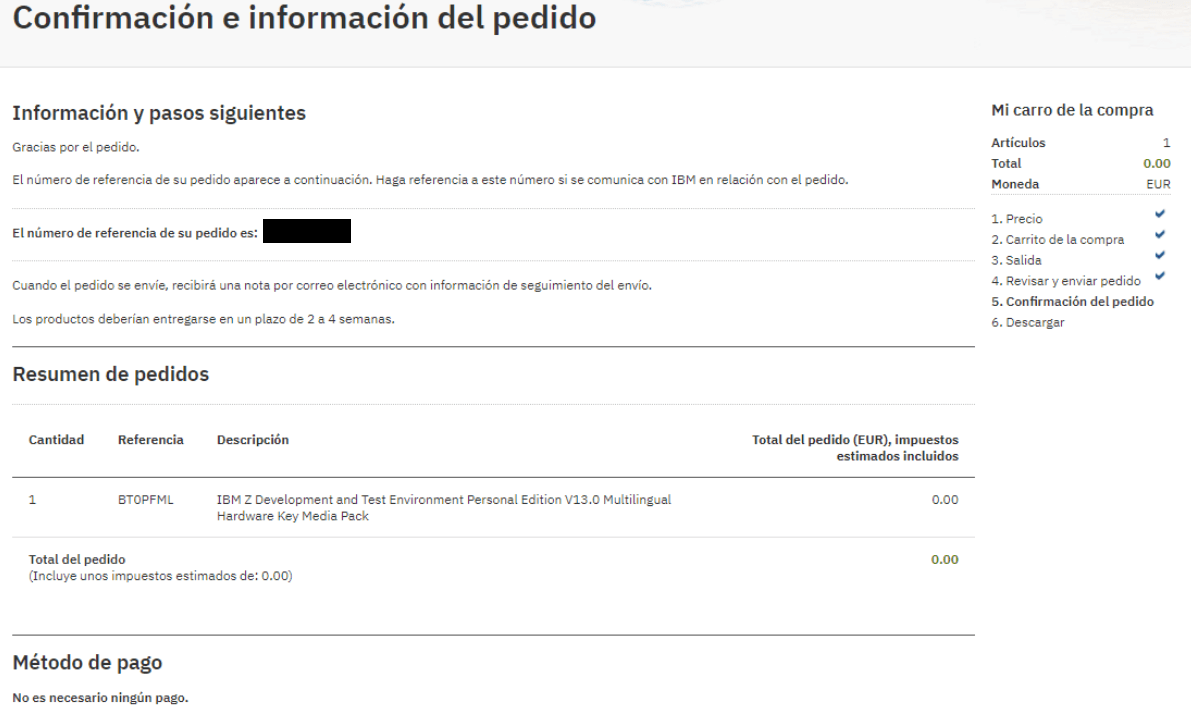
At the end of the process, the order confirmation will appear. According to this, the order takes between 2 and 4 weeks to arrive (I hope it’s less…).
Download Emulator and ADCD z/OS
Now we can download the emulator and the ADCD system. We won’t be able to use it until we receive the USB token since it’s necessary for the emulator to work and to decrypt two disks of the ADCD system.
The process writes the license to those disks to prevent them from being shared on the internet. If they are shared, they could identify who did it.
We go to Software Download and choose the corresponding product.
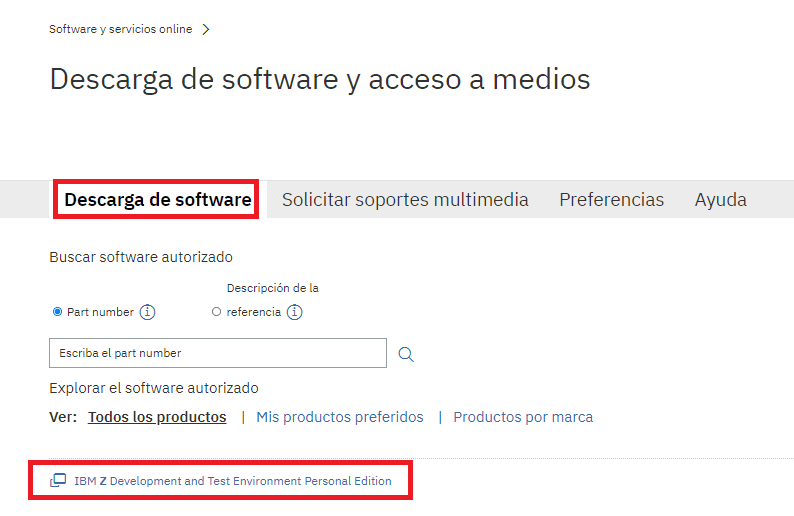
We search.
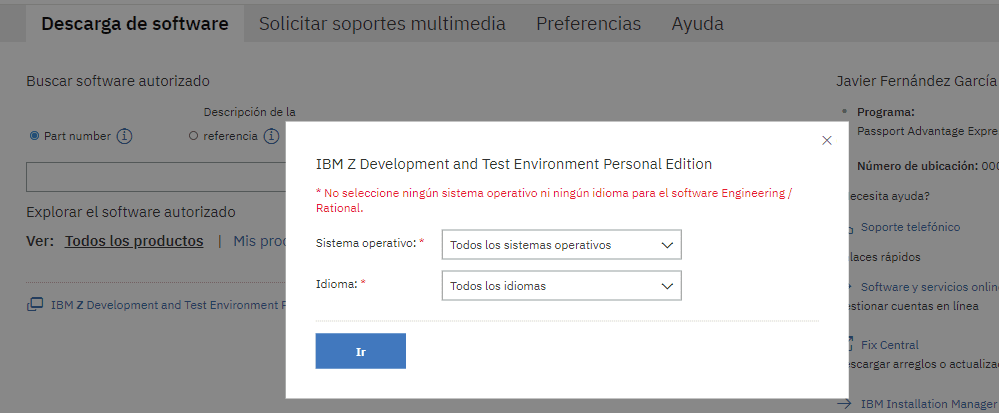
By default, the latest available version will appear. If we want to download the ADCD system, we must also check the optional files.
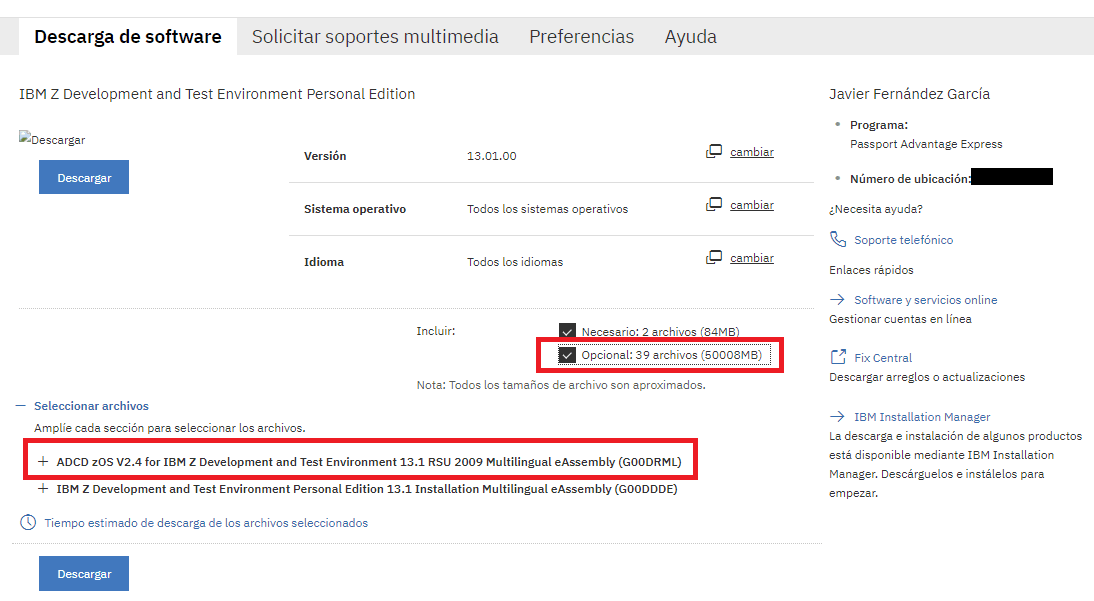
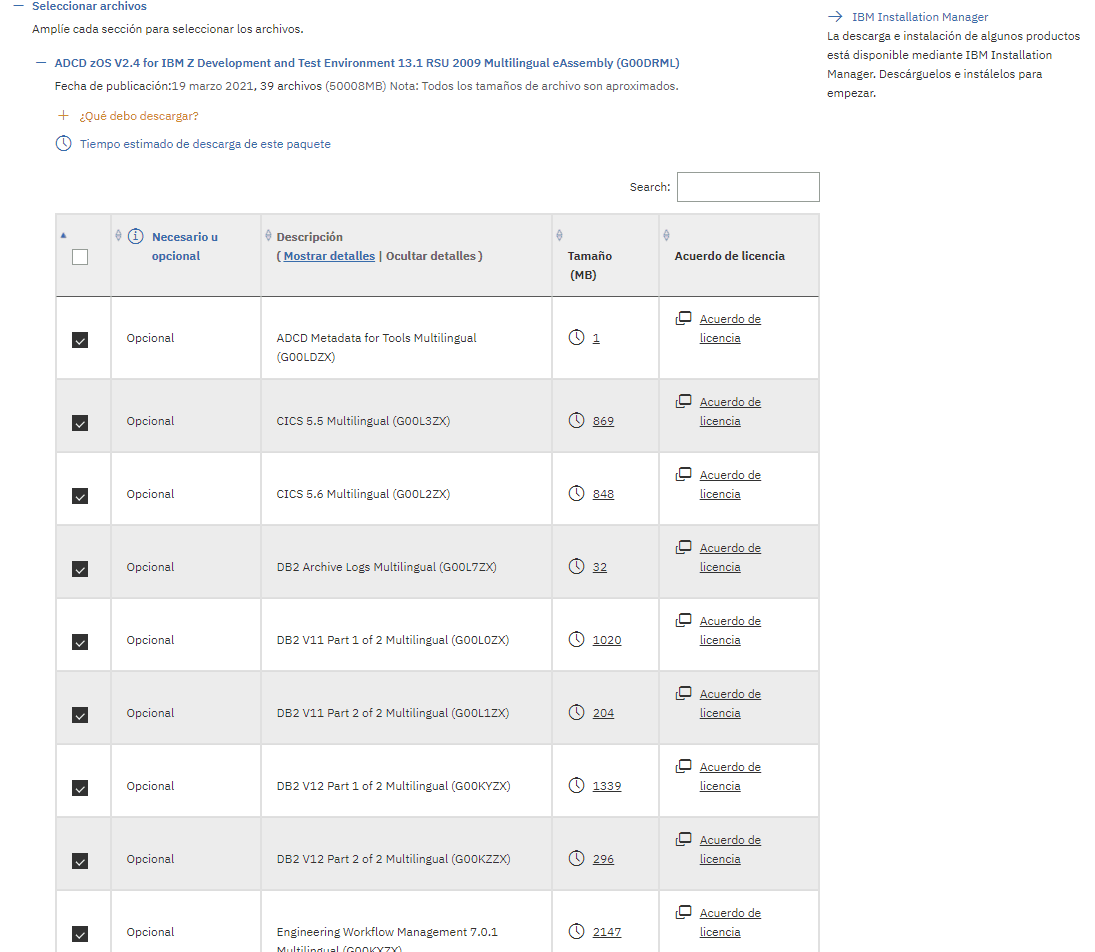
If we expand the content of ADCD zOS, we will see the disks we are going to download.
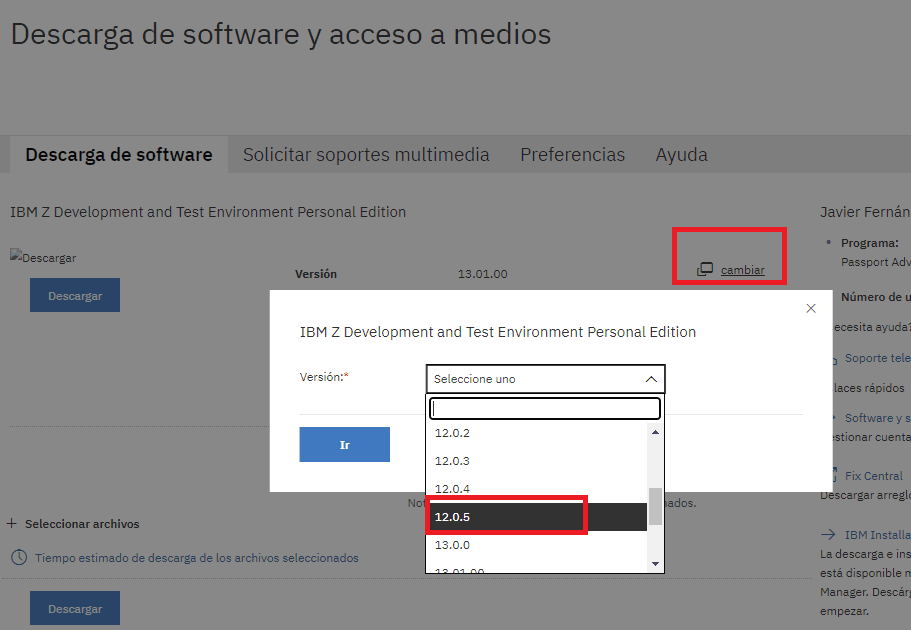
We can also choose previous versions of ZDT and the ADCD system. We click Change version and choose the one we want.
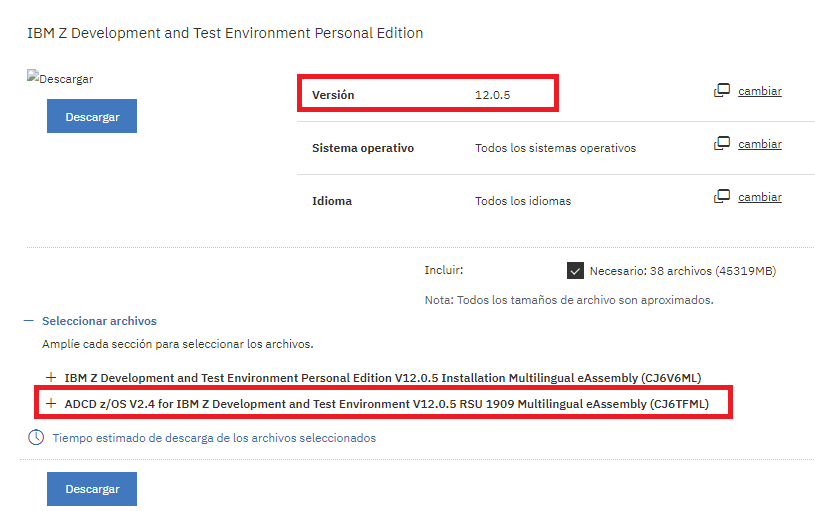
We can verify that it has a previous version of ADCD and the emulator.
It will ask us how we want to download it. The recommended option is to use Download Director as it allows restarting downloads.
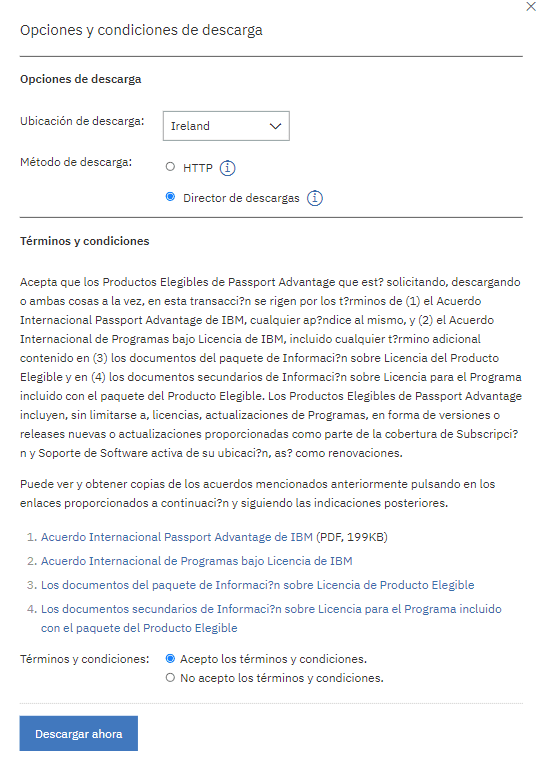
It will ask us if we want to run the java file.
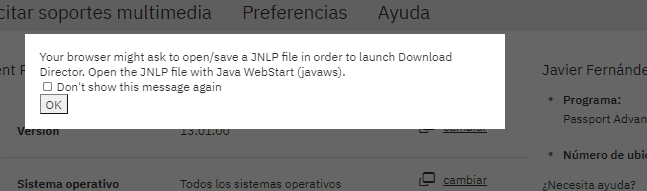
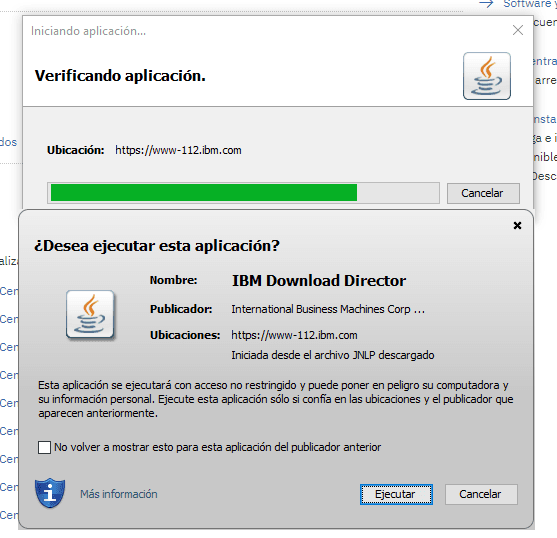
We open it and run the application.
We indicate the download path.
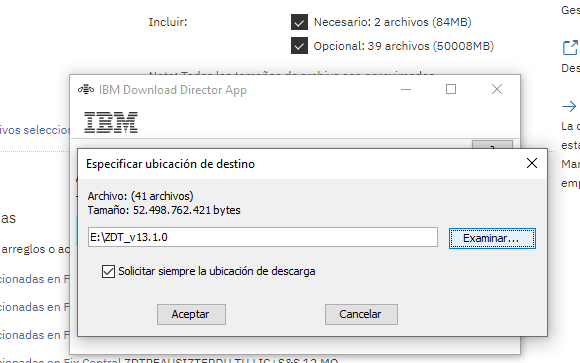
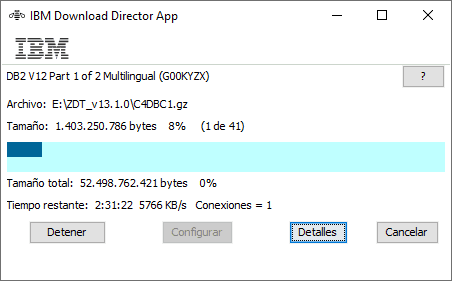
We wait for it to download. It’s 52GB compressed.
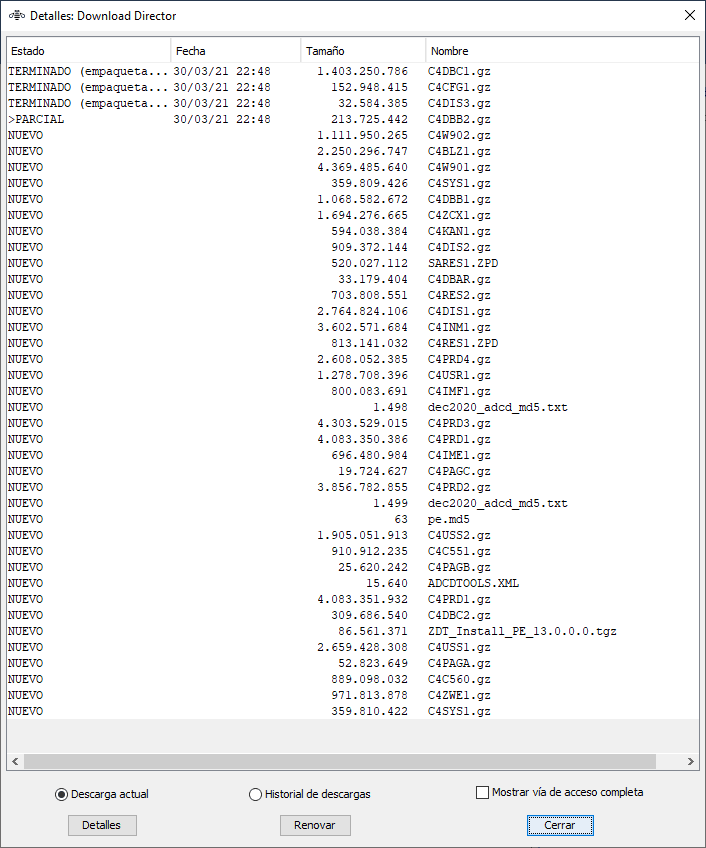
In Details we can see the content of the current download.
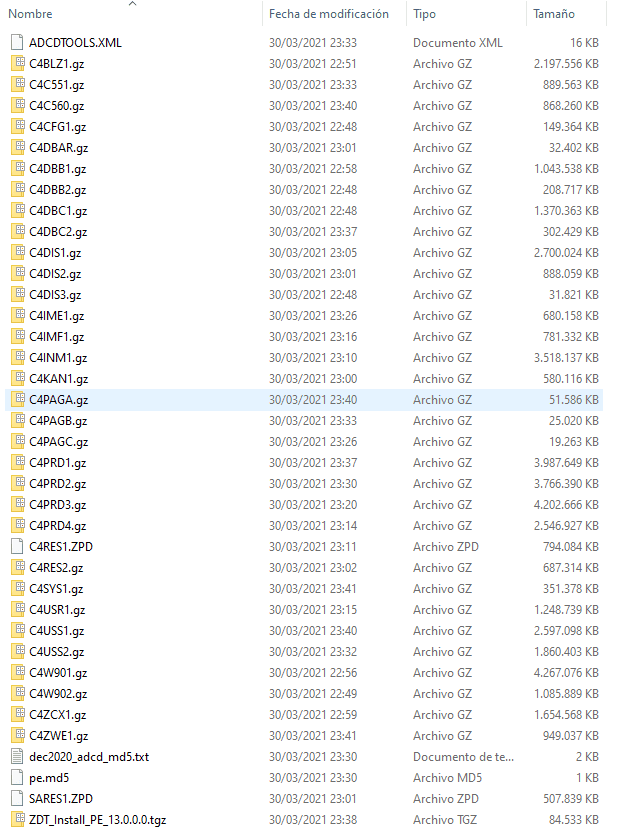
Once downloaded, we will have the following: