Install License Server
IBM Z Development & Test Environment is one of IBM’s Mainframe emulation tools. zD&T is available in three editions: Personal Edition, Enterprise Edition, and Parallel Sysplex Edition. On this occasion, we will start by installing the license server for the Enterprise Edition version.
The link to the guide we will use for the installation is:
This edition can be managed via web (to install the emulator on other machines, distribute disks, etc.). It also allows installing only the zPDT emulator (without the web tool).
Both options require having a license server installed. The difference is that if you install only the emulator, the license server has to be on another machine. If you use the full Enterprise Edition version (web administration), the license server can be on the same machine.
I’m also going to separate the web tool from the license server because, in my case, I don’t have to pay for each system I have running (my PC is the same) and I prefer to tinker with the license server as little as possible.
In my case, I use VMware ESXi to have virtualized systems on a PC. It’s recommended to have the license server on a physical server in case there’s a hardware change, since the emulator would stop working.
The link to the Redbook is:
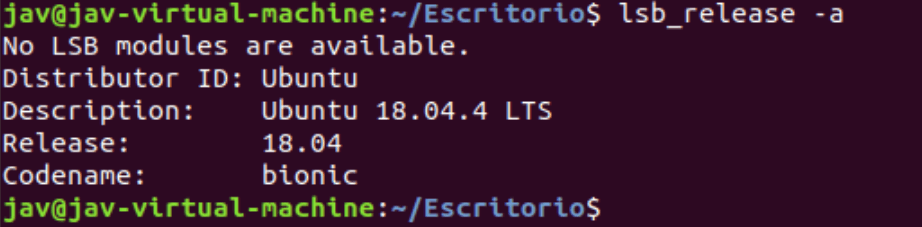
For the systems I will use Ubuntu Desktop 18.04.4. I chose this version because, following the zPDT Redbook, it’s compatible and should work correctly.
For everything to work correctly, the operating system must be in English. This is something I learned later.
Decompress and Install the Software
I’m going to start by installing the license server. It’s recommended to configure the machine’s IP as static (if we have DHCP configured within our network) since we will later need to connect to this server.
We copy the installation package to this machine. In my case, it’s called ZDT_Install_EE_V12.0.5.0.tgz
We open a terminal and go to the path where we copied it. We change the permissions to 775:
chmod 755 ZDT_Install_EE_V12.0.5.0.tgzWe decompress the file with the command:
tar -xzvf ZDT_Install_EE_V12.0.5.0.tgzWe run the program to perform the installation:
./ZDT_Install_EE_V12.0.5.0.x86_64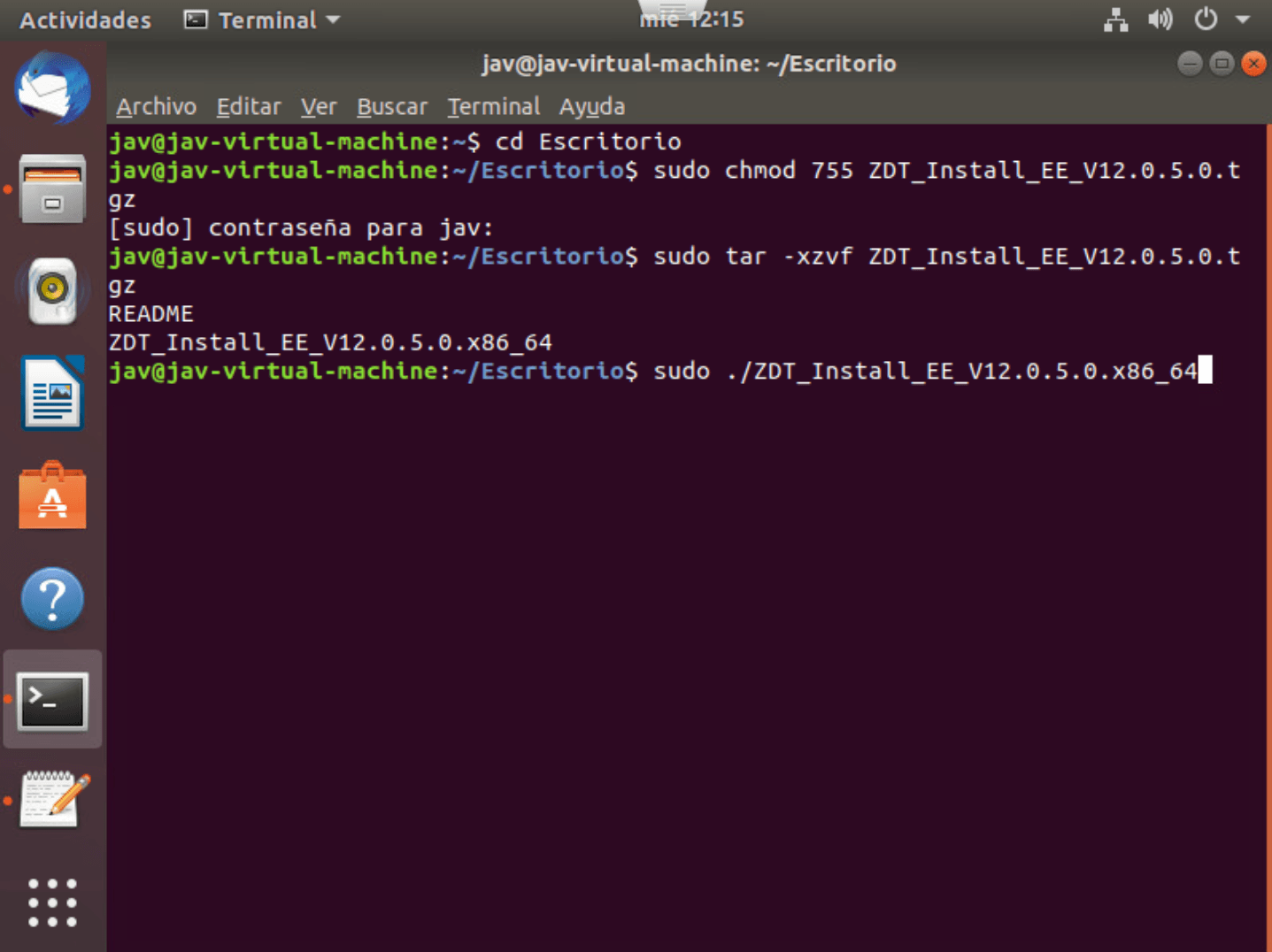
The different installation options will appear.
In this case, we choose option 2 because my license is software-based.
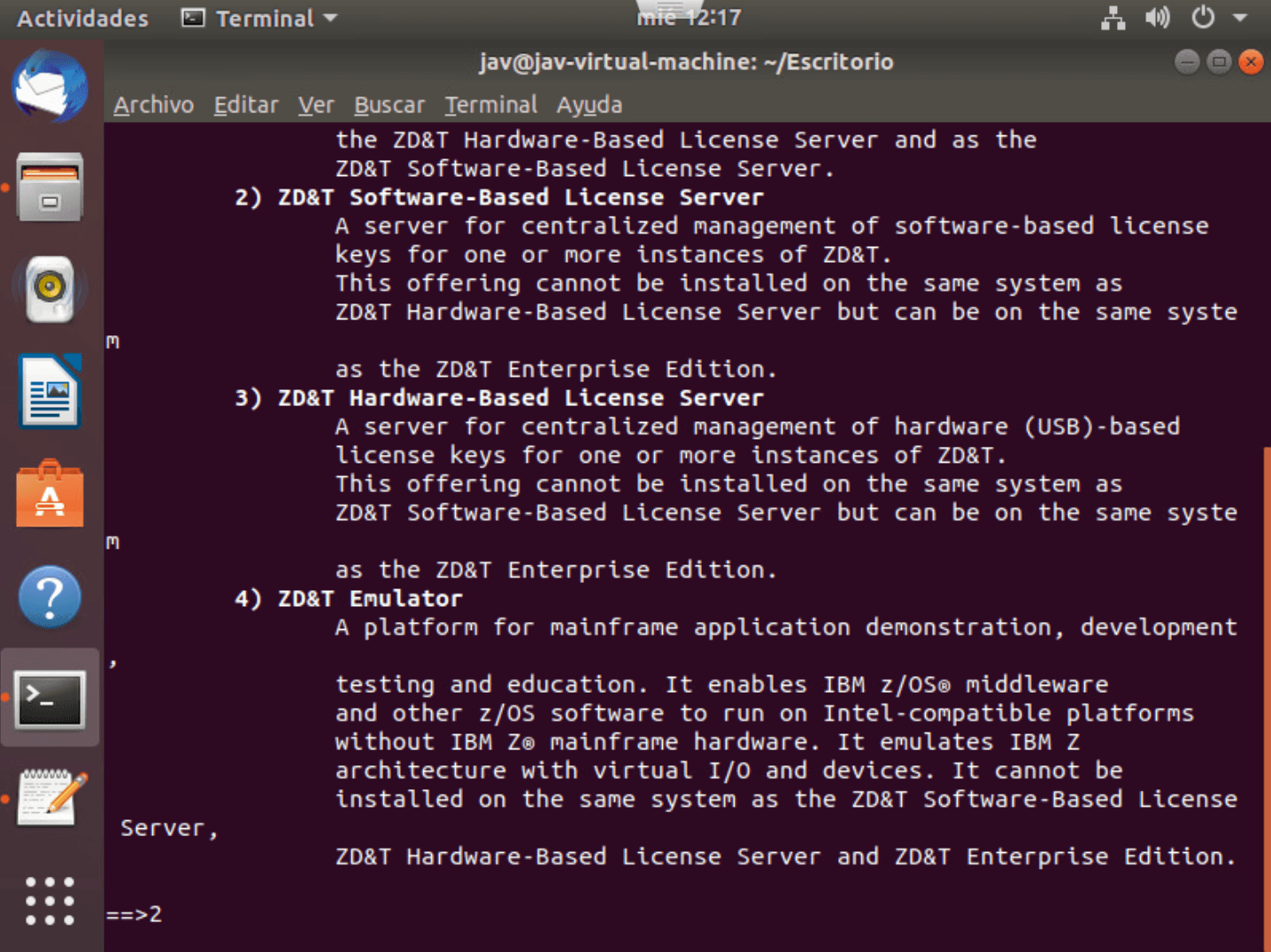
We choose option 1 - Install.
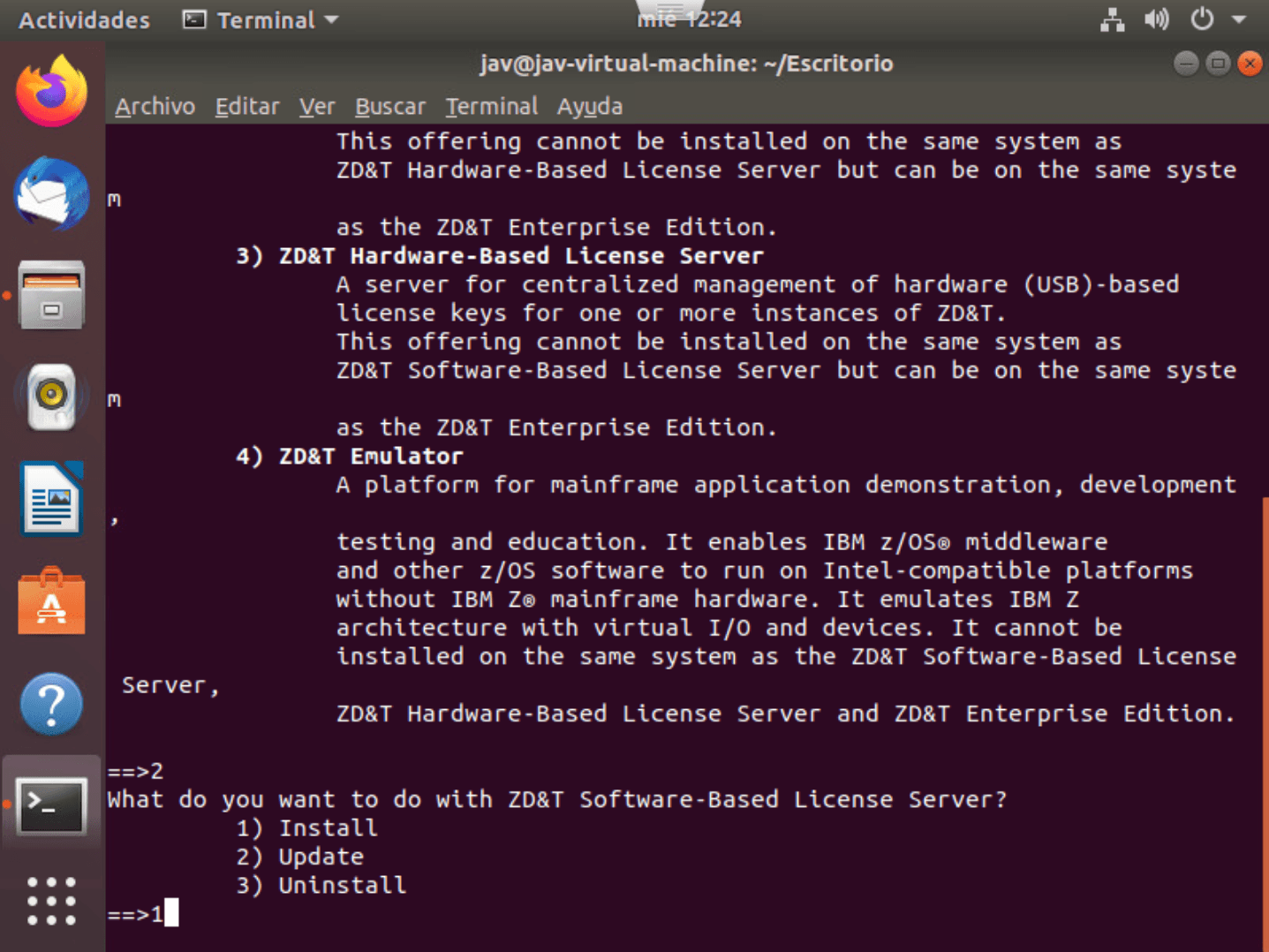
We read the license agreement and accept (if we agree…).
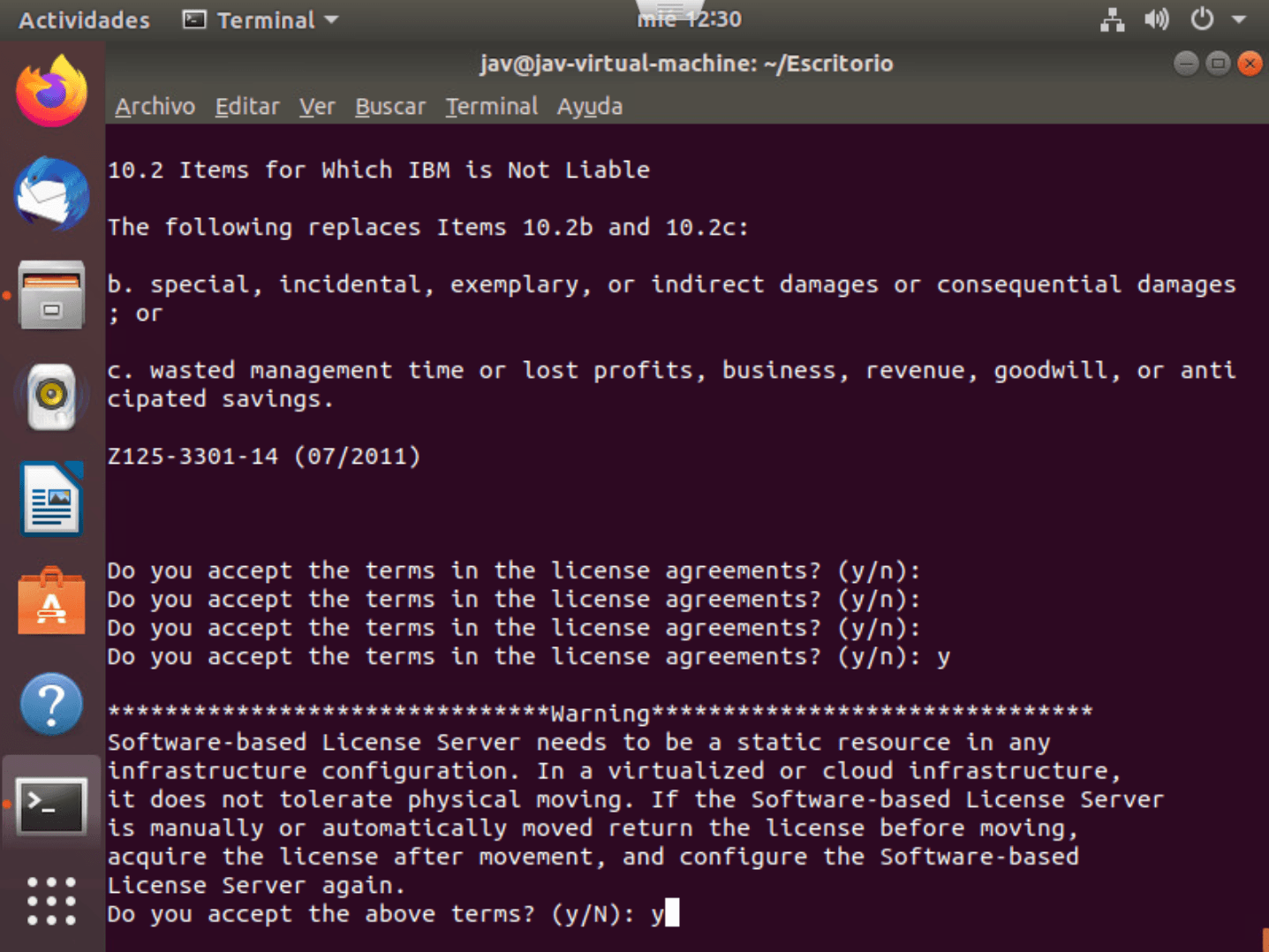
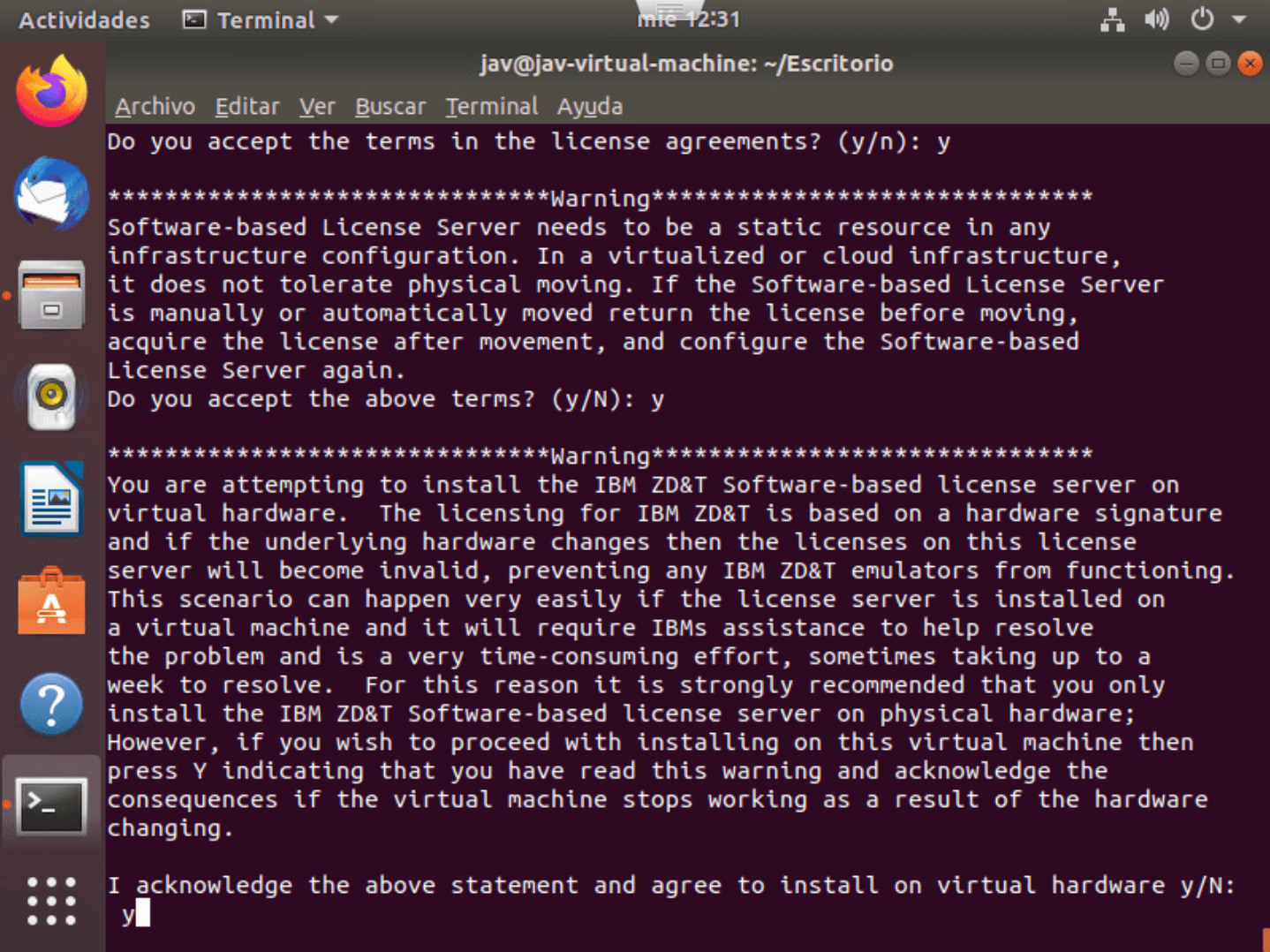
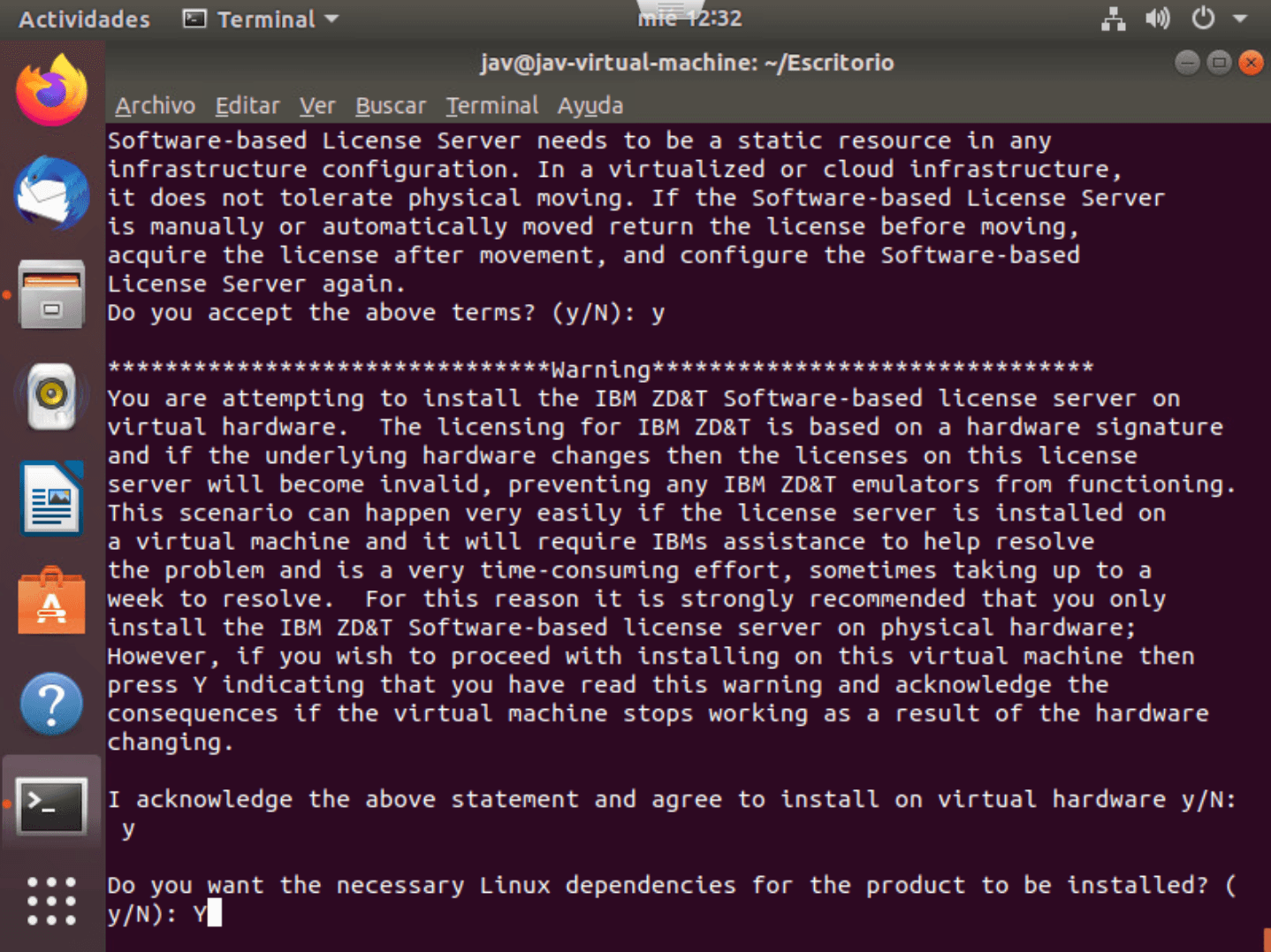
We indicate whether we want to install the dependencies. In my case, yes.
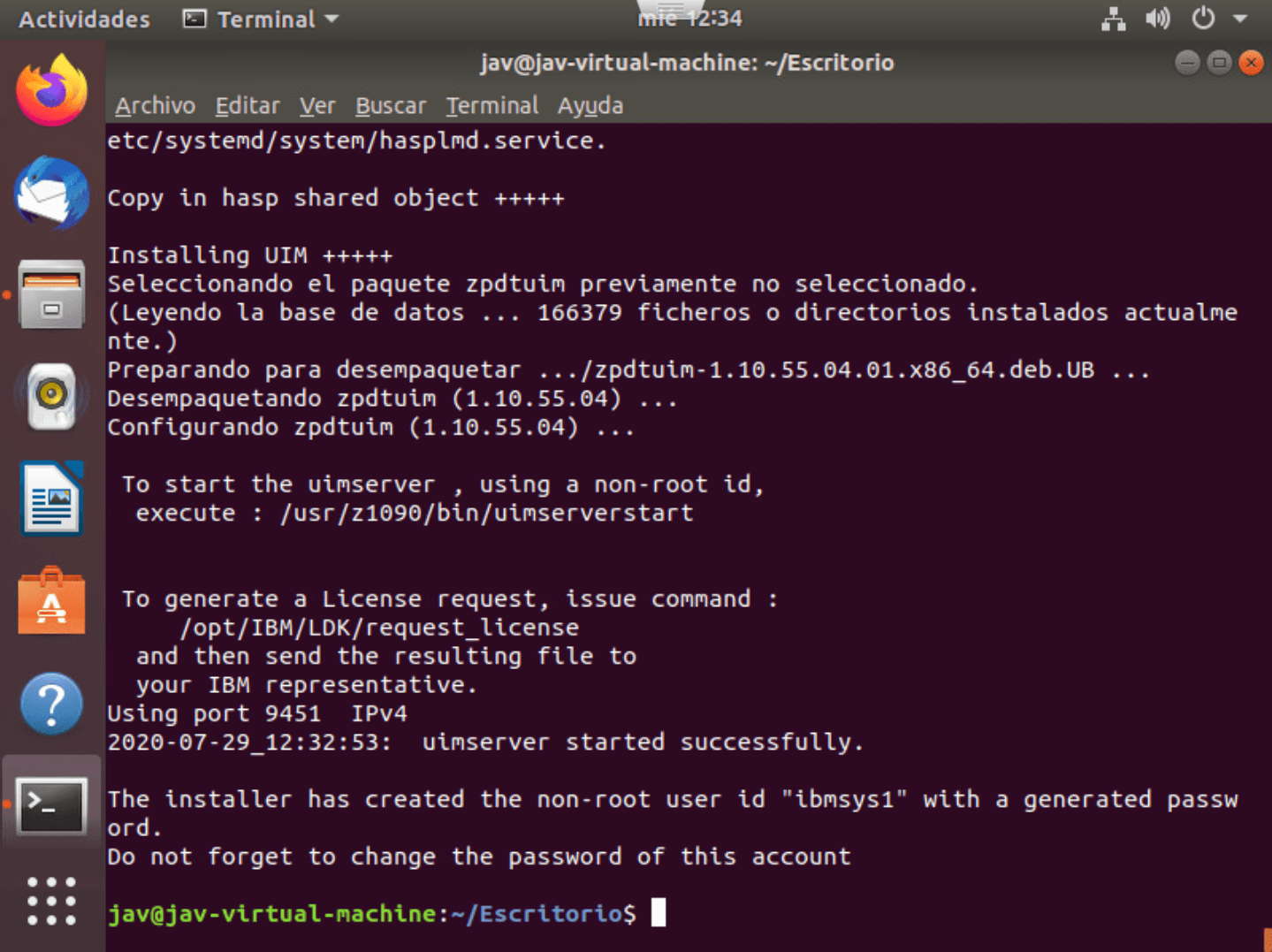
When the installation finishes, we need to pay attention to the information that appears as it is relevant.
Start the License Server
To start the license server we must use the command:
/usr/z1090/bin/uimserverstartIn this case, the server will start automatically. If we restart the system, it should also start automatically.
Obtain License
To obtain the license, it’s necessary to generate a file that will be sent to the IBM representative and they will return the license (or, depending on the type of agreement, we can also upload that file on the website https://licensing.flexnetoperations.com/ and generate the license).
/opt/IBM/LDK/request_licenseIn my case, I sent the ZIP file to IBM and waited for them to send me the license. Afterwards, we will need to include that license in the license server.

With the installation, the ibmsys1 user is created. We must change the password for this user using the command:
passwd ibmsys1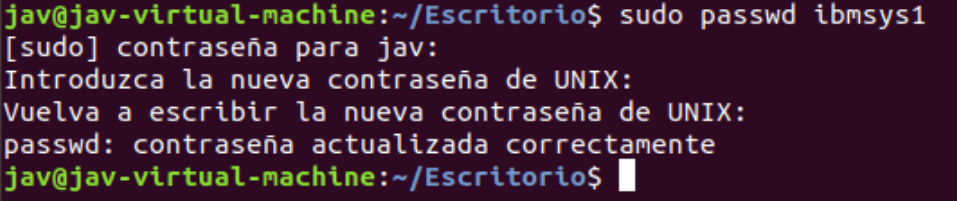
If we want to do another check to confirm it’s properly installed, we can use the commands:
dpkg -l | grep zpdtldk
dpkg -l | grep zpdtuim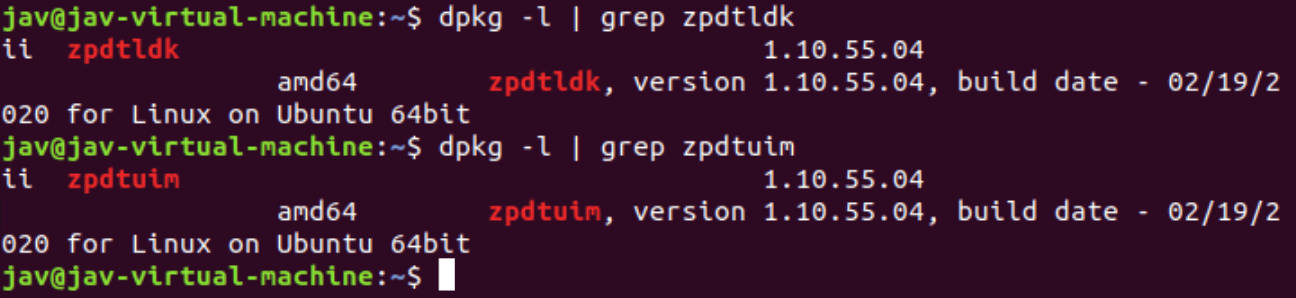
Apply License
Once we have the license file, we must apply it to the license server. To do this, we go to the path “/opt/IBM/LDK”:
cd /opt/IBM/LDKNow we will use the “update_license” command and the path to our license file. For example:
./update_license /home/jav/Desktop/jav-virtual-machine_1596020876_update.zip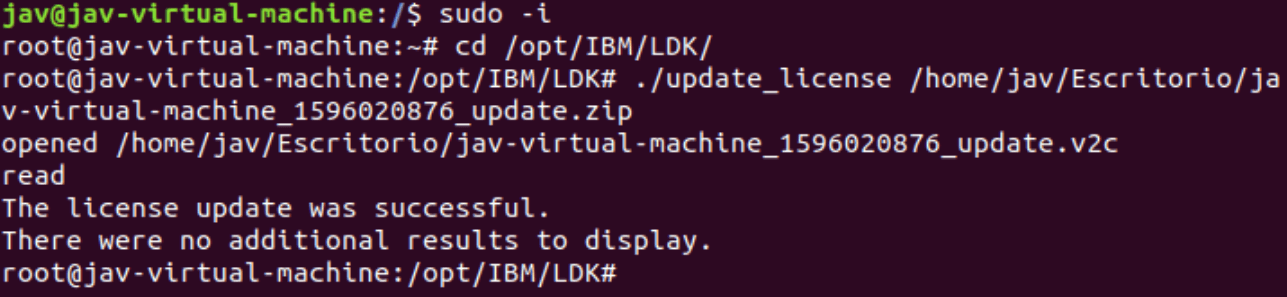
We can check the license status with the command:
./query_license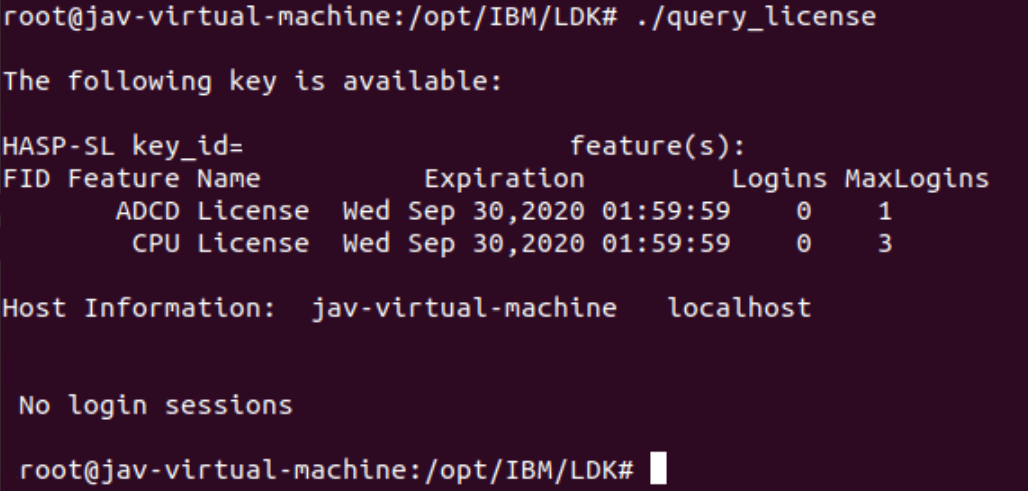
Restart the License Server
Finally, we will restart the UIM server. To do this, we log in with a user other than root (ibmsys1, for example) and go to the path “/usr/z1090/bin”. Then we execute the command.
If it was running, you will need to stop it and start it again.
cd /usr/z1090/bin
./uimserverstop
./uimserverstart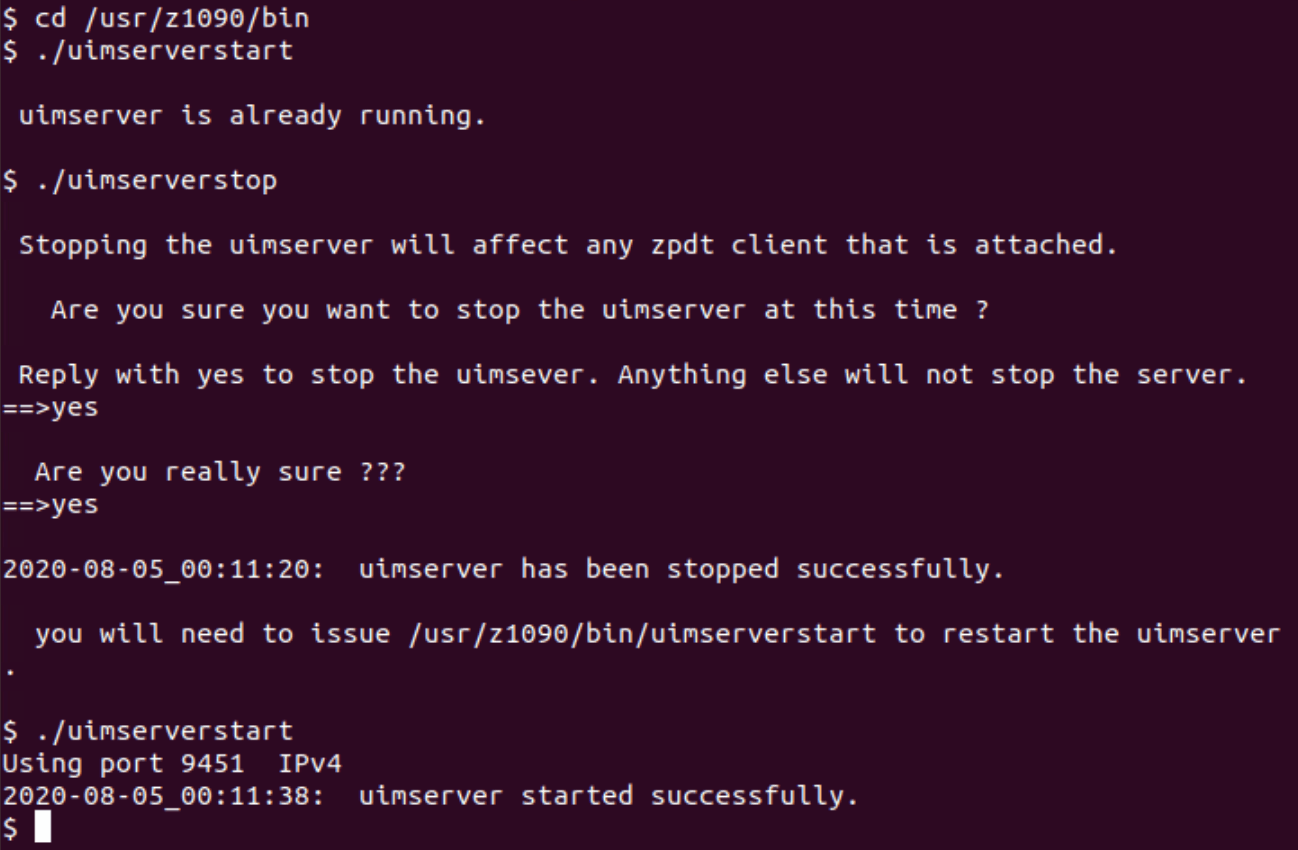
We would now have the license server configured. In other entries we will see how to install and configure the emulator and how to install and use the web utility.